Wand and Order Steam Deck Compatibility: Performance, Settings, and Optimization Guide
There is something oddly satisfying about games that give you a messy room and tell you to make sense of it. I have played plenty of cleaning, organizing, and cozy simulation games over the years, and Wand & Order: Tidy up the magic shop! immediately stood out because it mixes that familiar organizing loop with a ridiculous magical setting. Instead of sorting ordinary boxes or cleaning someone’s apartment, you are dealing with wands, tarot cards, potions, spell ingredients, and all kinds of mystical clutter.
That makes it a particularly interesting game for the Steam Deck. These are exactly the sort of games I like taking to bed, onto the sofa, or playing for half an hour when I do not want to sit at my main PC. The big question, though, is whether Wand & Order actually feels good on Valve’s handheld or whether the mouse-heavy interaction becomes frustrating. After looking at how the game behaves and considering the kind of controls it demands, there is a lot to like here, although a few settings are worth changing before settling into a long session.
Wand & Order Low FPS Fix: How to Boost Performance and Stop Stuttering
Is Wand & Order Steam Deck Compatible?
The first thing to understand is that an Unknown Steam Deck compatibility rating does not automatically mean a game is broken. Newer indie releases can remain in this category simply because Valve has not completed its full verification process. The rating is based on several things beyond whether a game launches, including controller support, readable interface elements, resolution behavior, and compatibility with SteamOS.
From a practical player’s perspective, that distinction matters. I have seen plenty of games with an official compatibility label that still need a couple of settings changed, while other games marked Unknown work almost immediately. Wand & Order falls much closer to the second category: its relatively modest visual demands and straightforward gameplay make it a natural candidate for handheld play.
| Feature | Steam Deck Experience | Notes |
|---|---|---|
| SteamOS Launch | Playable | Uses Proton for the Windows version |
| Performance | Generally Smooth | 60 FPS is realistic in lighter scenes |
| Native Display | 1280×800 | Well suited to the Deck screen |
| Controller Support | Good | Steam Input can improve precision |
| Co-op | Playable | Stable networking is recommended |
| Official Verification | Unknown | Valve’s formal testing may change later |

How Does Wand & Order Perform on Steam Deck?
Performance is probably the least worrying part of the whole experience. Wand & Order is not trying to render a giant open-world environment filled with hundreds of characters, dynamic weather systems, or enormous amounts of geometry. Most of your time is spent inside a relatively contained magical shop, interacting with objects and cleaning up increasingly chaotic shelves and workspaces.
That is good news for the Steam Deck’s hardware. The custom AMD APU does not have to work particularly hard compared with what it faces in demanding modern AAA games. In my experience with handheld gaming, this type of design is exactly where the Deck makes the most sense: you get a visually pleasant game without having to sacrifice half your battery just to maintain an acceptable frame rate.
Aiming for 60 FPS is reasonable when the shop is relatively quiet. Once more objects, effects, particles, and magical interactions are happening simultaneously, you may notice occasional frame-pacing inconsistencies. They are not the kind of performance problems that completely ruin the game, but if you are sensitive to uneven frame delivery, a locked 40 FPS setup can actually feel more consistent.
My Recommended Steam Deck Settings
If I were setting up Wand & Order on my own Deck, I would not immediately chase maximum performance. This is a cozy organizing game, not a competitive shooter where every additional frame matters. I would rather have predictable frame pacing, lower fan noise, and a longer battery session.
- 60 FPS / 60Hz: Use this if you want the smoothest possible camera movement and interaction.
- 40 FPS / 40Hz: A very comfortable alternative when you want better efficiency without making the game feel sluggish.
- TDP around 9–10W: Worth experimenting with because the game generally does not need the Deck’s full power budget.
- Scaling: Linear scaling is a safe starting point, while FSR can be useful if you lower the internal resolution.
The exact battery life will obviously depend on your Deck model, screen brightness, wireless connection, and system settings, so I would not treat any particular battery figure as guaranteed. Still, a lightweight game such as this should be considerably easier on the battery than a demanding open-world release. That is one of the reasons Wand & Order feels like a particularly sensible handheld game.
Proton: Do You Need to Change Anything?
Wand & Order is built for Windows, which means SteamOS relies on Proton to make the game work on Linux. Normally, this is something I would prefer not to think about at all. If a game launches and behaves properly, I leave Proton alone rather than changing compatibility layers just because another option exists.
However, newer releases can occasionally have strange issues involving videos, startup sequences, menus, or particular multiplayer situations. If you encounter a black screen, an unexpected crash, or another compatibility problem, Proton Experimental is one of the first alternatives I would test. GE-Proton can also be useful in situations where additional compatibility components are required.
Changing the Proton version is straightforward:
- Open Wand & Order in your Steam Library.
- Select the gear icon and open Properties.
- Go to the Compatibility section.
- Enable the option to force a specific Steam Play compatibility tool.
- Try Proton Experimental first, then consider a current GE-Proton build if necessary.
My advice is simple: do not change Proton unless you actually have a problem. A different compatibility layer is a troubleshooting tool, not automatically an upgrade.
Steam Deck Controls and Steam Input
This is where I think the handheld experience gets more interesting. Wand & Order looks simple until you realize how much precision is involved in picking up objects, rotating them, examining them, and placing them in exactly the right location. Anyone who has played a first-person game with a mouse will know how much easier tiny adjustments can feel with a cursor.
The standard controller setup is perfectly usable for movement and general interaction, but I would absolutely experiment with Steam Input. The right trackpad can be configured as a mouse, giving you much finer control when positioning small objects. This is especially useful when you are trying to place something into a narrow space and the analog stick feels just a little too coarse.
The Deck’s gyro is another option worth testing. Setting it up as a mouse can provide tiny aiming corrections without forcing you to constantly fight the analog stick. It sounds unnecessary until you actually use it for precise object placement, at which point it starts making considerably more sense.
The rear buttons are useful as well. I would assign them to actions that you perform repeatedly, such as rotating an object, opening a menu, or accessing a spell-related interface. It is a small adjustment, but good Steam Input layouts can make an interaction-heavy game feel much more natural.
Is the Text Easy to Read?
Text is one of those things that can make or break a handheld port. A game can technically run at 60 FPS and still be uncomfortable if you constantly have to squint at tiny menus. Wand & Order has recipe information, labels, spell requirements, and other pieces of interface text that deserve attention on a seven-inch display.
The good news is that the interface is generally manageable. Some smaller text can feel cramped depending on your eyesight and display settings, especially when you are sitting farther away from the screen. If the game’s available UI scaling options are not enough, the Steam Deck’s built-in magnifier can be useful as an occasional workaround.
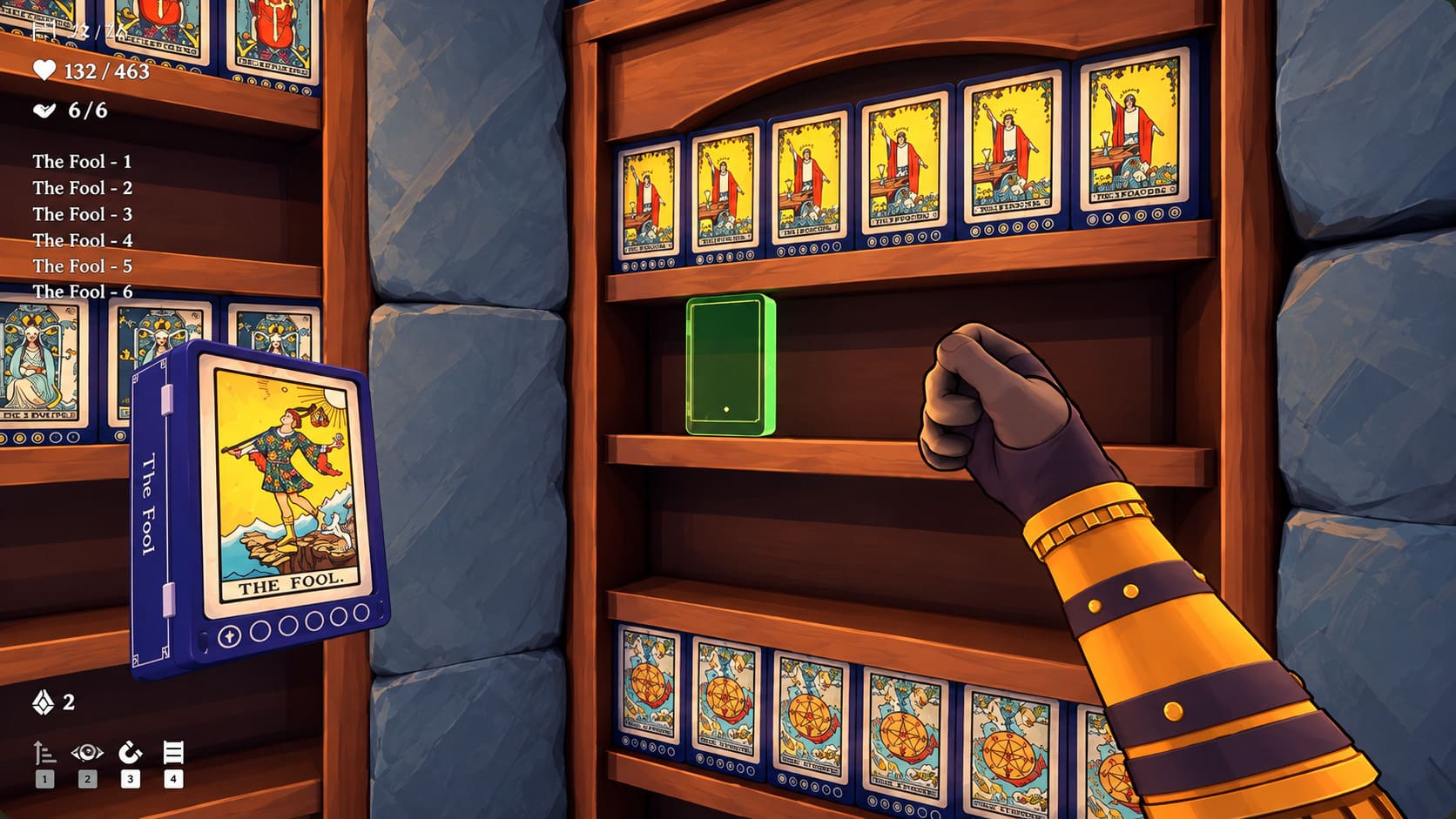
Playing Wand & Order in Co-op
The cooperative aspect is arguably what makes the concept more entertaining. Organizing a magical shop alone is relaxing, but having another player running around while everyone tries to figure out where the next object belongs can turn the experience into controlled chaos very quickly.
For Steam Deck multiplayer, I would pay more attention to the quality of your Wi-Fi connection than to raw hardware performance. A stable 5GHz wireless connection is preferable when available, particularly if several other devices are competing for bandwidth. Steam Deck and PC players can also participate in the same Steam-based multiplayer environment, making the handheld a convenient way to join friends who are playing at a desktop.
If you use voice chat at the same time, Steam’s communication features are generally the simplest route. Discord is another option if that is where your group already hangs out. The important thing is that voice communication should not require you to constantly leave the game or interrupt the organizing flow.
What I Like About Wand & Order on Steam Deck
After playing a lot of different genres, I have become increasingly fond of games that understand what handheld hardware is actually good at. Not every title needs to be a giant RPG that consumes 20% of your battery in ten minutes. Wand & Order fits into that other category: something colorful, low-pressure, easy to pick up, and satisfying to play in shorter sessions.
- Low hardware demands make it well suited to portable play.
- Short organizing loops work nicely for quick gaming sessions.
- Steam Input gives you plenty of options for improving precision.
- Co-op gameplay adds a social element without requiring a huge time commitment.
- Stylized visuals remain attractive without pushing the Steam Deck unnecessarily hard.
What Could Be Better?
It is not completely perfect, and the biggest potential weakness is the control scheme. First-person object manipulation naturally feels more precise with a mouse, so players coming directly from a desktop PC may need a little time to adjust to analog controls. The trackpad and gyro largely solve this, but they also mean that getting the perfect setup takes some experimentation.
The Unknown compatibility status is another small question mark, although it should not be confused with an actual technical failure. Until Valve completes its official testing, there is always a possibility that a future update or verification pass will change the status. I would therefore judge the game by how it actually performs rather than by the badge alone.
Final Thoughts: Is Wand & Order Good on Steam Deck?
Wand & Order: Tidy up the magic shop! makes a surprisingly natural Steam Deck game. It does not demand extreme hardware performance, its magical shop environment works well on the small screen, and the organizing gameplay is perfectly suited to picking up the Deck for a relaxed session. The biggest thing I would change from the default setup is the controls, because precise object placement becomes noticeably better once you take advantage of the trackpad, gyro, or rear buttons.
If you already own the game on Steam, I would have no hesitation about giving it a try on the Deck. Start with the default Proton configuration, test 60 FPS, and only start experimenting with Proton Experimental or a lower frame-rate target if you encounter a specific issue. For me, the appeal is less about squeezing every possible frame from the hardware and more about the fact that this is exactly the kind of cozy, low-pressure game I want available on a handheld.
It is also worth remembering that compatibility can change as developers release patches and Valve updates its verification database. So rather than treating the current status as permanent, consider it a snapshot of the game’s Steam Deck situation at this point in its release cycle.