How to Fix Blackwood (2026) High CPU Usage on Ryzen 5 3600: Ultimate Optimization Guide
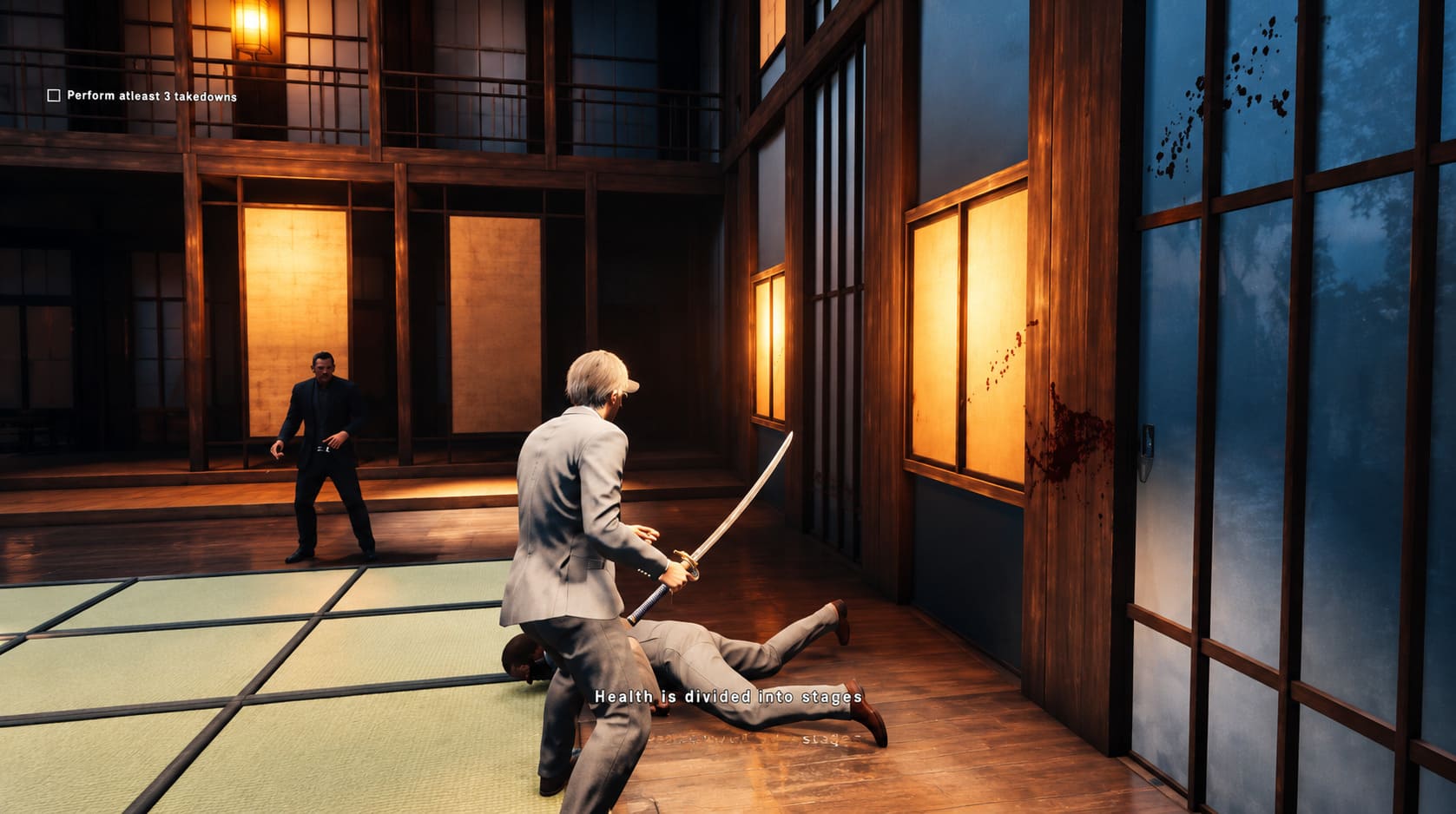
Blackwood (2026) is the kind of game that immediately makes you realize how much PC hardware has changed over the years. Developed by AttritoM7 Productions and published by IZilla Games, this atmospheric third-person shooter combines cinematic gunfights, brutal melee encounters, stealthy assassination missions, and a surprisingly detailed version of 2012 New York. During the day, you manage a seemingly ordinary DVD store, while after dark, things become considerably more violent.
I have played plenty of demanding PC games over the years, and one thing I have learned is that 100% CPU usage isn’t automatically a problem. Modern games can legitimately use almost every available CPU thread when they are trying to simulate crowds, AI, physics, streaming, and other systems simultaneously. The problem starts when that CPU usage comes with constant stuttering, audio glitches, sudden FPS drops, or temperatures that keep climbing.
That is exactly what some Ryzen 5 3600 players are experiencing with Blackwood. The six-core, twelve-thread Zen 2 processor is still a surprisingly capable gaming CPU, especially considering its age, but Blackwood can put it under much heavier pressure than many older games. If Task Manager is showing 95–100% CPU usage and your frame rate feels inconsistent, don’t immediately assume that it’s time to buy a new processor.
There are several things you can try first.
How to Fix Blackwood Stuttering on Low End PC Ultimate Performance Guide
Why Is Blackwood Using So Much CPU?
The Ryzen 5 3600 may no longer be considered a modern high-end gaming processor, but it still has enough cores and threads to handle a large number of games comfortably. Blackwood is simply a different kind of workload.
The game isn’t only rendering pretty environments. It is constantly managing NPC behavior, environmental interactions, physics, animation systems, asset streaming, combat calculations, and background world activity. When several of these systems become active at the same time, CPU utilization can jump dramatically.
The nighttime sections can be particularly demanding. More enemies, more complicated AI behavior, combat calculations, and environmental interactions can all contribute to the CPU load. From my experience with demanding PC games, this is usually where an older six-core CPU starts showing its age: not necessarily because it cannot run the game, but because it has less headroom for everything happening around the game.
There is also another possibility. Newer engines sometimes don’t distribute workloads perfectly across older CPU architectures. The Ryzen 5 3600 uses AMD’s Zen 2 architecture and its multi-CCX design, so certain workloads may occasionally create uneven CPU utilization instead of spreading everything perfectly across all available threads.
Quick Fixes at a Glance
| Optimization | CPU Impact | Visual Impact | Worth Trying? |
|---|---|---|---|
| FPS Cap | High | Very Low | Yes |
| Lower Crowd Density | High | Medium | Yes |
| Reduce Shadow Quality | Medium | Medium | Yes |
| Lower View Distance | Medium | Medium | Yes |
| Update Chipset Drivers | Low–Medium | None | Yes |
| Close Background Apps | Medium | None | Yes |
| Improve CPU Cooling | High | None | Yes |
| Change Process Priority | Low | None | Sometimes |
The important thing is not to change twenty settings at once. I prefer testing one change at a time because it makes it much easier to identify what is actually helping.
1. Start by Limiting Your FPS
If there is one optimization I would try before doing anything complicated, it is an FPS cap.
An unlocked frame rate can make the CPU work extremely hard, particularly if your graphics card is powerful enough to push a high number of frames. Your GPU might be capable of rendering 150 FPS, but your Ryzen 5 3600 still has to prepare all those frames.
For a 60Hz display, start with a 60 FPS cap. For 75Hz, try 75 FPS. If you’re using a 120Hz or 144Hz monitor, I would experiment with 90 or 120 FPS rather than immediately trying to run the game at the maximum possible frame rate.
The interesting thing is that lowering the frame rate doesn’t necessarily make the game feel worse. In some situations, a stable 90 FPS can feel much better than an unstable 120 FPS that constantly fluctuates because the CPU is hitting its limit.
You can use the game’s own frame limiter if it has one, or configure a limit through your GPU control software.
2. Lower the Settings That Actually Affect the CPU
One mistake I see quite often in PC optimization guides is telling players to lower every graphics setting. That isn’t always useful.
Texture quality, for example, is generally much more dependent on VRAM and GPU performance than CPU performance. If your goal is specifically to reduce CPU usage in Blackwood, concentrate on settings that affect world complexity.
Start with these:
- Shadow Quality: Medium is a good starting point.
- Crowd or Population Density: Lower this if available.
- View Distance: Reduce it one step rather than dropping it immediately to minimum.
- Object Detail or LOD: Lowering this can reduce the number of detailed objects the CPU needs to manage.
- Effects Quality: Test Medium if combat scenes cause large CPU spikes.
Crowd density is particularly interesting. A city filled with NPCs looks fantastic, but every additional character can potentially mean more animation, AI, pathfinding, and behavioral calculations.
Personally, I would rather lose a little background detail than sacrifice smooth combat. Blackwood’s action sequences depend heavily on responsiveness, so stable frame pacing is more important to me than having every distant NPC rendered at maximum quality.
3. Update Your AMD Chipset Drivers
This is one of those boring fixes that is easy to skip but shouldn’t be ignored.
Your graphics driver isn’t the only driver that matters for gaming. The AMD chipset driver helps Windows properly communicate with the motherboard and processor, and it can influence power management and scheduling behavior.
If your chipset drivers are several months or years old, download the current package appropriate for your AM4 motherboard from AMD and install it.
Afterward, restart Windows and test Blackwood again before making additional changes.
For a Ryzen 5 3600 system, I would generally start with the Windows Balanced power plan rather than immediately switching to an aggressive High Performance profile. More aggressive power settings aren’t automatically better for gaming and can increase heat and power consumption without providing a meaningful FPS improvement.
4. Don’t Ignore Background Programs
Before blaming Blackwood, check what else your PC is doing.
If you have Discord, Chrome with twenty tabs, Spotify, game launchers, RGB utilities, recording software, and monitoring applications all running simultaneously, your CPU has additional work to perform.
Open Task Manager and sort the Processes list by CPU usage. Look for applications that are consuming noticeable resources while Blackwood is running.
I wouldn’t recommend randomly disabling Windows services. Instead, close applications you know you don’t need while playing.
Discord and browser hardware acceleration can also be worth testing if you frequently play with a second monitor. In some setups, background applications can create additional CPU or GPU scheduling overhead.
5. Experiment With Windows Graphics Options
Windows has several graphics-related features that can affect gaming performance differently depending on the hardware and driver combination.
Hardware-Accelerated GPU Scheduling (HAGS) is one of them.
You can find the setting under:
Settings → System → Display → Graphics → Default graphics settings
If HAGS is currently disabled, try enabling it and test Blackwood. If it is already enabled and your system feels worse, try disabling it.
This is important because there isn’t one universal setting that magically improves performance on every PC. Driver versions, GPUs, Windows versions, and individual games all matter.
Treat HAGS as a test rather than a guaranteed solution.
6. Set Blackwood to Above Normal Priority
If Blackwood is constantly competing with background applications, changing its process priority can sometimes help with consistency.
Launch the game and open Task Manager with Ctrl + Shift + Esc. Go to the Details tab, find the Blackwood executable, right-click it, select Set Priority, and choose Above Normal.
I strongly recommend stopping there.
Don’t jump straight to High or Realtime priority. Those settings can interfere with other Windows processes and potentially make the system less stable. In my experience, squeezing out a tiny performance improvement isn’t worth turning a normal gaming session into a troubleshooting session.
7. Watch Your Ryzen 5 3600 Temperatures
This is probably the most important hardware-related check.
High CPU usage isn’t necessarily dangerous. High CPU usage combined with excessive temperatures is where you should start paying attention.
The Ryzen 5 3600 is designed to boost automatically depending on temperature, voltage, and power limits. If the processor becomes too hot, it can reduce its clock speeds to protect itself. That’s when you may notice inconsistent performance rather than simply high CPU usage.
Use a monitoring tool such as HWiNFO or MSI Afterburner and watch CPU temperatures while playing Blackwood.
If temperatures are regularly approaching the upper thermal range, check:
- Whether the CPU cooler is mounted correctly.
- Whether the cooler and heatsink are dusty.
- Whether the case has adequate airflow.
- Whether the thermal paste needs replacing.
- Whether case fans are actually moving air in the intended direction.
Don’t immediately start changing BIOS voltage settings unless you know what you’re doing. Undervolting can be useful, but stability testing is essential.
8. Consider PBO and CPU Tuning Carefully
Precision Boost Overdrive can provide additional performance in supported configurations, but more performance can also mean more heat.
If your Ryzen 5 3600 is already running extremely hot, experimenting with aggressive PBO settings probably isn’t the first thing I would do. I’d rather get the cooling and airflow under control before touching CPU tuning.
Likewise, manually forcing a particular voltage and clock speed can work on some chips but not others. Every processor is slightly different.
If you eventually decide to undervolt, test stability thoroughly using both CPU stress tests and actual games. A system that survives five minutes of a benchmark isn’t necessarily stable during a two-hour gaming session.
What If Blackwood Still Uses 100% CPU?
Here’s the important distinction: 100% CPU usage by itself isn’t necessarily a problem.
If Blackwood is using all twelve threads and you’re getting stable frame times, smooth controls, and reasonable temperatures, I wouldn’t obsess over the Task Manager percentage.
The real warning signs are:
- Sudden FPS drops.
- Severe frame-time spikes.
- Audio stuttering.
- Input delay.
- CPU temperatures becoming excessive.
- Clock speeds dropping under sustained load.
- Performance getting worse during crowded combat sections.
If none of these things are happening, high CPU utilization may simply mean the game is making good use of your processor.
On the other hand, if CPU usage stays around 100% while your GPU is sitting significantly below full utilization, that is a stronger indication that the Ryzen 5 3600 is acting as the current bottleneck.
My Recommended Ryzen 5 3600 Setup for Blackwood
If I were optimizing Blackwood on a Ryzen 5 3600 today, I wouldn’t immediately chase maximum graphical quality. I’d aim for a consistent experience first.
I’d start with an FPS cap appropriate for the monitor, reduce crowd density and CPU-heavy world settings, keep textures relatively high if the GPU and VRAM allow it, update the AMD chipset driver, close unnecessary background applications, and monitor temperatures during a long play session.
After that, I’d make changes one at a time.
That approach is much better than copying somebody else’s ‘ultimate settings’ because every PC is different. A Ryzen 5 3600 paired with a modern GPU can behave very differently from the same processor paired with an older graphics card or a poorly ventilated case.
Final Verdict
Blackwood (2026) can put a surprisingly heavy workload on the Ryzen 5 3600, but high CPU usage doesn’t automatically mean that this six-core Zen 2 processor has reached the end of its gaming life.
The biggest improvements should come from controlling your frame rate, reducing CPU-heavy world settings, keeping your chipset drivers current, minimizing unnecessary background workloads, and making sure the processor isn’t being held back by excessive temperatures.
Personally, I would avoid upgrading the CPU as the first solution. The Ryzen 5 3600 is old compared with today’s gaming processors, but it is still perfectly usable when the game and system are configured sensibly. If Blackwood becomes smooth after an FPS cap and a few targeted setting changes, you’ve saved yourself the cost and hassle of a platform upgrade.
And if the game still maxes out the processor after optimization, at least you’ll know where the actual bottleneck is. At that point, a newer CPU can make sense—but only after you’ve confirmed that the hardware, rather than poor configuration or thermal throttling, is the real problem.