How to Fix Halloween: The Game Compilation Stutter: Best Nvidia & AMD Settings
Halloween: The Game is exactly the kind of horror game where performance matters more than usual. When Michael Myers is suddenly around the corner, the last thing you want is for your screen to freeze for half a second. Unfortunately, some PC players can run the game at a high average FPS and still deal with annoying micro-stutters, inconsistent frame pacing, and sudden hitches.
After spending time tweaking Unreal Engine games myself, I’ve learned that chasing the highest possible FPS isn’t always the answer. A game running at 120 FPS can still feel terrible if the frame times are all over the place. With Halloween: The Game, shader compilation, asset streaming, VRAM usage, and driver settings can all contribute to those little freezes that become especially noticeable during chases.
The good news is that you don’t necessarily need to sacrifice image quality to improve things. A few sensible NVIDIA or AMD settings, combined with the right in-game configuration and an SSD, can make the experience considerably smoother.
Why Does Halloween: The Game Stutter on PC?
Before changing every setting you can find, it helps to understand what you’re actually trying to fix. Not every hitch has the same cause, and treating every performance problem as a shader issue can lead to unnecessary tweaks.
The most common problem is shader compilation stutter. When the game encounters a visual effect, material, lighting combination, or other graphical feature that hasn’t been compiled yet, the engine may need to prepare it during gameplay. The result can be a brief freeze or noticeable hitch.
Then there is traversal stutter. Unreal Engine 5 games constantly stream assets as you move through their environments. When a new section of the map loads, the CPU, GPU, memory, and storage drive all have to work together. If your system struggles with that process, you can experience a hitch even when your average FPS looks perfectly healthy.
| Stutter Type | What It Feels Like | Likely Cause | What To Try |
|---|---|---|---|
| Shader Stutter | Brief freeze when seeing an effect for the first time | Shader compilation | Driver cache, updated drivers, stable settings |
| Traversal Stutter | Hitch while moving into a new area | Asset streaming | NVMe SSD, background app cleanup |
| VRAM Stutter | Sudden drops during visually heavy scenes | VRAM pressure | Lower textures, shadows, effects |
| Frame-Time Stutter | Game feels uneven despite high FPS | Inconsistent frame delivery | FPS cap, upscaling, driver tuning |
My NVIDIA Settings for Reducing Halloween: The Game Stutter
If you’re using an NVIDIA RTX card, I would start with the NVIDIA Control Panel before touching complicated Windows tweaks. You don’t need to change dozens of options. In fact, I prefer keeping the driver configuration fairly conservative and only adjusting settings that can realistically affect consistency.
Open NVIDIA Control Panel, go to Manage 3D Settings, and then either use Global Settings or create a dedicated profile for the game.
- Shader Cache Size: Use a larger available cache option, such as 10 GB or Unlimited, if your driver exposes those choices.
- Power Management Mode: Prefer Maximum Performance can help prevent aggressive clock changes, although it can increase power consumption and heat.
- Low Latency Mode: Leave it Off if the game already provides NVIDIA Reflex. If Reflex isn’t available, On can be worth testing.
- Vertical Sync: Configure this around your monitor’s VRR setup rather than blindly forcing it off.
- Threaded Optimization: On is a reasonable choice for a modern CPU and DX-based game.
One important point about shader cache: don’t expect increasing the cache size to magically remove every first-time hitch. A cache can help prevent unnecessary recompilation, but it cannot make shaders that have never been compiled suddenly appear out of nowhere. That’s why the first few minutes or matches can still feel less consistent.
Best AMD Adrenalin Settings for Halloween: The Game
AMD users have similar tools available through AMD Software: Adrenalin Edition. I wouldn’t turn every performance feature on just because it sounds useful. For a horror game where smooth camera movement matters, consistency is more important to me than a huge FPS number on the counter.
Start by opening Adrenalin and creating a profile for Halloween: The Game if it doesn’t already exist.
- Radeon Anti-Lag: Enable it if you want lower input latency.
- Texture Filtering Quality: Performance is a reasonable starting point if you need a little extra GPU headroom.
- Surface Format Optimization: Enabled is generally fine.
- Frame Generation: If AFMF makes the game feel less consistent, test it without frame generation and compare the actual frame pacing.
- Reset Shader Cache: Consider resetting it after a problematic driver update if stuttering suddenly becomes much worse.
That last option is particularly useful when you notice a dramatic change immediately after installing a new graphics driver. A clean shader cache gives the game an opportunity to rebuild what it needs instead of relying on old cached data.
In-Game Graphics Settings I Would Actually Use
This is where I would spend most of my time. Driver settings can help, but the game’s own graphics menu has a much bigger influence on how much work your GPU is doing every frame.
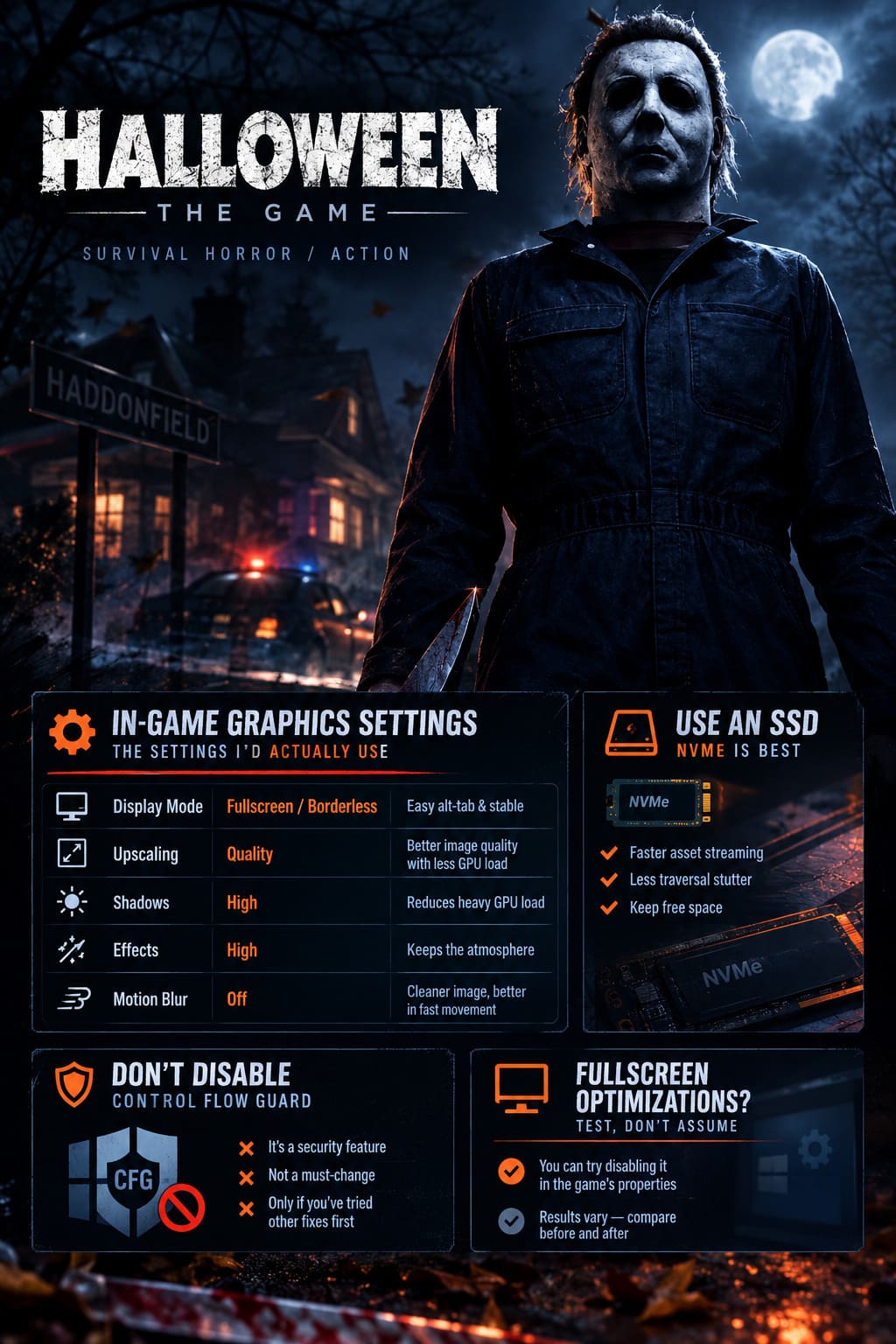
| Setting | Recommended Starting Point | Why |
|---|---|---|
| Display Mode | Fullscreen / Borderless | Easy alt-tab and generally stable presentation |
| Upscaling | Quality | Good balance between image quality and GPU load |
| Shadows | High | Reduces heavy GPU workloads |
| Effects | High | Keeps atmosphere without excessive overhead |
| Motion Blur | Off | Cleaner image during fast camera movement |
Upscaling is probably the first setting I’d test. DLSS on an NVIDIA RTX card, FSR on AMD hardware, or XeSS where appropriate can reduce rendering pressure while keeping the game looking surprisingly close to native resolution. For this type of game, I prefer the Quality preset rather than immediately dropping to Performance.
Shadows are another easy win. Horror games love dramatic lighting, but ultra-high shadow settings can consume a surprising amount of GPU resources. Dropping from Epic or Cinematic to High can give you some breathing room without making Haddonfield suddenly look ugly.
Don’t Ignore Your SSD
This is one of those boring recommendations that I still think matters. If you’re running a modern Unreal Engine 5 game from an old HDD, you’re making asset streaming much harder than it needs to be.
Install Halloween: The Game on an NVMe SSD if possible. An NVMe drive won’t eliminate shader compilation by itself, but it can improve the game’s ability to stream assets as you move through the map. That can make traversal-related hitches less noticeable.
Also make sure the drive isn’t completely packed. Keeping some free space available is generally a good idea for overall Windows and game performance.
Should You Disable Windows Control Flow Guard?
This is one tweak I would treat differently from the usual graphics settings.
You may find recommendations online telling you to disable Control Flow Guard (CFG) for the game’s executable. While some players report improvements in particular games, I wouldn’t make this one of the first things you change. CFG is a Windows security feature, and disabling a security mitigation just to chase a few milliseconds of frame-time consistency isn’t something I’d recommend casually.
If you’ve already tried the normal graphics, driver, storage, and frame-pacing fixes and you’re troubleshooting a very specific system configuration, CFG can be investigated separately. But for most players, leave Windows security settings alone unless you have a clear reason to change them.
What About Disabling Fullscreen Optimizations?
This is another setting that gets recommended frequently in PC gaming guides. You can test Disable fullscreen optimizations from the game’s executable properties, but don’t assume it will automatically fix shader stutter.
Windows display behavior has changed significantly over the years, and results can vary between games, GPUs, Windows versions, and monitor configurations. If you’re experiencing unusual fullscreen behavior, input problems, or inconsistent frame delivery, it’s worth testing. Otherwise, I would keep the default behavior and compare before and after rather than blindly changing it.
A Few Things I Wouldn’t Do
When a game stutters, it’s tempting to download a random “ultimate optimization” pack or paste a giant list of engine commands into a configuration file. I’ve been down that road, and more often than not it creates another problem while supposedly fixing the first one.
- Don’t install random shader-cache files from unknown websites.
- Don’t change dozens of Unreal Engine commands at once. You won’t know which change helped or hurt.
- Don’t chase average FPS alone. Frame-time consistency matters much more for perceived smoothness.
- Don’t disable Windows security features as your first solution.
- Don’t run every background overlay imaginable. Discord, recording software, browser tabs, RGB utilities, and monitoring tools can all add overhead.
What To Expect After Changing the Settings
There is one thing worth remembering when testing shader-related stuttering: the first run isn’t always representative of later gameplay.
After changing drivers or clearing the shader cache, the game may need to rebuild cached data. You might see higher CPU activity or encounter a few small hitches while playing through an area for the first time. That’s not necessarily evidence that the settings failed.
I’d play for a while, revisit the same areas, and then compare the experience. If a particular effect stutters the first time but becomes smooth afterward, that’s a strong indication that shader or asset preparation is involved.
Halloween The Game: The Shape Stealth Mechanics & Tutorial Guide (2026)
My Recommended Halloween: The Game PC Setup
If I were setting up the game on my own PC, I wouldn’t try to make it look like a benchmark screenshot. I’d aim for a stable frame rate with consistent frame delivery.
My starting point would be Quality upscaling, High shadows, High effects, Motion Blur Off, the game installed on an NVMe SSD, and a sensible FPS cap matched to the monitor’s capabilities. Then I’d adjust one setting at a time.
If you still get occasional first-time shader hitches after that, I wouldn’t panic. Unreal Engine games can still have small compilation or streaming events that aren’t completely under the player’s control. The goal is to reduce their frequency and severity rather than promising a magical “zero stutter” switch.
Halloween: The Game (2026) – Best Michael Myers Meta Abilities and Loadout Guide
Final Verdict
Halloween: The Game can be a fantastic horror experience when the frame pacing is right. A 100+ FPS counter doesn’t mean much if Michael Myers appears and your screen freezes at exactly the wrong moment.
The best approach is to work from the outside in: make sure the game is on a fast SSD, keep your GPU driver current, give the shader cache enough room, use sensible NVIDIA or AMD settings, and then tune the demanding in-game options. Quality upscaling is one of the easiest ways to gain some GPU headroom without destroying the game’s atmosphere.
Most importantly, don’t change twenty things at once. Test, compare, and keep the settings that actually improve your frame times. That’s how I approach PC optimization, and it is much more reliable than blindly copying a massive list of “secret” tweaks from the internet.
Once the game has had a chance to build its caches and your settings are dialed in, subsequent matches should feel considerably more consistent. And honestly, that’s exactly what I want from a Halloween game: the only thing making my heart jump should be Michael Myers — not a random half-second freeze.