How to Fix NBA 2K27 Low FPS, Stuttering, and Lag on Windows 11 (2026 Definitive Guide)
NBA 2K27 looks fantastic when everything is running properly. The upgraded next-gen presentation, player animations, realistic physics, packed arenas, The City, REC, and all the little visual details make it one of those sports games where you can genuinely stop and stare at the court for a second.
Then the frame rate decides to take a vacation.
If you’re playing NBA 2K27 on Windows 11 and you’re dealing with random FPS drops, micro-stuttering, inconsistent frame pacing, input delay, or horrible performance in The City, you’re definitely not alone. The annoying part is that the game can run perfectly in one situation and suddenly feel like it’s being rendered on a potato five minutes later.
I’ve spent enough time tweaking PC games to know the difference between a genuinely underpowered machine and a game that’s simply being fussy. NBA 2K27 can be extremely demanding, particularly when VRAM usage spikes, crowds become dense, reflections kick in, or the game starts loading a pile of new assets.
The good news? You don’t necessarily need a new GPU.
The fixes below target the stuff that actually causes trouble: GPU memory behavior, Windows 11 graphics scheduling, driver settings, excessive crowd detail, shader compilation, overlays, background processes, and inconsistent frame pacing.
Quick NBA 2K27 PC Performance Checklist
Before changing everything at once, here’s the setup I’d start with:
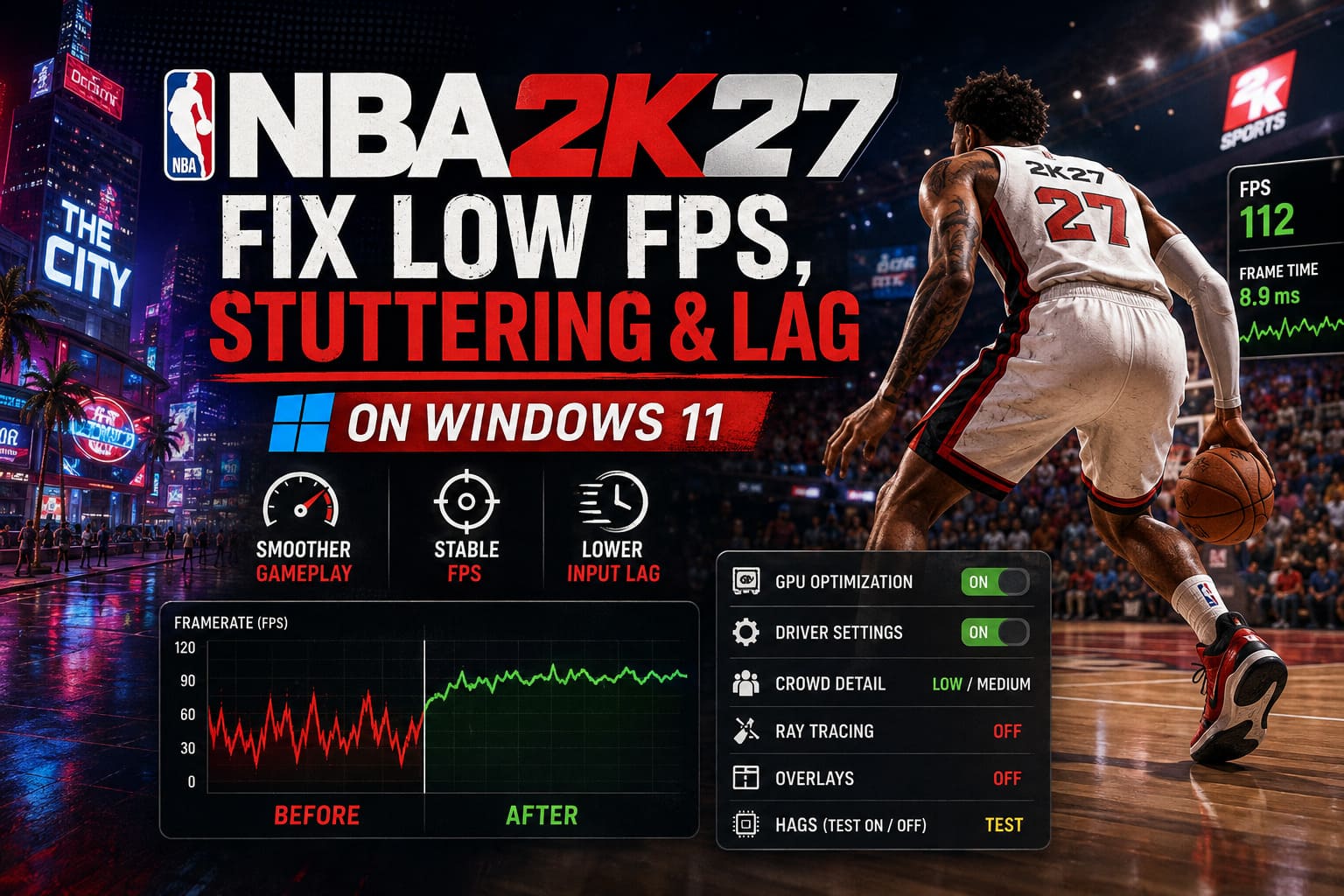
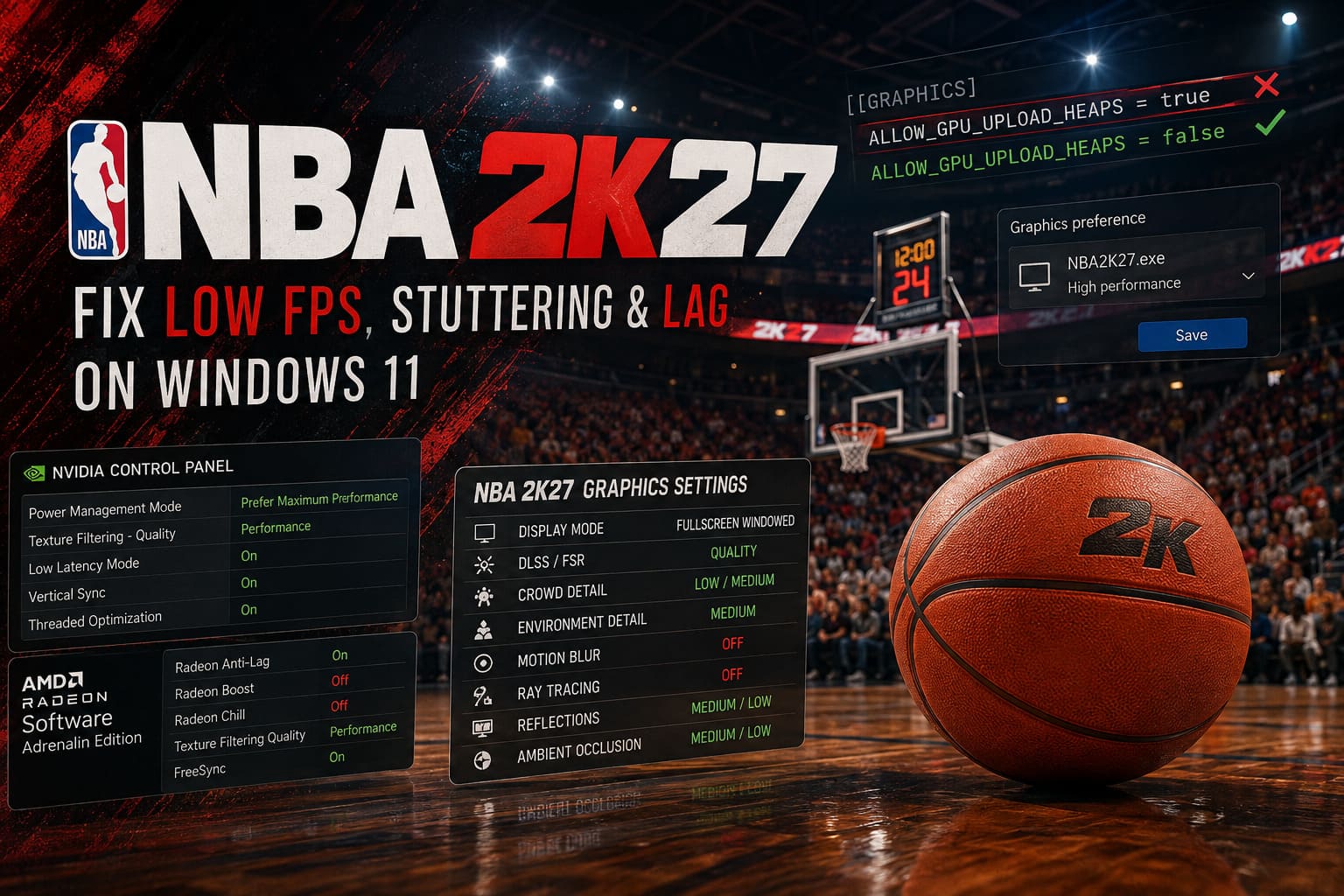
| Setting | Recommended |
|---|---|
| Display Mode | Fullscreen Windowed |
| Resolution Scaling | DLSS/FSR Quality |
| Crowd Detail | Low/Medium |
| Environment Detail | Low/Medium |
| Motion Blur | Off |
| Ray Tracing | Off |
| Reflections | Medium/Low |
| Ambient Occlusion | Medium/Low |
| Steam Overlay | Off |
| GPU Preference | High Performance |
| HAGS | Test On/Off |
| Mouse Polling Rate | 500Hz–1000Hz |
| Steam Launch Options | -high -novid |
Don’t blindly copy every setting if you have a monster PC. The goal isn’t to make NBA 2K27 look like a PS2 game. The goal is to remove the settings that consume a ton of resources while barely improving what you actually see during a match.
1. The Config File Fix You Should Try First
This is one of the more interesting fixes for NBA 2K27 stuttering because it doesn’t involve lowering your graphics settings.
The game can use advanced GPU upload heap behavior that doesn’t play nicely with every Windows 11 and GPU configuration. When asset uploads become inconsistent, you can get those classic “everything was smooth and then suddenly BAM” frame drops.
Here’s the tweak.
How to Disable GPU Upload Heaps
- Press Windows + R.
- Enter
appdataand press Enter. - Open Local.
- Find the 2K Sports folder.
- Open the NBA 2K27 folder, or the equivalent folder created by your installation.
- Locate VideoSettings.cfg.
- Right-click the file and open it with Notepad.
- Press Ctrl + F.
- Search for:
ALLOW_GPU_UPLOAD_HEAPS - If the value is set to
true, change it to:ALLOW_GPU_UPLOAD_HEAPS = false - Save the file and close Notepad.
I’d absolutely test this if your biggest problem is random hitching during transitions, fast breaks, camera changes, or asset-heavy areas.
Don’t change other values in the configuration file unless you know exactly what they do. One useful tweak is enough; there’s no prize for turning your config folder into a science experiment.
2. Give NBA 2K27 the GPU It Actually Deserves
Windows 11 is pretty good at managing hardware these days, but “pretty good” isn’t the same thing as “perfect.”
If you have a laptop or a system with integrated and dedicated graphics, make sure NBA 2K27 is actually using the powerful GPU.
Go to Windows Settings → System → Display → Graphics.
Find the option for adding an application and browse to your NBA 2K27 executable. Depending on your installation, you’ll generally find it somewhere inside:
Steam\steamapps\common\NBA 2K27
Add the game’s main executable and select:
Options → High Performance
Save the setting.
This is particularly important on laptops. You don’t want Windows deciding that your expensive RTX or Radeon GPU can sit this one out while the integrated graphics chip handles the City.
Should You Disable HAGS?
Hardware-Accelerated GPU Scheduling is one of those Windows settings that creates endless arguments between PC gamers.
The reality is much simpler: test it.
Go to:
Settings → System → Display → Graphics → Default graphics settings
Find Hardware-Accelerated GPU Scheduling.
If it’s enabled and NBA 2K27 is suffering from inconsistent frame pacing, turn it off and restart Windows.
If it’s already off, try enabling it instead.
There isn’t a universal “HAGS ON = more FPS” rule here. Different GPUs, drivers, CPUs, and games can react differently. What matters is your actual frame-time behavior, not what a benchmark from another PC says.
Stop Windows From Playing Power-Saving Games With Your CPU
If you’re running a desktop and want every bit of performance available, you can enable the Ultimate Performance power plan.
Open Command Prompt as Administrator and enter:
powercfg -duplicatescheme e9a42b02-d5df-448d-aa00-03f14749eb61
Then search Windows for Edit Power Plan.
Open Power Options, expand Show additional plans, and select Ultimate Performance.
This isn’t some magical +50 FPS button. Don’t expect miracles.
What it can do is reduce aggressive power-management behavior during demanding workloads, which can help systems suffering from inconsistent CPU clocks and frame-time spikes.
For laptops, I’d be more conservative. Maximum performance means maximum battery consumption and usually more heat.
3. NVIDIA Settings That Actually Matter
If you’re running an NVIDIA GPU, create a specific NBA 2K27 profile rather than changing global settings.
Open the NVIDIA Control Panel → Manage 3D Settings → Program Settings and add NBA 2K27.
I’d start with these:
| NVIDIA Setting | Recommendation |
|---|---|
| Power Management Mode | Prefer Maximum Performance |
| Texture Filtering – Quality | Performance |
| Threaded Optimization | On |
| Low Latency Mode | On/Ultra |
| Vertical Sync | On in NVIDIA Control Panel |
There’s an important detail with VSync here.
If you’re using driver-level VSync, leave the game’s own VSync disabled. Running both at once is pointless and can complicate latency and frame pacing.
Low Latency Mode is particularly useful if NBA 2K27 feels sluggish even when the FPS counter looks healthy. Remember: high FPS doesn’t automatically mean low input latency.
4. AMD Radeon Settings
AMD users have a similar set of tools inside AMD Software: Adrenalin Edition.
For the NBA 2K27 game profile, try:
- Radeon Anti-Lag: On
- Radeon Boost: Off
- Radeon Chill: Off
- Texture Filtering Quality: Performance
- FreeSync: On, if your monitor supports it
I wouldn’t use every dynamic performance feature at once. Radeon Boost and similar technologies can dynamically alter resolution, and aggressive resolution changes can make a sports game look noticeably unstable when the camera rapidly swings across the court.
For competitive play, consistent image quality and predictable frame pacing matter more than squeezing out a few temporary frames.
5. The NBA 2K27 Graphics Settings That Hurt the Most
This is where I would spend most of my time.
You don’t need to turn everything to Low. Some settings are surprisingly cheap, while others absolutely hammer the CPU or GPU.
Display Mode: Fullscreen Windowed
Use Fullscreen Windowed/Borderless Fullscreen as your starting point.
It provides a good balance between Windows 11 compatibility, stability, and frame pacing.
DLSS or FSR: Quality
If your GPU supports DLSS, start with Quality.
For AMD or compatible hardware, try FSR Quality.
If you’re still struggling, move to Balanced.
This is one of the easiest ways to recover performance without completely wrecking image quality.
Crowd Detail: Low or Medium
This is one of the first settings I’d sacrifice.
Huge crowds aren’t free. The game has to deal with characters, clothing, animations, reactions, and other background activity.
Unless you spend your games staring into the audience, there’s very little reason to run this at maximum quality.
Environment Detail: Medium
Set this to Low or Medium if you’re having FPS problems.
Motion Blur: Off
This one isn’t even a performance debate for me.
Turn it off.
Motion blur makes fast camera movement look smeary and can make timing-based gameplay feel less precise.
Ray Tracing: Off
If you’re struggling with FPS, ray tracing should be one of the first things to go.
NBA 2K27 already has plenty of visual detail. You don’t need expensive ray-traced effects stealing frames while you’re trying to green a jumper.
Reflections and Ambient Occlusion
Set both to Medium or Low.
Floor reflections can look great, but they become particularly expensive when the court is packed with players.
I’d rather have a stable 100 FPS than a gorgeous reflection of somebody’s sneaker costing me 20 frames.
6. Why The City Can Run Worse Than Actual Games
This is one of the strangest parts of NBA 2K27 PC performance.
You can load into a regular MyCareer game and everything feels fantastic.
Then you enter The City, and suddenly your PC sounds like it’s preparing for liftoff.
The reason is obvious once you think about what the game is loading. The City contains significantly more environmental assets, player customization, clothing, effects, architecture, and online activity than a controlled basketball court.
Shader compilation can also create temporary stutters as new areas and assets are encountered.
Let The City Breathe
When you first enter a busy hub, don’t immediately sprint across the entire map.
Stand still for roughly 60–90 seconds.
Let the game finish loading and compiling what it needs.
It sounds ridiculously simple, but repeatedly running through a new area while the game is simultaneously compiling and streaming assets is basically asking for frame-time spikes.
7. Kill Overlays Before They Kill Your Frame Rate
Overlays are convenient.
They’re also notorious troublemakers.
Start with the Steam Overlay.
Go into Steam’s settings and disable the in-game overlay for NBA 2K27.
I’d also temporarily disable overlays from:
- Discord
- NVIDIA App
- AMD software
- Recording utilities
- Hardware monitoring tools
You don’t necessarily need to uninstall anything. Just test the game with the overlays disabled.
If the stuttering disappears, you’ve found your culprit.
8. Check Your Mouse Polling Rate
This one sounds completely unrelated to basketball, but I’ve seen enough games suffer from high-polling-rate mouse behavior to take it seriously.
If your gaming mouse is running at 2000Hz, 4000Hz, or 8000Hz, drop it to 500Hz or 1000Hz.
You can change this through software such as Logitech G HUB or Razer Synapse.
NBA 2K27 is fundamentally designed around controller input. You aren’t gaining much by having the mouse report its position thousands of times per second while the CPU is already juggling the game, online systems, animations, physics, and asset streaming.
For troubleshooting, 500Hz is a perfectly reasonable test.
9. Steam Launch Options and File Verification
Open Steam, find NBA 2K27, right-click it, and select Properties.
Under General → Launch Options, test:
-high -novid
The first option attempts to give the game a higher CPU scheduling priority, while the second skips introductory videos.
Don’t start throwing ancient launch commands into the box just because you found a five-year-old forum post.
In particular, avoid legacy arguments such as:
-USEALLAVAILABLECORES
Modern Windows thread scheduling is significantly more sophisticated than it used to be. Forcing old CPU behavior can actually make things worse.
Verify Your Game Files
While you’re inside the NBA 2K27 Steam properties:
Installed Files → Verify integrity of game files
Let Steam finish the scan.
If the installation has corrupted assets or damaged files, Steam can replace them.
This is especially worth doing if stuttering started after an update, crash, interrupted download, or failed shader-related operation.
10. The Best Order to Test Everything
Don’t change 15 settings simultaneously and then wonder which one fixed the game.
I’d troubleshoot NBA 2K27 in this order:
- Disable
ALLOW_GPU_UPLOAD_HEAPS - Set NBA 2K27 to High Performance GPU
- Lower Crowd Detail
- Disable Ray Tracing
- Use DLSS/FSR Quality
- Disable overlays
- Test HAGS
- Lower mouse polling to 500–1000Hz
- Apply NVIDIA/AMD driver settings
- Verify Steam files
After each major change, play for a few minutes in the area where the problem normally occurs.
That gives you a much better idea of what’s actually responsible.
NBA 2K27 Squad Invites Not Working in The City? Here is the Permanent Fix
Final Verdict: Don’t Chase Ultra Settings — Chase Stable Frame Times
NBA 2K27 is the kind of PC game where consistent frame pacing matters more than a gigantic FPS number.
A system bouncing between 144 and 70 FPS can feel far worse than one locked comfortably around 90 or 100 FPS. The same applies to input latency. If the frame rate looks impressive but your controller feels half a second behind, something is still wrong.
My biggest recommendations are simple: kill unnecessary crowd detail, disable ray tracing if performance is struggling, use sensible DLSS/FSR scaling, clean up overlays, test HAGS, and try the GPU upload heap configuration fix.
If you’re mainly suffering in The City or REC, give shader compilation and asset streaming time to settle before judging the game’s performance.
And don’t fall into the classic PC-gaming trap of lowering every graphical option to Low before investigating the actual problem. NBA 2K27 can still look excellent while running considerably better.
How to Play The REC with Friends Cross Platform in NBA 2K27?
The objective isn’t to make your basketball game ugly.
It’s to make the game stop hitching when you’re trying to hit the game-winning shot.