How to Fix Controller Input Lag and Delay in Onimusha: Way of the Sword on Steam
There are few things more annoying in an action game than pressing the parry button and watching your character react a fraction of a second too late.
That is especially true in Onimusha: Way of the Sword. Capcom’s return to the Onimusha series is built around timing. Dodges, deflects, counters, and Issen attacks are not mechanics you can casually mash through. When the controls feel even slightly delayed, the entire combat system starts to feel worse than it actually is.
I’ve always thought that input response is one of those things you notice immediately in a good action game. You don’t necessarily look at a latency number and think, “Wow, that’s impressive.” Instead, you simply press a button and the character does exactly what you expected. That’s the feeling we’re trying to get back here.
If your Onimusha: Way of the Sword controller feels sluggish on Steam, dodges seem late, attacks occasionally fail to register, or parries are consistently coming out after you intended them to, there are several PC settings worth checking.
The good news is that you don’t necessarily need new hardware. In many cases, the problem comes down to Steam Input, VSync, frame pacing, wireless connections, or Windows controller configuration.
Why Does Onimusha: Way of the Sword Have Controller Input Lag on PC?
Before changing everything at once, it’s worth understanding where the delay can come from.
Unlike a console, a gaming PC has a lot of variables between your controller and the game. Your button press can pass through the controller firmware, Windows, a connection protocol, Steam Input, the game, the rendering pipeline, and finally your display.
Even if each stage adds only a tiny amount of delay, the combined result can become noticeable.
Here are the most common things I would investigate first:
| Possible Cause | What You May Notice | What To Try |
|---|---|---|
| Steam Input | Controls feel slightly delayed | Disable Steam Input |
| VSync | Consistent but noticeable latency | Turn VSync off |
| GPU Saturation | Slow or heavy-feeling controls | Reduce GPU load |
| Frame Drops | Inconsistent response | Stabilize FPS |
| Bluetooth | Occasional delayed inputs | Try wired connection |
| Steam Overlay | Micro-stutters or inconsistent response | Disable Overlay |
| Controller Calibration | Strange sticks or missed inputs | Reset calibration |
My advice is not to change ten settings simultaneously. Start with Steam Input and VSync, test the game, and then move down the list. That makes it much easier to figure out what actually helped.
1. Disable Steam Input for Onimusha
This is the first thing I’d test.
Steam Input is extremely useful. It lets you remap buttons, combine controller and keyboard inputs, and make unsupported controllers work with games that otherwise wouldn’t recognize them. I use it myself for certain games.
But if a game already has good native controller support, I generally prefer letting the game communicate with the controller directly.
For Onimusha: Way of the Sword, try disabling Steam Input specifically for the game rather than changing your entire Steam library.
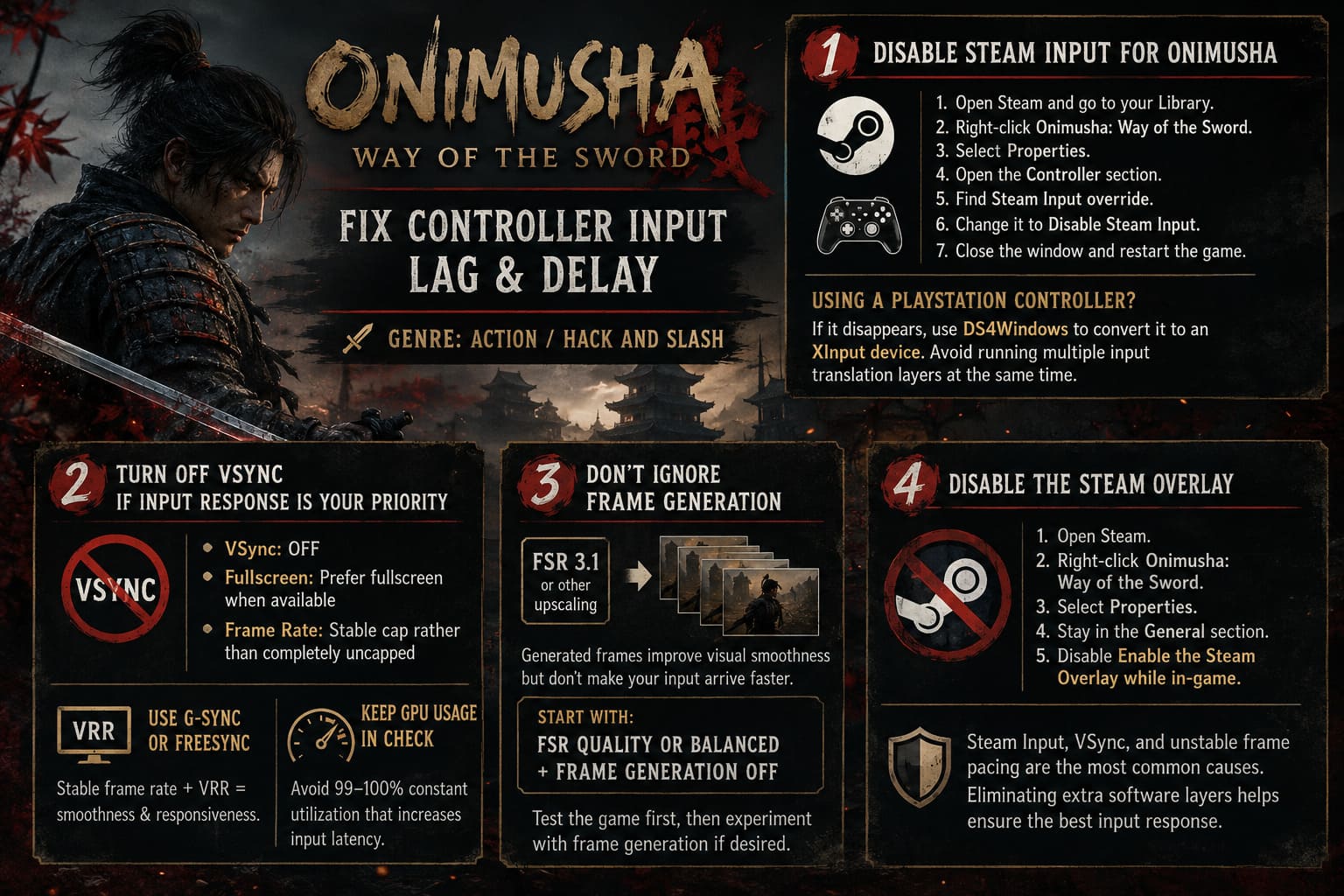
How to disable Steam Input
- Open Steam and go to your Library.
- Right-click Onimusha: Way of the Sword.
- Select Properties.
- Open the Controller section.
- Find the Steam Input override option.
- Change it to Disable Steam Input.
- Close the window and restart the game.
Then spend a few minutes in combat rather than judging the change from the main menu.
Personally, I think this is the best way to test input latency because Onimusha’s combat makes even small differences surprisingly obvious.
Using a DualSense or DualShock 4?
This is where things can get slightly more complicated.
If disabling Steam Input makes your PlayStation controller disappear, don’t assume the setting itself is broken. Some PC games are more comfortable with XInput devices, which means an Xbox-style controller interface may work better.
A controller wrapper such as DS4Windows can be used to present a compatible PlayStation controller as an XInput device.
The important part is to avoid running multiple input translation layers at the same time. Having Steam Input, another controller wrapper, and additional remapping software all trying to process the same controller can create unnecessary complications.
2. Turn Off VSync If Input Response Is Your Priority
If there is one graphics setting I always investigate when a fast action game feels sluggish, it’s VSync.
VSync isn’t inherently bad. It can eliminate tearing and make an image look considerably cleaner. The problem is that traditional VSync can increase the amount of time between your input and the frame showing the resulting action.
For a game based around split-second sword fighting, that trade-off isn’t always worth it.
Go into the game’s graphics settings and try:
- VSync: Off
- Fullscreen: Prefer fullscreen when available
- Frame Rate: Stable cap rather than completely uncapped
I wouldn’t automatically recommend chasing the highest possible FPS. What matters more is consistent frame delivery.
A stable 60 FPS experience can feel significantly better than a system bouncing between 45, 70, and 55 FPS every few seconds.
What about G-Sync and FreeSync?
If your monitor supports variable refresh rate, that’s worth using.
A combination of a stable frame rate and VRR can provide a much nicer balance between smoothness and responsiveness. The exact configuration depends on your GPU and display, so don’t blindly copy someone else’s settings.
For NVIDIA users, the control panel offers latency-related options. AMD users have similar features through Radeon Software.
The general principle is simple: don’t let the GPU sit at 99–100% utilization constantly if doing so causes your frame queue to grow.
3. Don’t Ignore Frame Generation
On a modern PC, upscaling and frame generation can make a huge difference to performance.
If you’re using FSR 3.1 or another frame-generation feature, remember that generated frames improve visual smoothness but don’t magically make your controller input arrive faster.
That’s an important distinction.
If your system is struggling to produce a reasonable native frame rate, frame generation can make the game look smoother. However, the underlying input response can still feel less immediate than you’d expect from the displayed FPS.
For a latency-focused setup, I’d start with:
FSR Quality or Balanced + Frame Generation Off
Then test the game.
If you already have a strong baseline frame rate and really want the extra visual smoothness, you can experiment with frame generation afterward.
4. Disable the Steam Overlay
This is another quick test that costs almost nothing.
The Steam Overlay runs on top of the game and can occasionally contribute to stuttering or compatibility problems. It won’t cause controller lag for everyone, but if you’re troubleshooting an unusual input problem, removing another software layer is sensible.
To disable it:
- Open Steam.
- Right-click Onimusha: Way of the Sword in your Library.
- Select Properties.
- Stay in the General section.
- Disable Enable the Steam Overlay while in-game.
Restart the game afterward.
I wouldn’t call the Steam Overlay the most likely culprit. In my experience, Steam Input, VSync, and unstable frame pacing are more important places to look first. Still, this is an easy variable to eliminate.
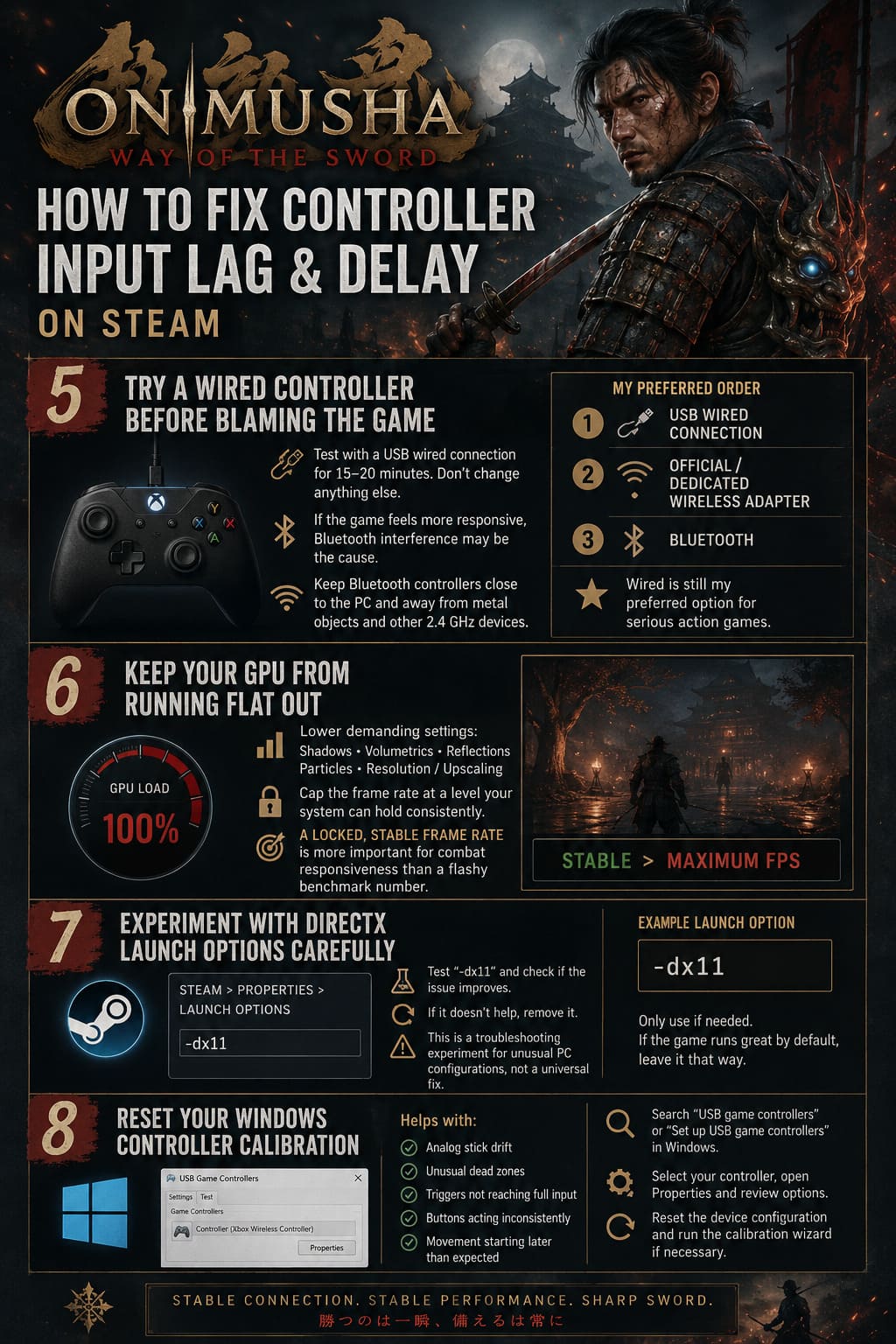
5. Try a Wired Controller Before Blaming the Game
This is probably the simplest troubleshooting test of the entire guide.
If you’re playing wirelessly, connect your controller using a USB cable and play for 15–20 minutes.
That’s it.
Don’t change anything else.
If the game suddenly feels noticeably more responsive, you’ve learned something important.
Bluetooth is convenient, but wireless environments aren’t always perfect. Interference, distance, other 2.4 GHz devices, and the controller’s own wireless implementation can all contribute to inconsistent behavior.
For serious action games, wired is still my preferred option.
If you’re using Bluetooth, keep the controller relatively close to the PC and avoid placing the receiver or antenna behind a large metal object or inside a crowded area of wireless hardware.
For Xbox controllers, a dedicated wireless adapter can also be worth considering instead of relying on generic Bluetooth.
My preferred order
If I were troubleshooting my own PC, I’d test connections in this order:
- USB wired connection
- Official/dedicated wireless adapter
- Bluetooth
That doesn’t mean Bluetooth is unusable. Plenty of people play perfectly well with it. I’m simply more interested in eliminating variables when a game depends on precise timing.
6. Keep Your GPU From Running Flat Out
One of the easiest mistakes to make when optimizing a game is assuming that maximum GPU usage is always desirable.
It isn’t.
If your GPU is permanently pinned at its limit, the rendering pipeline can become less responsive. You may also experience inconsistent frame times, especially when the game suddenly encounters a demanding scene.
Instead of running everything at maximum, try reducing the settings that are particularly expensive on your hardware.
For example, you could lower:
- Shadow quality
- Volumetric effects
- Reflections
- Heavy particle effects
- Resolution or upscaling quality
Then cap the frame rate at a level your system can hold consistently.
A locked, stable frame rate is usually more important for combat responsiveness than a flashy benchmark number.
7. Experiment With DirectX Launch Options Carefully
Some PC configurations can behave differently depending on the graphics API being used.
If you’re experiencing unusual performance or input behavior, you can experiment with Steam launch options.
Right-click the game in Steam, select Properties, and find the Launch Options field.
You can test:
-dx11
Launch the game and check whether the problem improves.
If it doesn’t, remove the option rather than leaving random commands permanently in place. If the particular PC configuration supports another API option exposed by the game, that can be tested separately.
I wouldn’t consider this a universal input-lag fix. It’s more of a troubleshooting experiment for unusual PC configurations. If the game runs perfectly under its default configuration, there’s little reason to force an alternative API simply because someone online recommended it.
8. Reset Your Windows Controller Calibration
If the controller feels strange rather than simply delayed, Windows calibration is worth checking.
This is particularly useful if you notice:
- Analog sticks drifting
- Dead zones feeling unusual
- Triggers not reaching full input
- Buttons behaving inconsistently
- Movement starting later than expected
Press the Windows key and search for USB game controllers or Set up USB game controllers.
Select your controller, open Properties, and look through the available configuration options.
From there, you can reset the device configuration and run the calibration wizard if necessary.
Be careful with calibration, though. If the controller is already working correctly, unnecessary calibration isn’t automatically an improvement.
Onimusha Way of the Sword Weapon Tier List: Best Weapons and Upgrade Guide (2026)
My Recommended Low-Latency Onimusha PC Setup
If I wanted the game to feel as responsive as possible, this is where I’d start:
| Setting | Recommended Starting Point |
|---|---|
| Steam Input | Off |
| Steam Overlay | Off |
| VSync | Off |
| Display Mode | Fullscreen |
| Frame Generation | Off initially |
| Upscaling | Quality/Balanced if needed |
| FPS | Stable cap |
| Controller | Wired USB |
| Bluetooth | Avoid for troubleshooting |
| GPU Usage | Leave some headroom |
| Windows Calibration | Reset only if necessary |
You don’t need to copy this setup forever.
Think of it as a baseline troubleshooting configuration. Once the controls feel right, you can gradually turn features back on and see which ones actually affect responsiveness.
What If Nothing Fixes the Controller Delay?
If you’ve tried the major changes and Onimusha still feels delayed, don’t immediately assume your controller is defective.
First, compare the same controller in another game.
If it feels perfectly responsive elsewhere, the problem is more likely related to the game’s configuration, drivers, frame pacing, or a compatibility issue.
I’d also check that your GPU drivers and Windows installation are reasonably up to date. Avoid installing random “input lag fix” programs or registry cleaners advertised on obscure websites. They tend to create more problems than they solve.
And most importantly, test changes one at a time.
That’s something I learned after spending far too much time optimizing PC games: changing fifteen settings at once makes it impossible to know which one actually helped.
Final Thoughts
Onimusha: Way of the Sword is the kind of game where controller responsiveness genuinely matters. This isn’t a slow strategy game where an extra frame of latency goes unnoticed. When you’re trying to deflect a Genma attack or land an Issen at exactly the right moment, your hands and the game need to feel connected.
My first three tests would be simple: disable Steam Input, turn off VSync, and connect the controller through USB. After that, I’d concentrate on getting a stable frame rate rather than simply pushing the highest possible FPS.
The biggest mistake is chasing a theoretical “zero latency” number. What matters while actually playing is whether Musashi responds when your brain expects him to respond.
Once the controls feel immediate again, Onimusha’s combat becomes much more satisfying. Those successful deflects stop feeling like lucky guesses, dodges become deliberate rather than desperate, and landing an Issen feels like something you earned.
And honestly, that’s exactly how a samurai action game should feel.