How to Fix The Blood of Dawnwalker Out of Video Memory Error on RTX 3060
The Blood of Dawnwalker is finally here, and for dark fantasy RPG fans, this is one of those games that can easily swallow an entire weekend. Rebel Wolves has built a visually ambitious open world packed with dramatic lighting, dense environments, volumetric effects, and the kind of atmosphere Unreal Engine 5 is famous for.
Unfortunately, there is a nasty problem ruining the experience for some PC players before they even reach the main menu.
A growing number of NVIDIA GeForce RTX 3060 users are running into errors such as “Out of video memory trying to allocate a rendering resource” or generic low video memory fatal crashes. In the worst cases, The Blood of Dawnwalker crashes immediately during startup. Others manage to reach the intro before the game suddenly drops to the desktop.
And honestly, this error is especially annoying if you own the desktop RTX 3060.
That card has 12GB of VRAM, so seeing a game complain about video memory feels completely absurd. You look at the error message, look at your GPU specifications, and immediately wonder what exactly is going on.
The good news is that the RTX 3060 is not automatically too weak for The Blood of Dawnwalker. In many cases, the crash is caused by shader cache problems, Unreal Engine 5 memory allocation behavior, Windows virtual memory limitations, or incorrect GPU selection.
I went through the most common reports, technical explanations, and troubleshooting methods surrounding this problem. Here is the full guide to fixing The Blood of Dawnwalker out of video memory errors on an RTX 3060.
Why Does The Blood of Dawnwalker Say “Out of Video Memory” on an RTX 3060?
The first thing to understand is that an Out of Video Memory error does not always mean your GPU has literally used every megabyte of available VRAM.
That is one of the most confusing things about Unreal Engine 5 games.
The engine can throw a VRAM-related error when it fails to allocate a rendering resource, even when the underlying problem involves system RAM, virtual memory, shader compilation, cached assets, or GPU memory budgeting.
The Blood of Dawnwalker puts a serious load on the system during startup. Unreal Engine 5 needs to initialize rendering resources, load textures, prepare shaders, and manage a large number of graphical assets.
For an RTX 3060, several things can go wrong.
| Possible Cause | What Happens | Recommended Fix |
|---|---|---|
| Corrupted Shader Cache | Broken cached shaders can trigger crashes during startup | Delete game cache files |
| Small Windows Pagefile | UE5 cannot allocate enough virtual memory | Increase paging file size |
| RTX 3060 Laptop VRAM | 6GB variants can hit memory limits quickly | Lower textures and heavy effects |
| Wrong GPU Selected | Game launches on integrated graphics | Force RTX 3060 in Windows |
| Old GPU Drivers | Driver issues affect memory allocation | Clean install NVIDIA drivers |
| Heavy Graphics Settings | Texture and lighting systems exceed the memory budget | Optimize settings |
The desktop RTX 3060 with 12GB VRAM has a much better chance of running the game comfortably. The RTX 3060 Laptop GPU is a different story because many laptop versions only have 6GB of VRAM.
That difference matters.
The Blood of Dawnwalker uses advanced lighting and atmospheric effects. Volumetric fog, complex shadows, high-resolution textures, and Unreal Engine 5 asset streaming can quickly push a 6GB GPU toward its limits.
Fix 1: Delete the Corrupted Shader and PSO Cache
This should be one of the first things you try.
Shader cache corruption is a classic problem in modern Unreal Engine games. The first launch can be particularly messy because the game is busy creating and compiling rendering data.
If something interrupts that process, the game may keep loading broken cache files during every future startup.
That creates a frustrating loop.
You launch the game, it crashes, you launch it again, and it crashes in exactly the same place.
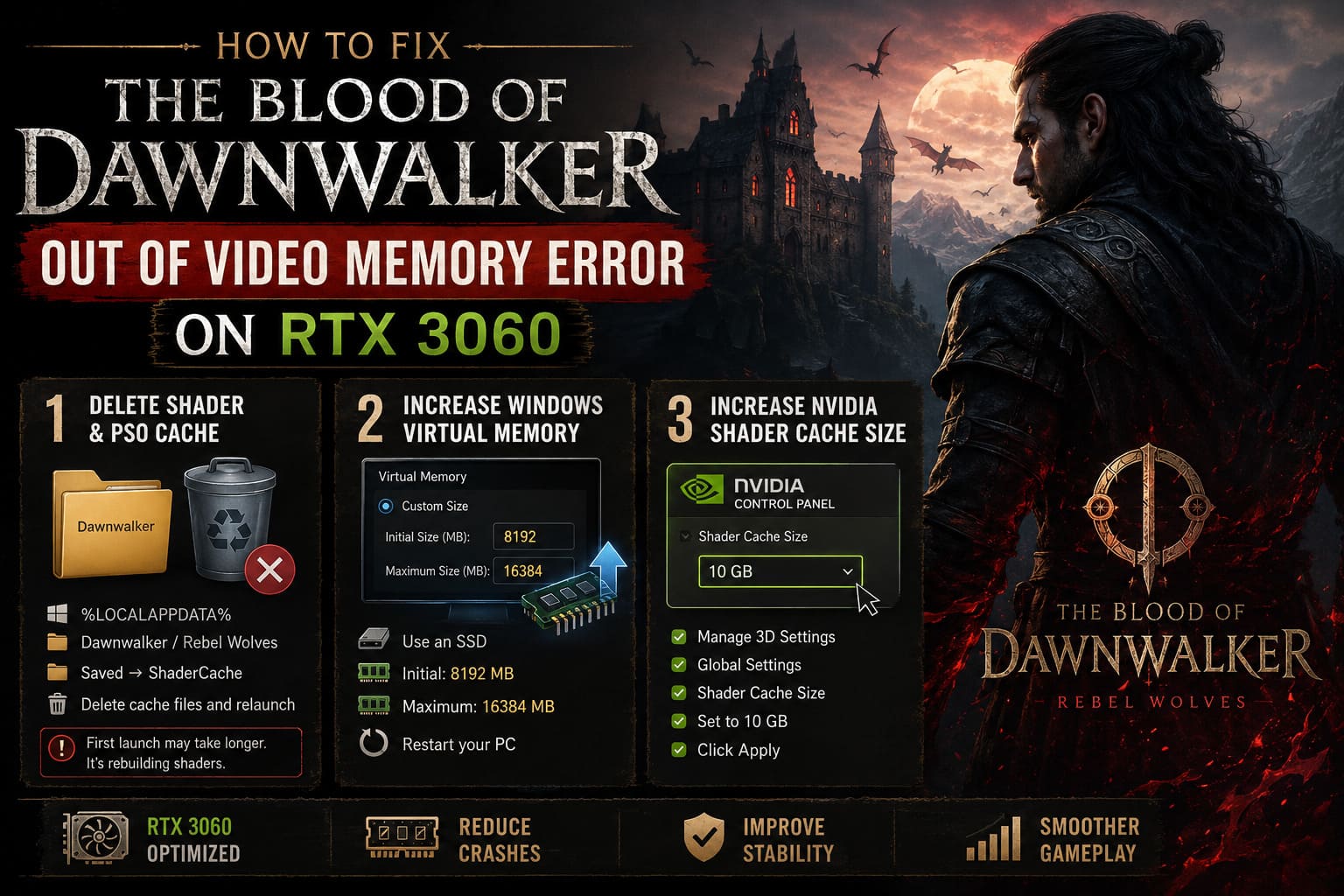
To reset the cache:
- Press Windows + R.
- Type %LOCALAPPDATA% and press Enter.
- Look for a folder related to Dawnwalker or Rebel Wolves.
- Open the game’s Saved folder.
- Check for folders such as Config, ShaderCache, or other cache directories.
- Delete the relevant temporary shader and cache files.
- Launch the game again.
Do not immediately assume the game is frozen when it launches after clearing the cache.
The first startup may take longer because Unreal Engine needs to rebuild graphical data. Let the process finish. Avoid aggressively alt-tabbing, killing the process, or restarting the PC halfway through shader compilation.
Fix 2: Increase the Windows Virtual Memory Pagefile
This fix is surprisingly important.
A lot of players think VRAM and system memory operate completely independently. In practice, modern games and Windows memory management can involve several layers of allocation.
Unreal Engine 5 games can place heavy pressure on:
- GPU VRAM
- System RAM
- Windows virtual memory
- Shader cache storage
If your paging file is disabled or extremely small, the game can fail during a demanding loading sequence.
Windows may then produce a crash that looks like a pure GPU memory problem.
To manually increase the pagefile:
- Press Windows + S.
- Search for Adjust the appearance and performance of Windows.
- Open the result.
- Select the Advanced tab.
- Find Virtual Memory.
- Click Change.
- Disable Automatically manage paging file size for all drives.
- Select a fast SSD.
- Choose Custom Size.
For many systems, a reasonable starting point is:
Initial Size: 8192 MB
Maximum Size: 16384 MB
Players with 16GB of system RAM can consider increasing the maximum size further, such as 24576 MB, if they regularly play demanding Unreal Engine 5 games.
Click Set, confirm the changes, and restart your PC.
I strongly recommend keeping the paging file on an SSD rather than an old mechanical hard drive. A slow HDD will not magically fix performance problems, and heavy memory activity can become painfully sluggish.
Fix 3: Increase NVIDIA Shader Cache Size
The NVIDIA shader cache can also affect stability in games that constantly compile or load new rendering data.
Open the NVIDIA Control Panel and follow these steps:
- Select Manage 3D Settings.
- Open Global Settings.
- Scroll down to Shader Cache Size.
- Change it from Driver Default to a larger value, such as 10 GB, if available.
- Click Apply.
This will not instantly give you another 10GB of VRAM.
That is important to understand.
Shader cache storage uses disk space, not physical GPU memory. Still, allowing the driver to maintain a larger cache can reduce repeated shader compilation and help avoid some cache-related problems.
If you have plenty of SSD space, there is little reason to keep the cache unnecessarily restrictive.
Fix 4: Lower Settings Before the Intro or Problematic Cutscene
Sometimes the game technically launches, but the crash happens during the opening sequence.
This is often caused by a sudden jump in graphical complexity.
A cinematic might load a dense environment, dramatic lighting, fog, high-resolution textures, and several effects simultaneously. If the game has a memory spike, your RTX 3060 can suddenly hit an unstable allocation point.
If you can reach the main menu, temporarily use conservative settings.
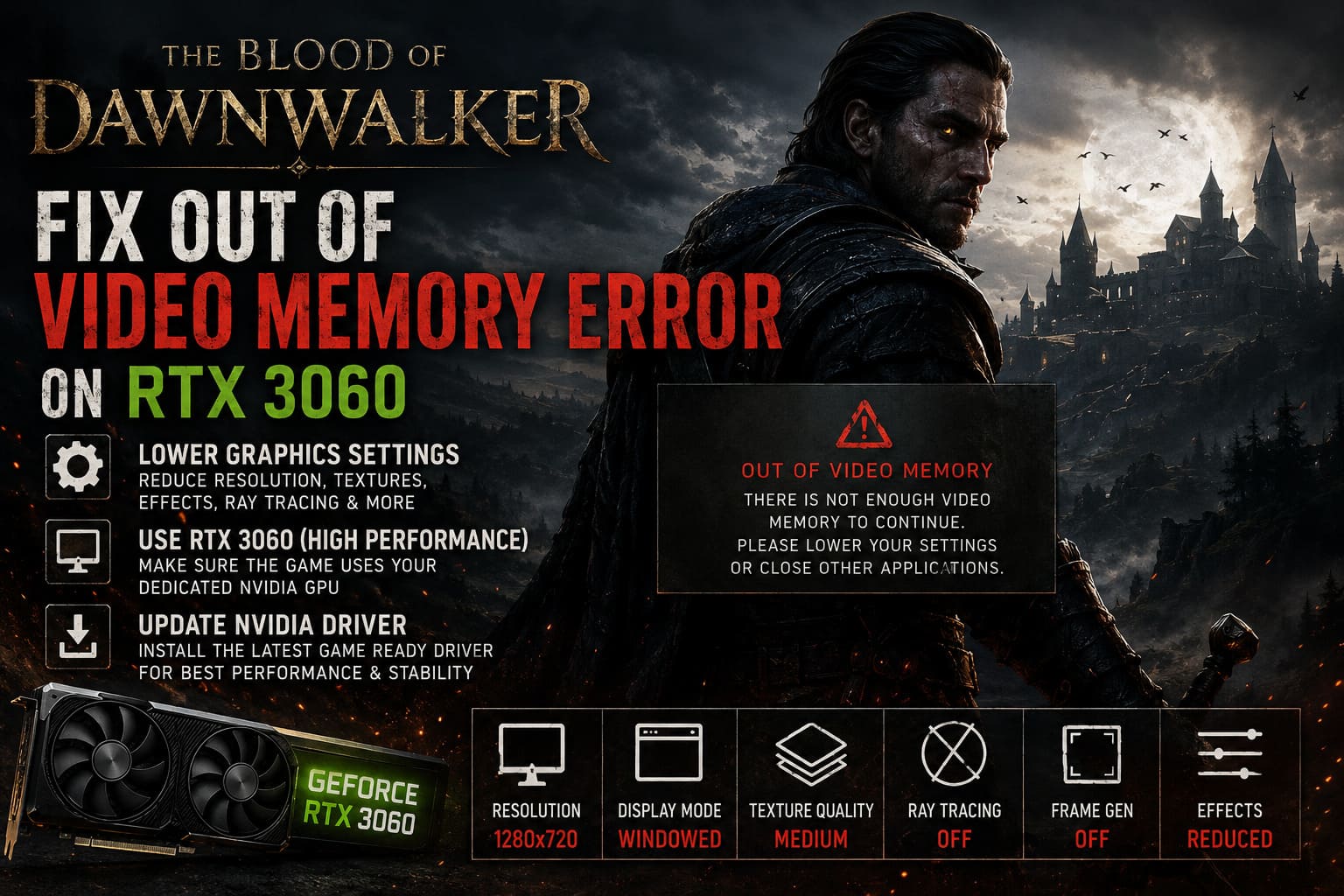
Try:
- Resolution: 1280×720 or 1600×900
- Display Mode: Windowed
- Texture Quality: Medium
- Ray Tracing: Off
- Frame Generation: Off
- Heavy Effects: Reduced
Then start the campaign.
Once you successfully pass the problematic cinematic, save the game and gradually restore your preferred settings.
I would not immediately jump back to Ultra everything.
Test the game for a few minutes first.
Fix 5: Make Sure The Blood of Dawnwalker Uses Your RTX 3060
This is especially important for laptop players.
Some systems include both integrated graphics and a dedicated NVIDIA GPU. If Windows assigns the wrong graphics processor to The Blood of Dawnwalker, the results can be disastrous.
A game designed for an RTX 3060 may accidentally attempt to initialize using integrated graphics with a tiny amount of dedicated video memory.
That can absolutely trigger low video memory errors.
To force the dedicated GPU:
- Open the Windows Start menu.
- Search for Graphics Settings.
- Open the Windows graphics preference menu.
- Click Browse.
- Navigate to your game installation folder.
- Select The Blood of Dawnwalker’s main .exe file.
- Add it to the application list.
- Click Options.
- Select High Performance.
- Confirm that Windows is targeting your NVIDIA RTX 3060.
Restart the game afterward.
Fix 6: Clean Install the Latest NVIDIA Game Ready Driver
Brand-new games can expose problems that older titles never triggered.
The Blood of Dawnwalker uses modern Unreal Engine 5 technology, and GPU drivers play a major role in shader handling, rendering compatibility, and memory management.
If you have not updated your RTX 3060 driver recently, install the latest NVIDIA GeForce Game Ready Driver.
For the cleanest installation:
- Download the correct driver for your RTX 3060.
- Run the installer.
- Choose Custom Installation.
- Select Perform a Clean Installation.
- Complete the installation.
- Restart your computer.
A clean installation removes old driver profiles and replaces potentially damaged settings.
If the crash started immediately after a driver update, however, do not automatically assume the newest driver is perfect. Sometimes rolling back to the previous stable Game Ready Driver is worth testing.
That is PC gaming for you. Sometimes the newest thing is great. Sometimes it creates a brand-new headache.
Best The Blood of Dawnwalker Settings for RTX 3060
Once the game finally launches, you should optimize the settings before pushing the GPU too hard.
The biggest difference is whether you own the 12GB desktop RTX 3060 or a 6GB RTX 3060 Laptop GPU.
For 6GB models, texture quality needs extra attention.
High-resolution textures can fill the VRAM budget surprisingly fast. When the GPU runs out of dedicated memory, the system may start relying more heavily on shared system memory.
Performance can fall off a cliff.
Recommended RTX 3060 Settings
Texture Quality: Medium
Desktop 12GB users can experiment with High. Laptop users should start with Medium.
Volumetric Fog: Medium
Fog is visually impressive, but it can be expensive. Medium is usually the smarter choice.
Shadow Quality: Medium
Ultra shadows rarely justify the performance cost on an RTX 3060.
Screen Space Reflections: Medium or Low
This setting can consume valuable GPU resources without dramatically improving every scene.
Global Illumination: Performance Mode
A solid compromise between visual quality and performance.
DLSS: Quality or Balanced
DLSS can significantly reduce the rendering workload.
At 1080p, I would personally start with DLSS Quality. If performance becomes inconsistent during demanding scenes, move to Balanced.
Important: Restart the Game After Major Graphics Changes
This part is easy to ignore, but I recommend restarting The Blood of Dawnwalker after changing major memory-related settings.
Especially:
- Texture Quality
- Global Illumination
- Resolution
- Ray Tracing
- Upscaling settings
A restart gives the engine a fresh opportunity to initialize its graphics resources.
If you change multiple heavy settings while playing, old assets may remain in memory longer than expected. Restarting the game clears the session and gives you a cleaner test.
Best Settings for 144Hz Monitors in The Blood of Dawnwalker: Max FPS & Smooth Performance Guide
Is the RTX 3060 Too Weak for The Blood of Dawnwalker?
No. At least not automatically.
The RTX 3060 is still a capable 1080p graphics card, particularly the 12GB desktop version. You should not expect to max out every Unreal Engine 5 setting and enjoy flawless performance, but the GPU should be able to deliver a playable experience with sensible optimization.
The 6GB laptop version requires more compromise.
That means avoiding Ultra textures, reducing heavy atmospheric effects, and using DLSS where necessary.
The most frustrating part of the Out of Video Memory error is that it can make perfectly reasonable hardware look broken.
Your GPU may be fine.
The game installation may be fine.
The actual issue could simply be a corrupted shader cache or Windows running with an insufficient paging file.
The Blood of Dawnwalker Climbing Guide: How to Climb Walls and Find Every Secret Area
Final Thoughts
The The Blood of Dawnwalker Out of Video Memory error on RTX 3060 is frustrating, but it is usually fixable.
My first move would be simple: clear the game’s shader cache and check the Windows paging file. Those two fixes address some of the most common Unreal Engine memory-related startup problems.
After that, make sure the game is actually running on your RTX 3060, update your NVIDIA driver, and avoid immediately loading into the game with maximum graphics settings.
For RTX 3060 Laptop users, the situation is tougher because 6GB of VRAM can become a real limitation in modern Unreal Engine 5 games. Medium textures, reduced volumetric effects, and DLSS are not compromises to be ashamed of. They are simply the settings that make the game run properly.
And honestly, I would rather play a smooth, stable version of The Blood of Dawnwalker at optimized settings than stare at an “Out of Video Memory” error while my 12GB GPU sits there wondering what it supposedly did wrong.
If the crash continues after trying every fix, verify the game files through Steam and remove any third-party overlays or monitoring tools. Software such as aggressive overlays, custom injectors, or outdated performance utilities can occasionally interfere with Unreal Engine games during startup.
With the cache cleaned, virtual memory properly configured, the correct GPU selected, and sensible RTX 3060 settings applied, you should have a much better chance of getting past the startup crash and finally stepping into the dark world Rebel Wolves created.