How to Recover Corrupted Save Files in Onimusha: Way of the Sword (2026)
There are few things more painful in a game than booting it up after a long session and discovering that your save file is suddenly corrupted. You can lose hours of exploration, boss fights, upgrades, side quests, and all those little moments that make a playthrough feel like your own. In Onimusha: Way of the Sword, where every encounter can be demanding and progress through its dark version of historical Kyoto can take real time, a damaged save is especially frustrating.
The good news is that a corrupted save does not always mean the end of your campaign. Depending on whether you are playing on PC, PS5, Xbox Series X|S, or Nintendo Switch 2, you may have several ways to restore an earlier version of your progress. I have lost saves in enough games to know the first reaction is usually to start clicking everything in sight, but that is exactly what you should avoid. Do not delete the corrupted save until you have checked for backups or cloud versions.
How to Fix Controller Not Recognized in Onimusha: Way of the Sword on PC
Why Onimusha: Way of the Sword Save Files Can Become Corrupted
Save corruption can happen for a surprisingly ordinary reason. Modern games constantly write data in the background, especially when using autosaves, checkpoints, area transitions, quest completion, or other progression triggers. If the game crashes, the console freezes, Windows suddenly shuts down, or power disappears at exactly the wrong moment, the save operation can be interrupted before all of the information is written correctly.
Cloud synchronization can make the situation even more complicated. A damaged local save may sometimes be synchronized before you realize anything is wrong, which can replace a previously healthy cloud copy with the newer corrupted state. That is why one of the first rules of Onimusha: Way of the Sword save recovery is simple: if the game reports corruption, stop and protect whatever backup data you might still have.
Before You Try Anything, Protect Your Existing Save
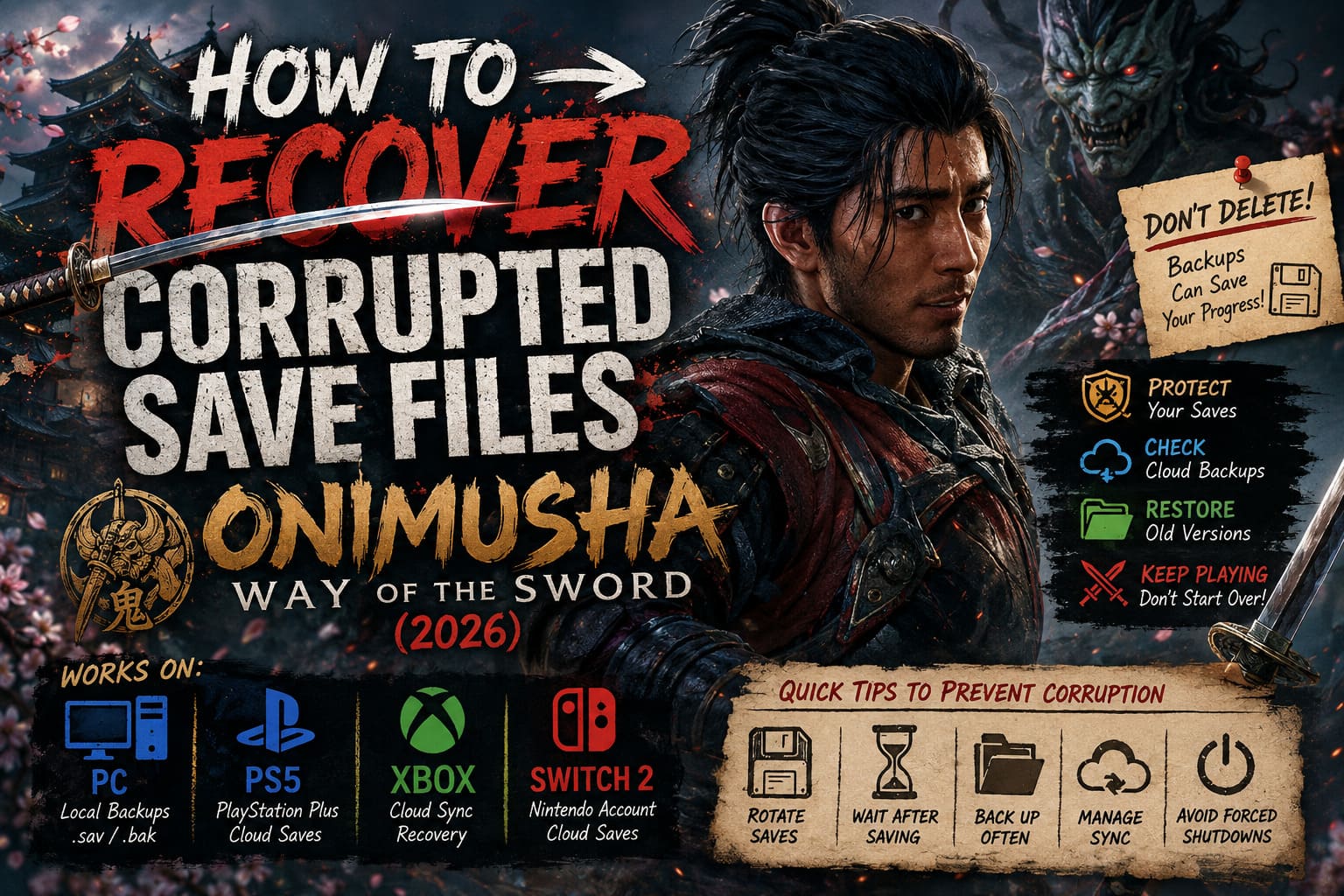
If the game gives you a message asking whether you want to delete the corrupted data and begin again, do not confirm it. Close the game instead and avoid launching it repeatedly while you figure out where your backups are located. Every additional synchronization or save operation can potentially make recovery harder.
On PC, I would also make a complete copy of the current save directory before changing anything. Even if the files appear broken, keep them somewhere safe. A failed recovery attempt is much easier to undo when you still have the original data sitting in a separate folder.
Method 1: Restore a Local Backup on PC
PC players have one major advantage when dealing with corrupted saves: you can actually inspect the files. Depending on the game’s configuration and platform, you may find backup or older save versions alongside the primary files. Steam and Epic Games can also introduce cloud synchronization into the equation, so it is important to prevent the damaged version from being immediately restored.
Start by completely closing Onimusha: Way of the Sword. Do not simply return to the desktop while the game remains active in the background. After that, temporarily disable cloud synchronization for the game through your launcher so you can work with the local files without another copy being pushed over them.
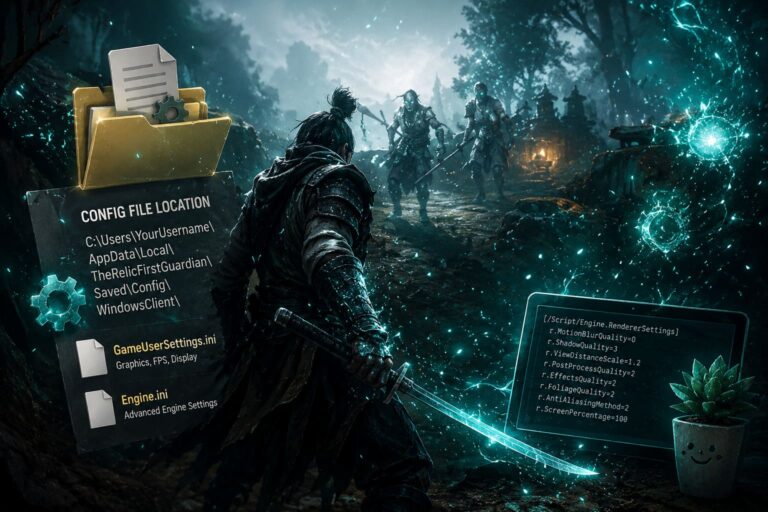
Next, check the game’s local save locations. Depending on your installation and platform configuration, saves may be stored in a Capcom-related folder under your Windows user profile or inside Steam’s userdata structure. You may encounter files with extensions such as .sav and backup variants such as .bak or numbered backup files.
Before renaming anything, copy the entire folder somewhere else. Once that safety copy exists, inspect the backup files and compare their modification dates. If you find a recent backup from before the corruption appeared, make a copy of that backup and rename the copy so it uses the expected save-file extension.
For example, if a backup resembles save_0.bak1, you could make a duplicate and test it as save_0.sav, assuming the game’s actual save naming structure matches that pattern. Never overwrite the only copy of your original data. If the replacement works, you may recover most or all of your lost progress without starting the campaign again.
What If There Is No .bak File?
Do not assume recovery is impossible just because you cannot find a backup with that exact extension. Some games use different backup mechanisms, launcher-specific folders, or cloud storage instead of obvious local backup files. Check the relevant Steam or Epic save directories and look for older files based on their timestamps rather than searching only for a particular filename.
This is also where patience pays off. I would rather spend ten minutes checking every plausible save location than accidentally overwrite a good backup by launching the game and allowing automatic synchronization to run.
Method 2: Recover Your Save from PS5 Cloud Storage
On PS5, cloud storage can be the easiest solution if you have an older copy of your campaign available through PlayStation Plus. The important detail is the timestamp. You want a cloud version created before the corruption happened, not simply the newest version available.
Close the game and open the PS5 saved-data management options. From there, look at the cloud storage associated with your profile and locate the save data for Onimusha. Compare the cloud timestamp with the point when your save became corrupted.
If the cloud copy is older but healthy, download it back to the console’s storage. You may lose the progress made after that backup was created, but that is still far better than losing the entire campaign. After restoring it, launch the game and check the available save slots before continuing.
Do not blindly overwrite cloud data. If your console is currently holding a corrupted local file and synchronization is enabled, take a moment to understand which version is newer before choosing an upload or download option.
Method 3: Recover an Xbox Series X|S Cloud Save
Xbox handles cloud saves differently because synchronization is closely integrated into the platform. You generally do not get the same convenient access to individual save files that you have on a Windows PC. Still, there is a useful recovery trick when the corrupted version exists only on the console.
First, completely quit Onimusha: Way of the Sword rather than leaving it suspended. Then open the game’s management options and locate its saved-data section. If you are given the choice to remove the save from the console, the critical distinction is between removing the local copy and deleting the data everywhere.
Never choose “Delete everywhere” when you are trying to recover a cloud backup. That option can remove the cloud copy as well, which is the exact opposite of what you want. The goal is to remove the potentially damaged local version while allowing Xbox to synchronize the last healthy cloud copy when the game starts again.
After restarting the console and launching the game, watch for the data synchronization process. If the cloud version is intact, Xbox should download it back to the system. As with every cloud recovery method, there is a chance you will lose the progress made after the last successful synchronization, but recovering an older campaign is preferable to losing everything.
Method 4: Check Save Data on Nintendo Switch 2
For Switch 2 players, cloud backups can also provide a valuable safety net when available. Sudden shutdowns, storage problems, or interruptions during a save operation can potentially cause trouble, although the exact recovery options depend on how your game and Nintendo account are configured.
Open the system’s data-management settings and locate the save-data cloud section. Find your user profile and check whether an earlier Onimusha save is available. As always, compare the backup date with the moment you first encountered the corrupted-save message.
If an older cloud backup exists, restoring it may bring your campaign back. You can also use the system’s Check for Corrupt Data feature when the problem may actually be caused by damaged game data rather than the save itself. This distinction matters because reinstalling or repairing game files is very different from deleting campaign progress.
Could the Problem Actually Be the Game Installation?
Sometimes a save error looks like save corruption when the real problem is damaged game data. If the game suddenly started refusing to load after a system update, storage problem, or failed installation, checking the game’s files can be worth trying before you start manipulating saves.
On PC, verify the game installation through your launcher. This does not normally erase your campaign saves and can replace missing or damaged installation files. If the game loads correctly afterward, you may have avoided a much more complicated save recovery process.
What I Would Do First
If this happened to me, I would not immediately reinstall the game or delete anything. My recovery order would be deliberately conservative: stop the game, prevent cloud synchronization, back up the existing files, check for an older local save, then check cloud storage. Only after exhausting those options would I consider starting over.
The reason is simple: troubleshooting should reduce your options rather than destroy them. A corrupted file may still be useful for identifying what happened, while an accidentally deleted backup is gone for good. The less you change before you know what you are dealing with, the better your chances become.
How to Prevent Corrupted Saves in the Future
Once you recover your campaign, it is worth changing a few habits. Modern games make autosaving convenient, but I never like relying on one save mechanism when a game is going to take dozens of hours to finish. A little redundancy can save an enormous amount of frustration later.
- Rotate manual saves. Keep several save slots instead of repeatedly overwriting the same one.
- Wait after saving. Give the game a few seconds after an autosave or manual save finishes before shutting down the system.
- Back up PC saves. Copy your save folder periodically, especially after major story milestones.
- Be careful with cloud synchronization. If something suddenly looks wrong, stop the game before allowing the damaged state to propagate.
- Avoid forced shutdowns. Cutting power while a game is writing data is one of the easiest ways to create problems.
Final Thoughts
A corrupted save in Onimusha: Way of the Sword is the kind of problem that can instantly turn an exciting gaming session into a nightmare. Nobody wants to repeat hours of exploration and combat because a crash happened at the worst possible second. Thankfully, PC backups and console cloud storage give you several recovery routes, and the most important step is simply avoiding a destructive decision while you still have options.
If you are staring at a corrupted-save message right now, resist the urge to press delete. Check your local backups, compare cloud timestamps, protect the original files, and work backward from the last known-good version of your campaign. You might not recover the final hour of progress, but with a little luck, Miyamoto Musashi’s journey through demon-infested Kyoto can continue without forcing you to start from the beginning.