How to Fix Big Ambitions Black Screen on Launch: 2026 Guide
There are few things more annoying than getting ready to build your business empire in Big Ambitions, only to be greeted by a completely black screen.
You launch the game, Steam says everything is running, you may even hear the familiar background music, but the actual game window is just sitting there doing absolutely nothing. Sometimes it is a pure black screen. Other times you get flickering, a frozen image, or a crash back to the desktop after several seconds.
I’ve run into this kind of problem with enough PC games to know that the worst thing you can do is start changing ten different Windows settings at once. With Big Ambitions, I’d work through the fixes in a specific order, starting with the simplest solutions and only moving into deeper troubleshooting if necessary.
The good news is that a black screen doesn’t necessarily mean your GPU is dying or that you need to reinstall Windows. In many cases, the problem comes down to a bad resolution, fullscreen initialization, a graphics API conflict, corrupted configuration data, or the game selecting the wrong GPU.
Here are the fixes I’d try in 2026.
What Usually Causes the Big Ambitions Black Screen?
Before changing anything, it helps to understand what can actually go wrong during startup.
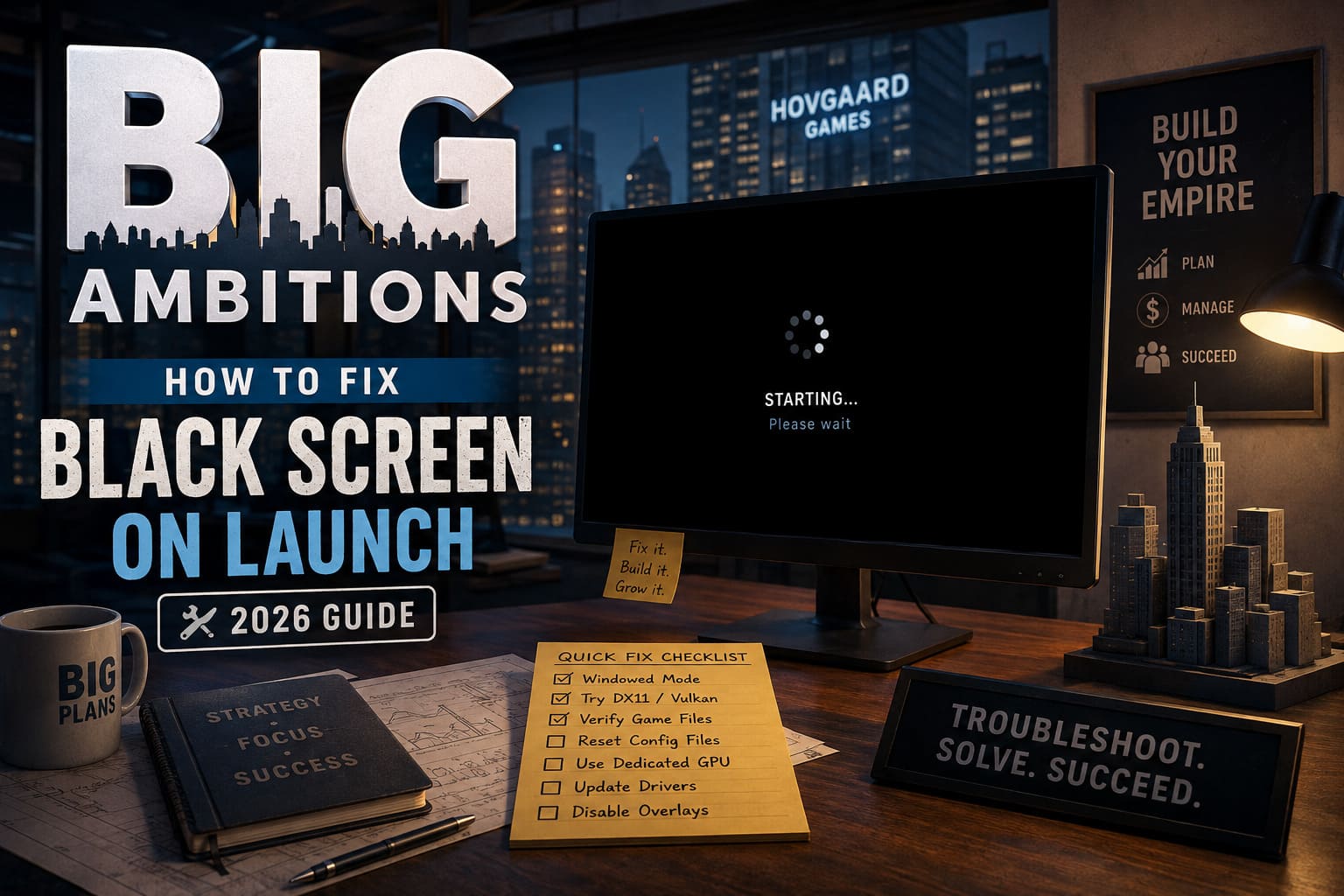
| Problem | Typical Symptom | Best First Fix |
|---|---|---|
| Resolution Conflict | Black screen immediately | Force 1024×768 windowed mode |
| Fullscreen Bug | Flickering or frozen display | Start in windowed mode |
| Graphics API Conflict | Crash or black window | Try DX11 or Vulkan |
| Corrupted Settings | Game worked before an update | Reset local configuration |
| Wrong GPU | Black screen on laptop | Force dedicated GPU |
| Damaged Game Files | Missing or broken visuals | Verify Steam files |
| Driver/MPO Issue | Flashing or grey screen | Update GPU driver / test MPO |
Personally, I would not jump straight into registry edits or deleting random game files. Start with the launch parameters. They’re quick, reversible, and often tell you immediately whether you’re dealing with a display initialization problem.
1. Force Big Ambitions Into a Basic Windowed Mode
This is the first thing I’d try.
Sometimes the game simply doesn’t like the resolution or fullscreen configuration saved from a previous session. This can happen after changing monitors, updating graphics drivers, switching between displays, or installing a major game update.
Open your Steam Library, find Big Ambitions, right-click it and choose Properties.
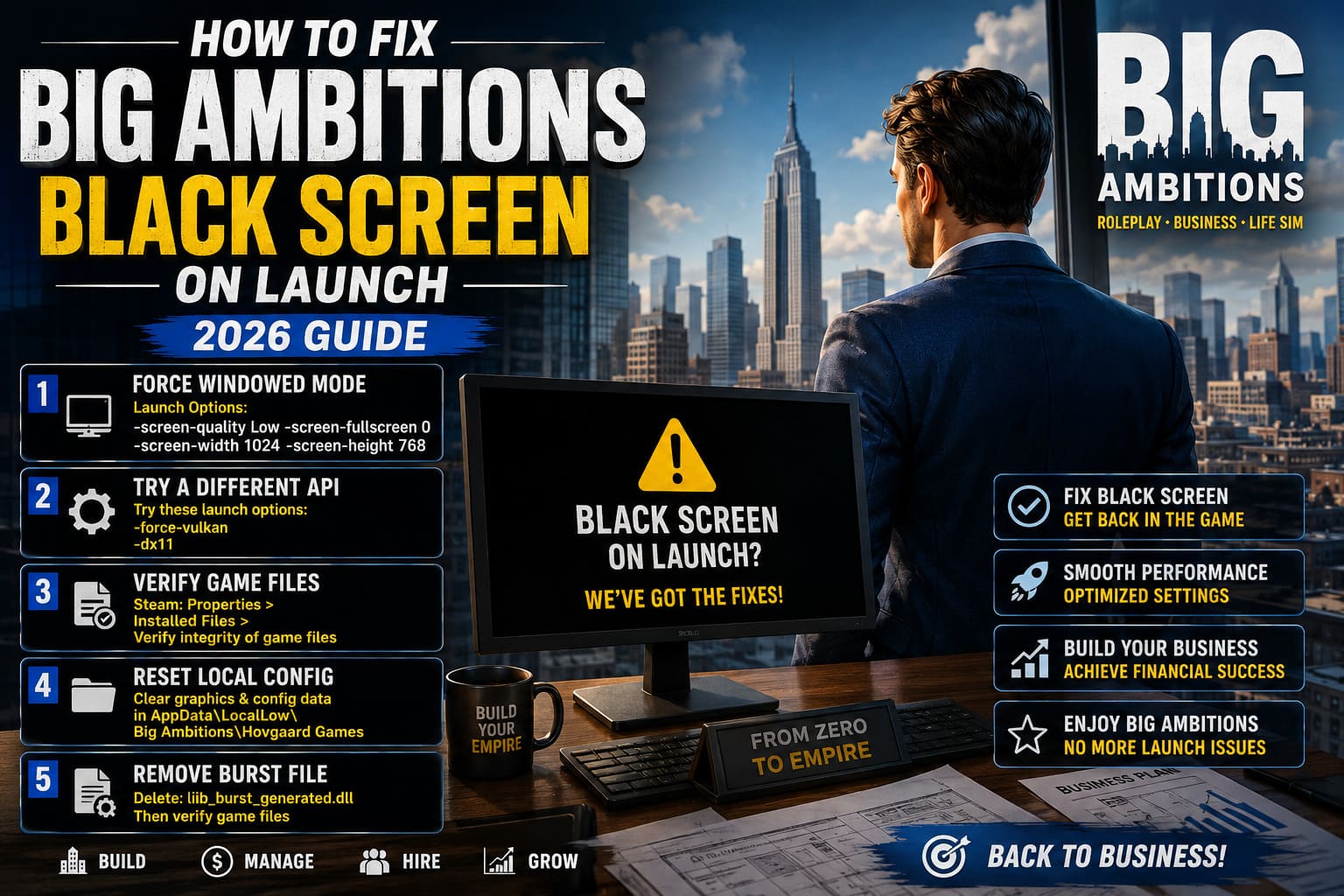
In the General section, find Launch Options and enter:
-screen-quality Low -screen-fullscreen 0 -screen-width 1024 -screen-height 768
Then close the window and launch the game.
This forces the game to start at a basic 1024×768 resolution in windowed mode with low graphics quality. It isn’t pretty, but that’s not the point. We’re trying to get the game to render anything.
If the main menu appears, that’s a very good sign.
At that point, go into the graphics settings and change the resolution back to your monitor’s native resolution. You can then try borderless or fullscreen mode again.
I’d keep this fix in mind whenever Big Ambitions suddenly stops launching after a graphics settings change.
2. Try a Different Graphics API
If forcing a low-resolution window doesn’t help, the next thing I’d investigate is the graphics API.
Modern Windows PCs can sometimes behave strangely with certain Unity-based games, especially when multiple monitors, overlays, unusual driver configurations, or hybrid graphics are involved.
Remove the previous launch parameters and try:
-force-vulkan
Launch the game and see what happens.
If Vulkan makes things worse or simply doesn’t work on your system, try:
-dx11
The idea here isn’t that one API is universally better than the other. It’s about finding out whether the default rendering path is responsible for the black screen.
If Big Ambitions launches normally with one API but not another, you’ve already narrowed down the problem considerably.
3. Verify the Game Files Before Doing Anything Extreme
This is probably the most boring troubleshooting step on the list, but it’s also one of the safest.
Steam can occasionally end up with damaged, incomplete, or mismatched files after an update. You don’t necessarily need to reinstall the entire game.
In Steam:
- Right-click Big Ambitions.
- Select Properties.
- Open Installed Files.
- Select Verify integrity of game files.
- Wait for Steam to finish checking everything.
- Restart Steam and try launching the game again.
I’d absolutely do this before manually deleting files from the installation directory.
If Steam discovers something missing or corrupted, it can download the replacement files automatically.
4. Reset Corrupted Local Configuration
Here’s another common culprit: the game itself is fine, but one of the local configuration files isn’t.
This is particularly worth trying if Big Ambitions worked perfectly before a game update, driver update, or major settings change.
Open your local game data through Windows and look for the Big Ambitions/Hovgaard Games configuration folder inside your user profile, including the LocalLow directory.
You can also use:
%appdata%
from the Windows Run dialog and navigate back to the AppData folder, then inspect LocalLow for Big Ambitions or Hovgaard Games data.
Before deleting anything, I’d make a backup.
The goal is to remove or reset graphics and configuration data, not your valuable save files. Nobody wants to fix a black screen only to discover that their carefully built virtual business empire has disappeared.
5. Check for Leftover Burst Files
If you’re comfortable working directly with the game installation, there is another community troubleshooting step worth testing.
Right-click Big Ambitions in Steam and select:
Manage → Browse local files
Look for a file called:
lib_burst_generated.dll
If that particular file is present and appears to be causing trouble after an update, removing it can force the game to recreate the required component when it launches again.
However, I would verify the game files afterward. Steam’s verification process is a much cleaner way to make sure the installation ends up consistent.
This is one of those fixes I would reserve for situations where the simpler resolution, API, and file verification solutions haven’t worked.
6. Make Sure Big Ambitions Uses Your Dedicated GPU
Laptop users should pay special attention to this one.
A machine can have both an integrated GPU and a dedicated NVIDIA or AMD graphics card. Windows doesn’t always make the choice you expect, particularly after driver updates or changes to Windows graphics preferences.
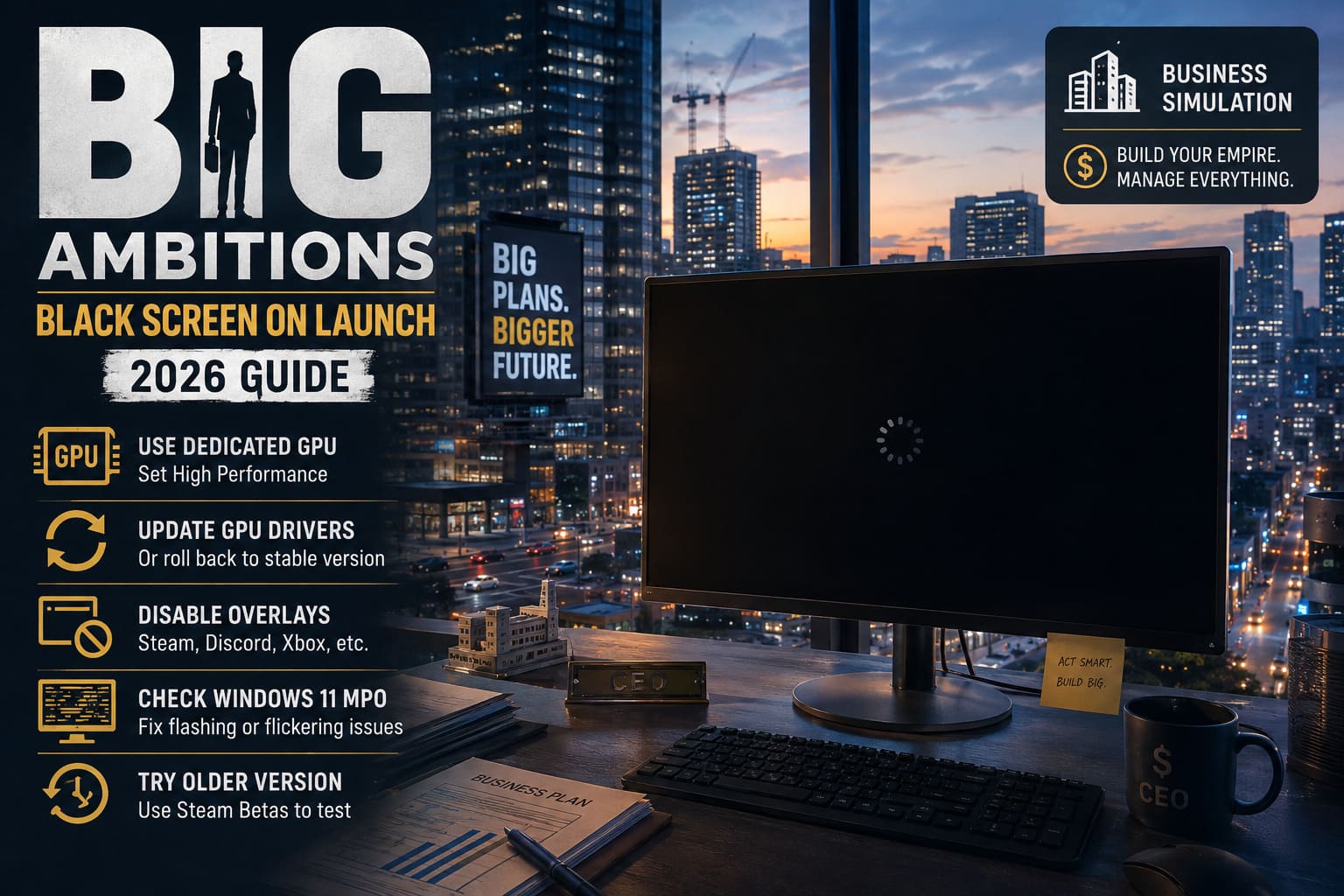
To manually assign the game:
- Open Windows Settings.
- Search for Graphics Settings.
- Find the section for adding desktop applications.
- Browse to the Big Ambitions executable.
- Add it to the list.
- Open its Options.
- Select High Performance.
- Save the setting.
Then restart the game.
If your laptop has both integrated and dedicated graphics, this is absolutely worth checking. A demanding simulation like Big Ambitions isn’t something I’d want Windows accidentally routing through the weakest graphics processor available.
7. Don’t Ignore GPU Drivers
A black screen appearing immediately after a graphics driver update is a pretty big clue.
I’d check whether NVIDIA, AMD, or Intel has released a newer driver for your GPU. If the problem started immediately after installing a new driver, however, the newest driver isn’t automatically the best answer.
Sometimes rolling back to a previous stable driver can solve a game-specific problem.
If you’ve repeatedly installed different GPU drivers over the years, a clean driver installation can also be useful. Advanced users may use tools such as DDU to remove old driver components before installing a fresh driver.
I wouldn’t make this your first move, though. Driver cleanup is considerably more invasive than simply changing a launch option.
8. Test Without Overlays and Extra Software
This is another quick test that costs almost nothing.
Temporarily disable things such as:
- Steam Overlay
- Discord Overlay
- NVIDIA/AMD overlays
- Xbox Game Bar
- MSI Afterburner/RivaTuner overlays
- Screen recording software
Then launch Big Ambitions again.
Overlays normally work without causing any trouble, but they hook into the rendering process. When a game is already having problems initializing its graphics window, removing additional software from the equation makes troubleshooting much easier.
If the game suddenly launches, enable your programs one at a time until you find the culprit.
9. Windows 11 and Multiplane Overlay Problems
If your black screen is accompanied by flashing, grey frames, flickering, or strange display behavior, Windows’ Multiplane Overlay (MPO) can be worth investigating.
MPO is part of Windows’ display composition system and normally works in the background without you ever thinking about it. Certain combinations of GPUs, drivers, monitors, and applications can produce strange graphical behavior, though.
I would treat MPO changes as an advanced troubleshooting step, not something every Big Ambitions player needs to disable.
If the game is black but everything else on your PC works perfectly, try the simpler fixes first.
10. The Version-Cycling Trick
There is also an unusual workaround involving Steam’s beta/version system.
If you suspect that a particular update has left your installation in a strange state, you can check whether an older available branch of Big Ambitions still launches correctly.
The general idea is:
- Open Big Ambitions → Properties.
- Go to Betas.
- Select an available older build if one is offered.
- Allow Steam to download the required files.
- Launch the older version once.
- Close the game.
- Return to Betas.
- Select None to return to the current build.
- Let Steam update the game.
- Test the current version again.
I wouldn’t call this the first-line solution, but it can be useful when the problem appeared directly after an update and normal file verification hasn’t helped.
Big Ambitions on ASUS ROG Ally: Optimization Guide & Controller Fixes (2026)
What I’d Try First
If I were sitting at my own PC with Big Ambitions showing nothing but a black screen, this would be my order:
- Force 1024×768 windowed mode.
- Verify the Steam installation.
- Try
-force-vulkan. - Try
-dx11. - Disable overlays.
- Make sure the dedicated GPU is selected.
- Reset corrupted local configuration.
- Update or clean-install GPU drivers.
- Investigate MPO or other advanced Windows issues.
- Try version cycling if the problem appeared after an update.
This order matters. There is no reason to start editing the Windows registry when a simple launch parameter might solve the entire problem in thirty seconds.
Big Ambitions Best Starting Business Types: Early Game Guide (2026)
Final Thoughts
The Big Ambitions black screen on launch problem is frustrating because the game can appear to be running normally while giving you absolutely no useful information about what went wrong.
The good news is that most potential causes are fixable without reinstalling Windows or replacing your hardware.
Start with the display configuration. A forced low-resolution window is particularly useful because it bypasses many fullscreen and resolution-related startup problems. If that doesn’t work, move on to graphics API testing, file verification, GPU selection, overlays, and configuration cleanup.
And if the problem started immediately after a major Big Ambitions update, don’t automatically assume your PC is at fault. Sometimes the game simply needs a little help rebuilding its configuration or getting through a new rendering path.
For me, the golden rule with PC troubleshooting is simple: change one thing at a time. That way, when Big Ambitions finally reaches the main menu instead of showing you a black rectangle, you’ll actually know which fix saved your business empire.