Best Graphics Settings for RTX 4070 Ti in The Blood of Dawnwalker: Max FPS Guide
If there is one thing I have learned from playing a lot of demanding PC games, it is that Ultra is not always the best setting. It looks great on a screenshot, sure, but when you are actually playing a fast action RPG, a stable frame rate usually matters more than having every shadow pushed one step higher. The Blood of Dawnwalker is a perfect example of this, especially on the RTX 4070 Ti.
Rebel Wolves’ dark fantasy RPG puts a lot of pressure on modern hardware thanks to Unreal Engine 5, detailed environments, dynamic lighting, volumetric effects, and large areas packed with geometry. The RTX 4070 Ti is still a very capable GPU, but 4K native rendering with every setting maxed out is not where I would start. After looking at the game’s demanding features and considering how similar UE5 games behave, the smarter approach is to keep the settings that genuinely improve the image and cut back on the options that mostly eat frames.
The good news is that you can get excellent-looking 1440p performance and a very respectable 4K experience with an RTX 4070 Ti. The trick is finding the right balance between DLSS, lighting, shadows, fog, and ray tracing.
How to Fix The Blood of Dawnwalker RTX 3050 Crash on Launch and Startup Issues
How Demanding Is The Blood of Dawnwalker on an RTX 4070 Ti?
The Blood of Dawnwalker is built around technologies that can make even powerful graphics cards sweat. Unreal Engine 5’s Lumen lighting and Nanite geometry are particularly important here, as the game has to render detailed medieval environments, forests, buildings, atmospheric fog, and constantly changing lighting conditions.
The RTX 4070 Ti comes with 12GB of VRAM, which is enough for high-quality textures in this game. Texture quality isn’t where I would look first when trying to gain performance. Instead, the biggest gains usually come from reducing expensive lighting, shadow, volumetric, and ray-tracing options.
This is something I have noticed across several UE5 games. You can often drop a setting from Ultra to High and barely notice the difference while gaining a surprisingly useful amount of performance. During ordinary exploration, Ultra might look fantastic, but during combat, in dense locations, or while moving through heavy fog, those expensive settings can become much more obvious in your FPS counter.
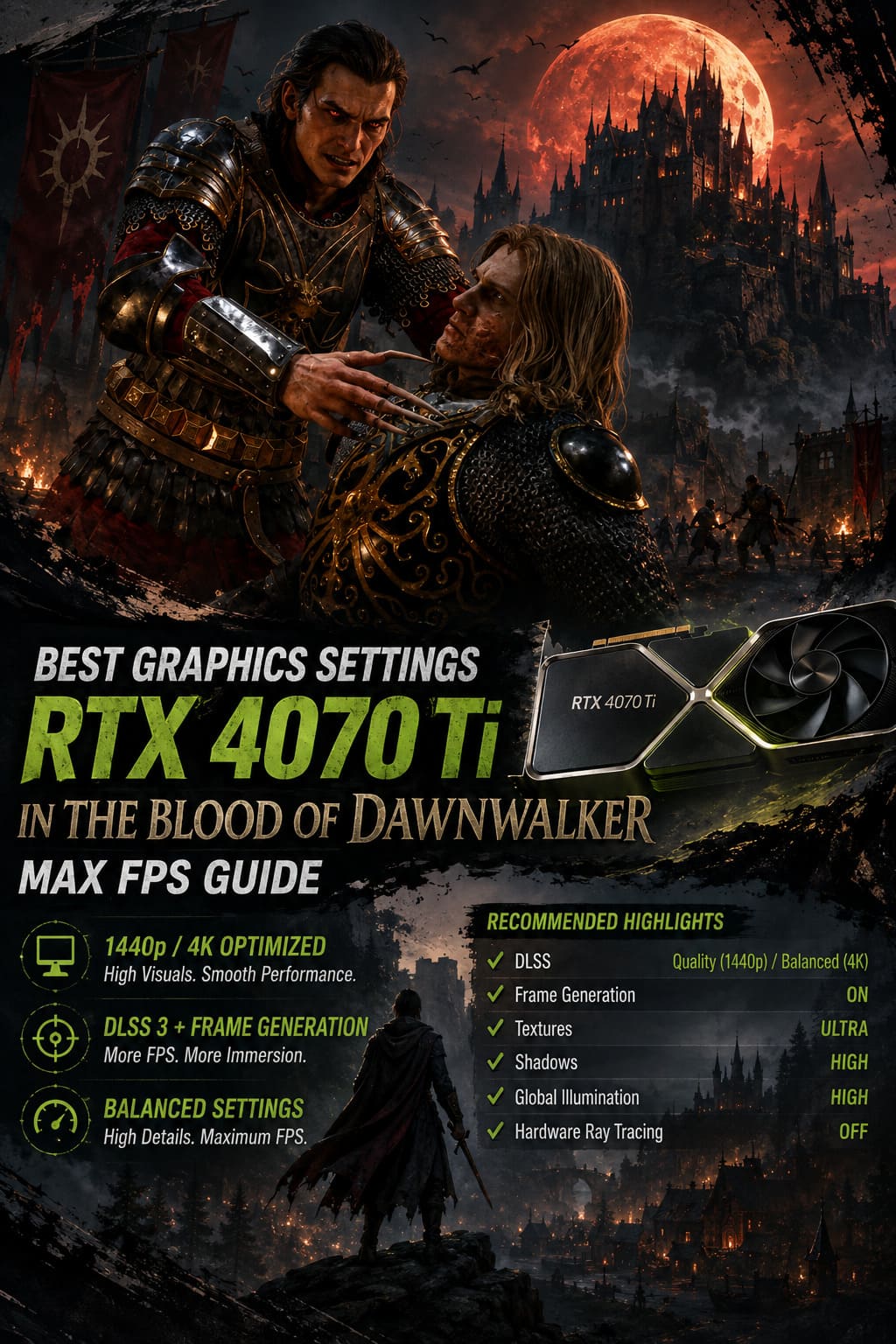
My Recommended RTX 4070 Ti Settings
Rather than simply recommending the game’s Ultra preset, I would use a custom profile. This keeps the visual details that matter while removing some of the biggest performance traps.
| Setting | Recommended Option |
|---|---|
| Display Mode | Fullscreen |
| Resolution | Native 1440p or 4K |
| V-Sync | Off |
| DLSS | Quality at 1440p / Balanced at 4K |
| Frame Generation | On |
| NVIDIA Reflex | On + Boost |
| Texture Quality | Ultra |
| Shadow Quality | High |
| Global Illumination | High |
| Reflections | High |
| View Distance | High |
| Foliage Density | High |
| Volumetric Effects | Medium-High |
| Post-Processing | Medium |
| Effects Quality | High |
| Hardware Ray Tracing | Off |
| Ray Reconstruction | On if supported |
That combination is basically my starting point. I would rather play with this profile than spend the entire game watching the FPS counter and wondering why Ultra suddenly dropped performance during a busy scene.
Best DLSS Settings for 1440p
If you have a 1440p monitor, DLSS Quality is the setting I would choose first. It provides a good balance between image quality and performance, and in motion it can look remarkably close to native rendering.
I would not immediately jump to DLSS Performance at 1440p unless your system is struggling badly. The internal resolution becomes noticeably lower, and on a game with detailed vegetation, architecture, and fine environmental textures, that reduction can become distracting.
Frame Generation should also be enabled if you are comfortable using it. The RTX 4070 Ti supports NVIDIA’s DLSS 3 feature set, and Frame Generation can make a big difference to perceived smoothness. Just remember that generated frames don’t replace the responsiveness of genuinely rendered frames, so I still prefer to get a reasonably high base FPS before relying on it.
NVIDIA Reflex is another setting worth enabling. I would use Reflex On + Boost when available, particularly if Frame Generation is active. It helps keep input latency under control, which matters considerably more in combat than it does while slowly wandering through a medieval village.
Best DLSS Settings for 4K
4K is where the RTX 4070 Ti starts to show its limits more clearly. Native 4K with every setting at Ultra sounds tempting, but personally, I wouldn’t chase it.
For a 4K display, DLSS Balanced is the sensible starting point. You are giving the GPU less work to do while still maintaining a sharp image, and the extra performance headroom becomes useful when Lumen lighting, fog, particles, and dense environments all appear at once.
If you still can’t maintain the frame rate you want, try DLSS Performance as a last resort. I would only make that move after lowering the expensive graphics settings first, though. There is little point in destroying image quality with aggressive upscaling if a couple of Ultra-to-High changes could have solved the problem.
The Settings That Actually Cost FPS
This is where things get interesting. Not every graphics option deserves equal attention.
Global Illumination
Global Illumination is one of the first settings I would lower from Ultra to High.
Lumen is a major part of the game’s visual identity, particularly during nighttime scenes. It creates those soft lighting transitions, indirect illumination, and atmospheric environments that make the world feel much more convincing.
The difference between High and Ultra is often difficult to appreciate while actually playing. The performance difference, however, can be much easier to notice. High keeps the overall lighting quality impressive without asking your GPU to work unnecessarily hard.
Shadow Quality
Shadows are another classic performance killer.
Ultra shadows can look fantastic when you stop and inspect them, but I rarely find the difference important enough during normal gameplay. High is the sweet spot for the RTX 4070 Ti.
You still get convincing character and environmental shadows, but you avoid wasting performance on extremely demanding shadow calculations that are easy to miss when you’re running, fighting, or exploring.
Volumetric Fog
This one deserves special attention because The Blood of Dawnwalker relies heavily on atmosphere.
Fog, mist, smoke, and other volumetric effects can make a dark fantasy game look incredible. They can also make your GPU cry.
I recommend High if you have performance to spare and Medium if you are chasing higher FPS. The difference between Medium and Ultra is not worth sacrificing a smooth experience in my opinion.
In fact, I would happily lower volumetrics before touching textures or most environmental details. The atmosphere remains intact, while your frame rate gets some breathing room.
Foliage Density
Forests and vegetation are exactly the kind of environments where Unreal Engine 5 can become expensive. Dense foliage looks amazing, but rendering enormous numbers of plants, shadows, and environmental details can hit both GPU and CPU performance.
High foliage density is my preferred setting. Going to Ultra may make the world slightly richer when standing still, but I don’t think the difference justifies the additional workload.
Keep Textures on Ultra
This is one setting where I wouldn’t be overly conservative.
The RTX 4070 Ti’s 12GB of VRAM is perfectly suited to keeping texture quality high, assuming the rest of your system meets the game’s requirements. Textures tend to have a much more obvious impact on image quality than many of the tiny shadow or post-processing improvements found at Ultra.
If you have enough VRAM available and aren’t seeing texture streaming problems, leave this at Ultra.
If you encounter stuttering, however, don’t automatically blame texture quality. Storage speed, asset streaming, drivers, background applications, CPU limitations, and shader compilation can all contribute to unpleasant hitching.
Why I Recommend Turning Hardware Ray Tracing Off
This might be controversial for some PC enthusiasts, but I would leave Hardware Ray Tracing disabled on an RTX 4070 Ti unless you specifically want to experiment with it.
The game already makes extensive use of Unreal Engine’s advanced lighting systems. Adding more hardware ray-traced effects can produce beautiful results, but the performance cost can be substantial.
For me, this is a classic example of sacrificing too much for a relatively small visual improvement. I’d rather have stable frame delivery, especially during combat, than slightly prettier reflections that I might notice for five seconds before getting attacked by something in the darkness.
If Ray Reconstruction is available with the particular ray-traced configuration you’re using, it can help improve the quality of reconstructed lighting and reflections. But I wouldn’t enable expensive ray-traced effects purely because the setting exists.
Don’t Ignore Your SSD and Drivers
Graphics settings aren’t the entire story.
The Blood of Dawnwalker is the kind of modern open-world game that benefits significantly from fast storage. Install it on an SSD, preferably an NVMe drive if one is available. An older mechanical hard drive can become a bottleneck when the engine needs to stream large amounts of environmental data.
I would also make sure your NVIDIA driver is current before troubleshooting performance. New AAA releases often receive driver optimizations around launch, and using an outdated driver can make diagnosing performance problems unnecessarily difficult.
Windows settings can matter as well. Hardware-Accelerated GPU Scheduling (HAGS) is worth checking if you’re using DLSS Frame Generation, since it is part of the Windows/NVIDIA configuration that supports the feature.
What I Would Use Personally
If I were sitting down to play The Blood of Dawnwalker on an RTX 4070 Ti today, I wouldn’t spend hours trying to force every setting to Ultra.
At 1440p, I’d use DLSS Quality, Frame Generation, Reflex, Ultra textures, High lighting, High shadows, High reflections, High foliage, and Medium-to-High volumetrics. That should give the GPU enough breathing room for a smooth high-refresh-rate experience while preserving the game’s dark, gothic visual style.
At 4K, I’d switch to DLSS Balanced and keep the same general graphics profile. I would especially avoid Ultra volumetrics, Ultra shadows, and hardware ray tracing. If performance still isn’t where I want it, DLSS Performance would be my fallback rather than immediately dropping the entire graphics preset.
The important thing is that the RTX 4070 Ti doesn’t need to run everything at maximum to make this game look fantastic. Modern games have reached the point where smart settings choices can matter more than simply selecting the highest preset.
Final Verdict
The RTX 4070 Ti is still a strong card for The Blood of Dawnwalker, but Unreal Engine 5 rewards players who are willing to tweak rather than blindly choose Ultra. DLSS is the biggest weapon in your optimization toolkit, while High-quality Lumen, shadows, reflections, and foliage preserve most of the game’s visual impact without unnecessarily hammering the GPU.
My biggest recommendation is simple: don’t obsess over the Ultra preset. Keep textures at Ultra, put the major lighting and environmental settings around High, control volumetrics, use DLSS intelligently, and turn off hardware ray tracing unless you have performance to spare.
For me, that is the sweet spot. A dark fantasy RPG should feel smooth when the sword comes out and the vampires start moving, not turn into a slideshow because I insisted on seeing marginally better shadows on a castle wall.