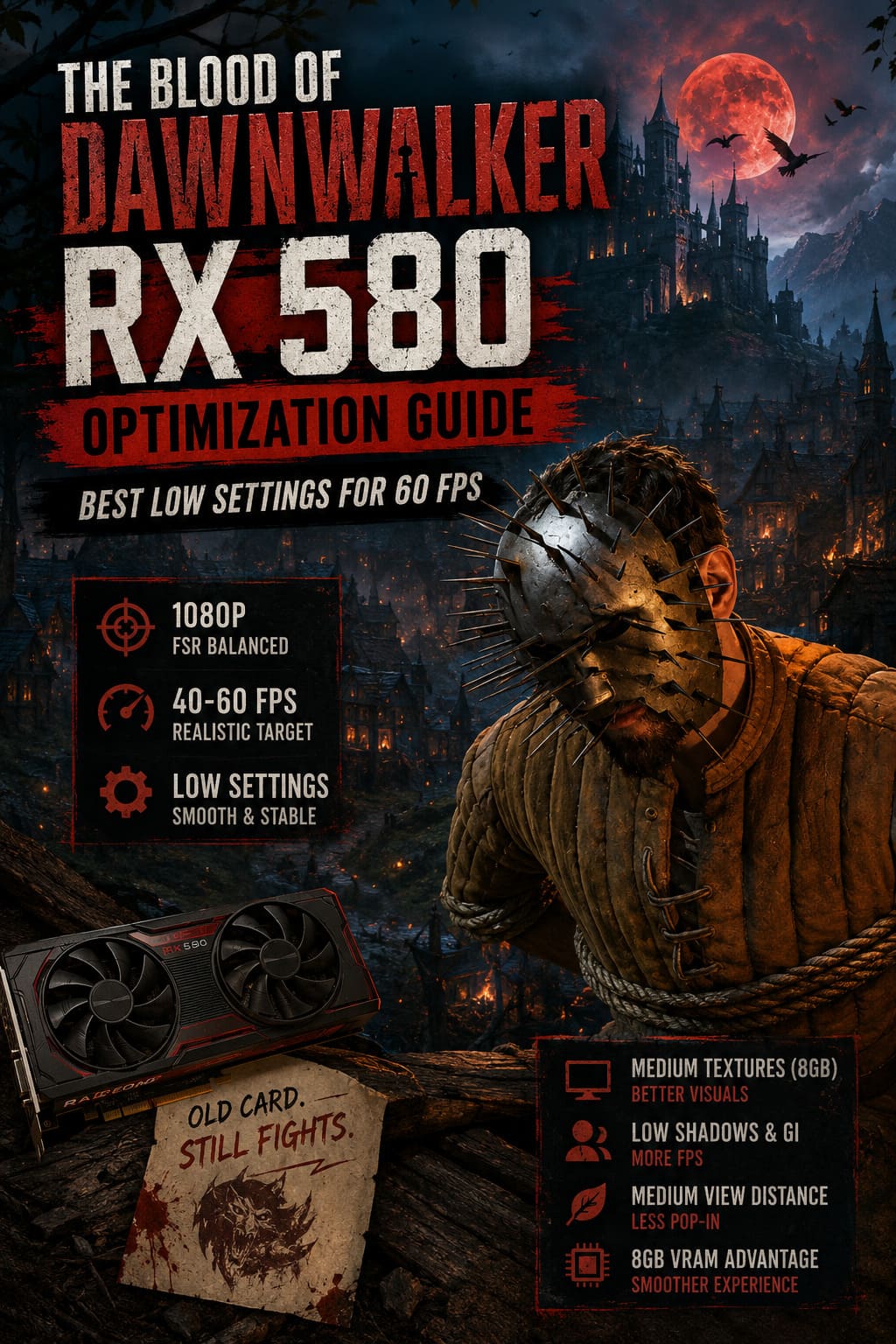
The Blood of Dawnwalker RX 580 Optimization Guide: Best Low Settings for 60 FPS
The Blood of Dawnwalker is exactly the kind of game that makes an older graphics card feel its age. Rebel Wolves has built an ambitious dark fantasy RPG around a detailed medieval world, dramatic lighting, dense environments, and the sort of visual effects that can make a modern GPU sweat. For players still using the AMD Radeon RX 580, the situation looks intimidating at first, but after spending plenty of time tweaking demanding PC games, I don’t think this card should be written off just yet.
The RX 580 is old by modern standards, but the 8GB version still has one major advantage: plenty of VRAM for a budget card. The real problem isn’t simply memory capacity. Unreal Engine 5 puts considerably more pressure on GPU compute performance, lighting, shadows, streaming, and frame-time consistency than many older games did. Getting The Blood of Dawnwalker running well therefore isn’t about throwing every setting to Low and hoping for the best. It is about figuring out which options actually cost frames and which ones can stay higher without ruining the experience.
The Blood of Dawnwalker PC Specs and Upscaling Guide: Recommended Settings for 60 FPS
Can the RX 580 Run The Blood of Dawnwalker?
If you’re expecting native 1080p with a locked 60 FPS, I wouldn’t set your expectations that high. The RX 580 was never designed with today’s Unreal Engine 5 workloads in mind, and demanding scenes can quickly expose its limitations. Even so, a carefully optimized 1080p setup with upscaling can produce a much more enjoyable experience than the default Low preset suggests.
For me, the biggest mistake would be treating the game’s Low preset as the final answer. Presets are convenient, but they often make compromises in the wrong places. An open-world RPG can look noticeably worse when view distance, textures, and foliage are reduced together, while some heavier effects may provide relatively little visual benefit compared with the performance they consume.
| Setting | Recommended RX 580 Setting | Why |
|---|---|---|
| Resolution | 1920×1080 | Best starting point for image quality |
| Upscaling | AMD FSR Balanced | Major performance boost without excessive blur |
| View Distance | Medium | Helps prevent distracting pop-in |
| Textures | Medium on 8GB | Uses the RX 580’s VRAM advantage |
| Shadows | Low | One of the easiest places to recover performance |
| Global Illumination | Low | Reduces expensive lighting calculations |
| Reflections | Low | Saves GPU resources and bandwidth |
| Effects | Low | Helps during combat and busy scenes |
| Foliage | Low | Reduces environmental rendering load |
Why Unreal Engine 5 Is So Tough on the RX 580
The biggest obstacle here isn’t that the RX 580 suddenly became a bad graphics card. It is that the technology used by newer games has moved forward considerably. Unreal Engine 5 can put serious pressure on older GPUs through advanced lighting, geometry streaming, shadows, reflections, and other systems that simply weren’t designed around Polaris-era hardware.
This becomes especially noticeable in a game such as The Blood of Dawnwalker, where the environment itself is a major part of the experience. Medieval settlements, forests, interiors, changing lighting conditions, and combat effects can all produce different workloads. You may see a perfectly comfortable frame rate while exploring an empty road and then watch it drop sharply after entering a busy location.
That is why I prefer optimizing for consistent frame times rather than chasing one impressive FPS number. A game sitting around 45 FPS with fewer severe drops can feel much better than one jumping between 35 and 60 FPS every few seconds.
My Recommended RX 580 Low Settings
I’d start with a clean manual configuration rather than simply selecting Low. Keep the display resolution at 1920×1080 and use fullscreen mode if the game offers it. I would also leave V-Sync disabled while testing performance, because it can complicate frame-rate behavior and introduce additional latency depending on the setup.
For the graphics options, the priority is straightforward: reduce the settings that are expensive for the GPU while protecting the ones that have a noticeable effect on image quality. View Distance at Medium is particularly important to me in an open-world game. Dropping it all the way to Low may recover some performance, but the extra object pop-in can make a beautiful medieval landscape feel strangely artificial.
Recommended Graphics Profile
- Anti-Aliasing: Low
- View Distance: Medium
- Shadow Quality: Low
- Global Illumination: Low
- Reflection Quality: Low
- Texture Quality: Medium for 8GB, Low for 4GB
- Effects Quality: Low
- Post-Processing: Low
- Foliage Quality: Low
Textures deserve special attention. If you own the RX 580 8GB, I would absolutely try Medium textures before sacrificing them. Texture quality often has a smaller impact on raw GPU performance than settings such as shadows and lighting, provided the game doesn’t exceed available VRAM. The 4GB model is a different story, and aggressive texture settings can create streaming problems, hitching, or blurry asset loading.
FSR Is the RX 580’s Best Friend
Trying to run a demanding Unreal Engine 5 game at completely native 1080p on an RX 580 is where things can become frustrating. Instead of immediately lowering the resolution to 720p, I’d use AMD FSR. The advantage is that you can retain a 1080p output while allowing the GPU to render fewer pixels internally.
FSR Balanced is the setting I’d test first. It gives the RX 580 significantly more breathing room without making the entire image look like it came from a much lower resolution. If the picture feels slightly soft, increasing the sharpening value can help restore some definition, although I’d avoid going overboard because excessive sharpening tends to create ugly halos and shimmering.
Performance mode is something I’d reserve for situations where the game simply refuses to stay playable. It can push the frame rate higher, but fine details such as grass, distant branches, clothing, and small environmental textures are more likely to reveal reconstruction artifacts. Personally, I’d rather have a stable 40–50 FPS with Balanced than an unstable 60 FPS with an image that constantly looks like it is fighting the upscaler.
Don’t Waste Performance on Shadows and Lighting
If you only have time to change a handful of settings, start with shadows and global illumination. These are exactly the types of options that can punish an older GPU, especially in a game built around atmospheric lighting. Lowering them may take away some visual richness, but the improvement in frame consistency can be much more valuable during actual gameplay.
The same philosophy applies to reflections and post-processing. Reflections can look great in screenshots, but I would happily sacrifice some surface detail if it means avoiding sudden drops when entering a complex environment. Motion blur and similar effects are also easy candidates for reduction because they don’t make the underlying game world more detailed.
AMD Adrenalin Settings Worth Checking
Once the in-game settings are sorted out, I’d move over to AMD Software: Adrenalin Edition. Drivers can’t magically turn an RX 580 into a modern GPU, but keeping the software environment clean and properly configured can help with shader compilation, frame pacing, and general stability.
If you’re experiencing unusual stutters, don’t immediately assume the graphics card is dying. Modern games can spend a significant amount of time building and caching shaders, and the first sessions can sometimes be rougher than later ones. After changing major graphics settings or drivers, give the game some time to settle before judging its final performance.
- Keep your AMD graphics driver updated where supported.
- Check whether Resizable BAR/SAM is available on your motherboard and CPU combination.
- Consider clearing the shader cache if persistent shader-related stuttering appears.
- Test Windows hardware scheduling settings rather than assuming one configuration is universally better.
I’d also avoid installing ten different ‘FPS booster’ applications. In my experience with PC gaming, these tools often create more variables than they remove. A clean driver, sensible Windows settings, properly configured game options, and a stable frame-rate cap are usually a much better starting point.
Should You Edit Engine.ini?
This is where things become more interesting for enthusiasts. Unreal Engine games often expose additional configuration variables through their files, and Engine.ini can sometimes provide access to options that aren’t available through the normal graphics menu. If you’re comfortable backing up configuration files and troubleshooting problems yourself, this can be worth exploring.
However, I wouldn’t blindly copy a giant collection of commands from a random forum post. Some tweaks floating around gaming communities are outdated, ineffective, or designed for a completely different hardware configuration. Worse, forcing aggressive texture streaming or disabling engine features without understanding them can sometimes create new stutters instead of solving the original problem.
For the RX 580 8GB, the sensible approach is to focus on texture streaming behavior and unnecessary visual effects rather than trying to dismantle the engine. Always make a backup of your original configuration before experimenting, and change one thing at a time. That way, if performance gets worse, you actually know which adjustment caused it.
What FPS Should You Realistically Expect?
This is the part where I think PC gamers need to be realistic. A stable 60 FPS should be treated as an optimization goal rather than a guarantee for every scene. Open-world games have too many variables, and dense towns, heavy combat, weather, lighting transitions, and streaming can all cause temporary drops even when your average FPS looks good.
| Target | Recommended Approach | My Take |
|---|---|---|
| 30 FPS | Low settings, conservative FSR | Safest option for consistency |
| 40–45 FPS | Low settings + FSR Balanced | Best balance for older hardware |
| 50 FPS | Aggressive tuning + FSR | Possible, but scene dependent |
| 60 FPS | Very aggressive settings/upscaling | Don’t expect a locked 60 everywhere |
Personally, I’d aim for the 40–45 FPS range first. That’s a much more sensible target for an RX 580 than obsessing over a perfect 60. If the game feels smooth and frame times remain stable, the experience can still be surprisingly enjoyable, especially if you’re more interested in exploring the world and following the story than staring at an FPS counter.
RX 580 8GB vs. RX 580 4GB
The amount of VRAM makes a meaningful difference here. The 8GB version gives you considerably more flexibility with textures and asset streaming, while the 4GB model needs a more conservative configuration. If you have the 4GB card, I would keep textures at Low and pay close attention to hitching when moving quickly through the world.
The important thing is not to confuse VRAM capacity with raw GPU performance. Having 8GB doesn’t suddenly make the RX 580 capable of handling every Unreal Engine 5 feature at high settings. It simply gives the card more room for assets, which can help prevent certain memory-related problems.
My Final RX 580 Setup
If I were installing The Blood of Dawnwalker on an RX 580 8GB today, my first configuration would be 1080p fullscreen, FSR Balanced, Medium textures, Medium view distance, and Low settings everywhere else. I’d then test demanding areas rather than relying on a quiet section of the map. If the frame rate still dips too far, I’d lower the upscaling quality or view distance before sacrificing textures further.
The RX 580 is clearly no longer a high-end gaming card, and there is no setting combination that changes that reality. But older hardware can still surprise you when a developer gives players enough control over the graphics pipeline. With the right compromises, The Blood of Dawnwalker can remain playable without immediately forcing you into a GPU upgrade.
My advice is simple: don’t chase the highest possible FPS number. Build a profile that keeps frame times predictable, preserve the visual settings that matter to you, and cut the expensive effects that you barely notice while actually playing. For an RX 580 owner, that approach can make the difference between an impressive technical struggle and a genuinely enjoyable dark fantasy adventure.