Allumeria Multiplayer Lag Fix: How to Stop Desync and Lag Spikes (2026 Guide)
There is something uniquely annoying about multiplayer lag in a voxel game.
You can tolerate a few dropped frames. You can even live with a slightly ugly graphics setting if it means the game runs better. But when you are fighting an Allumeria boss with your friends and suddenly the enemy’s health bar freezes, your car starts moving backward, or a block you just mined refuses to drop anything, the whole adventure falls apart.
That has been my biggest frustration with Allumeria multiplayer since getting into its co-op side. The game itself is ridiculously easy to get lost in—in a good way. You start building, wander into a dungeon, discover some strange weapon, and suddenly three hours have disappeared. Unfortunately, the same systems that make the world feel so alive can also create a lot of network and simulation traffic.
After going through the usual Steam troubleshooting routine and experimenting with the settings that actually matter, I found that multiplayer stability is less about having the fastest internet connection imaginable and more about reducing the amount of work Allumeria has to synchronize.
Here is the setup I would use if I were starting over.
Why Does Allumeria Multiplayer Lag So Much?
Before changing settings, it helps to understand what is actually happening.
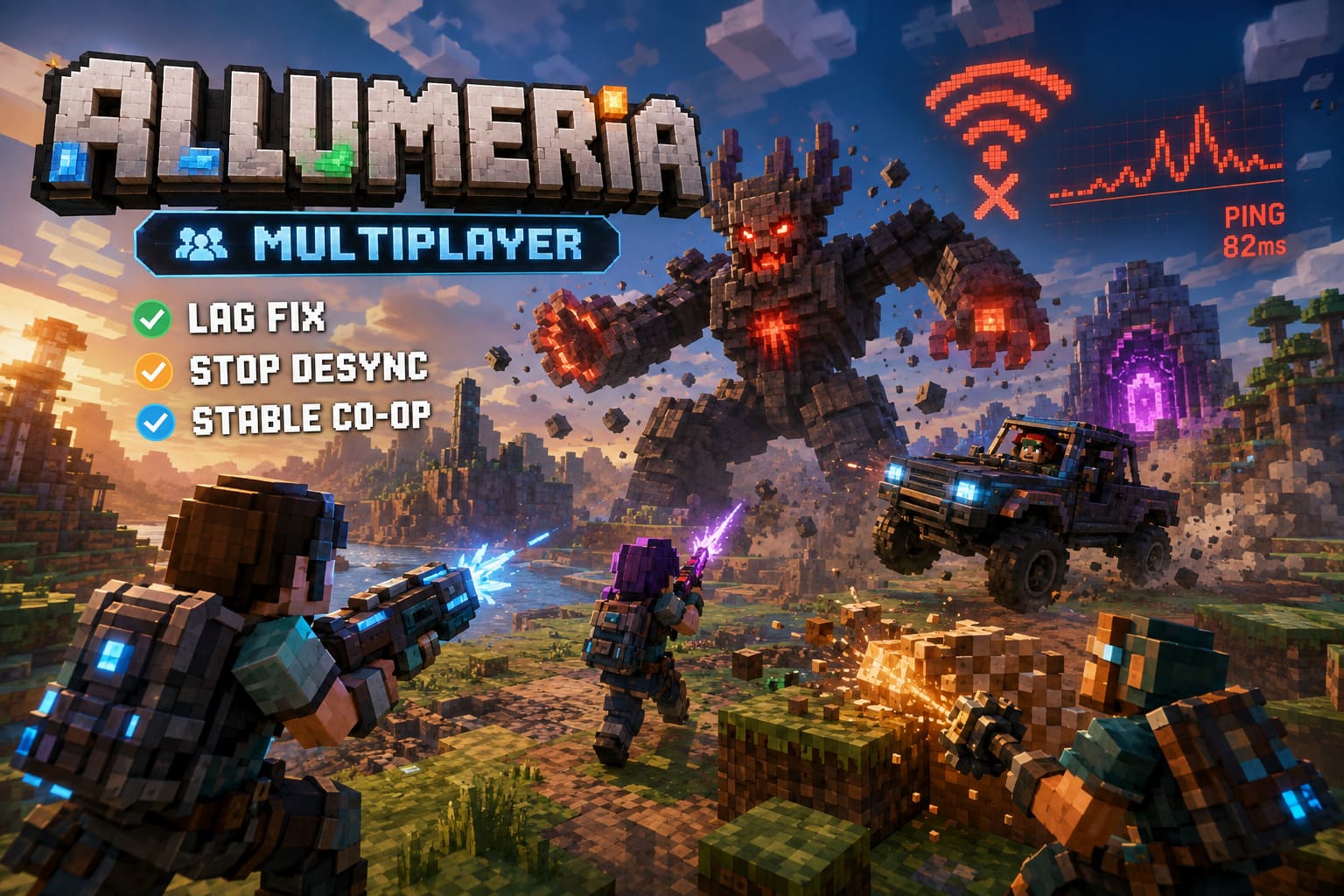
Allumeria isn’t just sending character positions between players. It is constantly dealing with a destructible voxel world, physics objects, lighting changes, projectiles, enemies, tools, vehicles, and other world-state information.
Break a few blocks? The game has to synchronize that.
Drive a vehicle through a busy area? More information needs to be processed.
Start throwing explosives at a boss while another player is using a laser and someone else is modifying the environment? That’s where things can get ugly.
The problem becomes even more obvious when players split up.
Imagine one player exploring a dungeon underground, another building several chunks away, and a third running around looking for resources. The host now has considerably more world activity to keep track of.
That’s why Allumeria lag spikes aren’t always caused by your internet speed. A connection can be fast enough on paper and still struggle with unstable packet timing, upload limitations, CPU load, or an overloaded host simulation.
And when synchronization breaks down, you get the classic symptoms:
- Characters suddenly snap backward or forward.
- Players appear to teleport.
- Boss health stops updating correctly.
- Destroyed blocks don’t immediately produce items.
- Vehicles and fast-moving tools feel delayed.
- Enemies appear frozen and then suddenly catch up.
- One player sees something completely different from everyone else.
That last one is the real killer: desync.
1. Update Allumeria Before Doing Anything Complicated
This sounds painfully obvious, but I’d start here every single time.
According to the troubleshooting information surrounding the August 2026 multiplayer issues, Build 24929696, released on August 25, 2026, included several multiplayer-related optimizations.
The update specifically targeted areas that can contribute to excessive network and simulation overhead, including:
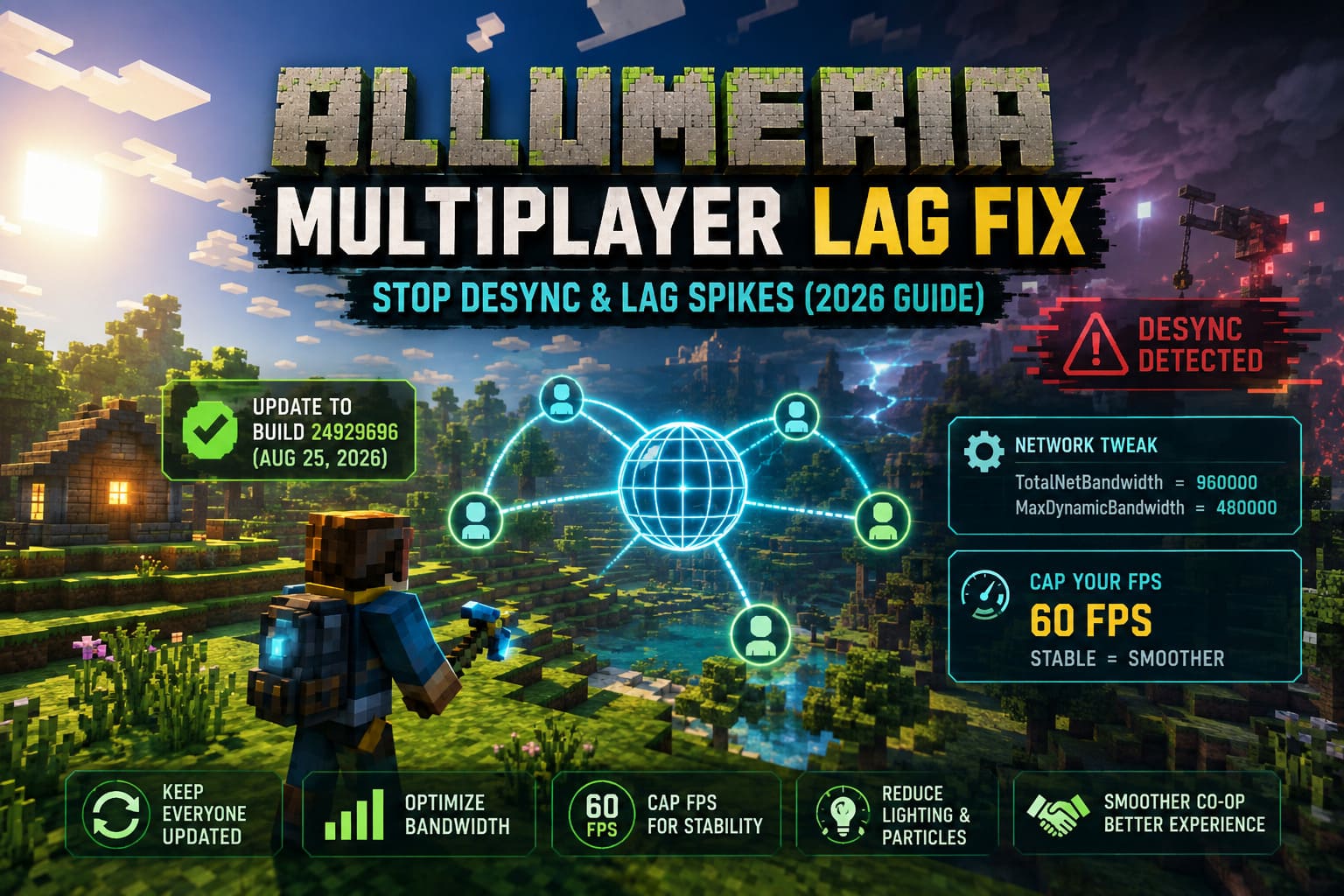
- Reduced bandwidth usage from server-side ragdoll mechanics.
- Performance improvements for specialized tools such as cars and lasers.
- Better handling of voxel grid updates when large numbers of blocks are changed.
In other words, this isn’t one of those patches where the developer changes a menu icon and calls it optimization. These are exactly the sorts of systems that can become problematic during chaotic co-op sessions.
Make sure every player is running the same current version.
Don’t let one friend join with an outdated installation and then wonder why the session starts behaving strangely.
I would also restart Steam after an update rather than immediately launching the game again. It takes maybe 30 seconds and removes one more variable from the equation.
2. Try the Allumeria Bandwidth Configuration Fix
This is the more advanced part, and honestly, it is the first thing I’d investigate if the official update doesn’t solve the problem.
Allumeria can use Steam-based networking as well as direct IP-style hosting, and the game’s default network configuration may not be ideal for a demanding co-op session.
The commonly discussed configuration values are:
| Setting | Suggested Value |
|---|---|
| TotalNetBandwidth | 960000 |
| MaxDynamicBandwidth | 480000 |
The idea is simple: give the game more room to handle network traffic instead of allowing a busy multiplayer session to hit a relatively restrictive ceiling.
How to change the values
- Close Allumeria completely.
- Open Windows File Explorer.
- Check the game’s configuration locations, including the Allumeria folder under your Documents/My Games directory or the installation directory.
- Look for a configuration file such as game.ini or config.json.
- Open it with Notepad.
- Find
TotalNetBandwidthandMaxDynamicBandwidth. - Set them to:
TotalNetBandwidth = 960000MaxDynamicBandwidth = 480000
- Save the file.
- If the configuration is repeatedly overwritten after launching the game, set the file to Read-only through its Windows Properties.
One important warning: don’t blindly create variables that don’t already exist just because you saw them in a forum post. Configuration formats can change between builds. If your installation doesn’t contain these parameters, check the current community documentation or game files before inventing new entries.
For players who already have the variables available, though, this is one of the more interesting tweaks to test.
3. Cap Your FPS Instead of Letting It Go Wild
This one surprised me a little.
It is tempting to think that higher FPS automatically means a smoother multiplayer experience. In an ideal world, sure. But if your machine constantly swings between 48, 92, 71, 116, and 58 FPS while the game is simultaneously handling a huge voxel environment, physics, lighting, and networking, you’re not necessarily getting a better experience.
For troubleshooting, I’d start with a 60 FPS cap.
Keep the host at 60 FPS and have the other players do the same if their hardware can comfortably maintain it.
You can use Allumeria’s own graphics settings if the option is available, or apply a frame-rate limit through your GPU control software.
The goal isn’t to make the game look worse.
It’s to create a stable performance floor.
My recommended starting graphics setup
| Setting | Multiplayer Recommendation |
|---|---|
| FPS Limit | 60 FPS |
| Lighting Quality | Medium or Low |
| Particle Effects | Reduced |
| Screen Shake | Off |
| Background Details | Reduced |
The lighting engine deserves special attention. Allumeria’s RGB lighting can look fantastic, especially when you’ve built something elaborate, but hundreds of dynamic light sources can put significant pressure on the system.
If your lag appears primarily around a giant neon base packed with custom lighting, don’t immediately blame Steam.
Turn the lighting down and test the same area again.
If the problem disappears, you’ve found an important part of the puzzle.
4. Stop Splitting the Party Across the Entire Map
This is probably the most underrated Allumeria multiplayer performance tip.
I’ve always liked games that let everyone wander off and do their own thing. In Allumeria, though, there is a practical downside.
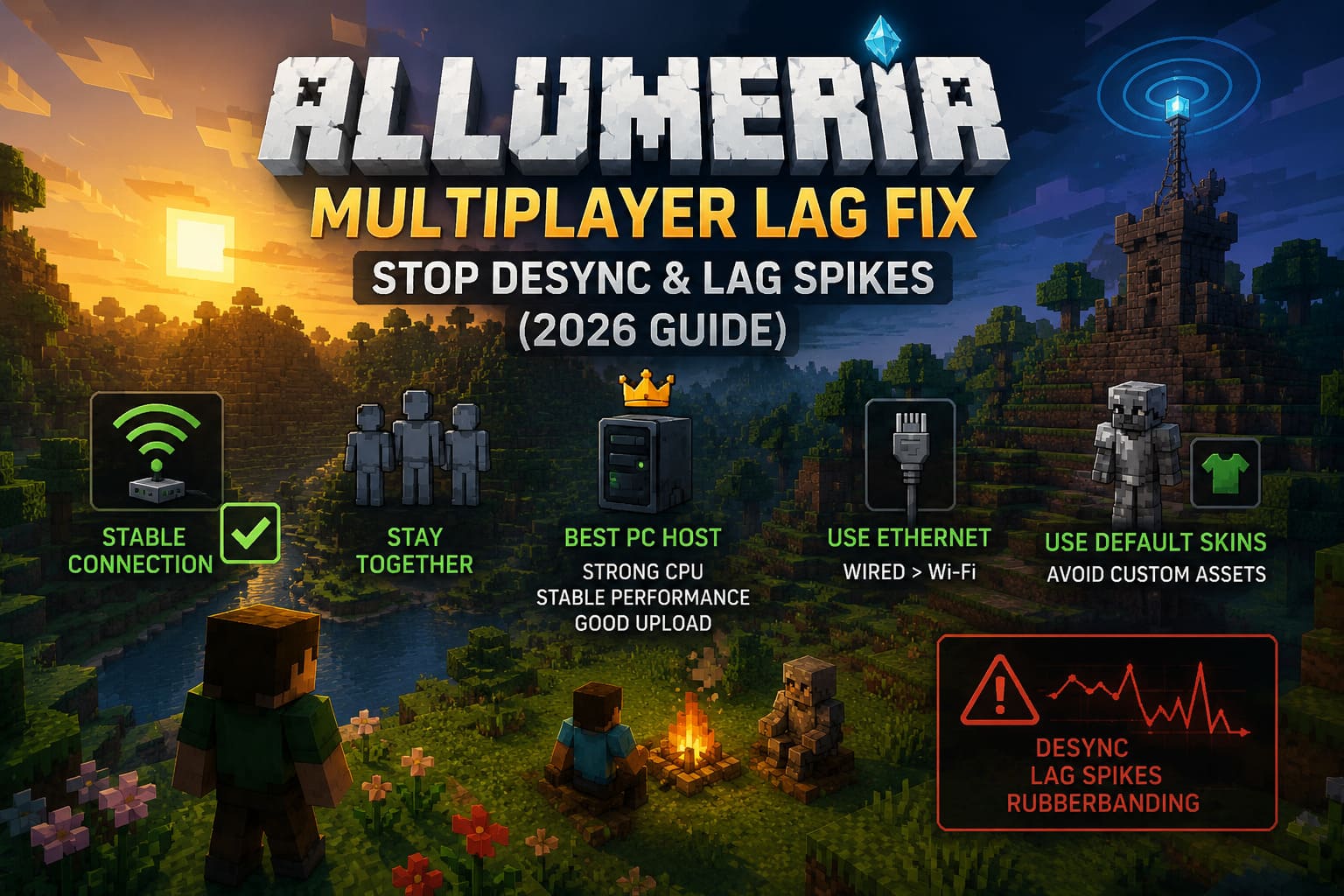
When your group stays relatively close together, the host doesn’t have to maintain the same amount of active world simulation across widely separated areas.
When everyone goes in different directions, the workload can grow considerably.
So if you’re about to enter a dungeon or fight a major boss, stay together.
You don’t need to stand shoulder-to-shoulder like you’re posing for a screenshot. Just avoid having one player disappear into a distant biome while another is underground and a third is constructing a giant base on the opposite side of the world.
This is especially important during troubleshooting.
If you are trying to figure out whether your network is actually broken, run a controlled test:
Keep everyone in the same area and repeat the activity that normally causes lag.
If the game suddenly behaves perfectly, your internet connection may not have been the primary culprit.
5. Give the Best PC the Hosting Job
The host matters more than many players realize.
For a demanding voxel sandbox, I would generally let the player with the strongest CPU, most stable system performance, and best upload connection host the world.
Don’t automatically pick the person with the lowest ping.
A player might have excellent ping but a weaker machine that struggles whenever the world becomes busy. Another player might have slightly higher latency but considerably better hardware and upload stability.
For larger groups, geography matters too.
If everyone lives in completely different regions, a dedicated server located somewhere reasonably central can potentially provide a more consistent experience than relying on one player’s home connection.
But for a small friend group, I would first try the strongest available PC as host before paying for anything.
6. Ethernet Still Beats Wi-Fi for Troubleshooting
I’m not going to pretend Wi-Fi is unusable for gaming. Modern wireless connections can be extremely good.
But when you’re diagnosing Allumeria desync and rubberbanding, wired Ethernet is the easy choice.
Especially avoid relying on a crowded 2.4GHz network if you have another option.
A tiny wireless interruption might barely matter in a normal game. In a heavily synchronized voxel world, however, unstable packet delivery can become much more noticeable.
So, at least while testing:
Connect the host through Ethernet.
If possible, have the other players use wired connections too.
You don’t have to rebuild your entire home network. You’re simply removing wireless instability from the list of possible causes.
7. Don’t Ignore Custom Skins and Modified Assets
This is another weird one that can be easy to overlook.
Allumeria supports custom player skins, and players can place custom texture files into the game’s skin directories. That’s a nice feature, but custom assets can become another variable when you’re trying to diagnose multiplayer problems.
If your session consistently starts lagging when a particular player joins, don’t assume their internet is automatically the problem.
Temporarily have everyone switch to one of the default bundled skins.
Then restart the session and test again.
If the lag disappears, you may have discovered an asset-loading issue rather than a traditional network problem.
It’s not the first thing I’d test, but if you’ve already tried the obvious fixes, it costs almost nothing to eliminate custom assets from the equation.
My Allumeria Multiplayer Setup
If I wanted the most stable co-op session possible right now, this would be my baseline:
- All players on the latest Allumeria build.
- 60 FPS cap for consistent performance.
- Medium or low lighting around large RGB-heavy builds.
- Reduced particles and unnecessary visual effects.
- Ethernet for the host whenever possible.
- The strongest PC acting as host.
- Players staying reasonably close during dungeons and boss fights.
- Default skins used temporarily while diagnosing asset-related issues.
- Bandwidth parameters adjusted only if those settings actually exist in the current configuration files.
I wouldn’t change ten things simultaneously, though.
That’s how you end up “fixing” a problem without knowing what actually fixed it.
Change one thing, run the same multiplayer activity, and compare.
Allumeria Multiplayer Lag: Quick Checklist
If you just want the short version before jumping back into your world:
Update: Make sure everyone has Build 24929696 or a newer version.
Bandwidth: If the relevant configuration variables are present, test TotalNetBandwidth 960000 and MaxDynamicBandwidth 480000.
FPS: Start with a stable 60 FPS cap.
Lighting: Reduce RGB/dynamic lighting in areas with severe performance drops.
Party: Stay relatively close together instead of loading distant regions simultaneously.
Host: Give the session to the player with the strongest CPU and most reliable upload connection.
Connection: Use Ethernet instead of unstable Wi-Fi whenever possible.
Assets: Temporarily remove custom skins from the equation if one particular player seems to trigger the problem.
Final Thoughts
The frustrating thing about Allumeria multiplayer lag is that there isn’t necessarily one magic “fix lag” button.
The game is doing a lot.
A destructible voxel world, physics, lighting, enemies, vehicles, weapons, procedural areas and multiplayer synchronization all have to coexist without falling over. When several of those systems get busy at the same time, even a perfectly decent gaming PC and internet connection can start showing cracks.
Personally, I’d focus less on chasing absurdly high FPS and more on stability. A locked 60 FPS session with everyone reasonably close together and a capable host feels far better than a theoretically faster setup that constantly stutters and rubberbands.
And if you still get desync after applying the basics, don’t immediately start changing random Windows networking settings.
Test methodically.
Update the game. Stabilize the host. Cap the FPS. Reduce lighting. Keep the party together. Then investigate configuration files and custom assets.
That’s a much better way to figure out whether your Allumeria multiplayer problem is actually your internet—or whether the voxel world itself is simply asking your system to do too much at once.