Metal Gear Solid Master Collection Vol 2 Best Graphics Settings: Definitive PC Optimization Guide
There is something almost surreal about finally seeing Metal Gear Solid 4: Guns of the Patriots running properly on a modern PC. For years, MGS4 was the odd one out in the series. The game was tied to the PlayStation 3 and its notoriously unusual Cell architecture, while PC players could only watch from the sidelines.
Now Metal Gear Solid: Master Collection Vol. 2 changes that.
But if you’ve spent enough time with PC ports, you already know the drill. A game can technically run at 60 FPS while still feeling like it is dragging itself through mud. Frame-time spikes, shader compilation, resolution scaling, excessive blur and CPU bottlenecks can turn a powerful gaming PC into something that feels strangely underpowered.
That’s particularly important with MGS4, which is considerably more demanding than the other games included in the collection.
I’ve always been a little suspicious of the “just turn everything to Ultra” approach. It looks good in a screenshot. It doesn’t necessarily feel good when you’re actually playing. For this collection, I’d rather have a rock-solid 60 FPS, clean image quality and consistent frame pacing than a few prettier shadows that disappear into the middle of an explosion anyway.
So these are the settings I’d start with on PC.
What Kind of PC Do You Actually Need?
Before touching the graphics menu, it helps to separate the official target from real-world expectations.
For a comfortable experience, the collection benefits from 16 GB of RAM, a modern multi-core processor and an SSD. MGS4 is especially sensitive to CPU performance because of the complexity involved in bringing a game originally designed around PS3 hardware to modern PC architecture.
A powerful GPU alone doesn’t guarantee smooth gameplay.
Here’s a practical hardware breakdown:
| Hardware Tier | Target Resolution | FPS Target | Suggested GPU Class | Main Priority |
|---|---|---|---|---|
| Entry-Level | 1080p | 60 FPS | GTX 1650 / RX 570 | Reduce shadows and effects |
| Mid-Range | 1440p | 60 FPS | RTX 3060 / RX 6600+ | Balanced visual quality |
| High-End | 4K | 60 FPS | RTX 4070+ / RX 6800+ | Native resolution and quality |
| Handheld | 800p/1080p | 40–60 FPS | Steam Deck-class hardware | Frame pacing and efficiency |
The CPU matters more than many players expect. If your processor struggles with the game’s heavier scenes, lowering a couple of GPU settings won’t magically solve every hitch.
And please, install the collection on an SSD. This isn’t the sort of game where I’d willingly use an old mechanical hard drive and then blame the port when asset streaming starts behaving badly.
My Recommended MGS Vol. 2 Graphics Settings
The goal here is simple: keep the image sharp while eliminating settings that provide little visual value for their performance cost.
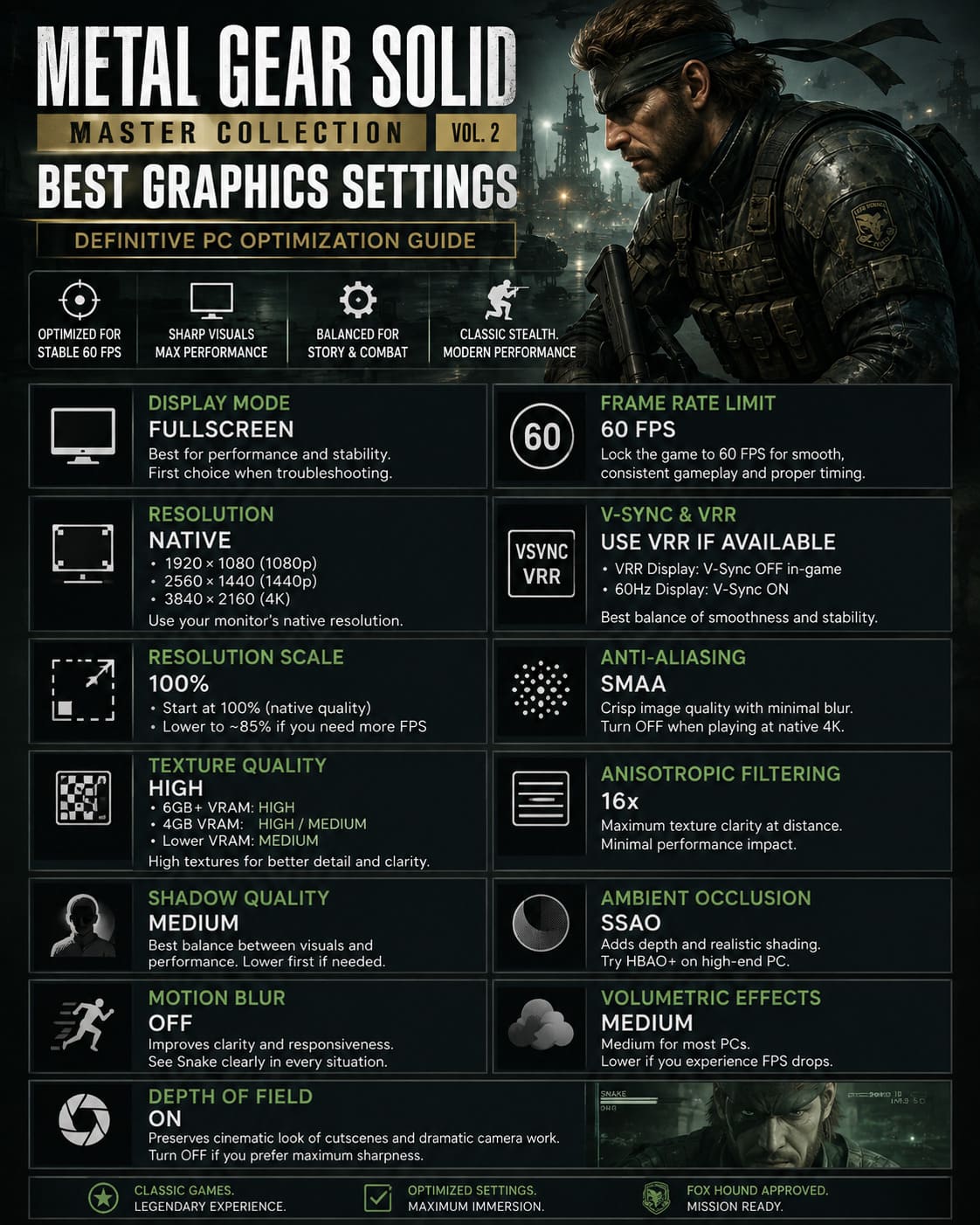
Display Mode: Fullscreen
Recommended: Fullscreen
Fullscreen is my preferred choice for this collection. It keeps the rendering path straightforward and can help avoid some of the weirdness that occasionally appears with desktop composition and background applications.
If Borderless works perfectly on your machine, there’s no reason to panic. But when troubleshooting inconsistent frame pacing, Fullscreen is the first mode I’d test.
Resolution: Native
Set the game to your monitor’s native resolution.
- 1920×1080 for a 1080p display
- 2560×1440 for a 1440p display
- 3840×2160 for a 4K display
Don’t introduce unnecessary scaling unless you’re actually fighting a performance problem.
Resolution Scale: 100%
Start at 100%.
If you’re playing at 4K with a capable GPU, keep the native output and adjust from there.
On weaker hardware, dropping the internal scale to around 85% can be a useful emergency performance lever. I’d rather slightly reduce internal resolution than butcher shadows, textures and every other visual setting.
At 1080p on a Steam Deck-class system, 100% is a good starting point, but don’t be afraid to lower it when demanding scenes start hammering the frame rate.
Frame Rate Limit: 60 FPS
This is probably the most important setting in the entire guide.
Cap the game at 60 FPS.
MGS4 and Peace Walker were designed around console-era timing and presentation. Running a classic title at some absurd 144, 240 or 360 FPS just because your monitor can do it isn’t automatically an upgrade.
A stable 60 feels fantastic here.
If you’re using a high-refresh monitor, I’d still start with a 60 FPS target and concentrate on consistent frame times rather than chasing a huge number in the corner of the screen.
V-Sync and VRR
If you have G-Sync or FreeSync, use your monitor’s variable refresh capability.
My preferred setup is:
VRR display: V-Sync off in-game, with appropriate synchronization configured through the GPU driver.
Traditional 60Hz display: V-Sync on if tearing bothers you.
There’s no reason to accept ugly tearing just to say V-Sync is disabled. At the same time, VRR gives you a much better solution on modern displays.
Anti-Aliasing: SMAA
For image quality, SMAA is my first choice.
TAA can smooth edges effectively, but temporal anti-aliasing sometimes comes with the familiar trade-off: moving objects can look softer, and fine details may smear during camera movement.
SMAA keeps the presentation noticeably crisper.
If you’re playing at native 4K, you can also experiment with Anti-Aliasing Off. At that resolution, the additional pixel density already does a lot of the work, and you’ll recover a little GPU headroom.
Texture Quality: High
High texture quality is the sweet spot for most PCs.
Textures generally don’t punish the GPU as heavily as effects such as shadows or volumetric rendering, assuming you have enough VRAM.
I’d use:
- 6 GB+ VRAM: High
- 4 GB VRAM: High or Medium depending on performance
- Lower VRAM: Medium
There is little reason to sacrifice texture clarity on a modern gaming PC unless you’re actually running into VRAM limitations.
Anisotropic Filtering: 16x
Turn this up.
16x anisotropic filtering keeps roads, floors, walls and other surfaces looking sharp when they extend into the distance.
Modern GPUs handle this extremely well. Dropping anisotropic filtering from 16x to something like 2x or 4x generally isn’t where you’re going to find the magical FPS boost you’re looking for.
Keep it at 16x unless your hardware is seriously struggling.
Shadow Quality: Medium
This is one of the settings where I absolutely recommend restraint.
Medium shadows are the best balance for most systems.
High-quality dynamic shadows can become surprisingly expensive, especially during outdoor combat and scenes packed with characters, effects and environmental objects.
If you’re chasing 60 FPS on a mid-range GPU, I’d rather lower shadows than textures.
For high-end 4K systems, you can push shadows higher if the frame-time data looks good. But don’t assume High is automatically better just because the slider exists.
Ambient Occlusion: SSAO
Use SSAO as the default.
Ambient occlusion adds subtle contact shading around objects and helps environments avoid looking completely flat.
If you’re running a powerful GPU, HBAO+ can be worth testing for additional depth and definition.
On weaker systems, though, I’d happily disable AO before sacrificing resolution.
Motion Blur: Off
Turn motion blur off. Immediately.
This is one of those settings that can make a game look technically more cinematic while making it feel worse to play.
At a stable 60 FPS on a modern monitor, I want to see Snake clearly when I turn the camera. I don’t need the entire screen becoming a watercolor painting every time I flick the mouse.
Disabling motion blur improves perceived clarity and makes combat feel much more responsive.
Volumetric Effects: Medium
Smoke, fog, dust and battlefield haze are exactly where MGS4 can start getting nasty from a performance perspective.
I’d use:
Medium for most PCs.
If you have a powerful GPU and plenty of headroom, High is perfectly reasonable. But if you’re experiencing sudden frame drops when explosions start filling the screen, volumetric effects are one of the first settings I’d reduce.
This is particularly useful when you’re already targeting a locked 60 FPS.
Depth of Field: On
This one is personal.
I prefer Depth of Field enabled because it preserves more of the cinematic presentation associated with MGS4’s cutscenes.
Yes, disabling it can make distant objects sharper. But Metal Gear has always been about presentation as much as mechanics. The dramatic camera work is part of the experience.
If you hate artificial blur, switch it off. That’s one setting where I won’t argue with you.
Best Settings Cheat Sheet
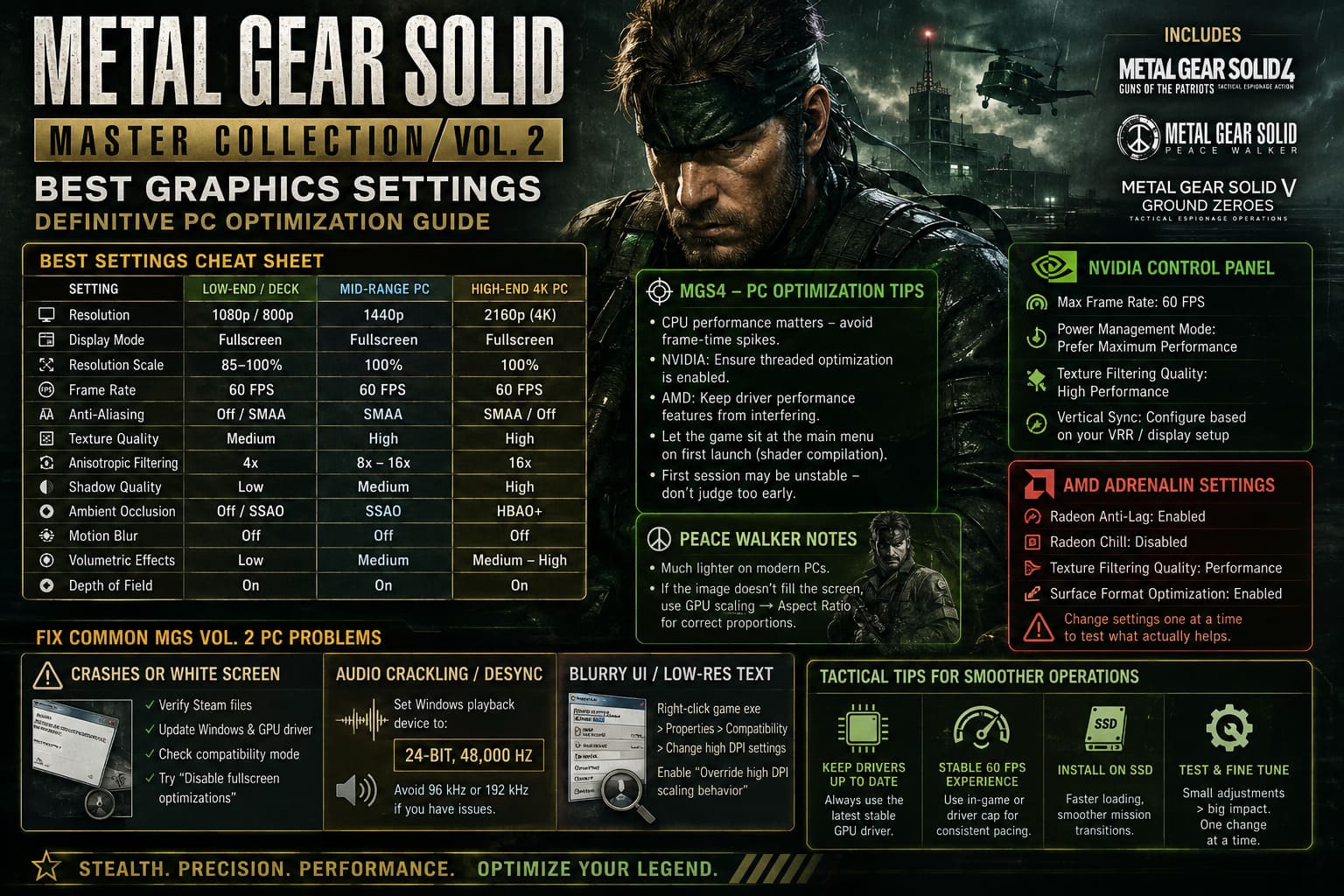
| Setting | Low-End / Deck | Mid-Range PC | High-End 4K PC |
|---|---|---|---|
| Resolution | 1080p / 800p | 1440p | 2160p |
| Display Mode | Fullscreen | Fullscreen | Fullscreen |
| Resolution Scale | 85–100% | 100% | 100% |
| Frame Rate | 60 FPS | 60 FPS | 60 FPS |
| Anti-Aliasing | Off / SMAA | SMAA | SMAA / Off |
| Texture Quality | Medium | High | High |
| Anisotropic Filtering | 4x | 8x–16x | 16x |
| Shadow Quality | Low | Medium | High |
| Ambient Occlusion | Off / SSAO | SSAO | HBAO+ |
| Motion Blur | Off | Off | Off |
| Volumetric Effects | Low | Medium | Medium–High |
| Depth of Field | On | On | On |
MGS4-Specific PC Optimization
MGS4 is the game I’d pay the most attention to.
The port’s workload can behave very differently from what you’d expect from a normal modern PC game. A fast GPU paired with a mediocre CPU can still produce ugly frame-time spikes.
If you’re using an NVIDIA GPU, check the game’s profile in NVIDIA Control Panel and make sure threaded optimization isn’t unnecessarily disabled.
For AMD users, the equivalent goal is making sure driver-level performance features aren’t fighting the game.
I’d also let the game sit at the main menu after the first launch. Give Steam and the game time to settle their shader-related work before immediately jumping into a demanding mission.
That first session may not be the smoothest one.
Don’t judge the entire port from the first five minutes.
Peace Walker Is a Different Beast
Peace Walker is much easier on modern hardware.
Originally built around the PSP before its HD treatment, it simply doesn’t have the same workload as MGS4.
The main thing to watch is presentation and scaling, particularly if you’re using a 4K monitor.
If the game appears inside an oddly sized image or refuses to fill the screen correctly, check your GPU’s scaling options. Aspect Ratio is generally the safer choice when you want the original proportions preserved without stretching characters into absolute nightmare fuel.
NVIDIA Control Panel Settings
For NVIDIA hardware, create a dedicated profile for the collection.
I’d start with:
- Max Frame Rate: 60 FPS
- Power Management Mode: Prefer Maximum Performance
- Texture Filtering Quality: High Performance
- Vertical Sync: Configure according to your VRR/display setup
The 60 FPS driver cap can be useful when the game’s internal limiter produces inconsistent frame pacing.
Don’t blindly enable every “performance” feature in the driver, though. More toggles don’t equal more FPS.
AMD Adrenalin Recommendations
AMD users can create a dedicated profile as well.
A sensible starting point is:
- Radeon Anti-Lag: Enabled
- Radeon Chill: Disabled
- Texture Filtering Quality: Performance
- Surface Format Optimization: Enabled
Again, test changes one at a time. If you change eight driver settings simultaneously and the game suddenly feels better, you won’t know which setting actually helped.
That’s how PC troubleshooting turns into superstition.
Fixing Common MGS Vol. 2 PC Problems
Game Crashes or Opens to a White Screen
Start with the boring fixes because they work surprisingly often.
Verify the Steam installation files, update Windows and your GPU driver, and check the game’s executable compatibility settings.
If fullscreen behavior is causing trouble, testing Disable fullscreen optimizations can also be worthwhile.
Don’t start throwing random launch commands into Steam before you’ve checked the basics.
Audio Crackling or Dialogue Desynchronization
Make sure Windows isn’t using an unnecessarily aggressive audio format.
Try setting your playback device to:
24-bit, 48,000 Hz
If you’re running your Windows audio device at 96 kHz or 192 kHz and experiencing strange crackling or synchronization problems, switching back to 48 kHz is an easy troubleshooting step.
Blurry UI or Low-Resolution Text
Windows DPI scaling can occasionally make older or heavily adapted games look strange.
Right-click the game’s executable, open Properties > Compatibility > Change high DPI settings, and test Override high DPI scaling behavior with the application handling the scaling.
If the interface suddenly becomes sharper, you’ve found the culprit.
How to Fix Metal Gear Solid: Master Collection Vol 2 Black Screen on Launch (2026 Guide)
What I’d Actually Run on a Gaming PC
If I were sitting down to play MGS4 tonight, I wouldn’t waste an hour chasing benchmark numbers.
I’d use Fullscreen, native resolution, 100% resolution scale, 60 FPS, SMAA, High textures, 16x anisotropic filtering, Medium shadows, SSAO, Motion Blur Off and Medium volumetric effects.
Then I’d play.
If the frame rate stays locked, I’m done.
If it doesn’t, I’d lower volumetric effects and shadows first. If the GPU still isn’t happy, I’d reduce resolution scaling. If performance remains poor despite a powerful GPU, I’d start looking at CPU utilization and frame-time behavior rather than blindly lowering every graphics option.
Metal Gear Solid Peace Walker HD Online Co-Op Setup Guide: How to Play 6-Player Game in 2026
That’s the important distinction with this collection. MGS4 isn’t a game where maximum settings automatically equal the best experience.
The best configuration is the one that keeps the image clean, the controls responsive and the frame time predictable.
And honestly, that’s exactly how I want to experience Metal Gear Solid 4 after waiting all these years. I don’t need a 200 FPS counter. I need Snake moving through those battlefields without the PC suddenly choking when the screen fills with smoke, soldiers and explosions.
Lock it to 60. Keep the image sharp. Kill the unnecessary blur. Give the CPU room to breathe.
Then get back to the mission.