1666 Amsterdam Steam Deck Settings: Best Graphics Config for 45 FPS on OLED
If you are planning to play 1666: Amsterdam on a Steam Deck OLED, there is one thing I would change before doing anything else: forget about chasing 60 FPS.
I know that sounds strange when we are talking about a modern action game, but after looking at what this game is trying to render, 45 FPS is a much more realistic sweet spot for the Steam Deck OLED. You still get a noticeably smoother experience than 30 FPS, while avoiding the aggressive compromises and battery drain that come with trying to push the hardware too far.
1666: Amsterdam is exactly the kind of game that can expose the limits of a handheld PC. The city is dense, the lighting is demanding, the environments have plenty of detail, and the supernatural effects can become surprisingly expensive when several things are happening at once. This is not a lightweight indie game that the Deck can simply run at maximum settings.
But that does not mean the Steam Deck OLED is out of the fight.
With the right combination of SteamOS settings, FSR upscaling, reduced shadows and volumetric effects, and a sensible 45 FPS target, I think the OLED model can deliver a really enjoyable handheld experience.
And personally, I would much rather play a consistent 45 FPS than spend the entire evening watching the frame counter bounce between 38 and 60.
Why 45 FPS Makes So Much Sense on Steam Deck OLED
The biggest advantage here is the OLED display itself.
The Steam Deck OLED has a 90Hz refresh rate, which gives us a very convenient target for demanding games. When you lock the game to 45 FPS and run the display at 90Hz, every frame can be displayed for two refresh cycles.
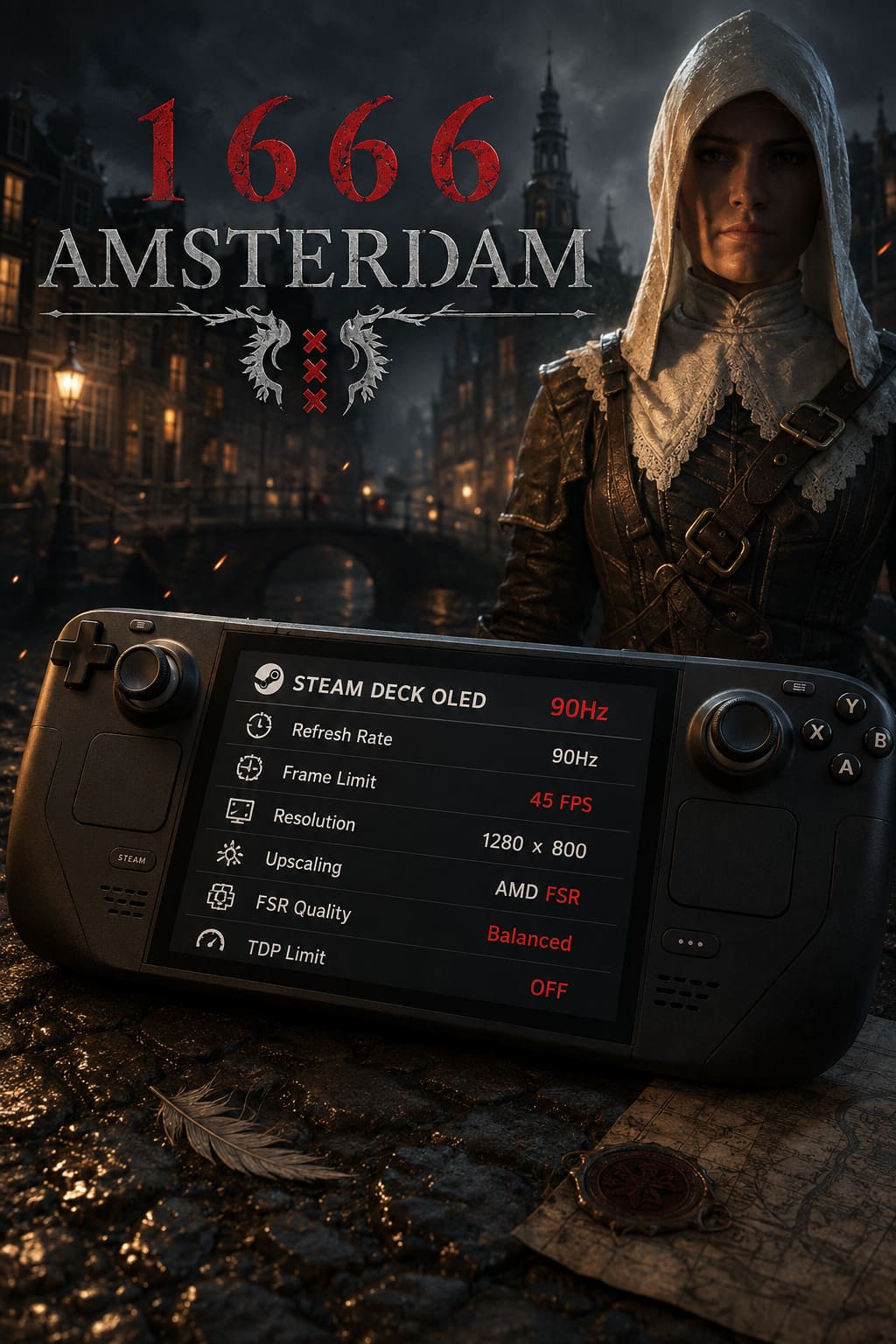
That produces a clean and predictable frame cadence.
It is one of those Steam Deck tricks that sounds like a small technical detail until you actually play with it. A properly paced 45 FPS game feels considerably more responsive than a typical 30 FPS lock, especially when moving through a detailed environment or fighting enemies.
For 1666: Amsterdam, I think this matters even more because the game appears designed around atmosphere and exploration. Walking through a dark Amsterdam street while dealing with supernatural enemies simply feels better when camera movement remains smooth.
Trying to force 60 FPS, meanwhile, can become a losing battle.
The Steam Deck’s custom AMD APU is impressive for its size, but it has a limited power envelope. A demanding modern game can easily consume that available performance budget.
My Recommended Steam Deck OLED Target
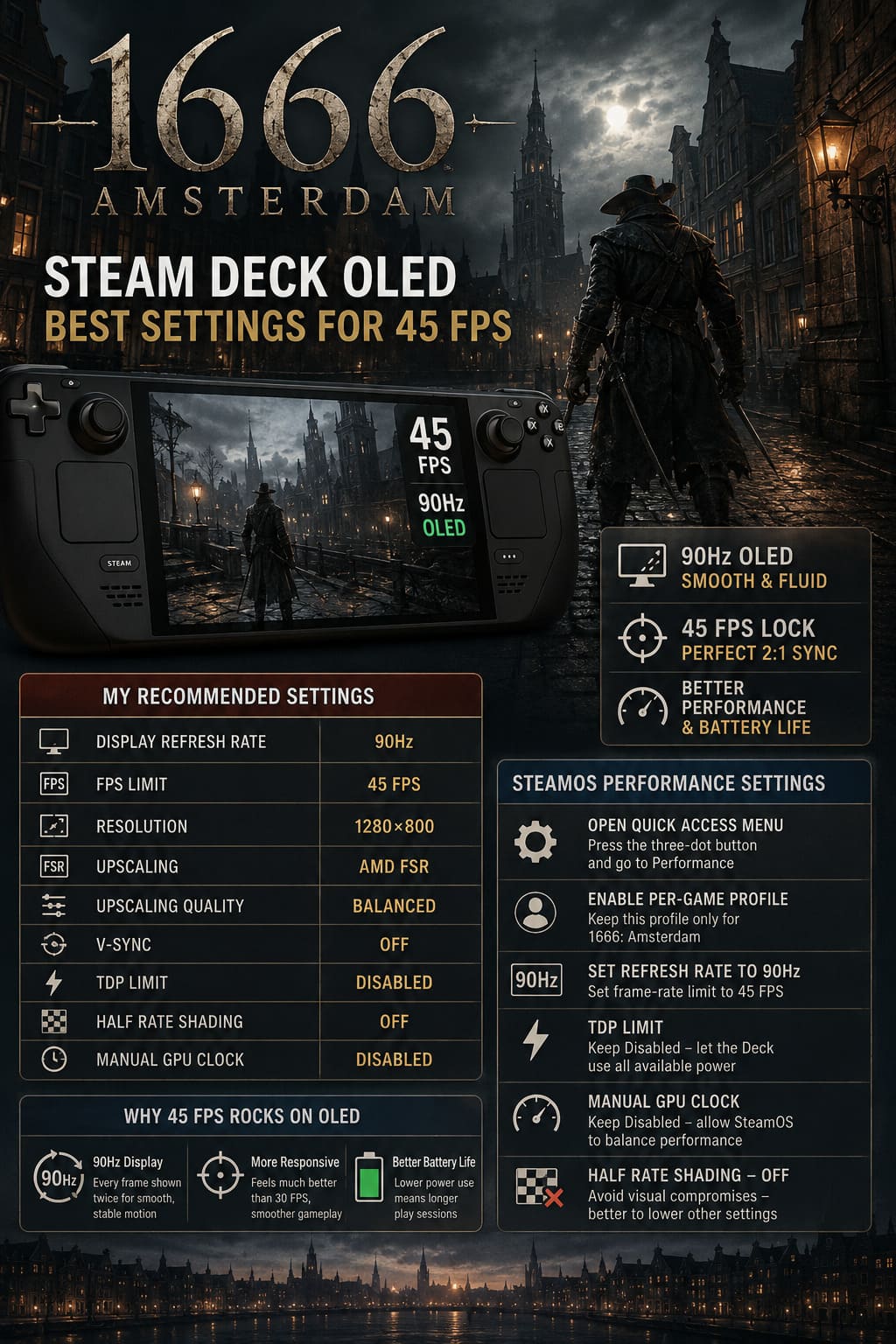
| Setting | Recommendation |
|---|---|
| Display Refresh Rate | 90Hz |
| FPS Limit | 45 FPS |
| Resolution | 1280×800 |
| Upscaling | AMD FSR |
| Upscaling Quality | Balanced |
| V-Sync | Off |
| TDP Limit | Disabled |
| Half Rate Shading | Off |
| Manual GPU Clock | Disabled |
This is the setup I would start with before changing anything else.
SteamOS Performance Settings I Would Use
Before touching the graphics menu, open the Quick Access Menu using the three-dot button on the right side of the Steam Deck.
Go to the Performance section and enable the per-game profile. This is important because you do not want an aggressive performance profile affecting every other game installed on your Deck.
Set the refresh rate to 90Hz and the frame-rate limit to 45 FPS.
That gives us the basic 2:1 relationship between the game and display.
I would also leave TDP Limit disabled. There is no reason to artificially restrict the APU when running a game this demanding. The Deck needs all the power it can reasonably use during heavy scenes.
The same goes for the manual GPU clock. Leave it disabled and allow SteamOS to manage the CPU/GPU balance dynamically.
One setting I would definitely avoid here is Half Rate Shading.
Yes, it can potentially reduce GPU workload, but the visual compromises are not always worth it. Fine details, text, surfaces and certain effects can look noticeably worse. On a game like 1666: Amsterdam, where atmosphere and environmental detail are a huge part of the experience, I would rather reduce individual graphics settings than make the entire image look rougher.
The Best 1666: Amsterdam Graphics Settings for Steam Deck OLED
Once you are inside the game, this is where the real optimization begins.
I would not simply select the lowest possible preset. That approach can give you a few extra frames, but it can also make a visually ambitious game look considerably worse.
Instead, the goal is to identify the settings that cost the most performance and lower those first.
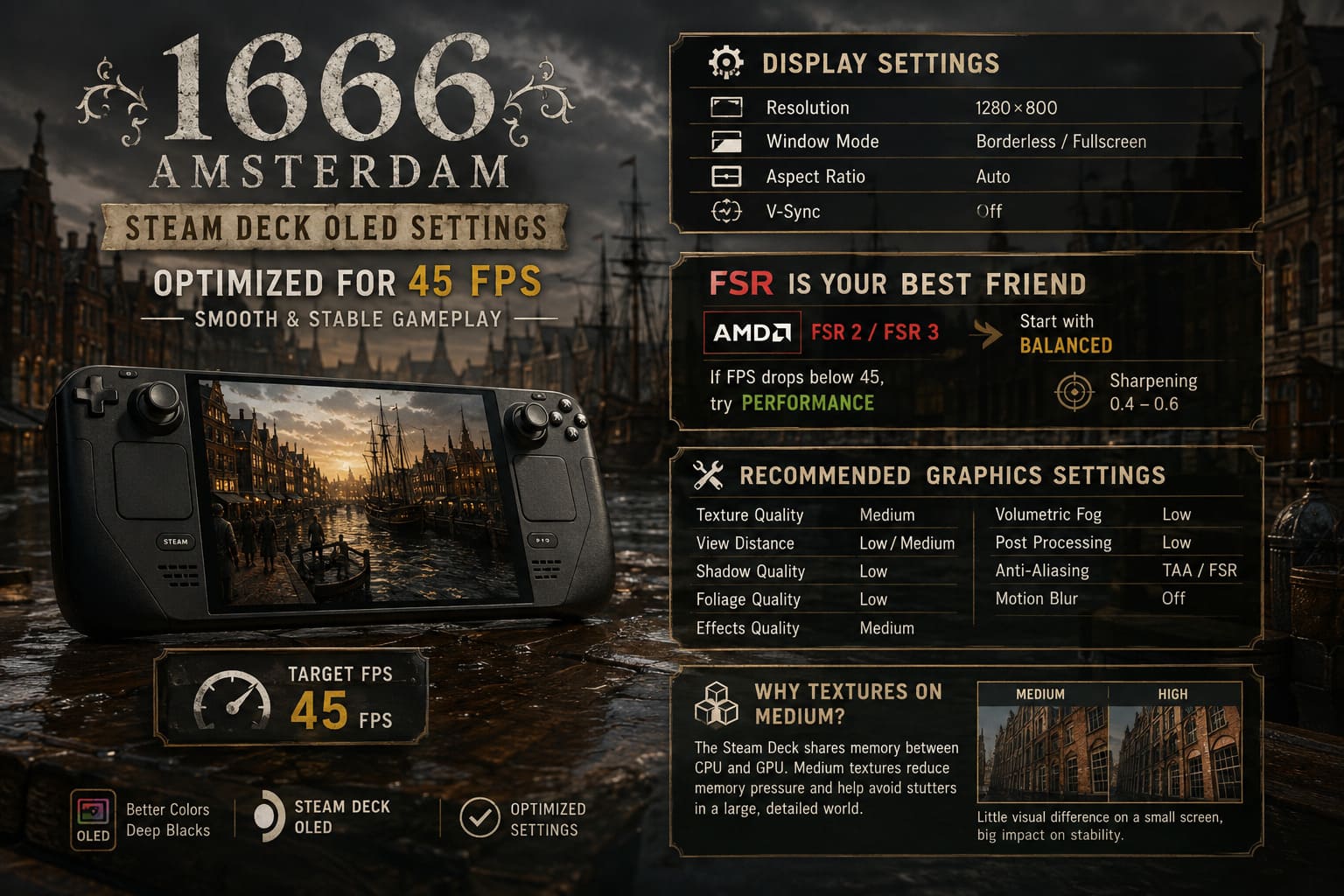
Display Settings
Start with the Steam Deck’s native resolution:
- Resolution: 1280×800
- Window Mode: Borderless or Fullscreen
- Aspect Ratio: Auto
- V-Sync: Off
The native 1280×800 resolution is already a good fit for the Deck’s display. There is little reason to render at a higher resolution and then ask the APU to work even harder.
I also prefer keeping V-Sync disabled when using the SteamOS frame limiter. Running multiple frame-pacing systems simultaneously can sometimes make controls feel less responsive.
FSR Is Your Best Friend
If 1666: Amsterdam offers AMD FSR 2 or FSR 3, I would use the game’s own implementation rather than relying on the SteamOS-level scaling option.
Start with Balanced.
This is probably the most important setting in the entire configuration because upscaling allows the GPU to render internally at a lower resolution before reconstructing the image to your display resolution.
Balanced should be your starting point because it gives you a reasonable compromise between image quality and performance.
If you enter a particularly demanding section of Amsterdam and the frame rate repeatedly falls below 45 FPS, then try Performance.
I would not jump directly to Performance, though.
At Steam Deck viewing distances, the image can become noticeably softer, particularly around small environmental details, signs and distant objects.
For sharpening, something around 0.4–0.6 is a good place to experiment.
Recommended Graphics Preset
| Graphics Option | Steam Deck OLED Setting |
|---|---|
| Texture Quality | Medium |
| View Distance | Low/Medium |
| Shadow Quality | Low |
| Foliage Quality | Low |
| Effects Quality | Medium |
| Volumetric Fog | Low |
| Post Processing | Low |
| Anti-Aliasing | TAA/FSR |
| Motion Blur | Off |
Why I Keep Textures at Medium
Texture quality is one of those settings I would normally hate lowering.
Nobody buys a beautiful OLED display just to look at blurry walls.
However, the Steam Deck has a unified memory architecture, meaning the CPU and GPU share the available system memory. You cannot treat it like a desktop gaming PC with a large dedicated VRAM pool.
For that reason, Medium textures are a safer choice.
The difference between Medium and High may not even be particularly obvious on a relatively small handheld screen, while the additional memory pressure can contribute to asset-streaming problems in a large environment.
If the game feels stable and you have memory headroom, High textures are worth testing. But Medium is the setting I would use for a dependable baseline.
Shadows Are Where I Would Make the Biggest Sacrifice
If you only want to change a couple of settings, start with shadows and volumetric effects.
Modern games can spend a ridiculous amount of GPU time calculating shadows, especially in environments filled with dynamic lights.
And 1666: Amsterdam is built around a dark, atmospheric world where lighting is a major visual component.
That creates an annoying situation: the settings that make the game look great can also be among the most expensive.
I recommend Low shadow quality for the Steam Deck OLED.
It may sound harsh, but I would rather have a stable 45 FPS with slightly simpler shadows than a prettier image that constantly drops into the 30s.
The OLED screen already gives the game plenty of visual punch. You can afford to sacrifice some shadow detail without destroying the overall presentation.
Keep Effects at Medium
This is one setting I would not immediately push to Low.
The supernatural side of 1666: Amsterdam is a major part of the experience, and effects such as magical abilities, smoke and combat visuals contribute heavily to the atmosphere.
I would start with Medium Effects Quality.
If performance remains inconsistent after lowering shadows, volumetrics and view distance, then Effects would be one of the next settings I would reduce.
But I would not sacrifice these visuals before dealing with the bigger performance offenders.
Lower Volumetrics Without Feeling Guilty
Volumetric fog and atmospheric lighting can look fantastic.
They can also absolutely hammer a handheld GPU.
For the Steam Deck, I recommend Low Volumetric Fog/Post Processing.
This is another compromise that I think works particularly well on a small screen. You still retain the overall mood of the scene, but the GPU is not wasting as much performance calculating expensive atmospheric effects.
If you are seeing drops specifically during nighttime scenes, heavy weather or areas filled with lighting effects, this is one of the first settings I would revisit.
View Distance: Don’t Max It Out
Amsterdam is designed around streets, canals and relatively complex environments, so view distance can have a significant impact on performance.
I recommend Low or Medium View Distance.
Start with Medium if you want a slightly better-looking world. If you are struggling to hold 45 FPS while moving quickly through the city, switch to Low.
This is particularly useful because reducing view distance can help prevent the game from preparing too many distant objects at once.
For me, this is a better compromise than lowering texture quality even further.
What About Motion Blur?
Turn it Off.
Normally, I am not completely against motion blur. In some games it can make lower frame rates look smoother.
But at 45 FPS on a 90Hz OLED display, I simply do not think it is necessary.
The game already has a relatively fluid presentation at this frame rate, and disabling motion blur gives you a cleaner image while exploring Amsterdam.
It also makes fast camera movements easier to read.
What If 45 FPS Isn’t Stable?
This is the important part: do not assume every section will run at exactly 45 FPS just because these settings work elsewhere.
Open-world games are unpredictable.
A quiet street, an interior building and a crowded marketplace can have completely different performance characteristics.
If you see occasional dips, I would adjust settings in this order:
- Lower Volumetric Fog/Post Processing.
- Reduce View Distance.
- Switch FSR from Balanced to Performance.
- Lower Effects Quality.
- Reduce additional visual settings only if necessary.
I would avoid immediately dropping everything to Low.
The whole point of this configuration is to maintain the visual identity of 1666: Amsterdam while giving the Steam Deck enough breathing room to maintain a smooth frame rate.
Proton: Start With the Stable Option
Compatibility can be just as important as graphics settings on Steam Deck.
If the game has issues launching or displaying correctly, open its Steam Properties and check the Compatibility section.
If the game is not behaving correctly with the default Proton version, testing Proton Experimental is a sensible troubleshooting step. Newer versions can sometimes contain fixes for recently released games and their graphics APIs.
However, I would not change Proton versions just because a random configuration guide says you have to.
If the game launches correctly and performance is stable, there is no reason to keep switching compatibility layers.
Stability first, experimentation second.
1666 Amsterdam Witch Abilities Guide: Noa Brooklyn Combat, Spells, and Cat Familiar Mechanics
A Quick Troubleshooting Checklist
If performance suddenly becomes worse after an update, first restart the game and Steam Deck.
If the problem persists, verify the game files through Steam. Then check whether the issue occurs consistently in the same location or only after extended play.
For more serious configuration problems, backing up your saves and resetting the game’s configuration files can also help. The exact save/configuration directory can vary depending on how the game is packaged and its Proton prefix, so I would not blindly delete a folder based on a path copied from another game.
The same applies to community utilities such as CryoUtilities. They can be useful for certain Steam Deck workloads, but I would treat them as optional troubleshooting tools rather than mandatory requirements for playing 1666: Amsterdam.
In other words, don’t start modifying BIOS settings just because your frame rate isn’t perfect.
Get the in-game configuration right first.
My Final 1666: Amsterdam Steam Deck OLED Setup
After experimenting with a demanding game, I usually come back to one simple rule: consistent performance beats impressive numbers.
For 1666: Amsterdam, the Steam Deck OLED’s 90Hz screen gives us an unusually good target.
A locked or mostly stable 45 FPS at 90Hz feels smooth enough for exploration and combat, while the reduced GPU workload is much more sensible for battery life than constantly chasing 60 FPS.
Here is the setup I would personally use:
| Category | My Setting |
|---|---|
| Refresh Rate | 90Hz |
| FPS Cap | 45 FPS |
| Resolution | 1280×800 |
| Upscaling | FSR Balanced |
| Sharpness | 0.4–0.6 |
| Textures | Medium |
| Shadows | Low |
| View Distance | Low/Medium |
| Foliage | Low |
| Effects | Medium |
| Volumetrics | Low |
| Motion Blur | Off |
| V-Sync | Off |
| TDP Limit | Disabled |
| Manual GPU Clock | Disabled |
| Half Rate Shading | Off |
Final Thoughts
I honestly think the Steam Deck OLED is a better fit for 1666: Amsterdam than the raw hardware specifications might initially suggest.
No, I would not expect it to behave like a desktop gaming PC. And I definitely would not recommend chasing maximum settings or obsessing over a 60 FPS target.
But that is not what makes the Deck special anyway.
The appeal is being able to sit somewhere, turn on that gorgeous OLED screen and disappear into a game for an hour without needing a gaming desk.
For that kind of experience, 45 FPS is the target I would choose.
Use the 90Hz display, let FSR do some of the heavy lifting, keep textures reasonable, and cut the expensive shadows and volumetric effects before sacrificing everything else. The result should be a much more balanced version of 1666: Amsterdam that still looks like the game it is supposed to be.
And honestly, I would take a stable 45 FPS through Amsterdam’s dark streets over a constantly fluctuating 50–60 FPS every single time.