How to Fix 1666: Amsterdam Not Loading, Crashing on Startup, and Black Screen Issues on PC
There is nothing quite like finally booting up a game you have been waiting for, only to watch the executable appear in Task Manager for three seconds before disappearing into the void.
That is exactly the kind of frustration some PC players are running into with 1666: Amsterdam, the dark supernatural adventure from Patrice Désilets and Panache Digital Games. The Early Access launch on August 25, 2026 has plenty of players eager to explore its grim version of 17th-century Netherlands, but the first hours have also exposed the usual Early Access PC headaches: black screens, endless loading, startup crashes, and games that simply refuse to launch.
And honestly, this is the sort of problem that can turn a hyped launch into a troubleshooting marathon.
If you are staring at a black screen, watching 1666Amsterdam.exe briefly appear in Task Manager before vanishing, or getting trapped on a loading screen before you can even meet Noa the Collector, don’t immediately assume your PC is broken. A lot of launch failures come down to corrupted files, missing Windows components, graphics driver conflicts, bad configuration files, or software fighting the game for control of the rendering pipeline.
I have put together the fixes I would run through myself before doing anything drastic. Start at the top, test the game after each major change, and don’t start deleting random folders just because someone on a forum told you to.
First: Make Sure Your PC Can Actually Run 1666: Amsterdam
Before spending an hour reinstalling drivers, checking Windows permissions, and sacrificing a perfectly innocent configuration file, take a hard look at your hardware.
Modern PC games increasingly depend on newer CPU instruction sets, graphics APIs, and 64-bit operating-system features. If your processor or graphics card is too old for what the game expects, the executable can fail during initialization and close without giving you a useful error message.
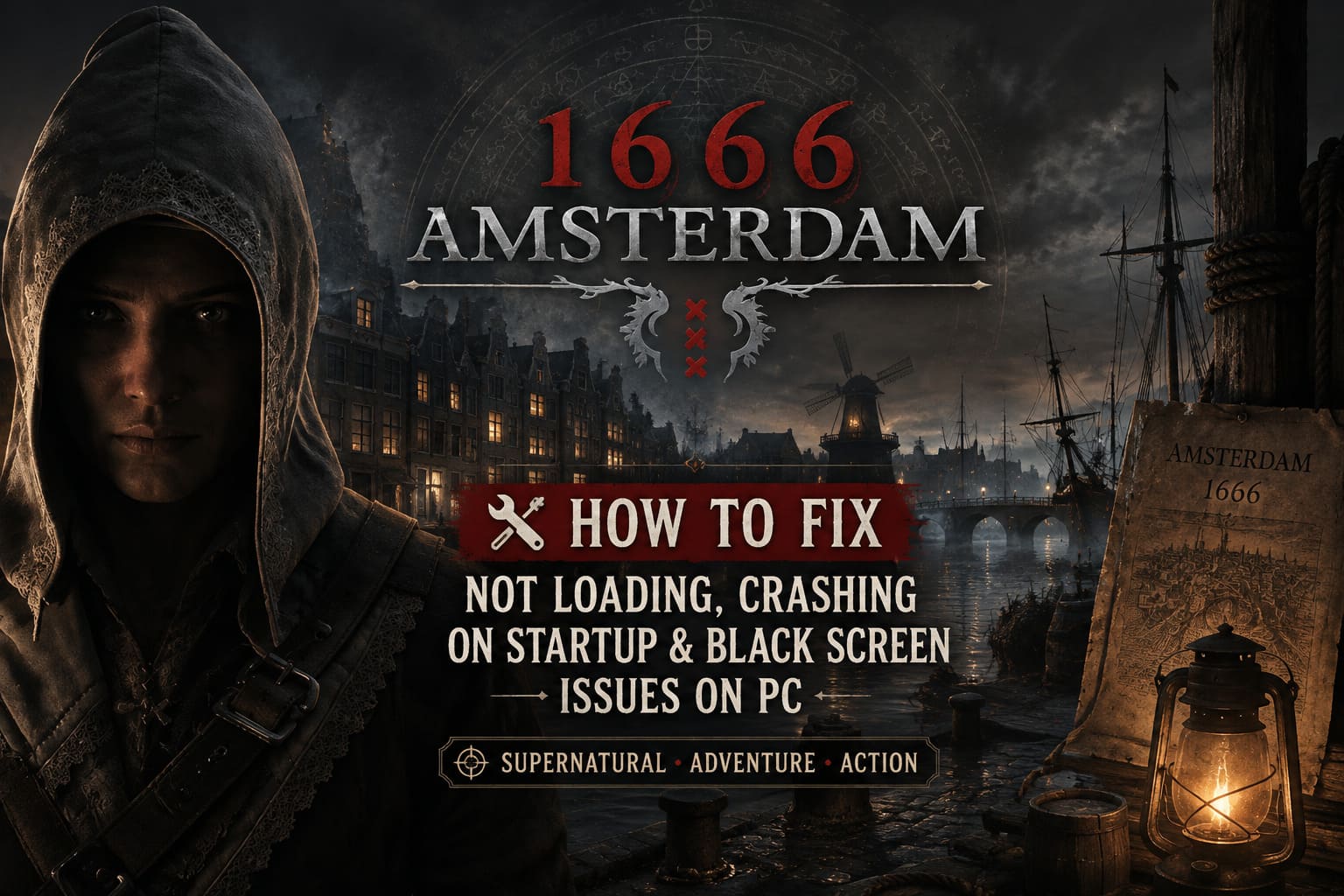
That is especially annoying because Windows may not tell you what went wrong. From the player’s perspective, it looks like this:
Click Play → process appears → nothing happens → process disappears.
If you are seeing exactly that behavior, hardware compatibility should be one of the first things you investigate.
Make sure you are using:
- A modern 64-bit version of Windows 10 or Windows 11.
- A graphics card capable of handling the game’s required DirectX features.
- A processor that supports the instruction sets expected by the game.
- Enough system RAM and free storage space.
- A reasonably current GPU driver.
If your machine is already borderline for the game’s requirements, don’t jump straight to advanced fixes. The problem may simply be that the hardware cannot initialize the game properly.
Fix #1: Verify Every Game File
This is boring advice, but boring advice saves lives.
Early Access games can have rough installations, particularly during a busy launch window. A missing archive, damaged executable, or incomplete download can be enough to prevent the game from reaching the main menu.
If you installed 1666: Amsterdam through Steam, open your Library and find the game.
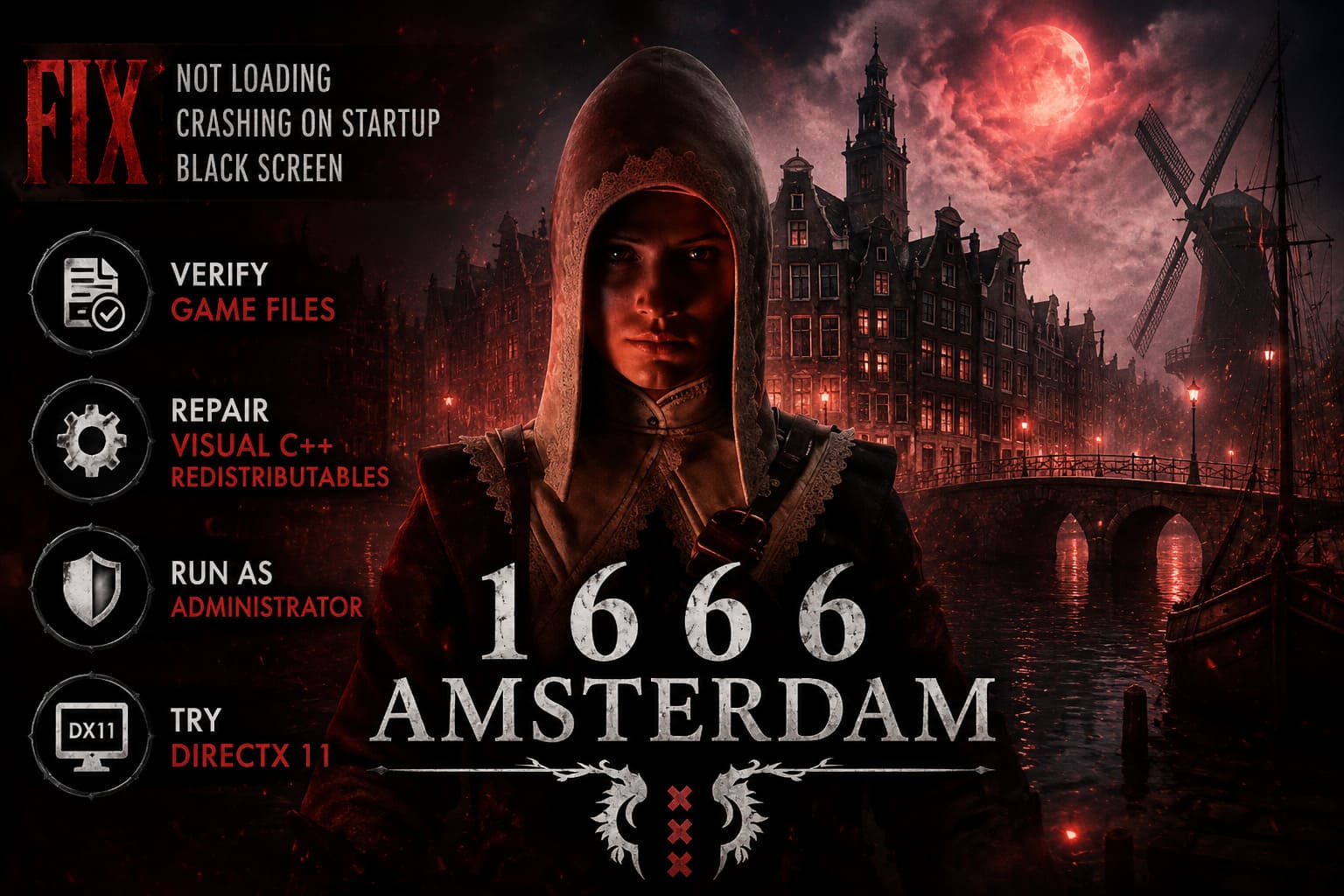
Go to:
Properties → Installed Files → Verify integrity of game files
Let Steam finish the entire process. Don’t launch the game while it is still checking files.
If Steam discovers damaged or missing data, it should automatically replace it.
For the Epic Games Store version, open your Library, find 1666: Amsterdam, click the three-dot menu, select Manage, and choose Verify.
This is one of the first fixes I would try for:
- Instant crashes after clicking Play.
- Missing assets.
- Infinite loading screens.
- Crashes immediately after the opening splash screen.
- Strange behavior following an interrupted update.
And yes, I know it sounds obvious. Do it anyway. I’ve seen too many PC troubleshooting sessions turn into two-hour adventures when a simple file verification would have solved the problem in five minutes.
Fix #2: Repair Microsoft Visual C++ Redistributables
Here’s one of the most common causes of the classic “the game appears for a second and then dies” problem.
Modern games rely on Windows runtime components that are not always installed correctly, especially after a fresh Windows installation, system migration, or major update.
The Microsoft Visual C++ Redistributable packages are particularly important.
Install or repair both:
Visual C++ 2015–2022 Redistributable x64
Visual C++ 2015–2022 Redistributable x86
You can get them from Microsoft’s official support resources.
If the installers detect that the packages are already installed, don’t just close them. Use the Repair option when available.
Afterward, restart Windows.
That reboot matters. Don’t skip it just because you want to get back into Amsterdam immediately. Runtime components and system services don’t always behave properly until Windows has restarted.
If 1666Amsterdam.exe is still appearing in Task Manager and immediately disappearing afterward, this is one of the fixes I’d absolutely keep on the checklist.
Fix #3: Run the Game as Administrator
Windows permissions can sometimes interfere with games trying to access their installation directory, configuration files, or other required resources.
Find the game’s executable in its installation folder. For Steam, you can usually reach it through:
Library → Manage → Browse local files
Look for the main executable, potentially named:
1666Amsterdam.exe
Right-click it and choose Properties.
Open the Compatibility tab and enable:
- Run this program as an administrator
- Disable fullscreen optimizations
Click Apply, then OK.
Now try launching the executable directly.
I wouldn’t necessarily recommend using administrator mode permanently if you don’t need it, but as a troubleshooting step it is absolutely worth testing. If the game suddenly launches correctly, you’ve learned something useful about the source of the problem.
Fix #4: Test DirectX 11 if DirectX 12 Is Giving You a Black Screen
This is the big one for players who can hear the game running but cannot actually see anything.
A black screen at launch can sometimes point toward a graphics API or driver conflict. DirectX 12 offers modern features and performance improvements, but it can also expose compatibility problems with specific driver versions and hardware configurations.
If the game supports the option, try launching it with:
-dx11
On Steam:
Library → Right-click 1666: Amsterdam → Properties → General → Launch Options
Enter:
-dx11
Then close the window and launch the game.
You can also test:
-windowed
if you suspect the game is trying to start at a resolution or fullscreen mode your display does not like.
I would treat DX11 as a diagnostic tool rather than an automatic permanent solution. If the game suddenly works in DX11, you’ve narrowed the problem down considerably. The issue could be related to DX12 initialization, your current graphics driver, an overlay, or another graphics-related conflict.
If you’re using a third-party mod, injector, or upscaling tool that specifically depends on DX12, keep in mind that forcing DX11 may prevent that software from functioning.
Fix #5: Reset 1666: Amsterdam’s Configuration Files
This is the fix I would reach for after changing graphics settings causes the game to stop launching.
Sometimes a game doesn’t fail because the installation is broken. The problem is the configuration sitting outside the installation folder.
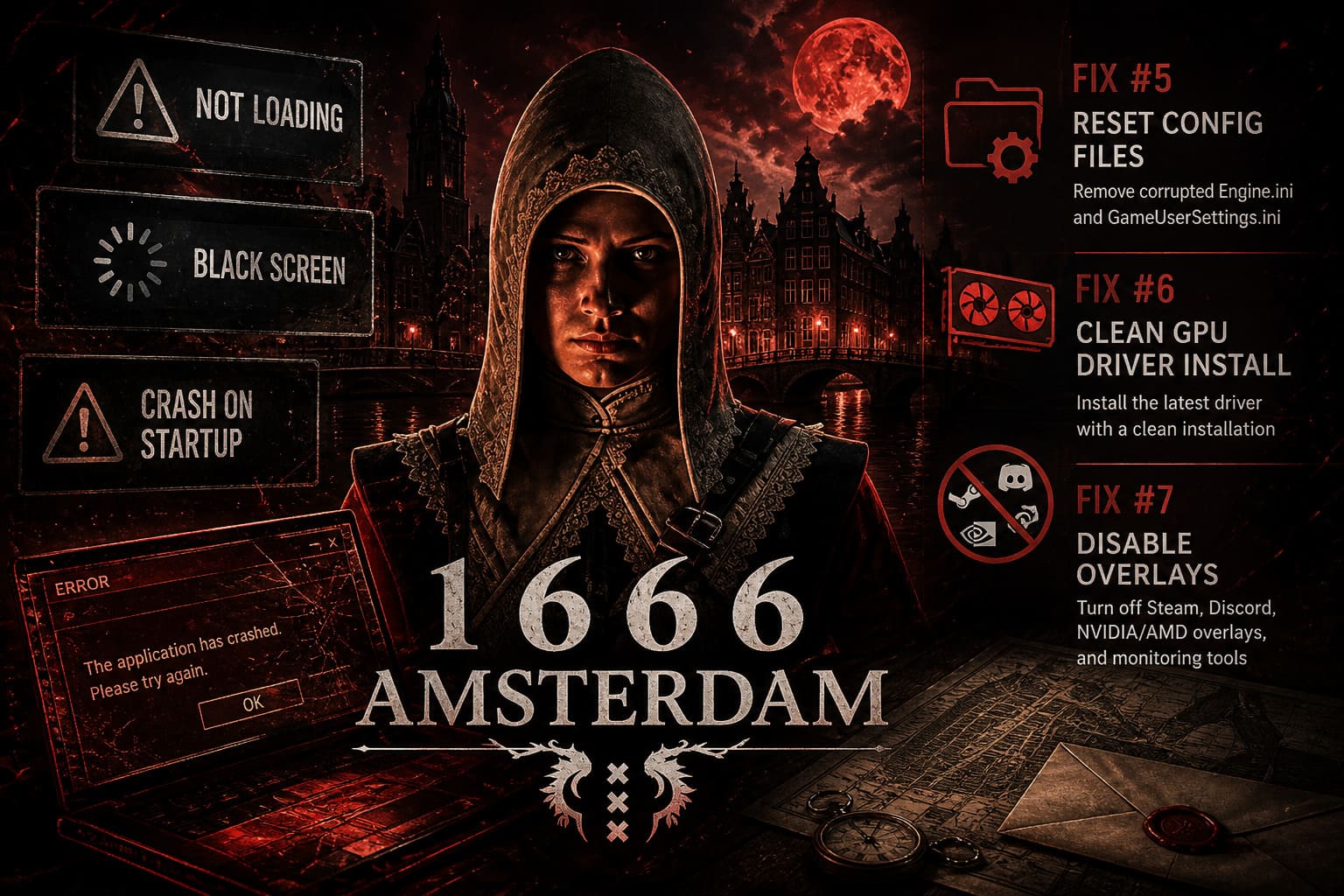
Press:
Windows Key + R
Enter:
%LOCALAPPDATA%
and press Enter.
Look for folders associated with 1666: Amsterdam, Panache, or Panache Digital Games.
Depending on the game’s final directory structure, you may find a Saved or Config folder containing files such as:
Engine.ini
and
GameUserSettings.ini
Instead of permanently deleting them immediately, I’d move them somewhere safe, such as a folder on your desktop.
Then launch the game.
If the configuration was the culprit, the game should generate fresh default settings.
This can help when:
- The game crashes after changing resolution.
- You enabled an aggressive graphics preset.
- You changed fullscreen settings.
- A display configuration became corrupted.
- A mod modified configuration files.
- The game worked previously but suddenly stopped launching.
This is also why I recommend moving the files instead of deleting them. If the fix doesn’t work, you can put them back.
Fix #6: Perform a Clean GPU Driver Installation
A regular driver update isn’t always enough.
Graphics drivers accumulate profiles, shader data, and configuration information over time. When a new Early Access game arrives with a new rendering workload, an old driver installation can occasionally become part of the problem.
For NVIDIA users, install the latest appropriate GeForce Game Ready Driver.
For AMD users, update through the latest Adrenalin package.
When the installer provides a clean-installation option, use it.
The basic process is:
- Download the latest driver for your GPU.
- Start the installation.
- Choose the advanced/custom installation option when available.
- Select the clean-installation option.
- Finish the installation.
- Restart the PC.
- Test 1666: Amsterdam again.
If the game worked perfectly before a driver update and immediately began crashing afterward, don’t ignore that clue either. Sometimes the newest driver isn’t automatically the best driver for a particular game build.
Fix #7: Kill Overlays Before Launching
PC gaming overlays are incredibly useful until they aren’t.
Steam, Discord, NVIDIA, AMD, MSI Afterburner, RivaTuner Statistics Server, and similar programs can hook into the rendering pipeline. Most of the time, everything works perfectly.
Then an Early Access game launches and suddenly your screen is black.
For troubleshooting, temporarily disable:
- Steam Overlay
- Discord Overlay
- NVIDIA/AMD gaming overlays
- MSI Afterburner
- RivaTuner Statistics Server
- Other FPS counters, monitoring tools, injectors, and overlays
Don’t just disable one and assume the problem isn’t software-related if the game still crashes. For the cleanest test, close everything that hooks into the game.
This is especially important if you’re running overclocking or monitoring software. You can always turn your tools back on after finding the culprit.
Don’t Ignore Your Other Hardware
Here’s a less glamorous fix that can still be useful: strip your setup down.
Disconnect unnecessary controllers, VR headsets, flight sticks, USB devices, and other gaming hardware temporarily.
If you’re using multiple monitors, test with your primary display only.
Then launch the game using nothing more exotic than your normal keyboard, mouse, and primary monitor.
Why bother?
Because a game that crashes during hardware initialization may react differently depending on what Windows reports as connected. It’s not the first thing I’d test, but when you’ve already tried the obvious fixes, reducing the number of variables can save a ridiculous amount of time.
1666: Amsterdam PC Troubleshooting Cheat Sheet
| Problem | Likely Cause | Fix To Try First |
|---|---|---|
| Game closes instantly | Missing runtime components or hardware compatibility | Repair Visual C++ and check system requirements |
| Black screen | Graphics API or overlay conflict | Try -dx11 and disable overlays |
| Infinite loading | Corrupted files or configuration | Verify files and reset .ini settings |
| Crash after changing graphics | Broken configuration | Move GameUserSettings.ini and regenerate it |
| Crash after driver update | Driver conflict | Perform a clean GPU driver installation |
| Hard freeze or severe instability | Driver, cache, or system instability | Clean-install GPU drivers and remove background tools |
What I’d Try First
If I were sitting at my own PC staring at a dead black screen, I wouldn’t randomly perform all seven fixes at once. That makes it impossible to know what actually solved the problem.
My order would be:
- Verify the game files.
- Repair Visual C++ Redistributables.
- Disable every overlay.
- Try
-dx11or-windowed. - Reset the game’s configuration files.
- Update or clean-install the GPU driver.
- Investigate hardware compatibility and connected peripherals.
That sequence goes from quick, low-risk fixes to more involved troubleshooting.
Is 1666 Amsterdam Coming to PS5 and Xbox Series X in 2026? Release Date and Console Details
Early Access Means Some Problems Simply Aren’t Yours to Fix
This is the part that gets forgotten whenever a major PC game launches.
If you’ve verified the installation, repaired the Windows runtimes, reset your configuration, updated your GPU driver, disabled overlays, and the game still crashes, don’t automatically blame your PC.
Early Access software is still being developed.
A game can have a genuine engine bug that affects only a particular GPU generation, CPU instruction set, Windows configuration, resolution, or combination of peripherals. That’s impossible for players to completely fix on their own.
Keep 1666: Amsterdam updated, watch the developer’s official patch notes and community announcements, and report reproducible crashes through the appropriate support or bug-report channels. Include your CPU, GPU, Windows version, driver version, crash behavior, and anything unusual about your setup.
A report saying “game doesn’t work” isn’t particularly useful.
A report saying “1666Amsterdam.exe launches for two seconds, disappears, and the issue remains after file verification and a clean NVIDIA driver installation” gives developers something they can actually investigate.
Final Thoughts
1666: Amsterdam has the kind of setting that makes you want to jump straight into the game rather than spend your morning staring at Windows folders. Unfortunately, Early Access PC launches don’t always care about your plans.
The good news is that most startup problems are worth troubleshooting before you give up.
Start with file verification. Repair Visual C++. Kill overlays. Test DX11. Reset corrupted configuration files. Then move toward a clean GPU driver installation and deeper hardware checks.
And if absolutely nothing works, remember the golden rule of Early Access: sometimes the bug is in the game, not in your rig.
Give the developers the information they need, keep an eye out for hotfixes, and don’t waste six hours reinstalling Windows because one executable decided to throw a tantrum.