How to Fix Aliens Fireteam Elite 2 Black Screen on Startup After Intro Cinematic
There are few things more annoying in a co-op shooter than getting your squad ready, launching the game, watching the opening cinematic—and then staring at a completely black screen.
That is exactly what some Aliens Fireteam Elite 2 PC players are running into. The intro cinematic starts normally, the audio sounds fine, and for a moment everything looks good. Then the video ends, the game should hand control over to the real-time engine, and… nothing. Just black.
Sometimes the music or menu sounds continue in the background. Sometimes the game becomes completely unresponsive. In nastier cases, it crashes back to Windows or throws an Unreal Engine error.
I’ve spent enough time fighting PC game launches to know that this kind of problem is rarely caused by one magical broken setting. It is usually a nasty little collision between the game configuration, Windows, GPU drivers, video playback, overlays, or corrupted files.
The good news? You don’t need to start randomly deleting folders and reinstalling Windows. Work through the fixes below in order, starting with the low-risk options. One of them should get you past that cursed post-cinematic black screen.
Why Does Aliens Fireteam Elite 2 Go Black After the Intro?
The timing of the crash is actually useful.
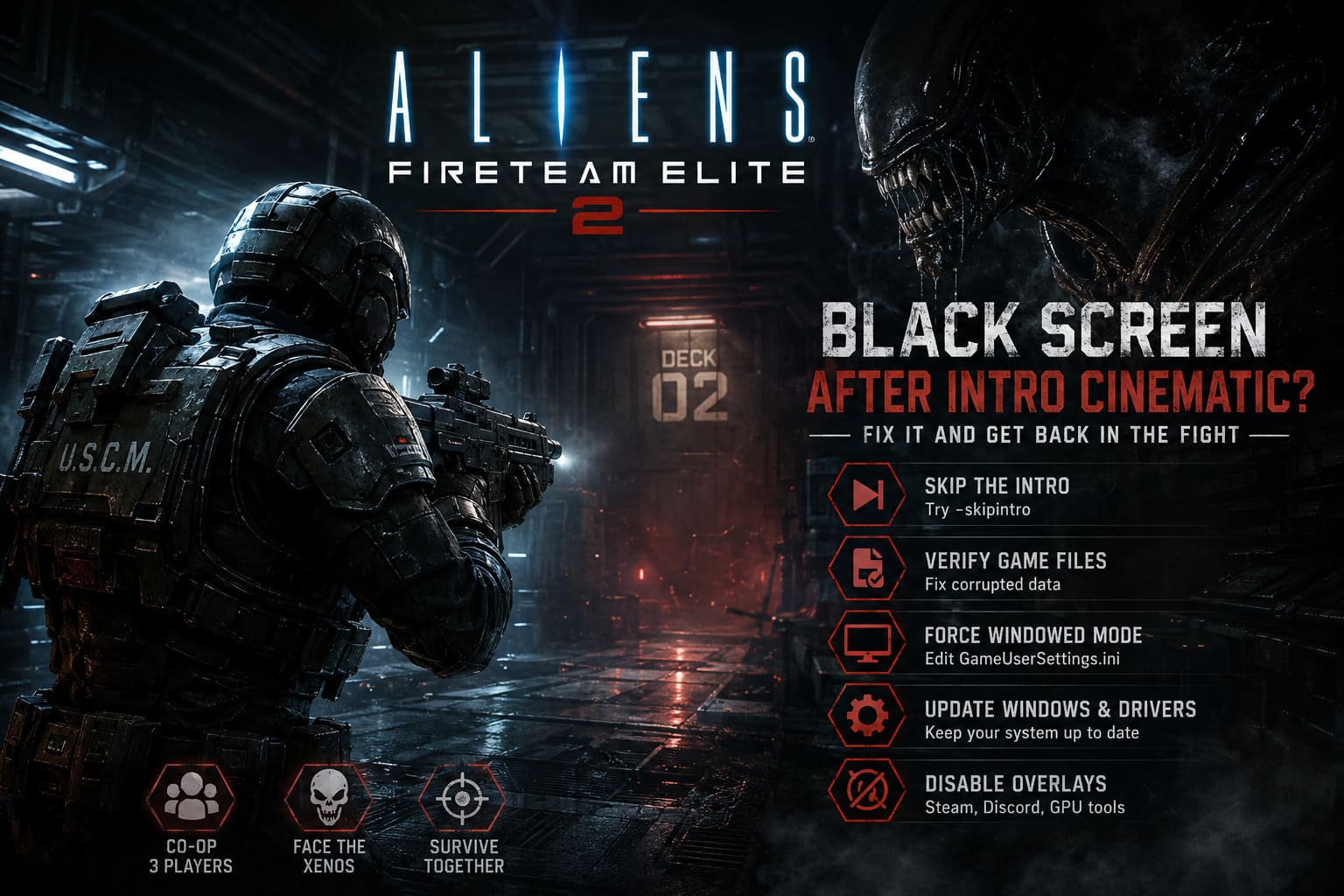
If the opening cinematic plays correctly but the display goes black immediately afterward, the game is probably getting far enough into the startup process to initialize its basic video playback. The failure can happen when the game switches from the pre-rendered movie to the actual Unreal Engine environment used by the menu or character-selection screen.
That makes several suspects worth checking:
| Possible Cause | What It Can Affect | Best Fix |
|---|---|---|
| Corrupted game files | Menu and engine assets | Verify game files |
| Bad display settings | Resolution or fullscreen transition | Edit GameUserSettings.ini |
| Video/codec conflict | Intro-to-engine transition | Skip the intro |
| GPU driver issue | Rendering and shader initialization | Clean driver installation |
| Overlay conflict | Rendering hooks | Disable overlays |
| Windows/runtime problem | DirectX and system dependencies | Update Windows and runtimes |
And yes, PC gaming remains wonderfully complicated in 2026.
1. Skip the Intro Cinematic First
This is the first thing I’d try. It’s fast, reversible, and it directly targets the point where the problem appears.
If the black screen happens during the transition from the cinematic into the main menu, skipping the intro can bypass the media playback stage entirely. You’re essentially telling the game: thanks, I’ve seen the movie, let’s get to the shooting.
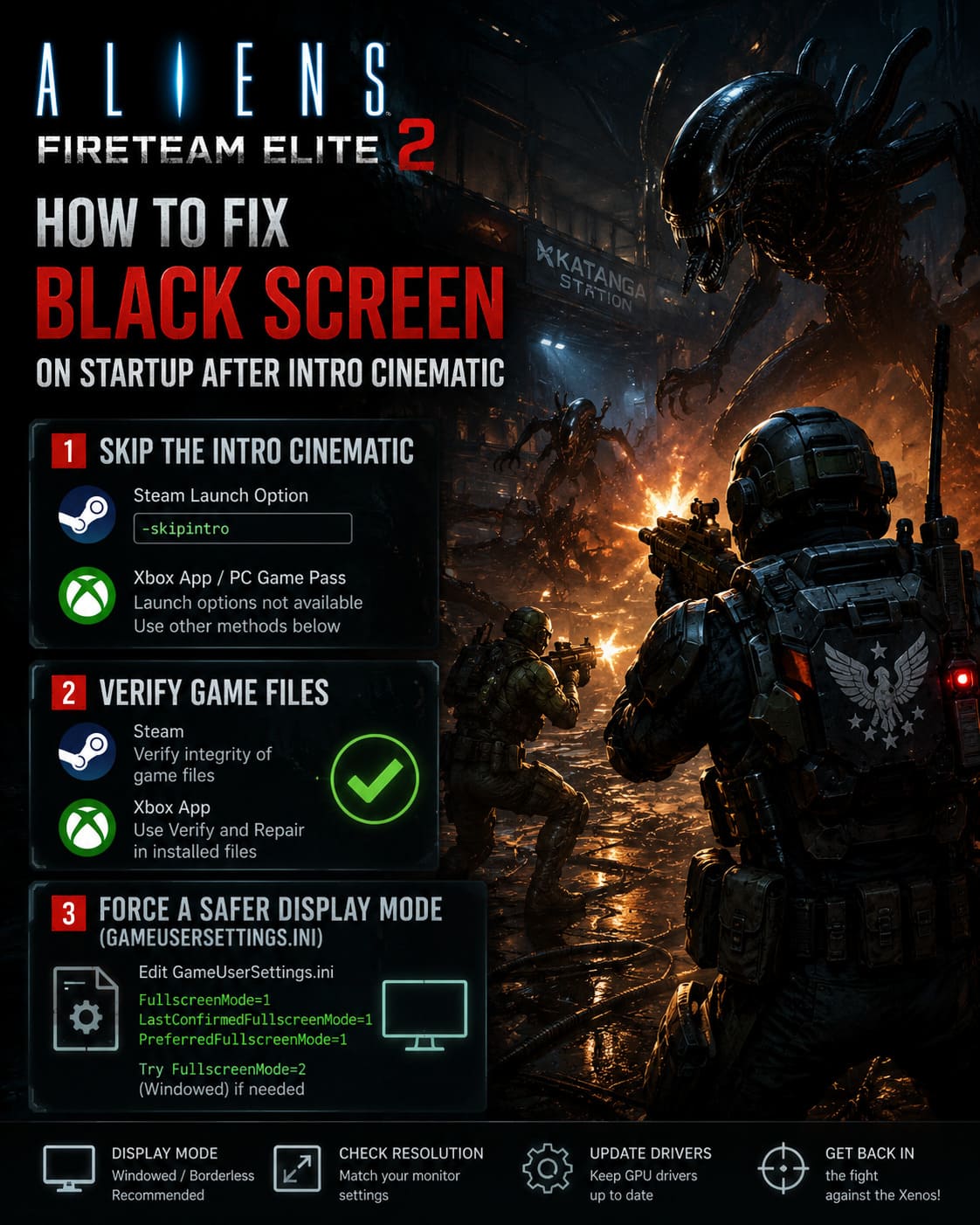
Steam
Open your Steam Library and find Aliens Fireteam Elite 2.
- Right-click the game and choose Properties.
- Stay on the General tab.
- Find the Launch Options field.
- Enter:
-skipintro - Close the window and start the game again.
If this works, you should be dropped into the game without watching the opening cinematic.
It’s not the prettiest solution, but honestly, I don’t care. If skipping a 60-second movie gets me into a lobby where I can start blasting Xenos with friends, that’s a win.
Xbox App / PC Game Pass
The Xbox App is less straightforward with launch arguments than Steam. Depending on the installation and permissions, the app may not expose an obvious launch-options field.
If you cannot add -skipintro there, don’t waste half an hour hunting through Microsoft’s menus. Move on to the configuration-file method below.
2. Verify the Game Installation
Before doing anything dramatic, make sure your installation isn’t damaged.
A game can appear perfectly installed while one important archive or asset is corrupted. If the engine tries to load that asset when the cinematic finishes, the result can be a black screen instead of a helpful error message.
On Steam:
- Open your Library.
- Right-click Aliens Fireteam Elite 2.
- Select Properties.
- Open Installed Files.
- Choose Verify integrity of game files.
- Let Steam finish the scan and replace anything it finds.
On the Xbox App, open the game’s management options and look for the Verify and Repair function under the installed files section.
Don’t launch the game while the verification process is running. Let the launcher finish its job completely, then restart the game from scratch.
This is one of those boring fixes that doesn’t feel like “real troubleshooting,” but corrupted game files are absolutely worth eliminating before you start messing with configuration files and drivers.
3. Force a Safer Display Mode Through GameUserSettings.ini
Now we’re getting into the stuff I reach for when a game stubbornly refuses to display anything useful.
A bad fullscreen state can cause some PC games to launch correctly but fail when they switch resolutions or rendering modes. If Aliens Fireteam Elite 2 is trying to transition into a fullscreen configuration your display or driver doesn’t like, forcing a different mode can break the loop.
Press Windows + R, enter %localappdata% and press Enter.
Look for the folder associated with the game. Depending on the build, installation, or developer configuration, you may see a folder associated with Endeavor, Cold Iron, or the game’s own title.
From there, look for a path similar to:
Saved → Config → WindowsNoEditor
or another Windows configuration directory.
Find:
GameUserSettings.ini
Open it with Notepad.
Look for the fullscreen settings and try forcing them to:
FullscreenMode=1
LastConfirmedFullscreenMode=1
PreferredFullscreenMode=1
If fullscreen still produces a black screen, try:
FullscreenMode=2
That forces a windowed mode and is an excellent diagnostic test.
If the game suddenly launches in a window, you’ve learned something important: the underlying game is probably working, but the fullscreen/display transition is the part that’s breaking.
Also check your resolution values. If your monitor is running at 2560×1440, for example, the configuration shouldn’t be trying to start at some bizarre unsupported resolution.
I’d personally get the game running in Windowed or Borderless first, then experiment with fullscreen later. There is no prize for fixing everything in one launch.
4. Update Windows—Especially If You’re Using Game Pass
This one gets overlooked because gamers naturally blame the game or GPU first.
If you’re playing through the Xbox App or PC Game Pass, several Windows and Microsoft Store components are involved behind the scenes. A broken or outdated system component can interfere with authentication, profile synchronization, game services, or runtime functionality.
Open Windows Update and install all available standard updates.
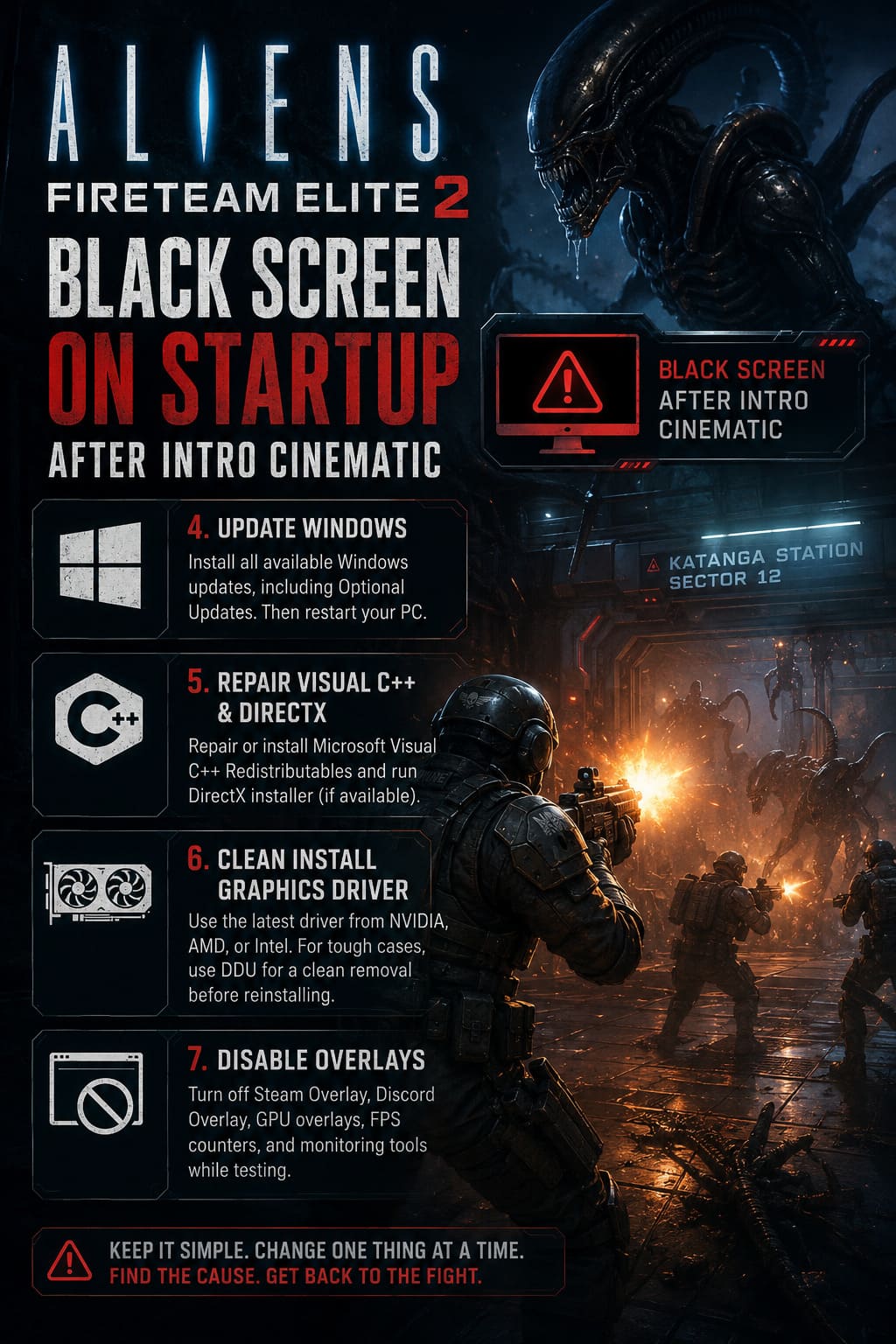
Also check Optional Updates.
Pay attention to system components, framework updates, hardware-related updates, and cumulative updates that may contain stability fixes. If a specific update such as KB5063842 is relevant to your current Windows build, install it if offered; otherwise, don’t force an unrelated package simply because you saw its number mentioned in a troubleshooting post.
After updating, restart the PC.
Not shut down and immediately boot again. Actually restart it.
Windows has a habit of keeping various services and driver states alive longer than you might expect.
5. Repair Visual C++ and DirectX Components
A black screen isn’t always a graphics-driver problem.
Games built around Unreal Engine depend on a stack of Windows runtime components. If one of those components is damaged, missing, or behaving badly, the game can fail at a point that looks like a graphics crash.
Install or repair the current Microsoft Visual C++ Redistributable packages, including the x64 and x86 versions where applicable.
If the installer gives you a Repair option, use it.
You can also inspect the game’s installation directory for folders containing runtime installers. Depending on the build, you may find an Engine, Redist, or DirectX-related folder containing an installer such as DXSETUP.exe.
If the game includes its own runtime installer, using it can be preferable to blindly downloading random DLL files from the internet.
Never fix a missing DLL by grabbing a mysterious DLL from a third-party download site. That’s how a simple game problem turns into a much bigger Windows problem.
6. Clean Install Your Graphics Driver
If the easier fixes don’t work, I’d move on to the GPU driver.
A normal driver update sometimes isn’t enough when old profiles, shader data, or driver components are involved. A clean installation gives you a much cleaner baseline.
Download the latest driver for your GPU directly from the manufacturer:
- NVIDIA
- AMD
- Intel
For stubborn cases, experienced PC players can use Display Driver Uninstaller (DDU) to remove the existing graphics driver before installing the fresh version.
If you use DDU, follow its instructions carefully and perform the cleanup in Windows Safe Mode where appropriate.
After installing the new driver, reboot and test the game before turning every performance tweak and overlay back on.
This matters. If you change ten things at once and the game suddenly works, you have no idea which change actually fixed it.
7. Kill Every Overlay You Don’t Need
Overlays are incredibly useful—until they aren’t.
Steam Overlay, Discord, NVIDIA/AMD performance overlays, FPS counters, hardware monitoring tools, capture programs, and similar utilities can hook into the game’s rendering pipeline.
Most of the time they behave perfectly.
Sometimes they decide they hate your game.
For troubleshooting, disable them temporarily.
Steam
Go to Steam’s settings and disable the Steam Overlay for the game.
Discord
Open Discord settings and turn off the in-game overlay.
GPU Software
Disable features such as:
- Performance HUDs
- Instant Replay
- Recording overlays
- FPS counters
- Hardware monitoring overlays
Also close tools such as RivaTuner Statistics Server (RTSS) and OBS while testing.
You don’t have to live without these features forever. The goal is simply to find out whether one of them is responsible.
What I’d Try First
If I were sitting at my own PC with the black screen staring back at me, I wouldn’t immediately start editing system files.
I’d go in this order:
- Try
-skipintro. - Verify the game files.
- Force Windowed mode through
GameUserSettings.ini. - Restart after installing Windows updates.
- Repair Visual C++/DirectX components.
- Clean-install the GPU driver.
- Disable every overlay and capture tool.
That order keeps the easy, reversible fixes at the top and saves the more invasive troubleshooting for later.
Aliens Fireteam Elite 2 Best PC Settings for Maximum FPS: Optimization Guide (2026)
Don’t Reinstall the Entire Game Immediately
A full reinstall is the classic PC-gaming panic button.
Sometimes it works. More often, it takes ages, downloads a gigantic pile of files, and puts the same broken configuration back on your machine afterward.
If the problem is caused by GameUserSettings.ini, an overlay, a driver profile, Windows runtime components, or a video playback conflict, reinstalling the game may accomplish absolutely nothing.
That’s why I’d exhaust the fixes above first.
Aliens Fireteam Elite 2 Class Level Up Guide: Fast XP & Leveling Methods
Final Verdict
The Aliens Fireteam Elite 2 black screen after the intro cinematic is particularly frustrating because it gives you just enough evidence that the game is alive. The cinematic works. The audio may continue. Your PC isn’t necessarily frozen. The game simply fails at the worst possible moment—right when you’re expecting to reach the main menu.
Start with the launch option. It’s the quickest way to determine whether the cinematic transition itself is the culprit. If that doesn’t work, verify the installation and force a safer display mode. From there, move down the list toward Windows runtimes, GPU drivers, and overlays.
And if Windowed mode suddenly gets you into the menu, don’t celebrate by immediately switching everything back to maximum fullscreen, three overlays, HDR, recording, an FPS counter, and seventeen monitoring widgets. Change one thing at a time.
Once you’re finally staring at the actual menu instead of a black rectangle, you’ve already won half the battle.
Now grab your squad, load into the mission, and get back to what Aliens Fireteam Elite 2 is actually supposed to be about: shooting horrifying things in dark corridors with your friends—not troubleshooting Windows for three hours.