Ultimate WARDOGS Proximity Voice Chat Settings Guide: Boost Tactical Awareness and Immersion
If there is one thing I have learned from playing a lot of tactical shooters, it is that good audio can save you just as often as good aim. WARDOGS takes that idea and pushes it further with proximity voice chat, where your voice exists in the same physical space as your character. In a match packed with up to 100 players across three factions, that creates situations you simply do not get in a traditional squad-based FPS.
WARDOGS, developed by BULKHEAD and published by Team17, mixes large-scale firefights, base construction, resource management, and tactical encounters across a battered industrial landscape inspired by Eastern Europe. LoneStar, Valkyra, and Manticore can collide in enormous battles, but some of the most interesting moments happen when only a handful of players are close enough to hear one another. A stranger shouting for a revive, an enemy giving away his position, or two players negotiating instead of shooting can completely change how a match develops.
That is why I would not treat the WARDOGS proximity voice chat settings as something you configure once and forget. A few sensible changes can make voices easier to understand without sacrificing footsteps, vehicles, gunfire, or other environmental sounds.
How to Spawn Vehicles in WARDOGS Ultimate Bulkhead Guide
Why Proximity Voice Chat Matters So Much in WARDOGS
Proximity chat feels very different from the squad radio systems found in most competitive shooters. Your voice is tied to your position, so players nearby can hear what you are saying. That makes communication much more natural, but it also means every conversation has a tactical consequence.
You might be discussing a route with a teammate when an enemy suddenly hears you from the next room. On another occasion, you could hear opponents talking behind a wall and realize that pushing through that building would be a terrible idea. Information becomes part of the soundscape, rather than simply appearing through a HUD marker.
For me, that is one of the features that makes WARDOGS stand out. The best proximity-chat moments are rarely planned. They happen because players react to one another in real time, and sometimes a tense gunfight turns into a negotiation or temporary alliance.
- Coordinating revives and pushes.
- Detecting nearby enemy players.
- Negotiating surrender situations.
- Warning teammates about approaching enemies.
- Sharing information without relying entirely on squad radio.
- Creating distractions or deliberately confusing opponents.
The downside is obvious: bad microphone settings can work against you. Static, breathing, keyboard noise, or an accidentally open microphone can reveal your position before you even see the enemy.
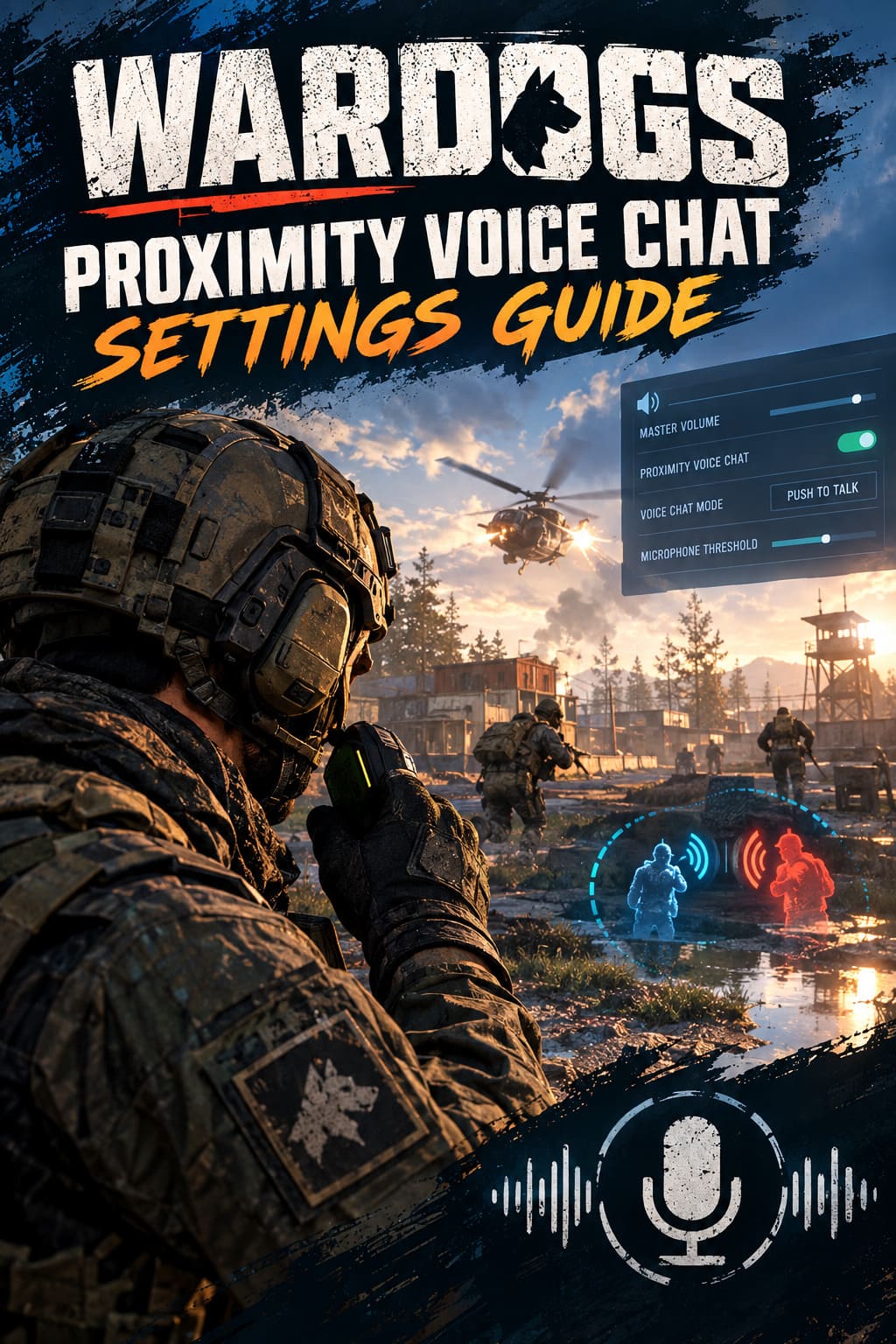
How to Enable WARDOGS Proximity Voice Chat
Before worrying about individual volume levels, make sure proximity communication is actually enabled. The process is straightforward, although the exact menu presentation can change as WARDOGS continues through Early Access.
Open the game and head into the settings menu using the gear icon. You can also open the options menu during a match, then switch to the Audio section. Scroll through the volume controls until you reach the voice communication settings.
Look for the Proximity Voice Chat option and enable it. You should then check the available voice chat mode and microphone controls before jumping back into a serious match.
I recommend testing everything in a relatively quiet situation first. There is nothing worse than discovering that your microphone is not working while 20 players are fighting over the same objective.
My Recommended WARDOGS Audio Settings
There is no universal setup that will be perfect for every headset, but I prefer an audio mix that puts environmental information ahead of loud player voices. You want conversations to be clear, but footsteps and nearby mechanical sounds should never disappear underneath voice chat.
| Setting | Recommended Level | Why |
|---|---|---|
| Master Voice Chat Volume | 70–80% | Keeps voices clear without overwhelming gameplay audio |
| Proximity Voice Chat | Around 85% | Makes nearby conversations easier to detect |
| Voice Chat Mode | Push-to-Talk | Prevents accidental sound leaks |
| Microphone Threshold | Around 60% if available | Helps reduce background noise |
| Music Volume | 0% | Leaves more room for tactical audio cues |
| Master Game Volume | High but comfortable | Preserves environmental information |
These are starting points rather than commandments. Headsets, DACs, Windows volume levels, and personal hearing preferences all affect the final result.
Keep Proximity Chat Loud, But Not Ridiculous
I like keeping proximity voice slightly higher than general voice chat. The reason is simple: nearby voices can contain useful information. If an enemy is speaking from another room, I want a reasonable chance of hearing him without having to sacrifice every other sound.
At the same time, cranking voice chat to maximum is not automatically better. A loud player suddenly screaming into a microphone can make everything else disappear for a moment, and that is exactly when you might miss a reload, footstep, or vehicle approaching from behind.
Around 85% is a good place to start. From there, adjust it based on your headset and how aggressively other players’ voices compete with environmental audio.
Push-to-Talk Is the Better Choice
If you are serious about playing WARDOGS tactically, I strongly recommend Push-to-Talk.
Open Mic is convenient, but it can cause a ridiculous number of problems. Your microphone may pick up breathing, keyboard clicks, controller noise, conversations in the background, or even game audio leaking through your headset. In a game where enemies can potentially locate you through sound, that is free information you are handing them.
Bind Push-to-Talk to something you can reach instantly. A mouse side button is my preferred option, although Left Alt or another comfortable keyboard key works just as well. The important part is being able to communicate without having to move your hand away from the controls.
There is also a psychological advantage. When you know your microphone is silent until you press the button, you can concentrate on listening instead of worrying about what your headset might be broadcasting.
What About Open Mic?
Some players will still prefer Open Mic, especially if they play casually or have a very clean microphone setup. If that is you, spend some time adjusting the microphone sensitivity or activation threshold.
The goal is to make the microphone activate only when you are actually speaking. It should not trigger because you shifted your keyboard, breathed heavily, or moved your desk.
If WARDOGS gives you an in-game microphone test, use it. Speak at your normal gaming volume and listen for unwanted background noise. A microphone that sounds perfect when you are deliberately testing it can behave very differently during an intense firefight.
Turn the Music Down
This is probably the least controversial recommendation in the entire guide: turn in-game music down or off when playing competitively.
Atmospheric music can be great during exploration, but when you are trying to determine whether someone is walking upstairs or approaching from behind a wall, you do not need another audio layer fighting for your attention.
Footsteps, weapon handling, explosions, vehicles, and other environmental sounds are much more important when you are trying to survive. I personally keep music at 0% during serious matches and raise it again when I am playing more casually.
It makes WARDOGS feel less cinematic, but much more readable.
Proximity Chat and the Surrender Mechanic
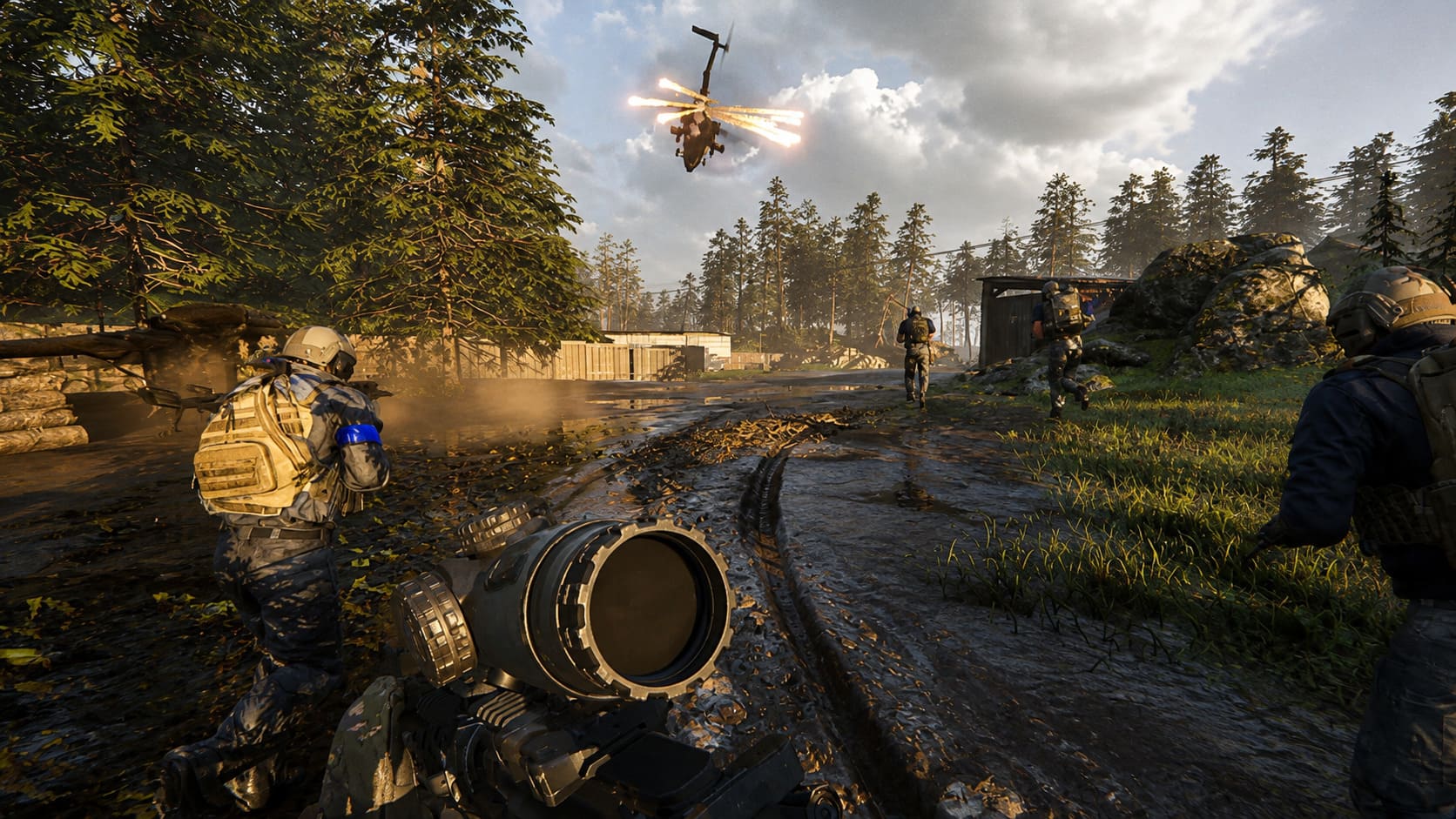
One of the most interesting ideas in WARDOGS is how proximity communication can interact with its surrender mechanics. Using the middle mouse button, players can access an emote wheel and choose the appropriate surrender behavior, including putting their hands up and lowering their weapons.
This is where WARDOGS can create situations that feel completely different from a normal military shooter. Imagine running out of resources, getting separated from your faction, and suddenly finding yourself surrounded by enemy players. Instead of immediately firing, you can potentially communicate with them.
You might negotiate for safe passage, ask for transportation, offer information, or simply try to convince another player that shooting you is not worth the ammunition. Obviously, nobody is obligated to believe you, which is exactly what makes these interactions interesting.
A surrender animation does not magically make you safe. It creates an opportunity for communication. Whether the other player respects it is another question entirely.
Use Enemy Voices as Intelligence
This is where I think proximity chat becomes genuinely powerful.
Do not listen only for what players are saying to you. Listen for conversations happening around you. If you hear two opponents discussing their ammunition, a defensive position, or an incoming attack, you have just received information without firing a shot.
You do not need to understand every word either. Sometimes the direction and distance of a voice are enough to tell you that somebody is nearby.
This creates a strange but satisfying gameplay loop: you listen, interpret, move, and only then decide whether to fight. That is very different from simply following minimap icons.
Common WARDOGS Voice Chat Problems
Even with good settings, voice communication can occasionally fail. If nobody can hear you or you cannot hear other players, start with the basics.
Check Your Windows Audio Devices
WARDOGS relies on your operating system’s audio configuration, so check Windows before assuming the game is broken. Make sure your headset is selected as the correct playback device and that your microphone is recognized as the default communication input.
If you frequently switch between USB headsets, wireless headphones, speakers, and other devices, Windows can sometimes select something other than what you expected.
Check Your Voice Bindings
WARDOGS may provide different communication controls for squad communication and proximity communication. Make sure you know which button activates each one.
This matters more than it sounds. Accidentally using the wrong communication channel can leave your squad without information while broadcasting something you intended to keep private.
Restart the Voice Chat Function
If voice communication suddenly stops working during a match, check the voice settings again. Toggling proximity chat off and back on can sometimes refresh the communication system.
If that does not work, leave the match or restart the game if necessary. Early Access games can have occasional audio problems, and not every issue is something you can solve with a slider.
My Final WARDOGS Audio Setup
After playing a lot of shooters, I have become less interested in making games sound impressive and more interested in making them readable. WARDOGS benefits from that approach because its scale creates an enormous amount of competing audio.
My preferred starting configuration would be 70–80% general voice chat, around 85% proximity voice, Push-to-Talk, a carefully tuned microphone threshold, and music completely disabled. From there, I would adjust the balance according to my headset rather than blindly copying someone else’s numbers.
The biggest mistake is treating proximity chat as nothing more than a social feature. In WARDOGS, it can be an information source, a distraction tool, a negotiation system, and occasionally the reason you survive an encounter that should have ended badly.
If you learn to listen as carefully as you shoot, the battlefield starts to feel completely different. Sometimes the most useful enemy is not the one you kill — it is the one you hear talking before he realizes you are there.