How to Fix Call of Duty: Modern Warfare 4 Beta Crashing on Launch on PC
There are few things more annoying than waiting for a new Call of Duty beta, clearing your evening, grabbing a drink, and then watching the game crash before you even reach the main menu.
That is exactly the kind of problem some PC players are running into with the Call of Duty: Modern Warfare 4 beta. Instead of getting into multiplayer, you may be stuck with an instant desktop crash, a black screen, a frozen intro, or a nasty DirectX error that appears before the game has even had a chance to show you what it can do.
And honestly, launch problems are the last thing I want to deal with during a beta. Bugs are expected. Broken menus? Fine. Weird matchmaking? We’ve all been there. But when the game simply refuses to start, it becomes a different story.
The good news is that most launch crashes are usually connected to a handful of familiar PC problems: TPM and Secure Boot settings, Windows conflicts, corrupted game files, GPU drivers, overlays, HDR, shader compilation, or launcher permissions.
I would work through the fixes below in order rather than randomly changing ten Windows settings at once. That way, you actually know what solved the problem.
Why Is the Modern Warfare 4 Beta Crashing on Startup?
The MW4 beta is being distributed as a standalone installation, rather than relying on the older Call of Duty HQ setup many players have become accustomed to.
That sounds like a good thing on paper. A smaller, more focused installation should be easier to manage.
In practice, though, a fresh Call of Duty release still has to deal with Windows security, anti-cheat checks, DirectX 12, GPU drivers, shader compilation, background software, and whatever strange configuration your PC has accumulated over the years.
Here are the most common troublemakers:
| Problem | What You May See |
|---|---|
| TPM/Secure Boot | Instant crash or anti-cheat failure |
| Windows Conflict | Crash after an update or reboot |
| Corrupted Files | Splash-screen crash or missing assets |
| GPU Driver | Black screen, freeze, DirectX error |
| HDR/Overlays | Rendering crash or error code |
| Shader Compilation | Crash during startup loading |
| Permissions/Cache | Game refuses to launch |
Let’s get into the fixes.
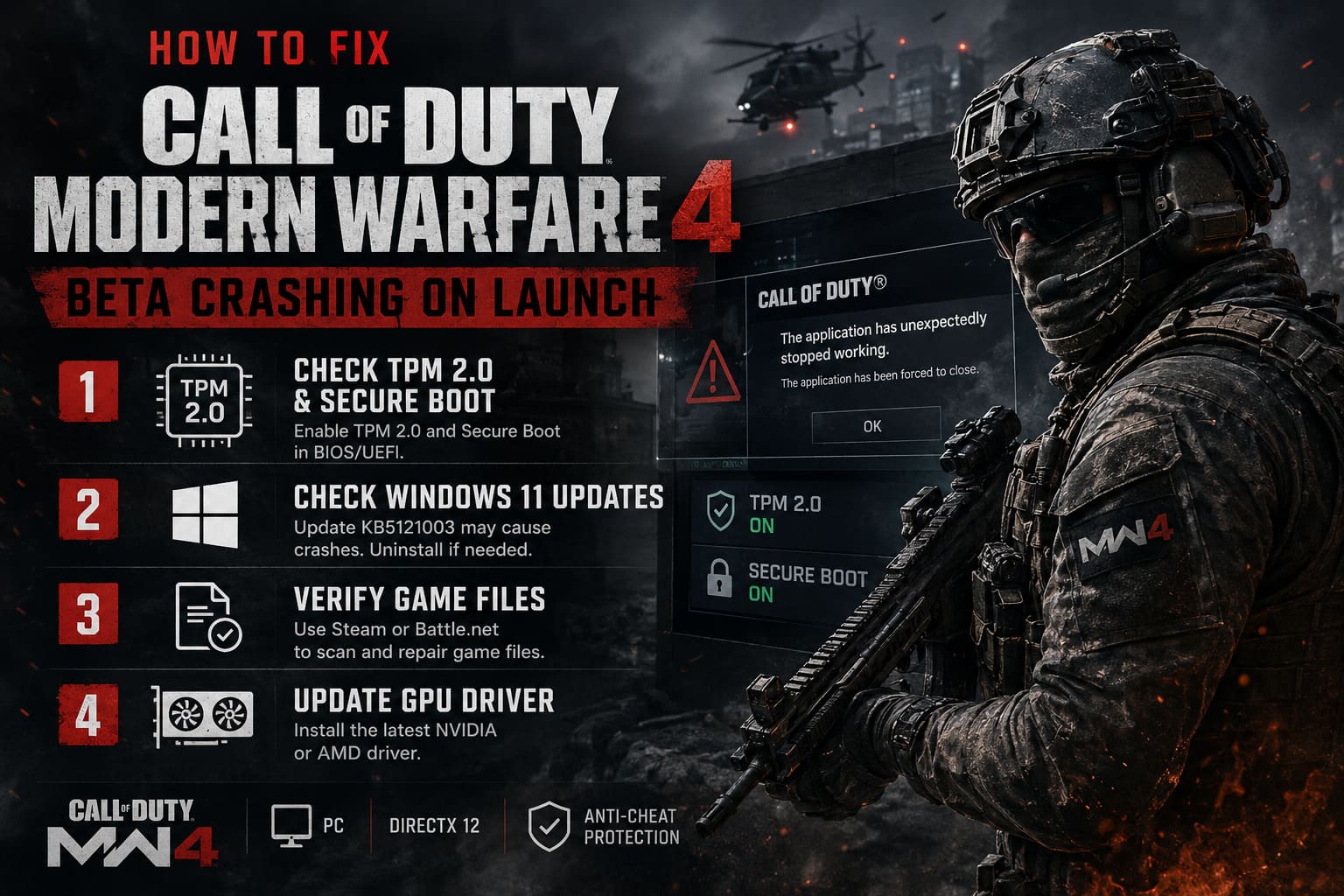
1. Check TPM 2.0 and Secure Boot First
If Modern Warfare 4 closes immediately after you press Play, I would check TPM 2.0 and Secure Boot before doing anything complicated.
The game’s anti-cheat environment can depend heavily on modern Windows security features. If TPM or Secure Boot is disabled in your motherboard firmware, the game may decide that something isn’t right and terminate before reaching the main menu.
Check TPM in Windows
Press Windows Key + R, type:
tpm.msc
Then press Enter.
You want to see a message indicating that the TPM is ready for use. If Windows says that a compatible TPM cannot be found, it may simply be disabled in your BIOS/UEFI.
Enable TPM and Secure Boot
Restart the PC and enter your BIOS/UEFI, usually by repeatedly pressing Delete or F2 during startup.
Depending on your motherboard, TPM may have a different name:
- Intel: Intel Platform Trust Technology (PTT)
- AMD: AMD fTPM
- Secure Boot: Usually found under Boot or Security settings
Enable TPM, then make sure Secure Boot is enabled as well.
Save your changes and restart Windows.
One annoying possibility is that the firmware setting can appear enabled while the game still fails to recognize it. If that happens, some players have had success with a simple reset: disable TPM, boot into Windows, restart into BIOS, enable TPM again, and then boot normally.
It sounds ridiculous. PC troubleshooting often does.
2. Think About Recent Windows 11 Updates
If MW4 worked yesterday and suddenly refuses to start today, don’t immediately blame your GPU.
Windows Update could be the reason.
The supplied troubleshooting reports point specifically to Windows 11 update KB5121003 as a possible source of compatibility problems with demanding 3D applications. If your crashes began immediately after installing that update, rolling it back is worth considering.
Open:
Settings → Windows Update → Update History → Uninstall Updates
Find KB5121003, select it, and uninstall it if it is present.
Then restart your PC.
I wouldn’t recommend randomly removing Windows updates just because a game crashes. But if the timing lines up perfectly—game works, Windows updates, game crashes—it’s a reasonable troubleshooting step.
3. Verify the Modern Warfare 4 Beta Files
This is probably the least glamorous fix on the list, but it is one of the first things I’d try.
Large beta downloads can go wrong. A connection interruption, storage issue, or failed download can leave you with a single damaged file that prevents the entire game from starting.
Steam
Go to your Steam Library and:
- Right-click Call of Duty: Modern Warfare 4 Open Beta.
- Select Properties.
- Open Installed Files.
- Click Verify integrity of game files.
- Let Steam finish the scan and replace anything damaged.
Battle.net
Open the Modern Warfare 4 beta page, click the gear icon beside Play, and select:
Scan and Repair → Begin Scan
Don’t skip this because your installation “looks fine.” A broken engine asset doesn’t necessarily announce itself with a giant warning.
4. Update Your NVIDIA or AMD Driver
This one is almost mandatory with a new Call of Duty release.
Modern Warfare 4 uses a demanding DirectX 12 rendering setup, and early builds can expose driver problems that older games never touched.
If you’re running an NVIDIA GPU, install the latest Game Ready Driver available for your card.
AMD users should update through AMD Software: Adrenalin Edition.
If you’ve upgraded GPUs several times or have been installing drivers over the top for years, I would seriously consider a clean driver installation. Old driver components can create some wonderfully mysterious problems.
And by “wonderfully mysterious,” I mean the kind where the game crashes with absolutely no useful explanation.
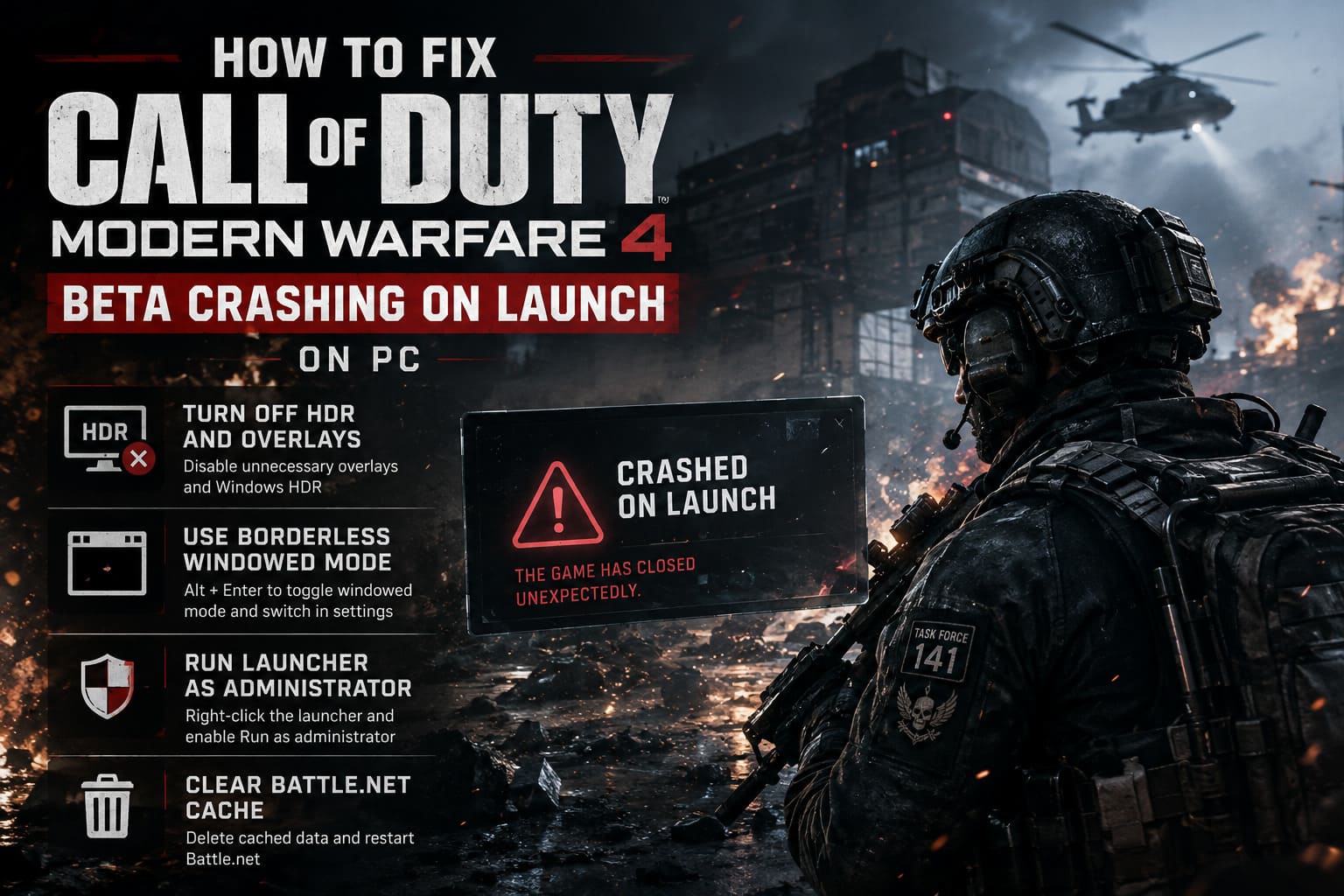
5. Turn Off HDR and Every Overlay You Don’t Need
This is another fix I wouldn’t underestimate.
Call of Duty already has enough going on during startup. Adding Discord, NVIDIA recording, RivaTuner, MSI Afterburner, HDR, and other hooks into the rendering pipeline gives the game even more opportunities to trip over something.
Start with Windows HDR.
Go to:
Settings → System → Display → HDR
Turn HDR off temporarily and launch the beta again.
If the game starts normally, you can re-enable HDR later.
I’d also disable:
- Discord Overlay
- NVIDIA In-Game Overlay
- MSI Afterburner
- RivaTuner Statistics Server
- Other GPU monitoring or recording overlays
This is especially important if you’re using overclocking or undervolting profiles.
For troubleshooting, return everything to stock. You can always restore your preferred settings after the game proves it can launch reliably.
6. Try Borderless Windowed Mode for Shader Crashes
Some crashes don’t happen immediately.
Instead, you get past the first splash screen, watch part of the introduction, see shader compilation, and then the game suddenly disappears.
If that sounds familiar, I’d experiment with the display mode.
As soon as the game window appears, press:
Alt + Enter
This can force the game into a basic windowed mode.
If it gets you successfully into the menu, go to:
Graphics → Display
Then change the display mode to Windowed Borderless.
I’m a big fan of borderless mode for troubleshooting because it removes some of the weirdness associated with exclusive fullscreen initialization. It may not be the permanent solution for every PC, but if it gets the game running, that’s already a win.
7. Run the Launcher as Administrator
Windows permissions can also interfere with game launchers and their ability to access files or system resources.
Completely close Steam or Battle.net first.
Then right-click the launcher shortcut and select:
Properties → Compatibility → Run this program as an administrator
Click Apply, then OK.
Launch the game again.
This isn’t the first thing I’d try, but it’s simple enough to test and can eliminate permission-related launch failures.
8. Clear the Battle.net Cache
If you’re playing through Battle.net and the launcher itself seems to be acting strangely, clearing its cached data can help.
Press Windows Key + R and enter:
%programdata%
Look for the Blizzard Entertainment folder and remove the relevant cached launcher data.
Then restart Battle.net.
The launcher will rebuild the required configuration files.
Again, this is one of those fixes that feels too simple to work. Sometimes those are the ones that do.
My Recommended Order of Attack
If I were sitting at my own PC with MW4 crashing on launch, I wouldn’t start uninstalling everything immediately.
I’d go through the fixes in this order:
- Check TPM 2.0 and Secure Boot
- Verify the beta’s game files
- Update the GPU driver
- Disable HDR and overlays
- Close MSI Afterburner/RivaTuner and remove overclocks
- Try Windowed/Borderless mode
- Run the launcher as administrator
- Check whether a recent Windows update caused the problem
- Clear launcher cache
- Perform a clean reinstall
That order starts with the problems most likely to prevent the game from initializing and ends with the nuclear option.
How to Get Free Call of Duty: Modern Warfare 4 Beta Codes (2026 Guide)
When a Clean Reinstall Actually Makes Sense
I hate recommending a reinstall too early.
Modern games are enormous, and downloading another huge Call of Duty installation because one configuration file is acting stupid isn’t anyone’s idea of fun.
But if you’ve already checked the security requirements, verified the installation, updated drivers, removed overlays, and tested Windows compatibility, a corrupted configuration may be hanging around.
At that point, uninstall the beta completely.
Afterward, check your Documents folder for leftover Call of Duty or Modern Warfare 4 configuration/cache folders and remove them if appropriate. Restart Windows and perform a fresh installation.
The important part is making the reinstall genuinely clean. Don’t simply reinstall the executable and leave every old configuration file behind.
Can You Play Call of Duty: Modern Warfare 4 on PS4 or Xbox One? (2026 Guide)
Final Thoughts
The frustrating thing about Modern Warfare 4 beta crashing on launch is that there isn’t always one magical fix. Two PCs can show the exact same symptom while having completely different causes.
One player may have Secure Boot disabled. Another may have a corrupted game file. Someone else may be running an outdated GPU driver, while another player’s crash is caused by an overlay or a recent Windows change.
That’s why I’d avoid downloading random “PC optimization” programs or changing a dozen registry settings from some questionable YouTube tutorial.
Start with the boring stuff.
Check TPM and Secure Boot. Verify the files. Update the GPU driver. Disable overlays. Turn off HDR. Remove overclocks.
Those steps solve a surprisingly large number of launch problems without turning your Windows installation into a science experiment.
And if none of them work, then go for the clean reinstall.
Hopefully Activision can smooth out the rough edges during the beta period, because when a new Call of Duty finally arrives, the last thing players should be fighting is the Windows desktop.