Aliens Fireteam Elite 2 DLSS 3 vs FSR 3 Settings: Best Performance Guide
If there is one thing I have learned after playing a ridiculous number of co-op shooters, it is that stable performance matters just as much as raw graphics quality. That is especially true in Aliens Fireteam Elite 2, where a quiet corridor can turn into complete chaos in a few seconds. Once the Xenomorphs start pouring through doors, climbing walls, and surrounding your squad from every direction, even a short frame-time spike can be enough to ruin an otherwise perfect run.
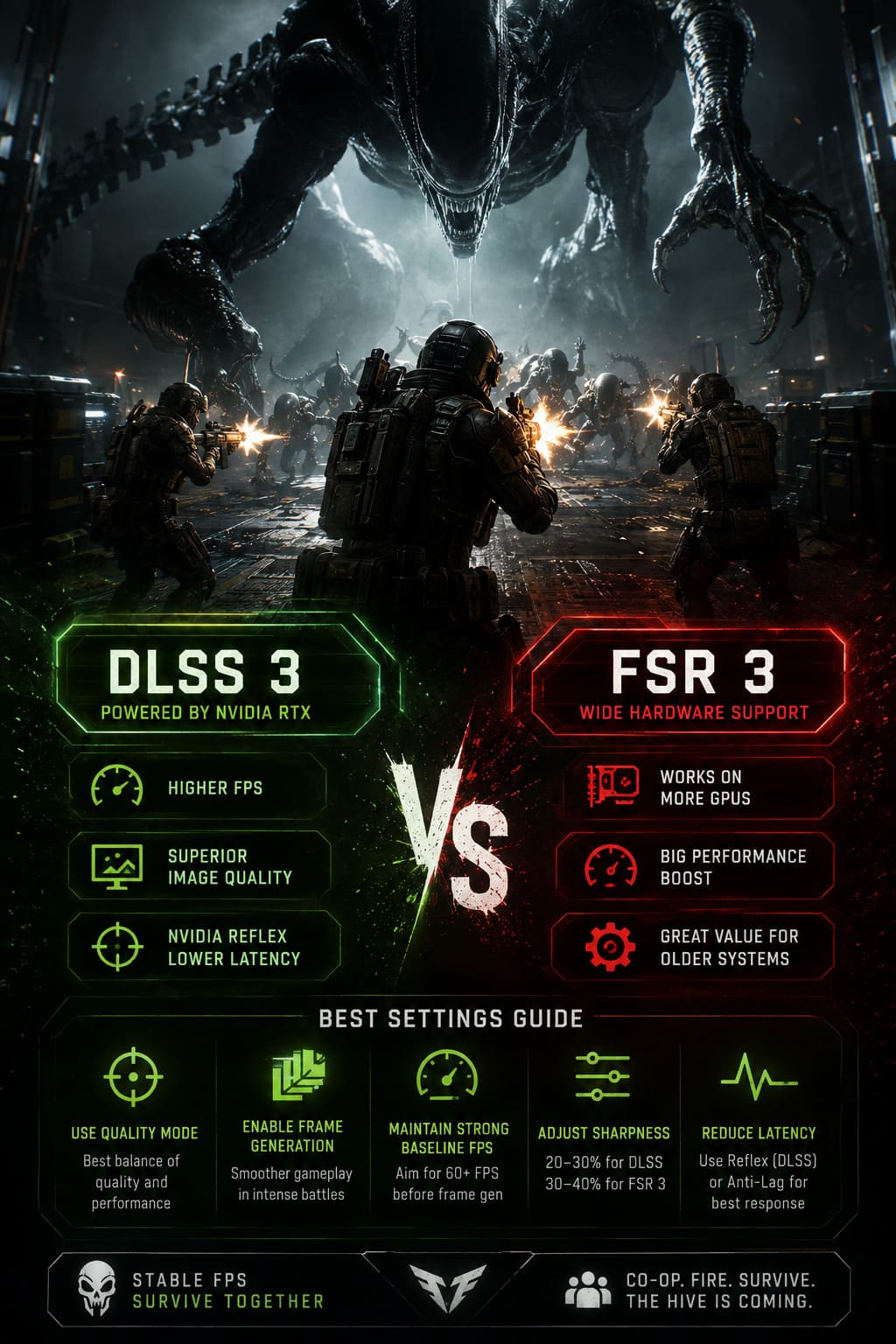
That is why the DLSS 3 vs FSR 3 debate is more than just a technical comparison. Both technologies can give Aliens Fireteam Elite 2 a substantial performance boost, but they approach the problem differently. After spending plenty of time comparing upscaling technologies across modern shooters, I would say the choice comes down to your GPU, target resolution, and how sensitive you are to image artifacts and input latency.
How to Fix Aliens Fireteam Elite 2 High CPU Usage on Intel and Ryzen
DLSS 3 vs FSR 3: What Actually Changes?
Nvidia DLSS 3 combines Super Resolution, Frame Generation, and Reflex into a package designed primarily for newer GeForce RTX hardware. Frame Generation creates additional frames between traditionally rendered frames, using dedicated hardware to estimate movement and construct an intermediate image. The result can be a much higher displayed frame rate without requiring the GPU to render every single frame traditionally.
For a game like Aliens Fireteam Elite 2, that can be particularly useful. The game can throw huge numbers of enemies onto the screen at once, while particle effects, explosions, shadows, lighting, and environmental details are all competing for GPU resources. With DLSS 3 enabled on a compatible RTX 40-series card, the experience can feel dramatically smoother during those moments when the screen becomes completely covered in aliens.
FSR 3 takes a different route. AMD’s technology is designed to work across a much wider range of hardware, making it especially interesting for players who do not own a current-generation Nvidia GPU. FSR 3 combines temporal upscaling with frame generation, allowing compatible RTX 20/30-series, Radeon, and Intel Arc systems to benefit from higher displayed frame rates.
That wider compatibility is a major advantage. Not everyone is running an RTX 4090 or RTX 4080, and I actually like seeing technologies such as FSR 3 give older hardware another lease on life instead of forcing players to upgrade every few years.
Which Looks Better: DLSS 3 or FSR 3?
This is where I would give Nvidia the advantage.
At higher resolutions, the difference is not enormous, but DLSS generally produces the cleaner and more stable image, especially when the scene contains lots of fine geometry. Industrial corridors are full of cables, grates, pipes, screens, railings, and other thin objects that can expose weaknesses in temporal reconstruction.
DLSS tends to keep those details more stable when you move the camera quickly. Alien limbs, weapons, armor textures, and environmental surfaces can remain sharper without as much shimmering. In a dark game with lots of atmospheric effects, that extra stability makes a bigger difference than you might expect.
FSR 3 has improved considerably compared with earlier versions of AMD’s upscaling technology. At 1440p Quality and especially 4K Quality, I would have no problem using it for a long play session. The image can look very good, and the performance advantage is often far more important than tiny differences that you only notice when standing still and deliberately looking for them.
At lower internal resolutions, however, FSR 3 can become noticeably softer. If you are playing at 1080p and using a more aggressive performance preset, DLSS usually has the advantage in preserving small details.
My Visual Quality Ranking
| Setting | Image Quality | Performance | Best For |
|---|---|---|---|
| DLSS Quality | Excellent | High | RTX 40-series at 1440p/4K |
| DLSS Balanced | Very Good | Very High | Demanding 4K setups |
| FSR 3 Quality | Very Good | High | AMD and older Nvidia GPUs |
| FSR 3 Balanced | Good | Very High | Higher refresh-rate gaming |
| FSR 3 Performance | Acceptable | Maximum | Lower-end hardware |
Frame Generation: The Part That Can Really Change the Experience
Frame generation is probably the most interesting feature here, but it is also the one I would use with a little caution.
A higher frame counter does not automatically mean the game feels equally responsive. Generated frames improve visual fluidity, but they do not replace the responsiveness of a strong native rendering baseline. In my experience, frame generation feels best when the game is already running at around 60 FPS or higher before frame generation is enabled.
That point is important. If your GPU is struggling to produce 35 FPS and you activate frame generation to see a number approaching 70 FPS, the counter may look impressive, but the underlying responsiveness will not suddenly become equivalent to a genuine 70 FPS experience.
For Aliens Fireteam Elite 2, I would prioritize getting a solid baseline first. Lower a few expensive graphics settings if necessary, enable Quality upscaling, and then use frame generation as the extra layer of smoothness.
DLSS 3 Frame Generation and Nvidia Reflex
RTX 40-series owners have a particularly attractive combination available through DLSS Frame Generation and Nvidia Reflex.
Reflex is important because frame generation can introduce additional latency. Nvidia’s latency-reduction technology helps keep the rendering pipeline more responsive, which makes the generated-frame experience feel considerably better during fast combat.
For PvE shooters, I am generally more forgiving of a small amount of additional latency than I would be in a competitive multiplayer FPS. Still, when a Xenomorph suddenly leaps toward your face, you want your shotgun input to feel immediate.
Recommended RTX 40-Series Configuration
- Upscaling: DLSS
- DLSS Mode: Quality
- Frame Generation: On
- Nvidia Reflex: On + Boost
- Sharpness: Around 20–30%
- Target Resolution: 1440p or 4K
At 1440p, DLSS Quality is usually the sweet spot. At 4K, I would still start with Quality, but Balanced becomes a reasonable option if you are struggling to maintain your desired frame rate.
FSR 3 Frame Generation for Older GPUs
FSR 3 becomes more appealing when you step outside the RTX 40-series ecosystem.
If you are using an RTX 20-series or RTX 30-series card, or a compatible AMD Radeon GPU, FSR 3 can provide the extra performance you need without requiring a new graphics card. That is a big deal for players who are perfectly happy with their existing hardware but simply want to squeeze another year or two out of it.
I would start with FSR 3 Quality rather than immediately selecting Performance mode. Quality gives the frame-generation system a stronger base image to work with, and the difference in clarity is noticeable when the action gets hectic.
Recommended FSR 3 Configuration
- Upscaling: AMD FSR 3
- FSR Mode: Quality
- Frame Generation: On
- Latency Reduction: On
- Sharpness: Around 30–40%
- Target Resolution: 1440p where possible
If your system cannot maintain a reasonable baseline frame rate, disable frame generation temporarily and experiment with the other graphics settings first. There is no magic setting that can completely compensate for a GPU that is already running out of headroom.
Watch Out for Ghosting and HUD Artifacts
There is one area where both technologies can occasionally show their weaknesses: fast movement and high-contrast objects.
Temporal upscaling has to reconstruct information from previous frames. When an object moves quickly, the algorithm does not always have perfect information about where every pixel should go next. This can result in ghosting, shimmering, or small trails around moving characters and effects.
FSR 3 may show some of this more clearly in particularly chaotic scenes. Fast Xenomorph limbs, acid projectiles, smoke, sparks, and other particle effects are exactly the sort of things that can challenge reconstruction algorithms.
Frame generation can introduce another category of artifacts. Because generated frames are constructed rather than traditionally rendered, HUD elements, crosshairs, and other sharp interface components can sometimes exhibit subtle flickering or distortion during extreme camera movement.
The good news is that these problems are generally far less distracting while actually playing than they are when analyzing screenshots. When several dozen aliens are trying to eat your squad, you probably will not stop to admire a tiny artifact around the ammunition counter.
Best Settings for Different PC Builds
There is no universal configuration that I would recommend to everyone. The best settings depend heavily on the GPU and resolution you are targeting.
| PC Configuration | Recommended Upscaler | Mode | Frame Generation | Latency Setting |
|---|---|---|---|---|
| RTX 40-series, 1440p | DLSS | Quality | On | Reflex On + Boost |
| RTX 40-series, 4K | DLSS | Quality/Balanced | On | Reflex On + Boost |
| RTX 30-series | FSR 3 | Quality | On if supported | Latency reduction On |
| RTX 20-series | FSR 3 | Quality | On if performance allows | Latency reduction On |
| Radeon RX 6000/7000 | FSR 3 | Quality | On | Anti-Lag/latency reduction On |
| Lower-end GPU | FSR 3 | Balanced/Performance | Test carefully | On |
I would not blindly copy a settings list from someone with completely different hardware. A setting that is perfect for an RTX 4080 can be useless for a mid-range GPU. The smarter approach is to establish your baseline frame rate first and then work upward.
Should You Use DLSS 3 or FSR 3?
If you own an RTX 40-series GPU, DLSS 3 would be my first choice. The image reconstruction is excellent, Reflex helps compensate for the latency introduced by frame generation, and the overall presentation tends to look more stable in difficult scenes.
If you have an older Nvidia GPU or a Radeon card, FSR 3 is the obvious technology to test first. Its broader hardware compatibility makes it far more useful for the wider PC gaming audience, and the visual quality at the Quality preset is good enough that I would happily use it rather than sacrificing a huge amount of performance for native rendering.
For me, the biggest mistake would be chasing a maximum FPS number while ignoring frame pacing. A stable 90 FPS experience generally feels better than a wildly fluctuating 130 FPS counter. In a co-op shooter, consistency is king because the worst possible moment for a stutter is when the entire Xenomorph population decides your squad looks like lunch.
Final Performance Verdict
The Aliens Fireteam Elite 2 DLSS 3 vs FSR 3 comparison is ultimately less about declaring one technology the universal winner and more about matching the right option to your hardware.
DLSS 3 is the premium choice for RTX 40-series owners who want the best combination of image quality, frame generation, and latency control. FSR 3 is the more flexible solution, particularly for gamers using older Nvidia hardware or AMD GPUs.
My advice is simple: start with Quality upscaling, get your real rendered frame rate comfortably above the danger zone, and only then enable frame generation. Once the base performance is solid, both technologies can turn a demanding Xenomorph firefight into a much smoother experience.
And honestly, that is what I care about most. I would rather lose a tiny bit of visual sharpness and keep a stable, responsive game than stare at beautiful alien corridors while my frame rate collapses the moment fifty enemies rush through the same doorway. In Aliens Fireteam Elite 2, smooth performance is not just a luxury—it can be the difference between extracting with your squad and becoming another meal for the hive.