How to Fix Hearth and Hamlet Crashing on Startup on PC
When Hearth and Hamlet launched in August 2026, it instantly became one of those games I couldn’t stop thinking about. The combination of cozy kingdom-building, pixel-art visuals, magical progression systems, and surprisingly deep resource management felt like the perfect game to relax with after a long day.
Unfortunately, my first experience wasn’t building a thriving medieval settlement. It was staring at a loading screen, watching my RAM usage skyrocket, and then getting kicked straight back to the desktop.
After digging through Steam discussions, Reddit threads, developer comments, and testing fixes myself, I discovered that the startup crash issue isn’t caused by one single bug. Instead, several different problems can trigger the same result: the game simply refuses to launch.
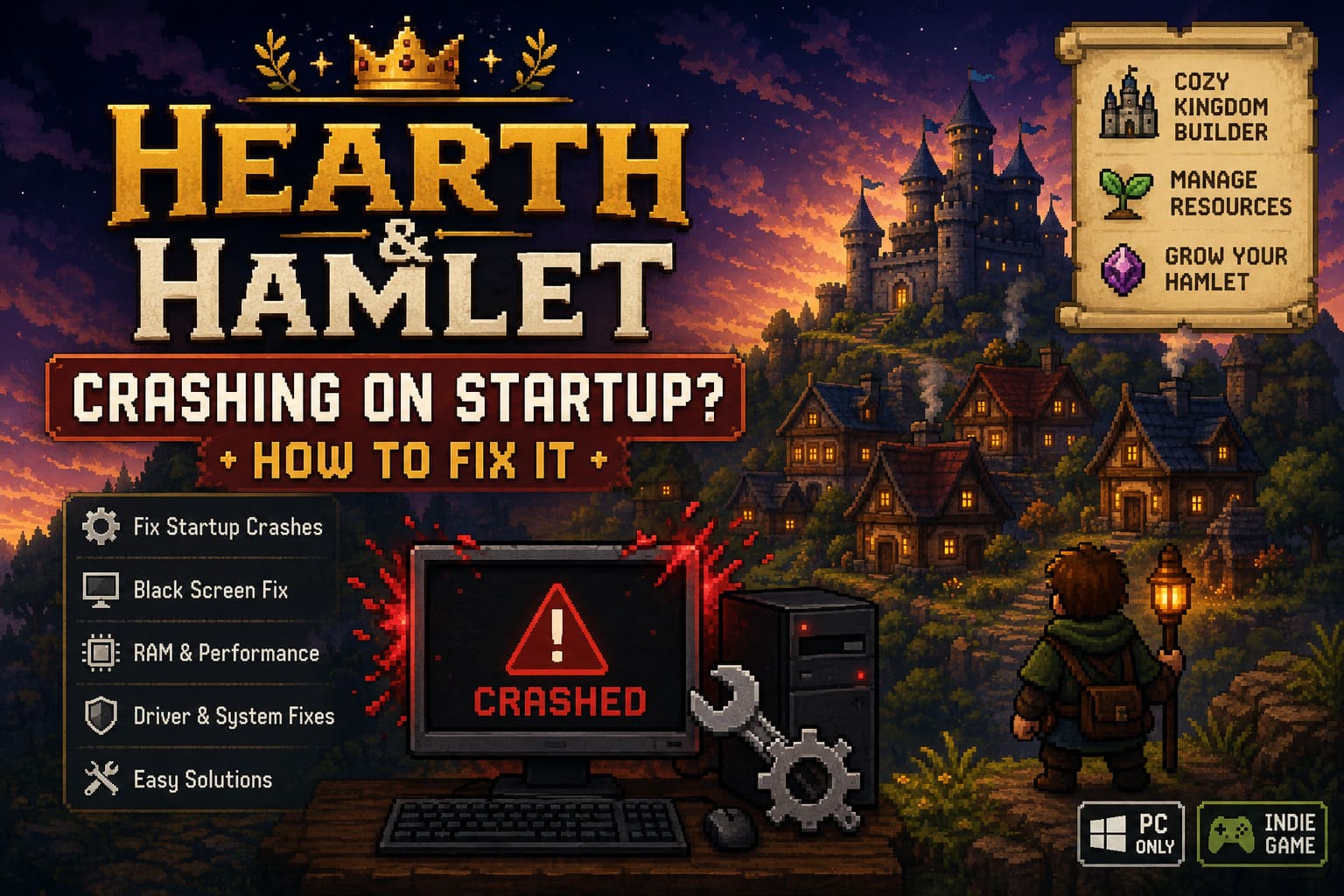
If you’re dealing with black screens, freezes, crashes on startup, or the game closing itself seconds after pressing Play, this guide covers the solutions that have helped the most players get back into the game.
Why Hearth and Hamlet Keeps Crashing on Startup
Unlike many indie city-builders, Hearth and Hamlet performs a surprisingly large amount of simulation work during initialization. The game loads worker assignments, law systems, settlement calculations, and world-generation data before you even reach the main menu.
During launch week, players reported several recurring causes behind startup crashes:
- Excessive memory consumption during asset loading
- Corrupted or incomplete Steam downloads
- Display scaling conflicts
- DirectX initialization failures
- Missing Visual C++ runtime components
- Antivirus software blocking game files
- Compatibility issues with modern multi-core processors
The tricky part is that different systems experience different symptoms, which is why there isn’t a universal one-click fix.
Quick Troubleshooting Checklist
| Fix | Difficulty | Success Rate |
|---|---|---|
| Verify Steam files | Easy | High |
| Run as Administrator | Easy | High |
| Update GPU drivers | Easy | High |
| Clear local cache | Medium | Medium |
| Disable antivirus temporarily | Medium | Medium |
| Force DX11 launch | Easy | High |
| Repair Visual C++ | Medium | High |
If the game still crashes after completing these basics, continue through the full guide below.
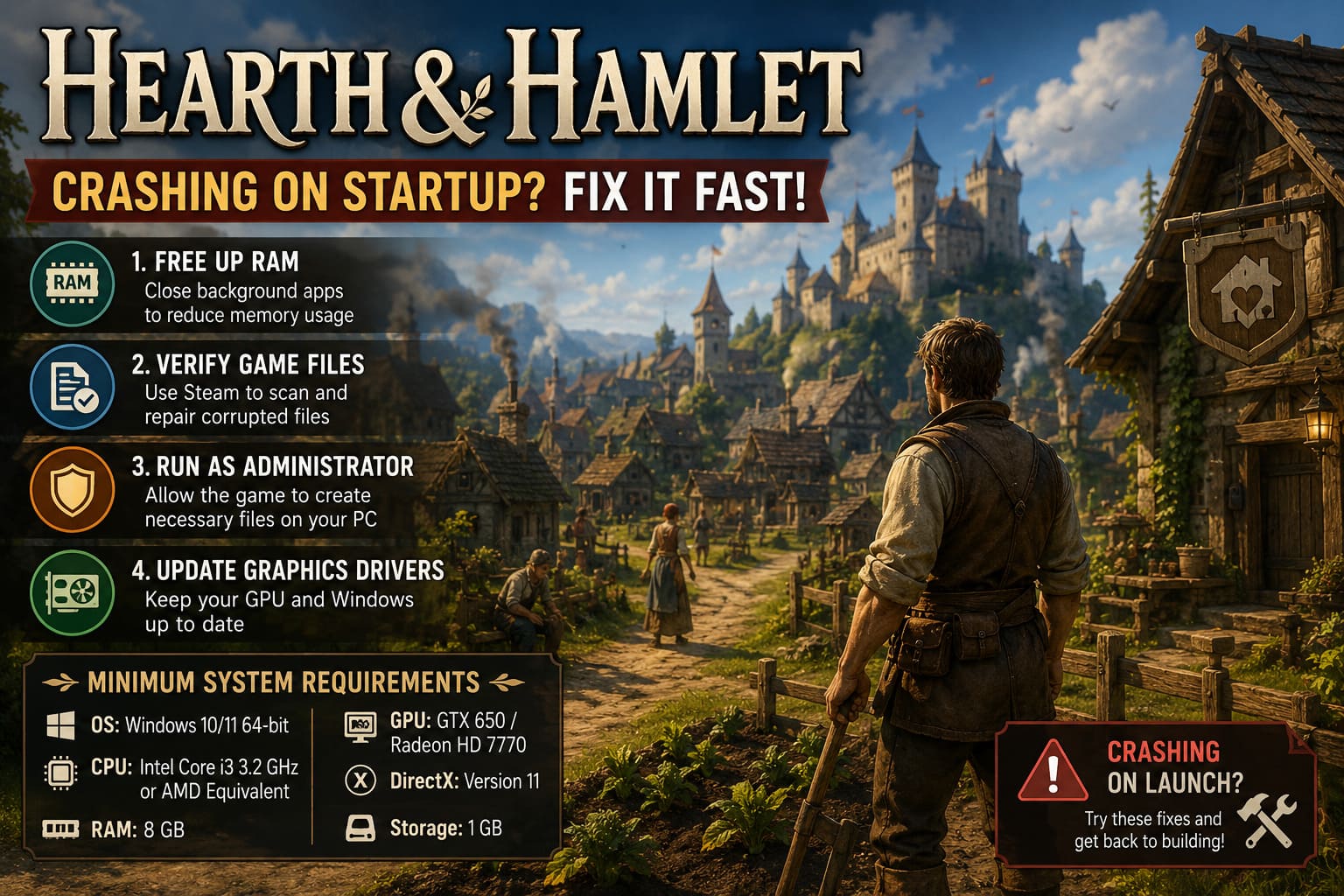
1. Free Up RAM Before Launching
One of the strangest launch-day issues involved massive RAM spikes during startup. Several players with 8GB systems reported memory usage jumping to 80–90% before Windows terminated the game.
Even if your PC technically meets the minimum requirements, background programs can push memory usage beyond safe levels.
What I Recommend
Before launching Hearth and Hamlet:
- Open Task Manager.
- Close unnecessary Chrome tabs.
- Exit Discord if you’re not using voice chat.
- Disable unnecessary launchers running in the background.
- Stop recording software temporarily.
Reducing memory pressure often allows the game to finish its startup sequence successfully.
Minimum System Requirements
| Component | Requirement |
|---|---|
| OS | Windows 10/11 64-bit |
| CPU | Intel Core i3 3.2 GHz or AMD Equivalent |
| RAM | 8 GB |
| GPU | GTX 650 / Radeon HD 7770 |
| DirectX | Version 11 |
| Storage | 1 GB |
While these requirements appear modest, launch-day memory behavior can make the game significantly more demanding during initialization.
2. Verify Game Files Through Steam
Whenever a new game launches, rapid hotfixes can sometimes leave behind corrupted downloads.
This was actually the first solution that fixed the issue for me.
How to Verify Files
- Open Steam.
- Go to Library.
- Right-click Hearth and Hamlet.
- Select Properties.
- Open Installed Files.
- Click Verify Integrity of Game Files.
- Wait for Steam to complete the scan.
Steam automatically replaces damaged or missing files without requiring a full reinstall.
Many players reported the game launching normally after verification found only one or two broken files.
3. Run the Game as Administrator
This fix sounds generic, but it genuinely solved launch problems for a surprising number of users.
Some startup crashes happen because Windows blocks the game from creating configuration files during its first launch.
Steps
- Open Steam.
- Right-click Hearth and Hamlet.
- Select Manage → Browse Local Files.
- Locate the game executable.
- Right-click it and choose Properties.
- Open the Compatibility tab.
- Enable Run This Program as Administrator.
- Click Apply.
Afterward, launch the game directly from the executable instead of Steam and see whether the crash disappears.
4. Update Graphics Drivers
New releases frequently expose driver issues that older games never trigger.
I have personally seen launch crashes disappear instantly after updating GPU drivers.
NVIDIA Users
Install the newest Game Ready Driver through GeForce Experience.
AMD Users
Update through AMD Adrenalin Software.
Intel Users
Download the latest graphics package directly from Intel.
Also make sure Windows itself is fully updated. Missing system updates can sometimes prevent DirectX components from functioning properly.
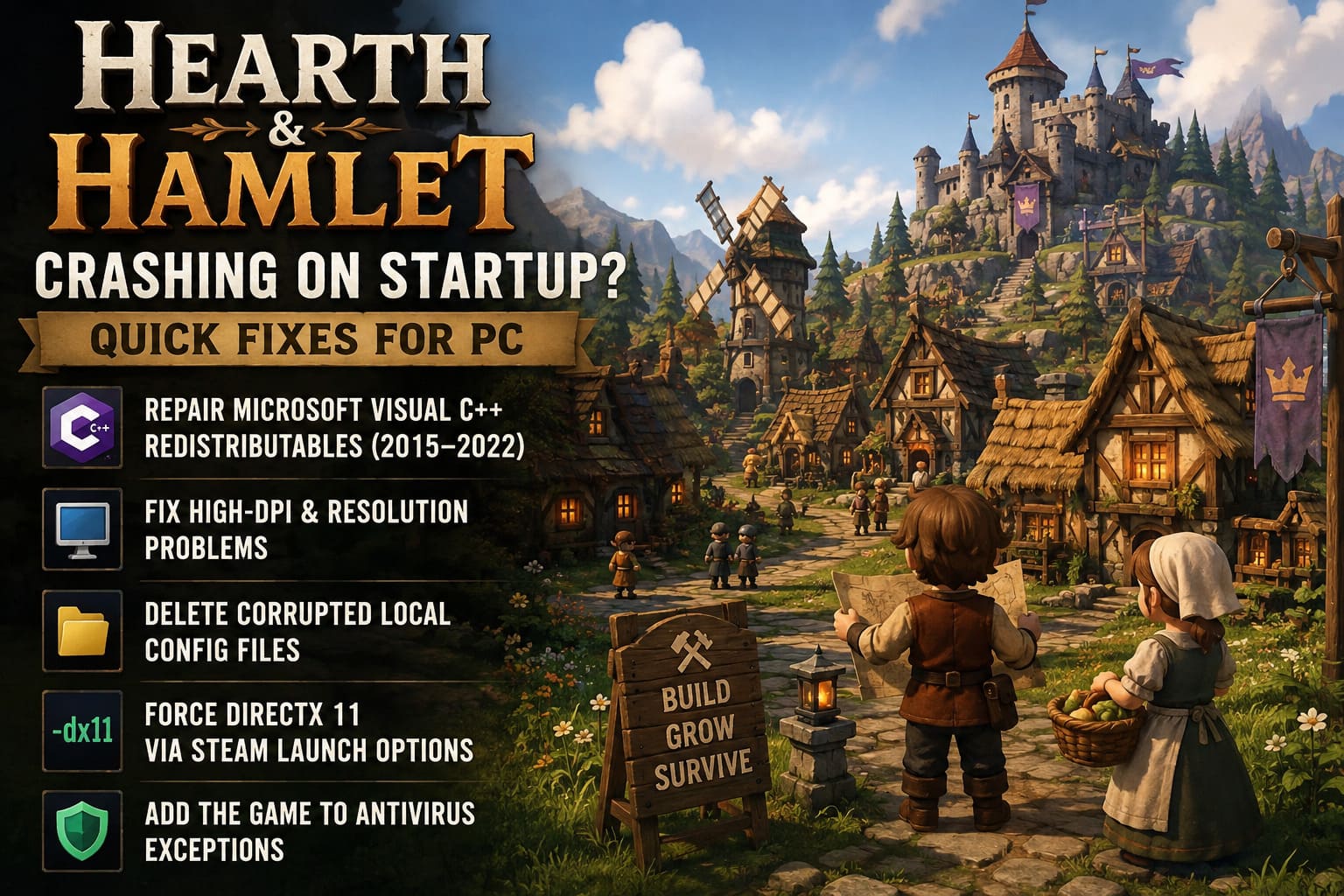
5. Repair Microsoft Visual C++ Redistributables
Many PC games depend heavily on Microsoft’s runtime libraries.
If these become corrupted, the game may never fully initialize and can close without displaying an error message.
Repair Process
- Press Windows + R.
- Type appwiz.cpl.
- Locate Microsoft Visual C++ Redistributable 2015–2022.
- Select Change.
- Click Repair.
- Repeat for both x64 and x86 versions.
- Restart your PC.
This repair only takes a few minutes and has fixed startup crashes in countless PC games over the years.
6. Fix High-DPI and Resolution Problems
One of the more unusual bugs affects players using 1440p and 4K displays with Windows scaling enabled.
The game occasionally struggles to initialize properly when Windows is using 125%, 150%, or higher display scaling.
Adjust DPI Settings
- Open the game installation folder.
- Right-click the executable.
- Select Properties.
- Open Compatibility.
- Click Change High DPI Settings.
- Enable Override High DPI Scaling Behavior.
- Set it to Application.
- Save changes.
Bonus Black Screen Fix
If you hear menu music but only see a black screen, press F5.
Some players discovered that this refreshes the interface and forces the display to render correctly.
It’s an odd workaround, but surprisingly effective.
7. Delete Corrupted Local Configuration Files
Sometimes the problem isn’t the installation itself.
Broken local settings can repeatedly crash the game, even after reinstalling.
How to Clear the Cache
- Press Windows + R.
- Enter %localappdata%.
- Locate folders related to HearthAndHamlet, Phorust Studios, or Runic Forge.
- Backup your save files.
- Delete configuration and cache files.
- Restart the game.
The game will generate fresh settings during the next launch.
8. Force DirectX 11 Through Steam
Several players discovered that forcing DirectX 11 eliminates launch instability entirely.
Steam Launch Option
Open Steam → Hearth and Hamlet → Properties → Launch Options and enter:
-dx11
If that doesn’t work, try:
-windowed
The first command forces a stable rendering API, while the second bypasses certain fullscreen initialization problems.
For many players, one of these launch parameters immediately stopped startup crashes.
9. Add Hearth and Hamlet to Antivirus Exceptions
Security software can occasionally mistake a newly released indie title for suspicious activity.
This is especially common when a game rapidly allocates memory during startup.
Windows Defender Exception
- Open Windows Security.
- Navigate to Virus & Threat Protection.
- Open Manage Settings.
- Select Add or Remove Exclusions.
- Add the Hearth and Hamlet installation folder.
After adding the exclusion, restart Steam and try launching again.
Several users reported their crashes disappeared instantly after Windows stopped interfering with the executable.
Hearth and Hamlet Beginner Guide: Tips, Tricks, and Strategies to Build Your Dream Kingdom Fast
Additional Fix for Modern CPUs
One issue that doesn’t receive enough attention involves high-core-count processors.
New Ryzen and Intel CPUs with extensive threading capabilities occasionally create synchronization issues in smaller game engines.
If you’re still crashing:
- Disable unnecessary CPU overclocks.
- Update motherboard chipset drivers.
- Update BIOS firmware if available.
- Close CPU monitoring tools temporarily.
This won’t help everyone, but it has resolved startup instability on some modern gaming rigs.
Is Hearth and Hamlet Worth Buying? Deep-Dive 2026 Clicker Game Review
Final Thoughts
As much as I enjoy Hearth and Hamlet, its launch version clearly arrived with a few rough edges. The good news is that most startup crashes appear to be linked to memory allocation problems, corrupted configuration files, display scaling conflicts, or missing dependencies rather than severe hardware incompatibilities.
The fixes that seem to help the largest number of players are verifying Steam files, forcing DirectX 11, repairing Visual C++ packages, clearing local cache data, and running the game as administrator. Those are the first solutions I would try before moving on to more advanced troubleshooting.
The developers at Phorust Studios have already begun rolling out post-launch updates, so keeping the game fully patched is essential. With a bit of troubleshooting, most players should be able to get past the crashes and finally enjoy what Hearth and Hamlet does best: building a thriving magical kingdom one campfire at a time.