BeastLink Multiplayer Fix: How to Play Co-Op and Fix Party Invites Not Working Error
There are few things more annoying in a multiplayer game than getting everything ready for a session, messaging your friends, launching the game — and then discovering that the party system has apparently decided to take the night off.
That is exactly where some BeastLink players have found themselves in Early Access.
Grove Street Games’ kaiju sandbox is built around a ridiculous amount of destruction. Massive monsters tear through city blocks, vehicles blast through collapsing streets, and the game’s SuperDestruction physics system has to keep all that chaos synchronized between players. When it works, this is the kind of multiplayer spectacle that makes you yell at your monitor because your friend just flattened half the neighborhood with a giant monster.
When it doesn’t work, you’re staring at a broken party invite.
Players have reported situations where invitations never arrive, the Accept button does absolutely nothing, or friends get stuck outside the same lobby despite appearing online. Some players can launch multiplayer sessions but can’t pull their friends into them. Others end up getting kicked back into solo matchmaking.
The good news is that you don’t necessarily have to wait for a patch.
I’ve put together the fixes that make the most sense for the current Early Access build, including the basic connection reset, Steam’s direct Join Game option, clearing old local files, checking system time synchronization, and a few less obvious workarounds that can make a surprisingly big difference.
What Causes the BeastLink Party Invite Error?
BeastLink isn’t dealing with a simple four-player lobby system where the server only has to keep track of player positions and weapon fire.
The game is trying to synchronize a huge amount of destruction and physics information between clients. Buildings collapse, vehicles get thrown around, Kaiju interact with the environment, and multiple players can be creating absolute carnage at the same time.
That puts more pressure on the multiplayer infrastructure than a traditional co-op game.
The current party invite problem appears to involve the interaction between your game session, account authentication, lobby state, and Steam’s invitation layer. In other words, the problem isn’t automatically your internet connection.
That’s an important distinction.
If you’re sitting on a fast fiber connection and your friend is three feet away on the same network, yet neither of you can accept an invitation, downloading the game again probably isn’t going to magically fix it.
Early Access builds can also leave behind configuration and cache data from previous testing periods. If you’ve played an earlier version of BeastLink, an outdated local profile or multiplayer-related cache may be interfering with the newer build.
So before you start blaming your router, work through the fixes below.
Fix #1: Perform the Offline-to-Online Connection Reset
This is the first workaround I’d try because it’s quick, doesn’t require deleting anything, and effectively forces BeastLink to rebuild its network session.
The trick is to let the game start without an active internet connection, reach the main menu, and then reconnect.
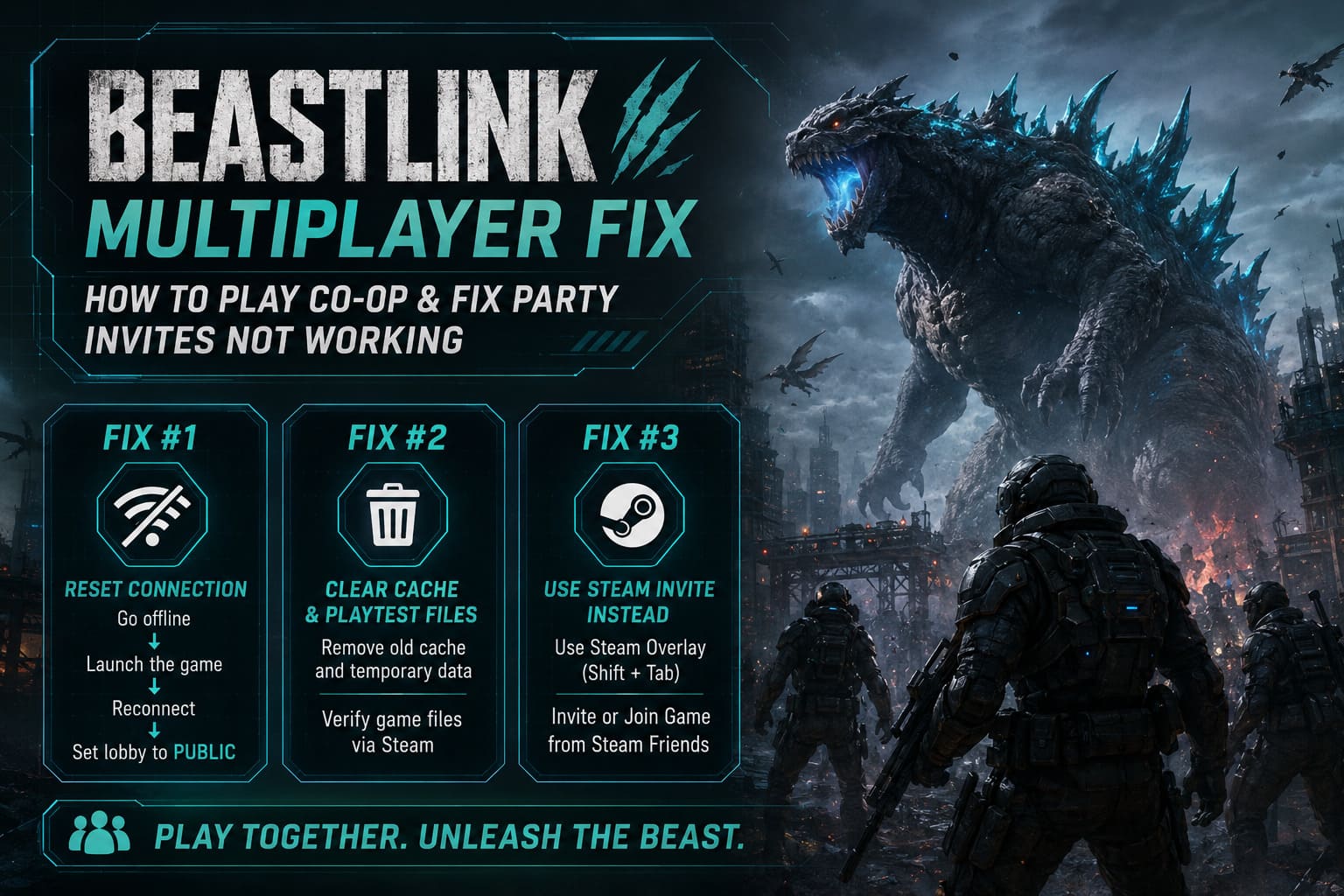
Follow these steps:
- Completely close BeastLink. Don’t leave it sitting in the background.
- Disconnect your PC or console from the internet. Turn off Wi-Fi or temporarily unplug Ethernet.
- Launch BeastLink while you’re offline.
- Allow the game to reach its main menu and load into its offline or single-player state.
- Once you’re fully loaded, reconnect your internet connection.
- Return to BeastLink and give the game roughly 30–45 seconds to recognize the restored connection.
- Change your lobby setting from Private/Offline to Public.
- Try sending a party invitation again.
- If that doesn’t work, have your friend send the invitation instead.
The reason I like this workaround is that it doesn’t involve messing around with installation files or account data. You’re essentially forcing the client to initialize first and then reconnect to the multiplayer infrastructure.
It’s a weird fix. It shouldn’t need to exist.
But Early Access multiplayer occasionally produces exactly this kind of nonsense.
Fix #2: Clear Old BeastLink Cache and Playtest Files
If you’ve played BeastLink during an earlier test period, this should be near the top of your troubleshooting list.
Older configuration data can survive an uninstall or major update. That’s particularly annoying when the current game build expects a different multiplayer configuration.
Before deleting anything, make sure you understand which files you’re removing. Don’t randomly wipe your entire game-save directory.
For the Steam PC version, start here:
- Close BeastLink.
- Exit Steam completely.
- Press Windows Key + R.
- Enter
%localappdata%and press Enter. - Search for folders associated with BeastLink or Grove Street Games.
- Look for temporary multiplayer-related folders or files such as Saved, LobbyCache, or MultiplayerData.
- Remove only the appropriate cache/configuration data.
- Restart Steam.
- Open your Steam Library.
- Right-click BeastLink and select Properties.
- Open Installed Files.
- Select Verify Integrity of Game Files.
- Start BeastLink again and test multiplayer.
The important part here is understanding the difference between cache data and actual progression saves.
Don’t start deleting folders just because their names look suspicious. If you’re unsure whether a particular directory contains your real save data, back it up first.
The goal is to make the client rebuild temporary multiplayer information — not to wipe your entire Kaiju career.
Fix #3: Stop Using the In-Game Invite Button
This is one of those fixes that sounds almost too simple.
If the BeastLink party interface isn’t correctly communicating with Steam, stop using that interface.
Instead, let Steam handle the invitation.
First, make sure the Steam Overlay is enabled for BeastLink. Both players should also be logged into the correct Steam accounts and appear online.
Then:
- Have the host launch a fresh multiplayer lobby.
- Stay inside the staging area.
- Have the other player open the Steam Friends List.
- Find the host’s profile.
- Right-click the host.
- Look for Join Game.
- Select it if available.
You can also try the reverse method.
The host can open the Steam Overlay with Shift + Tab, select the friend’s profile, and use Invite to Game.
The big advantage is that you’re bypassing BeastLink’s own party UI and sending the request through Steam’s platform-level system.
If the game’s internal invite button is broken but the Steam session itself is healthy, this can be enough to get everyone into the same lobby.
I’ve used similar workarounds in plenty of PC multiplayer games over the years. Sometimes the platform integration is simply more reliable than the game’s own social menu.
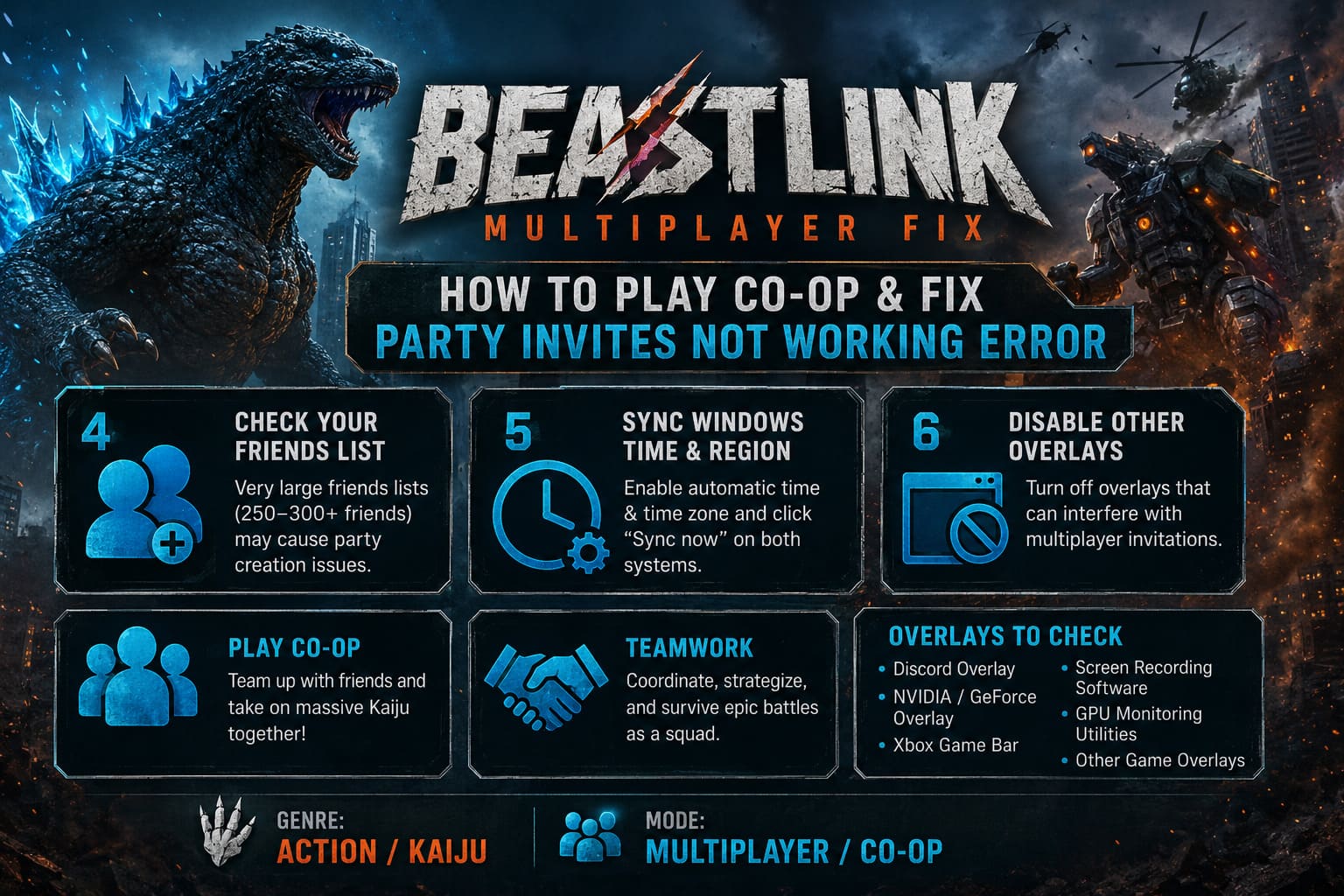
Fix #4: Check Your Friends List
This is the strange one.
Some community reports have connected party creation problems with accounts carrying extremely large friends lists. The problem appears to become more noticeable with accounts that have hundreds of contacts.
This isn’t something I’d recommend obsessing over if you have 50 or 100 Steam friends. But if your account has accumulated 250–300+ friends, it’s worth testing.
The theory is that the multiplayer system has to process profile and presence information while creating the party session. When the account contains a huge number of contacts, that process may become less efficient.
You don’t need to immediately delete half your friends.
Instead, use this as a diagnostic test.
If one player has an enormous friends list and another player has a relatively clean account, have the players swap who creates the lobby. If the issue consistently follows the same host account, you’ve found a useful clue.
Some players have also reported better results when testing with a secondary account containing fewer contacts.
It’s not a satisfying solution. Nobody wants to clean their Steam friends list just to make a Kaiju game accept an invitation.
But if you’re troubleshooting a stubborn Early Access bug, eliminating variables matters.
Fix #5: Synchronize Windows Time and Region Settings
This one sounds ridiculous until you’ve spent enough time troubleshooting online games.
Your system clock matters.
Online services can use timestamps and authentication information when establishing sessions. If your PC’s clock or time zone is significantly out of sync, authentication or matchmaking can sometimes behave unpredictably.
On Windows:
- Right-click the clock on the taskbar.
- Select Adjust date/time.
- Turn on Set time automatically.
- Turn on Set time zone automatically if available.
- Find the synchronization option.
- Click Sync now.
- Ask your friend to perform the same check.
- Restart BeastLink and test the party again.
Don’t skip this just because your clock looks correct.
A machine can display the right local time while still having synchronization problems in the background.
This takes less than a minute to check, so there’s really no reason not to do it.
Fix #6: Disable Other Overlays
Steam isn’t the only software that can hook into a game.
Discord, GeForce Experience, Xbox Game Bar, recording applications, performance monitors, and other utilities can all place overlays or hooks on top of the game.
Most of the time, that’s harmless.
When multiplayer is already struggling, though, I’d rather remove every unnecessary variable.
Temporarily disable third-party overlays and launch BeastLink with as little background interference as possible.
Pay particular attention to:
- Discord Overlay
- NVIDIA/GeForce overlay features
- Xbox Game Bar
- Screen-recording software
- GPU monitoring utilities
- Other applications that inject overlays into games
You don’t need to uninstall anything. Just disable the overlay functionality temporarily and test the party system.
If invitations suddenly start working, re-enable your applications one by one until you identify the culprit.
That’s much faster than randomly changing ten settings at once and then having no idea what actually fixed the problem.
BeastLink Co-Op: Settings I Recommend
Once you finally get everyone into the same session, don’t immediately start changing everything.
For a smoother multiplayer setup, I’d keep the lobby configuration straightforward.
| Setting | Recommended Choice | Why |
|---|---|---|
| Lobby Type | Friends Only / Public | Makes direct joining easier |
| Host | Stable Connection | Reduces unnecessary session problems |
| Overlays | Steam Only | Limits conflicts |
| Player Tutorial | Completed | Helps avoid progression restrictions |
| Connection | Wired Ethernet if possible | More consistent latency |
| Invite Method | Steam Join Game | Useful when in-game invites fail |
The host should also avoid constantly switching between lobby states while everyone is joining.
Get the session established first. Then start causing the kind of urban destruction BeastLink was built for.
Complete the Intro Tutorial Before Troubleshooting Everything Else
Here’s another easy thing to overlook.
Some multiplayer functionality can depend on your profile being fully initialized.
If one player has barely started the game while another has already completed the introductory missions, their available multiplayer options may not line up perfectly.
I’d recommend having every player complete the basic tutorial or introductory missions before trying to build a serious co-op session.
It takes less time than troubleshooting a mysterious matchmaking problem for an hour.
And yes, I know. Nobody buys a giant Kaiju destruction game because they’re excited to do tutorial missions.
Get through them anyway.
What If None of These BeastLink Multiplayer Fixes Work?
At that point, stop repeatedly hammering the invite button.
If you’ve already tried the connection reset, Steam joining, cache cleanup, overlay troubleshooting, system time synchronization, and lobby changes, the problem may genuinely be server-side.
That’s one of the realities of Early Access.
A client-side fix can’t repair a broken backend service.
Try switching hosts, restarting the entire party, and testing again later. If multiple unrelated players are reporting the exact same problem at the same time, that’s a strong sign that you’re dealing with a server or matchmaking issue rather than something unique to your PC.
Keep an eye on official developer announcements and community reports as well. If the same invitation failure is suddenly affecting a large portion of the player base, there’s little value in spending three hours reinstalling Windows drivers.
My Recommended BeastLink Multiplayer Troubleshooting Order
If you want the shortest possible route through all of this, I’d personally work through the fixes in this order:
- Restart BeastLink and Steam.
- Use Steam’s Join Game option instead of the in-game invite.
- Perform the offline-to-online connection reset.
- Disable Discord and other third-party overlays.
- Check Windows time and time-zone synchronization.
- Make sure everyone has completed the introductory missions.
- Try a different host.
- Clear old BeastLink multiplayer cache/configuration files.
- Verify the game files through Steam.
- Test whether an account with a very large friends list is causing the problem.
That order matters.
Don’t start by deleting files. Don’t reinstall the entire game because an invitation didn’t arrive once. Start with the fixes that are fast, reversible, and tell you something about where the problem actually lives.
BeastLink SuperDestruction Guide: How the Kaiju Destruction Physics System Works
Final Thoughts
BeastLink has a fantastic concept for multiplayer. Giant monsters, vehicles, destructible cities, and a physics system designed around large-scale destruction are exactly the ingredients that can turn a normal co-op session into complete chaos.
But none of that matters when your friends are sitting in separate menus because the party invitation refuses to work.
The current Early Access multiplayer problems are frustrating precisely because the game itself is clearly built around playing together. You want to get a squad into the city, pick your machines or Kaiju, and start turning buildings into rubble. Instead, you’re sometimes fighting Steam menus and network authentication.
That’s not the fun kind of destruction.
For now, the most useful workarounds are bypassing the broken in-game invitation system through Steam, forcing a fresh network initialization with the offline-to-online reset, removing problematic legacy cache data, disabling conflicting overlays, and making sure every player’s system time and profile state are properly synchronized.
If you’re still stuck after all of that, don’t assume your PC is the problem. Early Access multiplayer infrastructure can break in ways that no local setting can fix.
Once BeastLink gets its multiplayer systems tightened up, though, I can already see why people are going to spend ridiculous amounts of time in this game. There’s something uniquely satisfying about coordinating with friends while a city comes apart around you.
Just make sure you can actually get into the same lobby first.