How to Fix GRIT Game Black Screen on Startup EGS (Epic Games Store) Guide
GRIT has a pretty obvious appeal if you enjoy multiplayer games that do not take themselves too seriously. Cowboys, horses, gunfights, chaotic battles and a battle royale structure make it stand out from the endless crowd of modern shooters. I have played enough PC games to know, though, that the first fight sometimes happens before you even reach the main menu. With GRIT, one of the more annoying problems is a black screen on startup through the Epic Games Store, where the game appears to launch but never actually shows you what is happening.
What makes this problem especially irritating is that GRIT may not always crash in the traditional sense. You can sometimes hear music, environmental sounds or other game audio while staring at a completely black display. In other cases, the application simply hangs during startup and Windows becomes sluggish at the same time. It is the kind of problem that makes you wonder whether the game is broken, your GPU driver is broken, or Epic Games Store has decided to ruin your evening.
The good news is that a black screen does not automatically mean you need to reinstall everything. In my experience with PC games, launch failures like this are often caused by a relatively small interaction between the game engine, graphics API, overlays, Windows permissions, cached launcher data or video drivers. The trick is to test the likely causes in a sensible order rather than changing ten things at once.
How to Fix GRIT Crashing on Launch in Epic Games Store Ultimate 2026 Guide
Why Does GRIT Show a Black Screen on Startup?
There is no single cause behind every GRIT black screen. The game has to initialize the Unreal Engine rendering pipeline, communicate with your graphics driver, establish its online services and load the initial assets before you can reach the lobby. If something goes wrong during that chain, you may end up with a perfectly running process that never produces a visible image.
Several causes are particularly worth investigating:
- DirectX compatibility or graphics API initialization problems
- Epic Games Launcher cache corruption
- Discord, RTSS or other overlay conflicts
- Windows administrator and compatibility restrictions
- Damaged Microsoft Visual C++ runtime files
- GPU driver or display-stack problems
- Introductory movie files failing to initialize correctly
I would not immediately start deleting game files or reinstalling Windows. Start with the changes that are easy to reverse and work your way toward the more involved fixes.
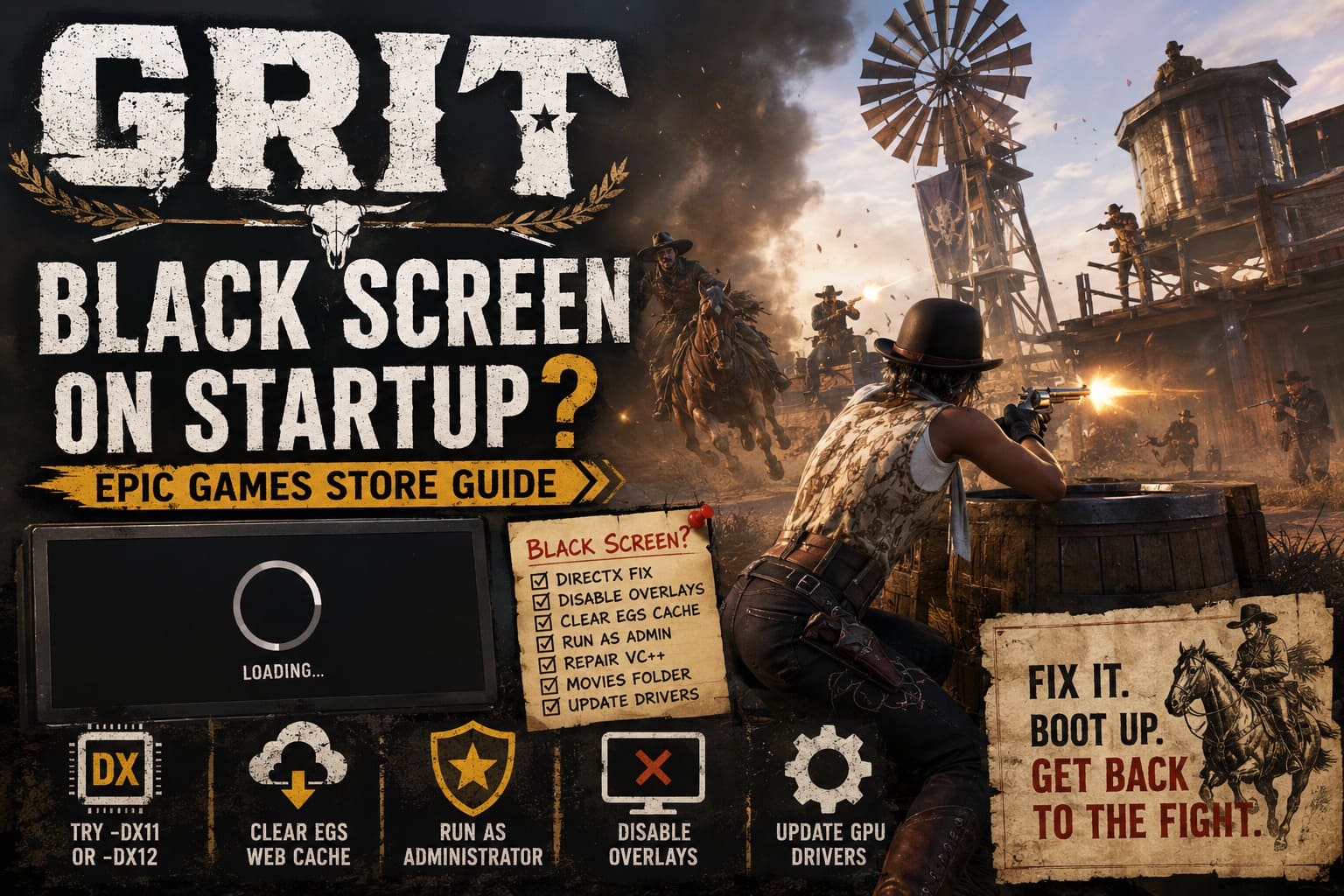
1. Try a Different DirectX Launch Option
The first thing I would test is the graphics API. Unreal Engine games can occasionally behave differently depending on how DirectX is initialized on a particular PC. If GRIT launches to a black screen, forcing another DirectX mode is a relatively painless experiment.
Open the Epic Games Launcher, click your profile icon and enter Settings. Scroll down to the section containing your installed games and find GRIT. Enable Additional Command Line Arguments and enter:
-dx11
Launch the game and see whether you can reach the main menu. If nothing changes, remove -dx11 and test:
-dx12
Do not leave both commands active at the same time. The purpose here is not to magically improve performance but to determine whether the startup renderer is choking on the default API.
For some systems, DirectX 11 can be the safer option, particularly when the graphics driver is older or the hardware configuration is unusual. Other PCs may behave better with DirectX 12. There is no universal winner, so treat this as a compatibility test rather than a performance recommendation.
2. Run GRIT as Administrator and Adjust Compatibility Settings
Windows security and compatibility settings can sometimes interfere with older or less predictable PC games. This is particularly worth testing if GRIT starts but refuses to display anything.
Find the GRIT installation folder and locate the main executable file. The default Epic Games installation location may look similar to:
C:\Program Files\Epic Games\GRIT
Right-click the GRIT executable and select Properties. Open the Compatibility tab and test the following options:
- Enable Run this program as an administrator
- Enable Disable full-screen optimizations
- Open Change high DPI settings
- Enable Override high DPI scaling behavior
- Select Application for the scaling behavior
Apply the settings and start GRIT again through the Epic Games Launcher.
I would not recommend randomly enabling every compatibility option available in Windows. Some settings can actually make modern games behave worse. The goal is simply to remove a few common Windows compatibility variables from the equation.
3. Clear the Epic Games Launcher Web Cache
This is one of those boring fixes that is surprisingly useful. Epic Games Launcher stores temporary web data for account services, authentication and other launcher functions. If that cache becomes corrupted, you can end up with strange behavior that looks like a game problem even though the launcher is actually involved.
First, completely close Epic Games Launcher. Open Task Manager with Ctrl + Shift + Esc and make sure the Epic Games Launcher processes are no longer running.
Press Windows + R, enter:
%localappdata%
and press Enter. Find the EpicGamesLauncher folder, open Saved, and look for folders named webcache or similar versions such as webcache_4147.
Close the launcher before deleting these folders. Then restart Epic Games Launcher and try GRIT again.
This does not normally require reinstalling the game. You are simply forcing the launcher to rebuild its temporary web data.
4. Disable Third-Party Overlays
If I had to pick one category of software that causes endless weirdness in PC games, overlays would be high on my list. They are useful, but every overlay wants to inject itself into the game process, and occasionally two pieces of software do not get along.
Before launching GRIT, temporarily disable programs such as MSI Afterburner and RivaTuner Statistics Server, especially if you use an FPS counter or hardware monitoring overlay. RTSS can be configured with application-specific detection settings, but completely closing it is a better diagnostic test.
The same goes for Discord Overlay. Open Discord’s settings, find the Game Overlay section and disable the in-game overlay temporarily.
You should also consider closing Razer Synapse, Razer Cortex and similar background utilities. RGB software is normally harmless, but some of these applications include boosters, monitoring hooks and additional overlays.
If GRIT suddenly starts after you close one of these programs, you have probably found the culprit. Re-enable your background applications one at a time afterward instead of turning everything back on simultaneously.
5. Repair Microsoft Visual C++ Redistributables
GRIT, like many Windows games, relies on system runtime components. If one of the Microsoft Visual C++ Redistributable packages is corrupted or missing, the game can fail before the actual gameplay renderer gets a chance to start.
Open Control Panel > Programs and Features and search for Microsoft Visual C++ Redistributable entries. Pay particular attention to the 2015–2022 packages and check both x64 and x86 versions if they are installed.
Where the repair option is available, choose Change and then Repair.
If the necessary package is missing entirely, install the current supported Microsoft Visual C++ Redistributable package from Microsoft’s official distribution channels. Restart Windows after repairing or installing the runtime components.
This is not a GRIT-specific fix, but it is one of those basic PC maintenance steps that can save a lot of unnecessary troubleshooting.
6. Test the Intro Movie Files
This is a less obvious solution, but it is worth trying if everything else looks normal. Some games load video files before displaying the main menu, and a problem decoding one of those files can make the game appear frozen even though the underlying application is still running.
Open the GRIT installation directory and locate its Content folder. Look for a Movies directory containing introductory videos or publisher/developer splash screens.
Do not permanently delete anything. Instead, create a backup folder somewhere on your desktop and move the relevant movie files there. You can also rename the Movies folder to something like Movies_Backup.
Launch GRIT and see whether the game gets past the black screen.
If this fixes the problem, restore the original files after testing. The idea is to identify whether the video playback stage is responsible for the failed startup, not to permanently modify the game installation.
7. Reset the Windows Graphics Stack
Sometimes the problem is not really GRIT at all. Windows can experience a graphics-driver hiccup where the display stack stops responding correctly while the game itself remains active.
If you are stuck on a black screen, try pressing:
Windows + Ctrl + Shift + B
Windows should briefly reset the graphics driver. You may hear a beep and see the monitor flicker. This shortcut does not restart the entire computer, so it is a useful quick test when the game is already running in the background.
If that does not help, look at your GPU drivers. NVIDIA, AMD and Intel regularly release driver updates that address game compatibility issues, although installing the newest driver blindly is not always the answer. If you recently updated the driver and GRIT stopped working immediately afterward, rolling back to a known-stable version can actually be more sensible.
For stubborn driver corruption, advanced users can perform a clean installation using Display Driver Uninstaller (DDU) from Windows Safe Mode before installing a fresh driver package.
GRIT Black Screen Troubleshooting Order
If you do not want to spend an entire evening experimenting, I would approach the problem in this order:
| Step | Fix | Difficulty | What It Tests |
|---|---|---|---|
| 1 | Try -dx11 or -dx12 | Easy | DirectX initialization |
| 2 | Disable overlays | Easy | Software injection conflicts |
| 3 | Clear EGS web cache | Easy | Launcher cache problems |
| 4 | Run as administrator | Easy | Windows permissions |
| 5 | Repair Visual C++ | Medium | Missing runtime components |
| 6 | Test movie files | Medium | Intro video decoding |
| 7 | Refresh GPU drivers | Advanced | Driver and graphics stack |
This order matters. There is no reason to start with DDU when disabling an overlay might solve the problem in two minutes.
What If GRIT Still Won’t Start?
If you have tried the fixes above and the screen remains black, check whether the behavior changes depending on your display setup. Disconnecting a secondary monitor temporarily can be useful, particularly if you use different refresh rates, HDR or unusual resolutions.
It is also worth verifying the game files through the Epic Games Launcher. A damaged or incomplete installation can produce symptoms that look very similar to a driver failure. If the launcher reports corrupted files, let it repair them before attempting a full reinstall.
Finally, pay attention to when the black screen appears. If you see the GRIT splash screen and then lose the image, the problem is different from a completely black window appearing immediately after launch. If you can hear game audio while the display is black, that is also valuable information because it suggests the application may have completed part of its startup sequence.
Final Thoughts
A GRIT black screen on startup is frustrating precisely because the game can appear to be running while giving you absolutely nothing to look at. After dealing with enough PC games, I have learned that these problems are usually easier to solve when you stop treating them as mysterious crashes and start breaking the startup process into individual pieces.
I would begin with DirectX launch options and overlay software, then clear the Epic Games cache and check Windows compatibility settings. After that, move toward Visual C++ repairs, the introductory movie workaround and finally a clean GPU-driver reinstall. Most importantly, change one thing at a time so you actually know which fix worked.
The good part is that none of these steps requires blindly reinstalling GRIT from scratch as your first move. A little patience, a controlled troubleshooting process and some attention to what the game is doing in the background can often get you from a completely black screen back into the dusty Wild West lobby without much drama.