How to Fix Lootbound Black Screen on Startup: Full PC Guide (2026)
There are few things more annoying in PC gaming than launching a game you have been looking forward to, only to be greeted by a completely black screen.
That is exactly the kind of problem some Lootbound players have been running into. The game starts, Steam says everything is fine, you may even hear menu music or see the game’s custom cursor moving around, but visually? Nothing. Just black.
I have dealt with enough Unity games over the years to know that this particular combination of symptoms usually points toward a display or rendering problem rather than a completely broken installation. And honestly, that is good news. In many cases, you do not need to reinstall Windows, replace your GPU, or start deleting random system files.
The trick is figuring out what Lootbound is fighting with during startup.
First: Figure Out What Kind of Black Screen You Have
Before changing anything, pay attention to what happens after launching Lootbound.
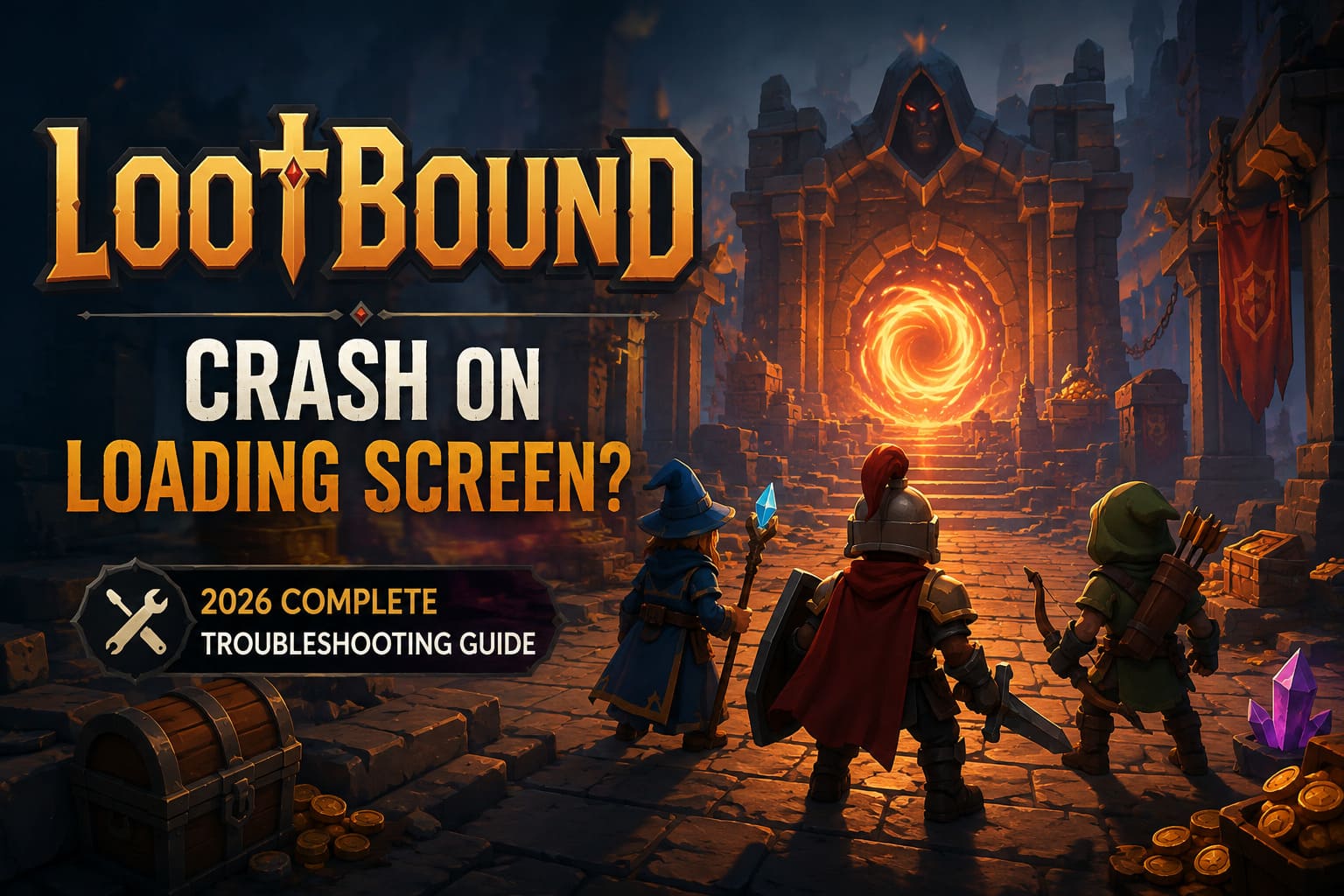
| Symptom | Most Likely Cause | First Thing I’d Try |
|---|---|---|
| Black screen with music | Resolution or fullscreen conflict | Alt + Enter |
| Cursor appears but image is missing | Rendering/driver issue | Win + Ctrl + Shift + B |
| Game becomes Not Responding | Corrupt settings or startup conflict | Reset configuration |
| Game crashes immediately | Files, drivers, or dependencies | Verify game files |
| Works on one monitor but not another | Display scaling or refresh-rate issue | Windowed/Borderless mode |
| Black screen only with overlays enabled | Software injection conflict | Disable overlays |
This distinction matters because you do not want to start with the most aggressive solution when a simple display-mode switch could solve everything.
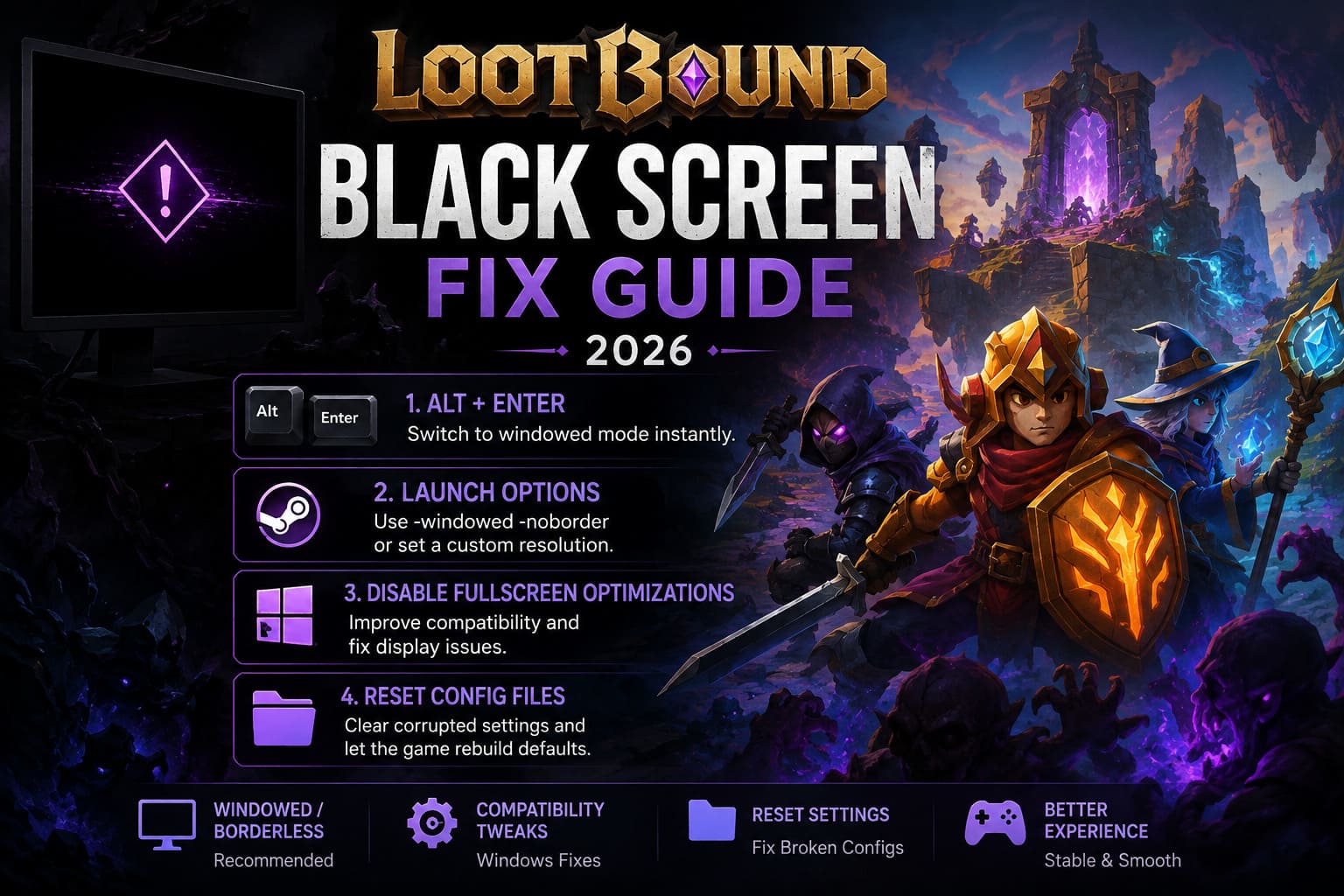
1. Try Alt + Enter Before Doing Anything Complicated
This is probably the first thing I would try.
When Lootbound is sitting on a black screen, press Alt + Enter.
It sounds almost too basic, but Unity games can occasionally get themselves into a weird state when switching between fullscreen and the Windows desktop environment. Alt + Enter can force the game away from exclusive fullscreen and into windowed mode.
If the game suddenly appears, congratulations: you have probably found the culprit.
Once you can see the game again, head into the graphics settings and stop using the configuration that caused the problem. I would personally choose Borderless Windowed, then set the resolution to your monitor’s native resolution.
This is particularly worth trying if you use:
- An ultrawide monitor
- A 144Hz, 165Hz, 240Hz, or higher-refresh display
- Two or more monitors
- Different DPI scaling settings between displays
- A monitor with an unusual resolution
In my experience, getting a game working in borderless mode is often preferable to spending an hour trying to convince exclusive fullscreen to behave.
2. Force Lootbound Into Windowed Mode Through Steam
If Alt + Enter does absolutely nothing, go one step further.
Open Steam, find Lootbound in your Library, right-click it and choose Properties. Under the General section, look for Launch Options.
Try:
-windowed -noborder
Then launch the game again.
The idea here is simple: instead of allowing Lootbound to decide how it wants to initialize your display, you are telling it exactly what kind of window to create.
If that does not work, you can also test a specific resolution:
-screen-width 1920 -screen-height 1080
Obviously, replace those numbers with a resolution your monitor actually supports.
I would not immediately start experimenting with dozens of Unity launch commands from random forum posts. Keep the test simple. The goal is to determine whether display initialization is the problem.
3. Disable Fullscreen Optimizations
Windows has its own ideas about how fullscreen games should behave, and sometimes those ideas do not line up particularly well with the game, GPU driver, or monitor.
Find the Lootbound installation folder through Steam by selecting Manage → Browse local files.
Locate the game’s executable, usually Lootbound.exe, then:
- Right-click the executable.
- Select Properties.
- Open the Compatibility tab.
- Enable Disable fullscreen optimizations.
- Select Change high DPI settings.
- Enable Override high DPI scaling behavior.
- Set scaling to Application.
- Apply the changes.
Then launch the game again.
This is one of those Windows fixes that does not look particularly exciting, but display scaling can create surprisingly strange results. If the game is rendering correctly internally but Windows is presenting the window incorrectly, changing the scaling behavior can be enough to get the picture back.
4. Reset Lootbound’s Configuration Files
This is my next stop if the game still refuses to display anything.
A bad resolution, refresh rate, fullscreen setting, or other graphics parameter can become a permanent problem if the game keeps loading the same corrupted configuration every time.
Press Windows + R, enter:
%appdata%
and press Enter.
From there, check the AppData directories for folders associated with Lootbound, ArtDock, or the relevant Unity game configuration. Depending on the game’s implementation, configuration data may be stored under Roaming, Local, or LocalLow.
Look for files containing settings, preferences, display configuration, or similar user-state information.
Do not blindly delete your entire AppData folder. That is absolutely not necessary.
Instead, make a backup of the relevant Lootbound configuration files first. Move them somewhere safe, such as a folder on your desktop. Then launch the game.
If the problem was caused by a broken display configuration, Lootbound should generate fresh default settings.
This is also why I recommend moving files rather than immediately deleting them. If the reset does not help, you can restore the originals.
5. If the Cursor Appears, Suspect the Graphics Pipeline
One of the most interesting versions of the Lootbound black screen is when the game cursor appears over an otherwise completely black image.
That suggests the application itself may not be totally dead.
If you can hear sounds and interact with the game but the visuals are missing, try pressing:
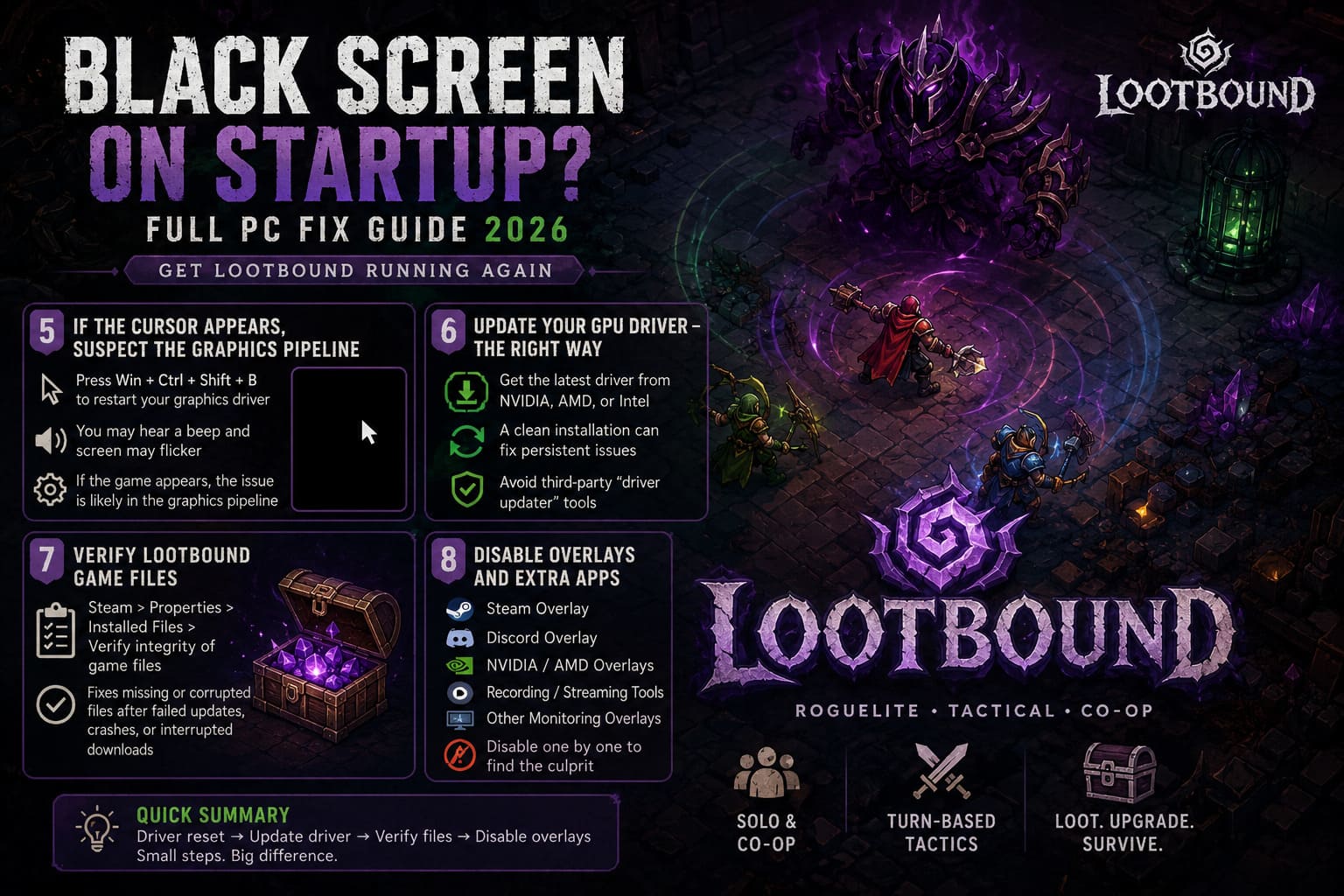
Windows + Ctrl + Shift + B
Windows should briefly flicker while the graphics driver restarts.
You may hear a beep as well.
This is a built-in Windows shortcut and is one of my favorite emergency tricks for diagnosing weird GPU behavior. It does not reinstall anything and does not require you to reboot the entire machine.
If Lootbound suddenly redraws after the driver reset, that is a pretty strong clue that the problem is somewhere in the graphics pipeline.
It is not necessarily proof that your GPU is failing. More often, it points toward a driver, rendering state, or display interaction that needs further attention.
6. Update Your GPU Driver — But Do It Properly
If the driver reset helps temporarily, I would stop treating the problem as a simple game configuration issue.
Download the latest driver directly from your GPU manufacturer’s official software.
For NVIDIA, AMD, or Intel hardware, use the appropriate current driver package rather than downloading a suspicious “driver updater” utility from some random website.
A clean installation can also be worthwhile if you have repeatedly updated drivers over the years and accumulated old profiles or settings.
For NVIDIA users, the installer provides a Custom Installation path with a clean-install option. AMD’s software also provides reset/factory-style installation options depending on the current driver package.
Personally, I would not jump straight to this step unless the easier fixes failed. Driver reinstallation takes more time than changing a launch option.
7. Verify Lootbound’s Steam Files
This is the boring fix that everybody skips until it becomes necessary.
Open Lootbound’s Steam Properties and go to Installed Files. Select:
Verify integrity of game files
Steam will compare the installed files against the expected version and replace anything that is missing or corrupted.
This is especially useful if the black screen appeared after:
- A failed update
- An interrupted download
- A crash during patching
- Moving the game to another drive
- Manually modifying game files
It is also worth remembering that a successful verification does not necessarily mean your entire PC environment is healthy. It only tells you that Steam is happy with the game’s files.
8. Turn Off Every Overlay You Can
This is the fix I would not underestimate.
Overlays are useful, but they also inject themselves into the game. When a game is having trouble rendering during startup, the last thing I want is five different pieces of software trying to hook into that rendering process.
For testing, temporarily disable:
- Steam Overlay
- Discord Overlay
- NVIDIA or AMD in-game overlays
- Recording/streaming overlays
- Other GPU monitoring overlays
Also close unnecessary browser windows and applications that use hardware acceleration.
You do not have to live without overlays forever. The purpose is simply to establish whether one of them is responsible.
If Lootbound suddenly starts normally with overlays disabled, turn them back on one at a time until you find the offender.
My Recommended Fix Order
If I were troubleshooting this on my own PC, I would not perform every fix randomly. I would work from the easiest and safest options toward the more involved ones.
- Alt + Enter
- Launch with -windowed -noborder
- Disable fullscreen optimizations
- Reset Lootbound’s graphics configuration
- Use Win + Ctrl + Shift + B
- Disable overlays
- Verify Steam files
- Update or clean-install GPU drivers
- Check Windows and game updates
That order saves a lot of unnecessary work.
Does Lootbound Have Multiplayer Co-Op? Full 2026 Game Guide & Review
What If Nothing Here Works?
If Lootbound still opens to a black screen after all of this, I would start looking for a more specific hardware or software conflict instead of repeatedly reinstalling the game.
Try launching with only one monitor connected. Temporarily return your monitor to a standard refresh rate. Disable HDR if you have it enabled. Remove unusual GPU control-panel overrides and test with default graphics-driver settings.
And if the game works perfectly on another PC or monitor, that is valuable information. It means the installation itself is probably not the main problem.
The most useful thing you can do at that point is report the exact behavior: whether audio plays, whether the cursor appears, whether Alt + Enter changes anything, what GPU you use, your Windows version, monitor resolution, refresh rate, and whether disabling overlays changes the result.
That kind of information is far more useful to developers than simply saying, “The game is broken.”
Is Lootbound Worth Buying? Honest 2026 Review & Gameplay Analysis
Final Thoughts
The Lootbound black screen on startup is frustrating precisely because the game can appear to be running normally underneath the problem. Hearing music while staring at a blank display makes it feel like the entire installation is dead, but that is not always what is happening.
If I had to bet on the first fixes worth trying, I would put Alt + Enter, forced windowed mode, configuration reset, and overlay removal near the top of the list. They are quick, reversible, and directly target the kinds of display conflicts that can stop a Unity game from presenting its first frame correctly.
And honestly, that is the approach I prefer with PC troubleshooting in general: change one thing, test it, and learn from the result.
Do not throw twenty fixes at the problem at once. If Lootbound suddenly starts working after one specific change, you have learned something useful — and that makes the next black screen much easier to deal with.