Pax Autocratica Low End PC Optimization Guide: Best Graphics Settings for High FPS (2026)
Pax Autocratica is the kind of game that can make a perfectly decent gaming PC suddenly feel like it belongs in a museum.
On paper, the concept sounds fantastic: build and control a massive authoritarian colony, keep its population under control, manage resources and infrastructure, then jump directly into brutal FPS missions against rival factions and the mysterious Urslan. In practice, that combination also means the game has a lot going on behind the scenes. The colony simulation is constantly working, while the shooter side throws lighting, effects, enemies, physics, shadows, and environmental details at your hardware.
That is where low-end PCs start crying for help.
If you are playing Pax Autocratica on an older desktop, a budget gaming laptop, or a graphics card with limited VRAM, the default settings are not necessarily your friend. A game can look gorgeous while running like absolute garbage, and nobody wants a 25 FPS firefight when an enemy commander is unloading a weapon directly into their face.
After spending far too much time experimenting with performance settings, scalability options, resolution scaling, and the usual Windows and GPU-driver tricks, I’ve put together this Pax Autocratica low-end PC optimization guide for 2026.
The goal is simple: squeeze as much performance as possible from your hardware without turning the game into a blurry mess.
Pax Autocratica PC Requirements: Can Your Hardware Handle It?
Before changing anything, you need to understand what you’re working with.
Pax Autocratica isn’t especially forgiving when it comes to CPU and GPU resources. The colony simulation can become increasingly demanding as your settlement expands, while the FPS missions put additional pressure on your graphics hardware.
| Specification | Minimum | Recommended |
|---|---|---|
| Operating System | Windows 10 64-bit | Windows 10/11 64-bit |
| CPU | Intel Core i5-8600 / Ryzen 5 1600X | Intel Core i7-8700K / Ryzen 5 3600 |
| RAM | 16 GB | 16 GB |
| GPU | GTX 1060 6GB / RX 480 6GB | RTX 2060 Super / RX 5700 XT |
| DirectX | Version 11 | Version 11 |
| Storage | 40 GB | 40 GB SSD Recommended |
| Target | 1080p / 30 FPS / Low | 1080p / 60 FPS / High |
The interesting part is that having a GPU that technically meets the minimum requirements doesn’t guarantee a smooth experience.
For example, older cards such as the GTX 1050 Ti or RX 570 can struggle badly once the colony becomes large. Some budget laptop GPUs can also run into VRAM limitations surprisingly quickly. The RTX 3050 and RTX 4050 are capable cards in the right conditions, but laptop power limits and available VRAM can change the situation dramatically.
And then there is the CPU.
This is the part that gets overlooked.
You might lower every graphical setting imaginable and still experience terrible FPS in a giant late-game colony because the processor is busy calculating citizens, AI routines, pathfinding, production, military units, and all the other simulation nonsense happening in the background.
Not every FPS problem in Pax Autocratica is a GPU problem.
That distinction matters when you’re troubleshooting.
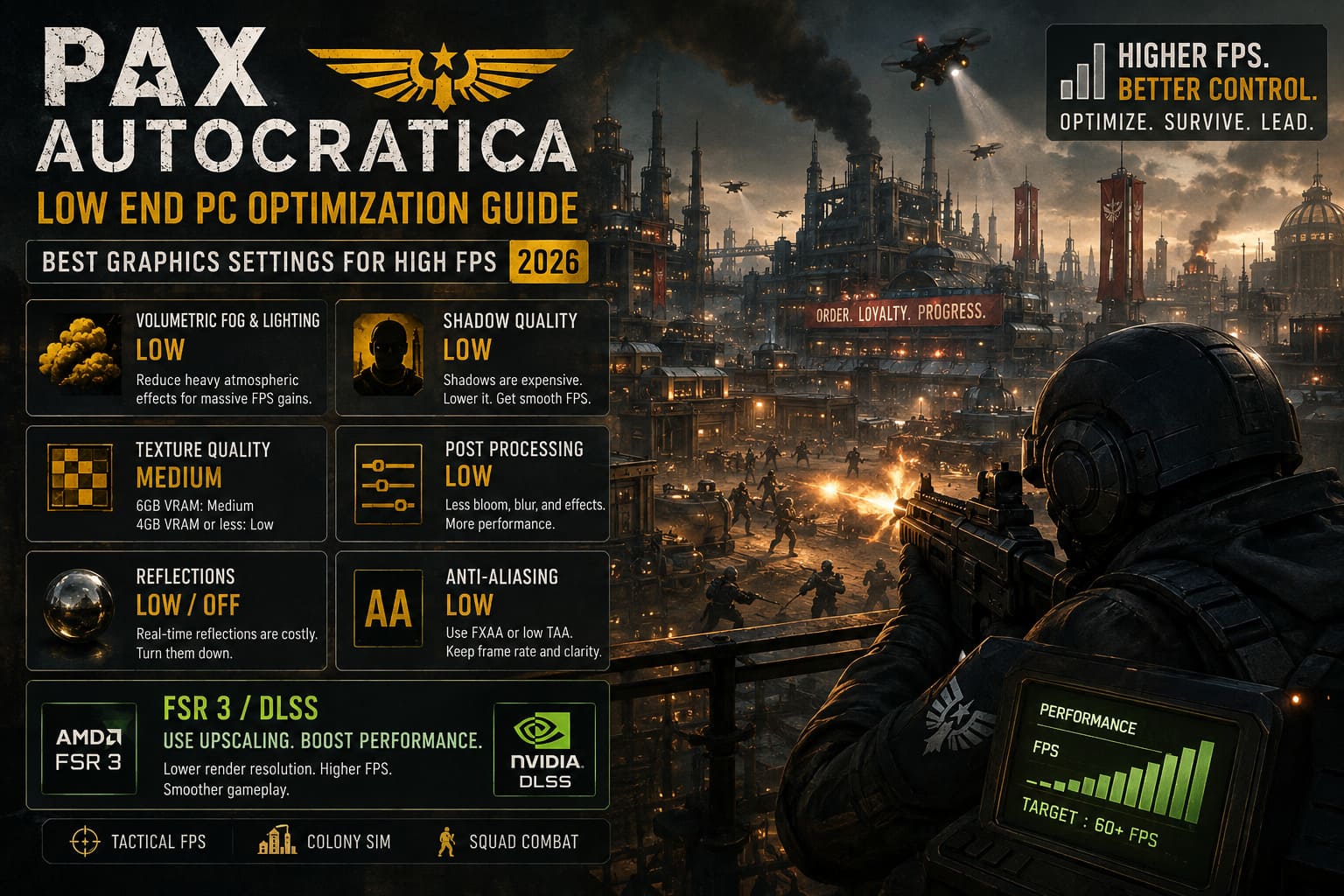
Best Pax Autocratica Graphics Settings for Low-End PCs
If you’re using the Low preset and still getting inconsistent performance, don’t just keep staring at the preset like it owes you money.
Go through the settings individually.
This is the configuration I would start with on a budget machine.
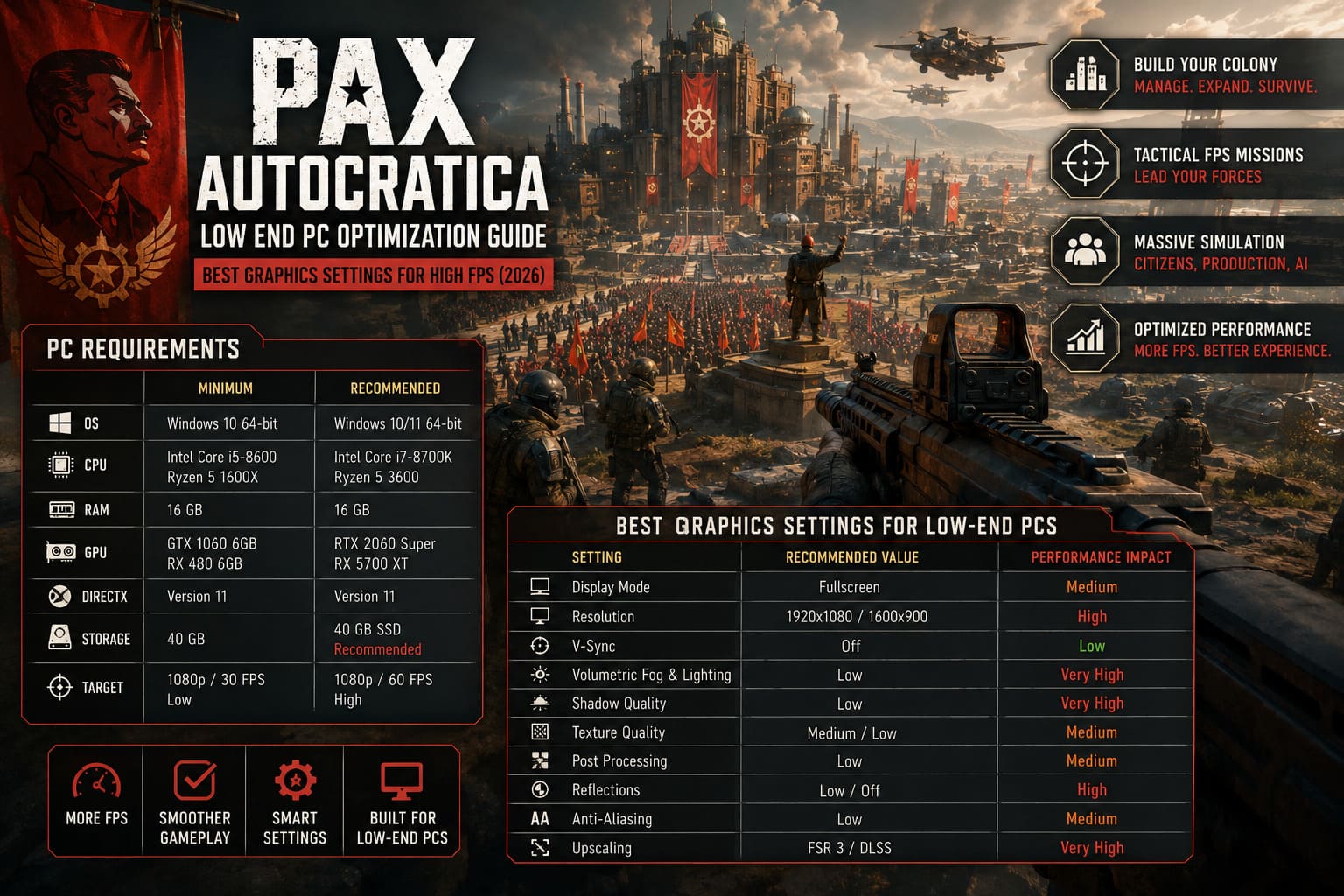
| Setting | Recommended Low-End Value | Performance Impact |
|---|---|---|
| Display Mode | Fullscreen | Medium |
| Resolution | 1920×1080 / 1600×900 | High |
| V-Sync | Off | Low |
| Volumetric Fog & Lighting | Low | Very High |
| Shadow Quality | Low | Very High |
| Texture Quality | Medium / Low | Medium |
| Post Processing | Low | Medium |
| Reflections | Low / Off | High |
| Anti-Aliasing | Low | Medium |
| Upscaling | FSR 3 / DLSS | Very High |
Display Mode: Use Fullscreen
For a low-end PC, I recommend sticking with Fullscreen.
Borderless Windowed is convenient, but when you’re trying to squeeze every possible frame out of an older machine, convenience isn’t the priority. Fullscreen can reduce unnecessary desktop composition overhead and sometimes produces more consistent frame pacing.
The difference won’t magically turn 30 FPS into 90 FPS, but when you’re fighting for every frame, small gains add up.
Resolution: 1080p Is Not Sacred
If your system can handle 1920×1080, keep it there.
If it can’t, don’t be afraid to drop to 1600×900.
There is nothing embarrassing about lowering resolution. I’d rather play at a slightly softer 900p with a stable frame rate than stare at a gorgeous 1080p screenshot while my character moves through the battlefield one frame at a time.
On extremely weak GPUs, resolution reduction can deliver one of the biggest immediate improvements available.
The Biggest FPS Killers: Volumetric Effects and Shadows
If you’re only going to change two settings, change these.
Volumetric Fog and Lighting: Low
Pax Autocratica’s atmosphere can look fantastic when volumetric effects are pushed high. The problem is that atmospheric lighting is expensive.
Pollution, smoke, fog, light scattering, explosions and other environmental effects can hammer the GPU, especially during busy combat sequences.
Set Volumetric Fog & Lighting to Low.
This is one of those settings where the visual sacrifice is usually much smaller than the performance gain. In my experience, reducing heavy volumetric effects is far more worthwhile than obsessing over tiny texture details.
Shadow Quality: Low
Shadows are another major performance trap.
A huge colony means huge numbers of objects, buildings, citizens and military units potentially producing shadows. During large-scale simulation scenes, the amount of work involved can become ridiculous.
Set Shadow Quality to Low.
Yes, the colony will look less cinematic.
I don’t care.
When the alternative is a smooth firefight versus a slideshow during a raid, the choice is pretty obvious.
Texture Quality: Don’t Destroy Your VRAM
Texture quality is slightly different.
Unlike shadows and volumetric lighting, textures are heavily tied to VRAM capacity.
If your GPU has around 6GB of VRAM, Medium textures are generally a sensible starting point. If you’re working with 4GB or less, Low is safer.
I wouldn’t automatically set textures to the absolute minimum unless your hardware actually needs it.
Why?
Because extremely low textures can make everything look awful without providing a massive performance benefit on systems that already have enough VRAM.
There’s no reason to make the UI, buildings, weapons, and environmental assets look like they were compressed through a toaster if your GPU can comfortably handle Medium.
Post Processing, Reflections and Anti-Aliasing
These are the settings I would attack next.
Post Processing: Low
Post-processing includes things such as bloom, depth of field, motion blur and various cinematic effects. Most of these are nice for screenshots and considerably less important when you’re trying to win a firefight.
Set it to Low.
If the game allows you to disable motion blur separately, I’d do that too. Personally, I find motion blur more annoying than helpful in an FPS anyway.
Reflections: Low or Off
Real-time reflections can be surprisingly expensive, particularly when the game is already rendering a complicated industrial environment.
Water, polished machinery and armor don’t need to mirror the entire universe in real time.
Turn reflections down.
Anti-Aliasing: Low
Use a basic FXAA or lower TAA option if available.
High anti-aliasing settings can soften the entire image while consuming additional GPU resources. On a weak system, I’d rather preserve clarity and frame rate than chase perfect edge smoothing.
FSR 3 and DLSS: Your Best Friend on a Weak GPU
This is probably the most important part of the entire guide.
If your graphics card supports an appropriate upscaling technology, use it.
Pax Autocratica’s hybrid gameplay makes performance stability particularly important, and modern upscalers can dramatically reduce the amount of work your GPU has to perform.
AMD GPUs
Start with AMD FSR 3 if your hardware supports it.
NVIDIA GPUs
Use DLSS where available and supported by your card.
For a really struggling system, try Performance mode.
If that still isn’t enough, Ultra Performance can be considered at 1080p, although image quality will take a noticeable hit.
Performance mode effectively lets the GPU render fewer pixels internally before reconstructing the final image.
That can produce a massive performance improvement.
The downside is obvious: the image becomes softer.
But here’s the thing. During an actual FPS mission, I’d take 55-60 responsive frames over a beautiful 35 FPS image every single time.
For an extremely weak system, try this starting profile:
1080p + Low settings + FSR/DLSS Performance + Low shadows + Low volumetrics.
Then adjust upward one setting at a time.
Pax Autocratica .ini Tweaks for Extra Performance
If the standard graphics menu still isn’t enough, you can look at the game’s configuration files.
Before touching anything, make a backup. Seriously.
Configuration tweaks are useful, but changing the wrong value can create strange behavior or make the game restore its defaults.
Step 1: Open AppData
Press:
Windows Key + R
Type:
%appdata%
and press Enter.
You will initially land inside the Roaming folder. Move back to the main AppData directory and check the Local or LocalLow folders depending on where your particular installation stores its configuration data.
Look for a Pax Autocratica directory associated with Multiverse.
A possible structure may resemble:
LocalLow/Multiverse/Pax Autocratica
The exact location can differ depending on the build and configuration.
Step 2: Find the Configuration File
Look for files such as:
GameUserSettings.ini
or another screen/settings configuration file used by the current build.
Make a copy before editing it.
I recommend naming the backup something obvious such as:
original_backup.ini
That way you can undo everything without having to remember what you changed.
Step 3: Adjust Scalability Values
If the configuration contains a [ScalabilityGroups] section, you can experiment with values similar to these:
sg.ResolutionQuality=70
sg.ViewDistanceQuality=1
sg.AntiAliasingQuality=0
sg.ShadowQuality=0
sg.PostProcessQuality=0
sg.TextureQuality=1
sg.EffectsQuality=0
sg.FoliageQuality=0
sg.ShadingQuality=0
The important value here is resolution quality.
Setting it to 70 effectively pushes the internal resolution lower, which can provide another performance boost when your GPU is completely tapped out.
Don’t blindly copy every value if your game build uses different configuration variables. Engines and builds change, and an option that worked perfectly in one version may be ignored by another.
Should You Use Read-Only?
Some players make the edited configuration file Read-only after changing it to prevent the game from overwriting their settings.
That can work, but I’d treat it as an advanced step rather than the first thing you do.
If Pax Autocratica keeps resetting your values, right-click the file, choose Properties, enable Read-only, and apply the change.
If the game starts behaving strangely afterward, remove the Read-only status and restore your backup.
NVIDIA Control Panel Settings
If you’re using an NVIDIA GPU, there are a few driver-level settings worth testing.
Open NVIDIA Control Panel, go to Manage 3D Settings, select Program Settings, and add Pax Autocratica.
Start with:
- Low Latency Mode: Ultra
- Shader Cache Size: 10GB or Unlimited
- Texture Filtering – Quality: High Performance
The shader cache deserves special attention.
Pax Autocratica can produce noticeable stutters when new effects, environments, weapons, or visual assets are encountered. Giving the driver a larger shader cache can help reduce repeated shader compilation in some configurations.
Don’t expect miracles, though.
If your CPU is choking on a massive colony simulation, increasing the shader cache isn’t going to suddenly fix it. Different problem, different solution.
AMD Radeon Settings
AMD users should open AMD Software: Adrenalin Edition and locate Pax Autocratica under the Gaming section.
I’d start with:
- Radeon Anti-Lag: Enabled
- Surface Format Optimization: Enabled
Anti-Lag can help reduce perceived input latency, which matters a lot during FPS missions.
A stable frame rate is still more important than chasing the lowest possible latency, though. Don’t sacrifice a large chunk of performance just to shave a tiny amount off input response.
Windows Tweaks That Can Actually Help
Test Hardware-Accelerated GPU Scheduling
Search Windows for Graphics Settings and locate Hardware-Accelerated GPU Scheduling, commonly abbreviated as HAGS.
Here’s the annoying truth: there isn’t one universal answer.
Some PCs run better with HAGS enabled. Others experience fewer micro-stutters with it disabled.
So test both.
Play the same type of demanding scenario after each change. Don’t judge the result from standing inside an empty colony for two minutes.
You want to test the moments that actually cause trouble: large settlements, combat, explosions, lots of AI activity and heavy visual effects.
Install Pax Autocratica on an SSD
If you’re still running the game from a mechanical HDD, this is one upgrade I would prioritize.
Pax Autocratica constantly has to deal with large amounts of data: environmental assets, colony objects, character information, structures and combat-related resources.
An HDD can turn asset streaming into a hitching nightmare.
Moving the game to an SSD won’t necessarily increase your average FPS dramatically, but it can significantly improve loading and reduce certain forms of stuttering caused by slow storage.
If you have a spare SSD with enough capacity, move the game.
It’s one of those upgrades you feel immediately.
The Weird FPS Problem: Colony Difficulty Matters
Here’s the setting most people won’t think about when troubleshooting performance.
Difficulty.
Higher difficulty can increase the amount of work the simulation has to perform. More demanding AI behavior, pathfinding, survival calculations and other systems can increase CPU utilization.
That means a player with an older processor may experience worse performance as the colony becomes more complicated.
If your FPS starts collapsing during the late game even after lowering graphical settings, try dropping the difficulty temporarily.
This isn’t a GPU optimization.
It’s a simulation optimization.
And that distinction is incredibly important.
If lowering graphics barely changes your FPS while reducing the colony’s complexity suddenly improves performance, you’ve found a CPU bottleneck.
How to Fix Pax Autocratica Crash on Launch, Black Screen, and Freezing on PC (2026 Guide)
My Recommended Low-End Pax Autocratica Preset
If you don’t want to spend an hour experimenting with every option, start here:
| Option | Setting |
|---|---|
| Display Mode | Fullscreen |
| Resolution | 1920×1080 |
| V-Sync | Off |
| Volumetric Fog | Low |
| Shadows | Low |
| Textures | Medium for 6GB+ VRAM |
| Post Processing | Low |
| Reflections | Low/Off |
| Anti-Aliasing | Low |
| Upscaling | FSR 3 / DLSS Performance |
| Resolution Quality | Around 70% if necessary |
| HAGS | Test On and Off |
| Storage | SSD Preferred |
If you’re still below your target FPS, don’t immediately throw everything to Ultra Performance.
Lower one setting at a time.
I’d reduce resolution quality first, then volumetric effects, shadows and reflections. Texture quality should usually be one of the later things you sacrifice unless you’re running out of VRAM.
Final Verdict: Make Pax Autocratica Work for Your PC
Pax Autocratica is demanding because it isn’t just rendering a pretty FPS level.
Behind every firefight is a colony simulation doing its own thing. Citizens are moving. Buildings are operating. AI is calculating. Resources are being processed. Military units are making decisions. Then the game expects your GPU to render the whole mess while you shoot things.
That’s a brutal workload.
The good news is that you don’t necessarily need a monster PC to enjoy it.
The biggest wins come from lowering volumetric effects and shadows, using FSR or DLSS, reducing internal resolution when necessary, keeping textures appropriate for your VRAM, moving the game to an SSD, and understanding whether your problem is actually GPU-related or caused by CPU-heavy colony simulation.
And don’t obsess over the word “Low.”
A well-tuned custom profile can look dramatically better than a blanket Low preset while delivering much higher performance.
If you’re playing Pax Autocratica on a budget machine in 2026, start with the settings above, monitor your GPU and CPU usage, and tune from there. The goal isn’t to make the game look like a 2005 PC strategy title.
The goal is to make those huge colony battles and chaotic FPS missions feel responsive.
Because when the Urslan attack, the last thing you need is your graphics card deciding that 24 FPS is an acceptable contribution to the war effort.