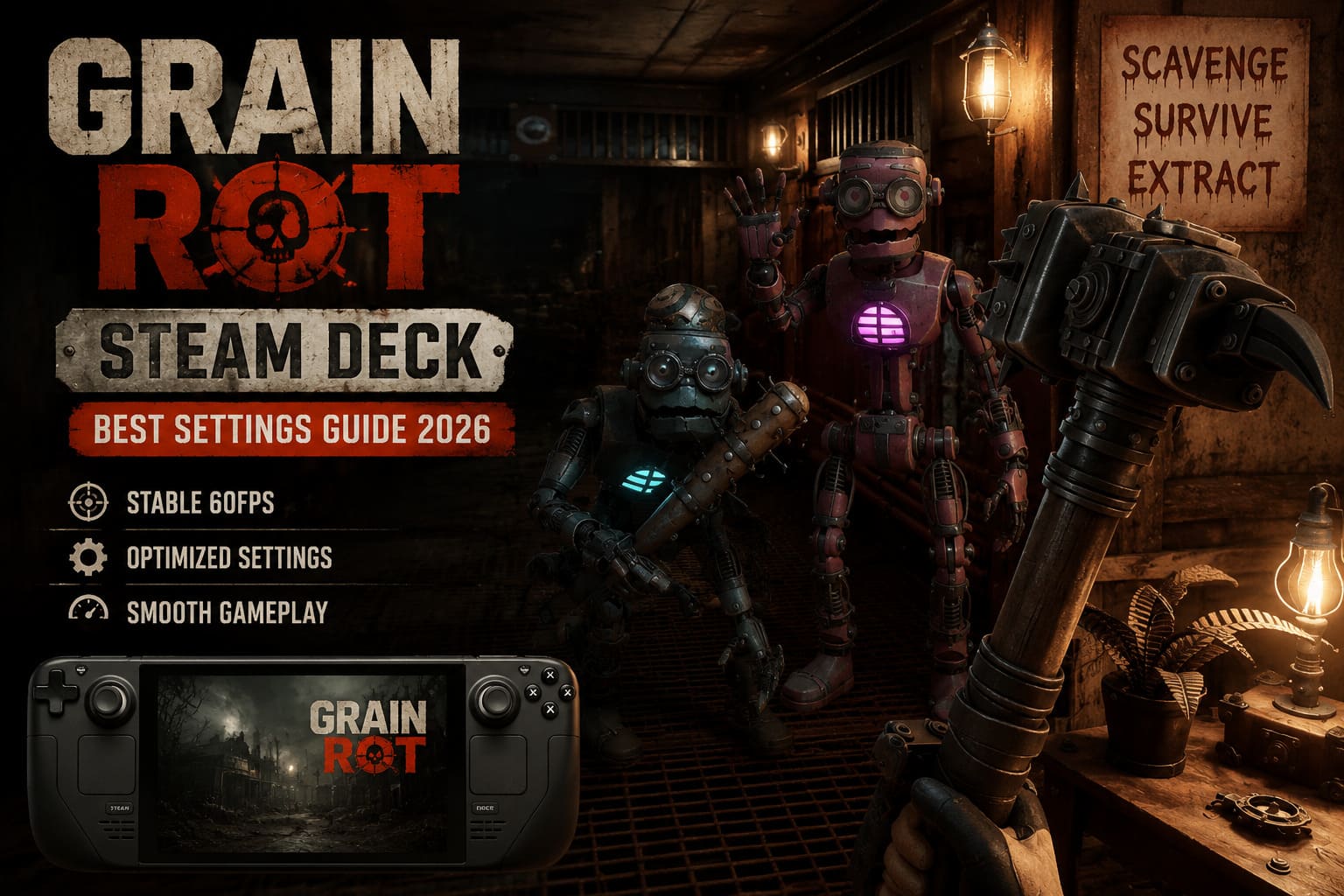
GRAIN ROT Steam Deck Best Settings: How to Get Stable 60FPS Guide (2026)
When I first booted up GRAIN ROT on my Steam Deck, I honestly wasn’t sure what to expect. Horror extraction games usually aren’t the easiest genre for handheld hardware, especially when they throw dynamic physics, procedural maps, multiplayer synchronization, and dozens of interactive objects into every match.
After several hours experimenting with different graphics presets, SteamOS tweaks, and community recommendations, I eventually found a setup that felt surprisingly balanced. It doesn’t magically turn every intense multiplayer moment into a perfect locked 60 FPS—no settings can do that in a game built around unpredictable physics—but it delivers a consistently smooth experience while keeping the atmosphere that makes GRAIN ROT so enjoyable.
If you’re looking for the best Steam Deck settings for GRAIN ROT, these are the adjustments I’d recommend after plenty of trial and error.
Why GRAIN ROT Is More Demanding Than It Looks
At first glance, the visuals don’t appear particularly demanding. The environments are dark, many textures are intentionally rough, and the overall presentation doesn’t try to compete with the latest blockbuster releases.
The real challenge comes from everything happening behind the scenes. Every expedition is constantly processing destructible objects, procedural layouts, enemy behavior, lighting updates, and online synchronization between teammates. That combination puts far more pressure on the Steam Deck than screenshots alone would suggest.
Fortunately, many of the biggest performance drains come from graphics options that barely improve image quality on the Deck’s 7-inch display. Turning those settings down provides a noticeable performance gain without ruining the game’s atmosphere.
My Performance Philosophy
I’ve tested enough games on the Steam Deck to know that chasing Ultra settings usually isn’t worth it.
Instead, I always aim for consistent frame pacing. Personally, I’d much rather play at a steady 55–60 FPS than constantly bounce between 70 FPS and the mid-30s whenever combat starts.
That approach works especially well in GRAIN ROT. Smooth camera movement and responsive controls make exploration, combat, and extraction feel much more enjoyable than simply pushing every visual option as high as possible.
Best Graphics Settings for Steam Deck
After trying numerous combinations, these settings offered the best balance between image quality and performance.
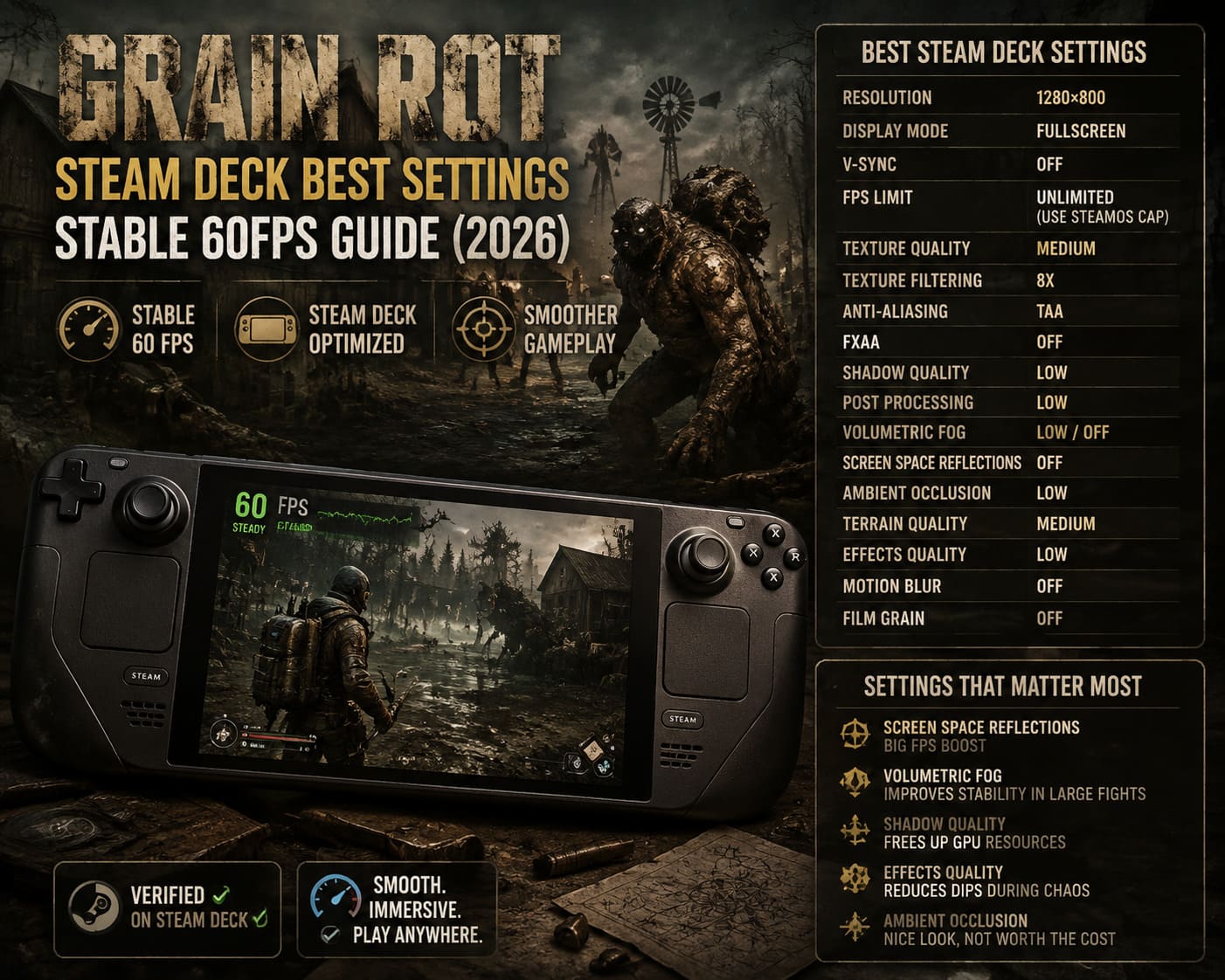
| Setting | Recommended Value |
|---|---|
| Resolution | 1280×800 |
| Display Mode | Fullscreen |
| V-Sync | Off |
| FPS Limit | Unlimited (Use SteamOS Cap) |
| Texture Quality | Medium |
| Texture Filtering | 8x |
| Anti-Aliasing | TAA |
| FXAA | Off |
| Shadow Quality | Low |
| Post Processing | Low |
| Volumetric Fog | Low or Off |
| Screen Space Reflections | Off |
| Ambient Occlusion | Low |
| Terrain Quality | Medium |
| Effects Quality | Low |
| Motion Blur | Off |
| Film Grain | Off |
These settings noticeably reduced frame drops during multiplayer encounters while preserving enough visual detail to keep the world looking immersive.
The Settings That Actually Matter
Not every graphics option has the same impact on performance. Some barely affect the frame rate, while others can completely change how smoothly the game runs.
- Screen Space Reflections — One of the easiest FPS gains.
- Volumetric Fog — Greatly improves stability during larger encounters.
- Shadow Quality — Lowering this frees valuable GPU resources.
- Effects Quality — Helps prevent heavy dips during chaotic fights.
- Ambient Occlusion — Nice visual effect, but not worth the performance cost on handheld hardware.
Texture Quality is a different story. Medium textures still look excellent on the Steam Deck while avoiding unnecessary VRAM pressure.
SteamOS Settings I Recommend
The game’s graphics menu is only half of the optimization process. SteamOS itself provides several options that can noticeably improve the overall experience.
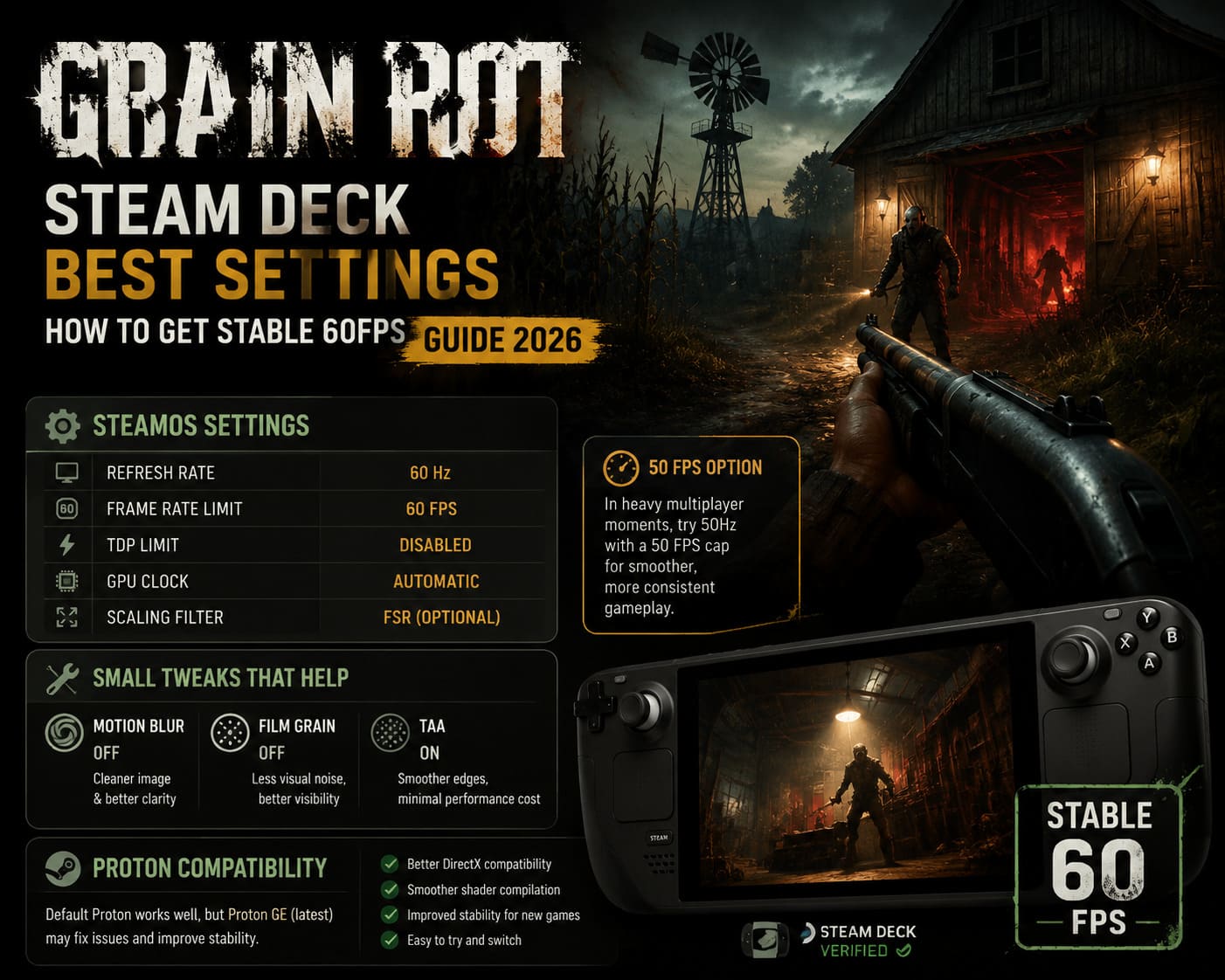
| SteamOS Setting | Recommended Value |
|---|---|
| Refresh Rate | 60 Hz |
| Frame Rate Limit | 60 FPS |
| TDP Limit | Disabled |
| GPU Clock | Automatic |
| Scaling Filter | FSR (Optional) |
I found that leaving the GPU Clock on Automatic consistently delivered better overall performance because SteamOS dynamically shifts power between the CPU and GPU depending on what’s happening in the game.
Should You Play at 50 FPS Instead?
This might sound surprising, but the answer is sometimes yes.
During large online sessions, especially when multiple players are breaking furniture, triggering traps, and fighting enemies simultaneously, maintaining a perfect 60 FPS isn’t always realistic.
Switching the Steam Deck to 50 Hz with a 50 FPS cap often produces a noticeably smoother experience because the frame pacing remains much more consistent. While the number is technically lower, the gameplay frequently feels better than an unstable 60 FPS.
Small Tweaks Worth Making
Motion Blur
I disable Motion Blur in almost every game I play. Besides making the image look cleaner, it also improves visual clarity during fast camera movements.
Film Grain
Film Grain certainly adds atmosphere, but on a handheld screen it mostly introduces unnecessary visual noise. Turning it off makes darker environments much easier to read.
TAA
Although TAA isn’t everyone’s favorite anti-aliasing solution, it actually works well in GRAIN ROT by smoothing thin environmental details without significantly affecting performance.
Proton Compatibility
The default Proton version worked perfectly well during my testing, but that doesn’t mean it’s the best choice for every system.
If you encounter unusual problems such as shader compilation stutters, random freezes, longer loading times, or multiplayer instability, trying the latest version of Proton GE is worth considering.
- Improved DirectX compatibility
- Potentially smoother shader compilation
- Better stability for newly released games
- Quick and easy to test
It won’t magically increase your FPS, but it may solve issues that standard Proton occasionally struggles with.
GRAIN ROT Multiplayer Not Working? How to Fix Co-Op Issues and Play with Friends (2026 Guide)
Is CryoUtilities Still Worth Installing?
This question appears whenever a demanding game launches on Steam Deck.
Personally, I think CryoUtilities is still useful—but only if you’re already comfortable making system-level adjustments.
Increasing the UMA Frame Buffer to 4 GB can reduce texture streaming issues in some situations, while larger swap settings may help during particularly long gaming sessions. However, I wouldn’t recommend installing CryoUtilities solely for GRAIN ROT.
The game already performs well enough using sensible graphics settings and SteamOS optimizations alone.
How to Fix GRAIN ROT Crashing on Launch: PC Troubleshooting Guide (2026)
Real Gameplay Experience
After several hours of testing, I noticed a consistent pattern.
Exploration generally feels smooth, indoor areas perform particularly well, and combat remains responsive even during extended sessions.
The only significant frame drops appeared during the busiest multiplayer moments, where multiple teammates, enemies, physics interactions, destruction effects, and environmental hazards all occurred simultaneously.
Even then, performance usually recovered quickly instead of remaining unstable for extended periods, which is exactly what I want from a portable gaming device.
Final Thoughts
GRAIN ROT ended up being one of the more enjoyable multiplayer experiences I’ve had on the Steam Deck this year. It certainly asks a lot from Valve’s handheld, but with a few smart adjustments, it becomes surprisingly comfortable to play.
If I had to summarize everything into a few simple recommendations, they would be:
- Keep the native 1280×800 resolution.
- Lower expensive lighting effects before reducing texture quality.
- Disable Screen Space Reflections whenever possible.
- Use Medium textures for an excellent balance of visuals and performance.
- Let SteamOS handle your frame rate limit instead of relying on the in-game cap.
Will every match stay perfectly locked at 60 FPS? Probably not. GRAIN ROT’s dynamic physics and multiplayer systems simply create too many unpredictable situations for that.
What these settings do accomplish is far more important—they deliver a consistently smooth experience while preserving the eerie atmosphere that makes exploring abandoned ruins, collecting valuable loot, and escaping alive so rewarding on the Steam Deck.