Sandcastle Game Nvidia Control Panel Best Settings: Ultimate FPS Boost Guide
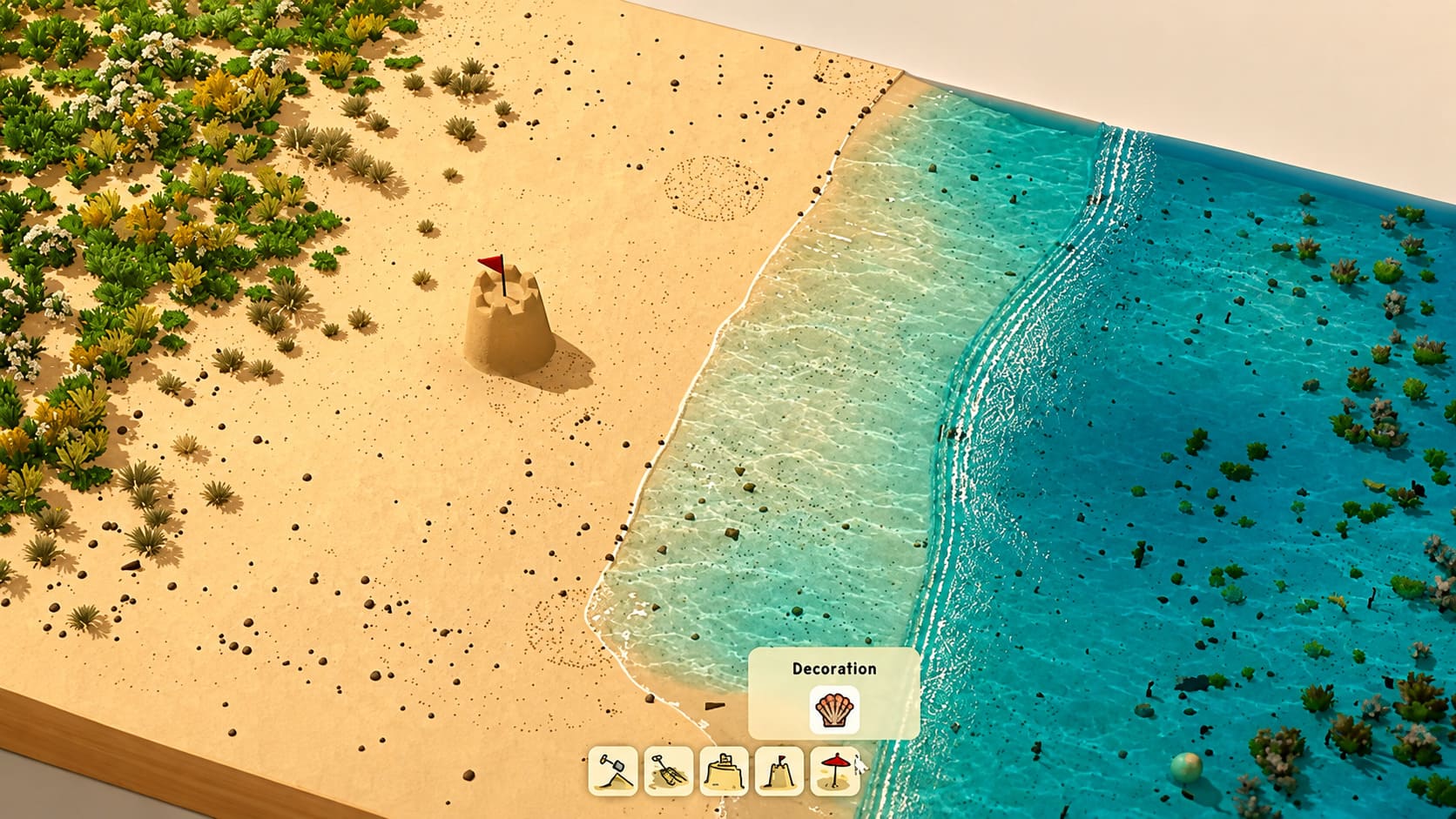
If there’s one thing I’ve learned after playing countless sandbox, survival, and simulation games over the years, it’s that relaxing games can sometimes be far more demanding on your PC than fast-paced shooters. Sandcastle is a perfect example. At first glance, it looks like a peaceful beach simulator where you casually build castles by the sea. Then you start experimenting with huge structures, complex moats, and realistic waves, and suddenly your GPU has a lot more work to do than you expected.
What impressed me most isn’t just how pretty the beaches are. It’s the incredible physics system running behind every grain of sand. Every wall slowly collapses, water carves through your defenses, and wet sand behaves differently from dry sand. That level of simulation is exactly why getting the right Nvidia Control Panel settings makes a noticeable difference.
Instead of relying only on the game’s graphics menu, I spent time tweaking Nvidia settings, comparing performance during large wave simulations, and testing different driver options. These are the settings that gave me the smoothest experience while keeping the game looking fantastic.
Why Nvidia Control Panel Matters More Than You Think
Many players ignore the Nvidia Control Panel because they assume every important option is already inside the game. That’s true for some titles, but games built around advanced physics often benefit from driver-level adjustments.
Sandcastle constantly calculates:
- Water movement
- Sand deformation
- Terrain pressure
- Lighting updates
- Texture rendering
When several of those systems become active at once, frame times can become inconsistent even if your average FPS looks perfectly fine.
I noticed that after optimizing my Nvidia settings, the game felt smoother during large wave impacts. The FPS counter barely changed, but the annoying micro-stutters were mostly gone, which honestly made the entire experience much more enjoyable.
How To Open Nvidia Control Panel For Sandcastle
Before changing anything, make sure you’re using the latest Nvidia driver. New driver updates often include performance improvements and compatibility fixes that can directly affect newer games.
Follow these steps to create your Sandcastle profile:
- Right-click on your Windows desktop.
- Open Nvidia Control Panel.
- Expand the 3D Settings section.
- Select Manage 3D Settings.
- Open Program Settings and add the Sandcastle executable.
I always recommend using a separate profile instead of changing global settings because every game handles graphics differently. A setting that works perfectly for Sandcastle might not be ideal for a competitive shooter or another simulation game.
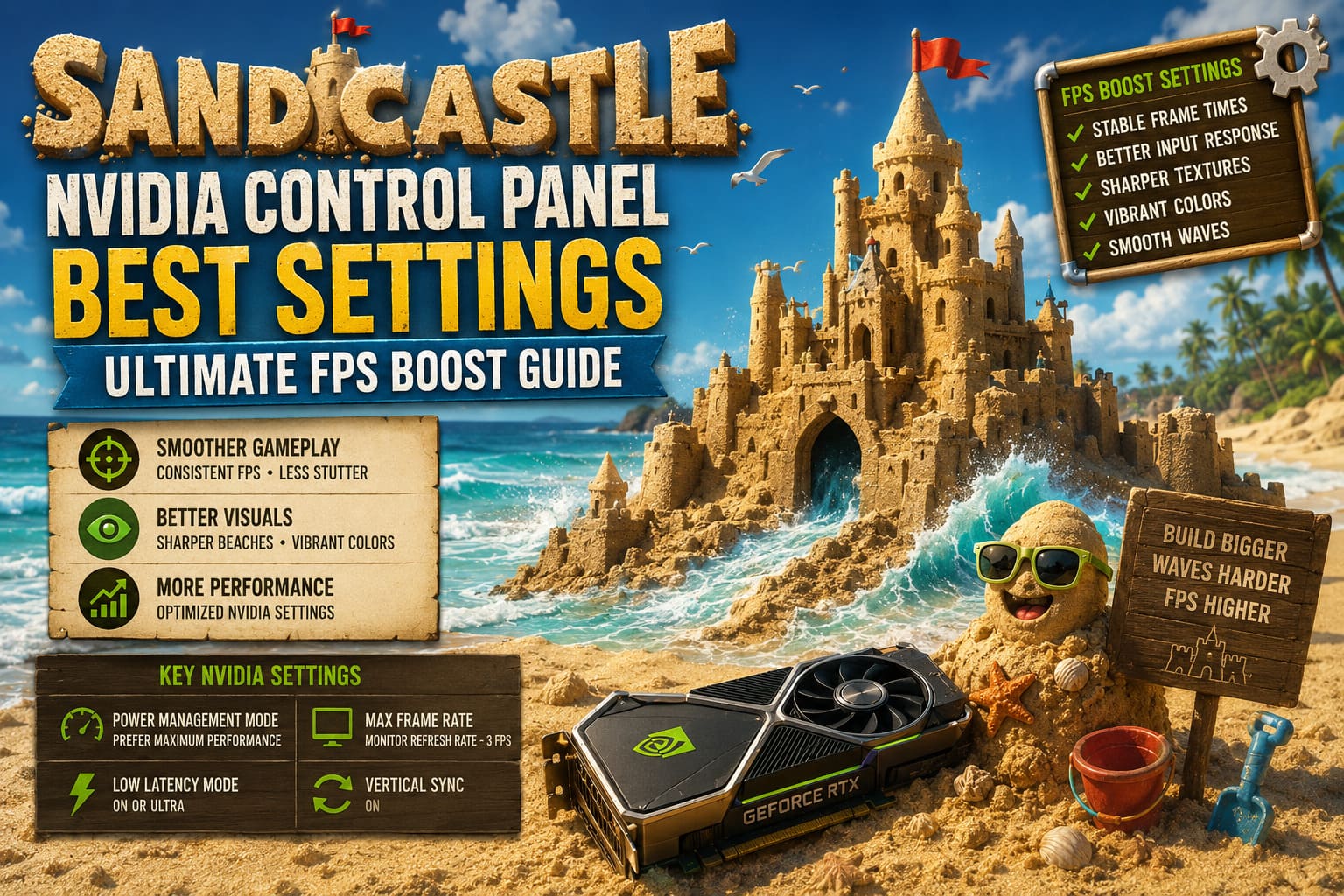
Best Nvidia Control Panel Settings For Sandcastle 2026
The following configuration focuses on keeping Sandcastle visually impressive while reducing stutters during heavy physics moments. These settings worked best during large builds where hundreds of sand particles and waves were interacting at the same time.
| Setting | Recommended Value |
|---|---|
| Image Scaling | Off |
| Ambient Occlusion | Performance for GTX / Quality for RTX |
| Anisotropic Filtering | 16x |
| FXAA | Off |
| Gamma Correction | On |
| Antialiasing Mode | Application Controlled |
| Background Max Frame Rate | 30 FPS |
| Low Latency Mode | On or Ultra |
| Max Frame Rate | Monitor Refresh Rate Minus 3 FPS |
| Monitor Technology | G-Sync Compatible |
| Power Management Mode | Prefer Maximum Performance |
| Shader Cache Size | Unlimited |
| Texture Filtering Quality | High Quality |
| Threaded Optimization | On |
| Vertical Sync | On in Nvidia Control Panel |
No single option here will magically double your FPS. The real improvement comes from combining several small changes that make frame delivery more stable and predictable.
Why Frame Rate Limiting Helps In Sandcastle
One of the biggest changes I noticed was setting a maximum FPS limit. Many players allow their graphics card to push as many frames as possible, but that is not always the best approach for a physics-heavy game.
Sandcastle doesn’t need extremely high FPS to feel smooth. Instead, consistent frame pacing matters more. Allowing your GPU to constantly run at maximum load can create unnecessary heat and occasional performance drops.
A good frame cap is around three frames below your monitor refresh rate:
- 60Hz monitor: Set 57 FPS
- 120Hz monitor: Set 117 FPS
- 144Hz monitor: Set 141 FPS
- 165Hz monitor: Set 162 FPS
- 240Hz monitor: Set 237 FPS
This works especially well when combined with G-Sync or FreeSync because the GPU and display remain synchronized.
Low Latency Mode Makes Building Feel Better
Although Sandcastle is a relaxing creative game, responsive controls still matter. When you’re carefully shaping a tower, digging a narrow channel, or creating detailed structures, delayed input can quickly become frustrating.
I found Low Latency Mode set to On provided the best balance. Players with newer RTX graphics cards can also try Ultra, but older hardware may benefit from the standard On setting for better stability.
Texture Filtering Settings For Better Beach Details
The visuals are one of Sandcastle’s strongest features, and lowering texture settings removes a lot of the charm. The game is filled with tiny environmental details that become noticeable when you’re working close to the ground.
Keeping Anisotropic Filtering at 16x makes distant sand textures, shoreline details, rocks, and decorative objects look much sharper. Modern Nvidia GPUs handle this setting easily, so there is little reason to reduce it.
I also recommend keeping FXAA disabled. While it can smooth edges, it often creates a slightly blurry image that hides the small details that make Sandcastle’s beaches look realistic.
Power Management Settings To Prevent Stutters
The Power Management Mode option is one of the most useful Nvidia settings for simulation games. Set it to Prefer Maximum Performance to prevent your GPU from aggressively lowering clock speeds during quieter moments.
Sandcastle constantly changes its workload. You might spend several minutes peacefully shaping sand, then suddenly trigger a huge wave that destroys your creation. Keeping the GPU ready for these sudden calculations helps reduce unexpected frame drops.
Increase Shader Cache Size
Shader compilation stutters are common in modern games. Even though Sandcastle is not a massive open-world title, its water effects, lighting, and terrain simulation still rely on complex shaders.
Changing Shader Cache Size to Unlimited allows your system to store more compiled data. Over time, this can reduce interruptions and make repeated gameplay sessions smoother.
Nvidia Display Settings For Better Colors
Performance is important, but Sandcastle is also a game designed to look beautiful. A few display adjustments can make the tropical environment stand out even more.
Open Nvidia Control Panel and go to Adjust Desktop Color Settings. I personally recommend increasing Digital Vibrance from the default 50% to around 70–75%.
This makes the ocean appear deeper, the sunlight warmer, and the overall beach atmosphere more vibrant without making colors look unnatural.
For scaling settings, use:
- Scaling Mode: No Scaling
- Scaling Performed By: Display
- Resolution: Native Monitor Resolution
- Refresh Rate: Maximum Available
Configure PhysX Correctly
Sandcastle depends heavily on realistic simulation systems, which makes PhysX configuration worth checking.
Open:
Nvidia Control Panel → Configure Surround, PhysX
Change the PhysX processor from Auto-select to your dedicated Nvidia GPU.
This ensures your graphics card handles physics calculations instead of potentially pushing additional work onto the CPU. The difference may not appear in simple scenes, but during large wave interactions and complex builds it can improve consistency.
My Final Thoughts On Sandcastle Performance Optimization
I’ve played plenty of physics-based games, from destruction sandboxes to survival builders, and Sandcastle genuinely surprised me with how much simulation happens behind its relaxing appearance. It looks simple, but every collapsing wall and moving wave requires serious processing power.
After applying these Nvidia Control Panel settings, the biggest improvement wasn’t a massive FPS increase. The real difference was stability. The game felt smoother, camera movement became cleaner, and large creations survived wave attacks without annoying performance spikes.
If you’re using a modern RTX card, these settings will help you get the most from your hardware while preserving Sandcastle’s beautiful visual style. Even older GTX systems can benefit from adjusting power management, shader cache, texture filtering, and frame limits.
These changes take only a few minutes, cost nothing, and can turn Sandcastle into a much smoother and more enjoyable creative experience.