Liquidation Divio PC Performance Guide: How to Boost FPS and Fix Stutters on Low-End PCs (2026)
When I launched Liquidation for the first time, I wasn’t worried about the gameplay—I already expected intense tactical battles, dozens of units on the screen, and plenty of visual effects. What surprised me was how demanding the game could become once the battlefield filled with explosions, projectiles, and AI-controlled armies.
Like many RTS fans, I don’t always test games on a brand-new high-end PC. I enjoy seeing how well they perform on older hardware because that’s still what a huge part of the strategy community uses. After several hours of experimenting with settings, reading Steam discussions, and comparing results with other players, I found that Liquidation has plenty of room for optimization without making the game look terrible.
If you’re dealing with random FPS drops, stuttering during large battles, or sluggish camera movement, this guide walks through the settings that actually make a difference.
Why Liquidation Can Be Demanding
Unlike many action games where the GPU does most of the work, real-time strategy games constantly ask the processor to calculate unit behavior, movement, combat decisions, and pathfinding.
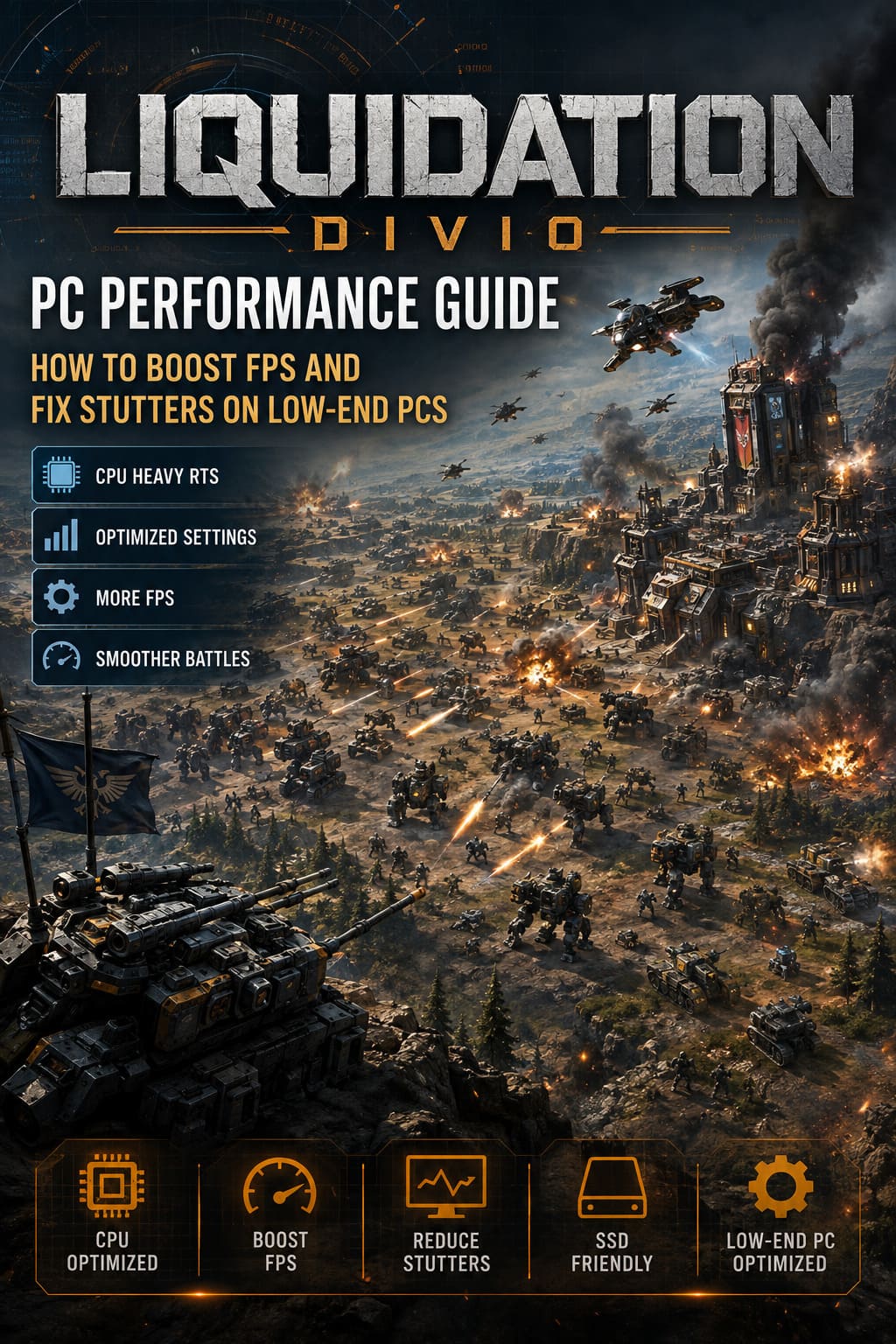
During smaller engagements, performance usually stays respectable. Once dozens—or even hundreds—of units begin fighting simultaneously, CPU usage climbs rapidly. Add spell effects, environmental destruction, and particle-heavy weapons, and older graphics cards can quickly become overwhelmed.
The biggest performance killers are usually:
- Large-scale unit AI calculations
- Heavy particle and explosion effects
- Shadow rendering
- High object detail
- Limited system memory
- Older hard drives instead of SSDs
Understanding which component is struggling helps you avoid wasting time changing settings that won’t improve performance.
Official System Requirements
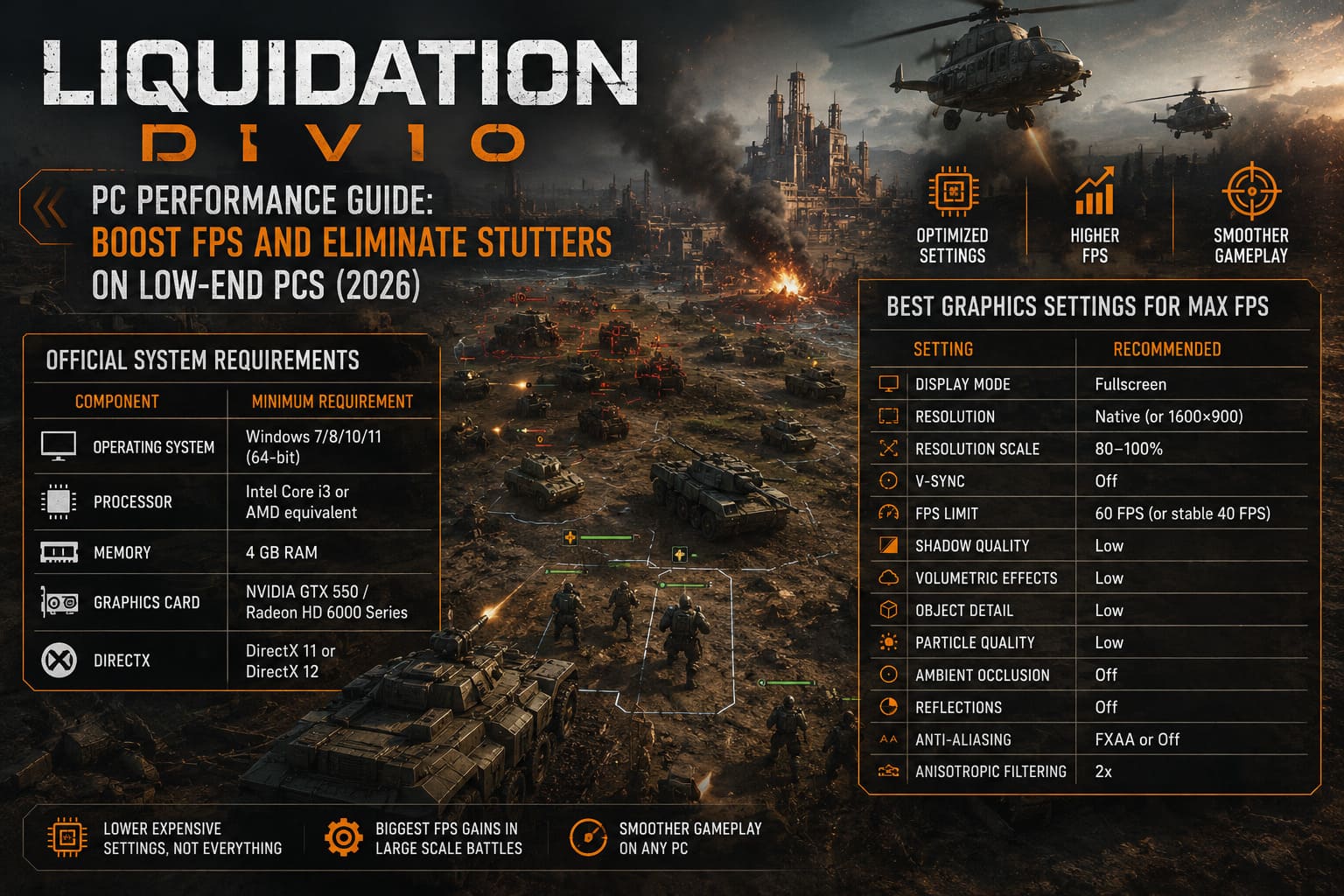
| Component | Minimum Requirement |
|---|---|
| Operating System | Windows 7/8/10/11 (64-bit) |
| Processor | Intel Core i3 or AMD equivalent |
| Memory | 4 GB RAM |
| Graphics Card | NVIDIA GTX 550 / Radeon HD 6000 Series |
| DirectX | DirectX 11 or DirectX 12 |
While these requirements allow the game to launch, they’re far from ideal for maintaining stable frame rates during major battles.
Best Graphics Settings for Maximum FPS
After testing different presets, I found that lowering only the expensive settings gives much better results than simply selecting the “Low” preset.
| Setting | Recommended |
|---|---|
| Display Mode | Fullscreen |
| Resolution | Native (or 1600×900 if needed) |
| Resolution Scale | 80–100% |
| V-Sync | Off |
| FPS Limit | 60 FPS (or stable 40 FPS) |
| Shadow Quality | Low |
| Volumetric Effects | Low |
| Object Detail | Low |
| Particle Quality | Low |
| Ambient Occlusion | Off |
| Reflections | Off |
| Anti-Aliasing | FXAA or Off |
| Anisotropic Filtering | 2x |
These changes alone produced the biggest improvements during larger engagements.
Which Settings Matter the Most?
Not every graphics option affects performance equally.
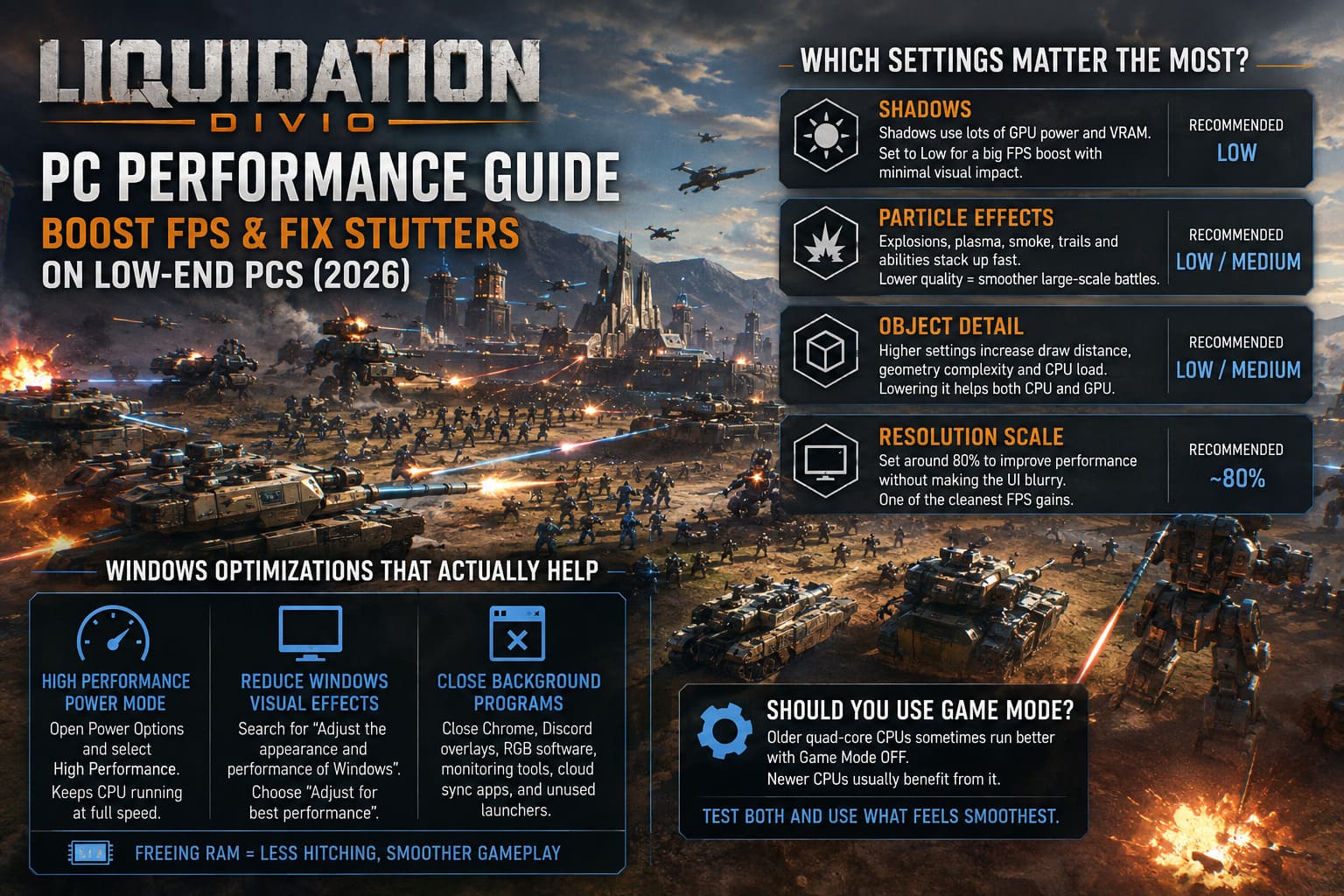
Shadows
This is easily one of the first settings I lower.
Dynamic shadows consume both GPU power and VRAM, yet during intense RTS gameplay you rarely notice ultra-detailed shadows while focusing on troop positioning.
Keeping shadows on Low usually gives a healthy FPS increase.
Particle Effects
Liquidation features plenty of:
- Plasma weapons
- Explosions
- Magic abilities
- Projectile trails
- Smoke
All of these effects stack together during late-game battles.
Lowering particle quality dramatically smooths out combat without ruining the visual style.
Object Detail
Higher object detail increases:
- Rendering distance
- Geometry complexity
- Memory usage
- CPU workload
Reducing this option often helps both older processors and weaker graphics cards simultaneously.
Resolution Scale
This setting deserves more attention than it usually gets.
Instead of lowering your desktop resolution, reducing Resolution Scale to around 80% keeps menus and interface elements sharp while decreasing the rendering workload.
It’s one of the cleanest ways to gain extra FPS.
Windows Optimizations That Actually Help
Many “gaming optimization” videos recommend dozens of registry tweaks that either do nothing or create new problems.
Instead, I stick with a handful of changes that consistently improve performance.
Enable High Performance Power Mode
Open Control Panel → Power Options and select High Performance.
This prevents Windows from aggressively reducing CPU frequencies during gameplay.
Reduce Windows Visual Effects
Search for Adjust the appearance and performance of Windows.
Choose Adjust for best performance.
This disables unnecessary desktop animations while freeing a small amount of memory.
It’s not a miracle fix, but every bit helps on lower-end machines.
Close Background Programs
Before launching Liquidation I normally close:
- Chrome or Edge
- Discord overlays
- RGB software
- Hardware monitoring tools
- Cloud sync applications
- Launchers I’m not using
Freeing several gigabytes of RAM can reduce hitching considerably.
Should You Use Game Mode?
This depends on your hardware.
Older quad-core CPUs sometimes perform better with Game Mode disabled, while newer processors generally handle it well.
If you’re experiencing inconsistent frame pacing, try testing both configurations.
NVIDIA Control Panel Recommendations
For GeForce users, these settings have worked well:
| Setting | Value |
|---|---|
| Power Management Mode | Prefer Maximum Performance |
| Texture Filtering | High Performance |
| Low Latency Mode | On |
| Vertical Sync | Off |
These changes won’t magically double your FPS, but they can improve consistency and reduce input delay.
AMD Radeon Recommendations
AMD users should also spend a few minutes inside the Radeon software.
Recommended options include:
- Radeon Anti-Lag
- Texture Filtering Quality → Performance
- Radeon Boost (if available)
Older Radeon cards especially benefit from the Performance texture profile.
Steam Launch Options Worth Trying
Launch options rarely perform miracles, but a few can still help on certain systems.
Open Steam → Library → Liquidation → Properties and add:
-high -dx11 -nojoyHere’s what each option does:
| Launch Option | Purpose |
|---|---|
| -high | Gives the game higher CPU priority |
| -dx11 | Uses DirectX 11, often smoother on older GPUs |
| -nojoy | Stops unnecessary controller polling |
I generally avoid adding dozens of undocumented launch commands because many simply aren’t supported by modern engines.
Disable Fullscreen Optimizations
Windows sometimes introduces extra overhead through Fullscreen Optimizations.
To disable it:
- Open the game’s installation folder.
- Right-click Liquidation.exe.
- Select Properties.
- Open the Compatibility tab.
- Enable Disable fullscreen optimizations.
- Under High DPI Settings, let the Application handle scaling.
I’ve seen this reduce stuttering in several modern PC games, and it’s worth testing here as well.
Storage and Memory Tips
If you’re still running the game from a traditional hard drive, loading times and occasional streaming stutters are almost inevitable.
An SSD won’t increase average FPS, but it can noticeably improve:
- Loading screens
- Texture streaming
- Autosave performance
- Overall responsiveness
Memory is another major factor.
Although the official minimum is 4 GB, I’d realistically recommend:
| RAM | Experience |
|---|---|
| 4 GB | Playable with frequent stutters |
| 8 GB | Acceptable |
| 16 GB | Recommended |
| 32 GB | Excellent for multitasking |
How to Fix Liquidation Divio Stuck on Loading Screen at Launch (2026 Guide)
If Performance Is Still Poor
If you’ve already lowered graphics settings and the game still struggles, try these additional steps:
- Update your graphics drivers.
- Verify the game’s files through Steam.
- Install the latest Windows updates.
- Close every unnecessary background application.
- Monitor CPU and GPU temperatures for thermal throttling.
- Lower your frame rate cap to 40 FPS instead of chasing an unstable 60 FPS.
One thing I’ve learned over the years is that a locked, consistent frame rate almost always feels smoother than FPS constantly bouncing between 30 and 70.
Liquidation Game 2026 Guide: Resource Control Point Tactics, Faction Builds, and Meta Strategies
Final Thoughts
Liquidation delivers exactly what many RTS fans have been waiting for: large tactical battles, meaningful positioning, and a refreshing blend of science fiction and dark fantasy. The downside is that all of those systems can push older PCs surprisingly hard.
Fortunately, the game scales well once you know which settings matter. Lowering shadows, particle effects, object detail, and volumetric lighting provides far better results than blindly reducing every graphics option. Pair those tweaks with a few sensible Windows optimizations and lightweight Steam launch options, and even aging hardware can deliver a much smoother experience.
As Early Access continues, performance will likely improve through future patches, so it’s worth revisiting your settings after major updates. Until then, a balanced configuration focused on stable frame pacing rather than maximum visual fidelity is, in my experience, the best way to enjoy every battle across Vea without fighting your PC as much as your enemies.