How to Fix Big Walk Crash on Launch, Startup Errors, and Freezing on PC
When I launched Big Walk for the first time, I expected the usual House House charm—relaxing exploration, funny interactions with friends, and a world that rewards curiosity. Instead, I was staring at a black screen before Windows kicked me back to the desktop. No error message. No explanation. Just an instant crash.
If you’ve been dealing with startup crashes, freezing, launch errors, or random crashes to desktop (CTD), you’re definitely not the only one. New PC releases often arrive with a few rough edges, and multiplayer games are especially sensitive to driver issues, Windows settings, and corrupted installations.
After spending time testing different solutions and comparing reports from other players, I found that most startup problems come from a surprisingly small number of causes. Below are the fixes that made the biggest difference, starting with the easiest ones first.
Why Big Walk Crashes on Startup
A crash during launch doesn’t always mean the game itself is broken. In many cases, Windows or another application prevents the game from loading correctly.
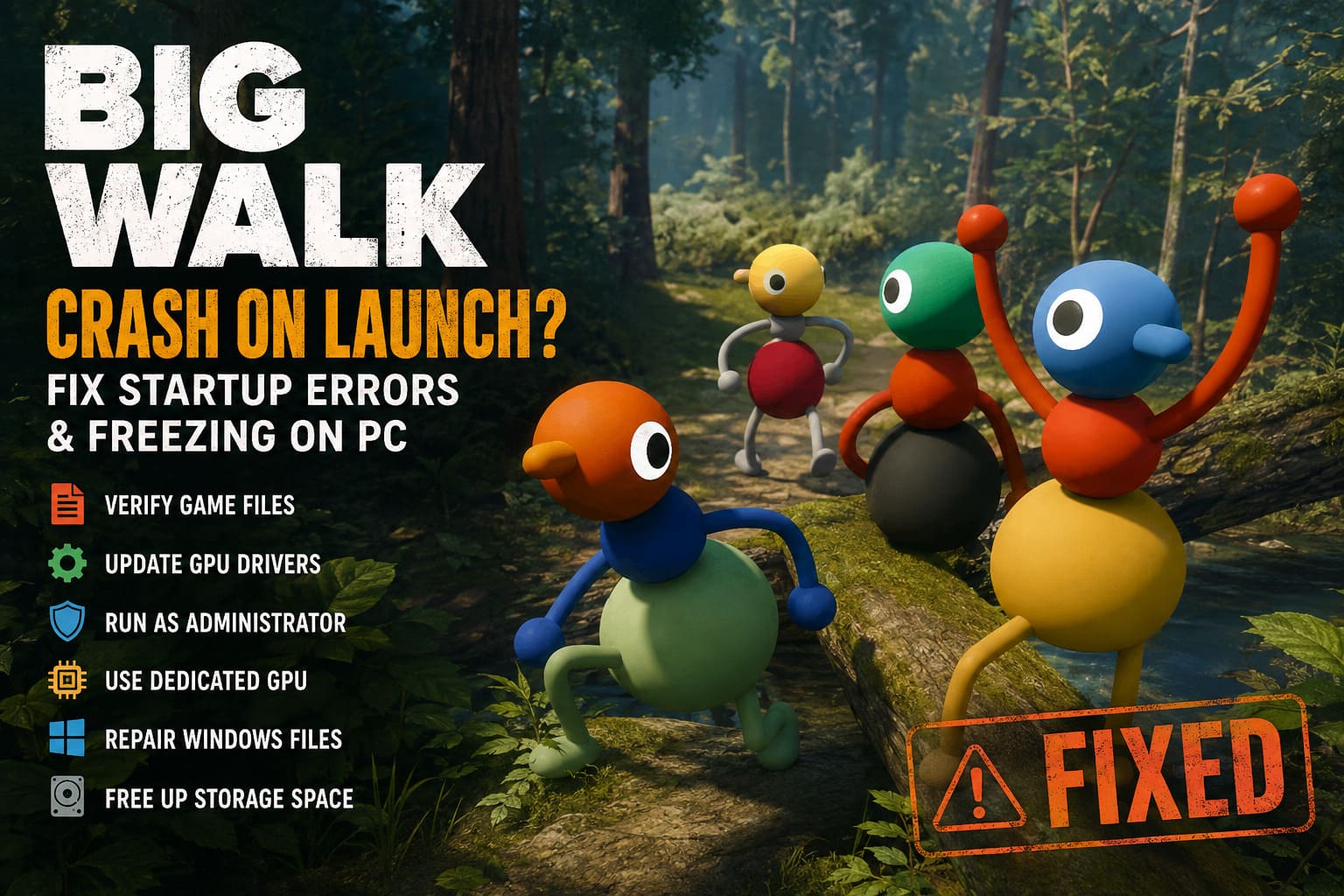
Some of the most common reasons include:
- Corrupted game files
- Outdated GPU drivers
- Windows permission conflicts
- Integrated GPU being selected instead of the dedicated graphics card
- Damaged Windows system files
- Low storage space for temporary cache
- Antivirus software blocking game files
The good news is that nearly all of these can be fixed without reinstalling Windows or replacing hardware.
Verify the Game Files First
Whenever a newly released game refuses to launch, this is always my first stop.
Steam occasionally finishes a download even though one or more files didn’t install correctly. That tiny corruption is enough to stop the game before it reaches the main menu.
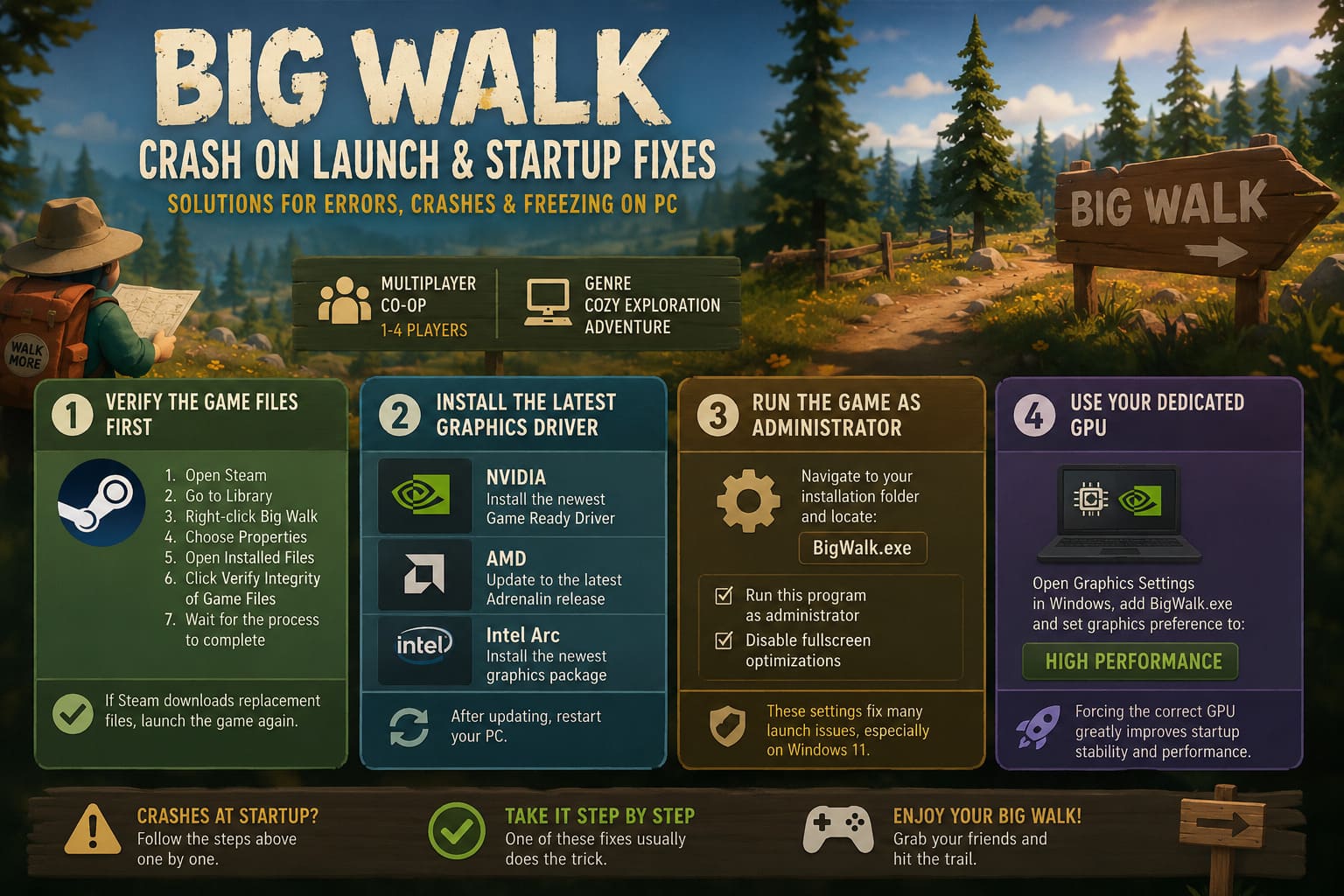
How to verify Big Walk
- Open Steam.
- Go to Library.
- Right-click Big Walk.
- Choose Properties.
- Open Installed Files.
- Click Verify Integrity of Game Files.
- Wait until Steam finishes checking everything.
If Steam downloads replacement files afterward, launch the game again before trying anything else.
Install the Latest Graphics Driver
One mistake I still see people making is assuming Windows Update keeps graphics drivers current.
It doesn’t.
NVIDIA, AMD, and Intel usually release optimized drivers around major game launches. Even if your current driver is only a few months old, it may still contain bugs that affect a brand-new title.
A clean installation is usually the safest option because it removes old profiles that sometimes create unexpected conflicts.
| GPU Brand | Recommended Action |
|---|---|
| NVIDIA | Install the newest Game Ready Driver |
| AMD | Update to the latest Adrenalin release |
| Intel Arc | Install the newest graphics package |
After updating, restart your PC before launching the game again.
Run the Game as Administrator
Normally I avoid enabling administrator mode for every game.
But when a game crashes before the menu even appears, Windows permissions can absolutely be the problem.
Navigate to your installation folder and locate:
BigWalk.exe
Open its properties and enable:
- Run this program as administrator
- Disable fullscreen optimizations
These two settings solve far more launch issues than most people expect, especially on Windows 11.
Make Sure Windows Uses Your Dedicated GPU
Laptop users run into this issue constantly.
Windows sometimes decides that a demanding 3D game should run on integrated graphics instead of the NVIDIA or AMD GPU.
Predictably, the game either performs terribly—or never launches successfully.
Open Graphics Settings in Windows, add BigWalk.exe, and change its graphics preference to:
High Performance
Once I forced Windows to use the correct GPU, startup became much more consistent in several games that had similar launch problems.
Repair Windows System Files
Sometimes the game isn’t the problem at all.
Corrupted Windows files can stop DirectX components or other important services from loading correctly.
Thankfully, Microsoft includes a repair tool that’s already built into Windows.
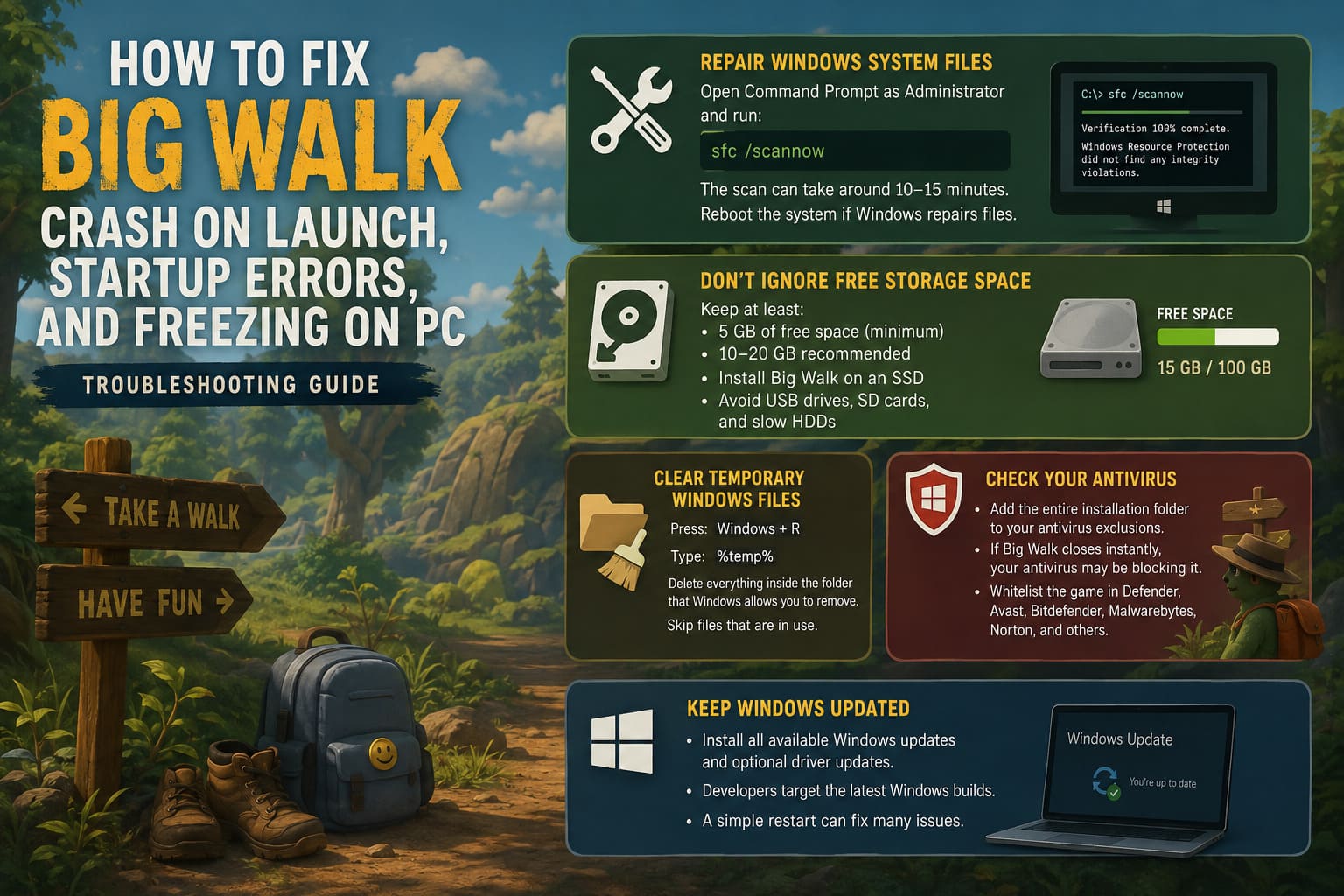
Open Command Prompt as Administrator and run:
sfc /scannowThe scan can take around 10–15 minutes depending on your SSD.
If Windows repairs damaged files, reboot the system before testing Big Walk again.
Don’t Ignore Free Storage Space
Modern games create temporary shader cache files while launching.
If your Windows drive is nearly full, initialization can fail before the game reaches the menu.
I usually recommend keeping at least:
- 5 GB of free space at an absolute minimum
- 10–20 GB if possible for smoother Windows operation
Also avoid installing Big Walk on:
- Slow USB drives
- SD cards
- Older mechanical hard drives if an SSD is available
An SSD won’t magically increase FPS, but it absolutely helps reduce loading issues and startup freezes.
Clear Temporary Windows Files
Windows stores thousands of temporary files over time.
Most don’t cause problems, but occasionally they interfere with new software installations.
Cleaning them only takes a minute.
Press:
Windows + R
Type:
%temp%Delete everything inside the folder that Windows allows you to remove.
If some files are currently in use, simply skip them.
Check Your Antivirus
Security software sometimes becomes a little too protective.
Multiplayer games that communicate constantly with online servers or use voice chat occasionally trigger false positives.
If Big Walk immediately closes without any error, your antivirus may be terminating the executable.
Add the entire installation folder to your antivirus exclusions.
If you’re using Windows Defender, the process is straightforward through Virus & Threat Protection.
Players using software like Avast, Bitdefender, Malwarebytes, or Norton should also whitelist the game’s executable inside those applications.
Keep Windows Updated
Game developers generally target the latest Windows builds during development.
If you’re missing several cumulative updates, DirectX components or runtime libraries may not behave as expected.
Before spending hours troubleshooting, open Windows Update and install everything available—including optional driver updates if they relate to your hardware.
A simple restart afterward often fixes problems that look much more serious than they actually are.
Common Startup Problems and Their Best Fixes
| Problem | Most Likely Solution |
|---|---|
| Black screen on launch | Verify files and update GPU driver |
| Instant crash to desktop | Run as administrator and repair Windows files |
| Freezes during startup | Clear temporary files and free SSD space |
| Launches then closes | Check antivirus exclusions |
| Poor laptop performance | Force High Performance GPU |
| Random crashes after updates | Install latest graphics driver and verify files |
Big Walk 2026: Beginner’s Guide, Co-Op Strategies, and Pro Tips
Should You Reinstall the Game?
Reinstalling should be your final option—not your first.
I see this recommendation everywhere, but it’s usually unnecessary.
If you’ve already:
- verified the files,
- updated your GPU drivers,
- repaired Windows,
- checked antivirus,
- confirmed enough storage space,
and the game still refuses to launch, then a clean reinstall on a fast internal SSD is worth trying.
In many cases, that clears broken installation paths or damaged configuration files left behind after an interrupted download.
Big Walk Beginner’s Guide: Tips, Tricks, and Mechanics to Survive the Island
Final Thoughts
From what I’ve experienced, Big Walk’s launch problems feel more like the typical growing pains of a brand-new PC release than a sign of a fundamentally broken game. Most crashes I’ve seen reported fall into familiar categories—driver compatibility, Windows permissions, damaged game files, or security software getting in the way.
The biggest mistake is changing ten different settings at once. Work through each fix one at a time, launching the game after every change. That way, if something solves the issue, you’ll know exactly what fixed it instead of creating even more variables to troubleshoot.
If none of these methods work, there’s a good chance you’re running into a bug that only the developers can resolve with a future patch. Until then, keeping your system updated, using the latest graphics drivers, and installing the game on a healthy SSD gives you the best chance of getting back into the Australian wilderness with your friends instead of staring at another crash window.