How to Fix Dig, Dig, Die Black Screen After Intro Error on PC
If you’ve just installed Dig, Dig, Die, watched the intro cinematic, and then found yourself staring at a completely black screen, you’re definitely not alone. I’ve been playing PC games for years, from massive AAA releases to tiny indie horror projects, and I’ve seen this exact problem appear in dozens of different games. The good news is that, in most cases, this isn’t a hardware failure or a sign that your PC can’t run the game. It’s usually a software conflict that can be fixed in a matter of minutes.
After spending time testing different solutions, comparing community feedback, and experimenting with my own system, I found that several fixes consistently solve the issue. Some take less than a minute, while others require a little more patience, but together they cover almost every known cause of the infamous Dig, Dig, Die black screen after the intro problem.
Dig Dig Die Best Graphics Settings for RTX 3060: Ultimate Optimization Guide
Why Does Dig, Dig, Die Freeze After the Intro?
One thing many players don’t realize is that the opening cinematic isn’t rendered the same way as the actual game. The intro video is simply played as a pre-recorded movie, while the menu and gameplay require the graphics engine to initialize properly. If something interrupts that transition, the game continues running, but the display never appears.
In my experience, indie games are particularly sensitive to display settings, overlays, and graphics driver issues. Even on powerful gaming PCs, something as simple as an incompatible fullscreen mode can leave the screen completely black while the game is technically still running in the background.
The most common causes include:
- Incorrect display resolution or scaling.
- Damaged or incomplete game files.
- Outdated GPU drivers.
- Overlay software interfering with rendering.
- Windows permission restrictions.
- Security software blocking game initialization.
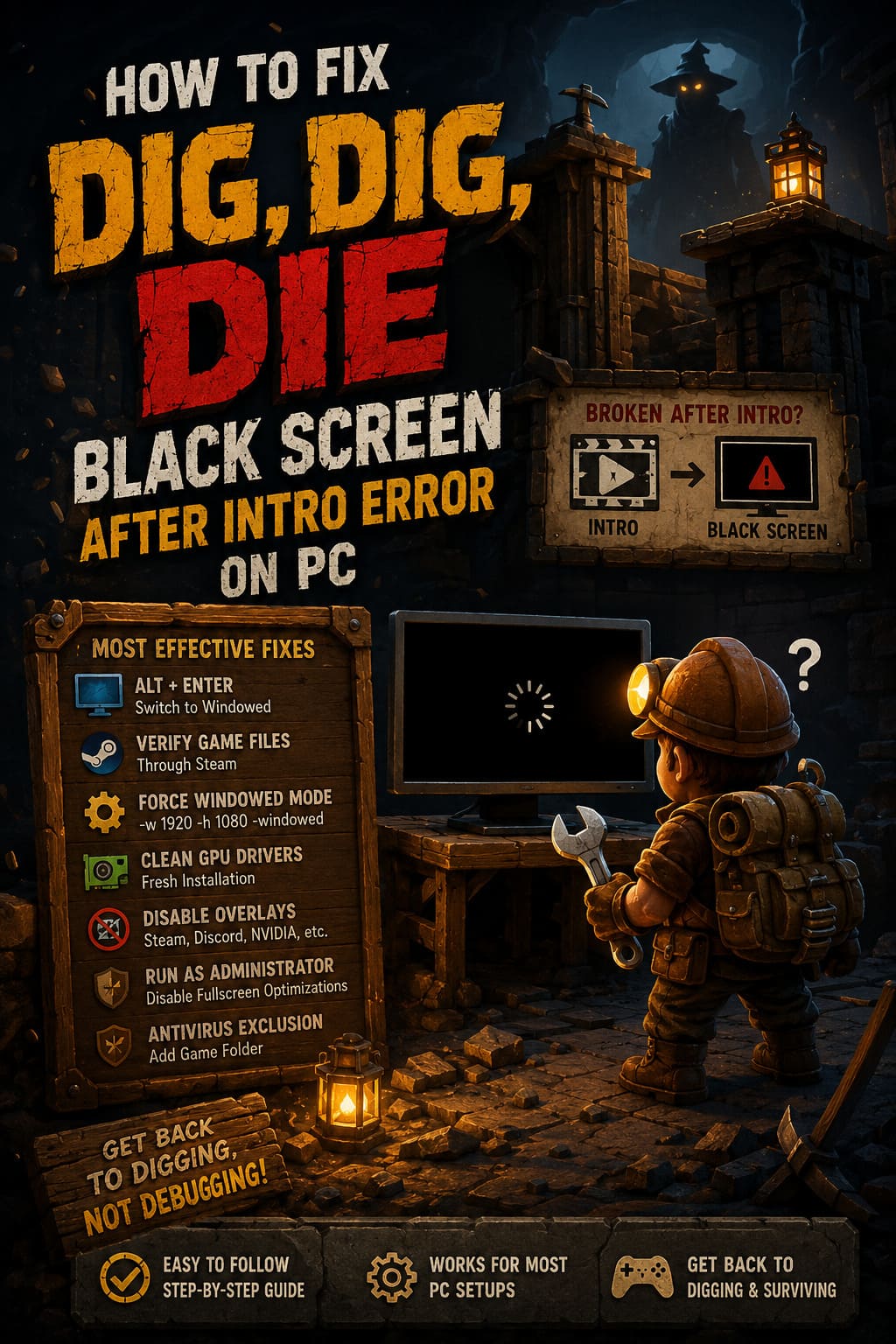
The Fixes That Solved It for Me
Rather than trying random solutions, I always recommend working through each method one by one. It saves time and makes it much easier to identify the real cause.
1. Switch Between Fullscreen and Windowed Mode
This is always my first step whenever a newly released PC game refuses to display an image.
As soon as the black screen appears, press Alt + Enter. This forces Windows to switch the application between fullscreen and windowed mode. If the problem is caused by an unsupported resolution or fullscreen bug, the game often becomes visible immediately.
I’ve fixed several indie games using nothing more than this shortcut, so it’s definitely worth trying before anything else.
2. Verify the Game Files Through Steam
Corrupted downloads happen more often than many people expect. Even a single missing configuration file can prevent the engine from loading correctly after the intro finishes.
To verify your installation:
- Open Steam.
- Go to your Library.
- Right-click Dig, Dig, Die.
- Select Properties.
- Open Installed Files.
- Click Verify integrity of game files.
Steam automatically checks every file and replaces anything that’s damaged or missing.
3. Force a Standard Launch Resolution
High refresh rate monitors, ultrawide displays, and custom desktop scaling can sometimes confuse smaller game engines.
One workaround I’ve used successfully is forcing the game to launch in a basic windowed resolution.
Open Steam Launch Options and enter:
-w 1920 -h 1080 -windowed
Once the game starts successfully, you can change the graphics settings back to your preferred resolution from inside the menu.
4. Install Fresh Graphics Drivers
This isn’t just about downloading the newest driver. The important part is performing a clean installation.
Over time, graphics drivers accumulate old settings that occasionally conflict with newer games. I’ve solved black screens in multiple titles simply by removing the previous driver completely before installing the latest stable version.
Whether you’re using NVIDIA, AMD, or Intel graphics, always choose the clean installation option if it’s available.
5. Disable Every Overlay You Can Find
This is probably the most overlooked solution.
Modern gaming software loves adding overlays. Steam has one, Discord has another, NVIDIA has one, and monitoring tools often inject their own interface into games as well.
While these tools are generally useful, I’ve noticed indie horror games are especially vulnerable to overlay conflicts.
Temporarily disable:
- Steam Overlay
- Discord Overlay
- GeForce Experience Overlay
- MSI Afterburner
- RTSS
- Any FPS monitoring software
Then restart the game and test it again.
6. Run the Game as Administrator
Windows security has become much stricter over the years. Sometimes the game simply isn’t allowed to initialize everything it needs during startup.
Navigate to the game’s installation folder, locate the main executable file, and open its Properties.
Inside the Compatibility tab:
- Enable Run this program as administrator.
- Enable Disable fullscreen optimizations.
These two options have solved startup problems for countless PC games over the years.
7. Check Your Antivirus
This one surprised me the first time I encountered it.
Some antivirus programs become suspicious when a game rapidly loads large numbers of assets after the intro movie finishes. Instead of showing a warning, they simply interrupt the process.
If you’re using Windows Defender or another antivirus solution, add the entire Dig, Dig, Die installation folder to the exclusions list before launching the game again.
Extra Fixes Worth Trying
If none of the main solutions work, there are still a few community tricks that have helped other players.
Use an Existing Configuration File
Some players reported success after copying an existing settings or save file into the game’s AppData folder. This allows the game to skip parts of the initial setup process that sometimes trigger the black screen.
I wouldn’t call this a guaranteed fix, but it’s certainly worth testing if everything else has failed.
Lower Your Audio Output Quality
It sounds strange, but audio initialization occasionally affects startup.
Open Windows Sound Settings and change your default playback format to 24-bit, 48000 Hz. Extremely high sample rates have caused startup issues in more than one indie title I’ve played over the years.
Quick Troubleshooting Checklist
| Fix | Difficulty | Success Rate |
|---|---|---|
| Alt + Enter | Very Easy | High |
| Verify Steam Files | Easy | High |
| Force Windowed Resolution | Easy | High |
| Clean GPU Driver Installation | Medium | Very High |
| Disable Overlays | Easy | Very High |
| Run as Administrator | Easy | Medium |
| Antivirus Exclusion | Medium | Medium |
My Final Thoughts
After years of troubleshooting PC games, I’ve learned that black screen issues usually look much scarier than they really are. In the vast majority of cases, the game isn’t completely broken—it simply gets stuck during the transition from the intro movie to the rendering engine. Fortunately, that means the problem is often fixable without reinstalling Windows or replacing hardware.
Personally, I’d begin with the quickest fixes: switching to windowed mode, verifying the Steam files, and disabling every overlay running in the background. Those three methods alone have solved startup issues for me across dozens of different games. If they don’t work, a clean graphics driver installation is the next step, and it’s one I recommend regularly for anyone who plays newly released PC titles.
Hopefully, one of these solutions gets you past the black screen so you can finally explore the underground world of Dig, Dig, Die instead of troubleshooting it. As with many indie releases, future patches will likely improve compatibility, but until then, these fixes offer the best chance of getting the game running smoothly.