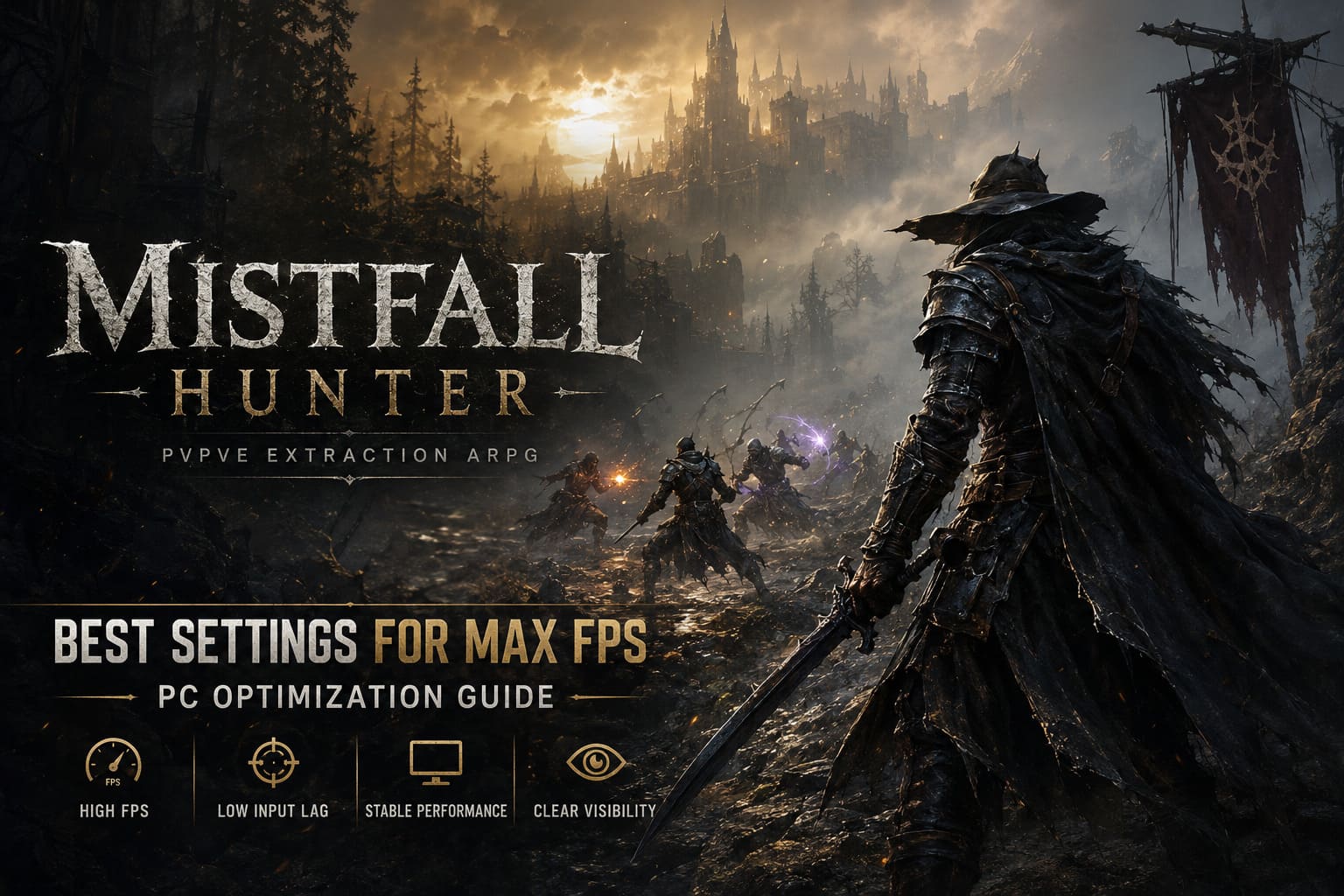
Mistfall Hunter Best Settings for Max FPS: PC Optimization Guide
If there is one thing I noticed after spending hours exploring the dangerous world of Mistfall Hunter, it’s that this game can be absolutely gorgeous—and absolutely brutal on your hardware at the same time.
The atmosphere created by Bellring Games is fantastic. Dense golden fog, detailed environments, dramatic lighting, and fast-paced PvPvE fights all work together to create tension that few extraction games manage to deliver. Unfortunately, all those visual effects come at a cost. Even players with powerful gaming PCs have reported random frame drops, shader stutters, and inconsistent performance during large encounters.
After testing different settings, reading community feedback, and comparing performance across multiple hardware configurations, I found that chasing Ultra graphics simply isn’t worth it. A few smart adjustments provide a much smoother experience while barely affecting image quality.
This guide focuses on getting the highest possible frame rate with stable frame pacing, low input latency, and clear visibility during combat.
Why Mistfall Hunter Can Feel Unoptimized
Mistfall Hunter isn’t a poorly made game, but it definitely pushes modern hardware harder than many players expect.
Several systems are constantly working in the background:
- Complex volumetric fog rendering.
- Dynamic lighting and global illumination.
- Detailed environment streaming.
- High-resolution textures.
- Heavy spell and particle effects during PvPvE combat.
During quiet exploration the game usually performs well. Problems begin when several players collide, multiple abilities trigger simultaneously, or entirely new sections of the map are loaded for the first time.
The biggest issue I experienced wasn’t average FPS—it was inconsistent frame pacing. Even when the frame counter showed solid numbers, sudden micro-stutters were enough to throw off my timing during important fights.
The good news is that most of these performance problems can be significantly reduced with a few carefully chosen graphics settings.
Best Mistfall Hunter Graphics Settings
Instead of selecting one of the built-in presets, switch your graphics profile to Custom. The default presets enable several demanding visual effects that have little impact on gameplay while consuming a surprising amount of GPU power.
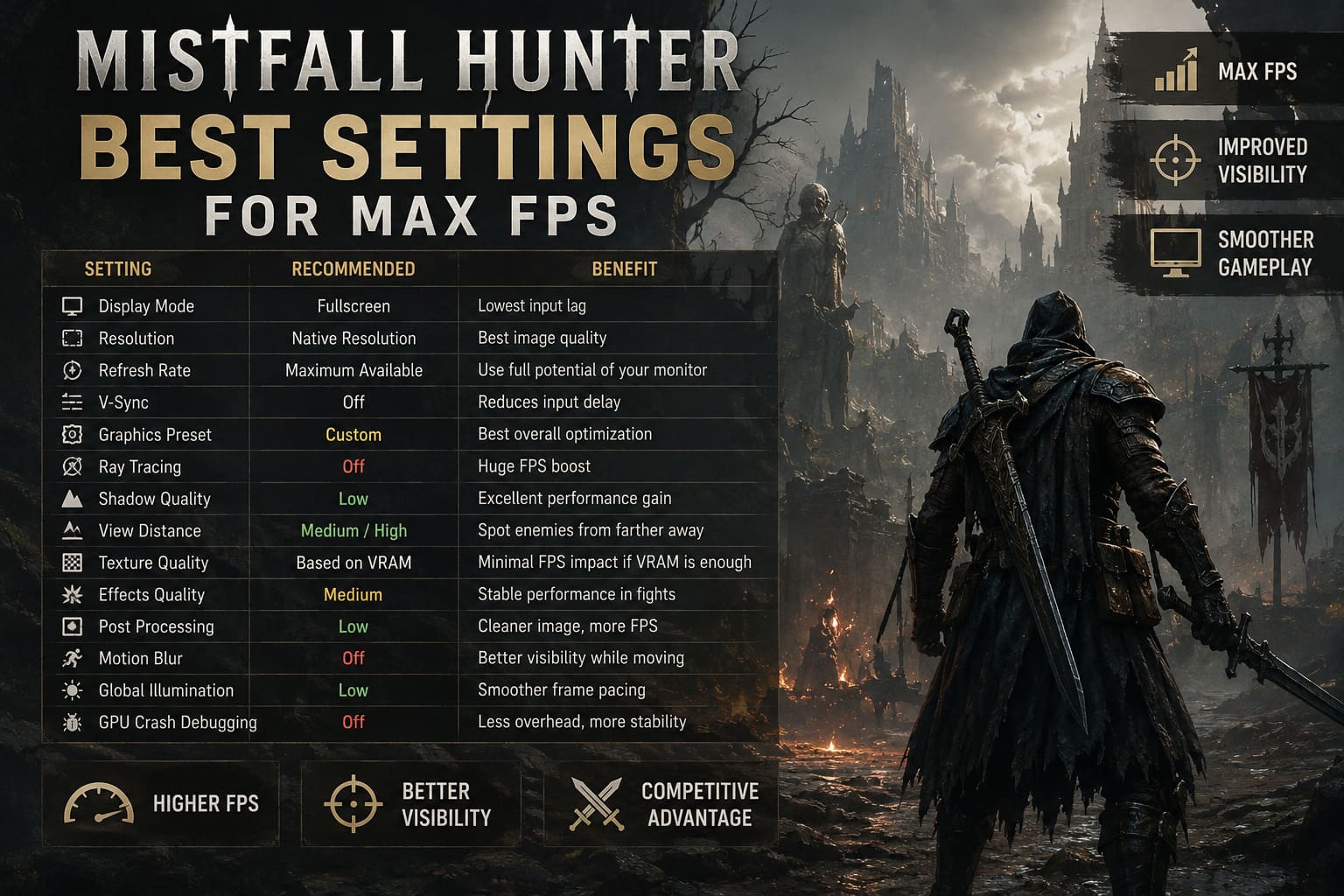
| Setting | Recommended Value | Why |
|---|---|---|
| Display Mode | Fullscreen | Lowest input latency and better resource priority. |
| Resolution | Native Resolution | Maintain image quality and use upscaling if needed. |
| Refresh Rate | Maximum Available | Take full advantage of your monitor. |
| V-Sync | Off | Reduces input delay. |
| Graphics Preset | Custom | Best overall optimization. |
| Ray Tracing | Off | Largest FPS improvement. |
| Shadow Quality | Low | Excellent performance gain. |
| View Distance | Medium or High | Helps spot enemies from farther away. |
| Texture Quality | Based on VRAM | Minimal FPS impact when VRAM is sufficient. |
| Effects Quality | Medium | Stable during intense battles. |
| Post Processing | Low | Removes unnecessary cinematic effects. |
| Motion Blur | Off | Improves visibility while moving. |
| Global Illumination | Low | Much smoother frame pacing. |
| GPU Crash Debugging | Off | Reduces unnecessary overhead. |
These settings provide an excellent balance between image quality and competitive performance.
Disable Ray Tracing for Better Performance
I usually enjoy enabling ray tracing whenever a game supports it, but Mistfall Hunter is one of those titles where I simply don’t think it’s worth the trade-off.
The visual improvement is fairly subtle because so much of the world is already covered in thick golden fog. During actual gameplay, especially in combat, you’re unlikely to notice the difference.
On the other hand, the performance hit is immediately noticeable. Turning Ray Tracing off resulted in significantly smoother gameplay with almost no meaningful loss in visual quality.
Unless you’re capturing screenshots, I recommend leaving it disabled.
Choose Texture Quality Based on Your VRAM
Many players instinctively lower texture quality first, but that’s rarely the best approach.
Texture resolution has very little effect on FPS as long as your graphics card has enough video memory available.
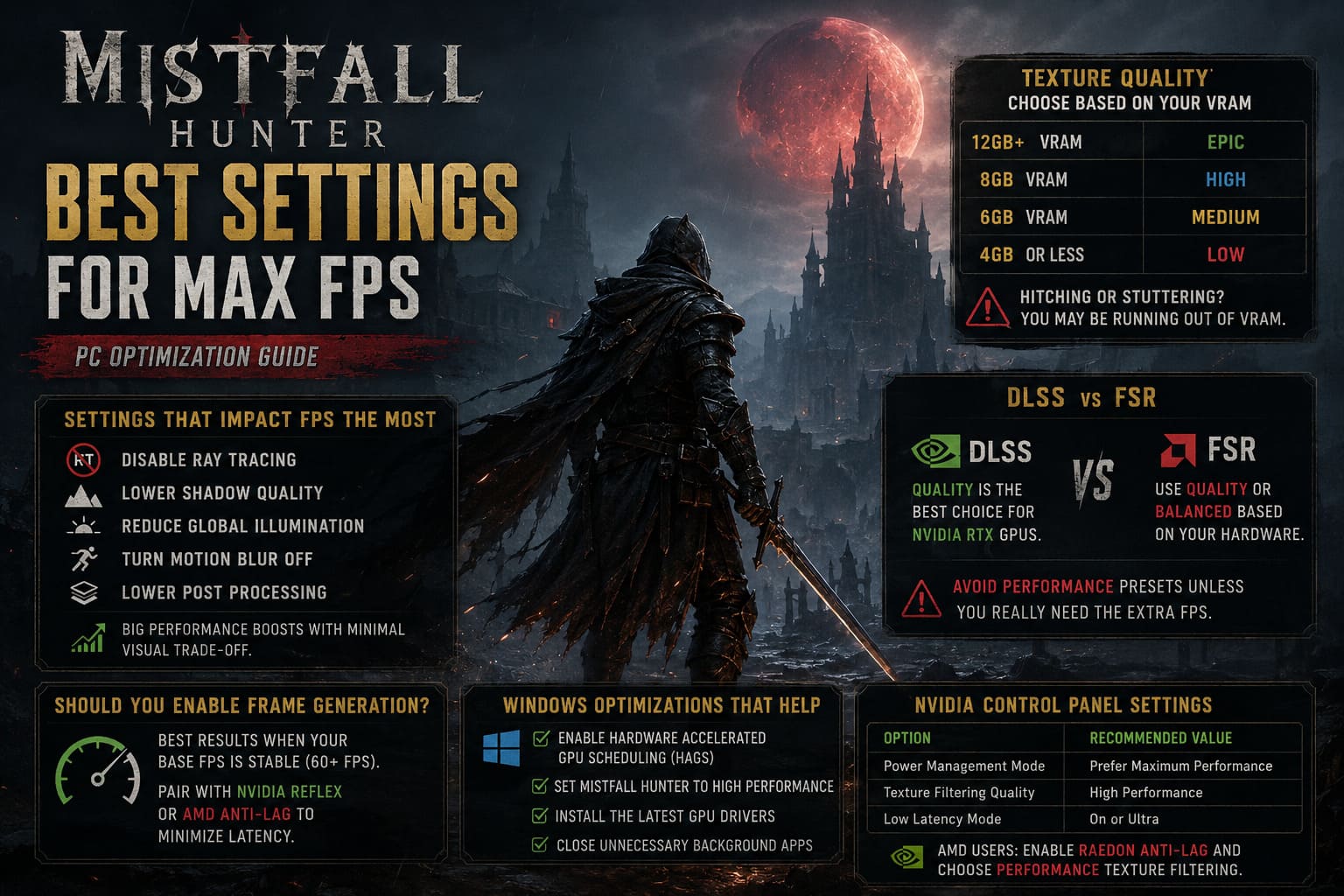
- 12GB VRAM or more: Epic
- 8GB VRAM: High
- 6GB VRAM: Medium
- 4GB VRAM or less: Low
If you notice hitching while turning the camera or entering new areas, your GPU may simply be running out of VRAM.
The Settings That Matter Most
After plenty of testing, these options produced the biggest performance improvements:
- Disable Ray Tracing.
- Lower Shadow Quality.
- Reduce Global Illumination.
- Turn Motion Blur Off.
- Lower Post Processing.
These five adjustments alone noticeably improved frame consistency while preserving the game’s dark fantasy atmosphere.
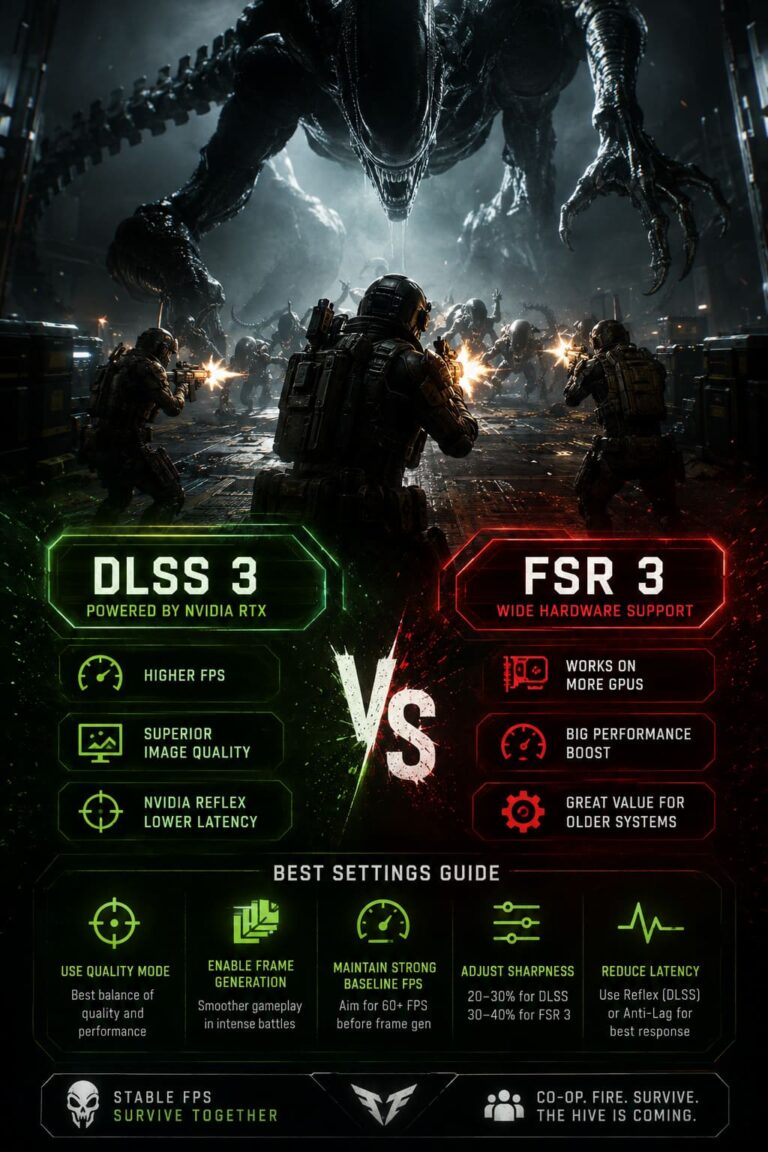
DLSS vs FSR
Both upscaling technologies perform surprisingly well in Mistfall Hunter.
If you’re using an NVIDIA RTX graphics card, DLSS Quality is generally the best option. It delivers excellent image quality while providing a healthy FPS boost.
AMD users should choose FSR Quality or Balanced depending on their hardware.
I would personally avoid the Performance presets unless your system is really struggling. They soften the image enough that distant players become noticeably harder to identify.
Should You Enable Frame Generation?
Frame Generation can provide a substantial FPS increase, but it works best when your system already maintains a stable baseline frame rate.
If you’re consistently above around 60 FPS before enabling it, Frame Generation can make gameplay feel significantly smoother.
For the best experience, pair it with NVIDIA Reflex or AMD Anti-Lag to minimize additional latency.
Windows Optimizations That Actually Help
There are countless optimization videos online recommending dozens of Windows tweaks. In my experience, only a handful make a measurable difference.
- Enable Hardware Accelerated GPU Scheduling (HAGS).
- Set Mistfall Hunter to High Performance in Windows Graphics Settings.
- Install the latest GPU drivers.
- Close unnecessary background applications before launching the game.
Everything else had little or no noticeable impact during testing.
Recommended NVIDIA Control Panel Settings
| Option | Recommended Value |
|---|---|
| Power Management Mode | Prefer Maximum Performance |
| Texture Filtering Quality | High Performance |
| Low Latency Mode | On or Ultra |
These settings won’t dramatically increase your average FPS, but they can improve overall frame consistency during long gaming sessions.
AMD users can achieve similar results by enabling Radeon Anti-Lag and selecting the Performance texture filtering profile inside AMD Adrenalin Software.
Always Install the Game on an SSD
This may sound obvious, but it’s still one of the biggest performance improvements available.
Mistfall Hunter constantly streams assets while you explore the world. Installing the game on an older mechanical hard drive can dramatically increase loading times and make shader compilation stutters much more noticeable.
If possible, install the game on an NVMe SSD. Even a standard SATA SSD offers a much smoother experience than a traditional HDD.
Mistfall Hunter Best Starter Class: Day 1 Launch Guide (2026 Meta)
Network Stability Is Just as Important
Since Mistfall Hunter is an online extraction game, not every performance issue is caused by your graphics settings.
If your character suddenly teleports backward, attacks fail to register, or movement feels inconsistent despite having high FPS, you’re most likely dealing with network latency rather than rendering performance.
Whenever possible, use a wired Ethernet connection, avoid downloading large files while playing, and connect to the nearest available game server.
Is Mistfall Hunter Premium Currency Worth It? Fate Coins Guide (2026)
Final Thoughts
Mistfall Hunter rewards quick reactions, smart positioning, and good decision-making. None of those skills matter if your game starts stuttering during critical fights.
After spending plenty of time experimenting with different graphics options, I found that lowering expensive lighting features provides far greater benefits than simply reducing every setting to Low. Disabling Ray Tracing, lowering shadows, reducing Global Illumination, turning off Motion Blur, and using DLSS or FSR in Quality mode delivers a much smoother experience without sacrificing the game’s impressive atmosphere.
Bellring Games will almost certainly continue improving performance through future updates, but right now these settings offer one of the best balances between visual quality and competitive responsiveness. Whether you’re hunting monsters, fighting rival squads, or trying to escape with valuable loot, stable frame rates and low input latency can easily be the difference between a successful extraction and losing everything you’ve worked for.