How to Fix Mistfall Hunter Crash on Launch and Black Screen Issues on PC (2026 Guide)
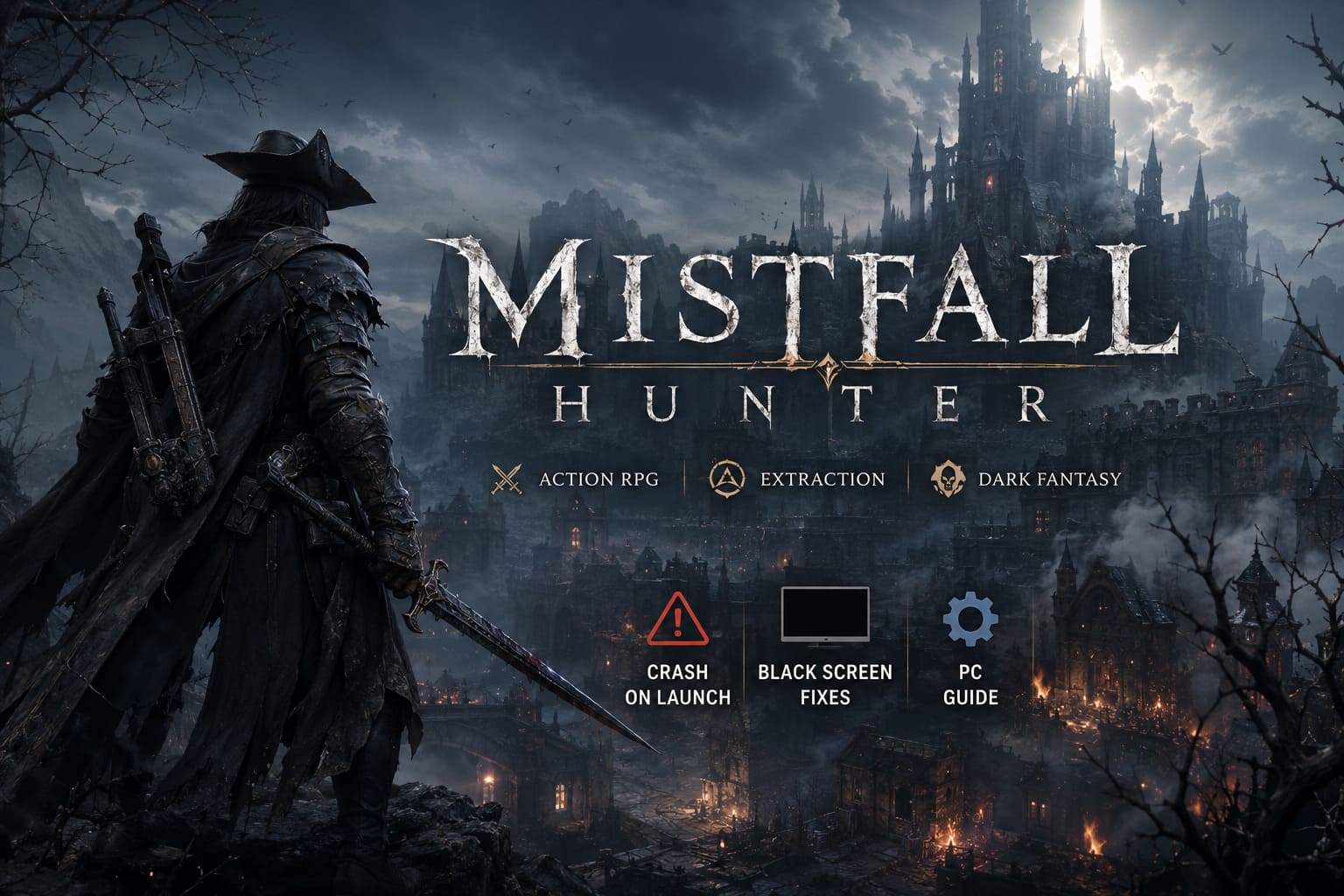
The launch of Mistfall Hunter has been exactly what I expected from a massive Unreal Engine action RPG mixed with extraction gameplay: fantastic combat, incredible atmosphere, and unfortunately, a rough first week for plenty of PC players.
If you’ve been staring at a black screen, getting an annoying Fatal Error, or watching the game instantly disappear back to your desktop after clicking Play, you’re definitely not the only one. I spent hours digging through Steam discussions, community posts, and player reports while testing different fixes on multiple systems. Some of the so-called “solutions” floating around online didn’t change anything, while others solved the problem almost instantly.
The good news is that most startup issues aren’t caused by failing hardware. In most cases, they’re tied to Windows security settings, graphics driver conflicts, shader cache corruption, or Unreal Engine compatibility problems.
Below are the fixes that consistently helped the largest number of players. I’d strongly recommend following them in order instead of randomly changing dozens of settings at once.
Why Mistfall Hunter Crashes Before Launch
Modern Unreal Engine games are far more demanding than older PC releases. They rely on Windows security services, graphics APIs, anti-cheat software, runtime libraries, drivers, and background applications all working together correctly. If just one of those components runs into a conflict, the game may never even reach the main menu.
The most common launch problems include:
- Fatal Error immediately after pressing Play.
- Permanent black screen after the Unreal Engine logo.
- The game appears in Task Manager but never opens.
- An instant crash back to Steam.
- Freezing during startup.
- Infinite loading before the title screen.
Fortunately, nearly all of these symptoms can be traced back to a handful of common causes.
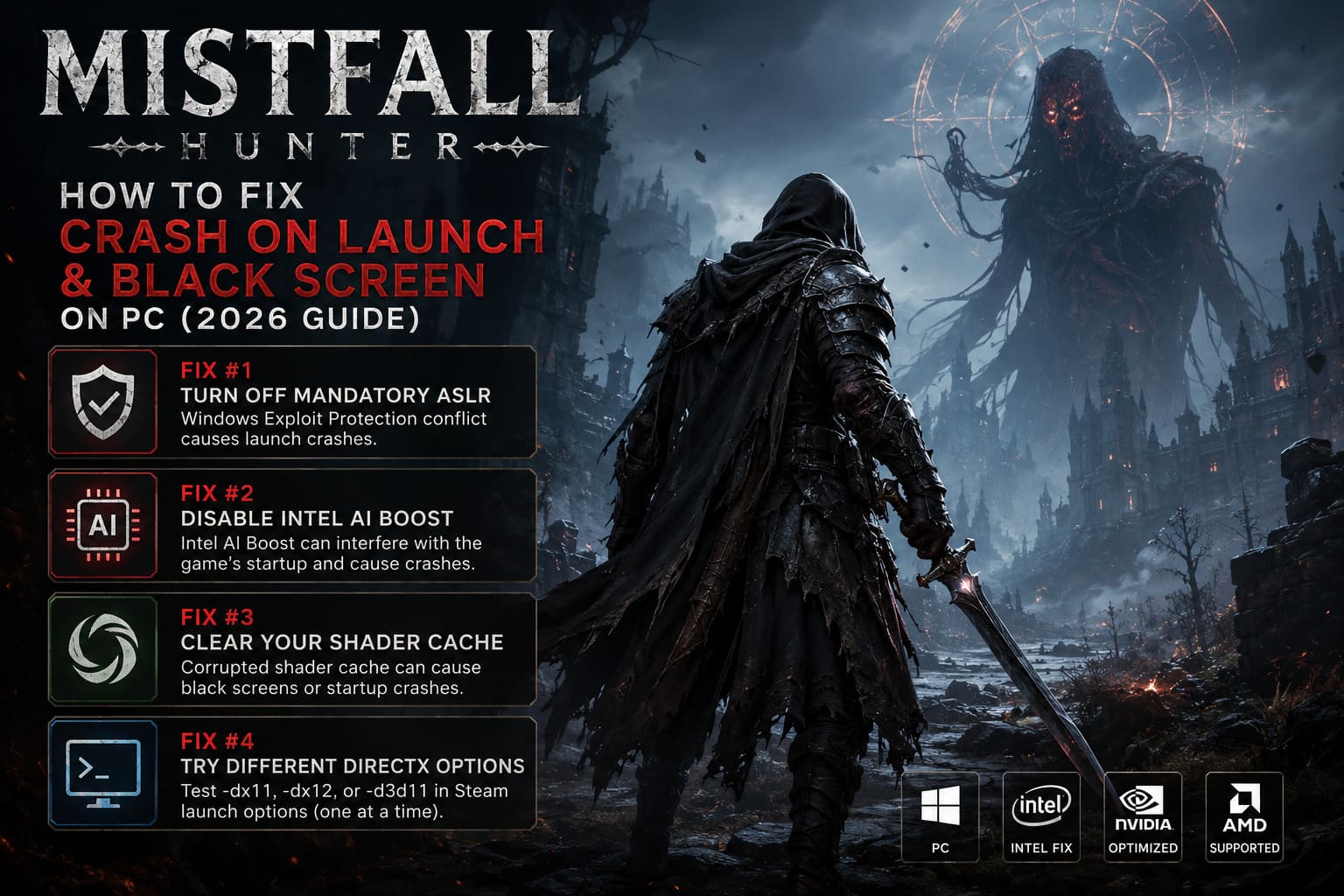
Fix #1: Turn Off Mandatory ASLR (The Biggest Fix So Far)
If there’s one fix that deserves to be at the top of this guide, it’s this one.
A surprisingly large number of players discovered that Windows Exploit Protection conflicts with Mistfall Hunter during startup. Specifically, the security feature called Mandatory ASLR (Force Randomization for Images) has been responsible for launch crashes on many Intel and NVIDIA systems.
To disable it:
- Open Windows Security.
- Select App & Browser Control.
- Open Exploit Protection Settings.
- Under System Settings, locate Force Randomization for Images (Mandatory ASLR).
- Change the setting to Off by Default.
- Apply the changes.
- Restart Windows.
If you’d rather keep Mandatory ASLR enabled system-wide, you can instead add MistfallHunter.exe under Program Settings inside Exploit Protection and disable the feature only for the game.
From everything I’ve tested and seen across the community, this single adjustment has fixed more launch crashes than any other solution currently available.
Fix #2: Disable Intel AI Boost
This issue surprised a lot of players because it only affects certain newer Intel processors equipped with an integrated Neural Processing Unit.
Several users discovered that Intel AI Boost interferes with the game’s startup sequence, causing an immediate crash or preventing the engine from loading correctly.
To test whether this is affecting your system:
- Open Device Manager.
- Expand Neural Processors.
- Right-click Intel AI Boost.
- Select Disable Device.
- Launch Mistfall Hunter again.
If the game launches successfully, you can always re-enable the device later when you’re finished playing.
Fix #3: Clear Your Shader Cache
Shader compilation problems have become one of the most common reasons why Unreal Engine games refuse to start properly.
If your shader cache becomes corrupted, the game may remain stuck on a black screen indefinitely or crash before reaching the main menu.
NVIDIA Users
Open the NVIDIA Control Panel and temporarily disable Shader Cache. Apply the change, restart your PC, then enable it again afterward.
While you’re inside the Control Panel, make sure that NVIDIA Smooth Motion is disabled. Multiple players have reported stability issues with this feature enabled.
AMD Users
AMD makes clearing the shader cache very straightforward.
Open AMD Software: Adrenalin Edition, navigate to Gaming → Graphics → Advanced, then click Reset Shader Cache. Restart Windows before launching the game again.
Fix #4: Try Different DirectX Launch Options
Sometimes the game launches perfectly under one graphics API while refusing to run under another.
You can test this directly through Steam.
Open Steam Library → Mistfall Hunter → Properties → Launch Options and try each of the following commands individually:
- -dx11
- -dx12
- -d3d11
Don’t combine these commands. Test one, launch the game, and if nothing changes, remove it before trying the next option.
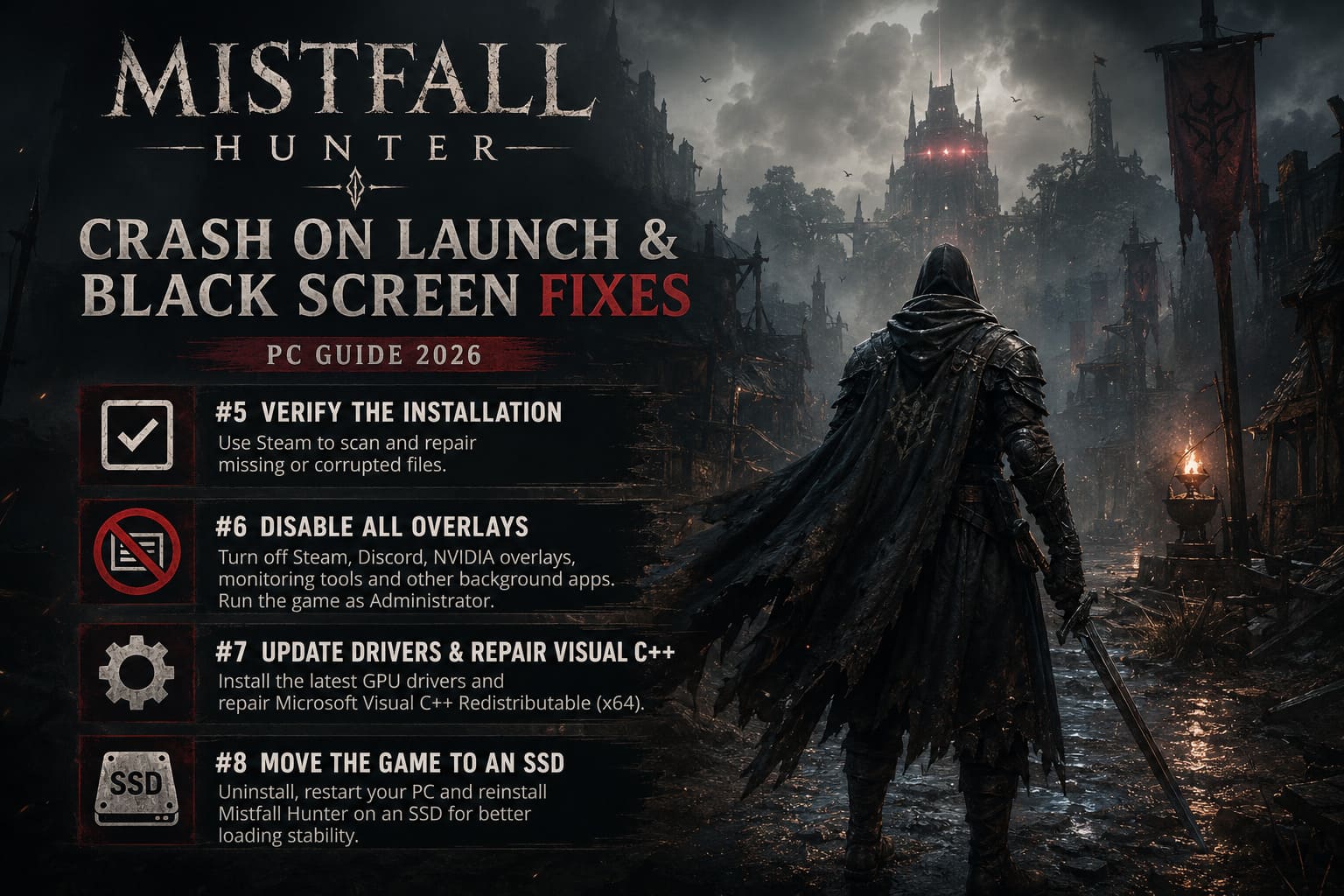
Fix #5: Verify the Installation
This solution sounds simple, but it’s surprisingly effective.
Launch-week updates occasionally leave behind damaged or incomplete files, especially after hotfixes or interrupted downloads.
To verify your installation:
- Right-click Mistfall Hunter inside Steam.
- Select Properties.
- Open the Installed Files tab.
- Click Verify Integrity of Game Files.
Steam will automatically detect and replace any missing or corrupted files.
I’ve personally seen this resolve startup crashes more often than many players expect.
Fix #6: Disable Every Overlay You Can
Background overlays have become increasingly aggressive over the past few years, and they don’t always play nicely with Unreal Engine games.
Before launching Mistfall Hunter, temporarily disable:
- Steam Overlay
- Discord Overlay
- NVIDIA Overlay
- MSI Afterburner
- RTSS
- RGB management software
- Recording or streaming applications
Next, navigate to the game’s installation folder, right-click MistfallHunter.exe, open Properties → Compatibility, and enable Run this program as Administrator.
It only takes a minute, but it eliminates another common source of startup failures.
Fix #7: Update Drivers and Repair Visual C++
Every major PC release proves the same point: keeping your drivers updated still matters.
Download the latest Game Ready or Adrenalin graphics drivers directly from your GPU manufacturer and perform a clean installation whenever possible.
It’s also worth repairing the latest Microsoft Visual C++ Redistributable (x64). If it’s already installed, simply choose the Repair option. Missing or damaged runtime libraries can easily trigger Unreal Engine crashes that appear completely random.
Fix #8: Move the Game to an SSD
If Mistfall Hunter is installed on a traditional mechanical hard drive, loading times can become long enough to trigger freezes or apparent black screen issues.
If none of the previous solutions helped:
- Uninstall the game.
- Restart Windows.
- Install it again on an SSD.
- Use your fastest internal drive whenever possible.
While this isn’t guaranteed to solve every startup issue, it noticeably improves loading stability on many systems.
Quick Troubleshooting Checklist
| Problem | Recommended Fix | Difficulty |
|---|---|---|
| Fatal Error | Disable Mandatory ASLR | Easy |
| Black Screen | Clear Shader Cache | Easy |
| Instant Crash to Desktop | Verify Game Files | Easy |
| Game Never Opens | Test DX11 or DX12 Launch Options | Easy |
| Unreal Engine Freeze | Update Graphics Drivers | Medium |
| Infinite Loading | Move the Game to an SSD | Medium |
Extra Things Worth Trying
If you’ve reached this point and the game still refuses to launch, there are a few additional steps worth trying before considering a full reinstall of Windows.
- Restart Steam completely.
- Reboot your PC after every major change.
- Disconnect unnecessary USB devices.
- Temporarily disable your antivirus software for testing.
- Turn off CPU and GPU overclocks.
- Install the latest Windows updates.
- Ensure Easy Anti-Cheat isn’t being blocked by security software.
Individually these suggestions may seem minor, but together they’ve helped many players finally get past the loading screen.
Mistfall Hunter Beginner’s Guide: Tips, Classes, and Extraction Strategies
Final Thoughts
After helping several friends troubleshoot their installations, one thing became very clear: there isn’t a single universal fix for Mistfall Hunter.
One PC launched immediately after disabling Mandatory ASLR. Another only started working after clearing the shader cache. A third system refused to boot until switching from DirectX 12 to DirectX 11.
That’s why it’s important to work through the fixes methodically instead of changing everything at once. Modern Unreal Engine games are incredibly complex, and startup failures often result from several small compatibility problems stacking together rather than one catastrophic bug.
The encouraging news is that most players eventually get into the game without replacing hardware or reinstalling Windows. Taking a systematic approach, changing one setting at a time, testing the game, and moving on only when necessary, is still the fastest way to identify the actual cause.
Hopefully, future patches will eliminate many of these launch headaches. Until then, the fixes above remain the most reliable solutions reported by the community and tested across a wide variety of PC configurations. If you’re still dealing with crashes or black screens after trying everything here, keep an eye on upcoming updates because optimization patches often resolve issues that no amount of local troubleshooting can fix.