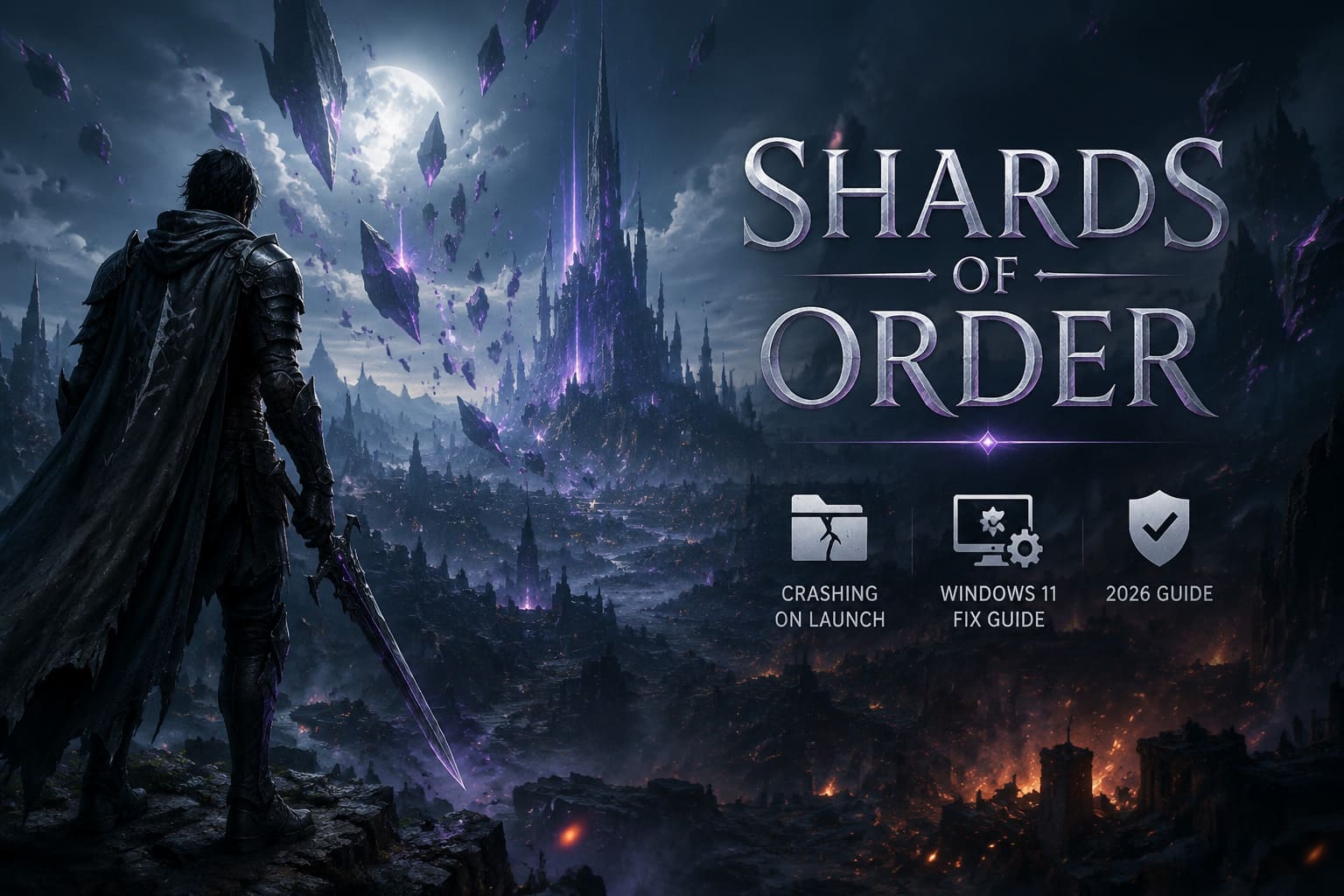
How to Fix Shards of Order Crashing on Launch in Windows 11 (2026 Guide)
When I finally got my hands on Shards of Order, I expected to spend the evening exploring its gorgeous fantasy world—not fighting with Windows 11 because the game refused to stay open for more than two seconds. Hit Play, a black screen flashes, the process appears in Task Manager, and then… gone. No error message. No crash report. Just another trip back to the desktop.
After digging through community discussions, official support replies, Steam forums, Reddit troubleshooting threads, and hardware enthusiast recommendations, a pattern started to emerge. The majority of launch crashes aren’t caused by a single bug. They’re the result of several different Windows 11 features, driver conflicts, overlay software, and hardware-specific quirks colliding with the game’s modern engine.
If Shards of Order crashes immediately after launch, this guide walks through every solution that has consistently helped players get back into the game.
Why Does Shards of Order Crash Before It Even Opens?
Unlike older PC titles, Shards of Order relies heavily on modern Windows technologies including DirectX 12, advanced shader compilation, aggressive multithreading, and newer graphics APIs. That means even small conflicts can prevent the engine from reaching the main menu.
Some of the most common causes include:
- Outdated or corrupted graphics drivers
- Windows 11 security features blocking game components
- Damaged shader cache files
- DirectX runtime inconsistencies
- Overlay applications injecting into the game
- Extremely high USB polling rates
- Incorrect CPU scheduling on hybrid processors
The good news? Nearly all of these issues can be fixed without reinstalling Windows.
Confirm Your PC Meets the Required Environment
Before changing settings, make sure your system isn’t failing during initialization because of unsupported hardware.
Verify that:
| Component | Recommended Check |
|---|---|
| Operating System | Windows 11 23H2, 24H2 or newer |
| Architecture | 64-bit Windows |
| DirectX Support | DirectX 12 with modern feature support |
| GPU | NVIDIA RTX 20 Series or newer / AMD Radeon RX 5000 Series or newer |
| Drivers | Latest stable GPU driver installed |
| Runtime | Updated Microsoft Visual C++ Redistributables |
Even powerful hardware can experience startup crashes if Windows components are outdated.
Fix 1 — Adjust Windows Exploit Protection
One of the biggest surprises in 2026 has been Windows Security becoming a little too protective.
Some systems incorrectly identify parts of the game’s anti-cheat or DRM during startup, causing Windows to silently terminate the executable before anything appears on screen.
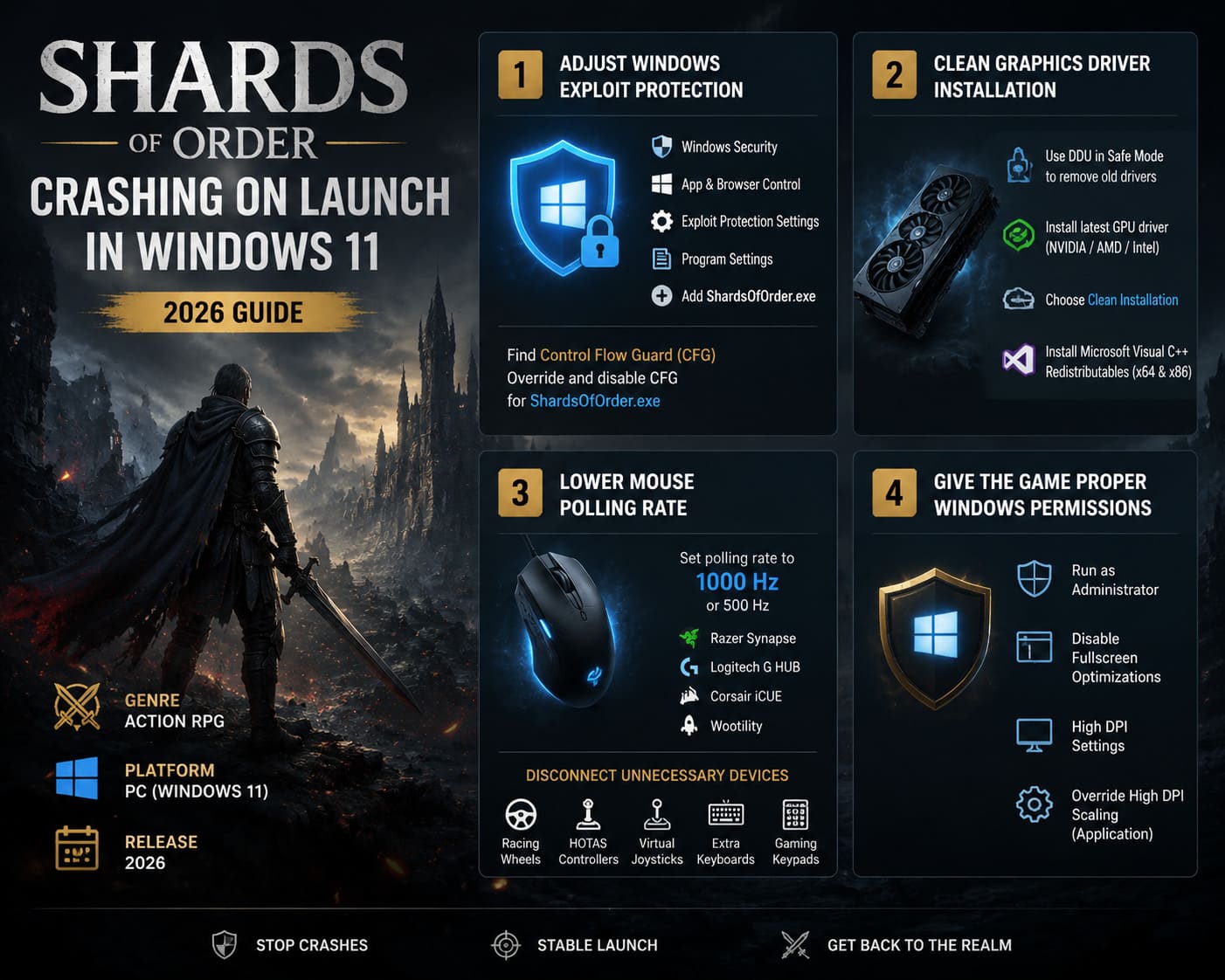
To test whether this is your issue:
- Open Windows Security.
- Navigate to App & Browser Control.
- Open Exploit Protection Settings.
- Switch to Program Settings.
- Add the game’s executable manually.
- Locate Control Flow Guard (CFG).
- Override the default setting.
- Temporarily disable CFG only for ShardsOfOrder.exe.
- Restart Windows.
Many players report that the game launches normally afterward.
Fix 2 — Perform a Completely Clean Graphics Driver Installation
Updating your GPU driver isn’t always enough.
Old driver files frequently remain behind after standard updates, especially after multiple driver versions have been installed over several months.
The better approach is:
- Remove existing drivers using Display Driver Uninstaller (DDU) in Safe Mode.
- Reboot normally.
- Install the newest NVIDIA, AMD, or Intel driver directly from the manufacturer.
- Choose the Clean Installation option if available.
- Install the newest Microsoft Visual C++ Redistributables (both x64 and x86).
Fresh driver installations often eliminate mysterious startup crashes that simple updates never touch.
Fix 3 — Lower Mouse Polling Rate
This one sounds ridiculous until it actually fixes the problem.
Gaming mice running at 4000 Hz or 8000 Hz polling can overwhelm certain engines during startup. Before the game finishes initializing, the flood of USB interrupts can interfere with the launch process.
If you’re using software like:
- Razer Synapse
- Logitech G HUB
- Corsair iCUE
- Wootility
Temporarily reduce the polling rate to 1000 Hz or even 500 Hz.
Also disconnect unnecessary USB devices including:
- Racing wheels
- HOTAS controllers
- Virtual joystick software
- Secondary keyboards
- Specialty gaming keypads
Sometimes less hardware equals fewer launch conflicts.
Fix 4 — Give the Game Proper Windows Permissions
Windows 11 continues tightening security around applications installed inside Program Files, and that occasionally prevents games from creating shader caches or configuration folders.
Configure the executable like this:
- Enable Run as Administrator.
- Disable Fullscreen Optimizations.
- Open High DPI Settings.
- Select Override High DPI Scaling.
- Choose Application.
These adjustments allow the engine to manage rendering more directly instead of relying on Windows display virtualization.
Fix 5 — Delete Corrupted Shader Cache Files
Every first launch builds shader caches specifically for your graphics card.
If that process gets interrupted—even once—the corrupted cache can keep crashing the game forever until it’s removed.
Delete the following folders inside the game’s Local AppData directory:
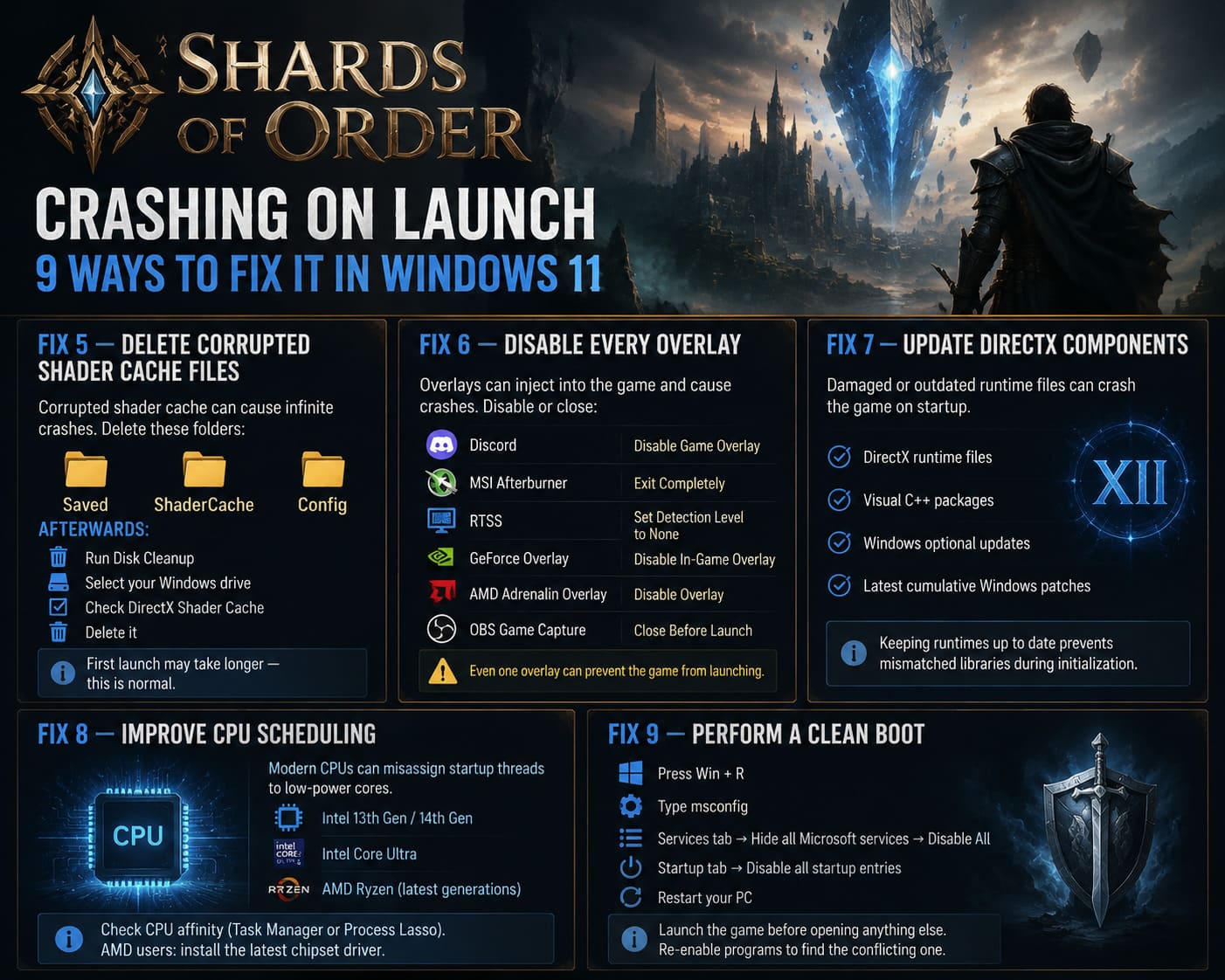
- Saved
- ShaderCache
- Config
Afterward, complete the following steps:
- Open Disk Cleanup.
- Select your Windows drive.
- Check DirectX Shader Cache.
- Remove it.
The next launch will rebuild everything from scratch.
The first startup may take noticeably longer, but that’s perfectly normal.
Fix 6 — Disable Every Overlay
Overlay software has become one of the biggest enemies of newly released PC games.
Several programs attempt to hook into DirectX before the engine fully initializes.
If the timing is wrong, Windows simply closes the process.
Temporarily disable the following:
| Application | Recommended Action |
|---|---|
| Discord | Disable Game Overlay |
| MSI Afterburner | Exit Completely |
| RTSS | Set Detection Level to None |
| GeForce Overlay | Disable In-Game Overlay |
| AMD Adrenalin Overlay | Disable Overlay |
| OBS Game Capture | Close Before Launch |
Many players discover that just one background application was preventing the game from opening.
Fix 7 — Update DirectX Components
Although Windows includes DirectX 12, individual runtime components can still become damaged or outdated.
If Shards of Order crashes immediately after allocating GPU memory, reinstalling supporting runtime libraries often solves the issue.
Update the following:
- DirectX runtime files
- Visual C++ packages
- Windows optional updates
- Latest cumulative Windows patches
Keeping every runtime synchronized prevents mismatched libraries during initialization.
Fix 8 — Improve CPU Scheduling on Modern Processors
Hybrid CPUs are fantastic for productivity.
Gaming? Sometimes they’re a little unpredictable.
Windows occasionally assigns critical startup threads to low-power efficiency cores instead of performance cores.
If you’re running:
- Intel 13th Gen
- Intel 14th Gen
- Intel Core Ultra
- Modern AMD Ryzen processors
Consider checking CPU affinity using Task Manager or Process Lasso.
For AMD users, installing the latest chipset driver is equally important because scheduler improvements arrive through chipset updates as often as Windows patches.
Fix 9 — Perform a Clean Boot
If none of the previous fixes work, another background application is probably interfering.
A Clean Boot strips Windows down to essential Microsoft services.
Follow these steps:
- Press Win + R.
- Type msconfig.
- Open the Services tab.
- Check Hide all Microsoft services.
- Click Disable All.
- Open the Startup tab.
- Disable all startup entries.
- Restart the PC.
Launch Shards of Order before opening any other software.
If the game finally starts, re-enable programs gradually until the conflicting application reveals itself.
Shards of Order Unlock Secret Characters Guide: Full Walkthrough & Requirements
Additional Tips Worth Trying
These aren’t guaranteed fixes, but they’ve helped enough players to deserve a mention.
Verify Game Files
Steam and other launchers occasionally download damaged archives after launch-day patches. Running a file verification only takes a few minutes.
Install the Game on an SSD
Fast asset streaming is a core part of the engine. Traditional HDDs may increase loading instability and extend shader compilation times.
Avoid Aggressive Overclocks
CPU, RAM, or GPU overclocks that appear stable in benchmarks can still crash shader compilation or trigger unexpected launch failures. Testing at stock settings removes another variable from the troubleshooting process.
Close RGB Software
Lighting utilities from motherboard and peripheral manufacturers have occasionally conflicted with anti-cheat initialization in modern PC games. It sounds strange, but it has solved launch problems for more than a few players.
Shards of Order Lore Explained: The Complete Main Story and Ending Breakdown
Final Thoughts
I’ve seen enough rocky PC launches over the years to know that Shards of Order isn’t unique. Modern game engines are incredibly demanding, and Windows 11 adds another layer of complexity with its evolving security features, scheduler behavior, and graphics stack.
The encouraging part is that the overwhelming majority of launch crashes come down to a handful of repeat offenders: corrupted shader caches, outdated drivers, intrusive overlays, high-polling peripherals, or Windows security settings that become overprotective.
Work through the fixes one at a time instead of changing everything at once. That way you’ll know exactly what solved the issue, making future troubleshooting much easier after patches or driver updates.
Once the game finally reaches the main menu, the frustration fades quickly. Instead of wrestling with crash reports and desktop loops, you’ll be free to enjoy what Shards of Order was actually built for—losing yourself in its vast world rather than fighting your operating system.