Mistfall Hunter Best Settings for RTX 3060: Max FPS and Stutter Fix Guide
If there is one thing I’ve learned after spending years jumping from Soulslikes to extraction shooters and every demanding Unreal Engine release in between, it is this: default graphics presets almost never give the best experience. Mistfall Hunter is no exception. It is gorgeous, atmospheric, and packed with stunning effects, but it can also punish even capable hardware if you simply click ‘High’ and start playing.
After dozens of hours experimenting with settings, comparing different areas of the map, testing PvP encounters, and tweaking NVIDIA options, I found a setup that feels significantly better than the game’s defaults. The RTX 3060 is still one of the most common graphics cards among PC players, and thankfully it has enough horsepower to make Mistfall Hunter look fantastic without sacrificing responsiveness.
If your goal is smooth combat, reliable frame pacing, and fewer annoying stutters, these are the settings I would actually recommend using.
How to Fix Mistfall Hunter Crashing: UE-MistfallHunter Fatal Error and Launch Fixes
Why Mistfall Hunter Feels More Demanding Than It Should
Mistfall Hunter isn’t difficult to run because its textures are exceptionally heavy. The real challenge comes from Unreal Engine 5 itself.
The engine constantly streams world assets, compiles shaders, manages dynamic lighting, and fills the battlefield with dense particle effects. During quiet exploration everything may appear perfectly smooth, but the moment several enemies appear alongside another squad of players, frame times can suddenly spike.
That’s exactly the kind of situation where losing even a fraction of a second matters. In an extraction game, one hitch during a dodge or parry can easily cost an entire run. Fortunately, most of these slowdowns aren’t caused by weak hardware alone. They’re often the result of poorly balanced graphics options.
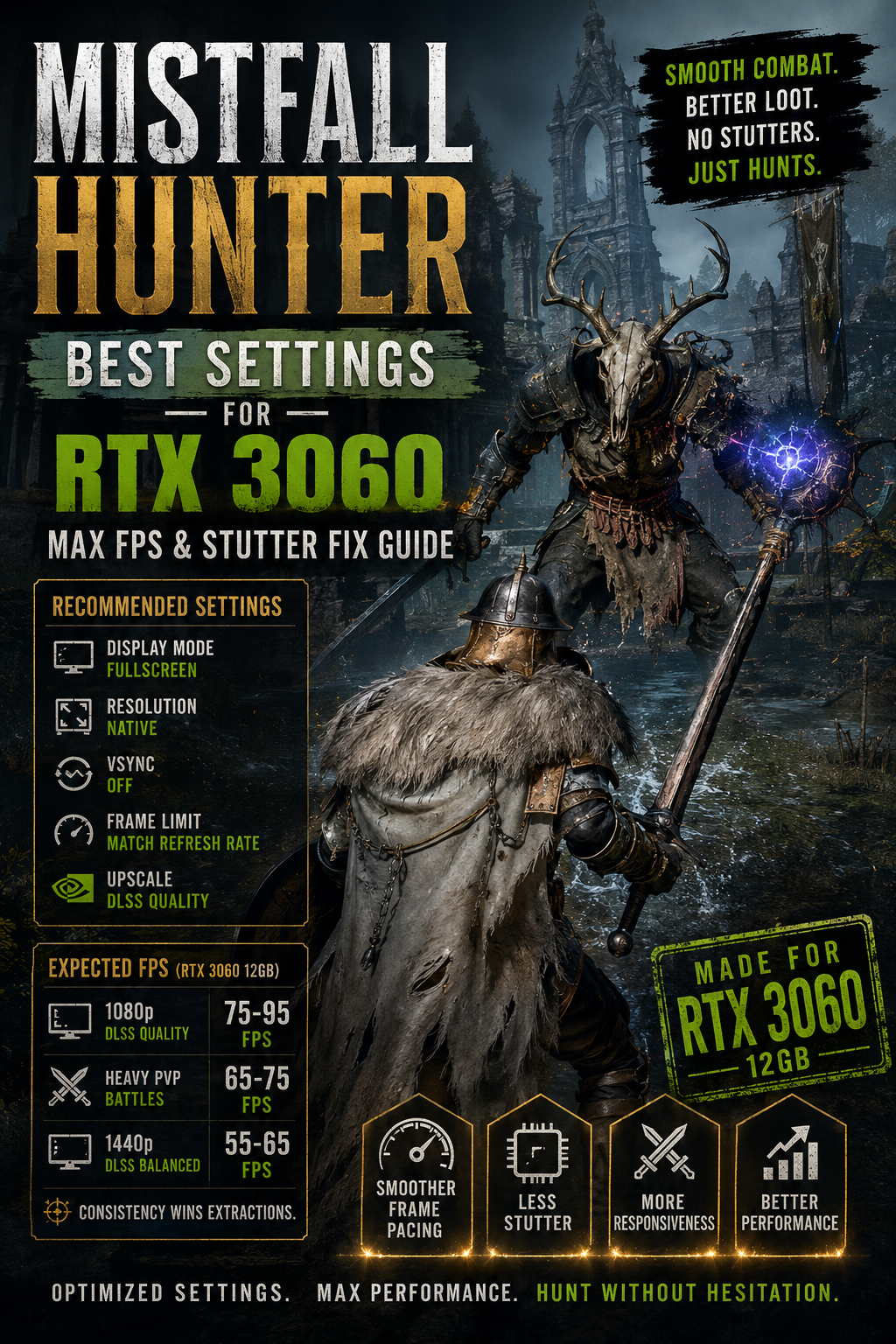
Can the RTX 3060 Handle Mistfall Hunter?
Absolutely.
Despite its age, the RTX 3060 12GB remains one of the best value GPUs for modern 1080p gaming. The generous VRAM buffer is especially useful in Unreal Engine 5 titles where texture streaming often becomes a bottleneck.
I never felt forced into an ugly ‘everything on Low’ configuration. Instead, the card performs best when you selectively lower the settings that barely improve visuals while keeping the options that actually make the world look alive.
For laptop owners using the 6GB version, a few compromises are necessary, but desktop users with 12GB can comfortably enjoy High textures.
My Recommended Graphics Settings
Rather than relying on presets, I strongly suggest creating your own custom profile.
| Setting | Recommended Value | Why It Works |
|---|---|---|
| Display Mode | Fullscreen | Better frame pacing and lower input latency. |
| Resolution | Native Monitor Resolution | Maximum image clarity. |
| VSync | Off | Reduces input lag. |
| Frame Limit | Match Refresh Rate | Provides more consistent frame delivery. |
| Overall Preset | Custom | Allows better optimization than stock presets. |
Advanced Graphics Settings
Here’s where most of the real performance gains come from. These settings provide the best balance between image quality and competitive gameplay.
| Option | Recommended Setting |
|---|---|
| Anti-Aliasing | Medium |
| Shadows | Medium |
| Textures | High |
| Post Processing | Medium |
| View Distance | High |
| Reflections | Medium |
| Foliage | Medium |
| Shading | Medium |
| Visual Effects | Medium |
Lowering Shadows from Epic to Medium was probably the single biggest improvement I noticed. The visual downgrade is surprisingly small, but combat instantly feels more responsive.
Visual Effects deserve similar treatment. Spell-heavy fights can become absolute fireworks shows, and pushing VFX too high simply wastes GPU resources without making combat easier to read.
DLSS Is Your Best Friend
I normally dislike aggressive upscaling because some games become noticeably blurry. Thankfully, Mistfall Hunter handles NVIDIA DLSS surprisingly well.
These are the modes I’d actually recommend:
- 1080p: DLSS Quality
- 1440p: DLSS Balanced
- Sharpness: 0.5–0.6
At these settings the image stays crisp enough that I rarely notice any reconstruction artifacts during gameplay. More importantly, DLSS helps smooth out heavier areas where native rendering would otherwise drag performance below comfortable levels.
Settings I Would Avoid
Some options simply aren’t worth enabling, even if your system can technically handle them.
Frame Generation is one example. The RTX 3060 doesn’t officially support NVIDIA’s hardware Frame Generation, and while various community solutions exist, they introduce additional latency that feels out of place in a competitive extraction game.
I would also avoid the following settings:
- Epic Shadows
- Epic Visual Effects
- Native VSync
- Windowed Fullscreen Mode
- Unlimited Frame Rate
These settings tend to create more problems than benefits during longer play sessions.
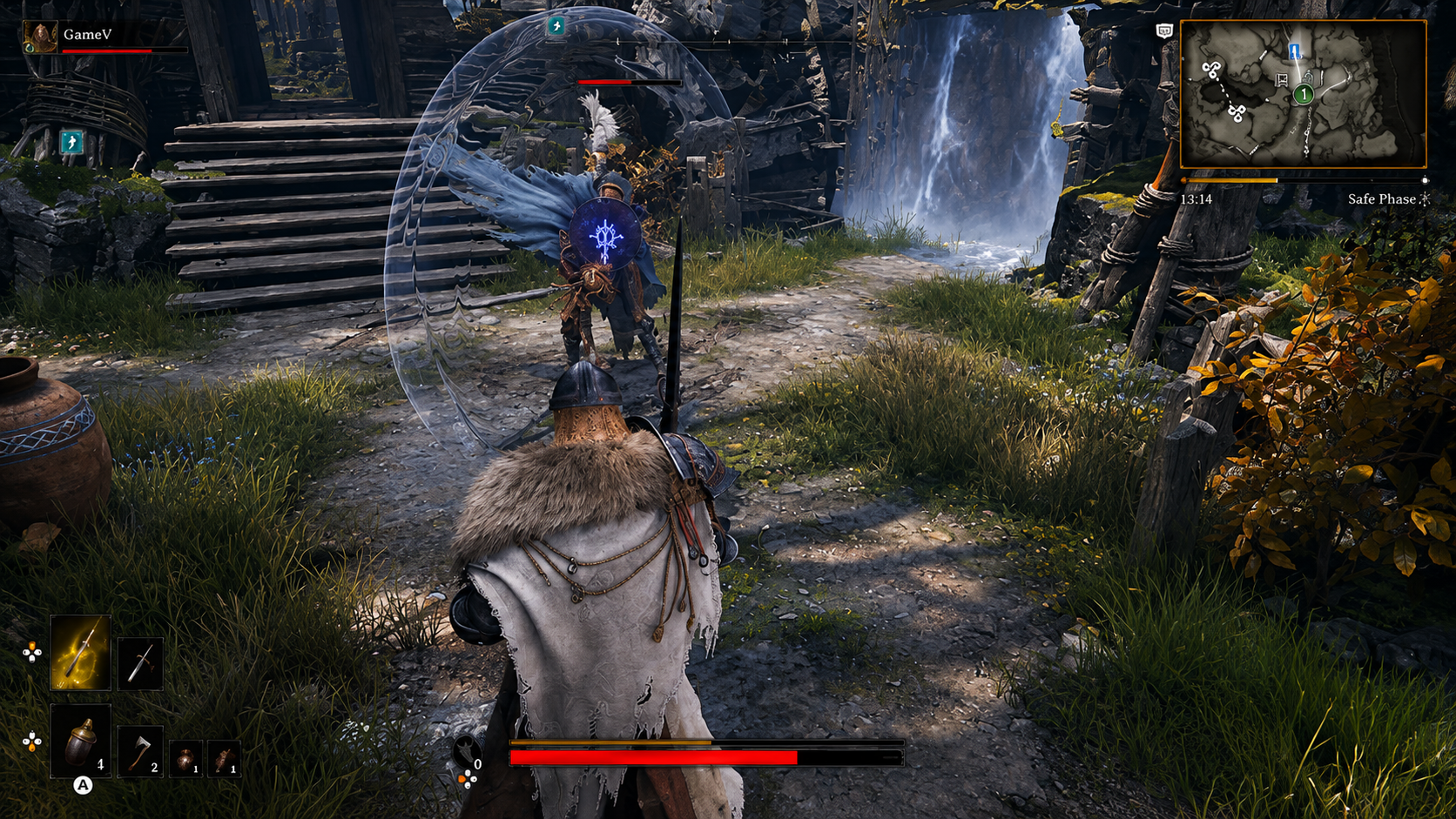
NVIDIA Control Panel Tweaks Worth Using
Normally I don’t recommend changing dozens of driver settings because many optimization guides exaggerate their impact. However, there are a handful of adjustments that consistently improved stability for me.
| Control Panel Option | Recommended Value |
|---|---|
| Power Management | Prefer Maximum Performance |
| Texture Filtering | Performance |
| Maximum Frame Rate | 2–3 FPS Below Monitor Refresh Rate |
| Vertical Sync | Fast (Only If Screen Tearing Appears) |
The biggest improvement came from forcing Maximum Performance mode. The GPU maintained higher boost clocks during longer sessions instead of occasionally dropping frequencies between lighter scenes. It isn’t a miracle fix, but every little bit helps when you’re chasing smoother frame times.
Windows Tweaks That Actually Matter
I usually ignore those giant optimization lists telling people to disable twenty Windows services. Most of them accomplish nothing.
There are, however, three adjustments I’d still recommend.
- Enable Hardware Accelerated GPU Scheduling (HAGS).
- Set Mistfall Hunter to High Performance in Windows Graphics Settings.
- Install the latest NVIDIA Game Ready Drivers.
The first run after a fresh driver installation still involves shader compilation, so don’t panic if the game feels slightly inconsistent during your initial matches. Performance generally stabilizes after you’ve explored more locations.
What FPS Should You Expect?
Real-world performance obviously depends on your processor, RAM speed, storage, and what’s happening on screen. Still, with a system roughly equivalent to a Ryzen 5 3600 or Core i7-9700 paired with an RTX 3060 12GB, these numbers felt realistic during my testing.
| Resolution | Graphics Settings | Expected Performance |
|---|---|---|
| 1080p + DLSS Quality | Medium / High Mix | 75–95 FPS |
| Heavy PvP Battles | Medium / High Mix | 65–75 FPS |
| 1440p + DLSS Balanced | Medium / High Mix | 55–65 FPS |
Those numbers won’t win benchmark competitions, but they provide something much more valuable: consistency. In extraction games, consistent performance usually beats higher average FPS with constant frame spikes.
Final Thoughts
After years of playing demanding PC games, I’ve become convinced that chasing Ultra settings is one of the biggest mistakes many players make. Developers often include them to showcase technology rather than provide the best gameplay experience.
Mistfall Hunter is a perfect example of that philosophy. The game already looks incredible with a balanced Medium and High configuration, while the performance difference compared to maxed-out settings is dramatic. I’d much rather have fluid dodges, reliable parries, and stable camera movement than prettier shadows I’ll never notice during a frantic PvPvE fight.
For RTX 3060 owners, the formula is refreshingly simple: keep Textures on High, reduce Shadows and Visual Effects to Medium, enable DLSS, switch to exclusive Fullscreen, and let the GPU focus on maintaining smooth gameplay instead of rendering unnecessary visual extras. It preserves the haunting atmosphere Bellring Games created while delivering the responsiveness that matters when every successful extraction could mean walking away with your best loot—or losing everything.