Tears of Metal Save Data Transfer: Can You Carry Progress to Full Game?
When I first jumped into Tears of Metal, I honestly expected to spend an hour testing the combat before moving on to something else. Instead, I kept coming back for “just one more run.” The fast-paced battles, satisfying melee combat, and constant progression made it surprisingly addictive, so when the Early Access version finally arrived, my first thought wasn’t about new content—it was much simpler: Can I keep everything I already earned in the demo?
If you’re asking yourself the same question, you’re definitely not alone. Ever since the game’s Steam Early Access launch, players across forums have been searching for ways to move their demo progression into the full release.
The short answer is no, not officially.
The longer answer is a bit more interesting.
In this guide, I’ll explain why the developers decided against native save transfers, whether the community workaround is actually worth trying, what risks you should know about, and what I’d personally recommend after spending time looking into how the game’s save system works.
Why Demo Saves Don’t Work Automatically
Many players expected the full release to recognize their old save files automatically.
That’s understandable.
Plenty of modern games allow progression from demos or betas to carry over into launch versions. Unfortunately, Tears of Metal isn’t one of them.
The developers rebuilt and rebalanced significant parts of the game before releasing Early Access. That includes progression systems, character growth, unlocks, economy values, and various gameplay mechanics.
Because of these changes, older save files simply don’t match the structure expected by the newer build.
Instead of risking broken progression or random crashes, the developers chose the safer route: Everyone starts fresh.
Personally, I think that was the right decision. Losing a few hours of progress is frustrating, but dealing with corrupted saves halfway through a promising roguelike would be much worse.
Why Save Compatibility Is Harder Than It Sounds
A save file isn’t just a list of unlocked items.
Modern roguelikes store enormous amounts of information, including:
- Character progression
- Currency balances
- Skill upgrades
- Equipment unlocks
- Random seed information
- World progression
- Quest states
- Internal version identifiers
If even one of those systems changes during development, older saves may reference values that simply don’t exist anymore.
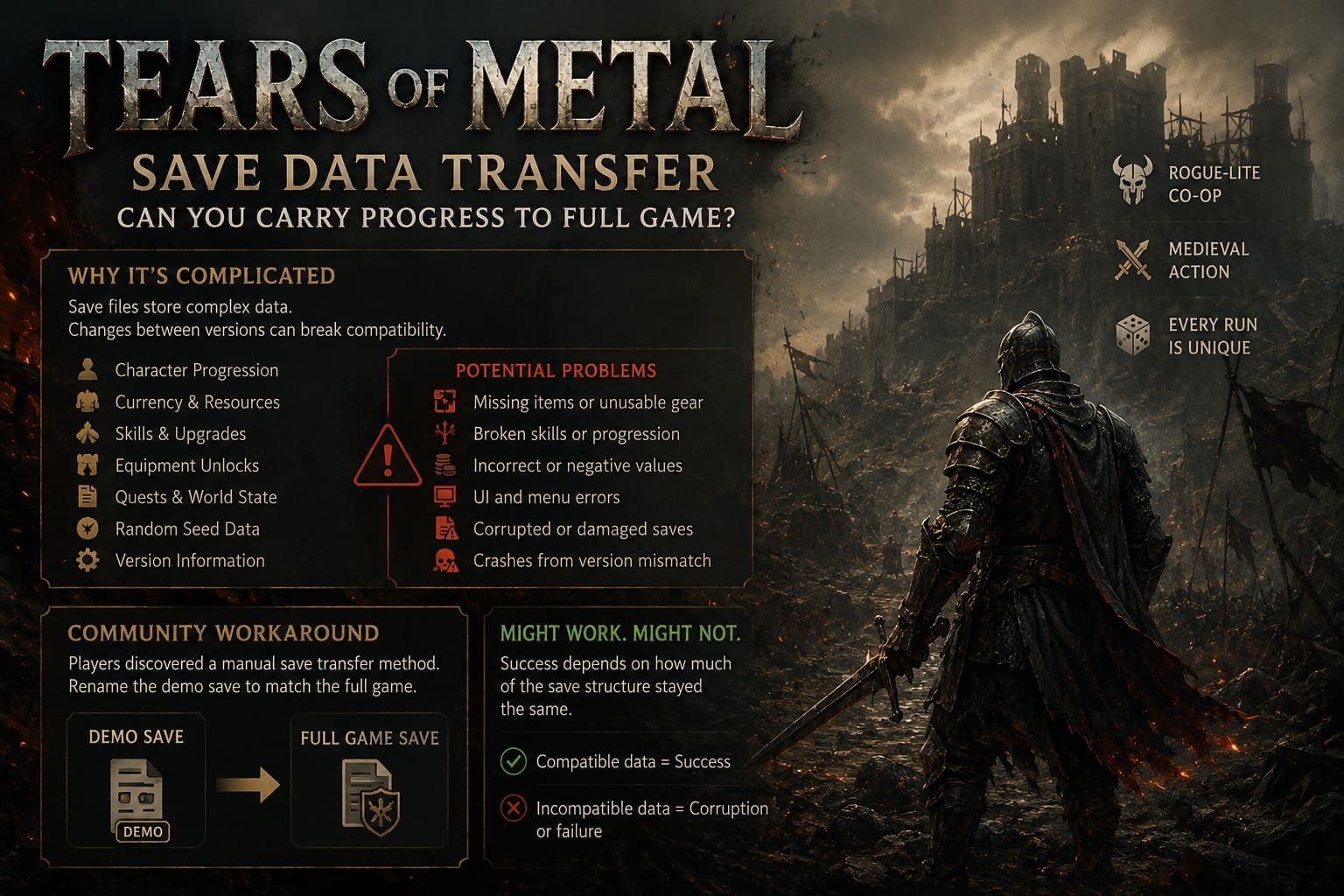
That can lead to:
| Possible Issue | What Happens |
|---|---|
| Missing item IDs | Equipment disappears or becomes unusable. |
| Invalid upgrade trees | Skills and progression stop working correctly. |
| Economy changes | Resources may display incorrect or negative values. |
| UI mismatches | Menus or interface elements fail to load properly. |
| Database conflicts | Save files become corrupted. |
| Version mismatch | The game may crash during startup or loading. |
This is one of the biggest reasons Early Access games frequently reset player progress.
The Community Found a Manual Workaround
Of course, PC gamers rarely accept “it’s impossible.”
Within days, players began experimenting with the locally stored save files.
Because Tears of Metal keeps its saves on your computer instead of encrypting everything, some users discovered that renaming the demo save file to match the full game’s save could sometimes load previous progression.
It sounds simple.
Sometimes it actually works.
Sometimes it absolutely doesn’t.
That’s important to understand before trying anything.
The method relies on the assumption that enough of the save structure remained unchanged between versions.
If your demo progression only contains data that still exists in the Early Access build, you might get lucky.
If not, the game may refuse to load or generate a corrupted save.
Should You Try the Manual Save Transfer?
Here’s my honest opinion.
If your demo character represented dozens of hours of grinding and you’re comfortable backing up files, it’s worth experimenting.
If you only played the demo casually, I’d skip the entire process.
Starting fresh actually lets you experience the rebalanced progression the way it was intended.
That’s especially true in roguelikes, where replayability is part of the design philosophy anyway.
I restarted without transferring anything and never really felt punished for it.
The new pacing made the early game enjoyable enough that rebuilding progress wasn’t nearly as painful as I expected.
Back Up Everything Before You Touch Your Save
This is probably the single most important piece of advice.
Never edit or rename your only save file.
Always create a backup first.
If something goes wrong, restoring your original data takes seconds instead of forcing you to begin from scratch.
A simple copy-and-paste into another folder is usually enough.
Storage is cheap.
Losing dozens of hours isn’t.
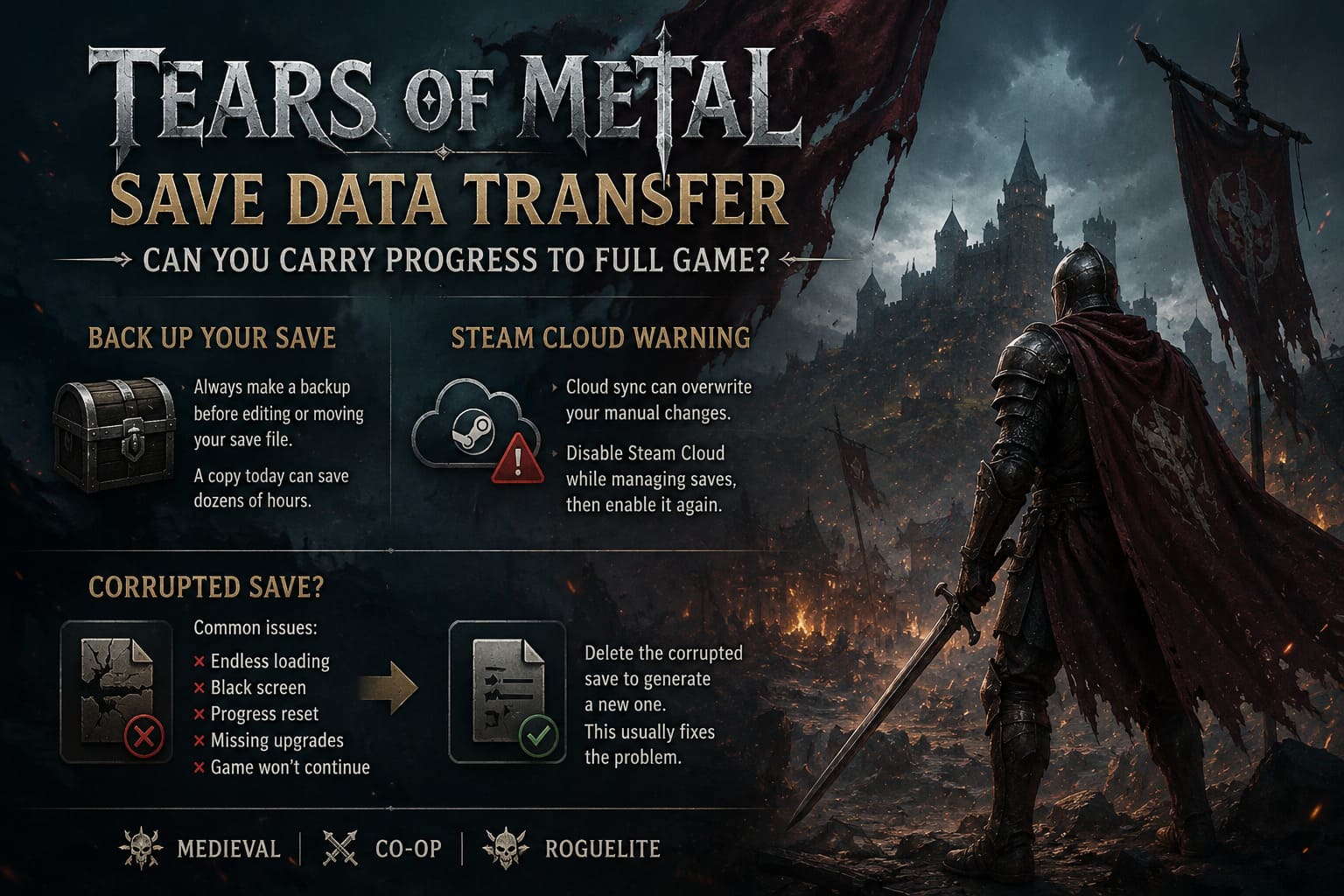
Why Steam Cloud Can Sometimes Cause Problems
One mistake many players overlook involves Steam Cloud synchronization.
Imagine this situation:
- You manually replace your save.
- Steam notices a conflict.
- Cloud synchronization restores an older version.
- Your manual changes disappear.
Even worse, the cloud may upload a corrupted save and overwrite your backup.
That’s why many experienced PC players temporarily disable Steam Cloud while experimenting with local files.
Once everything works correctly, synchronization can be enabled again.
It’s a small extra step that prevents a surprising number of headaches.
What Happens If the Save Becomes Corrupted?
Fortunately, corrupted saves usually aren’t permanent disasters.
The most common symptoms include:
- Endless loading screens
- Black screen after launch
- Progress resetting
- Missing upgrades
- Game refusing to continue
In many cases, simply removing the damaged save allows the game to generate a brand-new one the next time it starts.
While that doesn’t recover lost progression, it confirms that the issue was the save file rather than the game installation itself.
Is Restarting Really That Bad?
Honestly?
Not really.
One thing I appreciated after replaying the opening hours was how much smoother everything felt compared to the demo.
Enemy encounters seemed better balanced.
Unlock pacing felt more natural.
Several mechanics made much more sense once I experienced them in their updated form.
Sometimes restarting lets you appreciate improvements you might otherwise overlook.
Tips to Catch Up Faster
If you decide not to transfer your old save—or if the workaround fails—you can rebuild progress fairly quickly.
Here are a few habits that helped me:
- Prioritize permanent upgrades before cosmetic unlocks.
- Learn enemy attack patterns instead of rushing into every fight.
- Experiment with emblem combinations early rather than sticking to one setup.
- Invest in settlement progression, since long-term bonuses add up surprisingly fast.
- Accept failed runs as part of learning instead of viewing them as wasted time.
One successful run with smarter decisions often outweighs several average runs made with outdated strategies.
Tears of Metal Base Building Guide: How to Expand Your Settlement Fast
My Overall Recommendation
| Situation | Recommendation |
|---|---|
| You barely played the demo | Start fresh. |
| You invested many hours | Try the workaround only after creating a complete backup. |
| You don’t like editing files | Avoid manual save transfers. |
| You value stability | Begin a completely new save. |
| You’re comfortable troubleshooting PC games | Experiment carefully and expect possible issues. |
For most players, starting over is honestly the smoother experience.
The game was clearly balanced around a fresh beginning, and the updated progression feels much more polished than what the demo originally offered.
Tears of Metal Ember Farming Guide: How to Get Embers Fast (2026 Strategy)
Final Thoughts
It’s always disappointing when a favorite demo doesn’t let you carry progress into the full release. After spending hours unlocking upgrades, nobody enjoys seeing that progress disappear.
Still, in the case of Tears of Metal, the decision makes sense.
The developers significantly evolved the game between the demo and the Early Access launch, and maintaining compatibility with outdated save files could have introduced far more problems than benefits.
Yes, a manual workaround exists, and for experienced PC users it may even work successfully. But it should always be approached with realistic expectations. Save corruption, version conflicts, and unexpected behavior remain genuine possibilities.
If you’re anything like me, though, you’ll probably discover that starting fresh isn’t the setback it first appears to be. The updated balance, improved progression systems, and refined combat loop make the opening hours enjoyable enough that rebuilding your Scottish battalion feels less like repeating old content and more like experiencing the game as it was truly meant to be played.
In the end, whether you choose to experiment with save transfers or embrace a clean start, the most important thing is protecting your existing files and enjoying what is already shaping up to be one of the more promising co-op hack-and-slash roguelikes in Early Access. A careful backup takes only a minute, but it can save you from losing everything if your experiment doesn’t go as planned.