How to Fix Shift At Midnight Crash on Launch, Black Screen, and Freezing on Steam (2026 PC Guide)
When Shift At Midnight appeared on Steam, I expected a tense co-op horror experience filled with paranoia, strange customers, and the constant feeling that something wasn’t quite right. In many ways, that’s exactly what the game delivers. The randomly changing shifts, unsettling atmosphere, and detective mechanics create a refreshing take on multiplayer horror.
Unfortunately, my first impression wasn’t about creepy customers—it was about staring at a black screen.
Like many other players, I couldn’t even get into the game consistently. Sometimes it crashed before reaching the menu. Other times it froze after the developer logo. A few launches worked perfectly, only for the next one to fail without any obvious reason.
After digging through Steam discussions, Reddit posts, community Discord servers, and trying nearly every possible workaround myself, I eventually found a combination of fixes that made the game stable. If you’re dealing with launch crashes, freezing, or endless loading screens, these are the solutions worth trying before giving up.
Why Does Shift At Midnight Crash?
The game is built around procedural systems, multiplayer networking, and constantly changing environments. That’s great for gameplay, but it also means the startup process has a lot happening before you even reach the main menu.
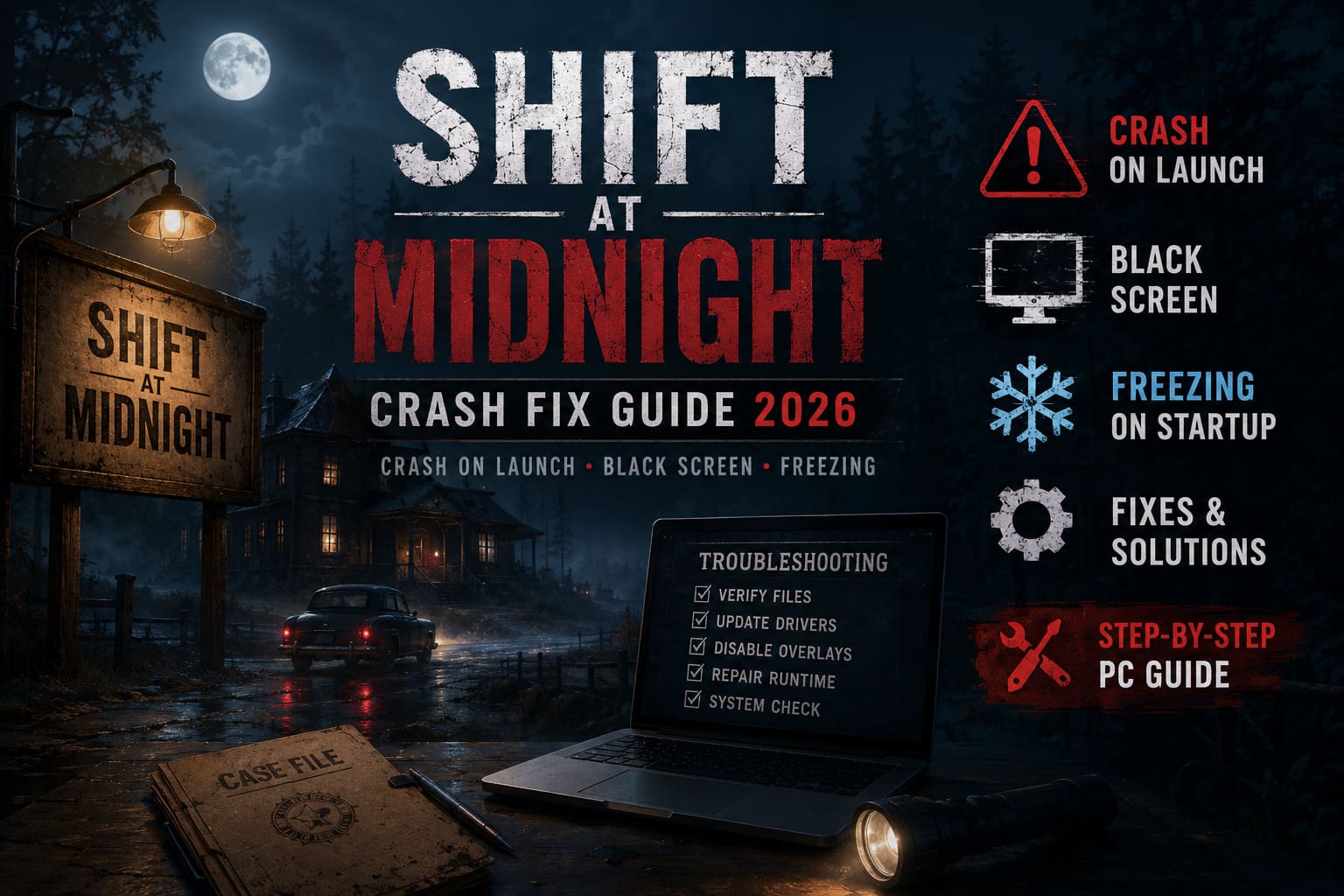
In my experience, the most common reasons include:
- Damaged or incomplete Steam files
- Outdated GPU drivers
- Windows selecting the wrong graphics processor
- Overlay software conflicting with Unity
- Missing Visual C++ components
- Security software blocking the executable
- Corrupted Windows system files
The good news is that most of these problems are surprisingly easy to fix.
Quick Troubleshooting Overview
| Problem | Most Likely Cause | Difficulty | Success Rate |
|---|---|---|---|
| Crash on launch | Corrupted files | Easy | Very High |
| Black screen | GPU driver or display conflict | Easy | High |
| Freezing on startup | Overlay software | Easy | High |
| Instant desktop crash | Runtime libraries | Medium | High |
| Random startup failures | Antivirus interference | Medium | Medium |
| Game won’t open at all | Windows corruption | Medium | Medium |
1. Verify Your Steam Installation First
This should always be the very first step.
Steam occasionally downloads corrupted files during release week, especially when developers push several hotfixes in a short period. Missing assets or broken configuration files can easily stop the game from launching.

Open your Steam Library, right-click Shift At Midnight, choose Properties, head to Installed Files, and select Verify Integrity of Game Files.
Steam will automatically compare every installed file with the official version and replace anything that’s damaged.
It only takes a few minutes and has solved launch crashes for countless players.
2. Update Your Graphics Driver the Right Way
Simply installing a newer graphics driver isn’t always enough.
If you’ve upgraded GPUs recently or installed multiple driver versions over time, leftovers from older installations can create strange problems that only affect certain games.
I strongly recommend doing a clean driver installation whenever possible.
If you’re comfortable with it, use Display Driver Uninstaller (DDU) in Safe Mode before installing the latest NVIDIA, AMD, or Intel driver.
After doing this, my startup black screen completely disappeared.
It’s one of those fixes that feels excessive until it suddenly solves everything.
3. Make Sure Windows Uses Your Dedicated GPU
Gaming laptops are especially notorious for launching new games on integrated graphics.
The game technically starts, but performance tanks—or it crashes immediately because the integrated GPU doesn’t support certain rendering features properly.
Open Windows Graphics Settings, browse to the game’s executable, and set its graphics preference to High Performance.
This forces Windows to use your dedicated GPU instead of the integrated one.
It’s amazing how often this simple setting fixes startup issues.
4. Launch in Windowed Mode
Fullscreen initialization is still one of the oldest causes of black screens on PC.
Some monitor combinations simply don’t agree with the game’s default display settings.
Open Steam Properties and add one of these launch options:
-windowed-adapter 0-adapter 1(if multiple monitors are connected)
These commands force different display behavior during startup.
If the game launches successfully in windowed mode, you can usually switch back to fullscreen afterward without further issues.
5. Disable Every Overlay You Can Think Of
This one surprised me.
I originally assumed Steam Overlay wouldn’t matter.
It absolutely did.
Modern overlays inject themselves directly into the rendering pipeline. Most games tolerate that just fine, but Unity-based titles occasionally react very differently.
Before launching Shift At Midnight, temporarily disable:
- Steam Overlay
- Discord Overlay
- MSI Afterburner
- RivaTuner Statistics Server
- NVIDIA Overlay
- OBS Game Capture hooks
If the game suddenly becomes stable afterward, you’ve found the culprit.
Personally, disabling RivaTuner solved random startup freezes that happened every second or third launch.
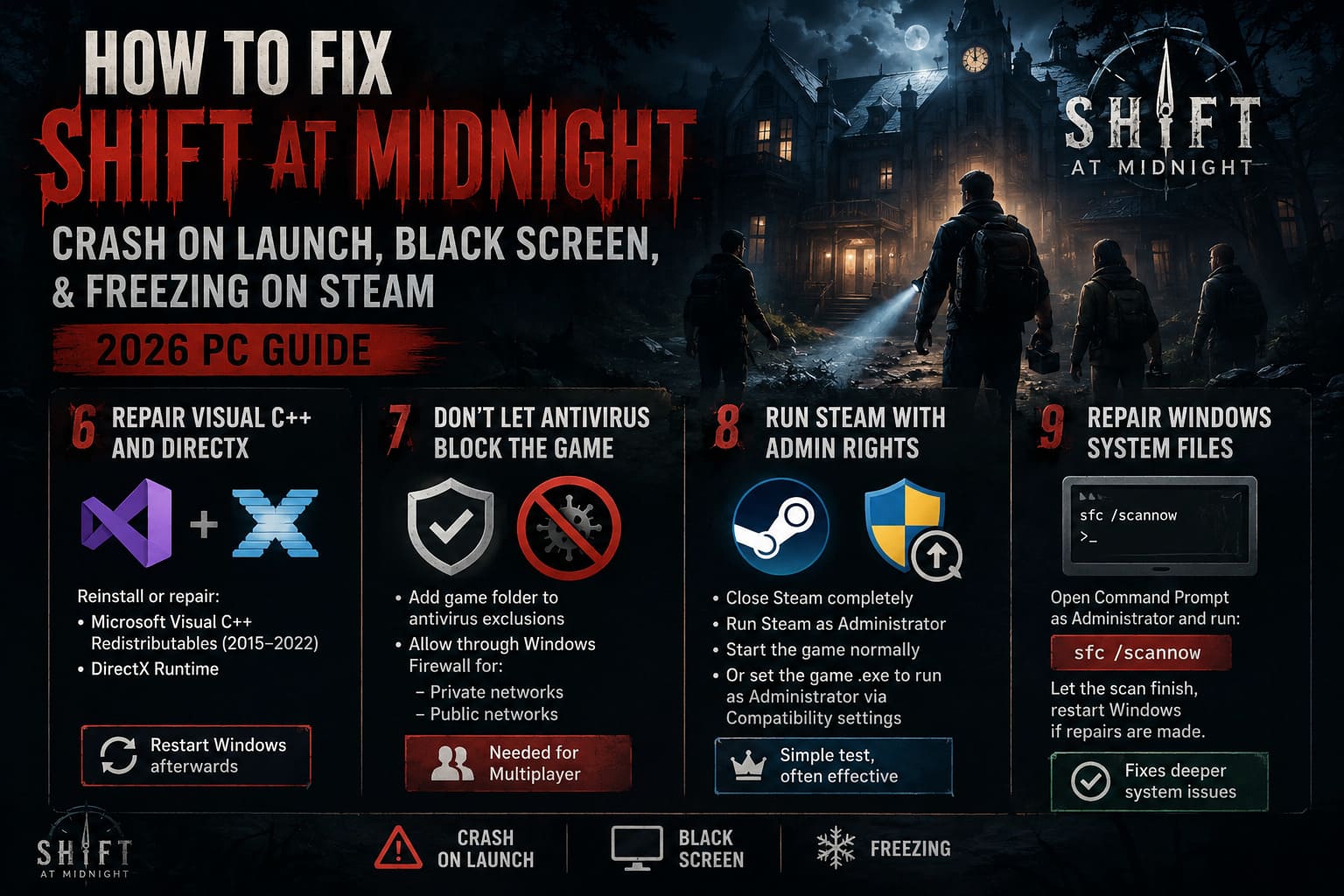
6. Repair Visual C++ and DirectX
Many players overlook runtime libraries because Windows already includes them.
The problem is that games don’t always use the same versions.
If one package becomes corrupted, startup crashes become surprisingly common.
Repair or reinstall:
- Microsoft Visual C++ Redistributables (2015–2022)
- DirectX Runtime
Restart Windows afterward before testing again.
It sounds basic, but plenty of launch issues disappear after refreshing these components.
7. Don’t Let Antivirus Kill the Game
Windows Security has become much more aggressive over the past few years.
Sometimes perfectly legitimate games get blocked before they even finish launching.
Adding the entire Shift At Midnight installation folder to your antivirus exclusions is often enough.
Also check Windows Firewall and confirm the game has permission for both:
- Private networks
- Public networks
This becomes especially important if you’re trying to join multiplayer sessions.
8. Run Steam with Administrator Rights
Normally I don’t recommend running everything as Administrator.
However, some Unity games still behave better when Steam itself has elevated permissions.
Close Steam completely.
Launch Steam using Run as Administrator, then start the game normally.
If that helps, you can also enable Administrator mode for the game’s executable through Compatibility settings.
It’s a quick test that’s worth trying.
9. Repair Windows System Files
If every other fix fails, the issue may not be the game at all.
Windows occasionally develops corrupted system files after updates or unexpected shutdowns.
Open Command Prompt as Administrator and run:
sfc /scannowLet the scan finish completely.
If Windows repairs damaged files, restart your PC before launching the game again.
This fix won’t help everyone, but when Windows itself is causing crashes, nothing else will permanently solve the problem.
Extra Tips That Improved Stability
These aren’t guaranteed fixes, but they noticeably improved my experience after the game finally started launching consistently.
Install the game on an SSD.
Procedural games constantly load small assets during startup.
Moving the installation from an older HDD to an SSD reduced loading time significantly and eliminated several freezes.
Close unnecessary background programs.
RGB software, hardware monitoring tools, browser tabs, and recording applications all consume memory.
Freeing a few gigabytes of RAM can make startup noticeably smoother.
Avoid aggressive overclocks.
Games built on Unity sometimes expose unstable CPU or GPU overclocks that appear perfectly stable elsewhere.
If you’re overclocking, try returning everything to stock settings while troubleshooting.
Recommended Troubleshooting Order
Instead of trying every fix randomly, I’d follow this order:
| Step | Action | Estimated Time |
|---|---|---|
| 1 | Verify Steam files | 5 minutes |
| 2 | Update GPU driver | 15 minutes |
| 3 | Disable overlays | 3 minutes |
| 4 | Force dedicated GPU | 2 minutes |
| 5 | Repair Visual C++ | 10 minutes |
| 6 | Add antivirus exclusions | 5 minutes |
| 7 | Launch as Administrator | 2 minutes |
| 8 | Run SFC scan | 20 minutes |
| 9 | Reinstall the game if necessary | 30–60 minutes |
Shift At Midnight Post-Launch Roadmap 2026: New DLC, Game Pass Updates, and Endless Mode Content
Final Thoughts
I genuinely enjoy what Shift At Midnight is trying to do. Its blend of psychological horror, deduction, and cooperative gameplay feels different from the flood of survival horror games released recently. That’s why it’s frustrating to see technical issues getting in the way for so many players during launch week.
Fortunately, most startup crashes aren’t permanent bugs hiding deep inside the game. More often than not, they’re caused by corrupted downloads, outdated drivers, display conflicts, or software running quietly in the background.
If I had to recommend only three fixes, they’d be verifying the Steam files, performing a clean GPU driver update, and disabling every overlay application. Those three solved the majority of problems reported across the community and were also the biggest difference on my own system.
Hopefully, upcoming patches will smooth out many of these rough edges, as early updates often improve Unity stability, memory handling, and multiplayer initialization. Until then, the methods above give you the best chance of getting back into the game instead of fighting with your PC.
Once everything is working properly, you can finally focus on the real challenge—figuring out which customers are hiding something far more terrifying than an overdue shift.