Best Echoes of Aincrad NVIDIA Control Panel Settings: Fix Low FPS and Stutters
After spending years playing everything from massive open-world RPGs to poorly optimized early-access titles, I have learned one important thing: great gameplay can still be ruined by bad performance. Echoes of Aincrad is a perfect example of this situation. The game captures the atmosphere of Sword Art Online surprisingly well, offering a large world, fast sword combat, and an adventure that feels much bigger than many players expected. However, the PC version also comes with frustrating technical problems that can seriously affect the experience.
Many players have reported low FPS, unstable frame pacing, sudden stutters, and heavy performance drops. What makes these issues even more disappointing is that they are not limited to weaker gaming PCs. Even users with powerful GPUs like the RTX 4070 and RTX 5070 have experienced major frame drops when entering demanding locations such as the Town of Beginnings or other areas filled with NPCs, effects, and environmental details.
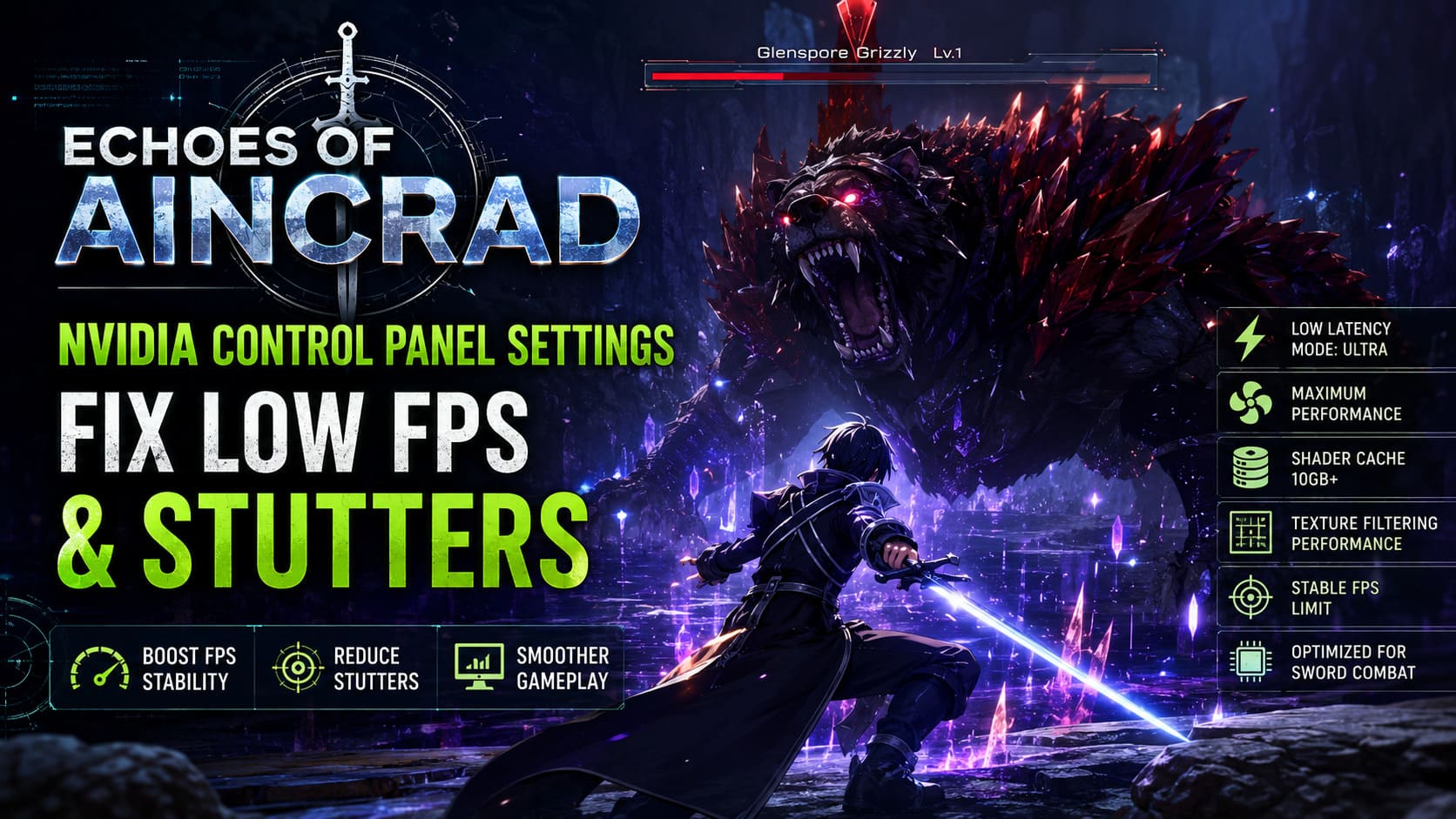
From my experience with PC gaming, these problems usually point toward optimization issues rather than a lack of hardware power. When a game engine struggles with shader loading, CPU scheduling, or GPU power management, lowering graphics settings alone does not always solve the problem. Sometimes the best solution is taking manual control through the NVIDIA Control Panel and forcing your hardware to deliver more consistent performance.
Echoes of Aincrad Denuvo Bypass & Low FPS Fix: How to Stop Stuttering
This guide covers the best NVIDIA Control Panel settings for Echoes of Aincrad to improve FPS stability, reduce stuttering, lower input delay, and create a smoother overall gameplay experience.
Why Echoes of Aincrad Has FPS Drops and Stuttering Problems
Echoes of Aincrad looks impressive, but its ambitious design creates several technical challenges. The game constantly loads new environments, enemies, effects, and visual assets while you explore the world. These background processes can create sudden frame-time spikes that feel like freezes or micro-stutters.
The biggest performance problems usually come from several areas:
- Shader compilation happening during gameplay
- Unstable GPU clock speeds
- Inconsistent frame pacing when FPS constantly changes
- CPU bottlenecks in crowded locations
- Limited optimization options inside the game settings menu
The good news is that NVIDIA users can fix many of these issues by creating a dedicated profile specifically for Echoes of Aincrad. Instead of allowing Windows and the driver to automatically decide how your hardware should behave, you can manually optimize important settings.
How to Create a Custom NVIDIA Profile for Echoes of Aincrad
Before changing any options, avoid modifying the global NVIDIA settings. Global changes affect every game installed on your computer, and a configuration that helps Echoes of Aincrad might negatively impact other titles.
Create a separate profile by following these steps:
- Right-click on your desktop and open NVIDIA Control Panel.
- Select Manage 3D Settings from the menu on the left.
- Open the Program Settings tab.
- Click Add and select Echoes of Aincrad from the recent applications list.
- If the game does not appear, click Browse and manually locate the Echoes of Aincrad executable file inside your Steam folder.
- Select the game’s .exe file and apply the profile.
Once the custom profile is created, you can start adjusting the settings that have the biggest impact on performance.
Best NVIDIA Control Panel Settings for Echoes of Aincrad
| NVIDIA Setting | Recommended Option | Why It Helps |
|---|---|---|
| Low Latency Mode | Ultra | Reduces input delay during combat |
| Power Management Mode | Prefer Maximum Performance | Prevents GPU clock drops |
| Shader Cache Size | 10GB or Unlimited | Reduces shader-related stutters |
| Texture Filtering Quality | Performance | Improves FPS stability |
| Vertical Sync | Off or Application Controlled | Avoids unnecessary input delay |
| Threaded Optimization | On | Improves CPU multi-core usage |
| Max Frame Rate | Monitor refresh rate or 60 FPS | Creates smoother frame pacing |
Low Latency Mode: Set It to Ultra
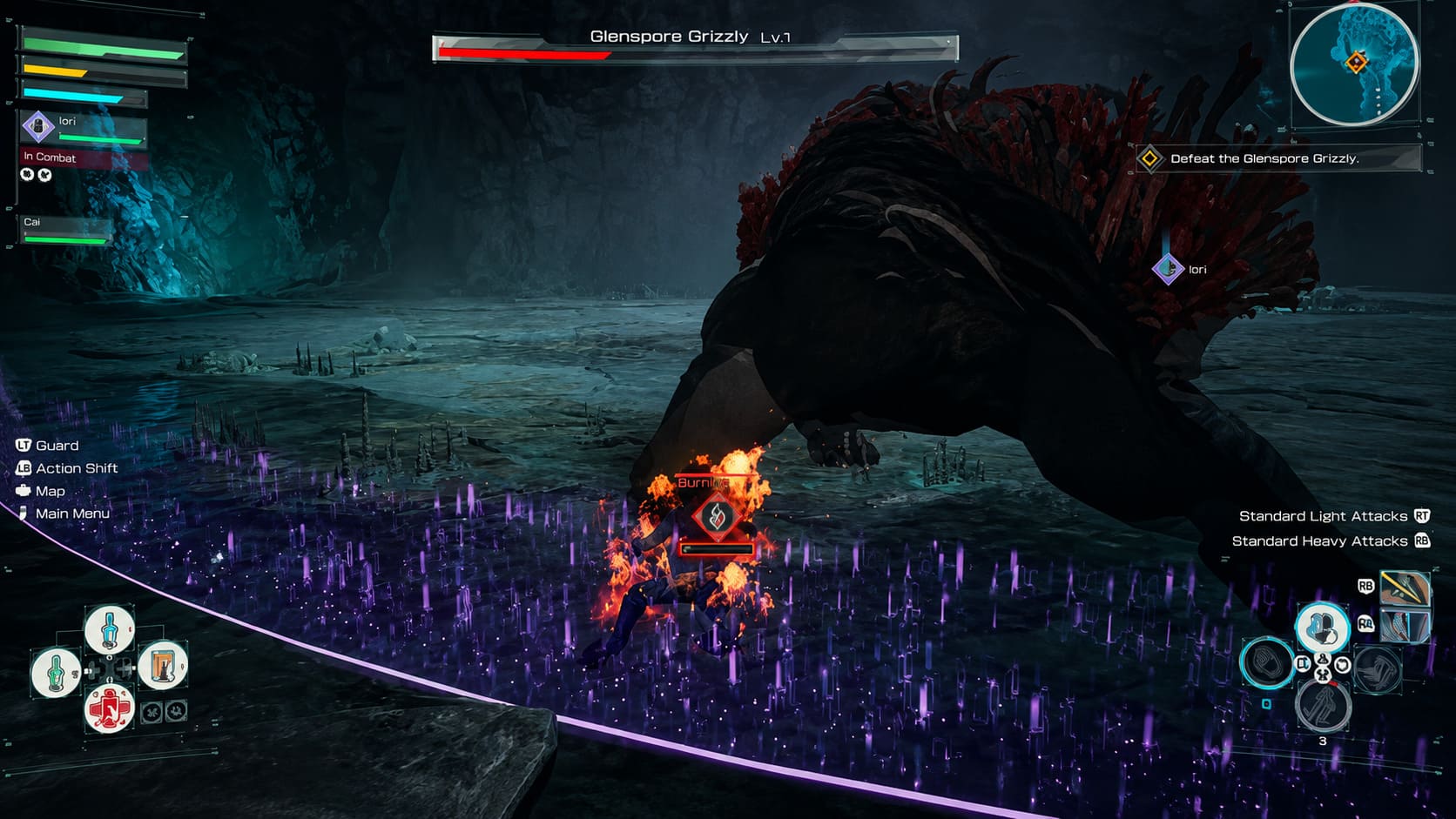
Echoes of Aincrad relies heavily on reaction-based combat. Blocking attacks, timing dodges, and activating sword skills require quick responses. Even small amounts of input delay can make the combat system feel slower and less responsive.
Setting Low Latency Mode to Ultra reduces the delay between your mouse, keyboard, controller input, and the final frame displayed on your monitor. The difference is especially noticeable during boss fights or battles where timing is important.
Personally, I prefer lower latency over chasing unnecessary FPS numbers in action games. A stable 90 FPS with responsive controls usually feels much better than a higher frame rate with noticeable input delay.
Power Management Mode: Prefer Maximum Performance
Modern NVIDIA GPUs automatically adjust their clock speeds depending on workload. Normally, this helps reduce power consumption, but some games suffer when the GPU suddenly lowers its frequency and then has to boost again during demanding moments.
Changing Power Management Mode to Prefer Maximum Performance keeps your graphics card ready for heavier scenes. This can help remove small freezes and performance drops caused by unstable GPU behavior.
This setting may increase power usage and temperatures slightly, but for a demanding game like Echoes of Aincrad, the improvement in consistency is usually worth it.
Shader Cache Size: Increase to 10GB or Unlimited
Shader compilation stuttering is one of the biggest problems in modern Unreal Engine games. Instead of having every visual effect prepared before launch, some games compile shaders while you are already exploring the world.
In Echoes of Aincrad, this can happen when entering new floors, discovering new locations, fighting unfamiliar enemies, or moving through areas with complex visuals.
Increasing the Shader Cache Size to 10GB or Unlimited allows NVIDIA drivers to store more compiled shaders on your SSD. This reduces repeated shader processing and makes camera movement, exploration, and combat transitions much smoother.
Texture Filtering Quality: Set It to Performance
If you are playing on a mid-range graphics card, changing Texture Filtering Quality from Quality to Performance can provide additional stability.
The visual difference is extremely difficult to notice during normal gameplay, especially during fast combat situations. However, this setting reduces GPU workload slightly and can help maintain higher FPS in crowded areas.
This option alone will not dramatically increase performance, but combined with other optimizations it can improve overall smoothness.
Vertical Sync: Avoid Forcing It Through NVIDIA
I recommend leaving Vertical Sync disabled in NVIDIA Control Panel or allowing the game application to control it.
Forced VSync can introduce additional input delay, which is not ideal for a fast action combat system. If you own a G-Sync monitor, adaptive synchronization combined with a proper FPS limit is usually a better solution.
Threaded Optimization: Turn It On
Echoes of Aincrad appears to experience CPU-related performance issues in large areas with many objects, characters, and effects on screen. These situations can create additional pressure on the main processor thread.
Turning Threaded Optimization On allows NVIDIA drivers to better distribute certain tasks across multiple CPU cores. Players using modern processors such as Ryzen 7, Ryzen 9, Intel Core i7, or Core i9 CPUs can especially benefit from keeping this option enabled.
Set a Stable FPS Limit
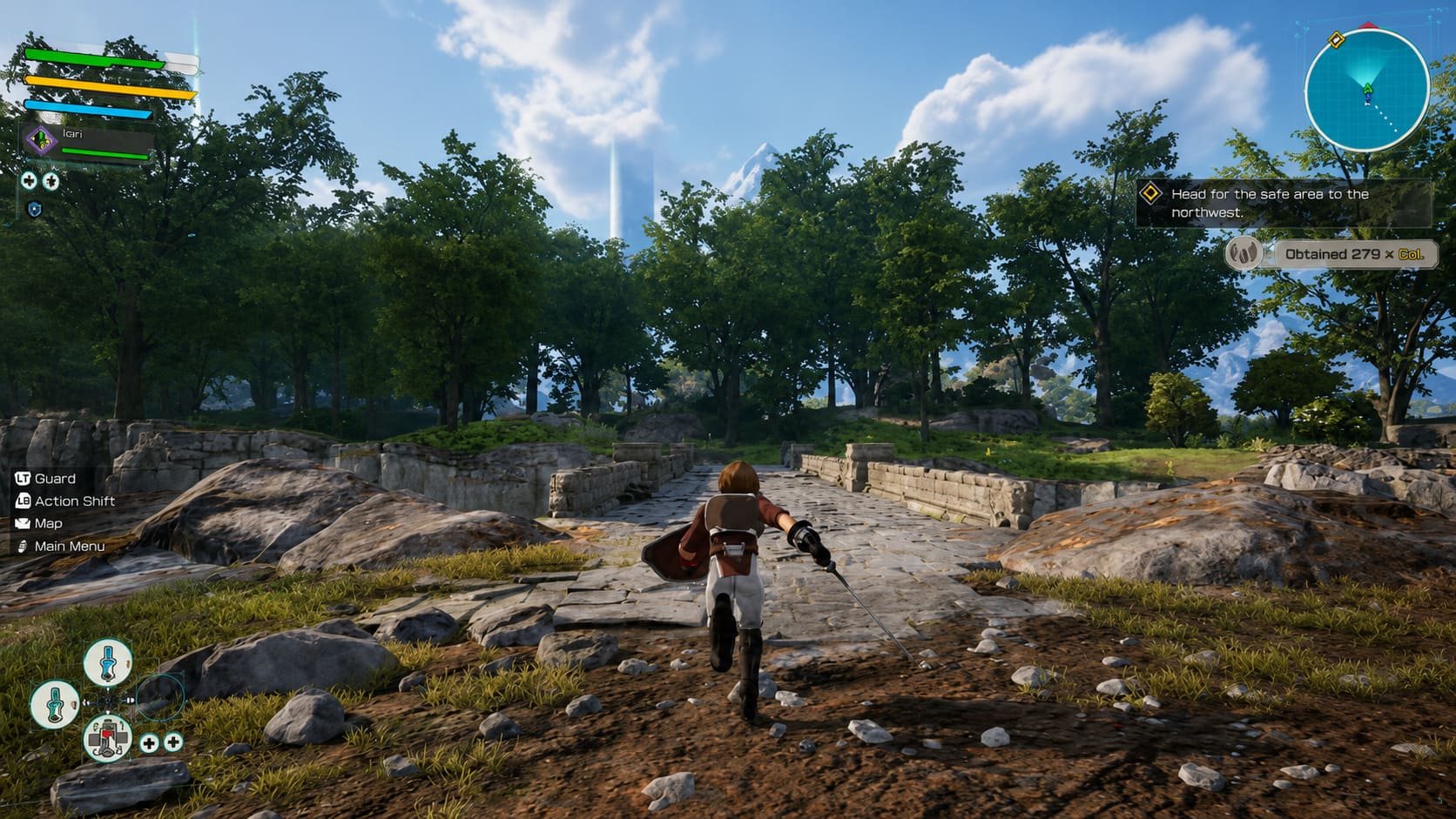
Many players make the mistake of leaving their FPS completely unlimited. While seeing extremely high numbers looks impressive, unstable frame rates often feel worse than a lower but consistent target.
For example, dropping from 120 FPS to 50 FPS creates a much worse experience than maintaining a stable 60 FPS.
Recommended limits:
- 60 FPS for mid-range gaming PCs
- 120 FPS for powerful systems that can maintain it consistently
- A cap slightly below monitor refresh rate when using VRR technologies
A smooth frame-time graph is usually more important than the highest possible FPS number.
Additional Windows Tweaks for Better Performance
Enable Hardware-Accelerated GPU Scheduling (HAGS)
Windows includes a feature called Hardware-Accelerated GPU Scheduling that can improve how your system manages graphics workloads.
To enable it:
- Open Windows Settings.
- Go to System → Display → Graphics Settings.
- Enable Hardware-Accelerated GPU Scheduling.
- Restart your computer.
This changes how GPU memory scheduling works and may provide a smoother performance baseline in modern games.
Force High Performance GPU Mode
Some systems with integrated and dedicated graphics can accidentally launch games using the weaker GPU. This can cause extremely poor performance.
To force Echoes of Aincrad to use your NVIDIA graphics card:
- Open Windows Graphics Settings.
- Add the Echoes of Aincrad executable.
- Select Options.
- Choose High Performance.
- Save the changes.
Final Thoughts
Echoes of Aincrad has plenty of potential. The atmosphere, combat mechanics, and Sword Art Online-inspired world create an experience that fans of the franchise will appreciate. However, like many ambitious PC releases, the technical side requires some extra attention.
The NVIDIA Control Panel settings above will not turn an old PC into a high-end gaming machine, but they can significantly improve FPS stability, reduce stuttering, and make combat feel much more responsive.
For me, smooth performance has always been more important than simply pushing maximum graphics settings. A beautiful game that freezes during an important battle is still a frustrating experience. With these adjustments, Echoes of Aincrad becomes much closer to the smooth adventure it was clearly designed to provide.