How to Fix Palworld Co-op World Crashing on Loading Screen (Xbox Game Pass PC & Console)
There are few things more frustrating than finally getting everyone online for a co-op session, only to watch Palworld freeze on the loading screen. I’ve played survival games for years—from ARK and Conan Exiles to Valheim and Enshrouded—and one thing they all have in common is that multiplayer can be unpredictable after major updates. Palworld is no exception. While the game is incredibly fun, especially with friends, the Xbox Game Pass version has been known to struggle with loading multiplayer worlds.

After trying countless community suggestions and testing several of them myself, I found that most loading crashes aren’t random at all. They’re usually caused by save synchronization, overloaded worlds, or Game Pass-specific quirks rather than permanent save corruption. The good news is that many players have managed to recover their worlds without losing progress.
How to Fix Palworld Multiplayer Connection Timed Out Error on Steam
Why Does Palworld Crash Before a Co-op World Loads?
Unlike the Steam version, the Xbox Game Pass release has to communicate with Xbox services every time a multiplayer world is opened. That means the game isn’t just loading terrain, buildings, and creatures—it also verifies cloud saves, authenticates players, initializes multiplayer networking, and prepares every object inside the world.
If one of those processes fails, the loading bar may freeze forever, or the game may simply close without displaying a useful error message.
From my experience, the most common causes include:
- Cloud save synchronization issues
- Too many active Pals at large bases
- Memory management problems
- Corrupted cache files after updates
- Outdated GPU drivers
- Permission conflicts inside Windows
Interestingly, I’ve noticed that the larger my bases became, the longer every loading screen lasted. Once automation started expanding across multiple settlements, stability became noticeably worse.
The Best Fix: Load the World in Single Player First
If there’s one workaround that consistently succeeds, it’s temporarily disabling multiplayer before opening your save.
Instead of immediately trying to launch the co-op session, open your world’s settings and switch multiplayer off. Load the world as a single-player game, spend half a minute moving around, then exit back to the main menu. After that, enable multiplayer again and reload the same world.
It sounds strange, but it appears to let the engine fully initialize the save before networking starts. Among all the methods I’ve tested, this has been the most reliable.
Why It Works
The game loads the world’s assets first without simultaneously trying to establish online connections. Once everything has stabilized, multiplayer can often initialize without triggering the loading screen bug.
Create a Temporary World Before Loading Your Main Save
Another surprisingly effective trick involves creating an entirely new world.
This isn’t about starting over. You’re simply forcing the engine to load fresh assets into memory before opening your actual save.
Follow these steps:
- Create a brand-new multiplayer world.
- Skip character customization as quickly as possible.
- Spawn into the new map.
- Return to the title screen.
- Load your existing co-op world.
I’ve seen this solve problems after updates where my primary save refused to load at all.
Verify the Game Files
Game Pass updates occasionally leave behind incomplete or damaged files. Unlike Steam, where verifying files is something many PC players already know about, Xbox App users often overlook this option.
Open the Xbox App, locate Palworld, select Manage, and use the Verify and Repair feature.
If missing files are detected, they’ll be downloaded automatically.
It’s also worth restarting Windows afterward. Cached system files sometimes remain active until a reboot.

Give Palworld Administrator Permissions
Windows security can occasionally interfere with games that constantly update save data.
Running Palworld with administrator privileges allows it to modify local files and communicate with Xbox services without unnecessary permission conflicts.
This isn’t a miracle solution, but it’s easy to try and has helped many players avoid crashes immediately after launching multiplayer sessions.
Rebuild the Xbox Cloud Save
This is the method I recommend only after creating a proper backup.
If your local save and cloud save become out of sync, the loading process may never finish because the game keeps attempting to compare conflicting data.
Before changing anything:
- Back up your save folder.
- Never delete files without a backup.
- Make sure the game is fully closed before restoring your files.
Once your local save has been refreshed and synchronized again, many loading problems disappear completely.
Losing dozens of hours of progress would be far worse than spending five minutes creating a backup first.
Reduce Graphics Settings Before Opening the World
One mistake players often make is assuming loading crashes are entirely network-related.
They’re not.
Large Palworld bases consume an enormous amount of VRAM during the initial loading process. Hundreds of structures, automated production lines, lighting effects, and dozens of active Pals all need to be loaded simultaneously.
Temporarily lowering your graphics settings can reduce that initial memory spike.
Consider changing:
- Graphics Preset → Medium or Low
- Anti-Aliasing → FXAA or Off
- FPS Limit → 60 or 120
- Display Mode → Windowed
Once your world loads successfully, you can usually restore your preferred settings.
Small Changes That Prevent Future Crashes
After recovering your world, it’s worth making a few adjustments that improve long-term stability.
One habit I’ve developed is never logging out inside a massive production base. Instead, I travel to an open field before leaving the server.
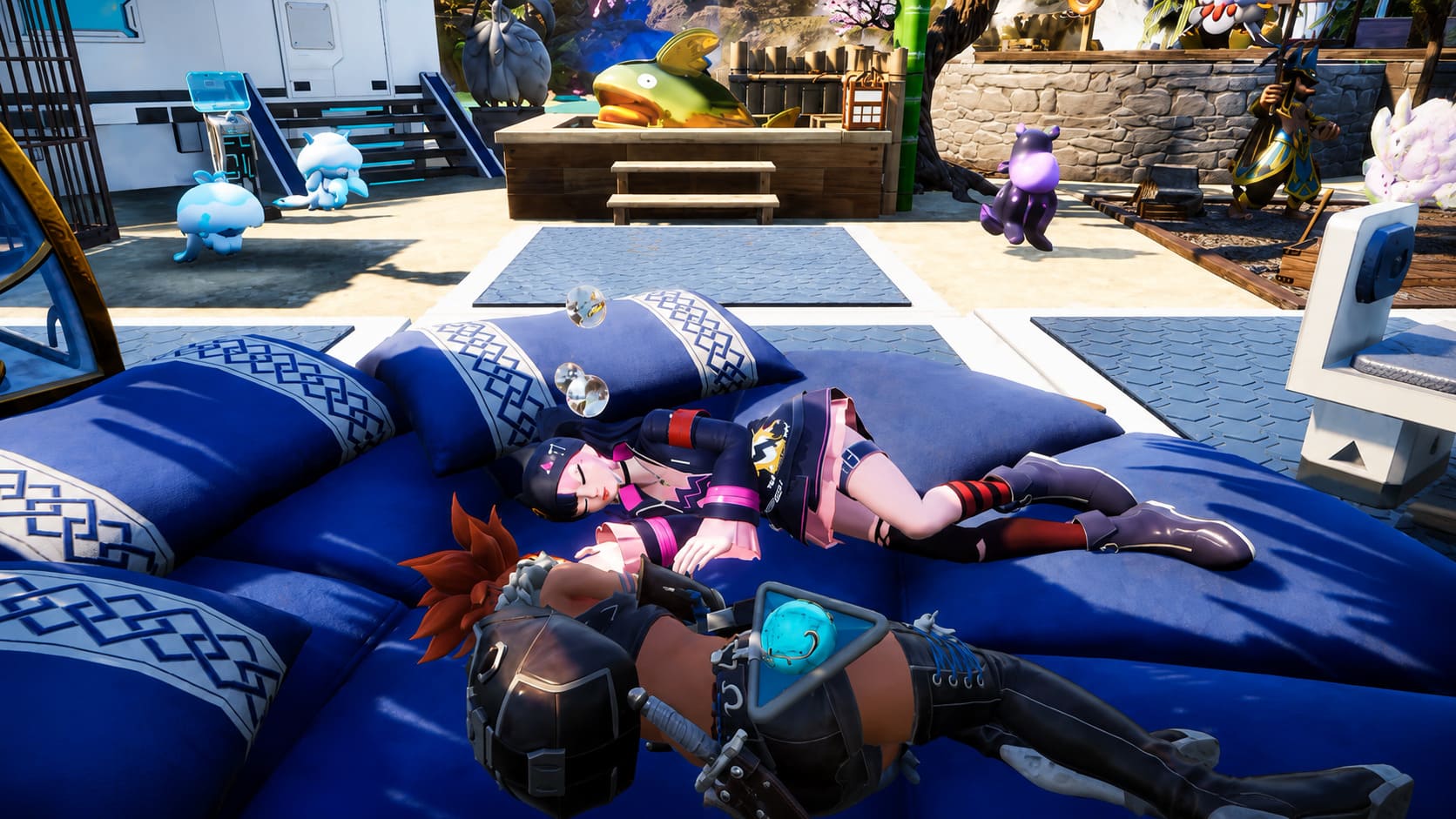
I’ve also stopped filling every workstation with workers just because I could. While watching dozens of Pals automate everything looks impressive, it also creates a huge amount of AI processing every time the world loads.
Some additional habits that help:
- Store unused Pals instead of leaving them active.
- Avoid logging out inside caves or dungeons.
- Keep extremely large bases organized.
- Install graphics driver updates regularly.
- Allow Xbox Cloud Sync to finish before closing the game.
These aren’t guaranteed fixes, but together they noticeably reduce stability problems.
Quick Comparison of the Most Effective Solutions
| Fix | Difficulty | Success Rate | Recommended |
|---|---|---|---|
| Disable Multiplayer, Load, Re-enable | Very Easy | ★★★★★ | Yes |
| Create Temporary World First | Easy | ★★★★☆ | Yes |
| Verify Game Files | Easy | ★★★★☆ | Yes |
| Run as Administrator | Very Easy | ★★★☆☆ | Yes |
| Re-sync Cloud Saves | Medium | ★★★★★ | Backup First |
| Lower Graphics Settings | Very Easy | ★★★☆☆ | Helpful for Large Worlds |
Final Thoughts
Despite these frustrating crashes, I still think Palworld remains one of the most entertaining survival games released in recent years. The combination of creature collecting, automation, exploration, and multiplayer creates a gameplay loop that’s surprisingly addictive. Unfortunately, the Xbox Game Pass version has occasionally lagged behind the Steam release in terms of stability, especially for players running huge co-op worlds.
Thankfully, most loading screen crashes don’t mean your save is ruined. In many cases, it’s simply the result of synchronization errors, overloaded memory, or temporary Game Pass issues. Working through the fixes above one at a time usually gets players back into their worlds without sacrificing hours of progress.
Until future optimization updates improve multiplayer stability, keeping your bases manageable, backing up important saves, and using the single-player loading trick remain the most dependable ways to keep your adventures going with friends.