Palworld 1.0 Best Graphics Settings for RTX 4060 Laptop (2026 Optimization Guide)
Palworld 1.0 is one of those games that can fool you. At first glance, its colorful world doesn’t look particularly demanding, but after a few hours—especially once your base is packed with workers, conveyor belts, automated crafting stations, and dozens of active Pals—you quickly realize that this game can bring even powerful gaming laptops to their knees.
I’ve spent far too many evenings tweaking graphics settings, comparing frame rates, and reading discussions across Reddit and PC gaming communities. After testing different configurations on an RTX 4060 laptop, I eventually found a setup that feels like the sweet spot between visuals and performance.
If your goal is high FPS without making the game look bland, these are the settings I’d recommend.
Why the RTX 4060 Laptop Is Perfect for Palworld
There’s a reason why the RTX 4060 mobile has become one of the most popular laptop GPUs. It delivers excellent performance without requiring an oversized desktop replacement.
Some of its biggest advantages include:

- 8GB GDDR6 VRAM, which is plenty for high-quality textures.
- Support for DLSS, Frame Generation, and NVIDIA Reflex.
- Excellent efficiency thanks to the Ada Lovelace architecture.
- Great performance at both 1080p and 1440p.
The only real limitation isn’t the GPU itself.
It’s heat.
Unlike desktop graphics cards, laptop versions operate under strict thermal and power limits. Once temperatures climb, boost clocks begin dropping, and that’s usually when random FPS dips start appearing.
That means optimizing Palworld isn’t just about increasing FPS—it’s also about keeping performance stable during longer sessions.
The Graphics Settings That Made the Biggest Difference
Instead of simply selecting the High or Epic preset, I recommend adjusting several options manually.
Here’s the configuration I’ve had the best experience with.
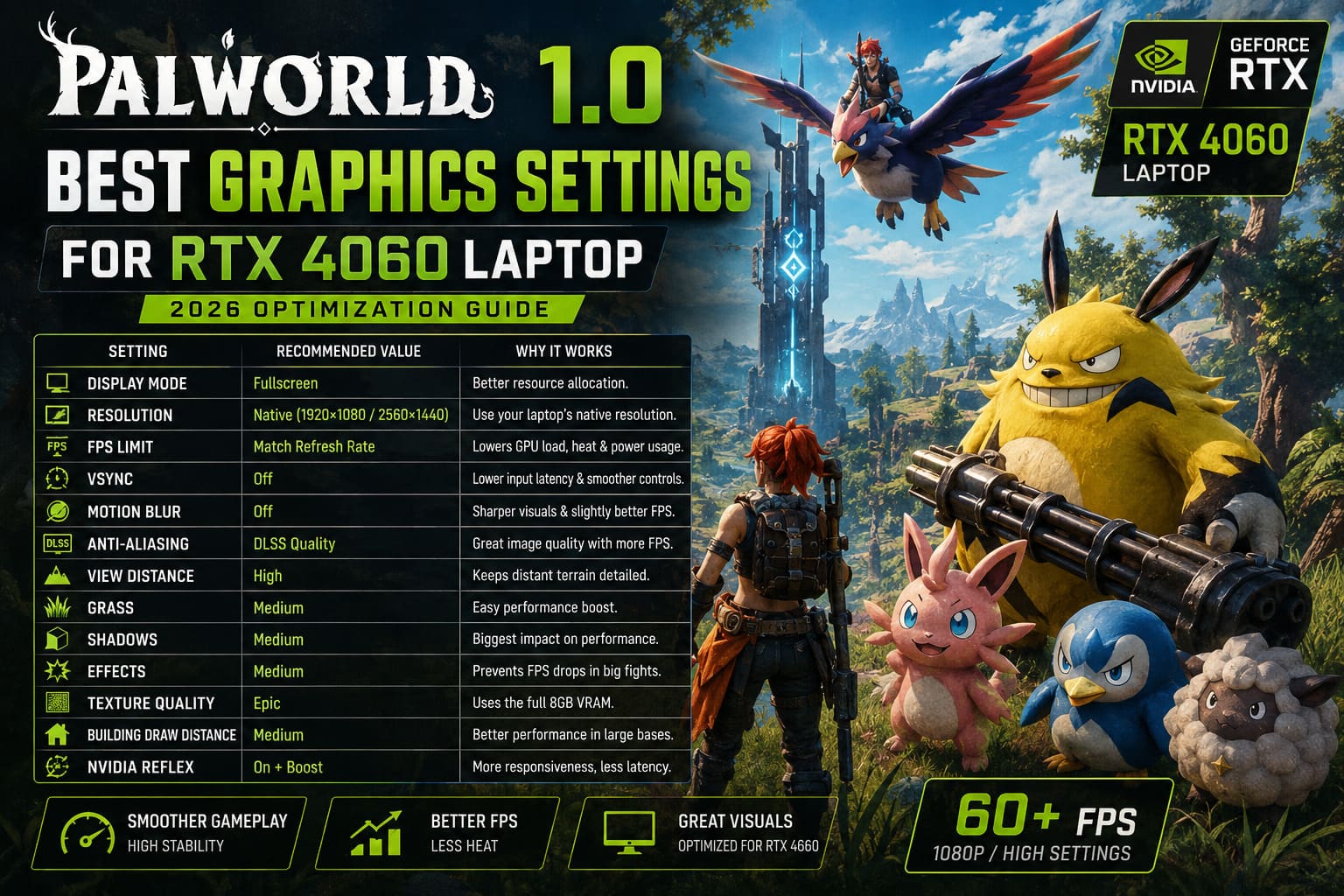
| Setting | Recommended Value | Why It Works |
|---|---|---|
| Display Mode | Fullscreen | Better resource allocation. |
| Resolution | Native | Use either 1920×1080 or 2560×1440 depending on your laptop display. |
| FPS Limit | Match Refresh Rate | Reduces unnecessary GPU load, heat, and power consumption. |
| VSync | Off | Lower input latency and smoother controls. |
| Motion Blur | Off | Sharper visuals while moving and slightly better performance. |
| Anti-Aliasing | DLSS Quality | Excellent image quality with a noticeable FPS increase. |
| View Distance | High | Keeps distant terrain detailed without heavily impacting performance. |
| Grass | Medium | One of the easiest ways to gain extra frames. |
| Shadows | Medium | The single biggest graphics optimization. |
| Effects | Medium | Prevents FPS drops during boss fights and large battles. |
| Texture Quality | Epic | Takes full advantage of the RTX 4060’s 8GB VRAM. |
| Building Draw Distance | Medium | Improves performance around large automated bases. |
| NVIDIA Reflex | On + Boost | Improves responsiveness and offsets any additional latency. |
These settings consistently gave me the smoothest experience without making Palworld feel visually downgraded.
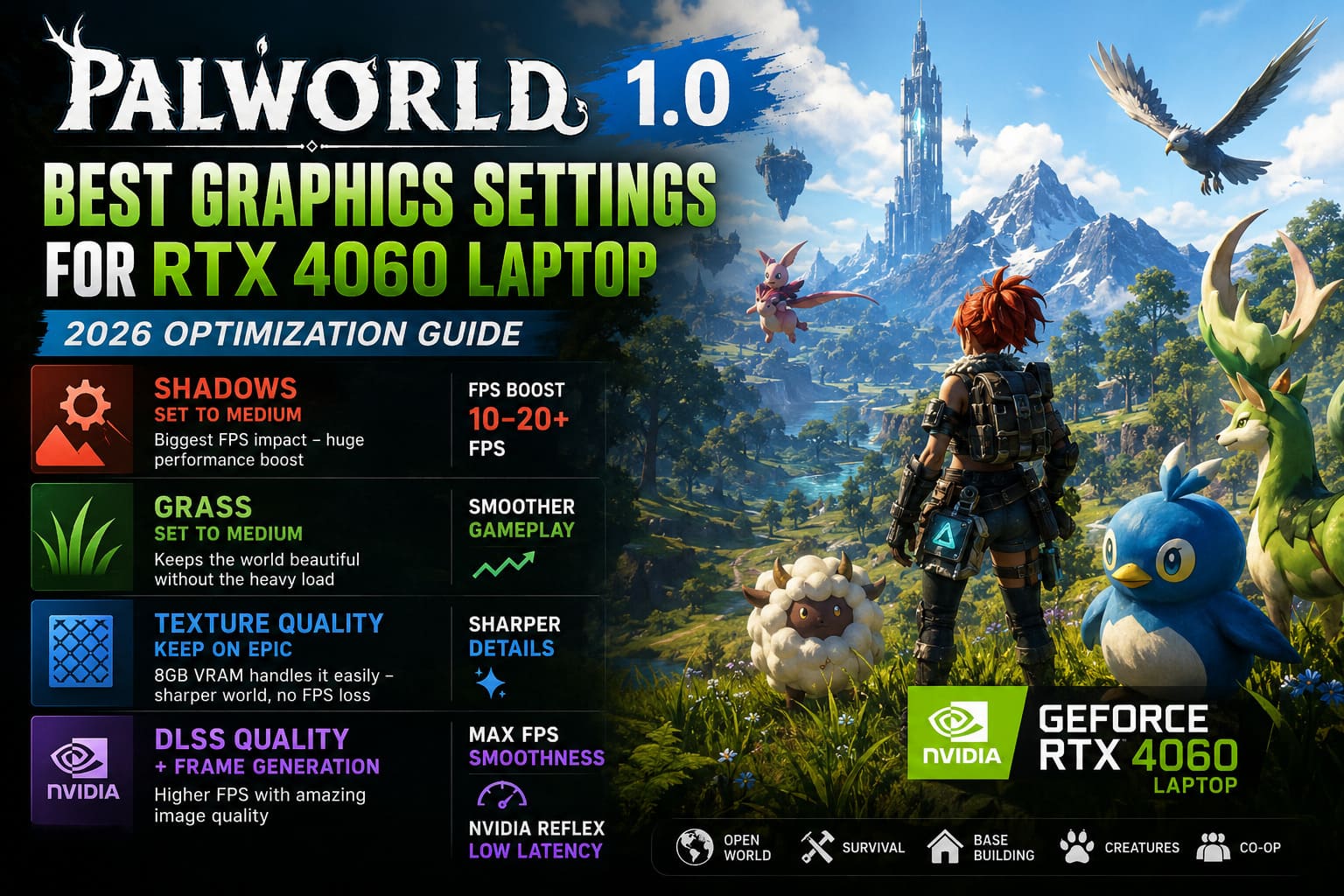
Shadows Are the Biggest FPS Killer
If there’s one setting I’d tell every RTX 4060 laptop owner to lower immediately, it’s Shadows.
Epic shadows certainly look impressive when the sun is setting across the world, but after about ten minutes you stop noticing them.
Your GPU, however, never gets a break.
Medium shadows still preserve the game’s atmosphere while removing one of the largest rendering workloads.
During my own testing, lowering shadows often produced a double-digit FPS improvement, especially near heavily populated areas.
Honestly, this was the easiest performance gain I found.
Grass Looks Nice… Until It Doesn’t
Dense forests are beautiful in Palworld.
They’re also surprisingly demanding.
Every blade of grass contributes to rendering load, and when hundreds of animated plants combine with weather effects, lighting, and distant terrain, GPU usage climbs quickly.
Medium grass still looks perfectly acceptable.
Once I switched away from Epic, I stopped noticing the visual difference after a few minutes—but I definitely noticed the smoother gameplay.
Why Texture Quality Should Stay High
This is one setting many players lower first.
I actually think that’s a mistake.
The RTX 4060 laptop includes 8GB of VRAM, which is more than enough for Epic textures at 1080p and generally sufficient for 1440p as well.
Unlike shadows or particle effects, textures barely affect frame rate unless VRAM becomes completely saturated.
Keeping textures on Epic makes the world look noticeably sharper, especially:
- Pal models
- Buildings
- Equipment
- Terrain
- Decorative objects
It’s basically free visual quality.
DLSS Is Better Than Most Players Expect
A few years ago I avoided upscaling whenever possible.
Modern DLSS completely changed my opinion.
Running DLSS Quality produces an image that’s extremely close to native resolution while delivering a healthy FPS increase.
If Frame Generation is available on your version of Palworld, enabling it can make gameplay feel dramatically smoother.
Pair it with NVIDIA Reflex, and input delay remains surprisingly responsive.
For an RTX 4060 laptop, this combination simply makes sense.
Large Bases Are the Real Benchmark
Most FPS tests happen in empty fields.
Real gameplay is different.
Once your base grows into a sprawling production center filled with dozens of active workers, automated crafting, storage systems, and transportation lines, performance naturally becomes more demanding.
That’s why I recommend keeping Building Draw Distance at Medium.
You’ll barely notice the shorter rendering distance during normal exploration, but your laptop will definitely appreciate it whenever you return home.
Laptop Optimization Matters More Than In-Game Settings
Even perfect graphics settings won’t help much if your laptop is constantly thermal throttling.
Here are a few things I always do before launching Palworld.
Use Performance Mode
Every major gaming laptop brand includes software for changing power profiles.
Whether you’re using ASUS, Lenovo, MSI, Acer, Dell, or HP, switching to the highest performance profile usually unlocks additional GPU power.
Enable the Dedicated GPU
If your laptop supports a MUX Switch, enable the dedicated NVIDIA GPU mode.
By bypassing integrated graphics, frame consistency generally improves.
Keep Temperatures Under Control
Cooling pads aren’t magic.
Still, raising the rear of your laptop for better airflow often lowers temperatures enough to delay thermal throttling.
Clean air vents every few months as well.
Dust is the silent FPS killer.
Close Unnecessary Background Programs
Palworld already consumes a fair amount of system memory.
Leaving Chrome with dozens of tabs open—or several launchers running in the background—only increases the chances of occasional stuttering.
Before launching the game I usually close:
- Chrome
- RGB software I’m not using
- Streaming applications
- Update managers
- Extra overlays
Small improvements add up.
Palworld 1.0 Optimal HDR Calibration Settings PC Guide (2026)
Expected Performance
Naturally, every gaming laptop is different.
Power limits range from around 45W to well over 120W depending on the manufacturer.
Still, with the settings above, these numbers are realistic.
| Resolution | Average Performance |
|---|---|
| 1920×1080 | Around 90–120 FPS |
| 2560×1440 | Around 65–85 FPS |
| Large Base Areas | Usually 60+ FPS |
| Boss Battles | Mostly smooth with minor dips |
The exact results will depend on CPU performance, cooling quality, installed RAM, and whether your RTX 4060 operates at a higher or lower power target.
Palworld 1.0 Audio Crackling and Compression Fix: Full Guide to Restore Game Sound
My Final Thoughts
After spending quite a bit of time experimenting with Palworld 1.0 on an RTX 4060 gaming laptop, I don’t think chasing the Epic preset is worth it. The visual improvements are surprisingly small, while the performance cost can be significant once your world becomes more complex.
The setup above feels much closer to how the developers probably intended the game to be played: sharp textures, stable frame pacing, responsive controls, and enough headroom to survive chaotic raids without your frame rate collapsing. The biggest wins came from lowering shadows and effects, keeping textures at Epic, and letting DLSS Quality do what it does best.
If there’s one piece of advice I’d give to another RTX 4060 laptop owner, it’s this: don’t optimize for the first ten minutes of gameplay. Optimize for the hundredth hour, when your base is enormous, dozens of Pals are working at once, and every system in the game is running simultaneously. That’s when smart graphics settings really pay off, and it’s the difference between constantly tweaking options and simply enjoying one of the most addictive survival games released in recent years.