Palworld 1.0 Steam Deck Verified Performance Settings: 2026 Optimization Guide
When Palworld first launched, I loved the concept, but playing it on a Steam Deck often felt like a compromise. Exploring the world was enjoyable, yet once my bases became busy and dozens of Pals started working, the performance could quickly fall apart. After the release of Palworld 1.0, things are noticeably better. The game has earned its Steam Deck Verified status, controller support feels more polished, and the interface is much easier to use on a handheld.
That doesn’t mean everything is perfect.
Even with the improvements, Palworld remains one of the more demanding survival games available on the Steam Deck. Large automated bases, long play sessions, and crowded combat encounters can still push the hardware to its limits. After experimenting with different settings and comparing my experience with feedback from the wider Steam Deck community, I settled on a configuration that delivers the best balance between visual quality, stability, and battery life.
If your goal is to actually enjoy playing instead of constantly tweaking menus, these are the settings I would recommend.
Why Palworld Still Pushes the Steam Deck Hard
Unlike many open-world games, Palworld doesn’t simply render a large environment. Every active Pal has AI routines, pathfinding, work priorities, animations, physics interactions, and combat calculations running simultaneously.
The bigger your settlement becomes, the more work your CPU has to perform.

That’s why performance during exploration usually feels much smoother than standing inside a fully automated production base filled with workers transporting resources from one station to another.
From my experience, graphics settings alone won’t solve every performance problem. Managing CPU load and memory usage matters just as much.
Improving Stability Before Changing Graphics
One thing I always recommend is improving overall system stability before touching graphical presets.
Many Steam Deck owners increase the UMA Frame Buffer Size from the default allocation to 4 GB through the BIOS. While this isn’t required for everyone, it gives the integrated GPU additional dedicated memory and can reduce texture streaming problems in demanding games.
Another commonly recommended utility within the Steam Deck community is CryoUtilities, which adjusts several memory-related settings. Many players report fewer crashes during extended gaming sessions after applying its recommended configuration.
Neither tweak magically increases FPS, but together they often make long Palworld sessions considerably more reliable.
The Graphics Settings I Actually Enjoy Using
I tried running everything on Low during my first few hours with version 1.0.
The result?
Sure, the frame rate improved slightly, but the world lost much of its personality. Trees looked flat, distant scenery became muddy, and the image quality suffered more than I expected.
Instead, I found that a balanced custom preset delivers a noticeably better experience.
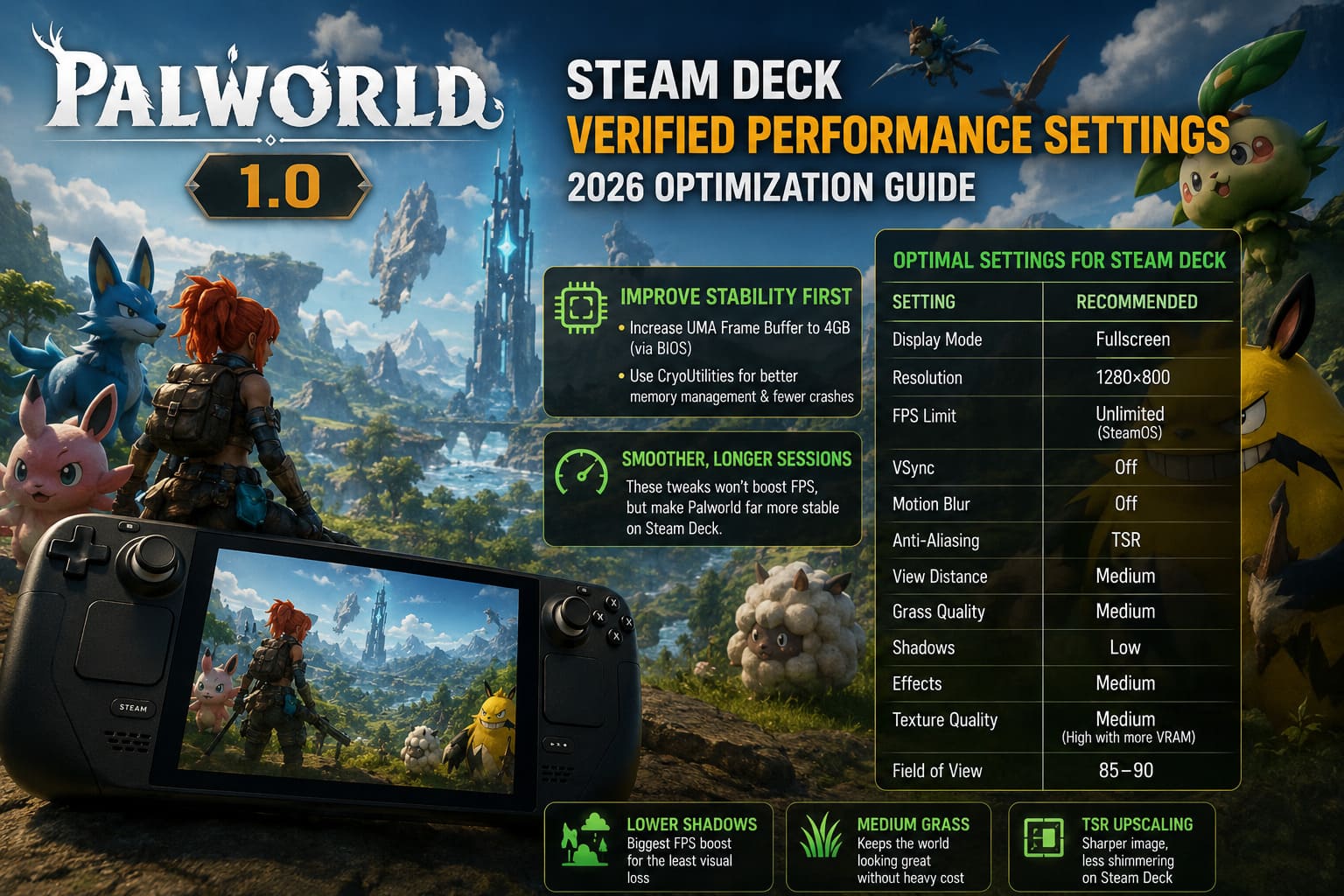
| Setting | Recommended Value |
|---|---|
| Display Mode | Fullscreen |
| Resolution | 1280×800 |
| FPS Limit | Unlimited (handled by SteamOS) |
| VSync | Off |
| Motion Blur | Off |
| Anti-Aliasing | TSR |
| View Distance | Medium |
| Grass Quality | Medium |
| Shadows | Low |
| Effects | Medium |
| Texture Quality | Medium (High with increased VRAM) |
| Field of View | 85–90 |
The biggest surprise for me was shadow quality.
Lowering shadows produces a much larger improvement than reducing grass or textures. Meanwhile, keeping grass at Medium helps preserve the world’s atmosphere without significantly hurting performance.
TSR also deserves credit. It keeps the image relatively sharp on the Steam Deck display while avoiding the excessive shimmering I noticed with some other options.
My Preferred SteamOS Performance Profile
SteamOS offers some incredibly useful performance controls, and Palworld benefits from them more than many games I own.
For everyday play, I almost always choose a locked 30 FPS profile.
Some players chase the highest possible frame rate, but I personally value consistency more. A stable frame time makes the game feel smoother than an unstable frame rate that constantly jumps between the low 30s and mid 40s.
My typical setup looks like this:
- 30 FPS frame limit
- 60 Hz refresh rate
- 11–12W TDP
- Manual GPU clock around 1400 MHz
- Linear scaling or FSR with moderate sharpening
Using this profile, my Steam Deck stays cooler, the fan remains quieter, and battery life improves enough that I can comfortably play for a couple of hours without reaching for a charger.
OLED Owners Can Push a Bit Further
The Steam Deck OLED gives players a little more flexibility.
If you’re spending most of your time exploring, collecting Pals, or completing dungeons instead of building enormous industrial bases, a higher frame rate is definitely achievable.
I would recommend something like:
- 40 or 45 FPS cap
- 80 Hz or 90 Hz refresh rate
- Unlimited TDP
- Automatic GPU clocks
This setup feels noticeably more responsive during exploration and smaller battles.
However, don’t expect miracles.
Once your settlement grows into a giant production hub with dozens of active workers, even the OLED model can experience occasional slowdowns.
That’s simply the reality of how much simulation Palworld performs behind the scenes.
World Settings Matter More Than Most Players Realize
One lesson I learned after dozens of hours was that performance isn’t determined solely by graphics.
Your world settings can have an even greater impact.
The biggest culprit is dropped items.
Mining operations, logging camps, and automated farms generate an incredible amount of resources over time. If thousands of objects remain scattered across the ground, CPU performance gradually declines.
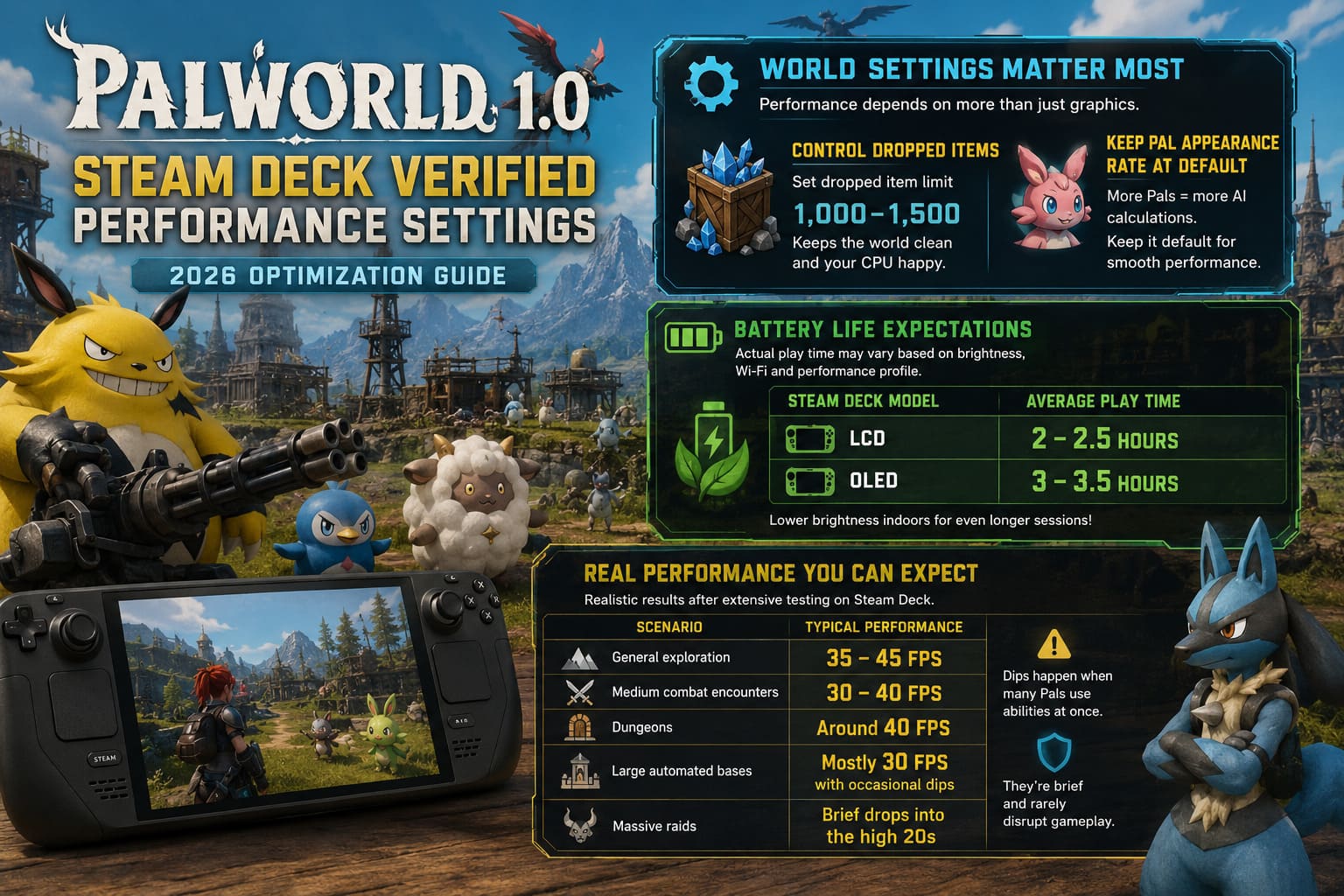
Whenever I create a new world, I lower the dropped item limit to somewhere around 1,000–1,500.
I’ve found this provides a noticeable improvement once my bases become heavily automated.
I also avoid increasing the Pal Appearance Rate.
More wild Pals sounds fun on paper, but every additional creature means more AI calculations. On desktop hardware that may not matter much, yet on the Steam Deck it quickly becomes noticeable.
Keeping that value at its default setting provides the most consistent experience.
Battery Life Expectations
Battery life naturally depends on brightness, Wi-Fi usage, and your chosen performance profile, but these numbers have been fairly realistic during my own sessions.
| Steam Deck Model | Average Play Time |
|---|---|
| LCD | Around 2–2.5 hours |
| OLED | Around 3–3.5 hours |
The difference becomes even larger if you lower screen brightness indoors.
Palworld is still a demanding title, but it’s no longer the battery-draining monster it once felt like during the early access period.
Real Performance You Can Expect
No optimization guide should promise impossible frame rates.
Here’s what I consider realistic after extensive play.
| Scenario | Typical Performance |
|---|---|
| General exploration | 35–45 FPS |
| Medium combat encounters | 30–40 FPS |
| Dungeons | Around 40 FPS |
| Large automated bases | Mostly 30 FPS with occasional dips |
| Massive raids | Brief drops into the high 20s |
Those temporary drops are difficult to eliminate completely because they usually occur when many Pals activate abilities simultaneously.
Fortunately, they rarely last very long.
How to Fix Low FPS and Stuttering in Palworld 1.0 (2026 Performance Guide)
Small Tweaks That Make a Big Difference
There are a few additional habits that have improved my overall experience.
- Restart the game after several hours of continuous play if you notice increasing stuttering.
- Keep your storage reasonably free so shader updates install properly.
- Avoid running unnecessary background downloads while playing.
- Build smarter instead of larger if you mainly play on Steam Deck. Compact bases generally perform better than sprawling industrial complexes.
None of these changes alone will transform performance, but together they create a noticeably smoother experience.
How to Transfer Old Save Files to Palworld 1.0 Cleanly: Complete 2026 Guide
Final Thoughts
Palworld 1.0 feels far more polished on the Steam Deck than earlier versions, and I genuinely enjoy playing it on Valve’s handheld now. It isn’t flawless, and there are still moments when large settlements remind you that this is a very CPU-intensive survival game. Even so, with the right balance of SteamOS settings, sensible graphics options, and a few world adjustments, the experience becomes surprisingly smooth.
Personally, I think too many players immediately select the absolute lowest preset and hope for the best. In my testing, that sacrifices far more visual quality than necessary while failing to address the real causes of slowdown. A carefully tuned custom setup delivers a cleaner image, steadier frame pacing, and better long-session stability.
If you’re planning to sink dozens of hours into building factories, breeding powerful Pals, and exploring every corner of the map from your couch or while traveling, spending a few minutes optimizing the game is absolutely worth it. Once everything is configured, Palworld 1.0 becomes one of the most enjoyable survival experiences currently available on the Steam Deck.