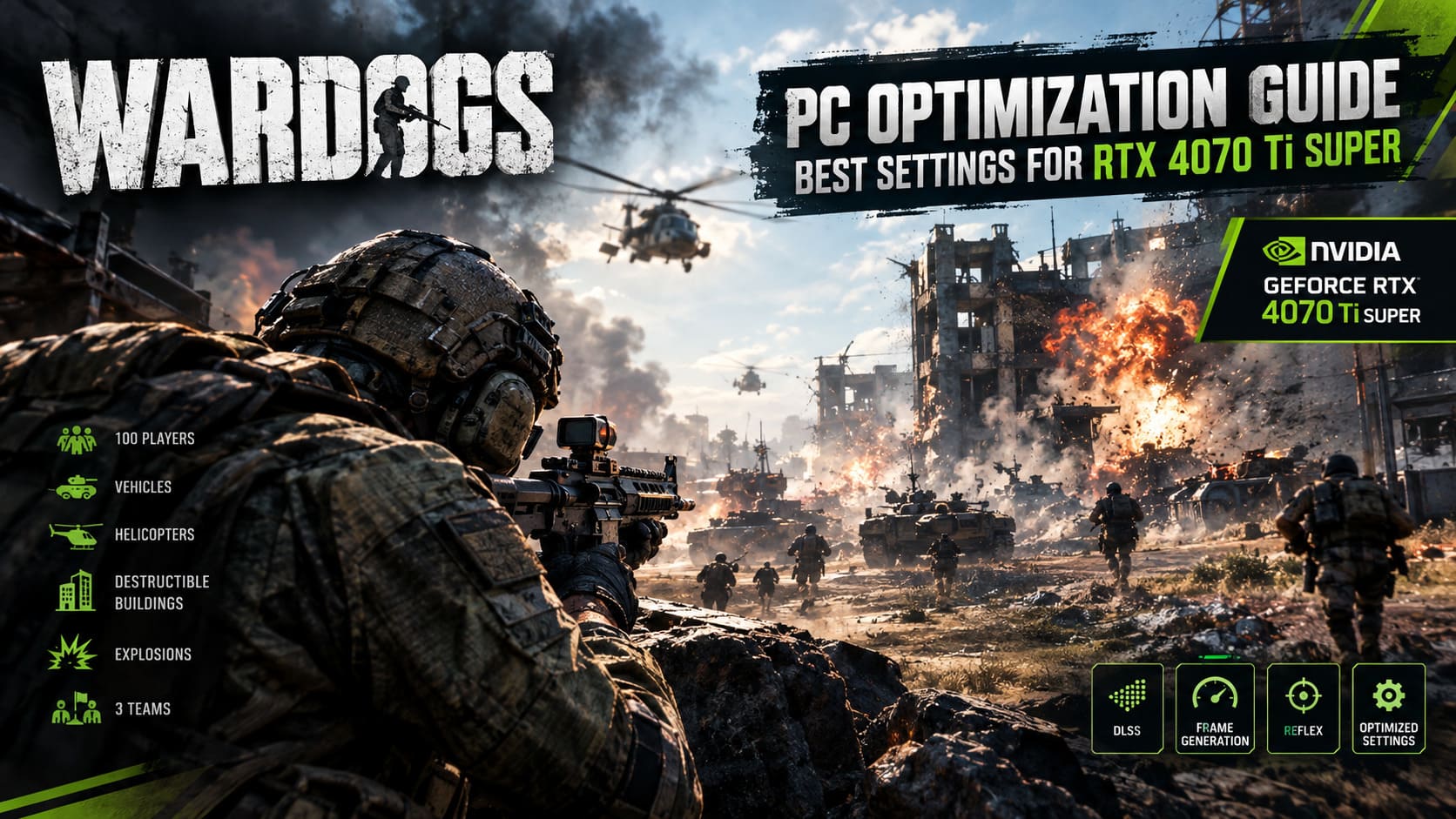
Wardogs PC Optimization Guide: Best Settings for RTX 4070 Ti Super (2026)
WARDOGS is not the kind of shooter where your GPU gets to sit quietly and render a few soldiers running across an empty field. This game can throw 100 players, vehicles, artillery, helicopters, destructible buildings, explosions, smoke, and three competing teams into the same battlefield. When everything starts happening at once, even a powerful PC can suddenly feel much less powerful.
That is exactly why getting the settings right matters.
Since WARDOGS entered Steam Early Access on September 10, 2026, I’ve spent a lot more time thinking about the difference between making a game look impressive and making it actually feel good to play. Those are not always the same thing. In a tactical FPS, I would much rather sacrifice a little shadow quality than lose an enemy behind a wall of foliage or suffer a massive frame-time spike when a building collapses.
If you’re playing WARDOGS with an NVIDIA GeForce RTX 4070 Ti Super, you’re already starting from a very strong position. The card’s 16GB of GDDR6X VRAM gives it plenty of breathing room for the game’s large environments, detailed textures, and heavy asset streaming.
But hardware alone isn’t enough.
Here is the WARDOGS PC optimization setup I would personally start with on an RTX 4070 Ti Super, including my preferred graphics settings, DLSS configuration, NVIDIA Control Panel tweaks, and Windows adjustments.
My RTX 4070 Ti Super Targets for WARDOGS
Before changing every slider in the graphics menu, it helps to decide what you’re actually trying to achieve.
For me, WARDOGS is at its best when the frame rate is high and consistent rather than simply looking gorgeous in screenshots. A beautiful 100 FPS average doesn’t mean much if the game drops into the 60s whenever several squads start fighting around a collapsing building.
The RTX 4070 Ti Super has enough horsepower to aim considerably higher than the game’s basic recommended targets.
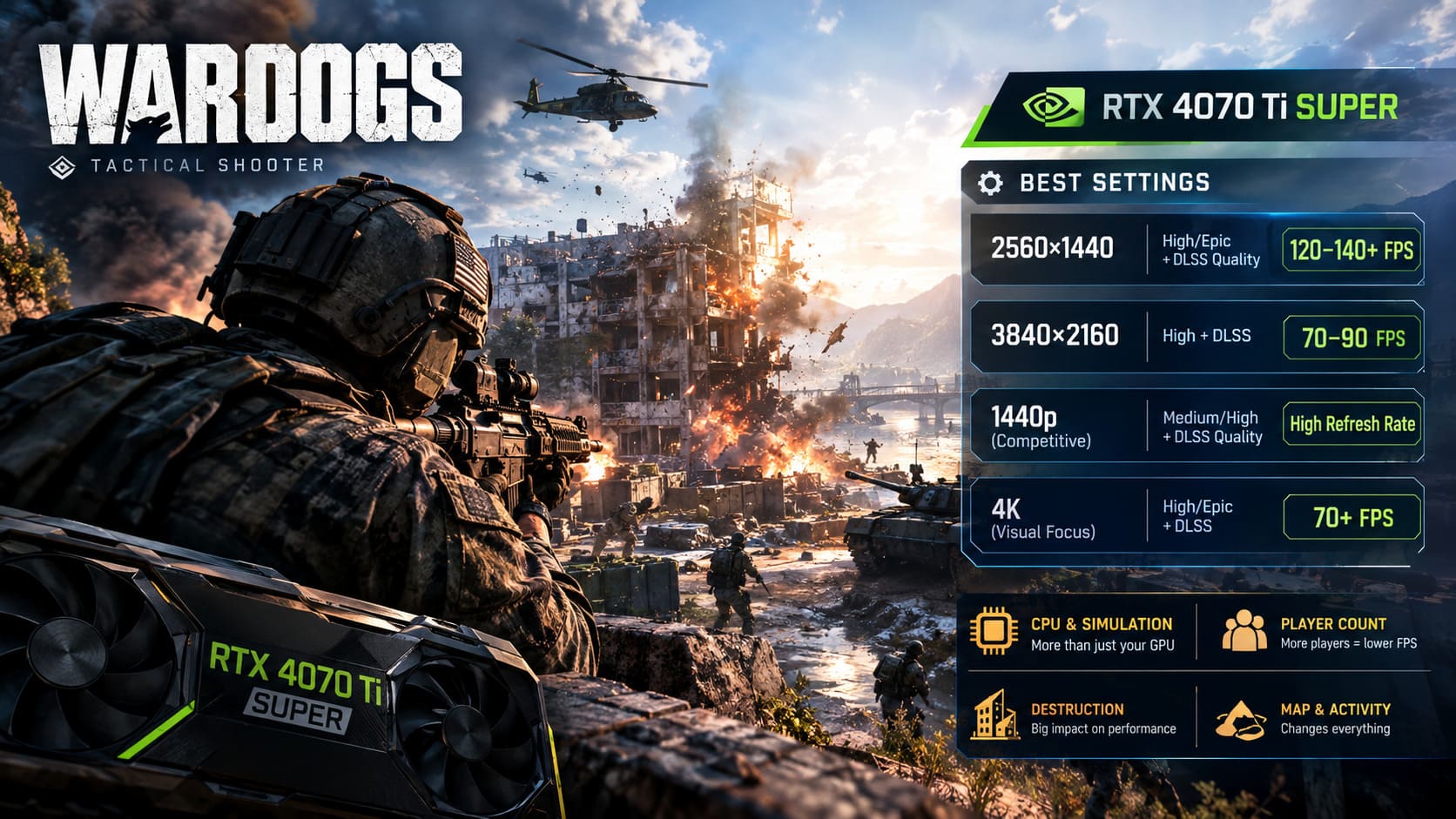
| Resolution | Recommended Starting Point | Realistic Goal |
|---|---|---|
| 2560×1440 | High/Epic mix + DLSS Quality | 120–140+ FPS |
| 3840×2160 | High settings + DLSS | Around 70–90 FPS |
| 1440p Competitive | Medium/High + DLSS Quality | High-refresh-rate gaming |
| 4K Visual Focus | High/Epic + DLSS | Smooth 70+ FPS |
These numbers will obviously change depending on your CPU, map, player count, destruction, and what is happening around you. WARDOGS is not perfectly GPU-bound all the time.
And that is an important point.
WARDOGS Can Become a CPU and Simulation Problem
One of the things I noticed immediately with games built around huge multiplayer battles is that average GPU utilization doesn’t tell the whole story.
WARDOGS has to keep track of an enormous amount of activity. There are players moving around the map, proximity voice communication, vehicles, destruction, projectiles, physics interactions, and all the other simulation work happening behind the scenes.
When nothing is happening, your RTX 4070 Ti Super can happily chew through frames.
When a tank destroys a building while several players are shooting from inside it and another squad is pushing the same objective?
That’s when frame times become much more interesting.
This is why I wouldn’t simply set everything to Epic and call it a day. Some settings have a huge visual cost for very little gameplay benefit.
Best WARDOGS Graphics Settings for RTX 4070 Ti Super
Here is the setup I would use as my baseline.
Display Settings
- Display Mode: Fullscreen
- Resolution: Native monitor resolution
- Aspect Ratio: Auto/Native
- Refresh Rate: Highest available
- V-Sync: Off
I strongly prefer exclusive fullscreen for a competitive shooter whenever the game handles it properly. Borderless mode is convenient, but in an Early Access title where performance consistency is still being refined, I would rather remove as many potential sources of latency and frame-time weirdness as possible.
If you’re using G-Sync or FreeSync, there’s even less reason to rely on traditional V-Sync.
DLSS Is Your Best Friend
The RTX 4070 Ti Super was built with modern upscaling and AI features in mind, and WARDOGS is exactly the sort of game where they make sense.
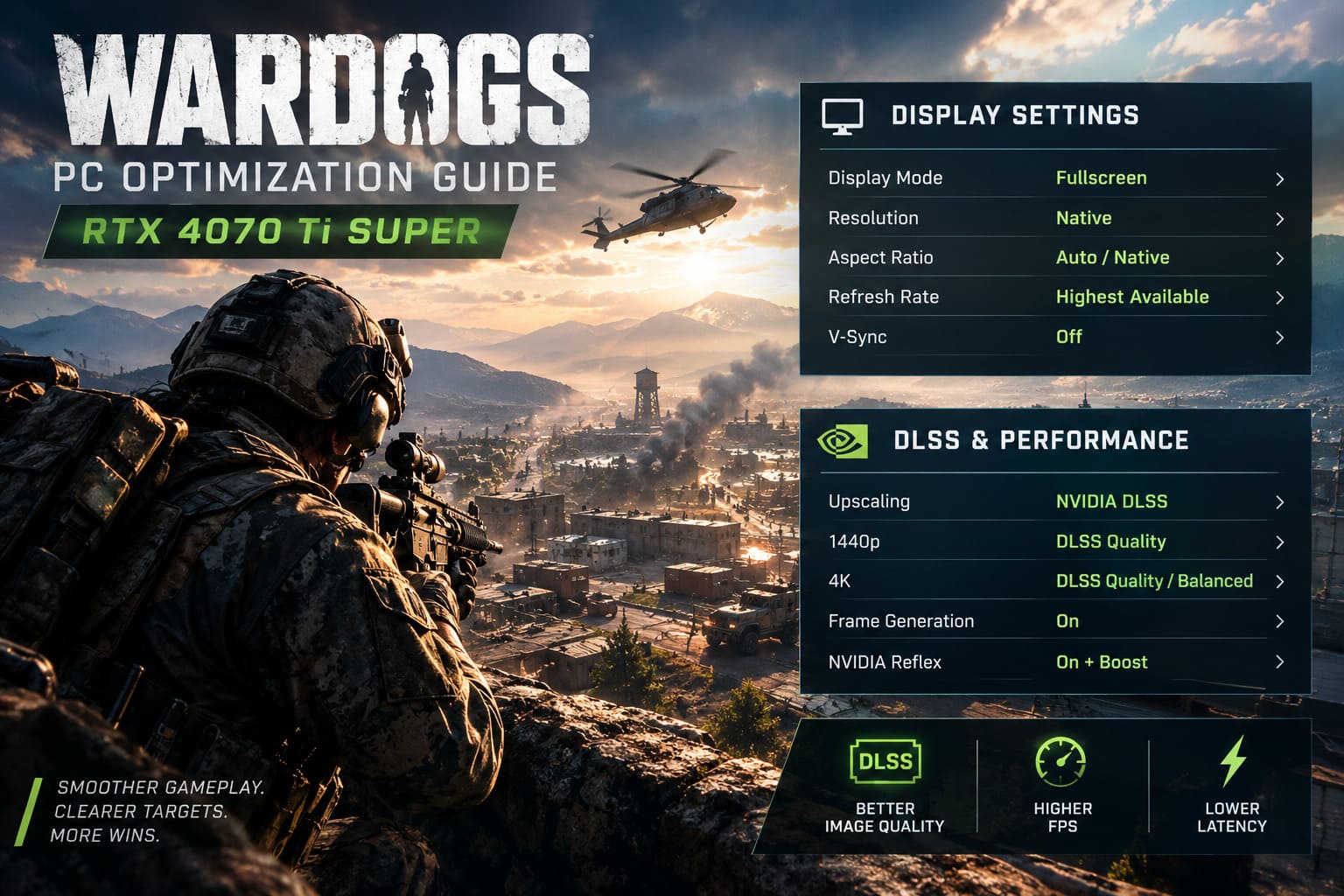
My preferred configuration is:
- Upscaling: NVIDIA DLSS
- 1440p: DLSS Quality
- 4K: DLSS Quality or Balanced
- Frame Generation: On
- NVIDIA Reflex: On + Boost
At 1440p, DLSS Quality is my first choice. I don’t see much reason to use Performance mode at this resolution unless you’re desperately chasing extremely high frame rates. The reduction in internal resolution can make distant objects and enemy silhouettes noticeably less clean.
That matters in WARDOGS.
This isn’t a game where you’re only shooting targets ten meters away. The ability to identify a player, vehicle, or fortification several hundred meters across the battlefield can make a real difference.
What About Frame Generation?
I would absolutely enable Frame Generation on the RTX 4070 Ti Super if I’m playing on a high-refresh-rate display.
There is an important distinction, though: Frame Generation doesn’t magically make the underlying CPU simulation faster. If the game is struggling because the processor is overwhelmed by 100-player activity, the technology can’t completely eliminate that bottleneck.
What it can do is make the final presentation feel substantially smoother.
For WARDOGS, that’s particularly useful when the base frame rate is already healthy and you want to push toward a 144Hz or higher experience.
Pairing it with NVIDIA Reflex + Boost is also the setup I’d choose when responsiveness matters.
My Detailed Graphics Settings
This is where I think you can gain a lot without making WARDOGS look noticeably worse.
| Setting | My Recommendation | Why |
|---|---|---|
| Texture Quality | Epic | 16GB VRAM gives plenty of headroom |
| Anisotropic Filtering | 16x | Tiny performance cost, sharper surfaces |
| Shadow Quality | High | Better balance than Epic |
| Global Illumination / RT | Medium or Off | Large performance savings |
| Reflections | Medium | Keeps surfaces looking good |
| Destruction / Physics | Medium | Helps during major destruction events |
| View Distance | High/Epic | Important for spotting distant targets |
| Foliage | Medium | Better visibility and performance |
| Effects | Medium | Reduces combat clutter |
| Post-Processing | Low/Medium | Cleaner competitive image |
Texture Quality: Epic
This is one setting I wouldn’t bother reducing on a 4070 Ti Super.
With 16GB of VRAM, there is plenty of memory available for high-resolution textures. Weapons, uniforms, buildings, terrain and other assets benefit from the extra detail.
If you’re not running into VRAM pressure, keeping textures at Epic makes sense.
Anisotropic Filtering: 16x
Another easy win.
I don’t see a good reason to lower anisotropic filtering on this GPU. The performance impact is generally small, while roads, floors, terrain and other surfaces look considerably better when viewed from an angle.
Keep it at 16x.
Shadows: High
This is one of the first places I would cut back from Epic.
High-quality shadows can be expensive, especially across large environments. WARDOGS already has enough going on visually without asking your GPU to calculate the most expensive possible shadow solution everywhere.
High is my sweet spot.
If you are chasing every last frame, Medium is worth testing. I wouldn’t go lower unless your system genuinely needs it.
Global Illumination and Ray Tracing
If the build you’re playing exposes hardware-accelerated global illumination or ray-traced effects, this is another obvious place to save performance.
I would start with Medium.
For a pure competitive setup, I would happily turn these effects off. I would rather have a stable frame rate during a chaotic assault than slightly prettier lighting on a wall.
That may sound harsh, but after several hours of multiplayer shooters, priorities become pretty obvious.
Reflections: Medium
Reflections look nice, particularly around wet surfaces, vehicles, and industrial environments.
But they’re not worth sacrificing a large chunk of performance for.
Medium keeps the world looking convincing without making reflections a major GPU expense.
Destruction and Physics Particles: Medium
This is one of the most important settings for WARDOGS specifically.
The destruction system is one of the game’s biggest selling points, but it can also become a performance nightmare when an entire structure starts coming apart.
I recommend Medium.
You’re still going to see plenty of debris and destruction. You’re simply asking the game to be a little less ambitious with how much of it needs to remain on screen.
View Distance: High or Epic
This is where I refuse to make aggressive compromises.
WARDOGS is a tactical shooter. If you can be engaged from several hundred meters away, reducing view distance just to gain a few frames can be counterproductive.
Keep it at High at minimum.
If your system has enough headroom, Epic is perfectly reasonable.
Foliage: Medium
This is partly about performance and partly about gameplay.
Dense vegetation can look fantastic, but it can also make it harder to see someone lying prone in a field.
Medium gives you a cleaner battlefield without making the environment look completely stripped down.
For competitive play, I would take Medium every time.
Effects: Medium
Explosions, muzzle flashes, smoke, tracers and other effects can quickly turn a firefight into visual soup.
Medium is a good compromise.
I don’t need every explosion to look like a Hollywood blockbuster when I’m trying to figure out where the enemy squad is shooting from.
Post-Processing: Low or Medium
This is one of the easiest settings to cut.
I prefer a clean image in shooters, so I would use Low or Medium depending on how the game handles individual effects.
Anything that adds unnecessary blur, film grain, excessive depth of field, or similar visual processing is something I would rather minimize.
NVIDIA Control Panel Settings
There are also a few NVIDIA Control Panel options worth checking.
Open NVIDIA Control Panel → Manage 3D Settings → Program Settings, then select the WARDOGS executable.
My starting configuration would be:
- Power Management Mode: Prefer Maximum Performance
- Texture Filtering – Quality: High Performance
- Max Frame Rate: Match your monitor or cap slightly below refresh rate
- Threaded Optimization: On
If you’re using a 144Hz G-Sync display, for example, a cap around 141 FPS can make sense.
The exact number depends on your monitor and synchronization setup, so don’t blindly copy a cap from somebody else’s PC.
Windows Settings That Are Actually Worth Checking
I don’t recommend downloading random “FPS boost” programs or registry scripts from the internet.
Most of them are either placebo, outdated, or capable of creating new problems.
Instead, stick to a few sensible Windows settings.
Hardware-Accelerated GPU Scheduling
Go to Windows Graphics Settings and check whether Hardware-Accelerated GPU Scheduling (HAGS) is enabled.
This is particularly relevant when using modern NVIDIA frame-generation features.
Windows Game Mode
Turn Game Mode on.
It isn’t going to transform a 90 FPS system into a 150 FPS machine, but there is little reason not to let Windows prioritize gaming workloads when you’re actually playing.
Keep Background Applications Under Control
This one sounds obvious, but it matters more in a game like WARDOGS.
Before launching a serious multiplayer session, close applications that constantly consume CPU resources, stream unnecessary content, or perform background tasks.
A browser with dozens of tabs, recording software, launchers, RGB utilities and various monitoring applications can collectively create more background activity than you might expect.
Don’t Ignore Your CPU
If your RTX 4070 Ti Super isn’t sitting near full utilization in WARDOGS, don’t immediately assume your graphics settings are broken.
You may simply be CPU-limited.
This is particularly likely when you’re already running at very high frame rates and the game suddenly becomes slower during large multiplayer engagements.
If lowering graphics settings barely changes your FPS, that’s a strong hint that the processor or game simulation is becoming the limiting factor.
In that situation, dropping textures from Epic to Medium isn’t going to save you.
WARDOGS Best Budget Weapons Under $1000: Economy Guide (2026)
My Recommended RTX 4070 Ti Super Setup
If I wanted to sit down tonight and play WARDOGS without spending another hour staring at graphics menus, this is where I’d start:
1440p Competitive Setup
- Native 2560×1440
- DLSS Quality
- Frame Generation On
- Reflex On + Boost
- Textures Epic
- Anisotropic Filtering 16x
- Shadows High
- Global Illumination Medium/Off
- Reflections Medium
- Destruction Medium
- View Distance High
- Foliage Medium
- Effects Medium
- Post-Processing Low
This configuration keeps the important stuff sharp while cutting back on effects that don’t contribute much to actually winning a firefight.
For 4K, I’d keep the same philosophy but move between DLSS Quality and Balanced depending on the frame rate you’re getting.
WARDOGS Weapons Tier List: Best Guns Ranked (2026 Meta Guide)
Final Thoughts
The RTX 4070 Ti Super is an excellent match for WARDOGS, but I wouldn’t make the mistake of assuming that owning a powerful GPU means every setting should automatically be pushed to Epic.
WARDOGS is a particularly demanding type of multiplayer shooter because its performance isn’t determined by graphics alone. 100-player simulation, destruction, vehicles, physics, networking, and massive firefights can all contribute to frame-time spikes.
That’s why I prefer a slightly aggressive configuration: Epic textures, high view distance, clean image quality, but Medium settings where the visual benefit simply isn’t worth the performance cost.
The goal isn’t to make WARDOGS look bad.
It’s to make it feel consistently fast.
If you’re running an RTX 4070 Ti Super at 1440p, I’d aim for a high-refresh-rate experience with DLSS Quality and Frame Generation rather than chasing maximum visual settings. At 4K, DLSS becomes even more valuable, giving you a way to keep the image sharp while taking some pressure off the GPU.
And as WARDOGS continues through Early Access, these recommendations are likely to change. Performance patches, driver updates, shader improvements and engine optimizations can all move the numbers around.
For now, though, this is the setup I’d use.
High frame rates, clear visibility, controlled effects, and no unnecessary eye candy getting between me and the next target. In a 100-player WARDOGS battle, that’s what actually matters.