The Witcher 3 Next-Gen Console Commands List: PC Cheat Guide (2026 Update)
There is a point in almost every long The Witcher 3: Wild Hunt playthrough where you stop caring about doing things the “proper” way.
Maybe you have already cleared half of Velen and cannot be bothered to grind another dozen levels. Maybe you want to test a ridiculous endgame build without spending hours rebuilding Geralt’s skill tree. Or perhaps a quest has decided to behave like a broken wheel on a Roach cart and you need a way around it.
That is where the The Witcher 3 developer console becomes incredibly useful.
CD Projekt Red’s RPG has a hidden debug console on PC that can be activated through the game’s configuration files. Once enabled, it gives you access to commands capable of changing Geralt’s level, spawning equipment, adding money, revealing the map, manipulating weather, switching characters, and even messing around with Gwent.
I have spent enough time in RPG debug menus to know the temptation here. You start by spawning one sword for testing and, twenty minutes later, Geralt is walking around Novigrad with an absurd inventory and enough Crowns to buy half the Northern Realms.
The important thing is that these commands are available without downloading some suspicious third-party executable. You are modifying a configuration file and using the game’s own developer functionality.
Below is a practical Witcher 3 console commands list for PC, covering the most useful commands from character cheats to equipment, map controls, Gwent, weather, and cosmetics.
How to Enable The Witcher 3 Developer Console
The developer console is not normally active in the standard PC configuration, but enabling it is straightforward.
Before changing anything, make a backup of your save files and the configuration file. Console commands can be extremely powerful, and some changes can have unintended consequences if you start altering quest or progression-related systems.
Step-by-Step Console Activation
- Close The Witcher 3 completely. Do not edit the configuration while the game is running.
- Open your Witcher 3 installation folder.
- Depending on your platform, common installation locations include:
- Steam:
C:\Program Files (x86)\Steam\steamapps\common\The Witcher 3\ - GOG:
C:\GOG Games\The Witcher 3 Wild Hunt\ - Epic Games:
C:\Program Files\Epic Games\TheWitcher3\
- Steam:
- Open the following folders: bin → config → base.
- Find general.ini.
- Open the file using Notepad or another basic text editor.
- Go to the bottom of the file and create a new line.
- Add:
DBGConsoleOn=true - Save the file.
- Start The Witcher 3 and load your save.
- Press the tilde (~) key, normally located below Escape on a US QWERTY keyboard.
If everything worked, a dark developer command bar should appear at the top of the screen.
That’s it. No sketchy downloads, no external trainer, and no weird executable files needed.
Console Rules You Should Know
The console is powerful, but it is not particularly forgiving.
Pay attention to capitalization and syntax. Commands can be case-sensitive, and commands that require values generally use parentheses.
For example:
setlevel(50)
Not:
setlevel (50)
And definitely do not start throwing commands into a valuable save without knowing what they do. Testing cheats on a separate save is the sensible move.
1. Geralt Cheats, Health, and God Mode
If your goal is simply to turn Geralt into an unstoppable monster, these are the commands you will probably use first.
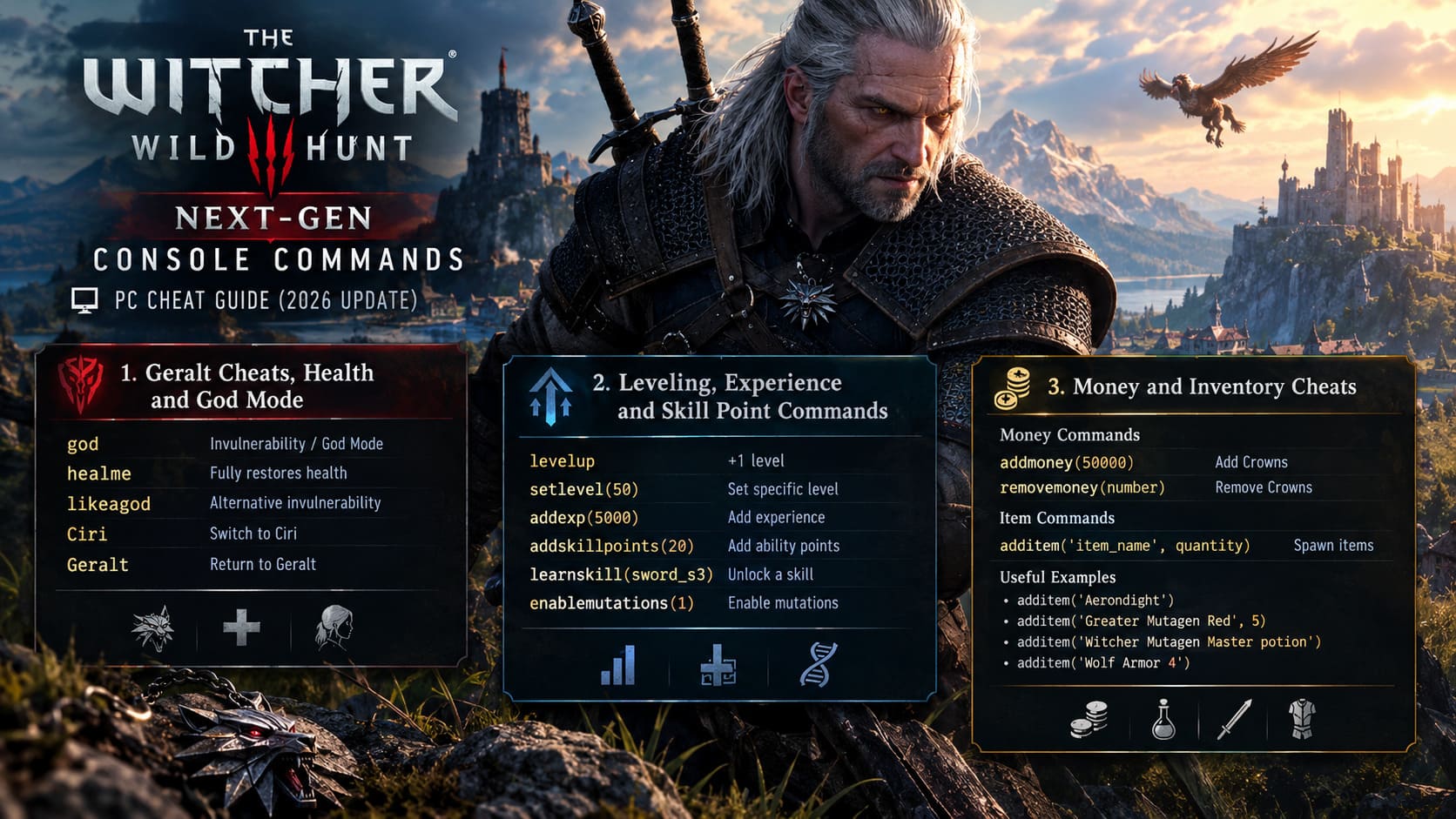
| Command | Function |
|---|---|
god | Activates God Mode and makes Geralt immune to damage |
healme | Fully restores Geralt’s health |
likeagod | Provides an alternative invulnerability state |
Ciri | Switches the playable character to Ciri |
Geralt | Returns control to Geralt |
The obvious star here is god.
Activate it and Geralt effectively stops caring about ordinary combat threats. Enemy attacks, environmental dangers, fall damage, and various status effects become far less relevant.
It is hilarious for testing builds, especially if you want to see how a high-level sword, sign, or mutation setup performs without constantly worrying about dying.
healme is much less destructive to the normal game experience. If you are testing a difficult fight and simply want a full health bar, it does exactly what its name suggests.
Then there is likeagod, which provides another form of immortality. Your health can visually respond to damage, but your actual health does not fall below one point.
The character-switch commands are a different kind of fun. Ciri changes the active character to Ciri, giving you access to her distinctive movement and combat style, while Geralt switches things back.
2. Leveling, Experience, and Skill Point Commands
The Witcher 3 has a rewarding progression system, but replaying the early and mid-game just to recreate a build can become a serious grind.
The console lets you skip that process.
| Command | Example | Purpose |
|---|---|---|
levelup | levelup | Raises Geralt’s level by one |
setlevel(number) | setlevel(50) | Sets Geralt to a chosen level |
addexp(number) | addexp(5000) | Adds experience |
addskillpoints(number) | addskillpoints(20) | Adds ability points |
learnskill(skill_id) | learnskill(sword_s3) | Unlocks a specified skill |
enablemutations(1) | enablemutations(1) | Enables the Blood and Wine mutation system |
setlevel(50) is particularly useful if you are experimenting with late-game equipment or simply want to test a high-level character without replaying dozens of hours.
addexp(number) gives you more granular control. Instead of jumping directly to a specific level, you can feed Geralt a chosen amount of experience.
The skill commands are even more interesting for build testing. With addskillpoints(number), you can create a pile of ability points and experiment with combat, Signs, alchemy, or general abilities.
learnskill(skill_id) takes the shortcut even further by unlocking a particular skill directly.
For players experimenting with Blood and Wine systems, enablemutations(1) can also force the mutation interface to become available without following the usual progression path.
3. Money and Inventory Cheats
This is where things can get completely out of hand.
The Witcher 3 economy works well during a normal playthrough because money has value. You find gear, sell junk, buy diagrams, upgrade equipment, and occasionally stare at an expensive item wondering whether Geralt really needs it.
The console can make that entire economic loop optional.
Money Commands
addmoney(number)— Adds the specified number of Crowns.removemoney(number)— Removes a selected amount of Crowns.
For example:
addmoney(50000)
That gives Geralt a very healthy wallet.
The more dangerous command, at least for your inventory management, is:
additem('item_name', quantity)
This lets you spawn items directly into your inventory using their internal game names.
Useful Item Examples
additem('Aerondight')additem('Greater Mutagen Red', 5)additem('Witcher Mutagen Master potion')additem('Wolf Armor 4')
Aerondight is an obvious favorite. The legendary silver sword from the Blood and Wine expansion is one of the most recognizable pieces of Witcher equipment, and spawning it lets you test the weapon without waiting for its normal acquisition path.
Mutagens and potions can also be generated directly.
For Witcher armor, the example Wolf Armor 4 can be used to generate the Grandmaster-level Wolf School chest piece. The same general naming approach can be adapted for other Witcher schools, including Gryphon, Bear, and Lynx, alongside the appropriate tier number.
Just remember that item spawning is highly dependent on the exact internal item identifier. If the name is wrong, the command will not magically guess what you meant.
4. Fast Travel, Map Discovery, Teleportation, and Weather
The Continent is enormous, and while exploring it is one of the best parts of The Witcher 3, there are times when you simply want to get somewhere.
The developer console can remove many of those restrictions.
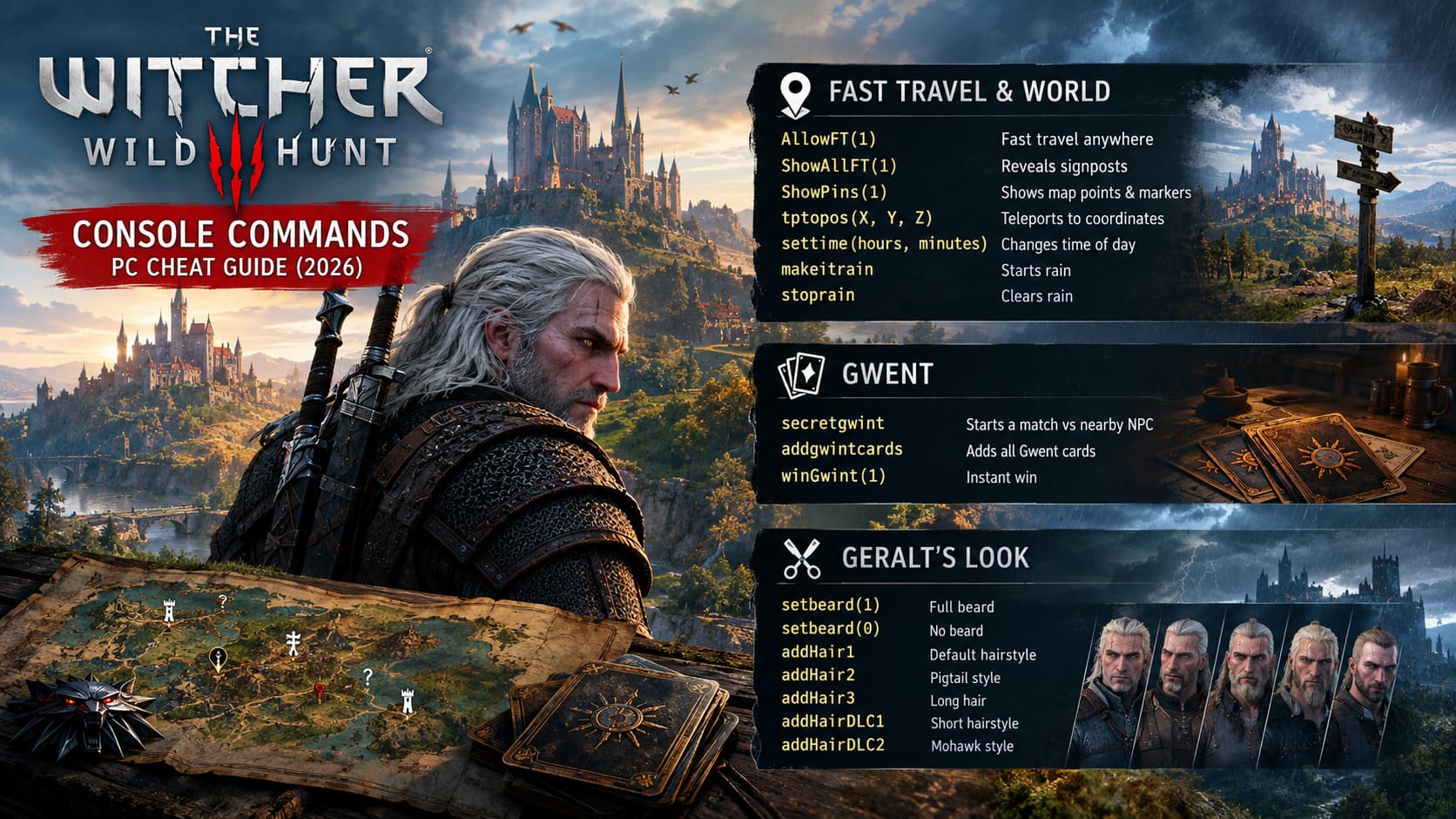
| Command | What It Does |
|---|---|
AllowFT(1) | Enables unrestricted fast travel |
ShowAllFT(1) | Reveals fast travel signposts |
ShowPins(1) | Reveals map points and hidden markers |
tptopos(X, Y, Z) | Teleports Geralt using coordinates |
settime(hours, minutes) | Changes the time of day |
makeitrain | Starts rainy storm conditions |
stoprain | Stops the current rain |
AllowFT(1) is one of those commands that feels like cheating for about thirty seconds and then becomes incredibly convenient.
Instead of running to a signpost before traveling, you can fast travel from your current location.
ShowAllFT(1) is useful if you want the map’s fast-travel network revealed without manually discovering every sign.
ShowPins(1) takes map completion in another direction, exposing hidden points of interest and question-mark locations.
For advanced experimentation, tptopos(X, Y, Z) can teleport Geralt to precise coordinates. This is much more useful for mod testing and debugging than ordinary play, but it demonstrates just how much access the developer console provides.
Time and weather commands are more about atmosphere. Want to turn noon into midnight?
settime(0, 0)
Want high noon?
settime(12, 00)
And if the skies need a dramatic change, makeitrain brings the storm while stoprain clears it.
5. Gwent Console Commands
Gwent has its own gravitational pull.
You can enter Novigrad intending to complete one quest and somehow spend the next hour challenging merchants to card games. Collecting every card is fun, but doing it across a full playthrough can also become a completionist chore.
The console offers shortcuts.
Gwent Commands
secretgwint— Forces a Gwent match to begin against the nearest NPC.addgwintcards— Adds one copy of every valid Gwent card to your collection.winGwint(1)— Immediately produces a victory in the active Gwent match.
addgwintcards is the nuclear option for collectors. Instead of hunting down individual cards across the world, you can fill your collection directly.
secretgwint is more of a sandbox tool, forcing a Gwent match against a nearby NPC.
Then there is winGwint(1), which is about as subtle as dropping a Leshen into a tavern. It lets you bypass the actual match and trigger the victory result.
If you are testing Gwent mechanics, it is useful. If you actually enjoy the card game, you may want to think twice before using it on a normal save.
6. Geralt’s Hair, Beard, and Cosmetic Commands
Not every console command needs to destroy the game’s progression.
Sometimes you just want Geralt to look different.
The developer console includes several cosmetic commands that affect his beard and hairstyle.
| Command | Cosmetic Effect |
|---|---|
setbeard(1) | Gives Geralt a full beard |
setbeard(0) | Removes Geralt’s beard |
addHair1 | Default loose hairstyle |
addHair2 | Shorter pigtail-style hair |
addHair3 | Long, loose hairstyle |
addHairDLC1 | Alternative short hairstyle |
addHairDLC2 | Mohawk-style hairstyle |
setbeard(1) gives Geralt a full beard, while setbeard(0) removes his facial hair.
The hairstyle commands let you cycle through several appearances without paying a barber.
addHair1 restores the classic loose hairstyle, while addHair2 and addHair3 provide different visual configurations.
The DLC hair commands add further alternatives, including a shorter style and the distinctive Mohawk-inspired option.
This is probably the safest category of console commands to experiment with because cosmetic changes do not carry the same progression risks as aggressively modifying character statistics or quest-related systems.
Witcher 3 Remastered Serpentine Gear Guide: Locations, Stats, and Crafting Strategies
Final Thoughts on The Witcher 3 Console
The The Witcher 3 developer console is one of those tools that reminds you how much stuff is happening underneath the game’s polished surface.
Used carefully, it is excellent for testing builds, checking equipment, experimenting with high-level mechanics, recovering from certain gameplay problems, or simply creating a ridiculous sandbox after finishing the story.
Used recklessly, it can flatten the progression system that makes The Witcher 3 so satisfying in the first place.
How to Fix The Witcher 3 Remastered Cross Save & Cloud Sync Errors (2026 Guide)
My advice is simple: keep a clean save.
Use console commands on a separate file when possible, especially when you are experimenting with levels, skills, equipment, or progression. There is no reason to sacrifice a 100-hour playthrough because you got carried away spawning legendary gear.
For pure experimentation, though, the console is fantastic. Turn on god, throw a ridiculous build together, teleport across the Continent, spawn Aerondight, reveal every map marker, and then go challenge a random NPC to Gwent just because you can.
That’s the fun of a developer console. It turns one of the most carefully constructed RPGs of its generation into your personal testing ground.
And after hundreds of hours in The Witcher 3, sometimes breaking the rules is exactly what makes another playthrough interesting.