
Pragmata Steam Deck Performance Guide: Best Settings for 40 FPS (2026)
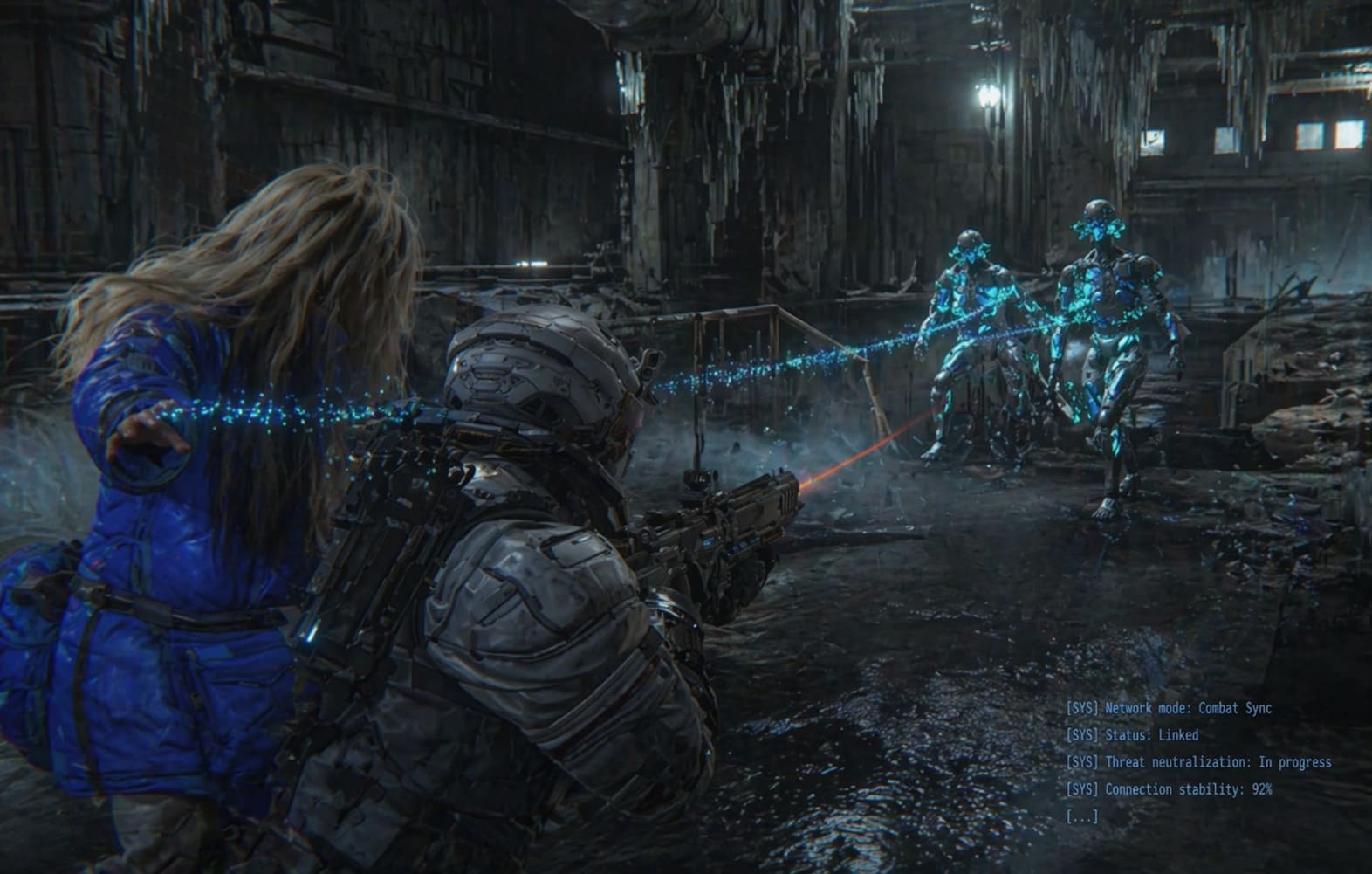
When I first booted up Pragmata on my Steam Deck, I had that exact moment every handheld gamer knows too well: “Yeah… this is going to be rough.” Capcom didn’t hold back here. Between the insane lighting, particle-heavy combat, and those eerily detailed lunar environments, this game screams “next-gen”—and the Steam Deck, as much as I love it, isn’t exactly built for mercy.
But here’s the thing: after a few hours of tweaking, testing, and honestly a bit of stubborn obsession, I got it to a consistent 40 FPS experience that actually feels great. Not perfect—but absolutely playable and immersive.
This isn’t just a settings dump. This is the setup I’d recommend if you actually want to enjoy the game without constantly staring at the FPS counter.
Why 40 FPS Is the Sweet Spot
Let’s get this out of the way: trying to chase 60 FPS in Pragmata on Steam Deck is optimistic at best, and in most real gameplay scenarios simply not worth the visual sacrifices you would have to make.
Instead, the magic lies in the 40Hz / 40 FPS combo, which delivers a noticeably smoother experience than 30 FPS while keeping input latency reasonable and avoiding the heavy battery drain that comes with pushing for higher framerates.
- Feels noticeably smoother than 30 FPS
- Keeps input latency reasonable
- Preserves battery better than 60 FPS attempts
Once you lock into 40, the game suddenly clicks. It feels stable, cinematic, and surprisingly fluid for something this demanding on a handheld device.
My Go-To Settings for a Stable 40 FPS
After a lot of trial and error, this is the setup that consistently works across both indoor environments and the much heavier lunar surface sections.
Display & Upscaling
- Resolution: 1280×800 (native)
- FSR: AMD FSR 3.1 – Balanced
- V-Sync: Off (use SteamOS limiter instead)
- Frame Generation: Off
Balanced FSR ends up being the real MVP here. While Quality mode looks sharper, the performance drops become very noticeable during open-area traversal and combat, making Balanced the best compromise between clarity and stability.
Graphics Settings That Actually Matter
This is where most players lose performance without realizing it, by pushing settings that barely improve visuals but significantly impact framerate.
- Textures: Medium
- Shadows: Low
- Mesh Quality: Medium
- Anisotropic Filtering: 4x
- Global Illumination: Low
Shadows and global illumination are by far the biggest performance drains. Lowering them has a surprisingly small visual impact thanks to the game’s strong lighting design, but a massive positive effect on stability.
Effects & Heavy Settings
- Ray Tracing: Off
- Hair Quality: Low
- Volumetric Fog: Low
- Screen Space Reflections: On
Ray tracing is simply not viable on Steam Deck for this title. Hair physics, especially on Diana, can also cause major dips, so keeping it on Low ensures consistent performance without noticeably harming gameplay visuals.
Steam Deck Tweaks That Actually Help
System-level tweaks are just as important as in-game settings when it comes to getting a stable experience.
- Refresh Rate: 40Hz
- FPS Limit: 40
- TDP Limit: 12W (OLED) / 15W (LCD)
- GPU Clock: 1200–1400MHz (manual lock)
Locking the GPU clock helps eliminate micro-stutters caused by fluctuating frequencies, especially in traversal-heavy areas or during sudden effects spikes.
Real Performance Expectations
Even with optimized settings, Pragmata remains a demanding game, so it’s important to set realistic expectations for different gameplay scenarios.
| Scenario | FPS Range | Experience |
|---|---|---|
| Indoor corridors | 45–55 | Smooth (cap at 40) |
| Open lunar surface | 35–40 | Playable and stable |
| Combat / boss fights | 32–40 | Occasional dips |
| Cutscenes | 40+ | Consistent |
The key here is consistency over peak numbers. A locked and stable 40 FPS feels far better than fluctuating between higher and lower values.
Battery Life Insights
Battery life is always a concern with visually demanding games, and Pragmata is no exception.
- Steam Deck LCD: Approximately 1.5 hours
- Steam Deck OLED: Around 2 to 2.25 hours
Reducing TDP slightly or switching to a more aggressive FSR mode can extend battery life, but it will come at the cost of visual quality or stability.

Community Tips That Actually Make Sense
After reviewing discussions from the community, a few practical tips stand out and genuinely improve the experience.
- Increase UI scale to 1.2x for better readability on the small screen
- Use Proton Experimental for quicker compatibility fixes
- Avoid setting textures to High due to shared memory limitations
These small adjustments can make a noticeable difference, especially during longer play sessions.
My Honest Take After Playing
Pragmata is not perfectly optimized for the Steam Deck, and it definitely pushes the hardware to its limits in many scenarios.
However, with the right configuration and realistic expectations, it becomes a genuinely enjoyable handheld experience. The combination of a stable 40 FPS lock and balanced visual settings allows the game’s atmosphere and design to shine without constant performance distractions.
There is something uniquely satisfying about playing a visually ambitious, next-generation title like this on a portable device, even if it requires a bit of tweaking to get there.
Final Recommended Setup
| Setting Category | Recommendation |
|---|---|
| FPS Target | 40 FPS @ 40Hz |
| Upscaling | FSR 3.1 Balanced |
| Shadows | Low |
| Textures | Medium |
| Ray Tracing | Off |
| TDP | 12–15W |
| GPU Clock | 1200–1400MHz |


