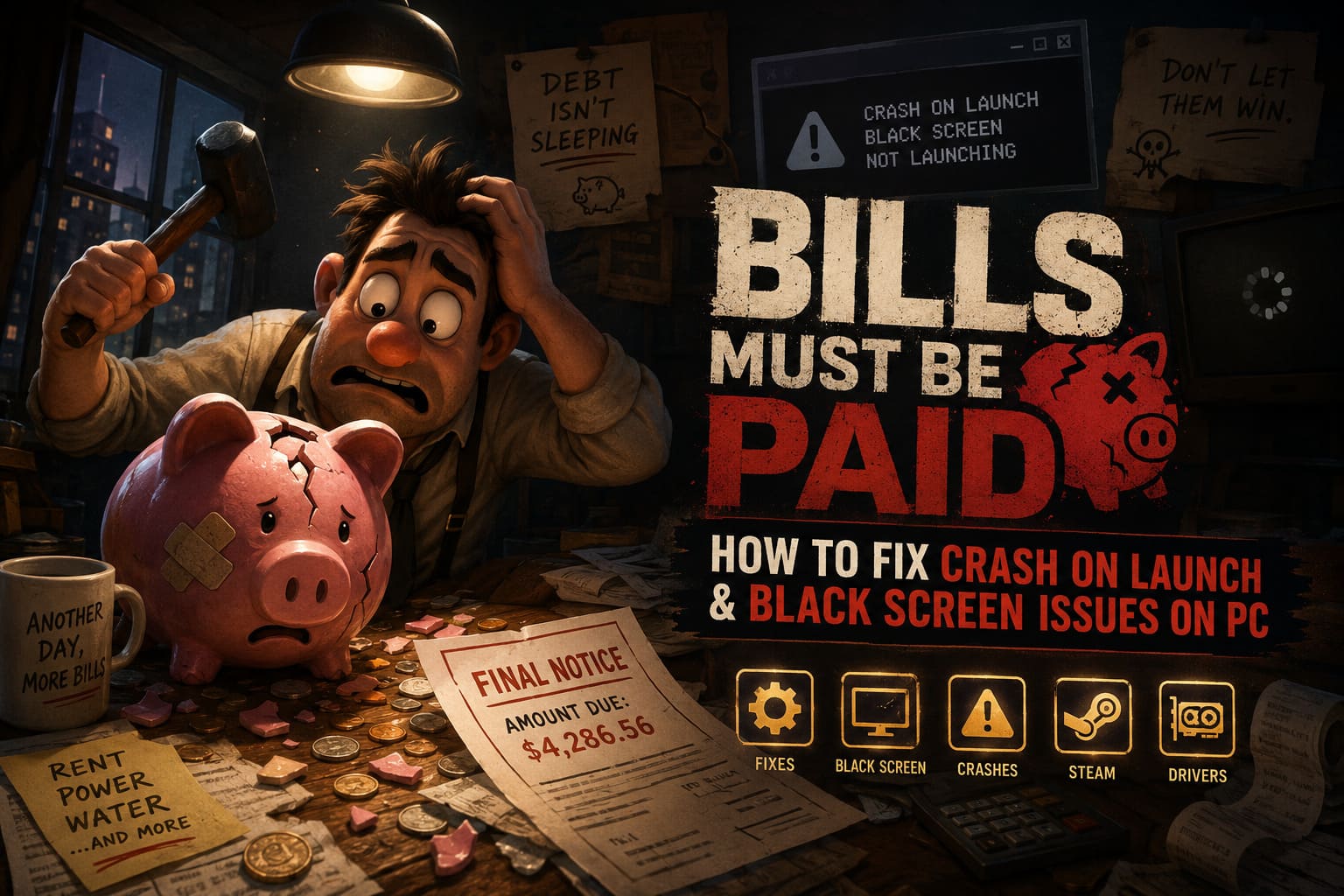
How to Fix Bills Must Be Paid Crash on Launch and Black Screen Issues on PC
Launching a brand-new indie game on release day is always exciting. You install it, hit Play, and expect to spend the next few hours enjoying something fresh. That was exactly my plan with Bills Must Be Paid, but instead of smashing piggy banks and watching my virtual debts disappear, I ended up staring at a black screen… or worse, getting kicked straight back to the desktop.
The good news? After trying a bunch of different fixes and reading through community discussions, I finally got the game running perfectly. Since many new indie games share similar launch problems, I decided to put together everything that actually helped in one place.
If Bills Must Be Paid crashes on startup, freezes on a black screen, or simply refuses to launch through Steam, this guide should save you a lot of frustration.
Why Is Bills Must Be Paid Crashing?
In my experience, most launch issues aren’t caused by the game itself. They’re usually a combination of Windows settings, graphics drivers, Steam configuration, or software running in the background.
The most common reasons include:
- Outdated GPU drivers
- Corrupted game files
- Steam overlay conflicts
- Windows permission issues
- Graphics API compatibility problems
- Antivirus software blocking game files
Thankfully, none of these are particularly difficult to fix.
Quick Fix Overview
| Problem | Most Likely Fix | Difficulty |
|---|---|---|
| Game instantly closes | Verify Steam files | Easy |
| Black screen after launch | Run in Windowed Mode | Easy |
| Crash before logo appears | Update GPU driver | Easy |
| Random startup crashes | Disable overlays | Easy |
| Laptop launches but freezes | Force Dedicated GPU | Medium |
| Nothing works | Clean graphics driver installation | Medium |
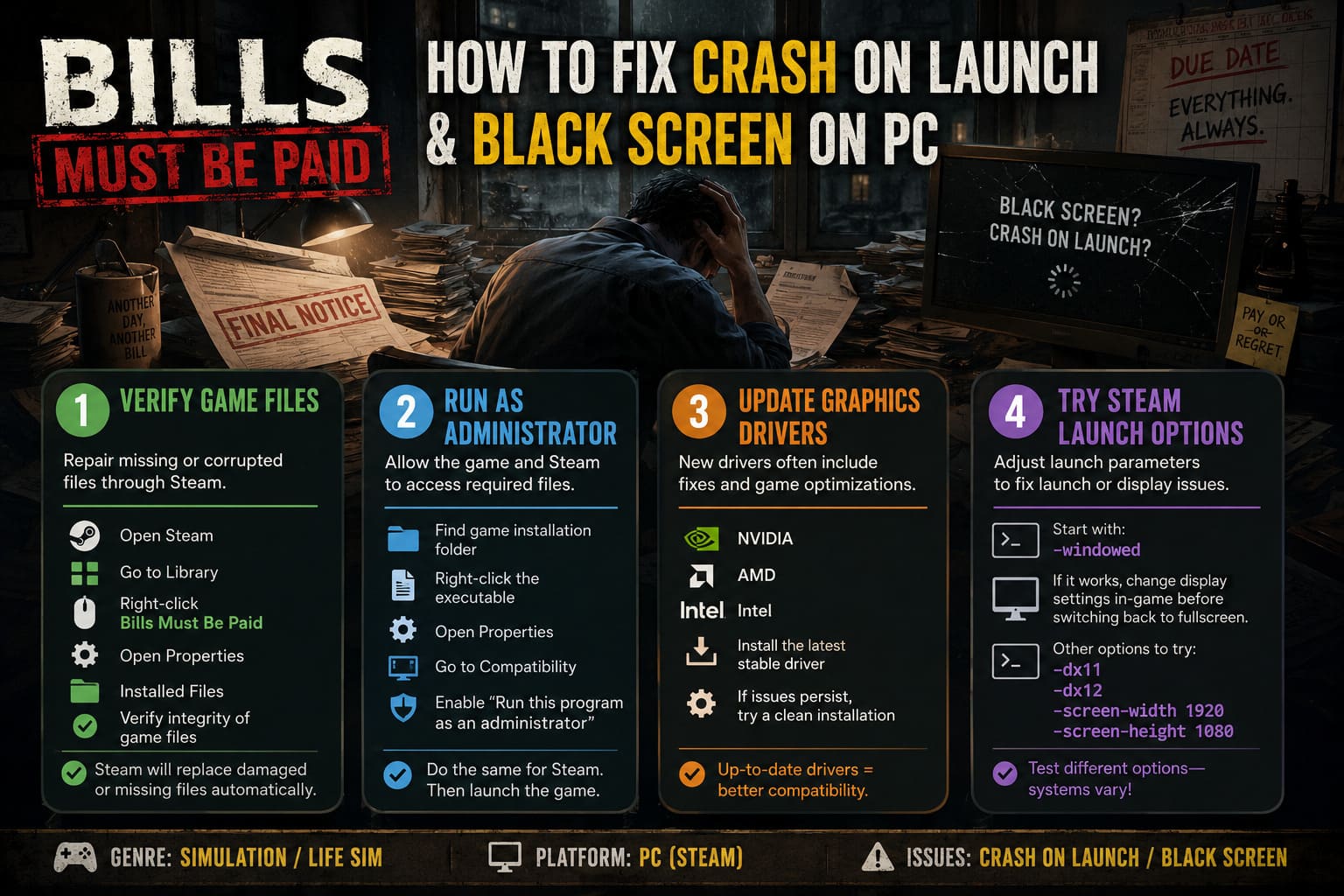
1. Verify the Game Files First
This is always my first recommendation.
Even if Steam says the installation completed successfully, files sometimes become corrupted during download. I’ve seen this happen with much bigger AAA releases.
Fortunately, Steam can repair missing files automatically.
Here’s how:
- Open Steam.
- Go to your Library.
- Right-click Bills Must Be Paid.
- Open Properties.
- Select Installed Files.
- Click Verify integrity of game files.
Steam will compare your installation with the official version and replace anything that’s damaged.
It only takes a few minutes and has solved launch problems for me more than once.
2. Run the Game as Administrator
This might sound old-school, but Windows security can occasionally stop newly installed games from accessing folders they need during startup.
I usually enable administrator mode for both the game executable and Steam itself whenever I run into launch problems.
To do it:
- Find the game’s installation folder.
- Right-click the executable.
- Open Properties.
- Select Compatibility.
- Enable Run this program as an administrator.
- Apply the changes.
Do the same for Steam before launching the game again.
It’s a surprisingly simple fix that often works.
3. Update Your Graphics Drivers
One thing I’ve learned over the years is that new games love new drivers.
Graphics driver updates don’t just improve performance—they often include launch-day optimizations specifically designed for recently released games.
Whether you’re using NVIDIA, AMD, or Intel graphics, make sure you’re running the newest stable driver.
If you’ve updated recently but problems remain, consider doing a clean driver installation instead of a normal update. Old driver settings occasionally conflict with fresh game releases.
4. Try Steam Launch Options
One of my favorite troubleshooting tricks is forcing the game to start with different launch parameters.
Sometimes the game tries to load at an unsupported resolution or initializes the wrong rendering mode.
Start with:
-windowed
If the game launches successfully, change your display settings inside the game before switching back to fullscreen.
If that doesn’t help, experiment with:
- -dx11
- -dx12
- -screen-width 1920 -screen-height 1080
Different systems respond differently, so don’t hesitate to test multiple options.
5. Turn Off Every Overlay
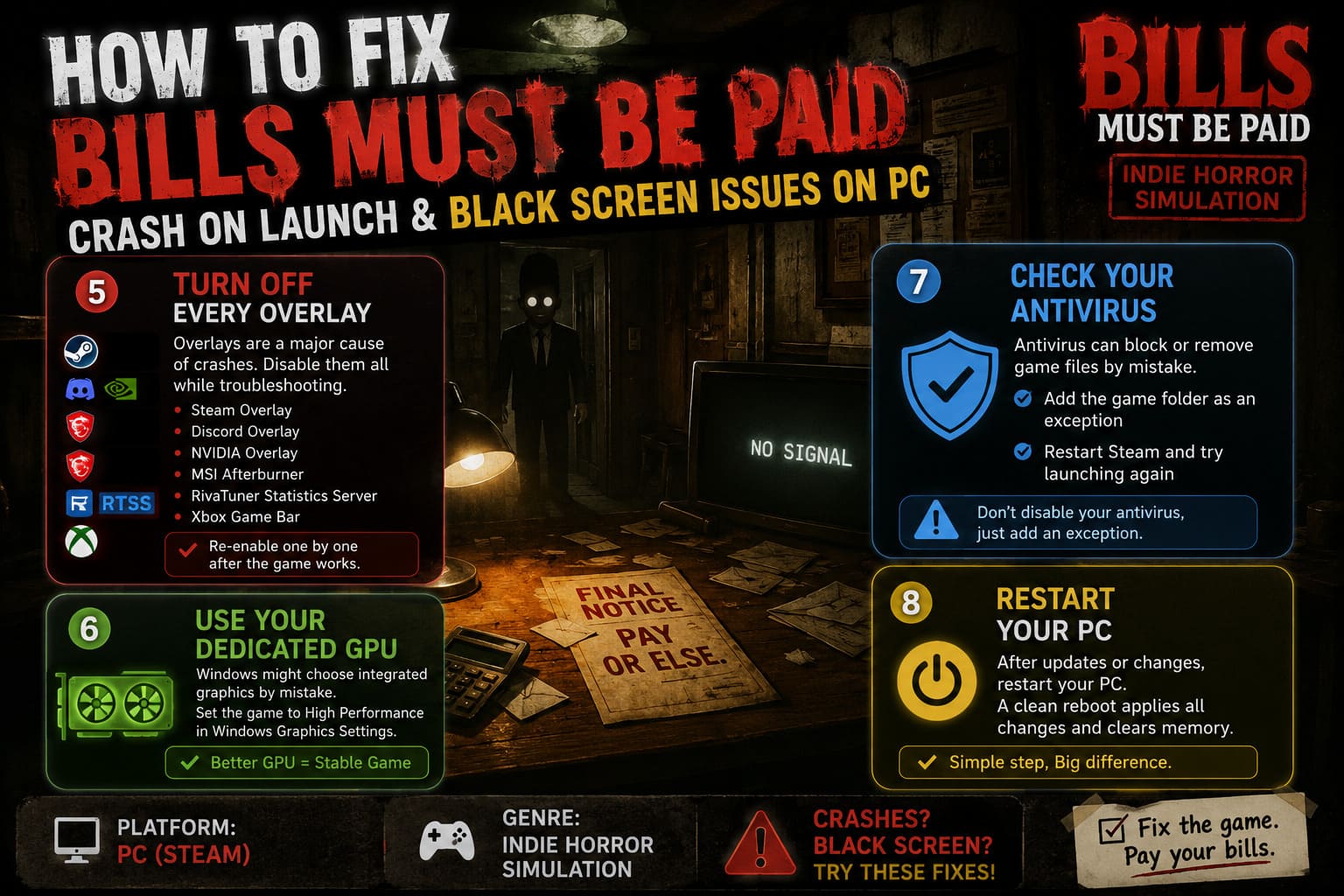
This is honestly one of the biggest causes of startup crashes in modern PC games.
I love having FPS counters and Discord available while gaming, but when troubleshooting, every overlay gets disabled.
Check these first:
- Steam Overlay
- Discord Overlay
- NVIDIA Overlay
- MSI Afterburner
- RivaTuner Statistics Server
- Xbox Game Bar
Even if only one of them conflicts with the game, disabling all of them temporarily helps identify the problem.
Once the game runs properly, you can turn them back on one at a time.
6. Make Sure the Game Uses Your Dedicated GPU
Laptop gamers run into this more often than desktop users.
Windows occasionally decides that a lightweight indie game should run on integrated graphics instead of your dedicated graphics card.
That can easily cause crashes or endless black screens.
Go to Windows Graphics Settings and manually assign Bills Must Be Paid to High Performance.
It’s a small change, but it can make a huge difference.
7. Check Your Antivirus
Security software sometimes gets a little overprotective with newly released games.
I’ve personally seen Windows Defender quarantine perfectly safe game files simply because the executable was brand new.
Instead of disabling your antivirus completely, add the game’s installation folder as an exception.
After that, restart Steam and try launching the game again.
8. Restart Your PC (Seriously)
It sounds almost too obvious.
But after updating drivers, changing Windows permissions, or verifying game files, I always perform one complete restart before testing again.
Windows likes to hold onto old processes in memory, and a clean reboot often finishes changes that haven’t fully applied yet.
I’ve fixed more games this way than I’d like to admit.
Extra Tips That Helped Me
After spending way too much time troubleshooting PC games over the years, these habits have saved me countless headaches:
- Keep Windows fully updated.
- Avoid overclocking while testing.
- Close unnecessary background applications.
- Disconnect extra monitors if possible.
- Remove launch options after the game starts working.
- Check available disk space—games sometimes fail to create save files when the drive is nearly full.
None of these are guaranteed fixes individually, but together they eliminate a lot of potential issues.
Bills Must Be Paid Guide: Expert Strategy, Perks, and Walkthrough to Escape Debt Fast
Troubleshooting Priority
If you’re unsure where to begin, this is the exact order I’d recommend:
- Verify Steam files.
- Restart the computer.
- Update graphics drivers.
- Disable every overlay.
- Launch using -windowed.
- Force the dedicated GPU.
- Run Steam and the game as administrator.
- Add the game folder to antivirus exclusions.
Following this sequence minimizes unnecessary work while covering the most common causes first.
Final Thoughts
As someone who enjoys trying indie releases on day one, I’ve accepted that occasional launch issues are almost part of the experience. The good thing is that most of them aren’t permanent, and Bills Must Be Paid is no exception.
In my case, the combination of verifying Steam files, disabling overlays, and forcing the game to launch in windowed mode solved the problem completely. After that, I switched back to fullscreen without any further crashes.
If you’re still stuck on a black screen after trying everything above, don’t panic. New games often receive quick hotfixes during their first few days, so keeping Steam updated and watching for patches is always a good idea.
Hopefully, these fixes get you back into the game quickly, because once Bills Must Be Paid finally launches, it’s incredibly addictive. The satisfying gameplay loop, constant upgrades, and fast progression make it one of those indie games that’s surprisingly difficult to put down—and definitely worth the effort to get running properly.