Best Valheim Steam Deck OLED Settings for Stable 45 FPS (2026 Optimization Guide)
Valheim on Steam Deck OLED is one of those games that can look absolutely fantastic one minute and then completely fall apart the moment you walk back into your giant home base. Out in the wilderness, 60 FPS can feel achievable. Start throwing down dozens of buildings, fires, portals, tamed animals and piles of terrain changes, though, and that comfortable frame rate quickly becomes a distant memory.
After spending a ridiculous amount of time testing survival games on handheld hardware, I think chasing a permanent 60 FPS in Valheim is the wrong battle on the Steam Deck OLED. The smarter target is 45 FPS. It feels fast, responsive and remarkably smooth on the OLED display, while giving the hardware enough breathing room to deal with Valheim’s heavier areas.
The 90Hz screen is the secret sauce here. A locked 45 FPS gives you a clean 45/90Hz relationship, which makes movement feel far better than an unstable 60 FPS that constantly dips into the 40s or 30s. This is the setup I would recommend to anyone who wants Valheim to remain beautiful without turning the Steam Deck into a portable space heater.
Why 45 FPS Is the Sweet Spot for Valheim on Steam Deck OLED
The Steam Deck OLED is powerful for its size, but Valheim is not a game that simply lives or dies by GPU performance. The real problem appears when your world becomes complicated. Large settlements, active fireplaces, smoke, livestock, lighting sources, dropped objects and extensive terraforming can all pile additional work onto the CPU and rendering pipeline.
That is why a graphics preset that delivers 60 FPS while you’re running through an empty meadow doesn’t necessarily mean you’ll get 60 FPS when you return to a fully developed Viking fortress.
45 FPS gives Valheim a much healthier performance ceiling. You still get responsive combat, smooth camera movement and a noticeably more fluid experience than 30 FPS, while leaving enough headroom for those nasty late-game performance spikes.
On the OLED model, the 90Hz panel makes this target especially attractive. Rather than fighting the hardware for every last frame, you’re asking it to consistently deliver a number that works perfectly with the display’s refresh rate.
My Recommended Valheim Steam Deck OLED Settings
The biggest mistake you can make is simply selecting the game’s Performance preset and calling it a day. Yes, it can push frame rates higher, but the aggressive resolution reduction can make Valheim look noticeably soft. Trees, distant enemies, environmental details and resources lose the crispness that makes the OLED screen so enjoyable.
I prefer a hybrid configuration: keep the important visual features enabled, reduce the settings that hammer the GPU or CPU, and let FSR do some of the heavy lifting.
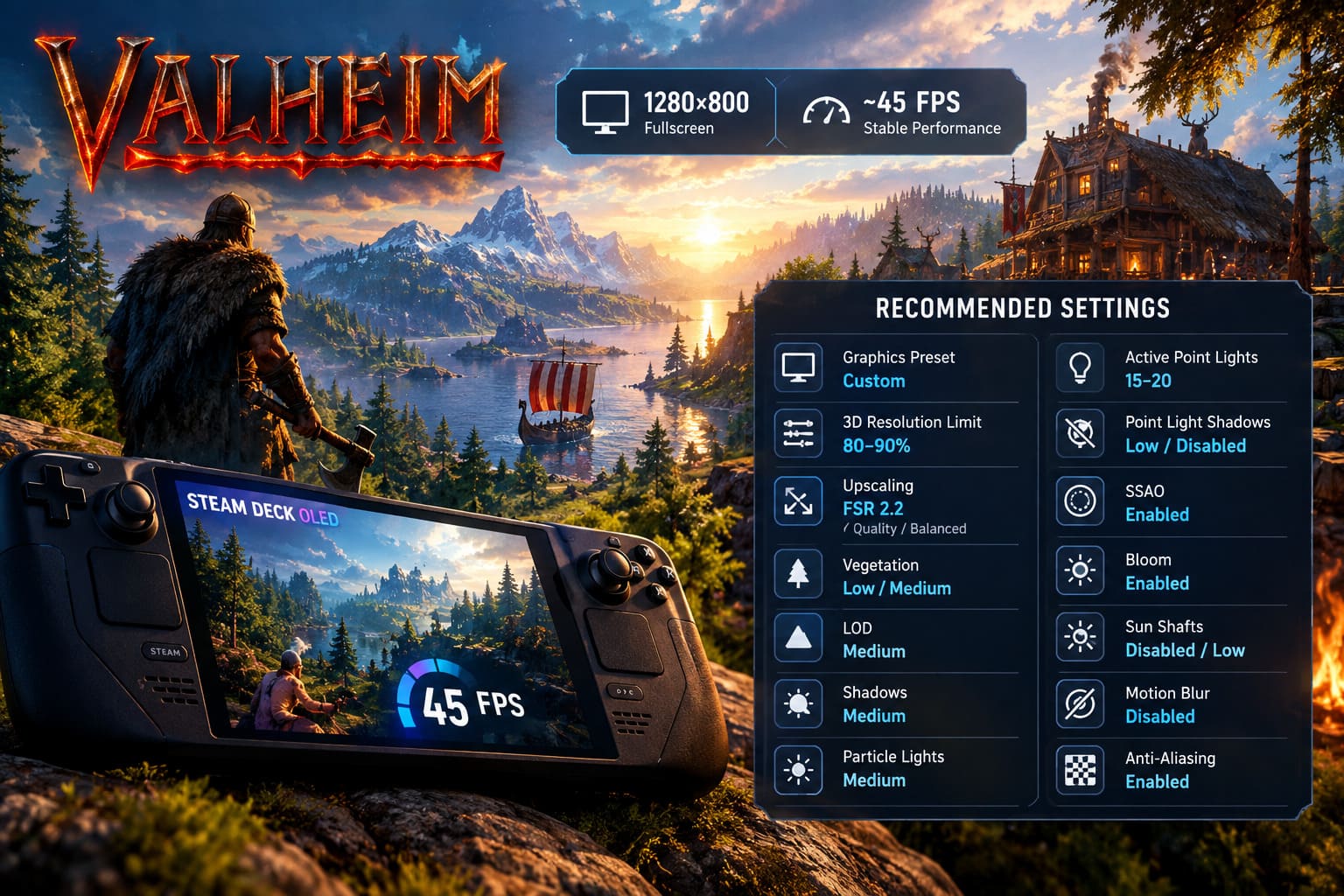
| Setting | Recommended Value | Why |
|---|---|---|
| Resolution | 1280×800 Fullscreen | Native Deck resolution and correct aspect ratio |
| Graphics Preset | Custom | Allows precise performance tuning |
| 3D Resolution Limit | 80–90% | Reduces rendering load without destroying image quality |
| Upscaling | FSR 2.2 Quality/Balanced | Good performance boost while retaining clarity |
| Vegetation | Low/Medium | Reduces GPU load and improves visibility |
| LOD | Medium | Reduces CPU pressure during exploration |
| Shadows | Medium | Good visual quality without excessive GPU cost |
| Particle Lights | Medium | Prevents combat-related lighting spikes |
| Active Point Lights | 15–20 | Controls lighting overhead in large bases |
| Point Light Shadows | Low/Disabled | Major improvement around heavily lit settlements |
| SSAO | Enabled | Keeps environments from looking flat |
| Bloom | Enabled | Very small performance impact |
| Sun Shafts | Disabled/Low | Helps stabilize forests and other dense areas |
| Motion Blur | Disabled | Sharper image on the handheld OLED screen |
| Anti-Aliasing | Enabled | Smoother edges, especially with upscaling |
Resolution and FSR: Don’t Turn Valheim Into a Blur Filter
The first setting I would experiment with is the 3D Resolution Limit. Running at roughly 80–90% can give the Deck some much-needed breathing room while keeping the game’s interface and general image quality perfectly usable.
FSR 2.2 should then handle part of the reconstruction work. I recommend starting with Quality and dropping to Balanced only if demanding areas are still causing frequent dips.
I would avoid Performance mode unless you absolutely need the extra frames. The reduction in internal resolution can become painfully obvious on foliage and moving objects. Those shimmering leaves and ghostly trails around characters are exactly the kind of visual distraction that makes an otherwise gorgeous OLED screen feel wasted.
Vegetation, LOD and Shadows: The Big Performance Wins
Vegetation Quality is one of my favorite settings to reduce. High vegetation density looks nice in screenshots, but during actual gameplay it can become visual clutter. Lowering it gives the GPU less work and makes it easier to spot resources, rocks, sticks and enemies hiding near the ground.
LOD should remain at Medium. High LOD sounds attractive because it keeps distant objects detailed, but the Steam Deck has better things to spend its limited CPU resources on. The difference is especially noticeable when sailing quickly across the map or moving rapidly through an explored region.
Shadows are another classic performance trap. Medium is the sweet spot. High and Ultra settings can cause surprisingly ugly frame-time spikes, particularly around sunrise and sunset when long shadows stretch across large portions of the environment.
Lighting Settings Matter More Than You Think
If your main Valheim world has evolved into a ridiculous Viking mega-base covered in torches, fireplaces and decorative lights, lighting may be your real performance enemy.
Keep Particle Lights around Medium and limit Active Point Lights to approximately 15–20. Most importantly, set Active Point Light Shadows to Low or Disabled.
This is one of those settings where the visual sacrifice is tiny compared with the performance benefit. Real-time shadows from every torch might sound cool on paper, but once your base has dozens of light sources, the Deck starts paying for every single one.
If you’ve ever walked into your own settlement and watched the frame rate collapse for no obvious reason, check your lighting. I have seen plenty of beautiful bases become performance nightmares simply because their owners wanted every wall and pathway illuminated.
Settings You Can Safely Keep Enabled
Not everything needs to be sacrificed for performance. SSAO should stay enabled because it adds depth around structures, rocks and environmental objects. Without it, Valheim can start looking noticeably flatter.
Bloom can also remain enabled. Bonfires, portals and sunlight look better with it, and the performance cost is small enough that I don’t see a reason to disable it for a 45 FPS target.
Sun Shafts are different. They look excellent when the light breaks through a forest canopy, but they can contribute to inconsistent frame times in dense areas. If you’re chasing stability above all else, turn them down or disable them.
Motion Blur is an easy disable. Personally, I wouldn’t use it on a handheld anyway. The OLED panel already produces a wonderfully clean image, and motion blur simply makes fast camera movement look softer.
Steam Deck OLED Performance Settings for a Locked 45 FPS
Once the in-game graphics are configured, don’t forget the Steam Deck’s own performance menu. Press the three-dot button and open the Performance tab. Turn on Advanced View so you can access the additional controls.
Set the Frame Rate Limit to 45 FPS. This is the foundation of the entire setup. With the OLED display running at 90Hz, the refresh rate and frame rate line up cleanly.
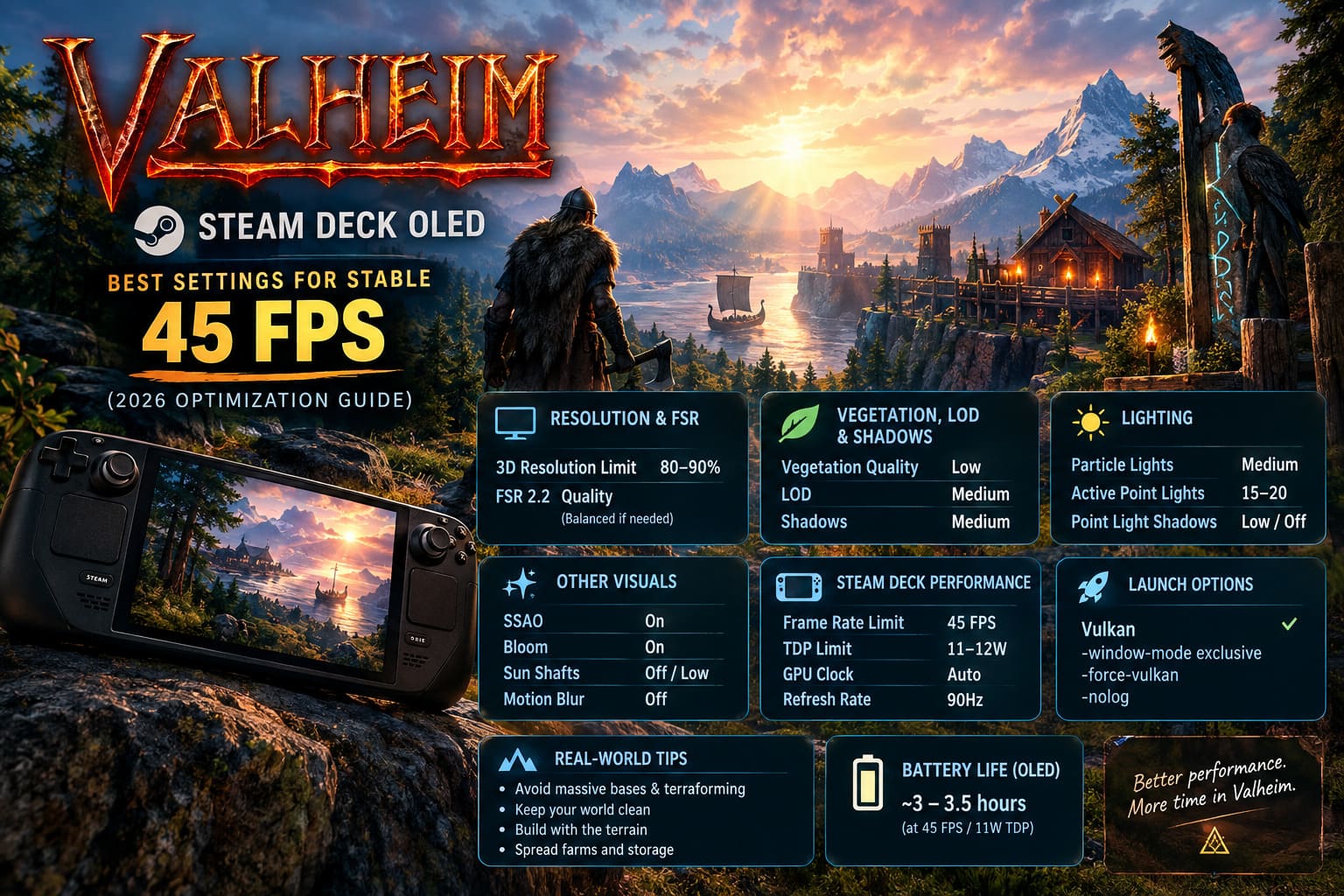
For TDP, start around 11W or 12W. Valheim doesn’t always need the full 15W envelope, and reducing the power limit can help with temperatures, fan noise and battery consumption. If a particular world or biome struggles, simply raise it again.
I wouldn’t bother manually locking the GPU clock under normal circumstances. Dynamic scaling generally does a good job of balancing the Deck’s CPU and GPU resources. If you notice unusual downclocking behavior, a manual GPU clock around 1200MHz can be tested, but this shouldn’t be your first move.
- Frame Rate Limit: 45 FPS
- TDP Limit: 11–12W
- GPU Clock: Automatic by default
- Display Refresh Rate: 90Hz
Should You Use Vulkan?
For Steam Deck players, I recommend launching Valheim with Vulkan and testing it against your specific setup. The Vulkan renderer can provide better draw-call efficiency and generally makes sense for the Deck’s AMD-based hardware.
If you’re using launch parameters, the configuration from this optimization approach is:
-window-mode exclusive -force-vulkan -nolog
The intention is straightforward: use exclusive window mode, force Vulkan and reduce unnecessary logging activity. That said, launch options are not magic performance switches. If your game is already stable, don’t blindly stack random commands you found in a forum post. The less you change at once, the easier it is to identify what actually helped.
The Real Problem: Huge Bases and Terraforming
Here’s the uncomfortable truth about Valheim performance: graphics settings cannot completely solve an overloaded world.
Terraforming is particularly expensive because changing terrain creates additional world data that the game has to process when you revisit an area. A gigantic moat, heavily flattened island or massive excavation project might look incredible, but the CPU has to remember and process all those changes.
Building habits matter too. Hundreds of construction pieces, animals, crops, storage containers, smelters, portals and decorative objects packed into one location can turn a beautiful settlement into a frame-time disaster.
My advice is simple: build with the terrain instead of constantly fighting it. Spread large farming areas and animal pens out where practical. Avoid turning every square meter around your base into a construction project.
Clean Up Your World
Another easy performance win is simply cleaning up junk.
Dropped rocks, wood, items and other objects sitting around your settlement aren’t completely free from a simulation perspective. If you have a habit of throwing everything onto the ground because you’re too lazy to organize your storage, you’re eventually going to pay for it.
Pick up unnecessary items or destroy them. Keeping the area around your main base clean is one of those boring survival-game chores that actually makes a difference once your world becomes large and busy.
Expected Battery Life on Steam Deck OLED
The OLED model has a meaningful advantage when you’re tuning Valheim around efficiency rather than raw performance. With a 45 FPS cap and approximately 11W TDP, the goal is not only smoother gameplay but also reduced power consumption.
Under the conditions described in this setup, a realistic expectation is roughly 3 to 3.5 hours of gameplay on a full charge, although actual battery life will vary depending on brightness, system behavior, world complexity, temperature and how hard the game is working.
That’s a pretty excellent trade-off for a game like Valheim. You’re getting the deep blacks and punchy colors of the OLED display, a genuinely smooth 45 FPS target and considerably better efficiency than simply letting the Deck run flat-out at 60 FPS.
How to Transfer Valheim Worlds from Xbox to Steam (2026 Complete Guide)
My Final Valheim Steam Deck OLED Verdict
After all the tweaking, the philosophy behind this setup is actually pretty simple: don’t chase numbers that your world can’t realistically maintain.
A Steam Deck OLED running Valheim at an unstable 60 FPS is less enjoyable to me than one sitting comfortably at 45 FPS with consistent frame pacing. The latter feels smooth, looks sharp and leaves enough performance headroom for the ugly moments when you return to a sprawling settlement during a storm with half your Viking army wandering around.
The most important settings are the ones that attack the real performance offenders: 80–90% 3D resolution, FSR 2.2, Medium shadows, reduced vegetation, Medium LOD, controlled point lights and disabled point-light shadows. Pair that with a 45 FPS cap, 90Hz refresh rate and an 11–12W TDP target, and you’ve got a much more balanced portable Valheim experience.
And honestly, this is how I want to play Valheim on Steam Deck OLED in 2026. I don’t need every blade of grass rendered at maximum quality. I need my Viking to sprint through the Black Forest without the frame time going completely feral, survive a chaotic raid without the Deck choking on torch shadows, and walk back into my base without watching the frame counter fall off a cliff.
45 FPS isn’t a compromise here. It’s the sweet spot.
Valheim Blood Magic Leveling Guide: Best AFK Farm Builds (2026)
Quick 2026 Setup Checklist
- Use 1280×800 fullscreen.
- Set the game to Custom graphics.
- Start with 80–90% 3D Resolution.
- Use FSR 2.2 Quality, switching to Balanced if necessary.
- Keep Vegetation and LOD around Low/Medium and Medium.
- Use Medium shadows and particle lighting.
- Reduce Active Point Lights and disable their shadows.
- Set Steam Deck refresh rate to 90Hz.
- Cap Valheim at 45 FPS.
- Test an 11–12W TDP limit.
- Use Vulkan if it performs better on your installation.
- Keep huge terraforming projects and overcrowded bases under control.
Do those things first before you start hunting for obscure tweaks. In my experience, the boring fundamentals are what actually keep Valheim running well on the Steam Deck OLED.