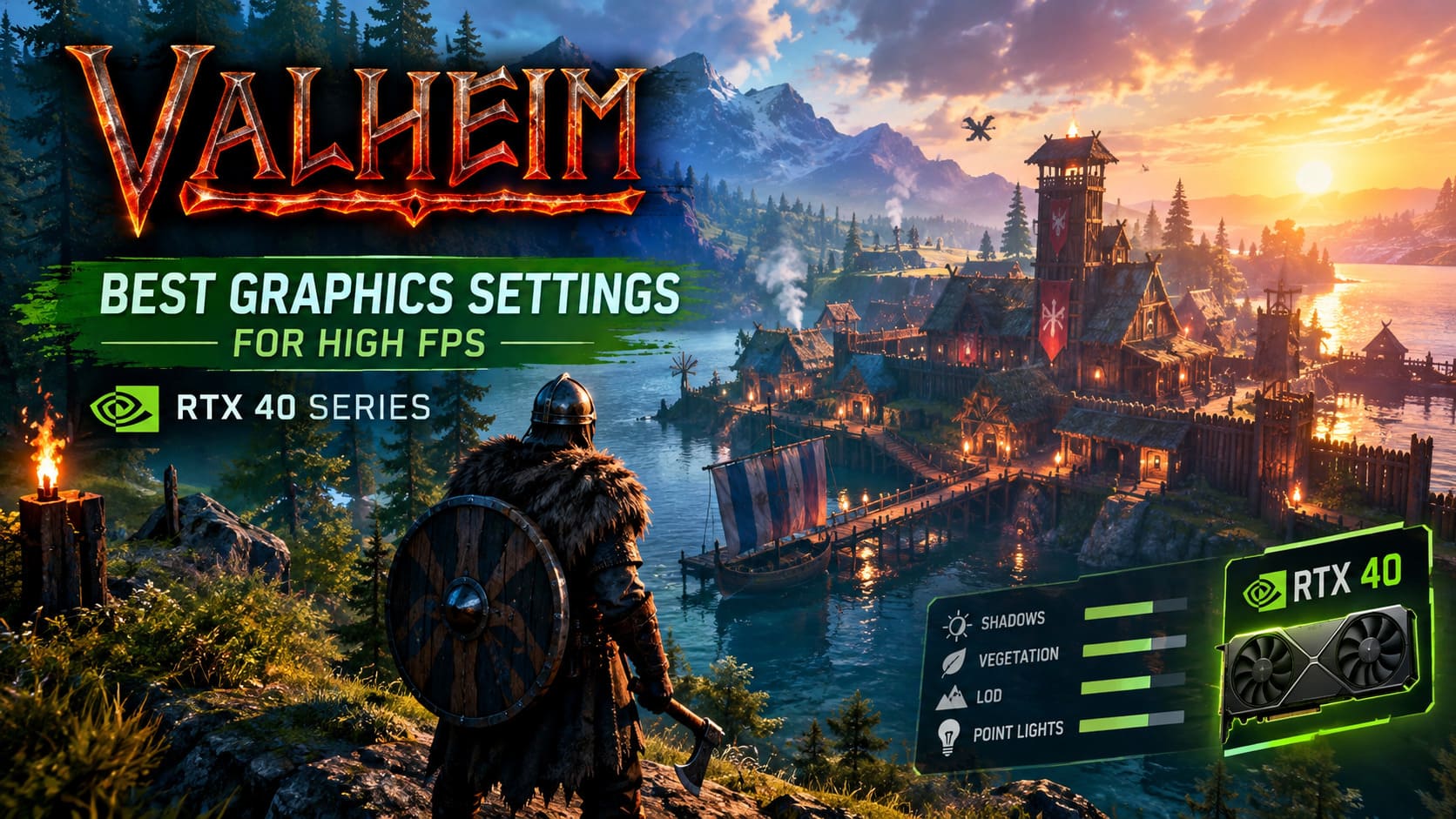
Best Valheim Graphics Settings for High FPS on RTX 40 Series (2026 Guide)
There is something almost hilarious about watching an RTX 4090 struggle with Valheim. You can have a monster gaming PC, a high-refresh monitor, loads of RAM, and a graphics card that laughs at modern AAA games, yet your FPS can suddenly fall through the floor when you walk into a giant player-built settlement.
I have always found Valheim’s performance quirks particularly interesting because the game does not look like something that should punish modern hardware this hard. Its deliberately low-poly visuals and retro-inspired textures create a charming aesthetic, but underneath that simple appearance is a surprisingly demanding collection of lighting, physics, world simulation, environmental effects, building pieces, and object instances.
This becomes especially obvious with NVIDIA RTX 40 Series GPUs such as the RTX 4060, RTX 4070, RTX 4080, and RTX 4090. In an open biome, these cards can push extremely high frame rates. Then you walk into a heavily developed base, fire up several furnaces, pass a wall of torches, and suddenly your expensive GPU is sitting at 40% utilization while the frame rate drops toward 40–50 FPS.
That is not necessarily a GPU problem.
Valheim can become heavily CPU-bound and instance-bound. Every building component, light source, piece of terrain, vegetation element, and other object that the engine needs to track contributes to the workload. Once a settlement becomes sufficiently complex, throwing a faster graphics card at the problem simply stops being an effective solution.
That is why this guide focuses on more than just turning everything to Ultra. The goal is to find the settings that actually matter, reduce unnecessary rendering overhead, improve frame consistency, and make an RTX 40 Series system behave like the hardware you paid for.
My Recommended Valheim Graphics Settings for RTX 40 Series GPUs
If you are using an RTX 4060 or anything faster, I would not blindly max out every graphics option. Valheim has several settings where Ultra gives you very little visual improvement while creating unnecessary performance overhead.
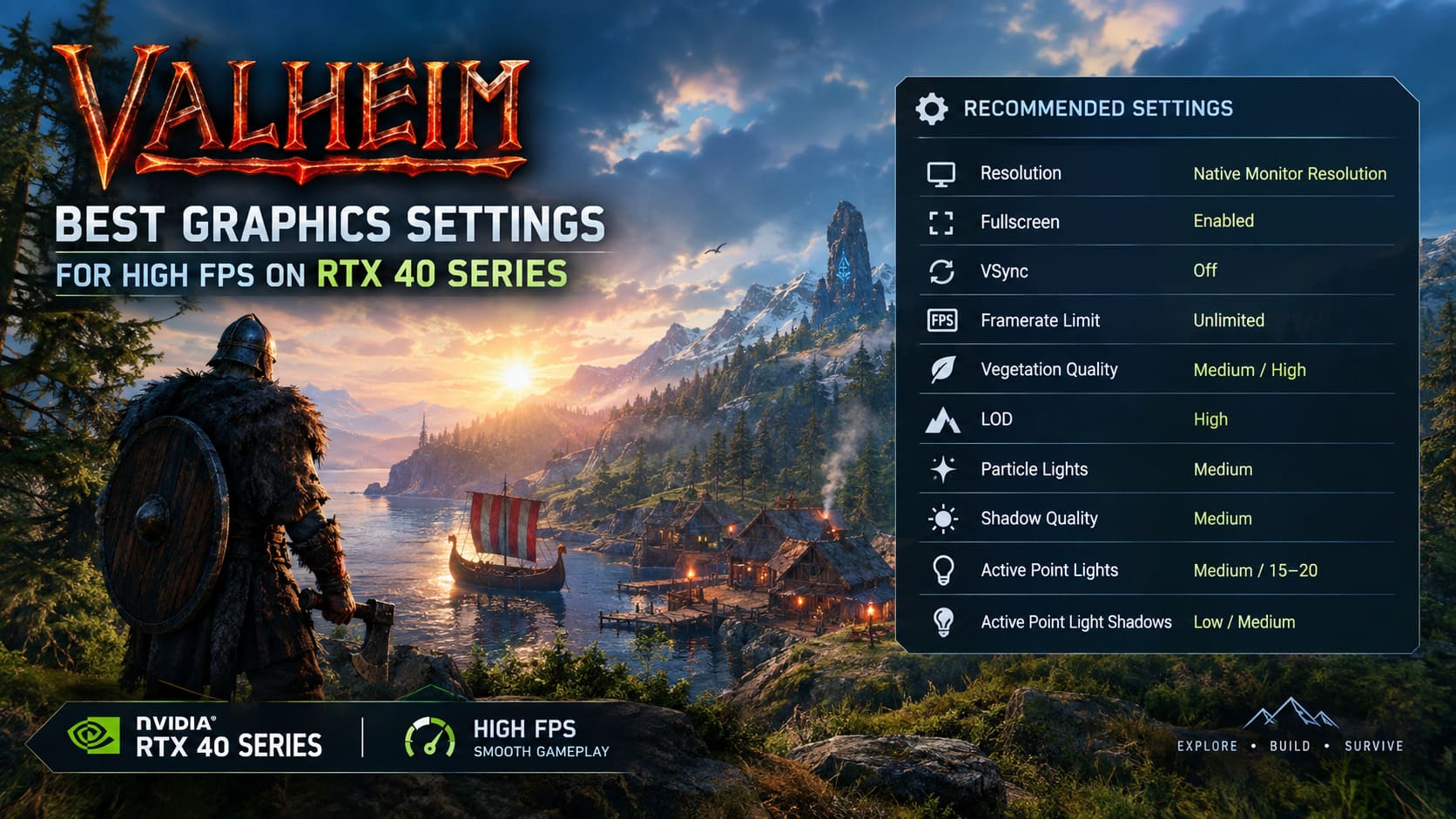
Open Settings > Graphics and start with the following configuration.
| Setting | Recommended Value | Why I Recommend It |
|---|---|---|
| Resolution | Native Monitor Resolution | Best image clarity and UI sharpness |
| Fullscreen | Enabled | Reduces unnecessary desktop composition overhead |
| VSync | Off | Lower input latency and fewer synchronization issues |
| Framerate Limit | Unlimited | Allows the GPU to render freely |
| Vegetation Quality | Medium / High | Good balance between visuals and CPU workload |
| LOD | High | Keeps distant objects detailed without excessive pop-in |
| Particle Lights | Medium | Helps during combat and heavy visual effects |
| Shadow Quality | Medium | One of the easiest settings for gaining FPS |
| Active Point Lights | Medium / 15–20 | Reduces lighting overhead in large bases |
| Active Point Light Shadows | Low / Medium | Prevents dozens of torches from becoming a performance disaster |
Resolution, Fullscreen, VSync and FPS Limit
For most RTX 40 Series owners, native resolution is the way to go. At 1080p, 1440p, or 4K, use your monitor’s native resolution unless you have a specific reason to use scaling.
Fullscreen should be enabled. If you are using the appropriate launch option, exclusive fullscreen can also be tested for potentially cleaner input behavior.
I personally recommend leaving Valheim’s internal VSync disabled. Traditional VSync can introduce additional latency and, depending on the circumstances, produce unpleasant frame pacing. If you need synchronization, I would rather handle that through the NVIDIA driver or an external frame limiter.
For the frame-rate limit, Unlimited is the obvious starting point. If your GPU is running unnecessarily hot or you are playing on a high-refresh monitor, however, capping the FPS can make the whole system quieter and more efficient.
The Settings That Actually Move the FPS Needle
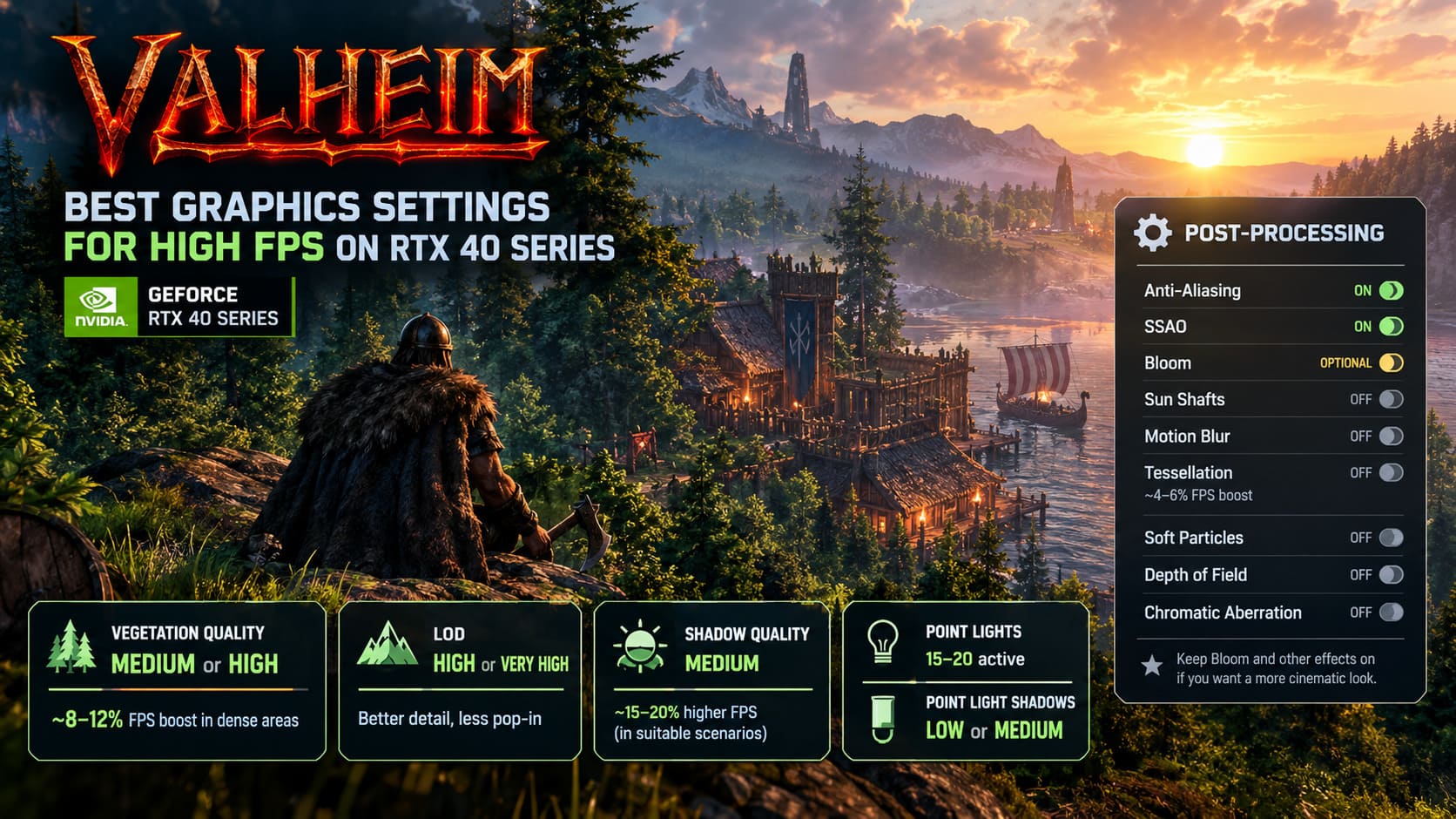
Vegetation Quality: Medium or High
Ultra vegetation looks nice, but I don’t consider it essential. Valheim’s environments already have plenty of atmosphere, and the highest vegetation setting can increase the amount of geometry the CPU and GPU need to process.
Dropping vegetation to Medium can provide a noticeable improvement in dense areas such as the Black Forest and Mistlands. Depending on the scene and hardware, the original testing target suggests roughly an 8–12% improvement in demanding vegetation-heavy situations.
If you hate the idea of sacrificing foliage, High is an excellent compromise.
LOD: Keep It High
Level of Detail is one setting I would not aggressively reduce on an RTX 40 Series machine. Your GPU has enough horsepower to handle distant geometry without turning the world into a collection of ugly low-detail shapes.
High or Very High LOD gives you better visual consistency and reduces distracting pop-in. This is one of those settings where I would happily spend a little performance budget because the visual benefit is obvious while exploring.
Shadow Quality: Medium Is the Sweet Spot
If you want a quick FPS win, start here.
Valheim’s shadows can be surprisingly expensive, particularly when you’re dealing with a complicated scene filled with buildings, vegetation, lighting, and environmental effects. Moving Shadow Quality from High or Ultra down to Medium can potentially provide a substantial performance increase, with the original configuration targeting roughly 15–20% higher FPS in suitable scenarios.
And honestly? Medium shadows still look good. Valheim’s artistic style is forgiving enough that I rarely miss the highest setting once I’m actually playing.
Point Lights and Their Shadows
This is one of the most important sections for anyone who has built an enormous Viking fortress.
Torches, sconces, campfires, and other light sources can become surprisingly expensive when you have dozens of them clustered together. Set Active Point Lights to Medium or keep the active count around 15–20 where possible.
For Active Point Light Shadows, use Low or Medium. Calculating shadows from every light source in a huge base is exactly the kind of workload that can turn an otherwise powerful PC into a stuttering mess.
Post-Processing: What I Keep On and What I Turn Off
Valheim does not need every cinematic effect enabled to look great. In fact, several of these options are the first things I disable on my own performance-oriented configurations.
- Anti-Aliasing: On. The visual improvement is worthwhile and the performance cost is relatively small on RTX 40 Series hardware.
- SSAO: On. Ambient occlusion adds depth to buildings, corners, caves, and terrain.
- Bloom: Optional. Turn it off for a cleaner image or leave it enabled if you enjoy the softer lighting.
- Sun Shafts: Off. Beautiful, but unnecessary if consistent FPS is the priority.
- Motion Blur: Off. Cleaner camera movement and better visual clarity.
- Tessellation: Off. The original testing suggests roughly a 4–6% performance improvement with limited visual loss.
- Soft Particles: Off. Useful for trimming effects overhead during smoke, fog, and particle-heavy scenes.
- Depth of Field: Off. Keeps distant objects sharp and avoids unnecessary blur.
- Chromatic Aberration: Off. Cleaner image with less artificial color fringing.
If you want Valheim to look cinematic rather than competitive, feel free to turn Bloom and some other effects back on. The important thing is understanding which options are cosmetic and which ones are quietly eating performance.
Unlocking Extra Performance with Valheim’s Boot Configuration
This is where things get much more interesting.
Valheim runs on Unity, and the game’s boot configuration contains settings related to how graphics jobs are processed. One of the most commonly discussed tweaks is enabling Unity’s graphics jobs.
To try it, open Steam and find Valheim in your library. Right-click the game, select Manage > Browse local files, then open the valheim_Data directory.
Look for boot.config. Open it with Notepad and add these lines:
gfx-enable-gfx-jobs=1
gfx-enable-native-gfx-jobs=1
Save the file and launch the game again.
The idea behind this tweak is to allow Unity to distribute certain graphics-related jobs more effectively across available CPU resources rather than leaving too much work concentrated on the primary execution thread.
Community testing has reported dramatic improvements on some high-end systems, including situations where GPU utilization increased significantly and built-up areas gained substantial FPS. Claims of 20–30 FPS improvements should not be treated as a guaranteed result for every PC, though. Valheim performance depends heavily on CPU architecture, world complexity, mods, object count, and the exact scene being measured.
Still, this is one of the first tweaks I would test on a system where the GPU is sitting at 40–50% utilization while the game is struggling.
One warning: keep the file in mind after major updates or Steam file verification. Game updates can overwrite configuration changes, meaning you may need to apply the tweak again.
Best Steam Launch Options for RTX 40 Series
Steam launch options are another tool worth experimenting with. Open Valheim Properties > General and find the Launch Options field.
The configuration from this optimization setup is:
-window-mode exclusive -force-vulkan -high
Each parameter targets a different part of the performance pipeline.
- -window-mode exclusive attempts to launch Valheim in exclusive fullscreen, which can help reduce desktop composition overhead and improve input behavior.
- -force-vulkan forces the Vulkan rendering API. On compatible systems, Vulkan can offer better CPU-side rendering behavior and frame pacing than DirectX 11.
- -high starts the game with a high Windows process priority.
Vulkan is particularly worth testing if your system suffers from inconsistent frame pacing. I would not promise a universal 10–15% improvement because API performance can vary dramatically between systems, drivers, and game versions, but Vulkan can absolutely be worth trying on a modern RTX PC.
The -high option is also not magic. It does not suddenly give Valheim more CPU cores. Think of it as a priority adjustment rather than a secret performance switch.
NVIDIA Control Panel Settings for Valheim
If you want to squeeze the last bit of consistency from your RTX 40 Series card, create a dedicated Valheim profile in the NVIDIA Control Panel instead of changing global settings for every game.
Go to Manage 3D Settings > Program Settings, add Valheim, and consider the following configuration:
| NVIDIA Setting | Recommended Configuration |
|---|---|
| Power Management Mode | Prefer Maximum Performance |
| Vertical Sync | Fast, depending on your display setup |
| Low Latency Mode | On or Ultra |
| Max Frame Rate | Match your monitor’s refresh rate when desired |
Prefer Maximum Performance can prevent aggressive clock reductions in situations where Valheim’s workload fluctuates heavily. This is particularly relevant when moving between relatively empty wilderness and demanding player bases.
Low Latency Mode can also help responsiveness, although I would not expect miracles from it in a game that is fundamentally CPU-bound in many scenarios.
Fast VSync is more situational. If you are sensitive to tearing and want to experiment with NVIDIA’s driver-level synchronization, it can be useful. If you already have a well-configured G-SYNC or VRR display, however, your ideal synchronization setup may look different.
For Max Frame Rate, matching your display’s refresh rate is a good practical choice if you want lower temperatures, less power consumption, and a quieter GPU during scenes where Valheim is capable of producing far more frames than your monitor can display.
The Real Enemy: Late-Game Base Lag
Here is the part that no RTX 4090 can completely fix.
Press F2 in Valheim and you can inspect your current FPS and instance count. This is incredibly useful when diagnosing performance problems because it gives you an idea of how much environmental complexity the engine is handling.
A relatively clean wilderness area may sit around 5,000–8,000 instances, allowing a powerful RTX 40 Series system to run at extremely high frame rates.
Now compare that with a giant multiplayer settlement containing hundreds of building pieces, extensive terraforming, farms, storage rooms, portals, crafting stations, decorations, and dozens of lights. Instance counts can climb beyond 30,000–50,000.
At that point, graphics settings can only take you so far.
The problem becomes the sheer amount of work the game engine needs to process. You can own an RTX 4090, but the GPU cannot render information that the CPU has not prepared.
How I Keep Large Bases Performance-Friendly
1. Stop terraforming everything. Massive terrain modifications can add significant complexity. Whenever possible, build with the natural landscape rather than turning an entire mountain into a perfectly flat construction platform.
2. Spread out your infrastructure. I actually prefer several specialized outposts over one enormous megabase. Keep your portal hub in one location, production elsewhere, farms somewhere else, and major storage areas separated when practical. This can reduce how many objects need to be processed together.
3. Be ruthless with lighting. Viking aesthetics are great, but you do not need a torch every two meters. Excessive lights can become a performance tax in large settlements. Use fewer, strategically placed sources and shut off unnecessary lighting where possible.
This is the difference between optimizing a normal PC game and optimizing Valheim. Sometimes the best FPS setting is not found in the graphics menu at all. It is deleting 200 unnecessary decorative objects from your base.
How to Fix Valheim Crossplay Disconnected from Server Error (Xbox & PC Game Pass 2026 Guide)
My Final RTX 40 Series Valheim Configuration
After stripping away the settings that look impressive on screenshots but do not provide much practical value, this is the kind of configuration I would use for a performance-focused RTX 40 Series setup:
| Category | Recommended Setting | Main Benefit |
|---|---|---|
| Resolution | Native | Maximum clarity |
| Fullscreen | Exclusive / Enabled | Lower potential input overhead |
| VSync | Off | Lower latency |
| Vegetation | Medium / High | Less environmental overhead |
| LOD | High | Good distant detail |
| Shadows | Medium | Major FPS savings |
| Point Lights | Medium / 15–20 | Better base performance |
| Point Light Shadows | Low / Medium | Reduced lighting workload |
| Sun Shafts | Off | More consistent frame rate |
| Tessellation | Off | Additional performance headroom |
| Motion Blur | Off | Sharper image |
| Depth of Field | Off | Cleaner gameplay view |
| Vulkan | Test with -force-vulkan | Potentially better frame pacing |
| Graphics Jobs | Test boot.config tweak | Potential CPU/GPU utilization improvement |
| NVIDIA Power Mode | Prefer Maximum Performance | More consistent GPU clocks |
Valheim Ashlands Base Defense Guide: How to Build Unbreakable Bases Against Late-Game Raids (2026)
Final Verdict: Your RTX 4090 Isn’t the Problem
If your RTX 4060, 4070, 4080, or 4090 is sitting at low utilization while Valheim drops frames, do not immediately start blaming the graphics card. In many cases, Valheim is simply running into its CPU and instance limits.
The biggest gains come from understanding where the bottleneck actually is. Medium shadows, sensible vegetation settings, restrained dynamic lighting, disabled unnecessary post-processing, Vulkan testing, Unity graphics-job configuration, and sensible NVIDIA driver settings can all help create a smoother experience.
But the biggest lesson after hundreds of hours of survival-game tinkering is this: base design is performance optimization in Valheim.
A giant fortress with thousands of building pieces, heavy terraforming, dozens of lights, farms, portals, decorations, crafting stations, and storage rooms is eventually going to challenge the engine. No amount of Ultra settings or expensive GPU hardware completely changes that reality.
Build smart, monitor your instance count with F2, keep unnecessary lighting under control, and use your RTX 40 Series card where it actually has an advantage. Once you stop treating Valheim like a conventional GPU-bound PC game, its performance quirks make a lot more sense.
And honestly, that is the funny part about Valheim: sometimes the best way to get another 20 FPS isn’t buying a new graphics card. It’s looking at your enormous Viking palace and asking yourself, “Do I really need 47 torches in this hallway?”