Best Aniimo Steam Deck Settings: Maximize FPS & Battery Life Guide
Aniimo is the kind of pen-world creature-catching game that immediately makes you want to play it on a handheld. The colorful world of Idyll, strange creatures to discover, open environments to explore, and chaotic PVEVP activities such as Egg Heist make it a surprisingly good fit for the Steam Deck. The problem is that this is also a demanding game, and the Deck can struggle when everything starts happening at once.
After spending plenty of time tweaking demanding games on Steam Deck, I have learned that chasing the highest possible FPS is not always the smartest approach. A game that jumps between 28, 38, and 50 FPS often feels worse than one locked consistently around 40 FPS. Aniimo benefits from exactly this approach, because stabilizing frame times makes exploration, combat, and camera movement feel much smoother while also reducing unnecessary battery consumption.
If you’re looking for the best Aniimo Steam Deck settings, this guide focuses on finding that sweet spot between image quality, performance, and battery life. You can push the game harder if you don’t mind sacrificing battery runtime, but for everyday handheld play, I would start with the configuration below.
Aniimo Low FPS in Floating Metropolis Complete Performance & Stuttering Fix Guide
Can Steam Deck Run Aniimo?
The short answer is yes, although you should keep your expectations realistic.
Aniimo’s PC requirements already suggest that the game is not designed around low-end hardware. The listed minimum specifications include a Core i7-9700 or Ryzen 5 3600X paired with a GTX 1060 or Radeon RX 6600 and 12 GB of RAM. The Steam Deck’s custom AMD APU is considerably more limited, particularly when you consider that its CPU and GPU share system memory.
This becomes especially noticeable in Idyll’s larger areas. Long view distances, dense vegetation, dynamic weather, creature models, and multiplayer activity can all put considerable pressure on the Deck. In my experience with demanding open-world games, these situations are exactly where an otherwise stable frame rate tends to fall apart.
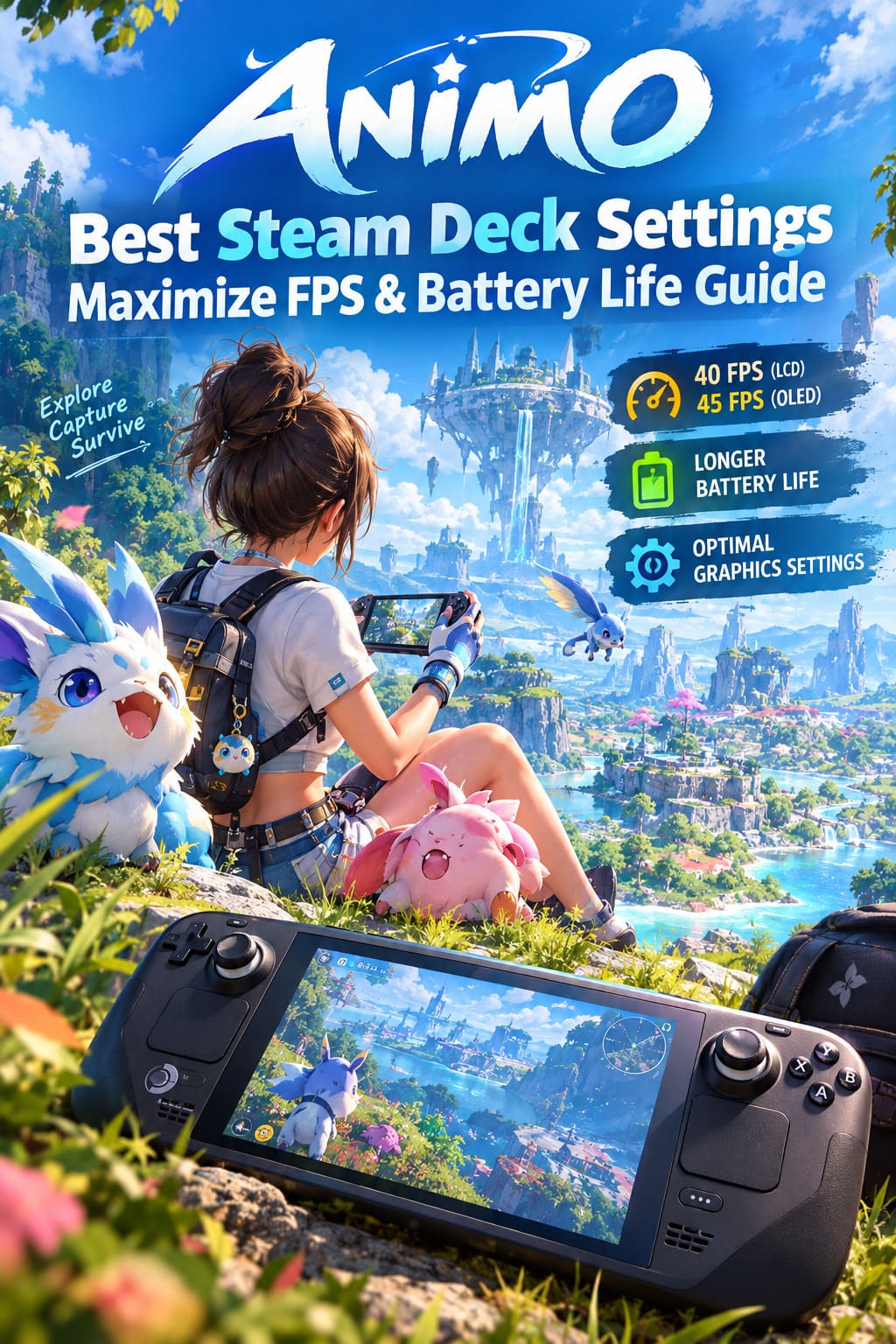
Rather than trying to force a permanent 60 FPS, I recommend treating 40 FPS as the realistic target. On the OLED model, 45 FPS can also be a very nice compromise.
My Recommended Steam Deck Performance Profile
Before changing individual graphics settings, configure the Steam Deck’s own performance controls. Press the three-dot button to open the Quick Access Menu and create a profile specifically for Aniimo.
40 FPS or 45 FPS Instead of 60 FPS
The first setting I would change is the frame-rate limit.
For the Steam Deck LCD, use:
- Frame Limit: 40 FPS
- Refresh Rate: 40Hz
For the Steam Deck OLED, you can experiment with:
- Frame Limit: 45 FPS
- Refresh Rate: 90Hz
The 40 FPS configuration is my personal favorite because it provides a surprisingly smooth experience without demanding nearly as much power as 60 FPS. More importantly, the frame pacing feels consistent.
A fluctuating 45-60 FPS may look better on paper, but when the game suddenly drops into the 30s during a busy scene, you’ll feel it immediately. A properly locked 40 FPS feels much more predictable.
TDP Limit: Keep Enough Power Available
Aniimo can use practically everything the Steam Deck is willing to give it, so a TDP limit can help control power consumption.
I recommend starting around 14W. You can also leave the limit at the maximum 15W if performance is more important than battery life.
I would avoid going much lower. While reducing TDP can extend battery life, there is a point where the CPU and GPU simply don’t have enough power to keep up with asset streaming and combat calculations. That can result in worse frame pacing rather than meaningful efficiency gains.
Use FSR to Recover GPU Performance
If Aniimo offers the appropriate resolution-scaling options, FSR is one of the most useful tools available to Steam Deck players.
Start with:
Scaling Filter: FSR
For sharpness, try 4 or 5 and adjust from there. The Steam Deck’s 1280×800 display is relatively small, so lowering the internal rendering resolution can save a considerable amount of GPU power without making the entire game look terrible.
If native 800p proves too demanding, dropping the game’s resolution to 1152×720 is another option. You can often gain several extra frames this way, especially in areas with heavy foliage.
Best Aniimo Graphics Settings for Steam Deck
Once the SteamOS profile is ready, move into Aniimo’s graphics menu. This is where the biggest performance improvements can be found.
| Setting | Recommended Value | Why |
|---|---|---|
| Display Mode | Fullscreen or Borderless | Both are suitable |
| Resolution | 1280×800 | Best image quality |
| V-Sync | Off | Let SteamOS handle frame limiting |
| Frame Limit | Unlimited | Use SteamOS cap |
| Anti-Aliasing | Medium | Good quality-to-performance balance |
| Shadow Quality | Low | Major FPS improvement |
| View Distance | Medium | Reduces distracting pop-in |
| Texture Quality | Medium | Keeps creatures and environments detailed |
| Effects Quality | Low | Helps during combat |
| Post-Processing | Low | Saves GPU resources |
| Screen Space Reflections | Off | Improves consistency near water |
| Godrays | Off | Reduces expensive volumetric effects |
| Motion Blur | Off | Cleaner movement |
| Bloom | Off | Small performance benefit |
| Ambient Occlusion | Low/Off | Useful for extra efficiency |
| Vegetation/Foliage | Low | Important in dense outdoor areas |
Shadow Quality Is One of the Biggest Wins
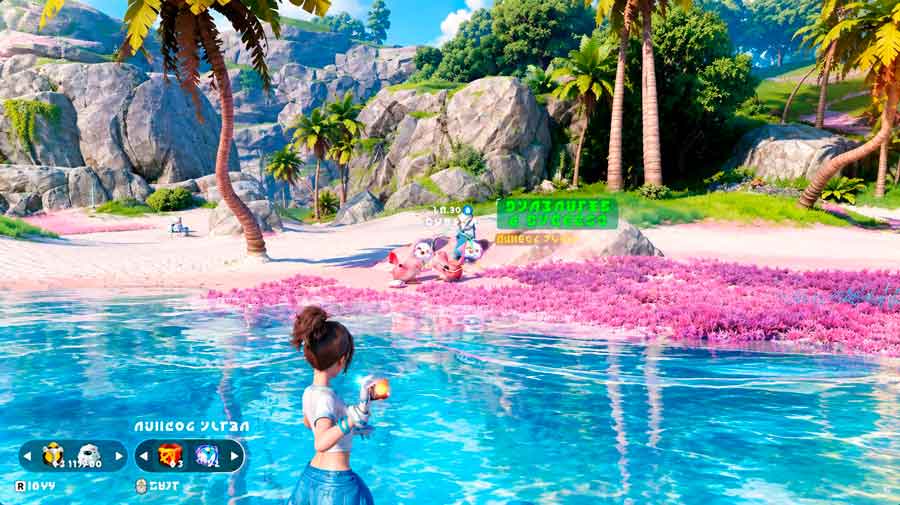
If you’re looking for a single setting that can make a noticeable difference, start with shadows.
Modern open-world games can make shadows surprisingly expensive because they have to be calculated across large environments. Aniimo is no different. Reducing shadow quality to Low can provide a substantial improvement in demanding areas.
Personally, I would rather play with lower-quality shadows than reduce texture quality. Shadows are something I stop noticing after a few minutes, while muddy creature textures are much harder to ignore.
Keep Textures at Medium
Texture quality is one setting I would not immediately destroy for the sake of FPS.
Set it to Medium first. Because the Steam Deck uses shared memory, texture performance needs to be monitored, but medium-quality textures generally provide a much better-looking game without the same performance penalty caused by expensive lighting, reflections, and shadows.
This is particularly important in a creature-catching game. You’re going to spend a lot of time looking at Aniimo’s creatures, so keeping their models reasonably sharp makes a noticeable difference.
Reduce Vegetation and Effects
Idyll is designed to look lush, and that lushness comes at a price.
Grass, trees, bushes, and other foliage can increase the amount of geometry the Steam Deck needs to process. Setting Vegetation/Foliage to Low is therefore a sensible compromise.
I also recommend lowering Effects Quality. During normal exploration, you may not notice the difference, but during combat with multiple creatures and visual effects on screen, lower effects settings can help prevent sudden frame-time spikes.
Turn Off SSR and Godrays
Screen Space Reflections and volumetric lighting effects are exactly the sort of visual features that look impressive in screenshots but aren’t necessarily worth keeping on a handheld.
Set SSR to Off. This is especially useful around water, wet surfaces, and reflective environments.
For Godrays, I would use Off or Low. Volumetric lighting can put considerable pressure on a relatively small GPU, and disabling it usually has a much more noticeable performance benefit than the visual sacrifice suggests.
Motion Blur and Bloom can also go. These are mostly preference settings, but I personally prefer the cleaner image on Steam Deck anyway.
Advanced Steam Deck Tweaks
If you’re comfortable changing deeper system settings, there are a couple of additional tweaks worth considering. These aren’t necessary for everyone, and I would not recommend changing BIOS settings just because a game has performance problems.
UMA Frame Buffer
The Steam Deck uses shared system memory for graphics, and its UMA frame-buffer setting can be adjusted through the BIOS.
The commonly recommended configuration for demanding modern games is:
UMA Frame Buffer Size: 4GB
To access it, completely shut down the Steam Deck, hold Volume Up, and press the Power button to enter the firmware setup. From there, look under the Advanced settings for the UMA Frame Buffer option.
However, don’t expect this setting alone to magically add 20 FPS. The Steam Deck’s memory architecture is more complicated than simply assigning more VRAM. The benefit is primarily related to how certain games handle memory allocation and asset streaming.
For that reason, I would treat this as an optional enthusiast tweak, not a mandatory Aniimo optimization.
CryoUtilities: Worth Using?
CryoUtilities is another popular option among Steam Deck enthusiasts. It modifies several system-level memory and swap behaviors with the goal of improving performance consistency.
For a demanding game such as Aniimo, the most interesting potential benefit is improved 1% lows and reduced stuttering, rather than a massive increase in average FPS.
If your game already runs smoothly, I wouldn’t install additional utilities just for the sake of tweaking something. But if you’re experiencing persistent stutters during world streaming or multiplayer sessions, it can be worth experimenting with.
Proton Settings for Aniimo
Aniimo runs through Proton on SteamOS, and compatibility can sometimes change after either a game update or Proton update.
If you’re experiencing crashes, strange launcher behavior, or other compatibility problems, open Aniimo’s Steam properties and go to Compatibility.
Try forcing:
- Proton Experimental
- Or a recent GE-Proton release
I wouldn’t automatically switch Proton versions when everything is working. The old gaming rule applies here: if it isn’t broken, don’t fix it. A different Proton version can solve one problem while creating another.
Best Overall Aniimo Steam Deck Configuration
| Category | Recommended Setting |
|---|---|
| FPS Target | 40 FPS LCD / 45 FPS OLED |
| Refresh Rate | 40Hz LCD / 90Hz OLED |
| TDP | 14-15W |
| Scaling | FSR |
| FSR Sharpness | 4-5 |
| Resolution | 1280×800 |
| Shadows | Low |
| Textures | Medium |
| View Distance | Medium |
| Effects | Low |
| Foliage | Low |
| SSR | Off |
| Godrays | Off |
| Motion Blur | Off |
| Bloom | Off |
| V-Sync | Off |
What About Battery Life?
Performance and battery life are always connected on Steam Deck. The more aggressively you push the hardware, the faster you’ll drain the battery.
A stable 40 FPS profile with sensible TDP and FSR settings should give you a considerably better experience than simply running Aniimo unrestricted at maximum power. Your exact runtime will depend on screen brightness, TDP behavior, game areas, Wi-Fi activity, and whether you’re playing demanding multiplayer content.
Don’t expect one universal battery-life number from these settings. Busy areas and multiplayer sessions will naturally consume more power than simple exploration.
Final Thoughts
Aniimo is a great example of why Steam Deck optimization is about balance rather than simply lowering every option to Low. The Deck can deliver a surprisingly enjoyable version of a demanding open-world RPG, but you need to give its hardware a little breathing room.
For me, the ideal setup is 40 FPS on LCD or around 45 FPS on OLED, medium textures, low shadows, low foliage, FSR enabled, and expensive lighting effects disabled. That combination keeps enough of Idyll’s visual character intact while avoiding the ugly frame-rate swings that can make open-world games frustrating on handheld hardware.
If you want the prettiest possible version, you can raise several settings and accept lower FPS. But if you’re looking for something you can actually play comfortably for long sessions, stable frame pacing is much more valuable than a flashy graphics preset.
Once you’ve applied these settings, spend some time playing in several different environments rather than judging performance from one location. Explore a busy area, enter combat, travel through dense vegetation, and try multiplayer activities. If your frame rate remains consistent there, you’ve probably found the right balance for your particular Steam Deck.