Aliens Fireteam Elite 2 Optimization Guide: Best FPS Settings for GTX 1080 and GTX 1660 Series
If there is one thing I have learned from playing a ridiculous number of PC games, it is that an older GPU does not automatically mean you need to give up on modern games. You just have to be realistic about what you ask from the hardware. Aliens Fireteam Elite 2 is exactly the kind of game where this matters, because fighting through a hallway alone is one thing, but having several teammates, dozens of Xenomorphs, explosions, special abilities, acid effects, and particles covering the screen is a completely different workload.
For owners of the GTX 1080, GTX 1660, GTX 1660 Super, and GTX 1660 Ti, the goal should not be chasing every Ultra setting just because the menu allows it. Personally, I would much rather play at a consistent 60 FPS with responsive controls than stare at prettier shadows while the frame rate collapses whenever a Xenomorph horde appears. With the right Aliens Fireteam Elite 2 PC settings, these older Nvidia cards can still deliver a surprisingly enjoyable 1080p experience.
Aliens Fireteam Elite 2 DLSS 3 vs FSR 3 Settings: Best Performance Guide
Can a GTX 1080 or GTX 1660 Run Aliens Fireteam Elite 2?
The first thing to understand is where these GPUs sit compared with modern gaming hardware. The GTX 1080 is still an interesting card because its 8GB of VRAM gives it plenty of breathing room for textures, even though the architecture is now several generations old. The GTX 1660 family is newer in terms of architecture, but the standard 1660, Super, and Ti models generally have 6GB of VRAM, so texture memory needs a little more attention.
That difference becomes important in a game built around large environments and hectic cooperative encounters. A GTX 1080 can usually afford to be more generous with texture quality, while a GTX 1660 Super or Ti benefits from a slightly more conservative configuration. Neither card has dedicated hardware for DLSS, so you also need to approach upscaling differently from someone using a newer RTX GPU.
The good news is that 1080p is still the sweet spot for this hardware. I would not recommend making 1440p the primary target if your priority is stable performance. The moment a four-player firefight turns into complete Xenomorph chaos, the extra resolution can become an unnecessary burden.
My Recommended 1080p Settings
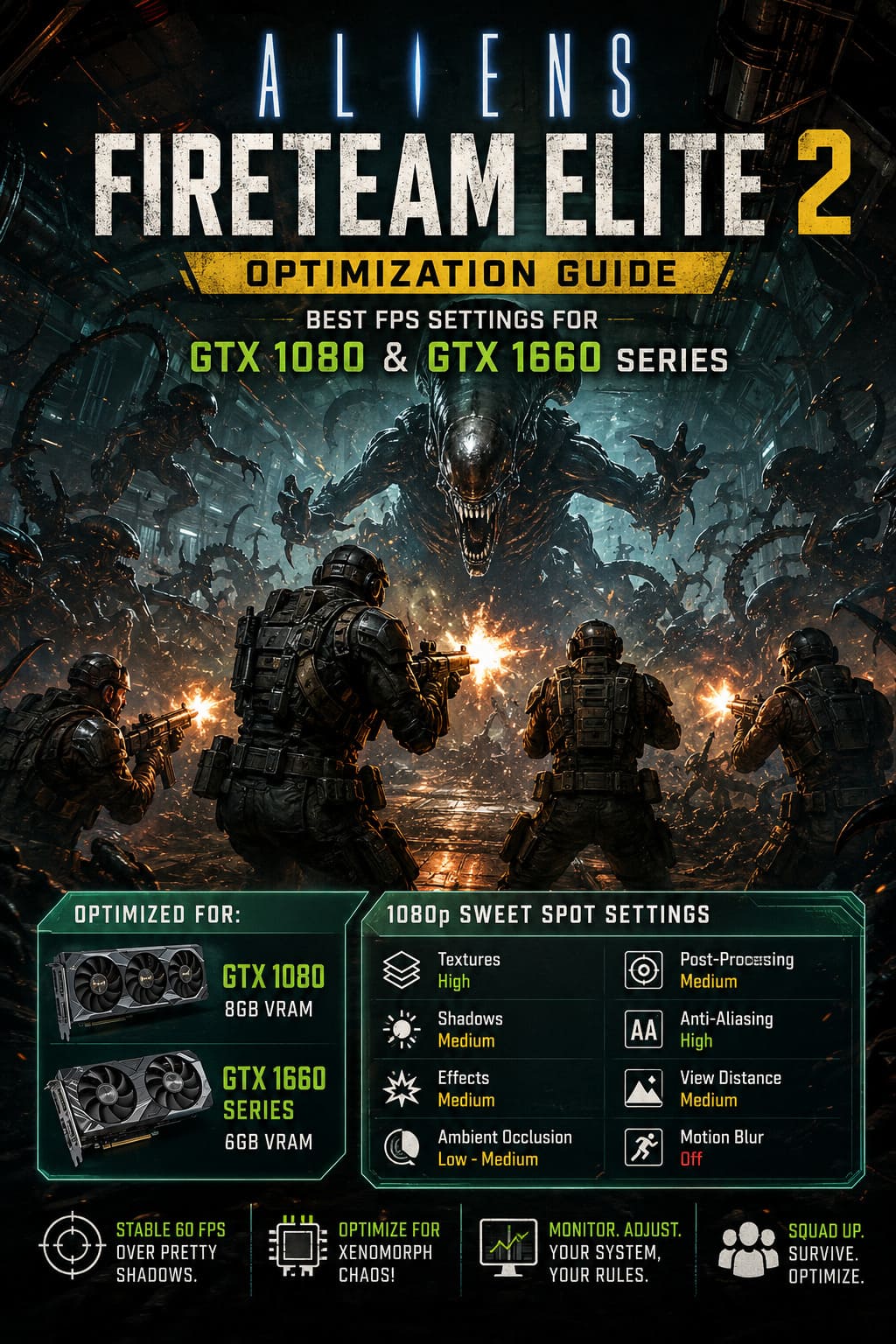
Instead of simply dropping everything to Low, I prefer a mixed preset. Some settings have a surprisingly small impact on image quality when reduced, while others make the game look considerably worse for only a tiny performance gain.
| Setting | GTX 1080 | GTX 1660 / Super / Ti |
|---|---|---|
| Display Mode | Fullscreen | Fullscreen |
| Resolution | 1920×1080 | 1920×1080 |
| Resolution Scale | 100% | 90–100% |
| Texture Quality | High | Medium–High |
| Shadow Quality | Medium | Medium |
| Effects Quality | Medium | Medium |
| Post-Processing | Medium | Medium |
| Ambient Occlusion | Medium | Low–Medium |
| Anti-Aliasing | High | High |
| View Distance | Medium–High | Medium |
| Foliage | Medium | Medium |
| Motion Blur | Off | Off |
| V-Sync | Off | Off |
This configuration is deliberately not an everything-on-Low setup. Textures are one of the settings I would protect, especially on the GTX 1080. Dropping texture quality too far can make environments look unnecessarily muddy without necessarily fixing the real source of your frame drops.
Fullscreen and Resolution Should Come First
Start with Fullscreen at 1920×1080. Borderless mode can be convenient when switching between applications, but when I am trying to squeeze stable performance from an older GPU, I prefer removing as many potential variables as possible.
The resolution scale slider is much more interesting. If your GTX 1080 is already delivering acceptable performance at native 1080p, leave it at 100%. If your GTX 1660 begins struggling during large enemy waves, try 95% first rather than immediately dropping to something aggressive like 75%.
A small reduction can be surprisingly difficult to notice during normal gameplay, particularly when you are sprinting through a dark industrial environment while trying not to get eaten. It is one of those settings where sacrificing a little image sharpness can be much more worthwhile than destroying several other graphical settings.
Texture Quality: Do Not Turn It Down Without a Reason
Texture quality is one of the easiest settings to misunderstand. It affects VRAM usage far more directly than raw GPU rendering performance, so lowering it does not necessarily fix every FPS problem.
The GTX 1080’s 8GB VRAM gives it a comfortable position here. I would start with High textures and only move lower if you notice memory-related stuttering or other problems. There is little reason to make an otherwise decent-looking game ugly just because the GPU is old.
For the GTX 1660, GTX 1660 Super, and GTX 1660 Ti, I would start at Medium or High, depending on the rest of your system. If you are seeing stutters when entering new areas, Medium can be the safer option. Smooth frame pacing is much more important in a cooperative shooter than having the sharpest possible wall texture.
Shadows Are Where I Start Cutting Performance
If I had to choose one graphical setting to reduce first, Shadow Quality would be near the top of my list. Dynamic shadows can consume a surprising amount of GPU resources, especially in environments containing lots of lights and moving objects.
Medium is the setting I would recommend for both GPU families. Going all the way to Low can provide additional performance, but the visual difference becomes more obvious and the environments can start losing some of their depth.
This is particularly noticeable during combat. You want enough lighting and shadow detail to understand the environment, but you do not need every Xenomorph and weapon effect generating an elaborate shadow while your GPU is fighting for its life.
Ambient Occlusion Is Another Easy Performance Win
Ambient Occlusion is another setting I would happily sacrifice for smoother gameplay. It adds subtle contact shadows and depth around objects, corners, and environmental surfaces, but its contribution to gameplay is relatively minor.
Try Medium on the GTX 1080 and Low or Medium on the GTX 1660 series. If you are still struggling to hold your target frame rate, turning Ambient Occlusion off completely is a reasonable experiment.
I would make this change before reducing textures or resolution. In my experience with PC games, subtle lighting effects are often much easier to sacrifice than overall image clarity.
Effects Quality Matters During Xenomorph Swarms
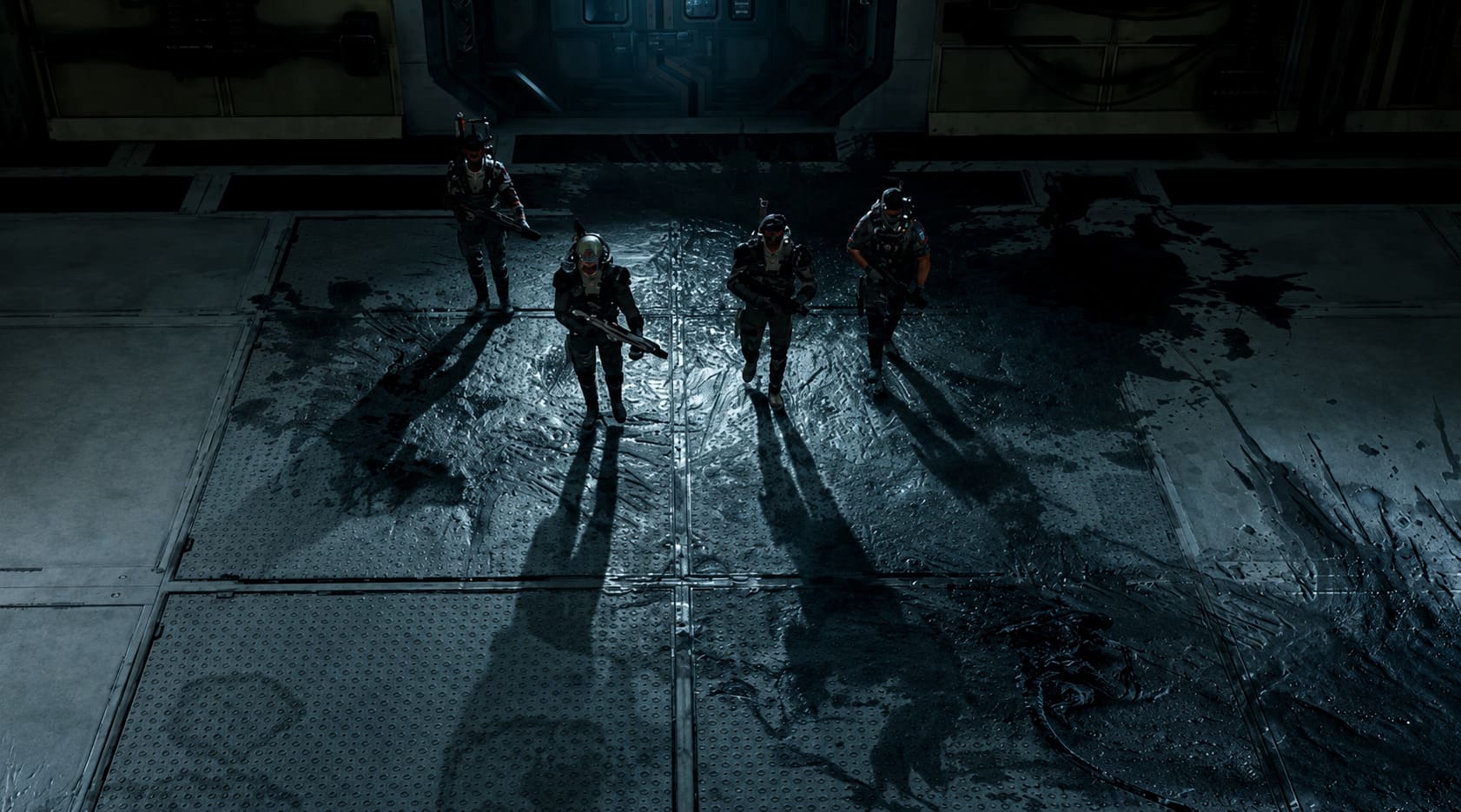
This is probably the setting that deserves the most attention in a game like this. Aliens Fireteam Elite 2 is not exactly a quiet walking simulator. When explosions, muzzle flashes, abilities, acid effects, particles, and dozens of enemies start appearing simultaneously, the GPU suddenly has much more work to do.
Keep Effects Quality at Medium. If your FPS looks perfectly fine while exploring but collapses whenever the screen becomes a mess of enemies and explosions, lowering this setting should be one of your first troubleshooting steps.
I would rather lose a little particle detail than have my aiming suddenly feel sluggish at the exact moment a massive Xenomorph wave reaches the squad.
Post-Processing and Motion Blur
Post-processing is another area where I prefer moderation. Medium is a good compromise because you retain some of the game’s visual polish without spending too much performance on effects that are not particularly important during combat.
Motion Blur should be turned off. This is partly a performance preference and partly personal taste. Fast third-person movement combined with a horde of enemies is already visually busy, and I find motion blur makes it harder to track what is happening around me.
For a competitive or reaction-heavy shooter, a clean image is generally more useful than cinematic blur.
What About DLSS, FSR, and XeSS?
This is where GTX owners need to remember an important hardware limitation. GTX 1080 and GTX 1660 cards do not have the dedicated Tensor hardware used for DLSS, so you should not expect the same DLSS experience available to RTX users.
If Aliens Fireteam Elite 2 provides alternatives such as AMD FSR or Intel XeSS, they are worth testing. Start with Quality mode because it usually offers a better balance between performance and image clarity. If you are struggling badly, Balanced can be the next step.
I would avoid immediately selecting the most aggressive performance mode. In a game where you are constantly tracking moving enemies, overly soft upscaling can become distracting very quickly.
Nvidia Control Panel Tweaks
There are also a few things worth checking outside the game. Make sure your Nvidia graphics driver is current, particularly after a major game release. Driver updates can include game-specific fixes, shader optimizations, and compatibility improvements that are difficult to reproduce through in-game settings alone.
In the Nvidia Control Panel, you can create a profile specifically for the game and experiment with the following options:
- Power Management Mode: Prefer Maximum Performance
- Texture Filtering – Quality: Performance
- Shader Cache: Driver Default or a larger available cache option
- Vertical Sync: Off if you are controlling frame pacing elsewhere
I would not blindly change every Nvidia Control Panel setting you find in an optimization video. Some tweaks are outdated, some have almost no measurable benefit, and others can create new problems. Change one thing at a time and actually test the result.
Windows Settings Can Help Too
Windows Game Mode is worth enabling for a gaming PC, particularly if you regularly have background applications running. Close unnecessary launchers, browsers with dozens of tabs, recording software, and anything else consuming CPU or memory in the background.
Hardware-Accelerated GPU Scheduling (HAGS) is more complicated. It can improve frame-time behavior on some systems, but there is no universal rule saying it will make every GTX 1080 or GTX 1660 system faster. If you experience micro-stutters after enabling it, turn it back off and compare.
That is a general rule I follow with PC optimization: benchmarks are useful, but your own system is the final judge. Two PCs with the same GPU can behave differently because of CPU performance, RAM configuration, storage, drivers, temperatures, and background software.
What If You Still Cannot Hold 60 FPS?
If the game still drops below 60 FPS after applying these settings, do not panic and immediately blame the graphics card. First, monitor GPU usage, CPU usage, temperatures, and VRAM consumption.
If the GPU is sitting near 99% during combat, lower resolution scale, effects, shadows, or ambient occlusion. If GPU usage is much lower but FPS remains poor, the problem may be elsewhere, such as a CPU limitation or background process.
For the GTX 1660 family, I would prioritize stable frame pacing over visual quality. A consistent 55–60 FPS experience usually feels considerably better than a system bouncing between 80 FPS and 40 FPS every time a large enemy wave appears.
Final Thoughts
The GTX 1080 and GTX 1660 series may no longer be considered modern gaming GPUs, but that does not mean they belong in the closet. With sensible Aliens Fireteam Elite 2 optimization settings, 1080p gaming remains a realistic target, especially when you stop trying to force every graphical option to its maximum value.
My preferred approach is simple: keep textures reasonably high, reduce shadows and ambient occlusion, use Medium effects, disable motion blur, stay at 1080p, and use resolution scaling when necessary. The GTX 1080 has enough VRAM to be relatively comfortable with higher texture settings, while the GTX 1660, GTX 1660 Super, and GTX 1660 Ti benefit from being a little more conservative.
Most importantly, do not optimize for a screenshot. Optimize for the moment when four players are surrounded by a ridiculous number of Xenomorphs and everything on the screen starts exploding. That is the real performance test, and if your frame rate stays stable there, you have probably found the right balance for your hardware.