How to Fix Pixelated Textures in Call of Duty: Modern Warfare II (2026 Guide)
If you’ve launched Call of Duty: Modern Warfare II expecting sharp visuals and instead found blurry weapons, blocky shadows, or textures that look like they belong in an old console generation, you’re definitely not the only one. Even in 2026, this is still one of the most common visual complaints from both PC players and current-generation console users.
I ran into this issue myself after a game update. The strange part was that my FPS stayed high, my GPU wasn’t overheating, and every other game looked perfectly fine. Yet MWII suddenly filled maps with grainy surfaces, muddy textures, and ugly pixelated shadows. At first I assumed my graphics driver had broken something, but after spending time testing different settings and comparing results with other players across gaming communities, I realized the problem usually comes down to a handful of graphics options working against each other.
This guide collects the methods that consistently produced the best results. Instead of randomly changing dozens of settings, you can focus on the ones that actually matter and get your visuals looking clean again.
Why Modern Warfare II Gets Pixelated
One thing that’s easy to misunderstand is that this isn’t always a hardware problem. Plenty of players with RTX 4080, RTX 5070, RX 9070 XT, and similarly powerful GPUs have experienced the exact same issue.
From my testing, there are several common reasons.
| Problem | What Happens | Recommended Fix |
|---|---|---|
| Dynamic Resolution | Internal resolution constantly changes. | Disable it. |
| Aggressive Upscaling | DLSS or FSR introduces blurry edges. | Use Quality mode or disable it. |
| Corrupted Shader Cache | Missing or low-quality textures appear. | Rebuild shaders. |
| Screen Space Effects | Grainy reflections and noisy shadows. | Turn them off. |
| Streaming Issues | Textures fail to fully load. | Adjust texture streaming. |
| Driver Conflicts | Visual artifacts after updates. | Perform a clean driver installation. |
The good news is that none of these problems usually require reinstalling the entire game.
Start With Your Render Resolution
This is the first thing I check after every major update.
Sometimes MWII quietly changes your render resolution without making it obvious. The game may still be running at your monitor’s native resolution while internally rendering everything at only 50% or 70%. That creates exactly the kind of blurry image many players describe.
Open your graphics settings and verify the following:
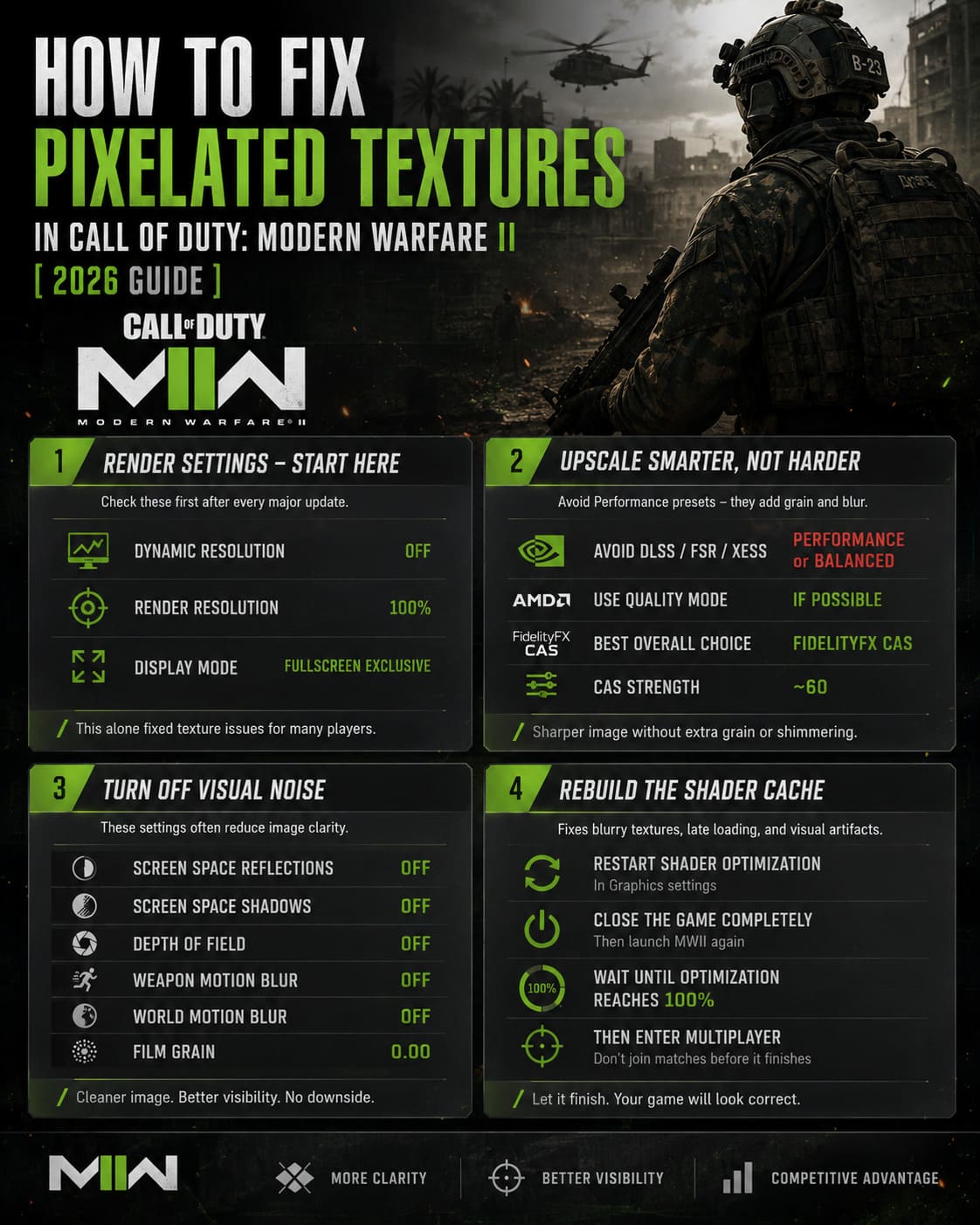
- Dynamic Resolution: Off
- Render Resolution: 100%
- Display Mode: Fullscreen Exclusive
This single adjustment solved almost all texture issues for me after one seasonal update.
Don’t Let DLSS or FSR Ruin Image Quality
I’m a huge fan of DLSS when it’s implemented well. Unfortunately, MWII sometimes produces noticeably grainier images when aggressive presets are enabled.
If you’re currently using one of these options, consider changing it:
- DLSS Performance
- DLSS Balanced
- AMD FSR Performance
- Intel XeSS Performance
Try switching to Quality mode instead. If your graphics card has enough performance headroom, disabling upscaling altogether often produces the cleanest image.
After comparing different combinations, I ended up sticking with the following setup:
- Upscaling: FidelityFX CAS
- CAS Strength: Around 60
This combination sharpens the image without exaggerating grain or creating shimmering edges.
Disable the Effects That Add Visual Noise
Some graphics settings sound impressive but actually reduce image quality. Screen Space Reflections and Screen Space Shadows are probably the biggest offenders. They’re designed to improve lighting while reducing performance costs, but in MWII they frequently create shimmering pixels across metallic objects, walls, and distant buildings.
These are the settings I recommend:
- Screen Space Reflections: Off
- Screen Space Shadows: Off
- Depth of Field: Off
- Weapon Motion Blur: Off
- World Motion Blur: Off
- Film Grain: 0.00
Turning off Film Grain alone makes a surprisingly noticeable difference. Personally, I’ve never liked heavy grain effects in competitive shooters because they make the image appear less clean without adding any gameplay value.
Rebuild the Shader Cache
If textures suddenly became pixelated after an update, don’t overlook shader optimization. This process compiles graphics data specifically for your hardware, and when something becomes corrupted you’ll often notice delayed texture loading, blurry environments, or strange visual artifacts.
Common symptoms include:
- Weapons loading late.
- Buildings appearing blurry.
- Random colored artifacts.
- Ground textures refusing to sharpen.
- Objects popping into high quality several seconds late.
Inside the Graphics settings you’ll find the option to restart shader optimization.
After starting the process, follow these steps:
- Close the game completely.
- Launch Modern Warfare II again.
- Wait until shader optimization reaches 100%.
- Only then enter multiplayer.
Many players jump into matches before optimization finishes, which often causes additional graphical issues.
PC Players Should Consider Their Graphics Drivers
GPU drivers deserve more attention than many people give them. A new driver can improve one game while making another perform worse.
Whenever I experience strange rendering issues, I normally try the following:
- Install the latest stable graphics driver.
- Roll back if the issue appeared immediately after updating.
- Perform a clean installation instead of installing over the previous version.
For NVIDIA users, Display Driver Uninstaller (DDU) is still one of the best utilities for completely removing old driver files before installing fresh ones. It takes a little extra time, but it has solved several graphics problems for me over the years.
Clear Old DirectX Cache Files
This is one of those fixes that sounds insignificant until it actually works.
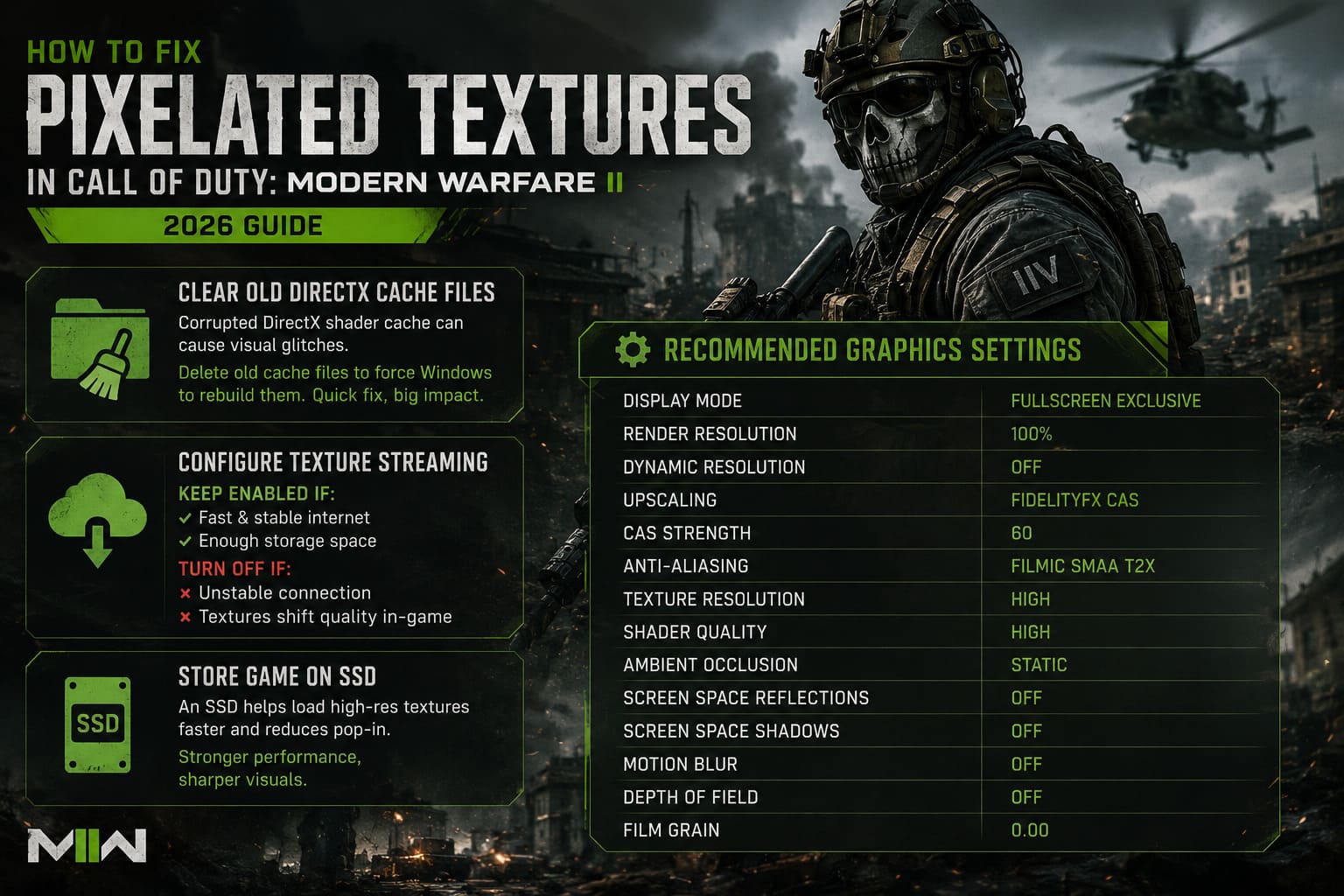
Windows stores compiled DirectX shader data inside cache folders. If those files become corrupted, games may continue loading damaged shader information every time they launch.
Deleting old DirectX cache files forces Windows to rebuild them. It’s a quick maintenance step that has helped eliminate strange graphical artifacts in more than one game—not just Modern Warfare II.
Don’t Ignore Texture Streaming
Texture Streaming is another setting that produces mixed results. Whether you should enable it depends entirely on the quality of your internet connection.
Keep Texture Streaming Enabled If:
- You have fast broadband.
- Your internet connection is stable.
- You have enough available storage space.
Turn Texture Streaming Off If:
- Your internet frequently spikes.
- Downloads regularly stall.
- You notice textures constantly changing quality during matches.
Personally, I disable texture streaming whenever I’m troubleshooting graphics problems. I prefer knowing every texture comes directly from local storage instead of relying on network conditions while playing multiplayer.
Graphics Settings That Gave Me the Cleanest Results
After testing numerous combinations, this configuration consistently produced the sharpest visuals while maintaining excellent performance.
| Setting | Recommended Value |
|---|---|
| Display Mode | Fullscreen Exclusive |
| Render Resolution | 100% |
| Dynamic Resolution | Off |
| Upscaling | FidelityFX CAS |
| CAS Strength | 60 |
| Anti-Aliasing | Filmic SMAA T2X |
| Texture Resolution | High |
| Shader Quality | High |
| Ambient Occlusion | Static |
| Screen Space Reflections | Off |
| Screen Space Shadows | Off |
| Motion Blur | Off |
| Depth of Field | Off |
| Film Grain | 0.00 |
These settings won’t magically increase your FPS, but they do make the image dramatically cleaner and reduce distracting visual artifacts.
How to Fix Call of Duty: Modern Warfare 2 Forced iGPU Crashing (2026 Working Guide)
Is Your VRAM Running Out?
Another thing worth checking is VRAM usage. Modern Warfare II can consume a surprising amount of video memory at higher settings. When your graphics card runs out of available VRAM, the engine starts replacing high-resolution textures with lower-quality versions, which often looks exactly like a texture bug.
If your GPU has limited VRAM, lowering only Texture Resolution is usually a better solution than reducing multiple graphics settings at once. I’d much rather play with Medium textures and a consistently sharp image than High textures that constantly stream blurry replacements.
How to Fix Modern Warfare 2 Not Launching After 2026 Update (Steam & Battle.net)
Final Thoughts
After spending far too many hours tweaking settings, I’ve come to the conclusion that Modern Warfare II’s graphics engine is incredibly sensitive to certain combinations of upscaling, shader data, and post-processing effects. The game is capable of looking fantastic, but a single setting—or even a routine update—can suddenly make everything appear muddy and pixelated.
If I had to recommend only three fixes to try first, they would be:
- Disable Dynamic Resolution and make sure Render Resolution is set to 100%.
- Rebuild the shader cache after every major update.
- Turn off Screen Space Reflections, Screen Space Shadows, Motion Blur, and Film Grain.
Those three adjustments alone resolved the issue on my system and noticeably improved image quality without reducing performance.
At the end of the day, crisp visuals make it much easier to spot enemies, identify movement at long range, and simply enjoy the detailed environments the developers created. Spending a few minutes fine-tuning your graphics settings is well worth it if it means every match looks as good as it should.