How to Fix Dimhaven: The Lost Source Low FPS, Micro-Stuttering, and Lag (Unreal Engine Guide)
When I first launched Dimhaven: The Lost Source, I expected exactly what Zadbox Entertainment is known for: a mysterious world, brilliant environmental storytelling, and puzzle design that rewards patience and observation. What I didn’t expect was spending part of my first evening fighting performance problems instead of solving puzzles.
Like many players across Steam discussions and gaming communities, I ran into frustrating frame drops, random stutters while exploring new areas, and inconsistent frame pacing that made camera movement feel less smooth than it should. The good news is that after experimenting with various Unreal Engine optimizations and testing community recommendations, I managed to turn the experience into something far more enjoyable.
If you’re struggling with low FPS, micro-stuttering, or sudden lag spikes in Dimhaven, these are the tweaks that made the biggest difference for me.
Why Dimhaven Suffers from Performance Problems
The game is built on Unreal Engine, which is capable of producing stunning visuals but often comes with familiar technical challenges. Even powerful gaming PCs aren’t completely immune.
In my experience, several factors contribute to the problem:
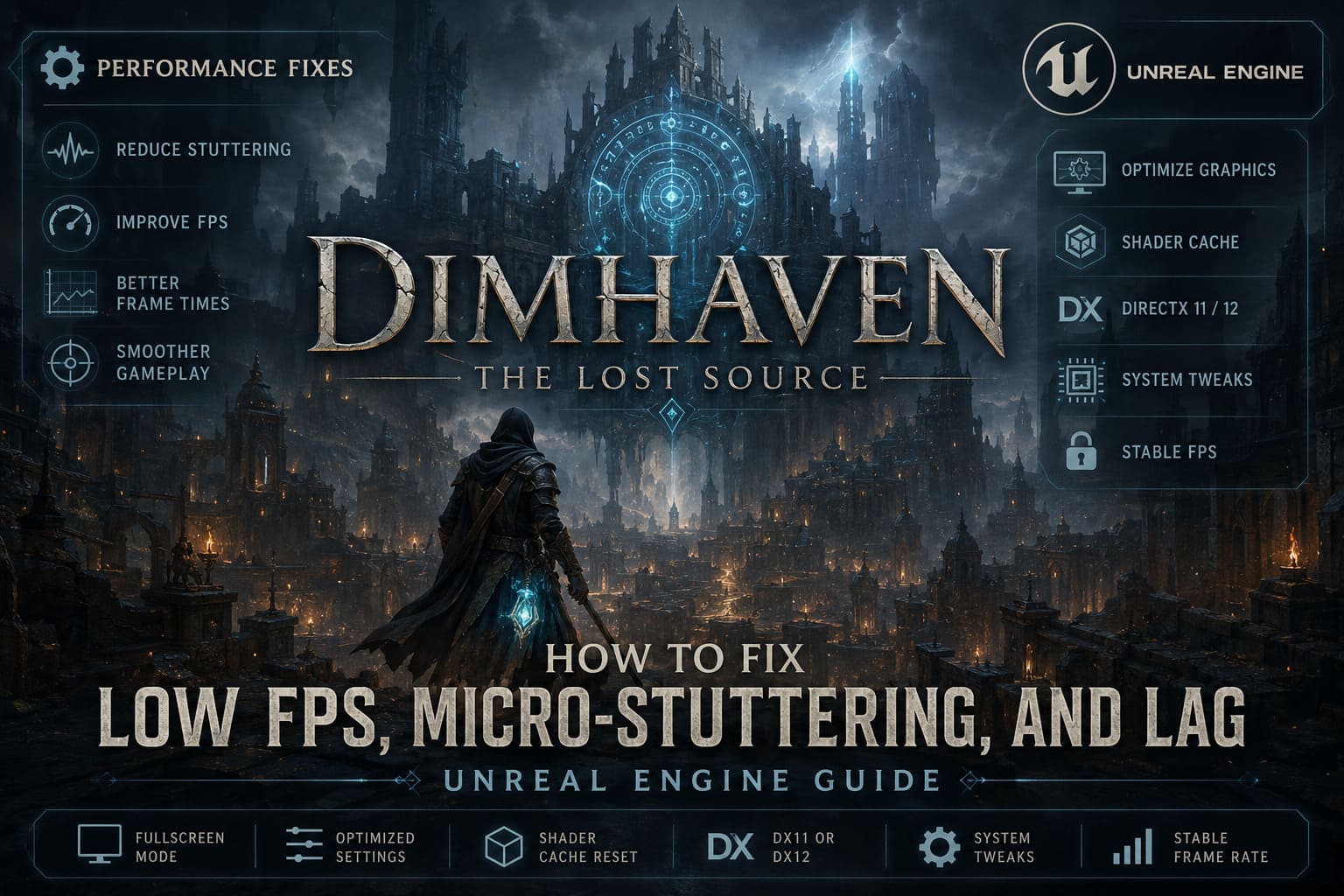
- Shader compilation occurring during gameplay
- Aggressive lighting and shadow effects
- VRAM-heavy texture streaming
- Windows background services interfering with frame pacing
- Poor fullscreen implementation settings
- Unreal Engine’s tendency to create traversal stutters in large environments
What’s interesting is that average FPS isn’t always the main issue. Many players report seeing relatively high frame rates while the game still feels choppy. That’s usually a sign of unstable frame times rather than insufficient GPU power.
The First Change Everyone Should Make
The biggest improvement came from something surprisingly simple.
Many PC games default to Borderless Windowed mode because it’s convenient for multitasking. Unfortunately, convenience doesn’t always translate into smooth performance.
I switched the game to exclusive Fullscreen mode and immediately noticed more consistent frame delivery.
How to Change It
- Open Settings.
- Navigate to Video or Display.
- Locate Display Mode.
- Select Fullscreen.
- Restart the game.
This allows the game to communicate more directly with your graphics hardware and reduces desktop compositor overhead.
For some players, this single adjustment may solve most of the stuttering issues.
Best Graphics Settings for More FPS
Not every visual setting impacts performance equally.
Some options consume huge amounts of resources while offering only minor visual improvements.
Recommended Settings
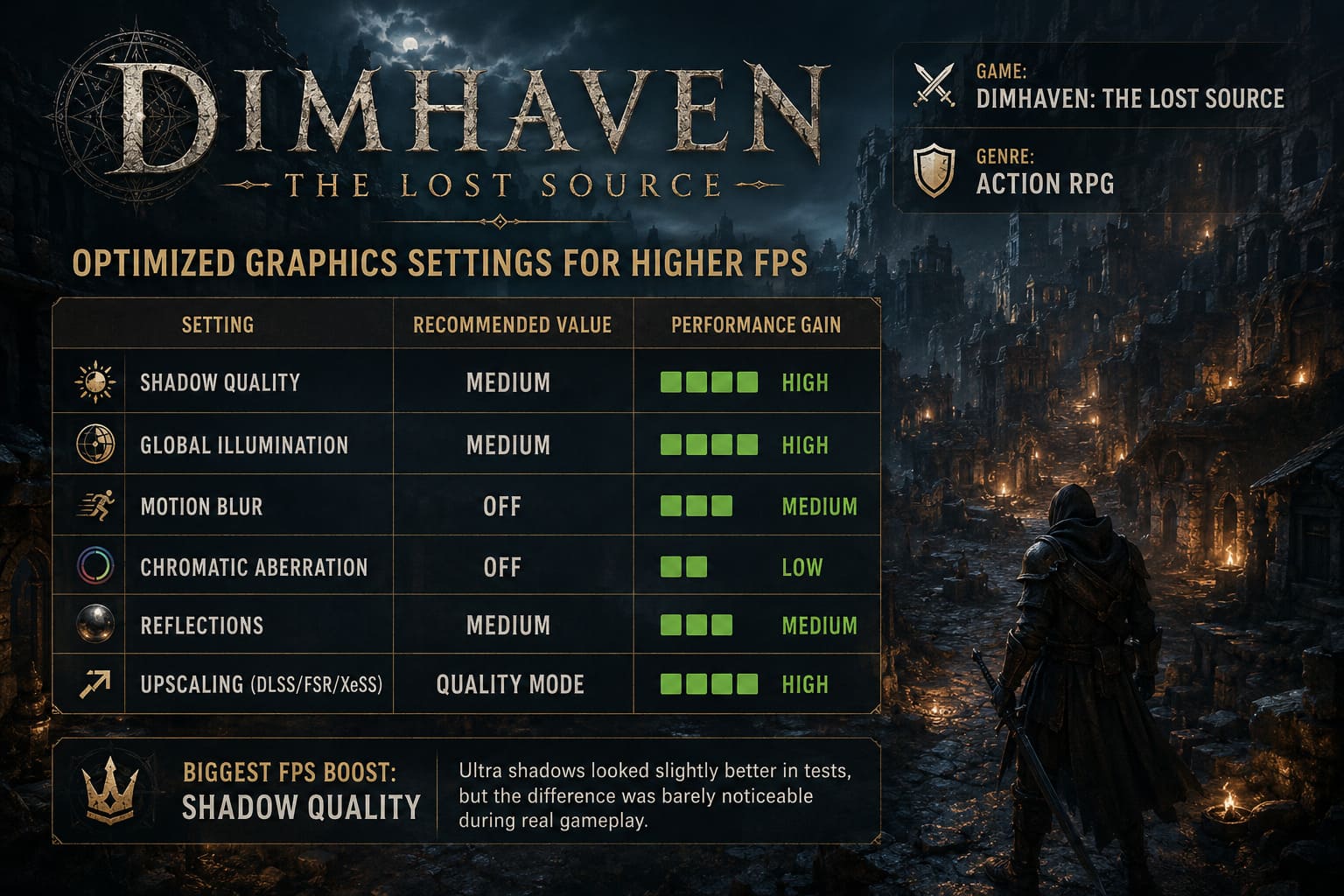
| Setting | Recommended Value | Performance Gain |
|---|---|---|
| Shadow Quality | Medium | High |
| Global Illumination | Medium | High |
| Motion Blur | Off | Medium |
| Chromatic Aberration | Off | Low |
| Reflections | Medium | Medium |
| Upscaling (DLSS/FSR/XeSS) | Quality Mode | High |
The shadow setting was by far the biggest FPS booster on my system.
Ultra shadows looked slightly better during side-by-side comparisons, but during actual gameplay I rarely noticed the difference.
Unreal Engine Configuration Tweaks
One thing long-time Unreal Engine players learn quickly is that the default settings aren’t always optimal.
Dimhaven appears to benefit from several engine-level adjustments that improve texture streaming behavior and shader cache handling.
The game’s configuration files can usually be found within the local application data folder under the game’s Saved and Config directories.
Several community-tested tweaks focus on:
- Improving shader pipeline management
- Increasing texture streaming efficiency
- Reducing rendering latency
- Preventing aggressive dynamic resolution behavior
I noticed fewer traversal stutters after adjusting these parameters, especially when entering entirely new puzzle zones.
As always, back up configuration files before making changes.
Clear Your Shader Cache
This is one of the most overlooked fixes in PC gaming.
Whenever graphics drivers are updated, old shader cache data can sometimes create performance inconsistencies.
The result?
The game repeatedly recompiles assets or accesses outdated shader information, causing hitches and brief freezes.
After clearing my cache and allowing the game to rebuild everything from scratch, exploration became noticeably smoother.
NVIDIA Users
Recommended actions:
- Delete old DX shader cache files
- Increase Shader Cache Size in the NVIDIA Control Panel
- Restart the PC before launching the game again
AMD Users
The process is even easier:
- Open AMD Software Adrenalin
- Navigate to Graphics settings
- Reset Shader Cache
- Restart the system
The first launch afterward may be slightly slower, but future sessions often perform much better.
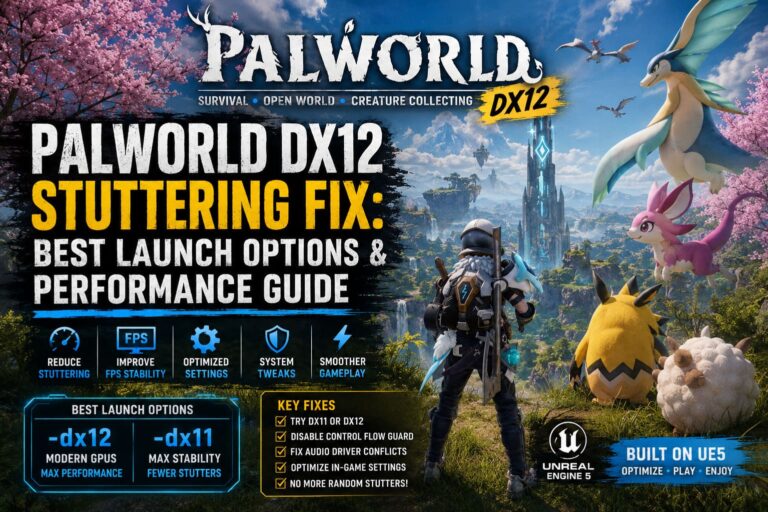
DirectX 11 vs DirectX 12: Which One Works Better?
This is where things become highly system-dependent.
I tested both APIs and found different results depending on hardware.
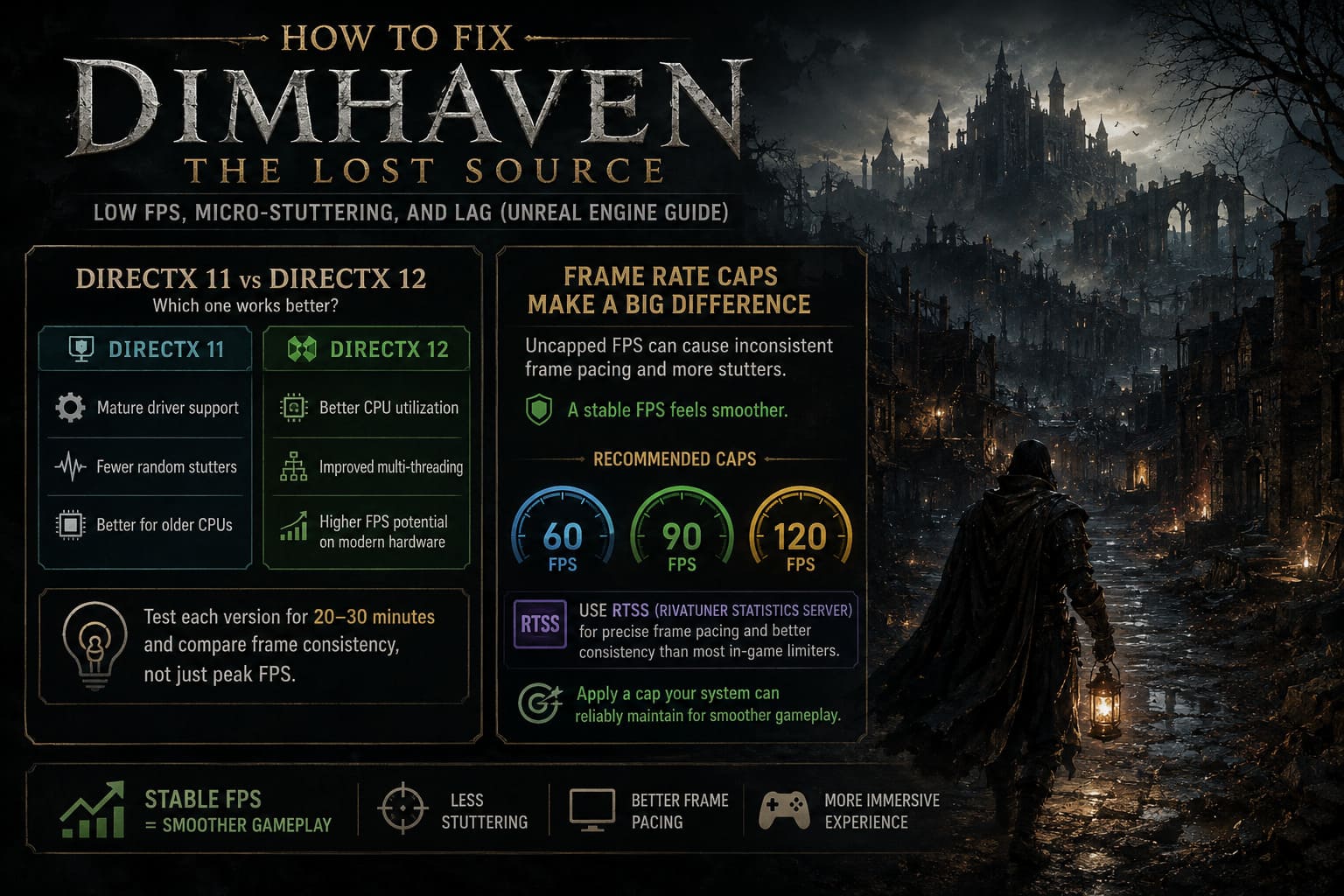
DirectX 11 Advantages
- More mature driver support
- Often produces fewer random stutters
- Better for older CPUs
DirectX 12 Advantages
- Better CPU utilization
- Improved multi-threading
- Potentially higher FPS on modern hardware
If you’re using Steam, experimenting with launch parameters can be worthwhile.
Try one version for 20–30 minutes and compare frame consistency rather than focusing solely on maximum FPS.
In some Unreal Engine games, DX11 delivers smoother gameplay despite slightly lower average frame rates.
Frame Rate Caps Matter More Than Most Players Think
One lesson I’ve learned after years of PC gaming is that uncapped FPS isn’t always the best solution.
When frame rates constantly jump between 65, 90, and 120 FPS, the game can feel inconsistent even though the numbers look impressive.
A stable frame rate often feels smoother than a fluctuating one.
I personally recommend using a frame cap that your system can reliably maintain.
Examples include:
- 60 FPS
- 90 FPS
- 120 FPS
Tools such as RTSS (RivaTuner Statistics Server) are excellent for this purpose because they provide more precise frame pacing than many in-game limiters.
After applying a proper cap, camera movement throughout Dimhaven felt significantly more fluid.
Windows Features That Can Hurt Gaming Performance
Windows includes numerous security and monitoring services that are beneficial for everyday use but occasionally interfere with gaming workloads.
Two features frequently discussed within performance-focused communities are:
Memory Integrity
Part of Windows security virtualization.
While useful for protection, it can slightly increase CPU overhead in some gaming scenarios.
HPET (High Precision Event Timer)
This setting has been debated for years.
Some systems benefit from disabling it, while others show no measurable difference.
Results depend heavily on motherboard firmware, chipset drivers, and operating system configuration.
My advice is simple:
Test performance before and after making changes and keep whichever setup performs better on your specific hardware.
Hardware Recommendations for Smooth Gameplay
Based on community reports and my own testing, these specifications seem to provide a comfortable experience.
| Component | Recommended Level |
|---|---|
| CPU | Modern 6-Core Processor |
| RAM | 16GB Minimum |
| GPU | RTX 3060 / RX 6700 XT or Better |
| Storage | SSD Required |
| VRAM | 8GB Recommended |
While the game is playable on weaker hardware, having sufficient VRAM appears especially important for avoiding texture streaming stutters.
Dimhaven The Lost Source Review: The Next Myst-Like Masterpiece?
My Final Verdict
After applying several of these optimizations, Dimhaven transformed from a technically frustrating experience into the atmospheric adventure I originally hoped for.
The most effective fixes for me were:
- Switching to Fullscreen mode.
- Clearing shader caches.
- Lowering shadow quality.
- Using a consistent FPS cap.
- Optimizing Unreal Engine configuration settings.
The reality is that many Unreal Engine games launch with similar performance quirks, and Dimhaven is no exception. Fortunately, most of the stuttering appears fixable without sacrificing too much visual quality.
If you’re currently battling frame drops or hitching, don’t immediately assume your hardware is the problem. A few targeted adjustments can dramatically improve smoothness and make the game’s incredible environments far more enjoyable to explore.
For a puzzle adventure that thrives on immersion and atmosphere, stable performance makes a bigger difference than almost any graphics setting. Once the stutters are gone, Dimhaven finally gets the chance to showcase what it does best: drawing you into its mysterious world and keeping you there for hours.