Total War Warhammer 3 End Turn Crash: 2026 Troubleshooting Guide to Fix Campaign Freezes and CTD
There are few things more annoying in Total War: Warhammer 3 than watching an entire turn play out, seeing the faction banners move across the top of the screen, and then getting kicked straight back to the desktop.
No warning. No useful error message. Just a crash.
The particularly nasty part is that an end turn crash in Warhammer 3 can happen dozens of hours into an Immortal Empires campaign. You can have a huge empire, a carefully planned army, legendary heroes, alliances, vassals, and a save file that represents an entire weekend of gaming — only for one AI faction to apparently decide that the game should stop existing.
I’ve always found these crashes more frustrating than ordinary performance problems. If the game stutters during a massive battle, at least you can usually point at your GPU, settings, or frame rate. When Warhammer 3 crashes during the AI turn, the problem can be buried somewhere inside the campaign simulation.
The good news is that an end turn CTD does not automatically mean your campaign is dead.
Sometimes you can identify the faction causing the crash. Sometimes rolling back a couple of turns is enough. And in more stubborn cases, clearing configuration data, removing unstable mods, or addressing CPU/RAM instability can make the difference.
Here is what I would try in 2026, starting with the fixes that can actually save a campaign rather than simply making the game look prettier.
Why Does Warhammer 3 Crash During End Turn?
The first thing to understand is that an end turn crash isn’t necessarily a graphics problem.
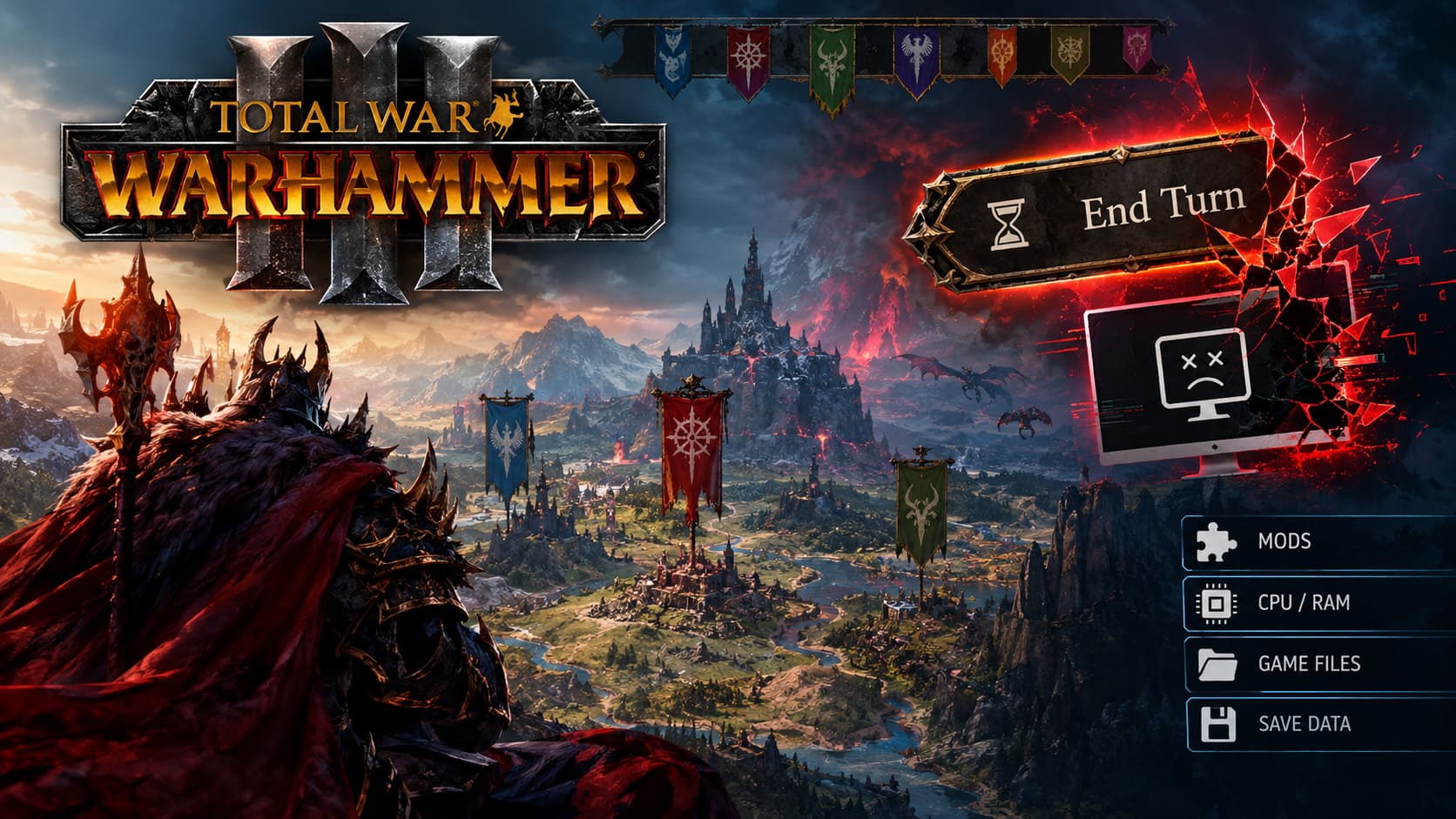
During an ordinary campaign turn, Warhammer 3 is constantly calculating movement, diplomacy, battles, settlements, faction objectives, scripts, quests, alliances, armies and countless other interactions. When you press End Turn, the game effectively hands control to the simulation.
That means a broken campaign state can reveal itself at exactly this point.
Some of the common causes include:
| Possible Cause | What It Can Look Like |
|---|---|
| AI faction script error | Crash always happens when the same faction takes its turn |
| Outdated mods | Campaign worked until a patch or mod update |
| Corrupted save state | Several saves from the same point crash repeatedly |
| CPU instability | CTDs appear during heavy campaign calculations |
| RAM/XMP instability | Random crashes despite apparently stable gameplay |
| Alliance or vassal issues | Crash occurs around army or diplomatic changes |
| Broken configuration/cache data | Problems survive reinstalls or updates |
The most important clue is consistency.
If the game crashes every single time after the same faction begins moving, don’t immediately start reinstalling Windows or blaming your RTX card. That behavior strongly suggests something happening inside the campaign simulation.
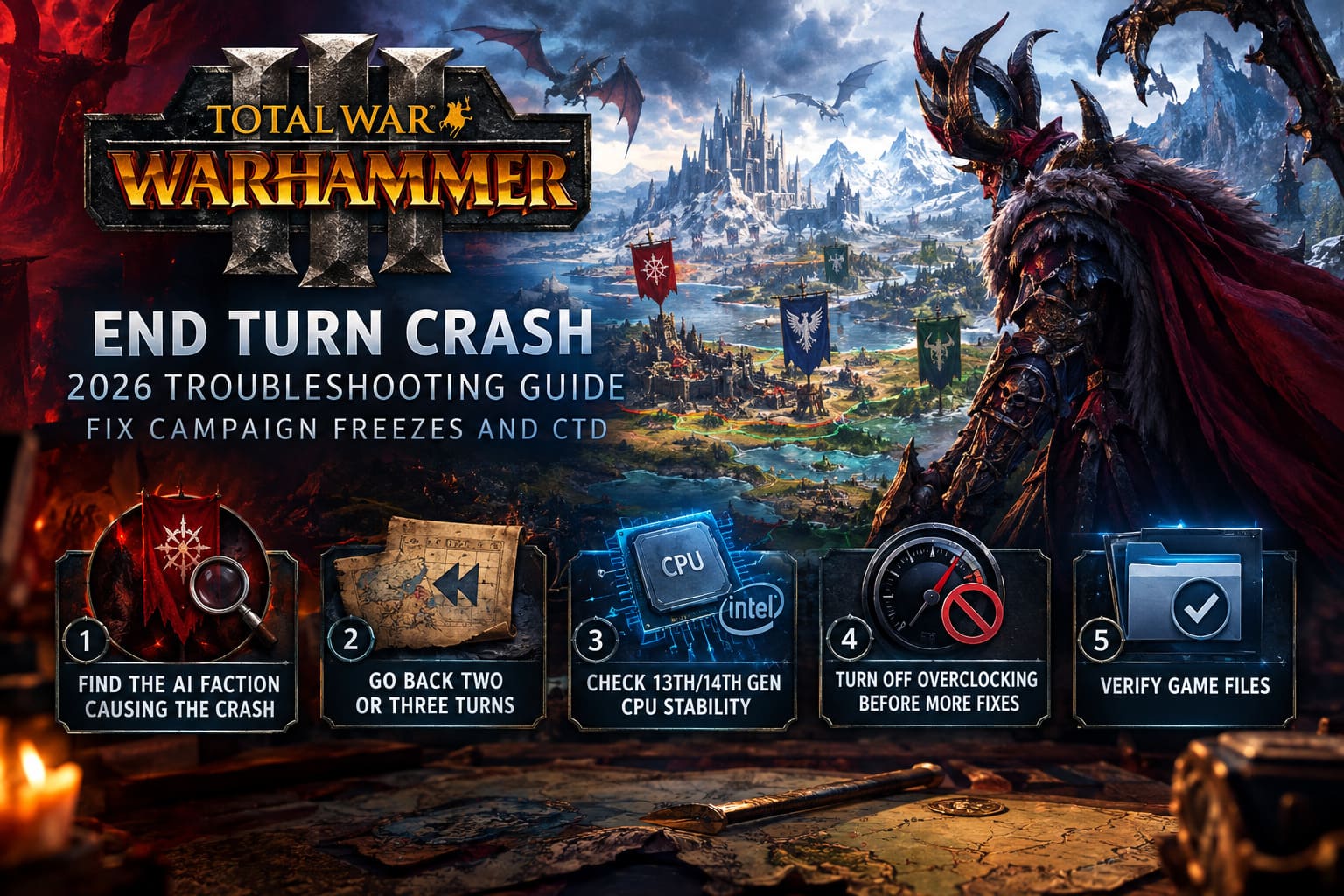
1. Find the AI Faction Causing the Crash
This is the first thing I would investigate if the crash happens at exactly the same point.
Load your latest working save and click End Turn. Watch the faction banners at the top of the screen. If the game repeatedly crashes after the same faction begins moving, you’ve probably found your suspect.
The tricky part is that Warhammer 3 doesn’t give you a convenient “Faction X caused the crash” message. You have to watch the sequence yourself.
If you can reproduce the crash consistently, try to narrow it down to:
- The faction taking its turn.
- A particular army movement.
- A diplomatic event.
- A settlement action.
- A quest or scripted event.
- An alliance or vassal interaction.
This is where community-developed console command or campaign debugging mods can become useful for players who are comfortable modifying their campaign.
The general idea is simple: identify the faction that breaks the turn, then use the available campaign tools to remove or alter the offending faction/state.
Obviously, this isn’t something I’d recommend doing casually. Eliminating an AI faction can radically change an Immortal Empires campaign.
But if you’re staring at a 100-hour save that crashes on the same turn every time, I’d rather sacrifice one minor faction than throw the entire campaign into the trash.
2. Go Back Two or Three Turns
This is the boring solution, but honestly, it’s one of the most effective.
Don’t automatically reload the save from the exact turn where the crash occurs. If possible, go back two or even three turns.
Why?
Because the problematic state may have been created before the crash actually appears.
Imagine an AI faction starts moving an army toward your territory on Turn 57. Nothing crashes. On Turn 58 it captures a settlement. On Turn 59 it triggers a diplomatic event and suddenly the campaign dies during End Turn.
The actual problem might have been introduced on Turn 57.
That’s why changing the timeline can work.
Try making a few meaningful changes before reaching the problematic turn:
- Move one of your armies somewhere else.
- Change a diplomatic agreement.
- Declare or cancel a war.
- Attack a different settlement.
- Move an army blocking an AI path.
- Avoid triggering a quest or event.
- Change which faction you interact with.
You don’t necessarily need to replay hours of gameplay. The goal is to change the AI’s decision tree enough to create a different campaign state.
For a campaign that has survived 80 or 100 turns, I’d absolutely spend 20 minutes experimenting with an older save before giving up.
3. Don’t Ignore Intel 13th/14th Gen CPU Stability
This one is particularly relevant if you’re running a high-end PC.
Warhammer 3 can put a surprisingly heavy load on the CPU during campaign simulation. A system that appears perfectly stable in normal gameplay may expose instability when the game suddenly starts hammering multiple CPU threads.
This is especially worth investigating on systems using certain Intel Core i9 13th- and 14th-generation processors, including chips such as the 13900K and 14900K.
If your PC has any overclocking, aggressive motherboard power settings, or memory tuning enabled, temporarily return everything to conservative/default settings.
I’d check:
- CPU overclocking.
- GPU overclocking.
- XMP/EXPO memory profiles.
- Aggressive motherboard power settings.
- CPU temperatures.
- BIOS stability settings.
For Intel systems, motherboard BIOS updates and Intel-recommended baseline configurations are also worth checking.
Don’t assume that “my PC is stable in every other game” proves everything is fine. Different games stress hardware in completely different ways.
A campaign simulation that runs for several minutes while processing hundreds of AI decisions can expose instability that a normal GPU benchmark never touches.
4. Turn Off Overclocking Before Chasing More Complicated Fixes
If you’re troubleshooting a Warhammer 3 CTD, I would temporarily remove variables rather than adding more.
That means no experimental CPU overclock. No aggressive GPU profile. No heavily tuned RAM.
Run the game at stock settings and see whether the crash remains.
This is especially useful because an unstable memory configuration can produce extremely confusing behavior. The game may run battles perfectly, load campaigns normally, and then crash only when the simulation starts processing a huge amount of data.
If the crash disappears at default hardware settings, you’ve learned something important.
5. Verify Warhammer 3’s Game Files
This is one of the simplest fixes, but it’s worth doing after major updates or if the game has started behaving strangely.
On Steam:
Library → Total War: WARHAMMER III → Properties → Installed Files → Verify integrity of game files
Let Steam complete the process.
This won’t magically repair every corrupted save file, but it can replace missing or damaged installation files.
I’d especially do this after:
- A major Warhammer 3 patch.
- Installing or removing several mods.
- A failed update.
- Unexpected crashes during loading.
- Reinstalling graphics drivers.
- Moving the game between drives.
It’s not exciting, but it’s a five-minute troubleshooting step that can eliminate one entire category of problems.
6. Clean Up Warhammer 3 AppData and Cache Files
Warhammer 3 keeps configuration and temporary data outside the main Steam installation folder.
If that data becomes corrupted or outdated after patches, strange campaign behavior can persist even when the actual game installation is fine.
Before deleting anything, back up your saves.
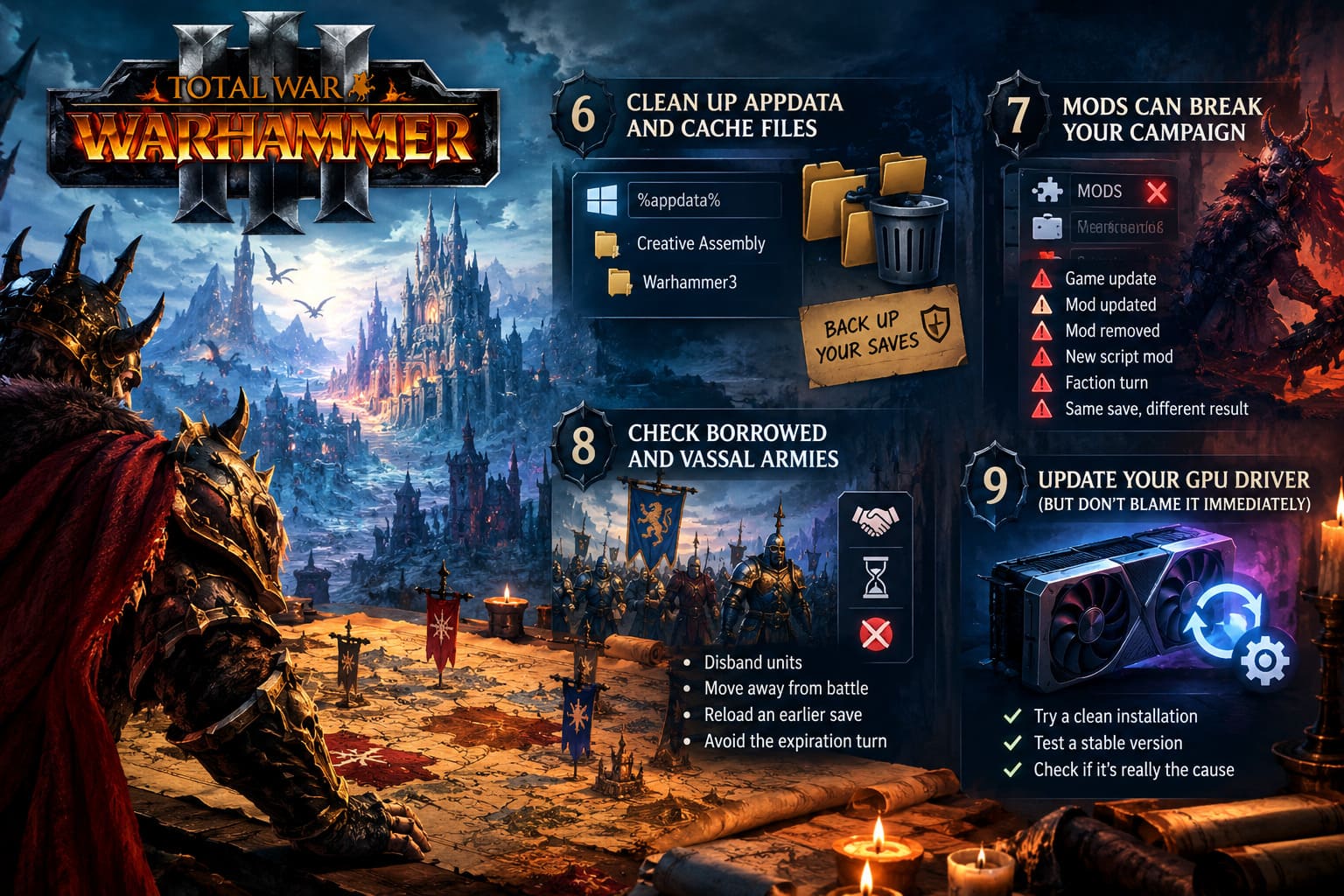
You can access the relevant Creative Assembly data through Windows using:
%appdata%
Look for the Creative Assembly → Warhammer3 folders.
Keep your save files somewhere safe before experimenting with configuration or cache cleanup.
The exact folders you should remove can vary depending on the problem and current game version, but clearing old configuration/cache data can be useful when a patch appears to have left the game in an inconsistent state.
I would not blindly delete everything without a backup.
Your campaign saves are much more valuable than the few minutes you might save by skipping that precaution.
7. Mods Can Break an Otherwise Healthy Campaign
If you’re running a heavily modded Immortal Empires campaign, this should be near the top of your troubleshooting list.
A mod doesn’t have to visibly crash the game immediately to cause problems.
A campaign can continue working for dozens of turns after a mod becomes incompatible. Then eventually the game reaches a particular faction, quest, unit, scripted event, or database reference that the mod has changed.
Suddenly: desktop.
The biggest warning signs are:
- The crash began after a game update.
- You recently updated a major mod.
- You removed a mod from an existing campaign.
- You added a new script-heavy mod.
- The crash happens during a faction’s turn.
- The same save works differently with mods disabled.
Be particularly careful with removing major gameplay or script mods from an active campaign.
Sometimes adding or removing a cosmetic mod is harmless. Script-heavy campaign modifications are a different story.
For troubleshooting, create a controlled test setup rather than randomly switching dozens of mods on and off.
8. Check Borrowed and Vassal Armies
There is another unusual situation worth checking if your campaign involves a lot of diplomacy.
Warhammer 3’s alliance mechanics can produce some complicated campaign states. If you’re controlling a borrowed army and its rental period is about to expire, pay attention to what happens around the end turn.
If the army is about to be destroyed, returned, or otherwise removed from your control, try changing the situation before ending the turn.
For example, you can:
- Disband borrowed units where appropriate.
- Move the army away from an imminent battle.
- Reload an earlier save.
- Avoid destroying the army on the exact turn the agreement expires.
This isn’t going to explain every end turn crash, but when your CTD appears precisely when an alliance army changes ownership, it’s an obvious variable to investigate.
9. Update Your GPU Driver — But Don’t Blame the GPU Immediately
Graphics drivers are worth checking, especially after a major Warhammer 3 update.
However, there’s an important distinction here.
If your game crashes only during End Turn, while battles and campaign movement are otherwise stable, I wouldn’t immediately assume the GPU is the root cause.
Still, perform a clean driver installation if your driver has become suspicious or you’ve experienced multiple unrelated crashes.
If you’ve recently updated your driver and the problem started immediately afterward, testing a different known-stable driver version can also be useful.
The goal isn’t simply to have “the newest driver.”
The goal is to find out whether the driver is actually involved.
My Recommended Troubleshooting Order
If this were my own Immortal Empires campaign, I wouldn’t try ten fixes simultaneously. That makes it impossible to know what actually solved the problem.
I’d go through them in this order:
- Make a backup of your saves.
- Reproduce the crash and identify the faction causing it.
- Load a save from 2–3 turns earlier.
- Change your actions and diplomatic decisions.
- Disable problematic or recently updated mods.
- Verify the Steam installation.
- Clear relevant Warhammer 3 configuration/cache data.
- Return CPU, GPU and RAM settings to stock.
- Check CPU temperatures and system stability.
- Investigate console/debugging options if the same faction remains responsible.
This approach starts with campaign-specific fixes before moving into deeper hardware troubleshooting.
Best Beginner Factions in Total War: Warhammer 3 Immortal Empires (2026 Guide)
How to Prevent Future Warhammer 3 Campaign Crashes
The best end turn crash fix is the one you never need because you still have a working save.
I strongly recommend keeping multiple manual saves during long Immortal Empires campaigns.
Don’t rely entirely on one automatic save.
A simple rotation of saves every 5–10 turns gives you several recovery points if something eventually goes wrong.
I’d also avoid making huge mod changes halfway through a campaign. If you want to try a completely different overhaul, starting a fresh campaign is usually safer than rebuilding the mod list underneath a 100-turn save.
And when you notice the game behaving strangely — repeated script errors, unusual AI behavior, missing UI elements, sudden freezes — make a manual save immediately.
That save might become extremely valuable later.
Total War Warhammer 3 Beginner Guide: Best Factions and Essential Campaign Tips (2026)
Final Thoughts
The frustrating thing about the Total War: Warhammer 3 End Turn Crash is that there isn’t one universal fix. The same symptom can come from a broken AI action, a corrupted campaign state, a mod conflict, unstable hardware, or a problematic configuration file.
That’s why I wouldn’t start by reinstalling the entire game.
First, watch which faction causes the crash. Then test an older save. Change the campaign’s sequence of events. If that doesn’t work, start looking at mods, files, cache data and hardware stability.
And if you’re dealing with a huge Immortal Empires campaign that you’ve already invested dozens of hours into, don’t give up after the first failed save.
I’ve seen enough strategy games to know that the most valuable troubleshooting tool is sometimes just having one older save that still works.
Back up your campaign, change one variable at a time, and work backward from the exact moment the game crashes. With Warhammer 3, that approach is often far more productive than throwing every possible fix at the problem at once.