Nivalis Nights Crashing on Launch: Comprehensive Fixes, Black Screen Guide & Stability Workarounds
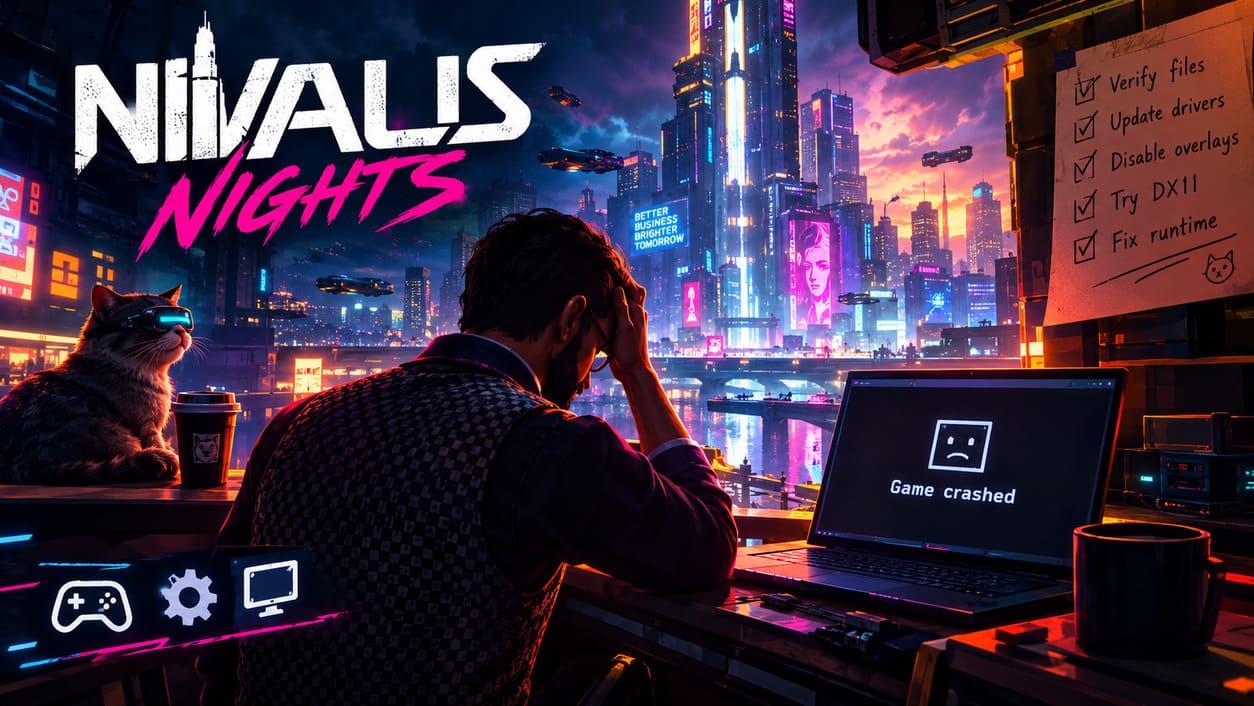
There is a particular kind of frustration that PC gamers know all too well: you finally install the game you have been waiting for, hit Play, and instead of a title screen you get a black screen, a fatal error, or an instant trip straight back to the Windows desktop. That is exactly the sort of problem that can take the excitement out of a new release. Nivalis Nights has plenty going for it on paper, especially for anyone who enjoyed the atmosphere and unusual world-building of Cloudpunk, but a beautiful cyberpunk simulation is not much use if the game refuses to reach the main menu.
What makes this sort of problem especially annoying is that there is rarely one universal cause. A launch crash can come from corrupted game files, an outdated GPU driver, conflicting overlay software, insufficient memory, a broken runtime, or simply a graphics API that does not agree with your particular PC. I have dealt with enough PC games over the years to know that randomly changing ten settings at once usually makes troubleshooting worse. The better approach is to work through the basics first, test the game, and only then move toward more invasive fixes.
Fishing in Nivalis Nights: Verified Sourcing Mechanics and Restaurant Economy Guide
Why Nivalis Nights Can Crash Before the Main Menu
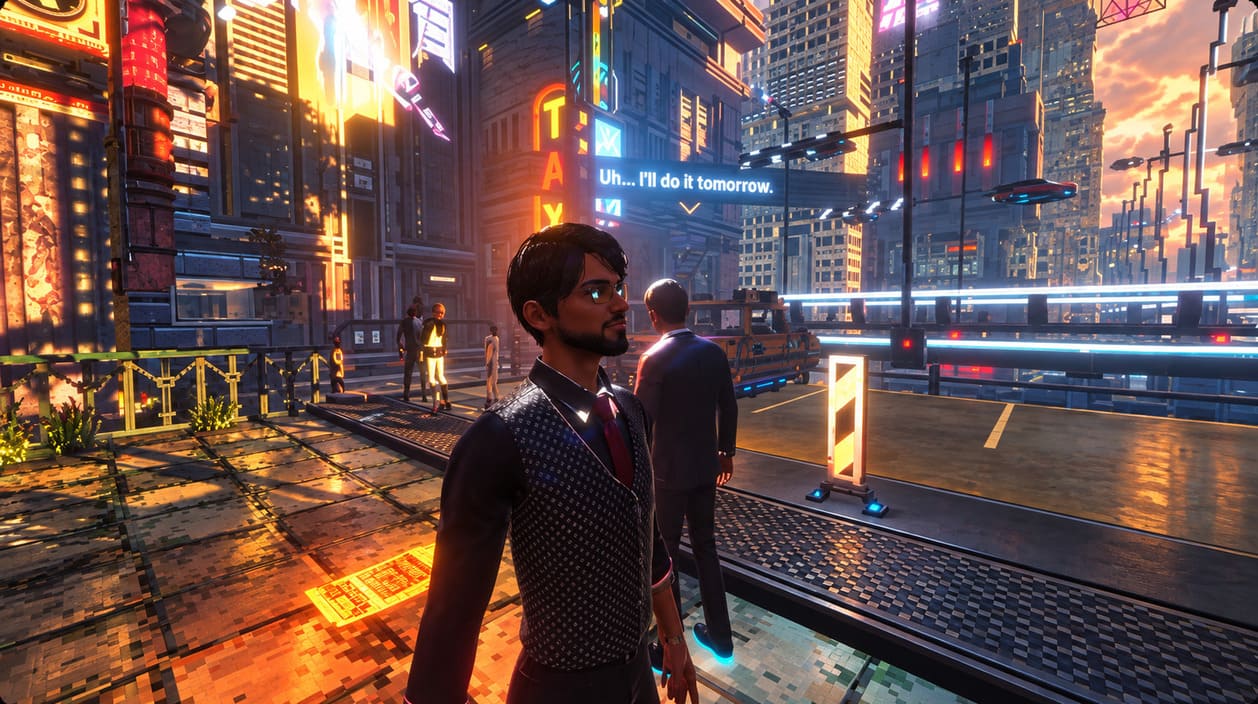
Nivalis Nights is built around a dense cyberpunk city where the game has to juggle more than just what is directly in front of the player. Weather effects, lighting, crowds, environmental details, interiors, businesses, and other simulation systems can all contribute to the workload during startup. When an engine is trying to initialize a large amount of data at once, even a relatively small problem with drivers or local files can stop the entire process before you ever get control of your character.
That is why I would not immediately blame the graphics settings when the game crashes on launch. If you cannot reach the menu, lowering shadows or disabling ray tracing obviously is not going to help yet. Start with the foundations: hardware, storage, game files, drivers, Windows components, and background software.
Check Your PC Before Doing Anything Complicated
The first thing I would do is make sure the computer is actually comfortable with the game’s basic requirements. Modern simulation-heavy games can behave strangely when a system is right on the edge of the minimum specification, particularly when Windows is already consuming a large amount of RAM in the background. If your PC is below the expected hardware level, some crashes may not be fixable through software tweaks.
| Component | Baseline To Check |
|---|---|
| Operating System | 64-bit Windows 10 or Windows 11 |
| CPU | Intel Core i5-8400 / AMD Ryzen 5 2600 class or better |
| RAM | 16 GB |
| GPU | GeForce GTX 1060 6 GB / Radeon RX 580 8 GB class or better |
| Storage | SSD with sufficient free space |
RAM deserves special attention. If you are trying to launch the game with a browser containing dozens of tabs, Discord, recording software, hardware monitoring utilities, and several other applications running, close as much as possible before testing. An 8 GB system can be particularly problematic for modern games, while even 16 GB can become uncomfortable if a lot of memory is already occupied.
Verify the Nivalis Nights Game Files on Steam
This is one of those fixes that sounds almost too simple, but I always try it early. Game installations can become damaged after interrupted downloads, failed updates, storage errors, or other problems that are completely invisible until the executable tries to load the affected file. There is no reason to start reinstalling Windows or messing around with the registry before confirming that the installation itself is healthy.
- Open the Steam desktop client.
- Go to your Library.
- Right-click Nivalis Nights and choose Properties.
- Open Installed Files.
- Select Verify integrity of game files.
- Let Steam finish the scan and replace anything it finds to be missing or damaged.
Once the verification finishes, launch the game again before changing anything else. If it suddenly works, you have saved yourself a lot of unnecessary troubleshooting. If Steam reports that files had to be reacquired but the game still crashes, then move to the next step rather than repeatedly verifying the installation.
Update or Clean Install Your Graphics Driver
GPU drivers are another obvious suspect, especially when the symptom is a black screen or a crash during graphics initialization. A game can technically be installed perfectly and still fail because the driver environment on the PC has become messy after several updates. This is particularly worth investigating if other games have recently started behaving strangely too.
First, download the appropriate current driver directly from your GPU manufacturer’s official support page. If a normal driver update does nothing, a clean installation can be worth trying. More advanced users can use Display Driver Uninstaller (DDU) in Windows Safe Mode to remove existing display-driver components before installing the fresh driver package.
I would not jump straight to DDU for every single launch crash. It is a useful troubleshooting tool, but it is considerably more involved than simply updating the driver. If Nivalis Nights is the only game that crashes and everything else works normally, test the easier solutions first.
Try Running the Game Without Fullscreen Optimization
Windows’ display handling can occasionally cause problems with games that are trying to take control of the screen during startup. A black screen that eventually becomes a crash is one situation where experimenting with fullscreen behavior makes sense. It is not guaranteed to fix anything, but it is easy to test and easy to undo.
Open Steam, right-click Nivalis Nights, select Manage > Browse local files, and locate the game’s main executable. Open its Properties window, select the Compatibility tab, and try enabling Disable fullscreen optimizations. You can also test administrator privileges if the game appears to have trouble creating or accessing configuration files, although I would avoid running everything as administrator permanently unless there is a specific reason to do so.
Test Another Graphics API
One of my favorite troubleshooting tricks when a PC game refuses to launch is testing a different graphics API, provided the game supports one. DirectX 12 offers useful modern features, but newer does not automatically mean more stable on every combination of GPU, driver, Windows build, and game engine. Sometimes an older rendering path gets you through startup when the default option does not.
If Nivalis Nights supports the relevant launch parameter, try adding -dx11 in Steam’s Launch Options. Open the game’s Properties, stay on the General tab, find Launch Options, enter the parameter, and start the game. If that changes nothing, remove it and test a windowed option such as -windowed or -noborder if supported by the game.
The important part here is to test one parameter at a time. Do not throw a huge collection of launch commands into Steam and then try to figure out which one actually helped. PC troubleshooting becomes much easier when every change has a clear purpose.
Turn Off Overlays and Monitoring Software
This is another fix I have used countless times across different PC games. Overlay applications hook into the game while it is launching so they can display notifications, performance statistics, chat windows, recording controls, or other information. Usually that works perfectly, but occasionally two pieces of software do not play nicely together.
For a clean test, temporarily disable or completely exit:
- Steam Overlay
- Discord Overlay
- NVIDIA or AMD in-game overlays
- MSI Afterburner and RivaTuner Statistics Server
- Other GPU tuning, recording, or performance-monitoring utilities
Do not assume that minimizing these programs is enough. Some utilities continue running in the system tray or as background processes. For troubleshooting, I prefer a genuinely clean launch with unnecessary overlays closed rather than simply hidden.
Repair Microsoft Visual C++ and DirectX Components
Sometimes the game executable itself is perfectly healthy but one of the shared Windows components it expects to use is damaged or missing. Microsoft Visual C++ Redistributables are particularly common dependencies for PC games, and problems with them can produce remarkably unhelpful startup errors.
Install or repair the supported Microsoft Visual C++ Redistributable packages appropriate for your system, including both x64 and x86 versions where applicable. It is also worth making sure the required DirectX components are present. After repairing these dependencies, restart Windows before trying Nivalis Nights again.
This step is not glamorous, and it certainly does not produce screenshots worth posting online, but boring fixes are often the ones that work. A game crashing immediately with no useful error message is exactly the sort of situation where missing runtime components should be considered.
Be Careful With Antivirus Exclusions
Security software can occasionally interfere with newly installed games, particularly when an executable behaves differently from the applications Windows normally sees. If the game is being blocked or quarantined, that could explain why it closes immediately. Check Windows Security and your third-party antivirus history first to see whether anything related to the game has actually been blocked.
I would not recommend blindly excluding the entire Steam library from antivirus protection. That creates a much larger security hole than necessary. If you have confirmed that a legitimate game executable is being incorrectly blocked, use the narrowest possible exclusion and only for software you trust.
What I Would Try First
When troubleshooting a launch crash, I like to work from the least invasive fix to the most involved one. That saves time and makes it easier to identify the actual cause instead of changing half the computer and never knowing what solved the problem.
- Restart Windows and close unnecessary background applications.
- Verify the Steam installation files.
- Update the GPU driver.
- Disable overlays and monitoring tools.
- Test windowed mode or another supported graphics API.
- Repair Visual C++ and DirectX components.
- Investigate antivirus blocks.
- Use a clean GPU-driver installation if normal updating fails.
That order is deliberate. There is no point spending an hour inside Safe Mode if Steam simply downloaded a broken file five minutes ago. Likewise, I would not start editing registry entries or deleting random folders from the Windows directory just because a game displays a black screen. Good PC troubleshooting is usually more about being methodical than being aggressive.
When None of These Fixes Work
There is always a point where you have to accept that the problem may be on the game’s side rather than yours. New releases can contain hardware-specific bugs that only appear on particular combinations of graphics cards, processors, Windows builds, resolutions, or driver versions. If every other demanding game runs normally and Nivalis Nights continues crashing after the standard checks, that is useful evidence in itself.
At that stage, collect useful diagnostic information rather than simply posting that the game is broken. A DxDiag report, crash logs, exact GPU and CPU models, Windows version, driver version, and the point at which the crash occurs give developers something actionable. If the game generates crash dumps, include those through the appropriate official support channel as well.
My Take on Nivalis Nights PC Stability
I am willing to tolerate a few rough edges in a big simulation game at launch, especially one attempting to combine a living city with business management, exploration, interiors, weather, lighting, and a strong visual identity. What I am less willing to tolerate is spending an evening troubleshooting a title that cannot even reach its first menu. Still, that distinction matters: a launch problem caused by a corrupted local file is very different from a reproducible engine bug affecting a whole group of players.
If you are dealing with Nivalis Nights crashing on launch, a permanent black screen, or a fatal error, start with the straightforward fixes instead of immediately reinstalling everything. Verify the files, clean up the driver situation, remove overlays, test the supported launch options, and make sure Windows has the necessary runtime components. If none of that works, document the failure carefully and pass the information to the developers, because some problems genuinely require a game update rather than another hour of PC tinkering.
That is ultimately the frustrating side of PC gaming: there is an enormous amount of flexibility, but that flexibility also means there are hundreds of possible points of failure. The upside is that most launch problems leave clues once you approach them systematically. Hopefully, one of these fixes gets Nivalis Nights past that stubborn black screen and finally lets you experience the neon city instead of staring at your desktop.